
SBT · Tissue Explorer How to Guide.
An overview of the different functions available in Tissue Explorer.
Navigate to https://explorer.spatialbiology.app/
Click on "+ New"
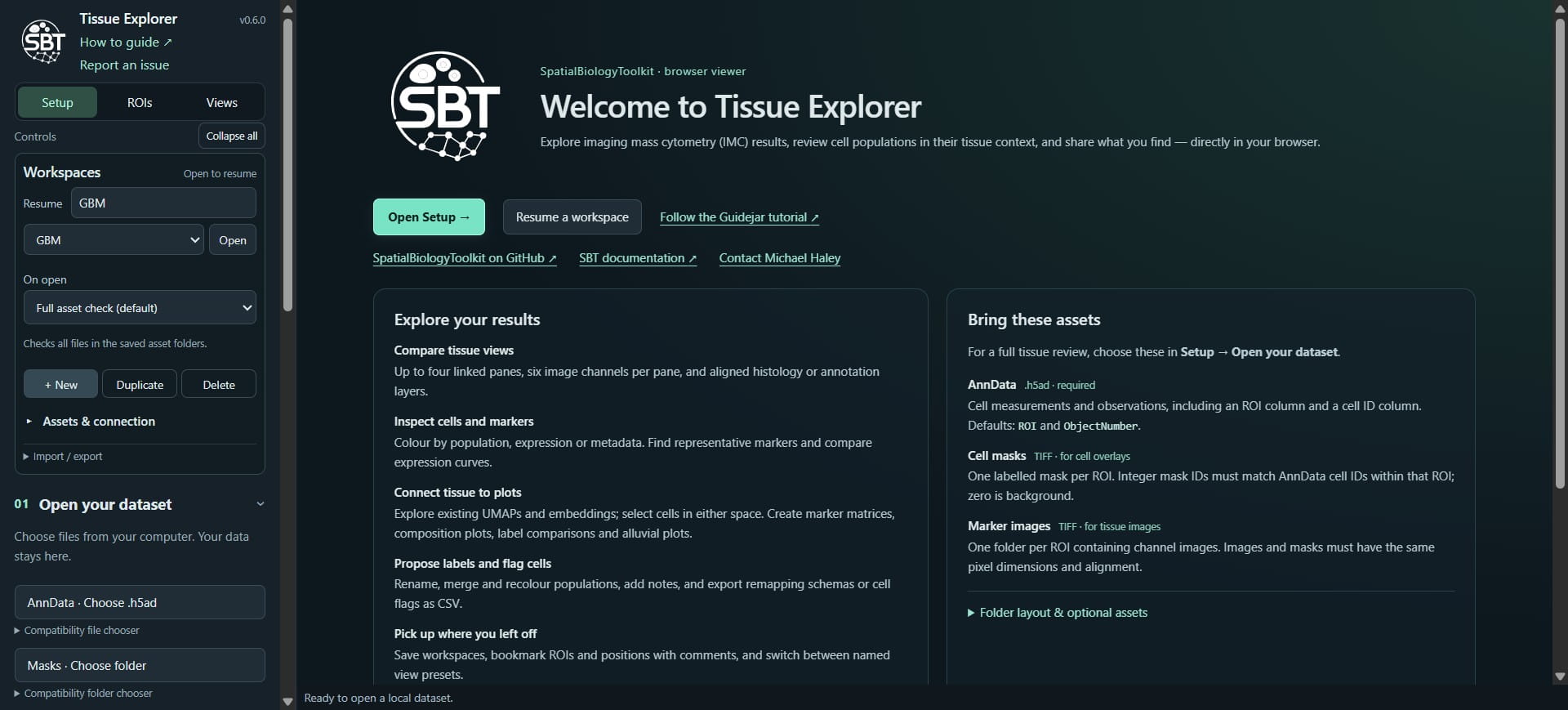
Click on "AnnData · Choose .h5ad" and navigate to local AnnData file
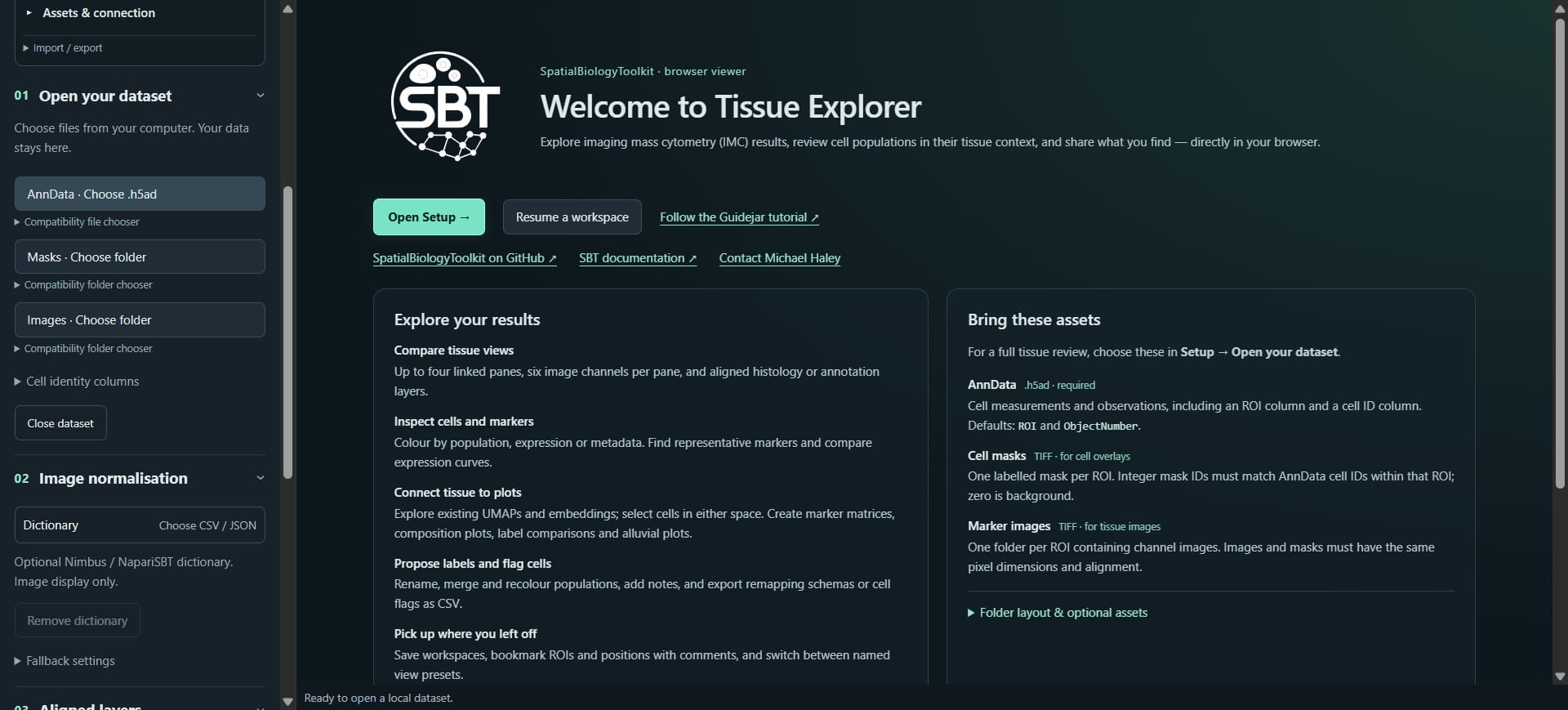
Click on "Masks · Choose folder" and navigate to folder with cell masks
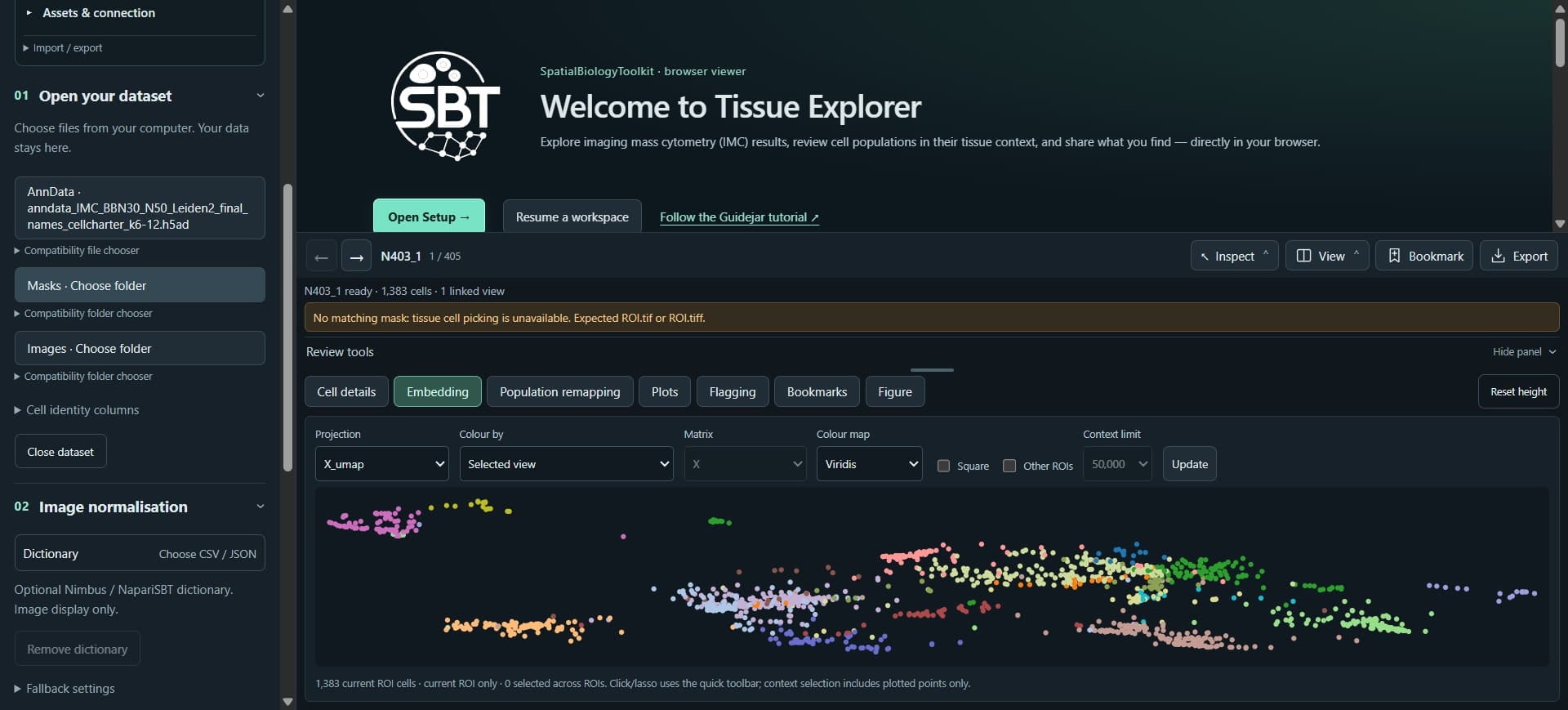
Click on "Images · Choose folder" and navigate to IMC images folder
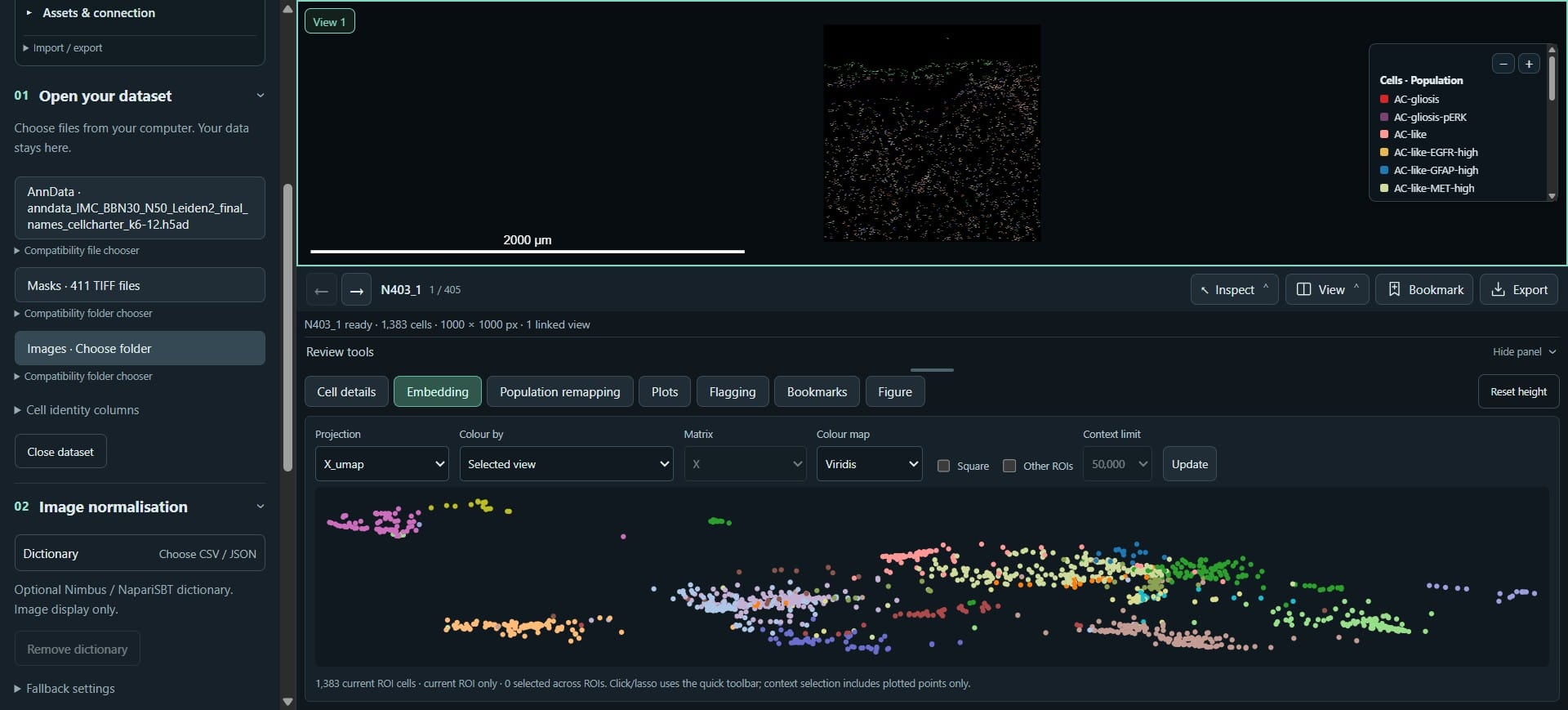
Locate our normalisation dictionary (.csv file)
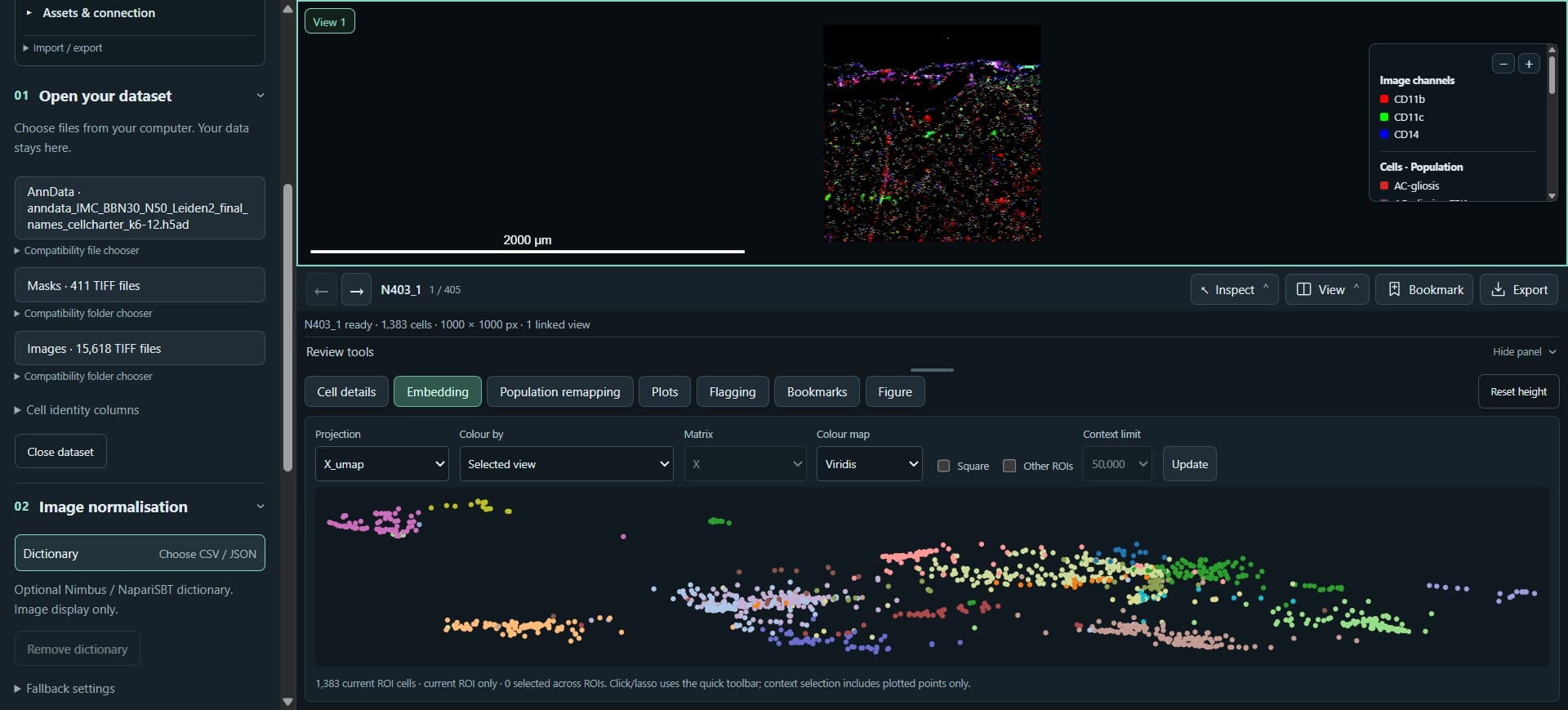
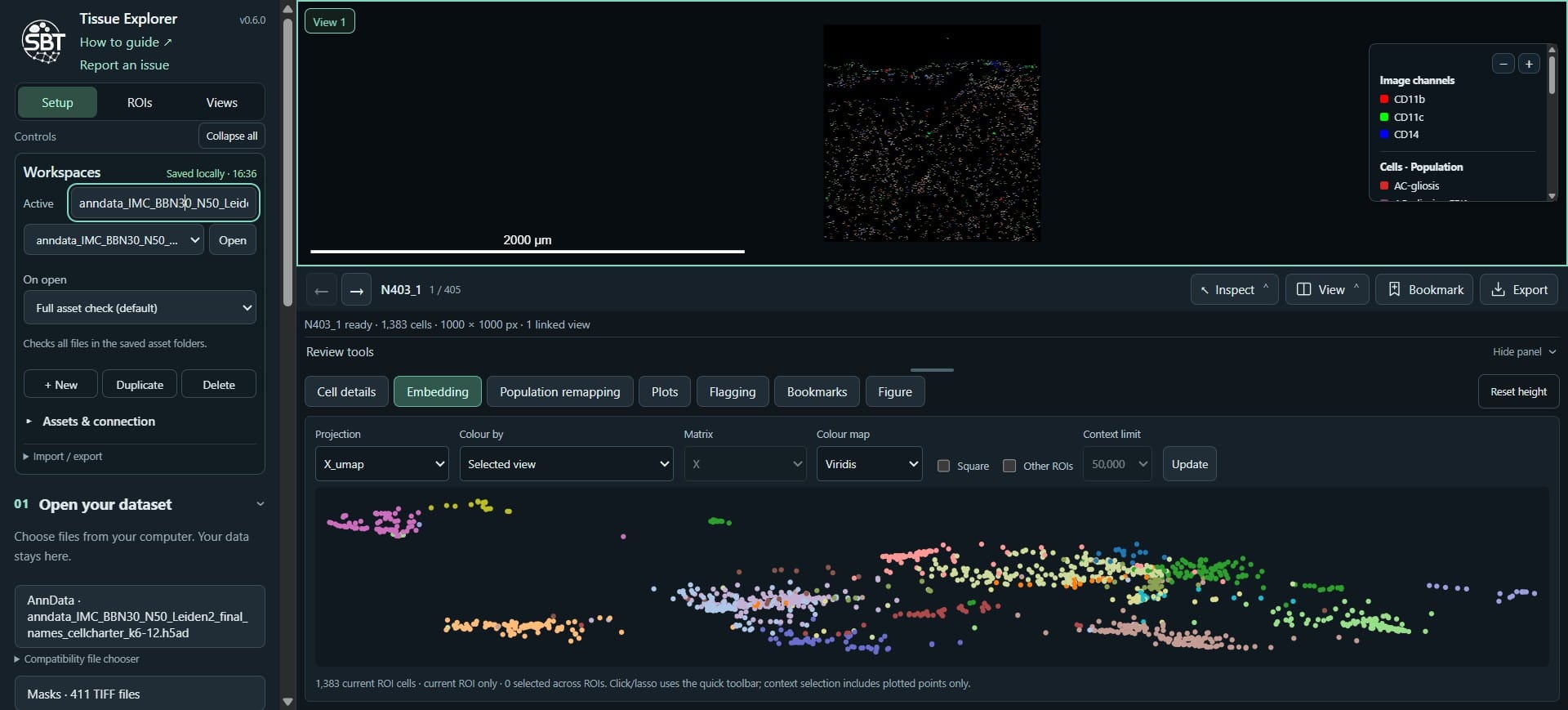
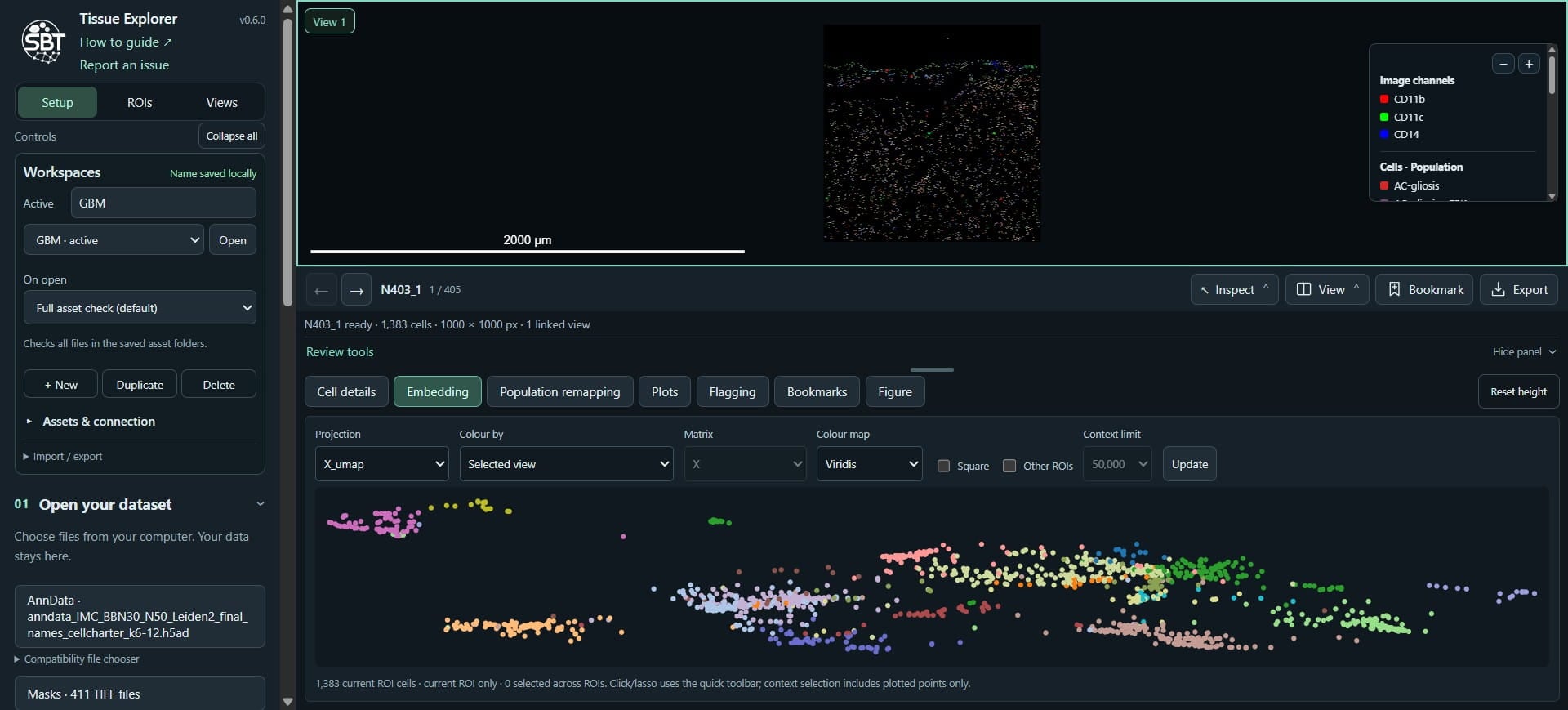
Rename our workspace
Click on "Hide panel"
Click on "Views"
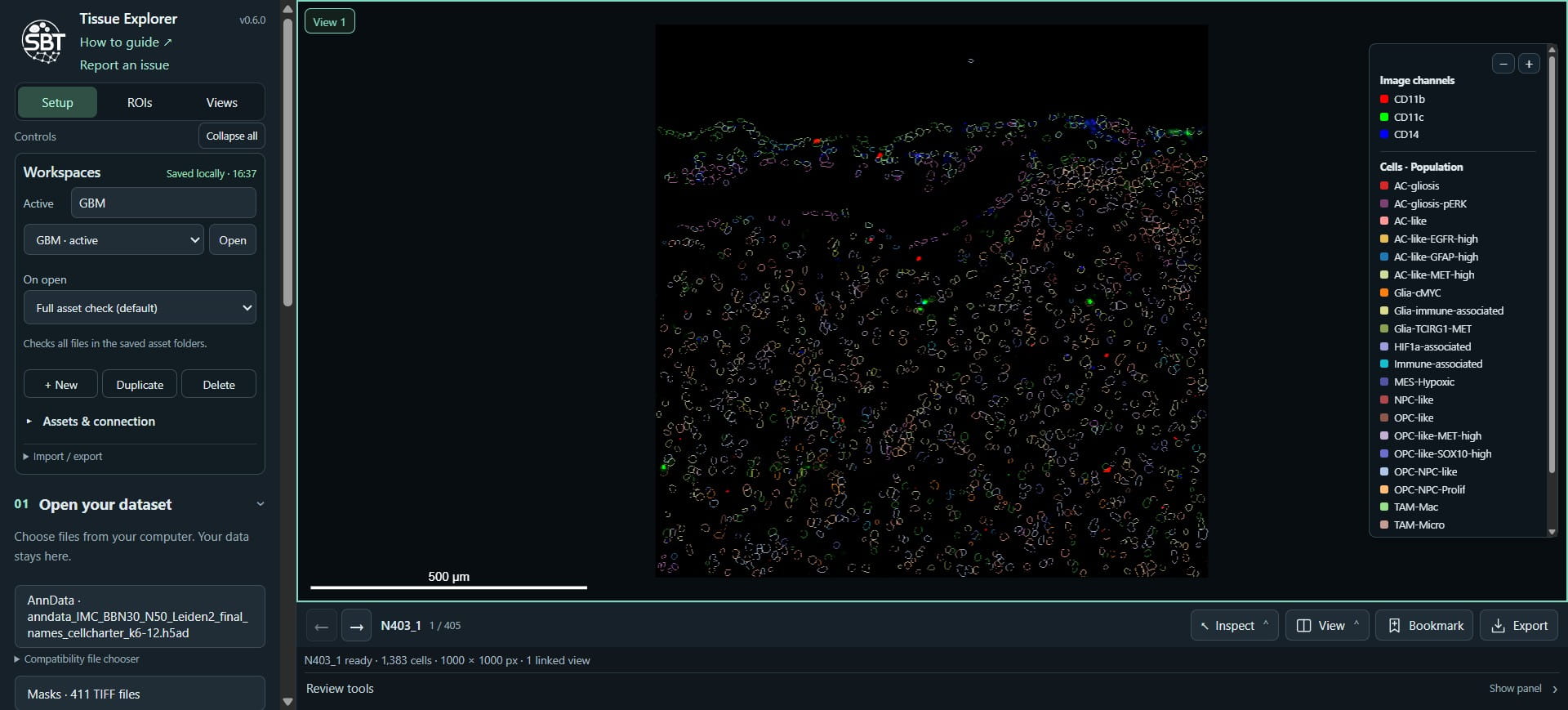
Lets name our first view
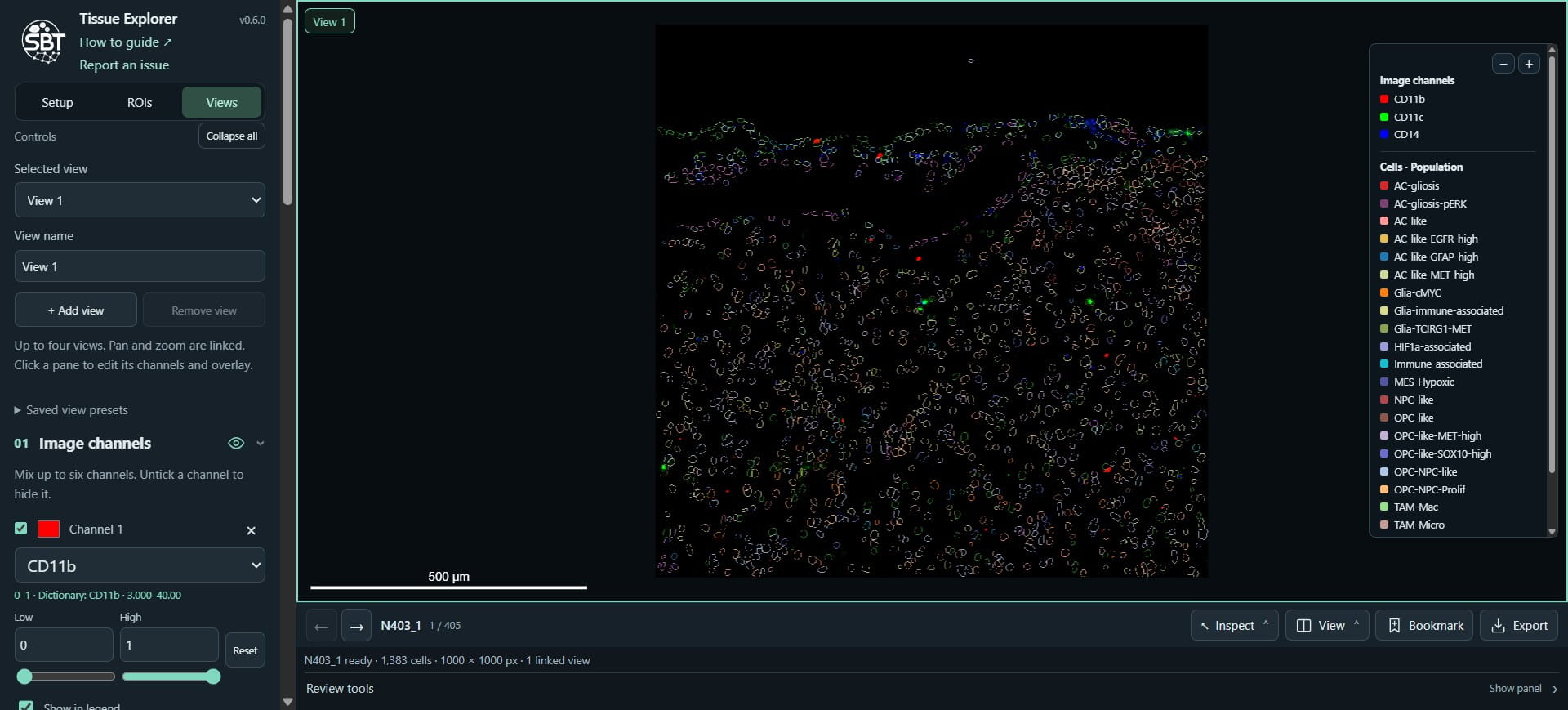
Click this image
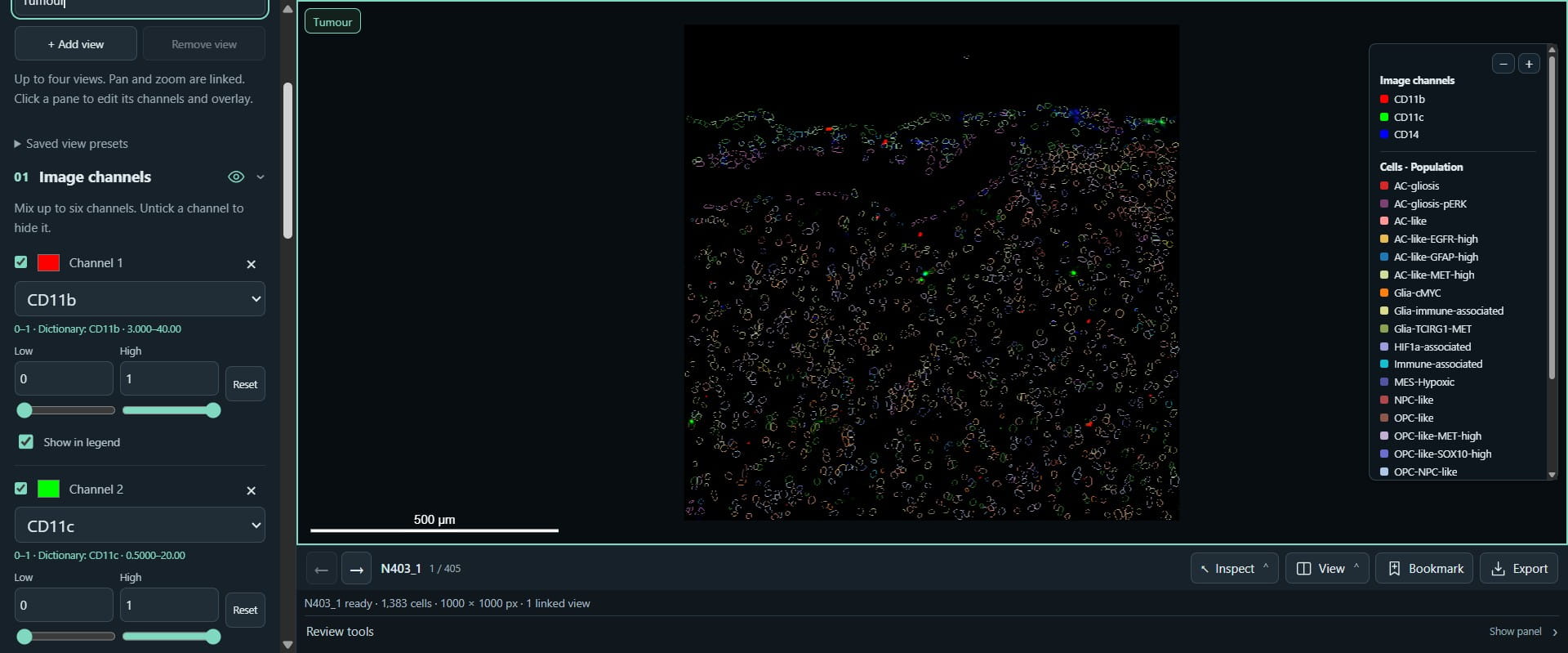
Click on "None"
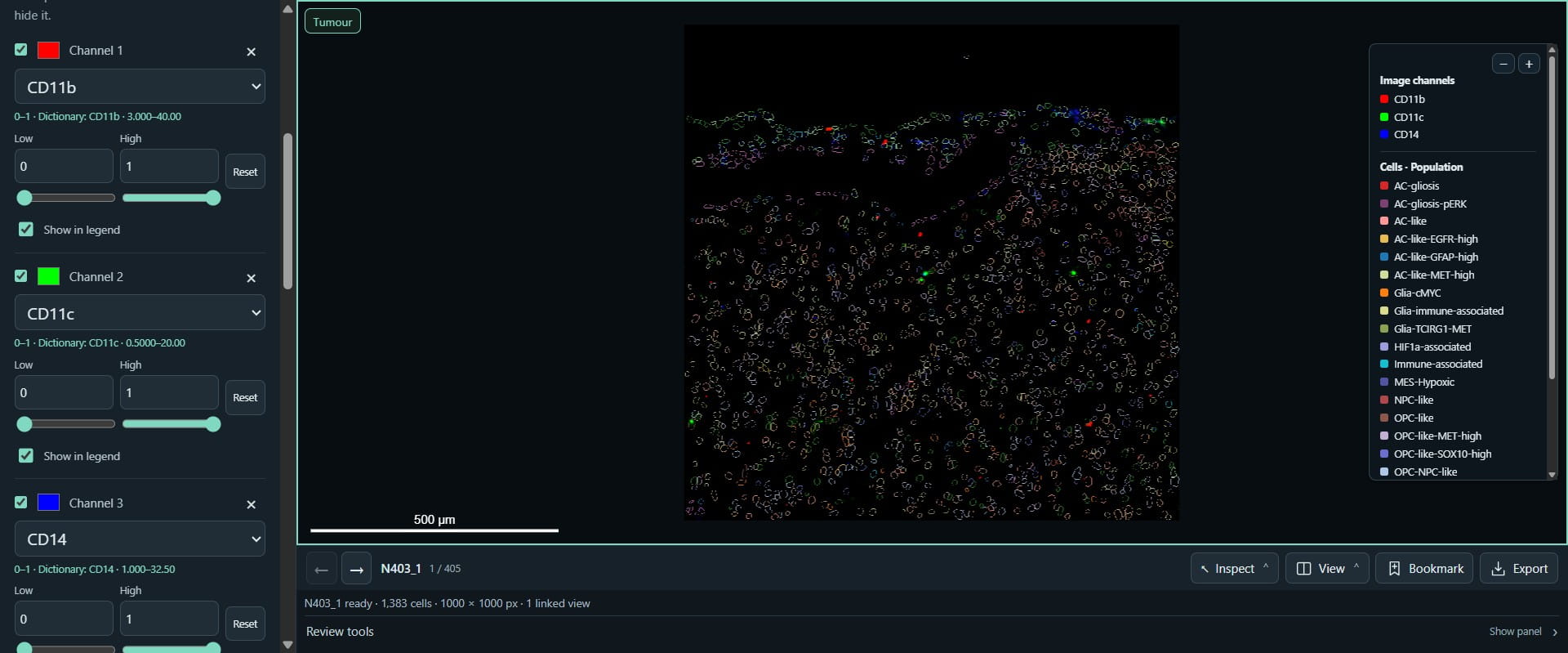
Click on "None"
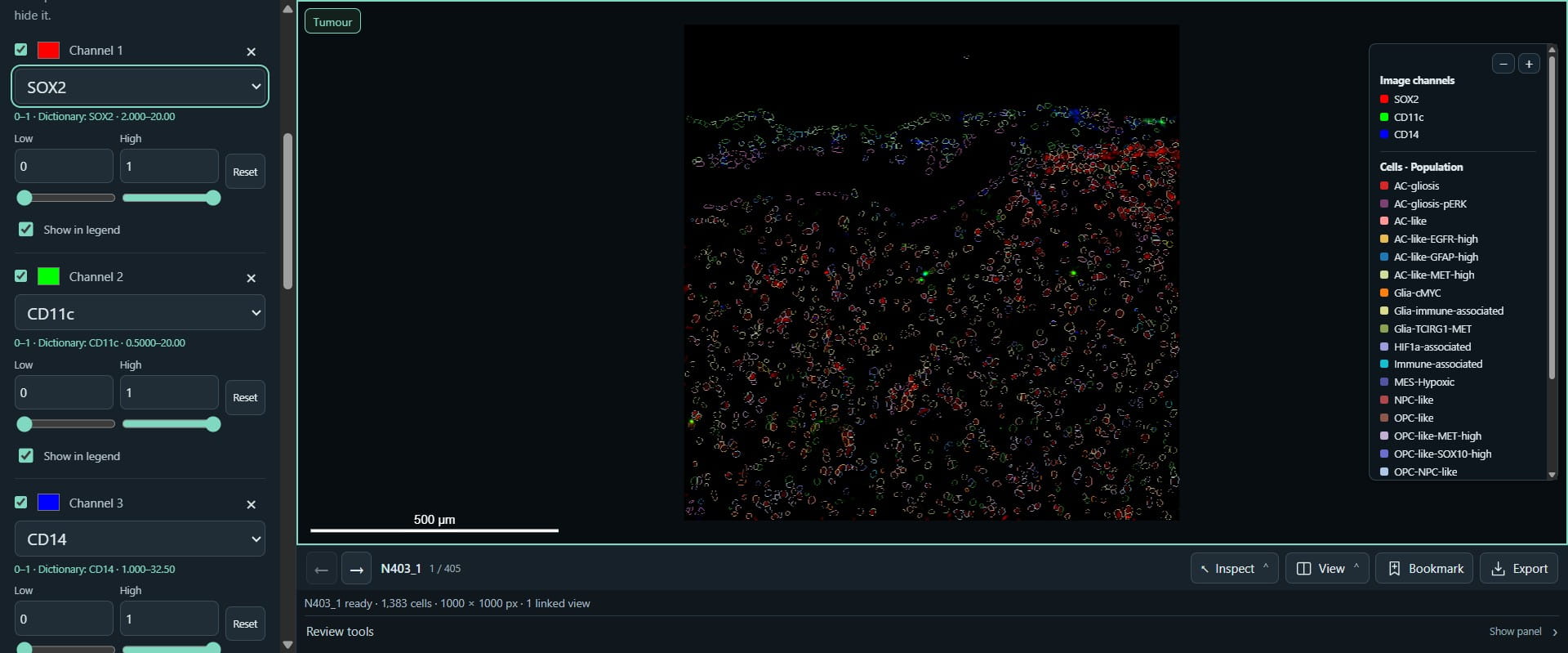
Click on "None"
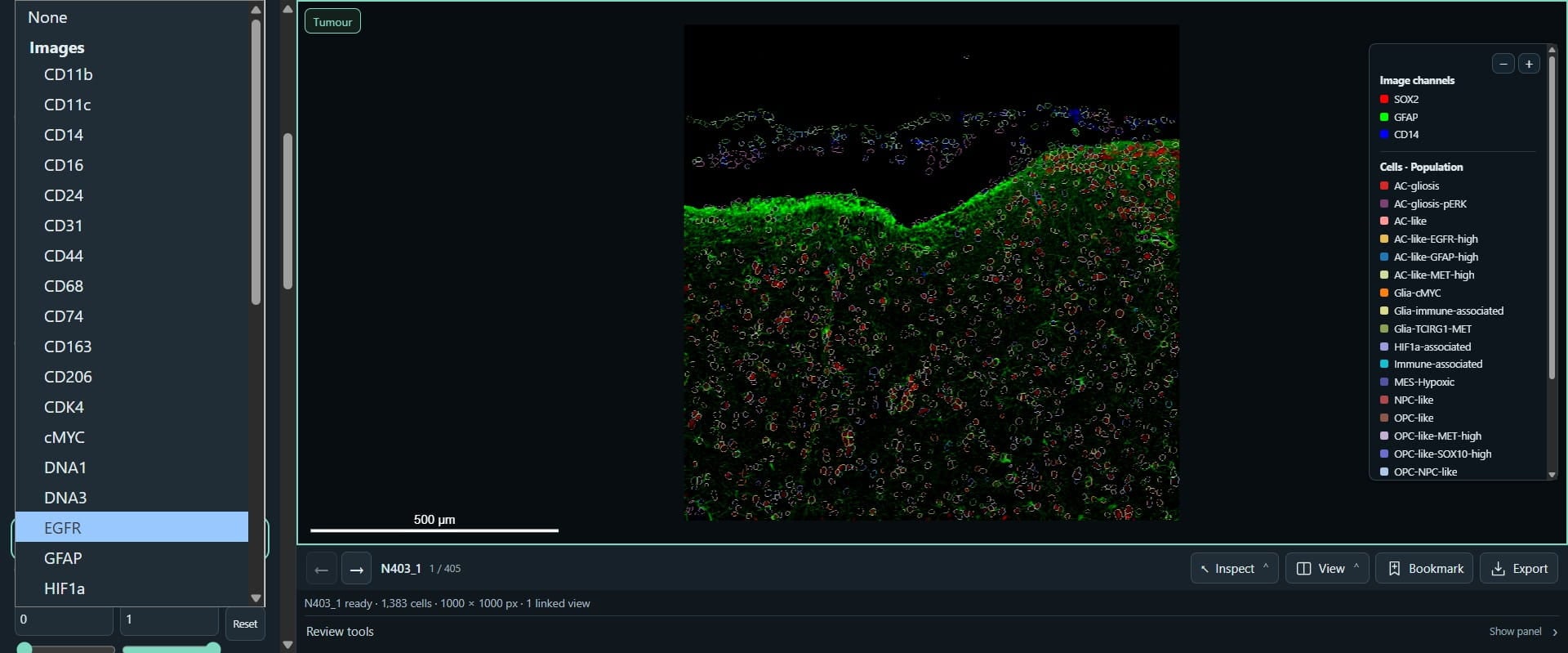
Click here
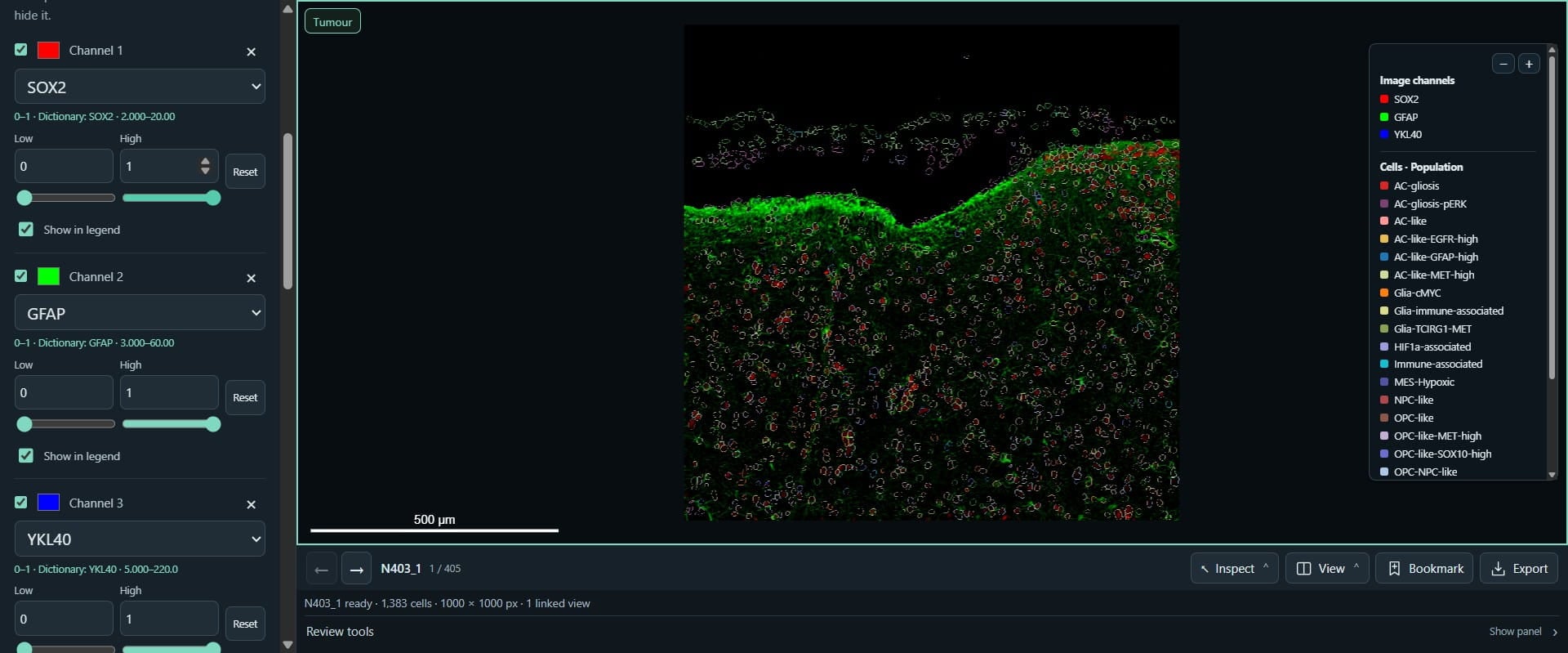
Click here
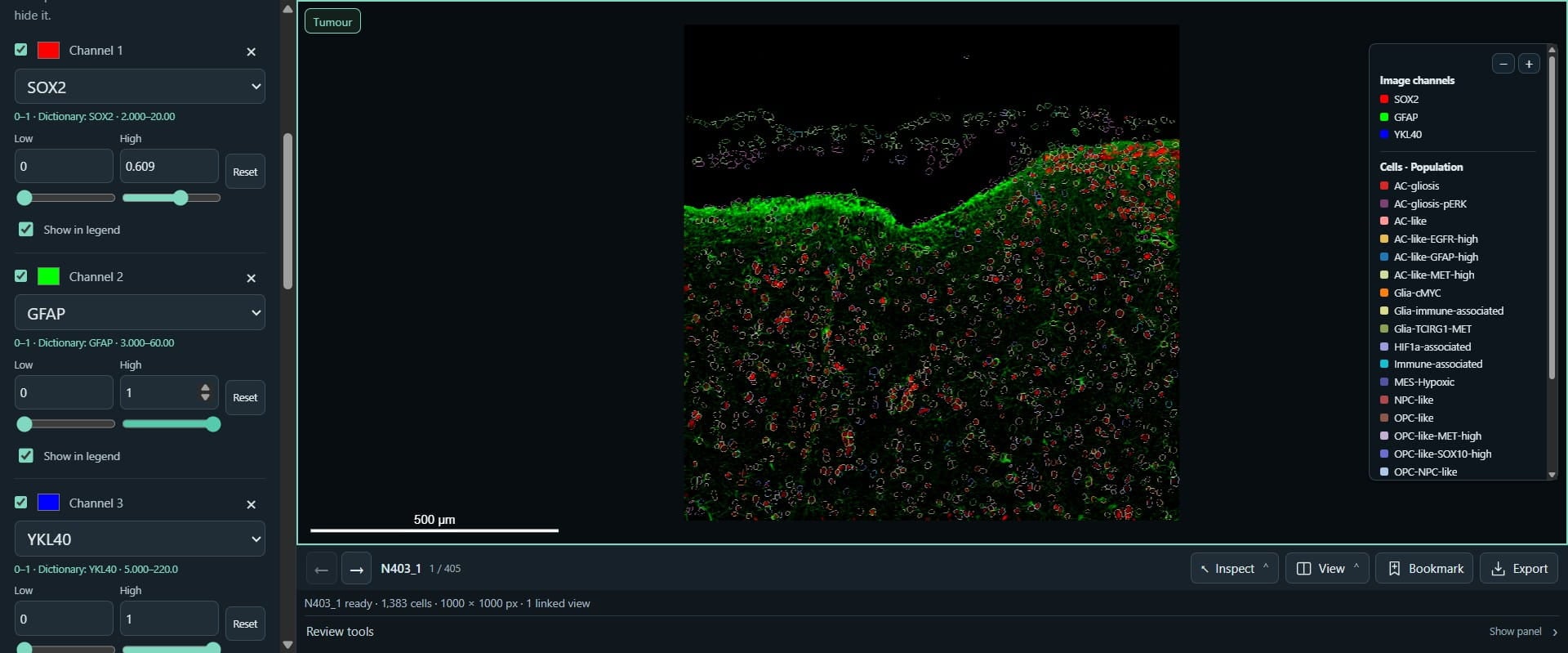
Click here
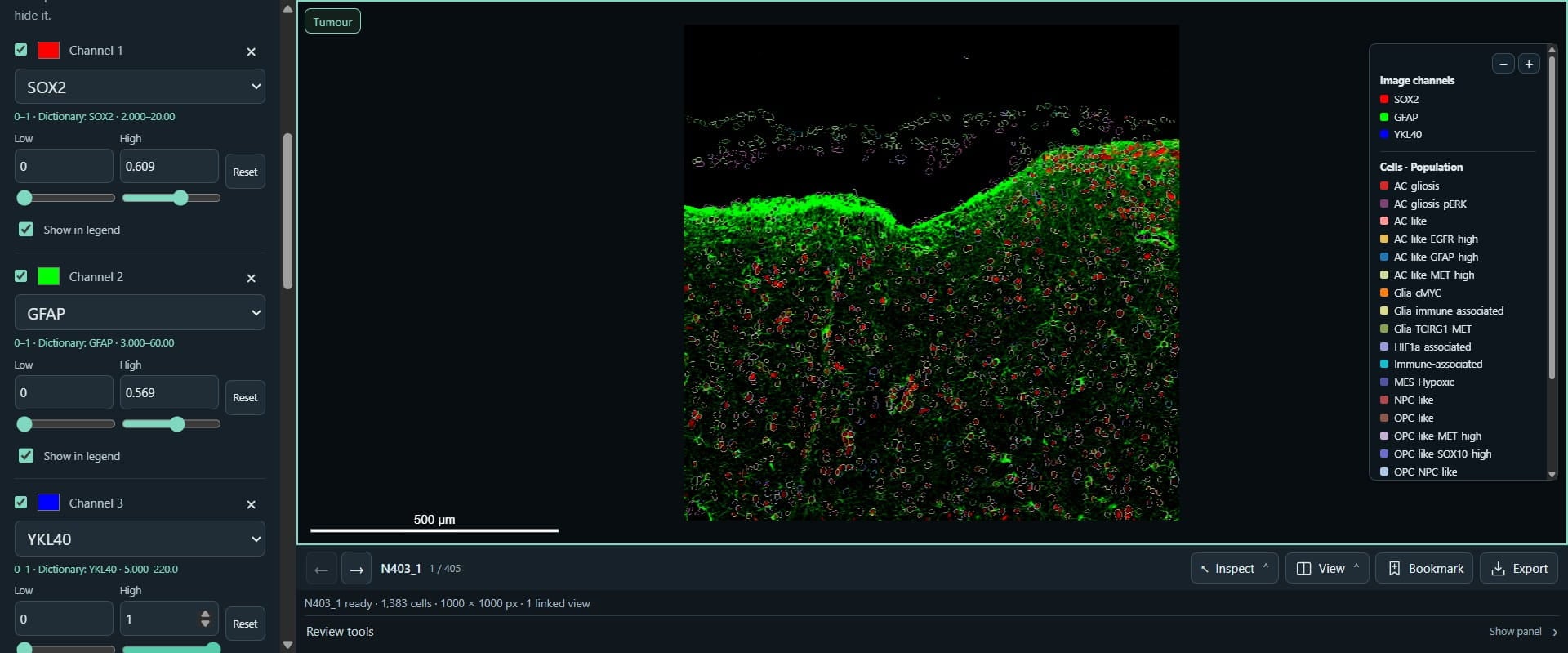
Click on "Cell outlines", where we can select population outlines to show
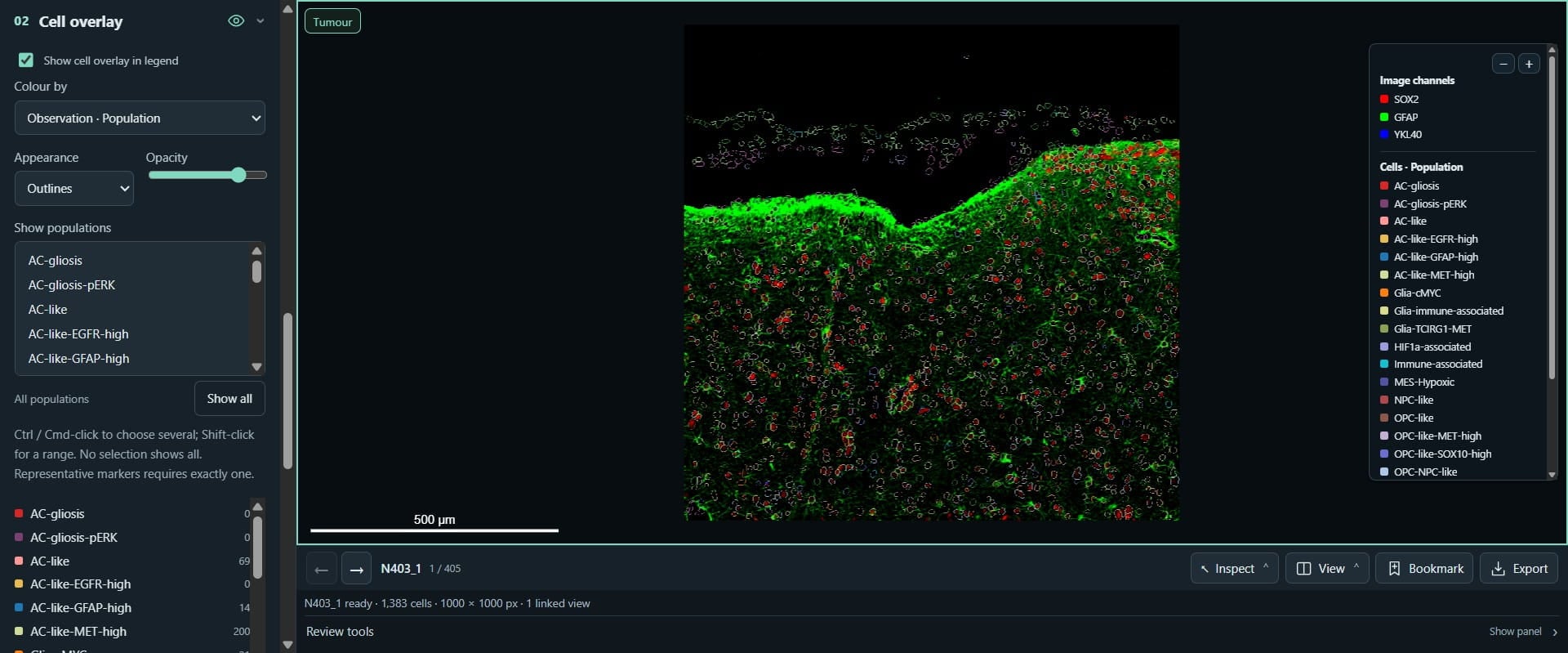
Click on "AC-gliosis-pERK"
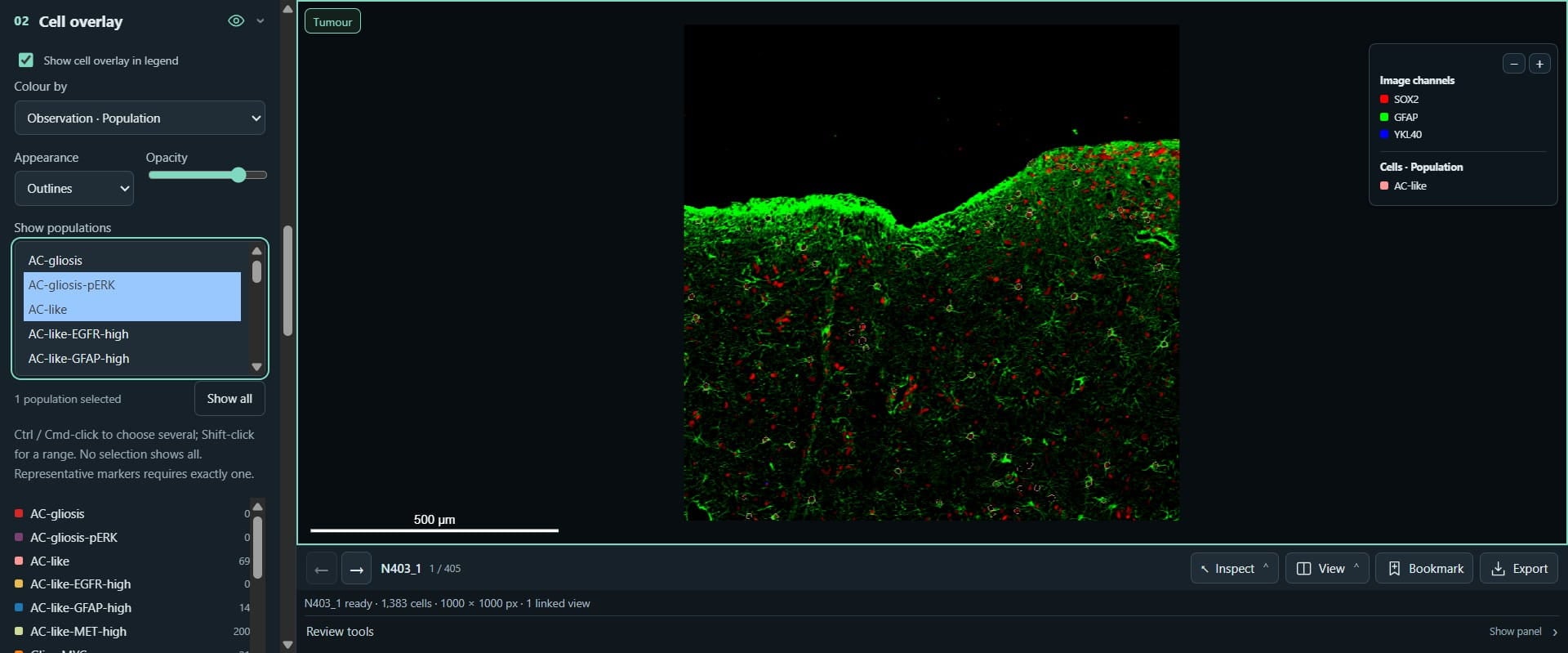
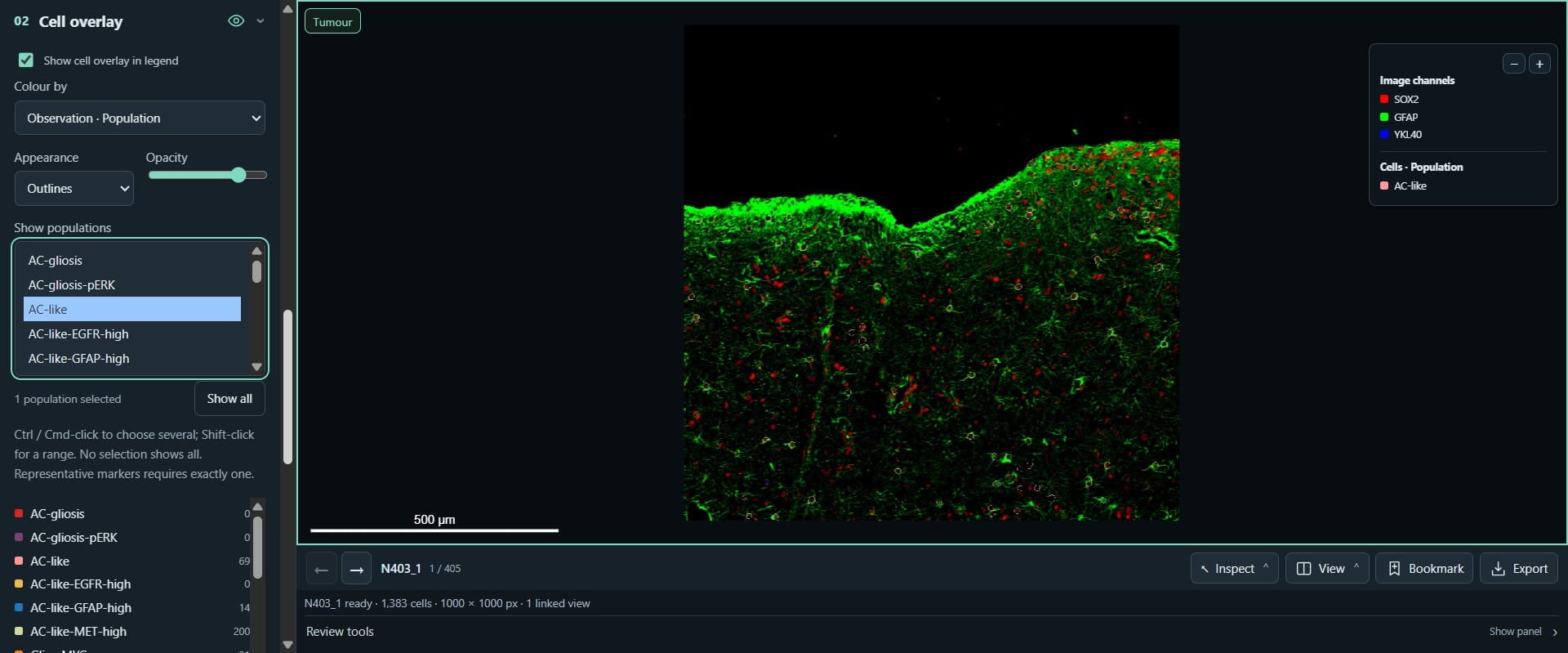
Click this image
Scroll down and click on "Find markers" to suggest markers specific for this population
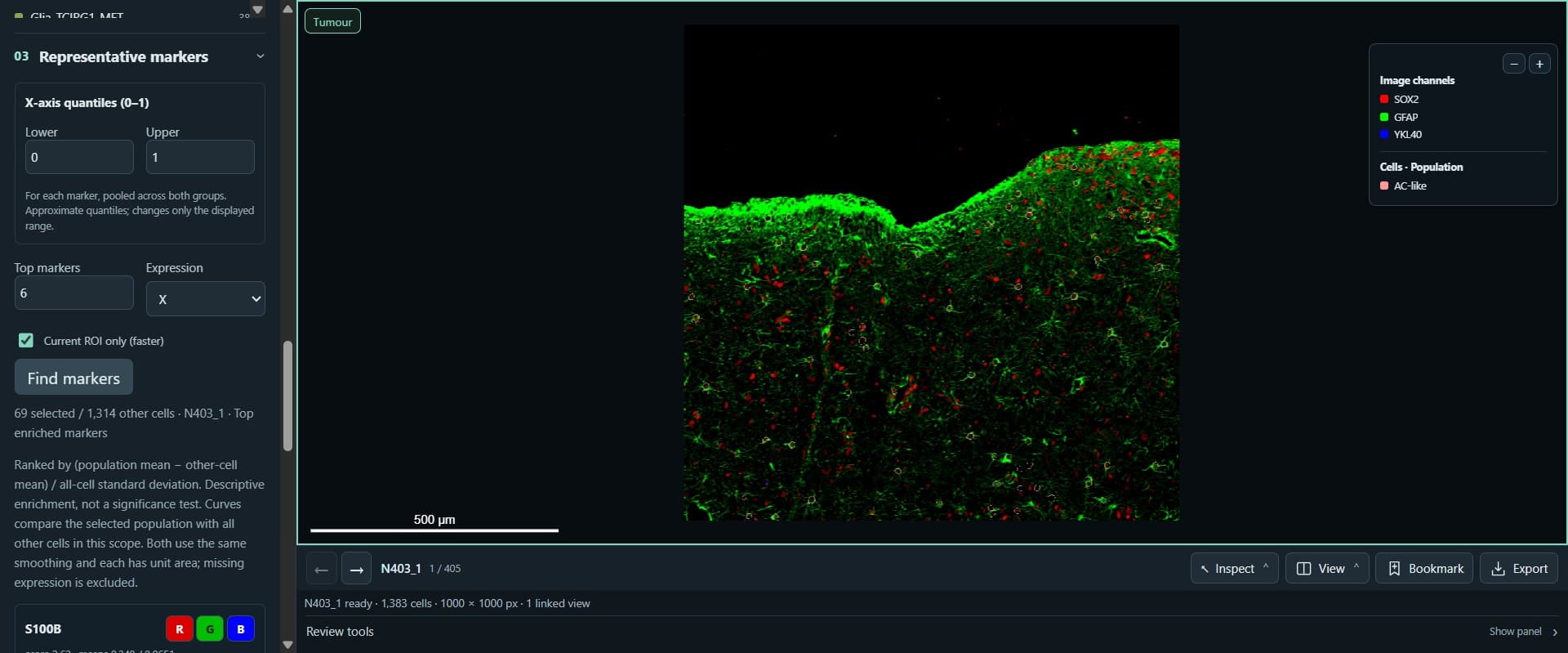
Click on "G"
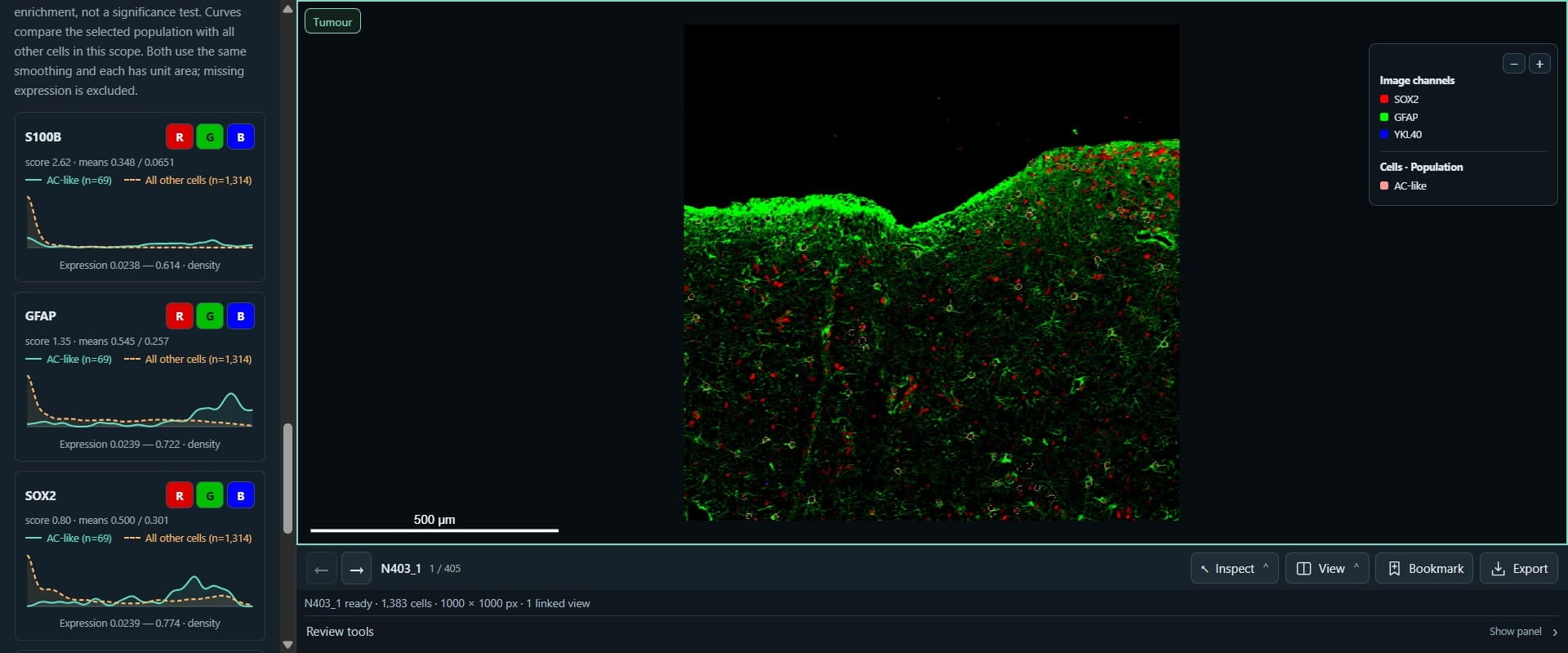
Click on "R"
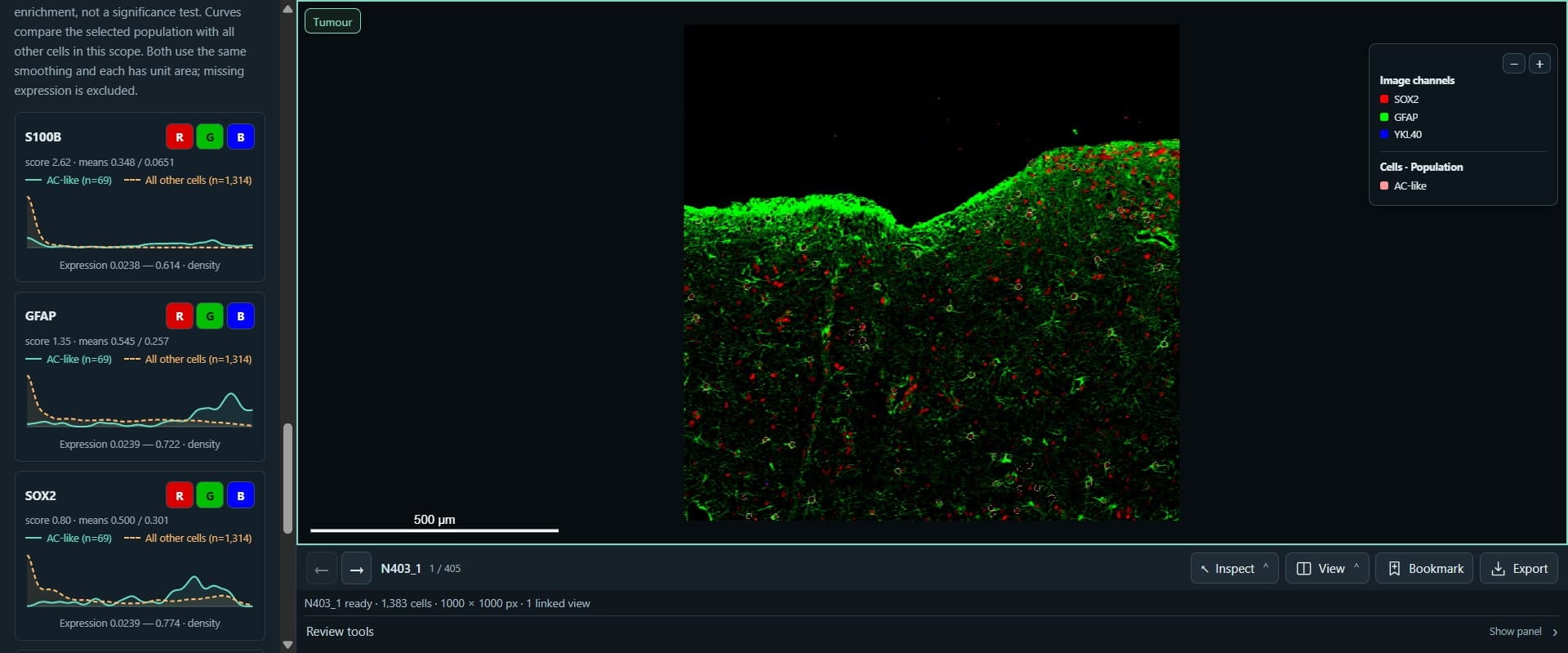
Click this image
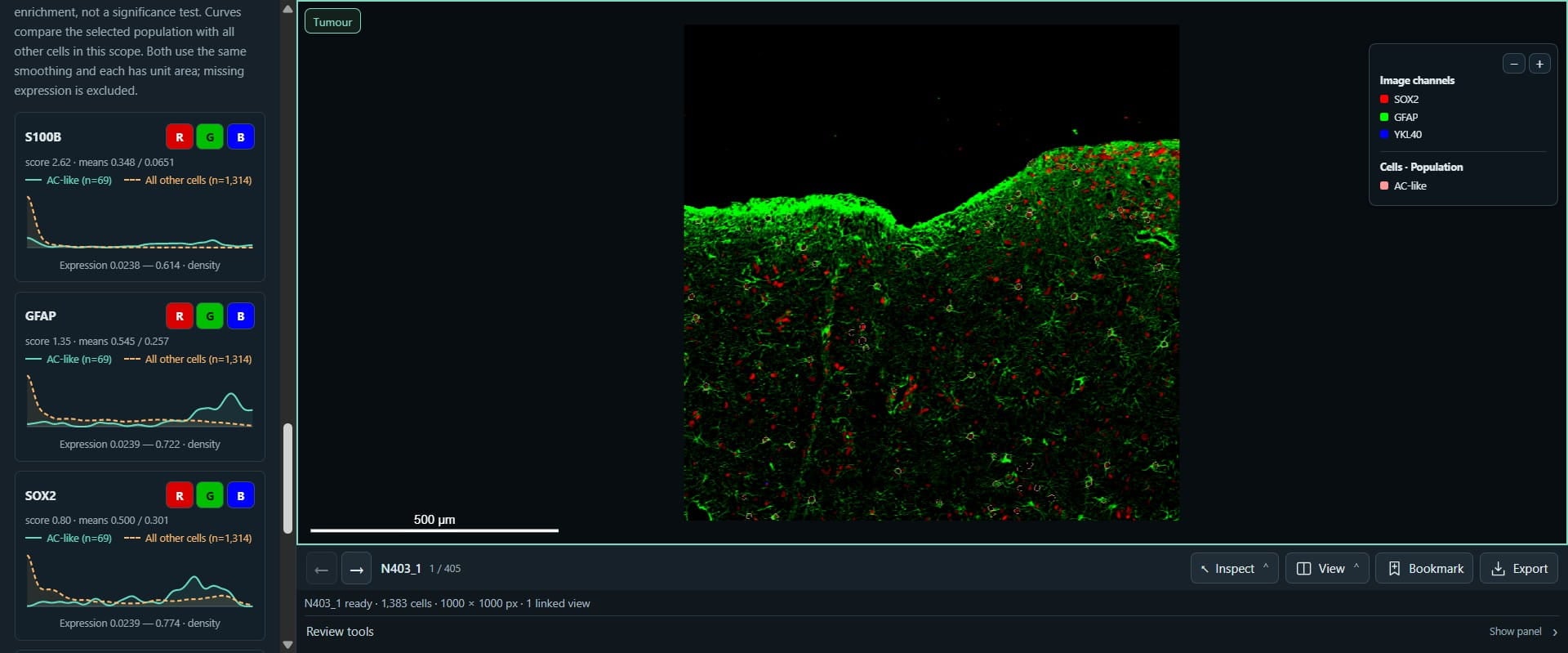
Click on "ROIs", where we can navigate between ROIs, or order them for review. For example, in ascending order of abundance for populations we want to review.
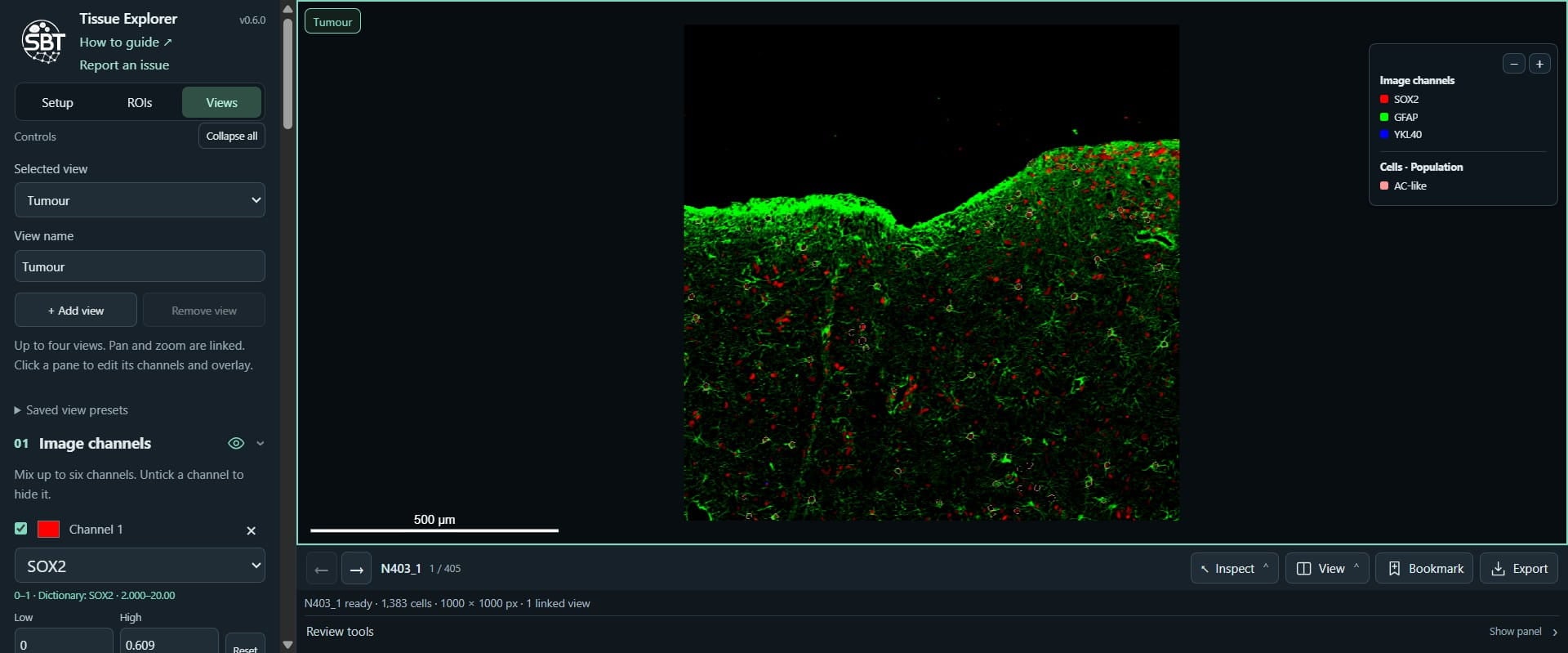
Click on "Views"
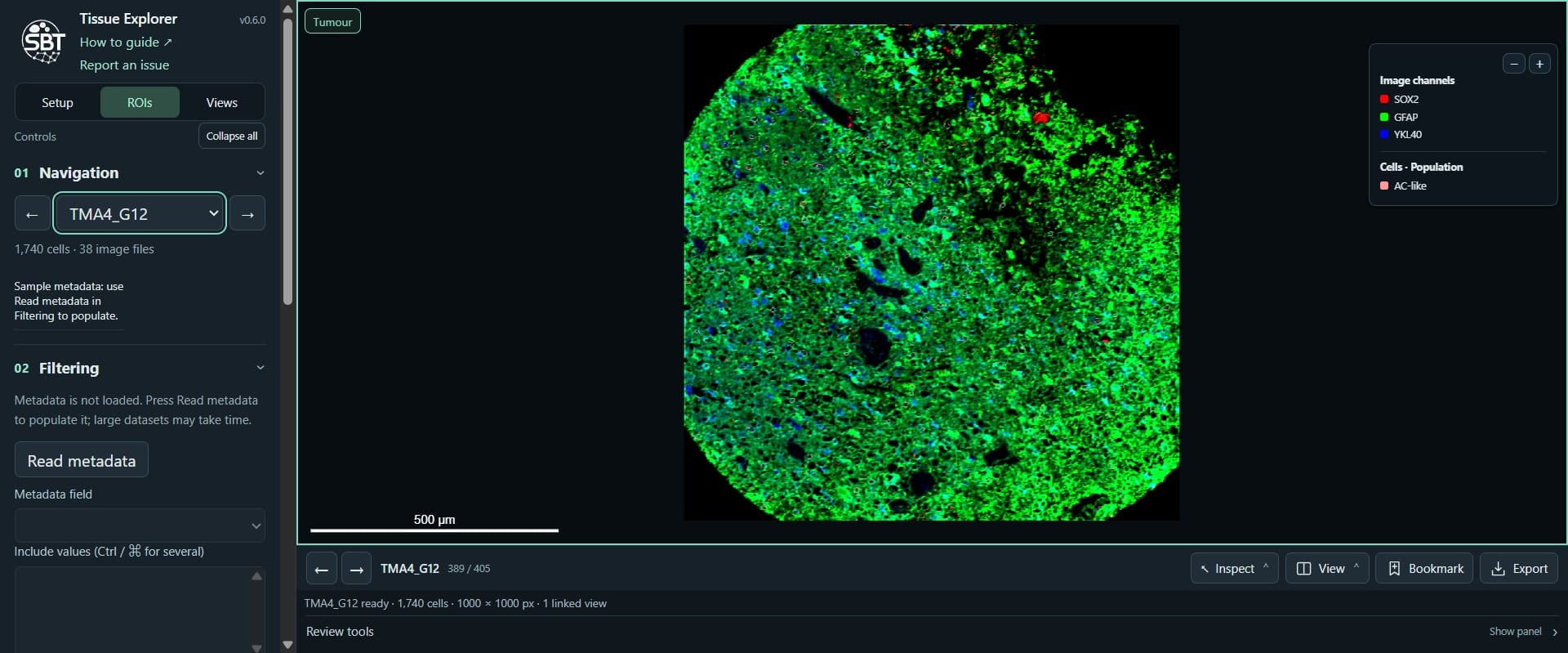
Click on "+ Add view"
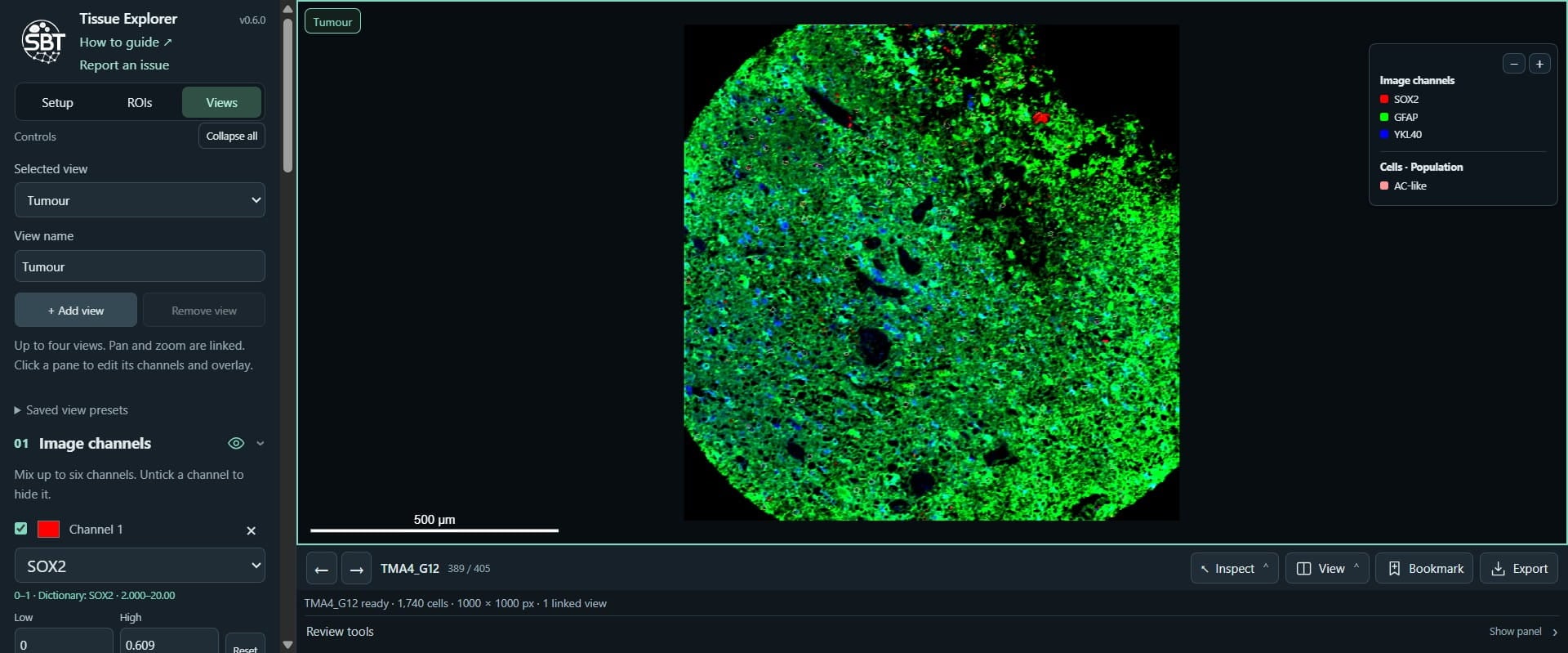
Click here
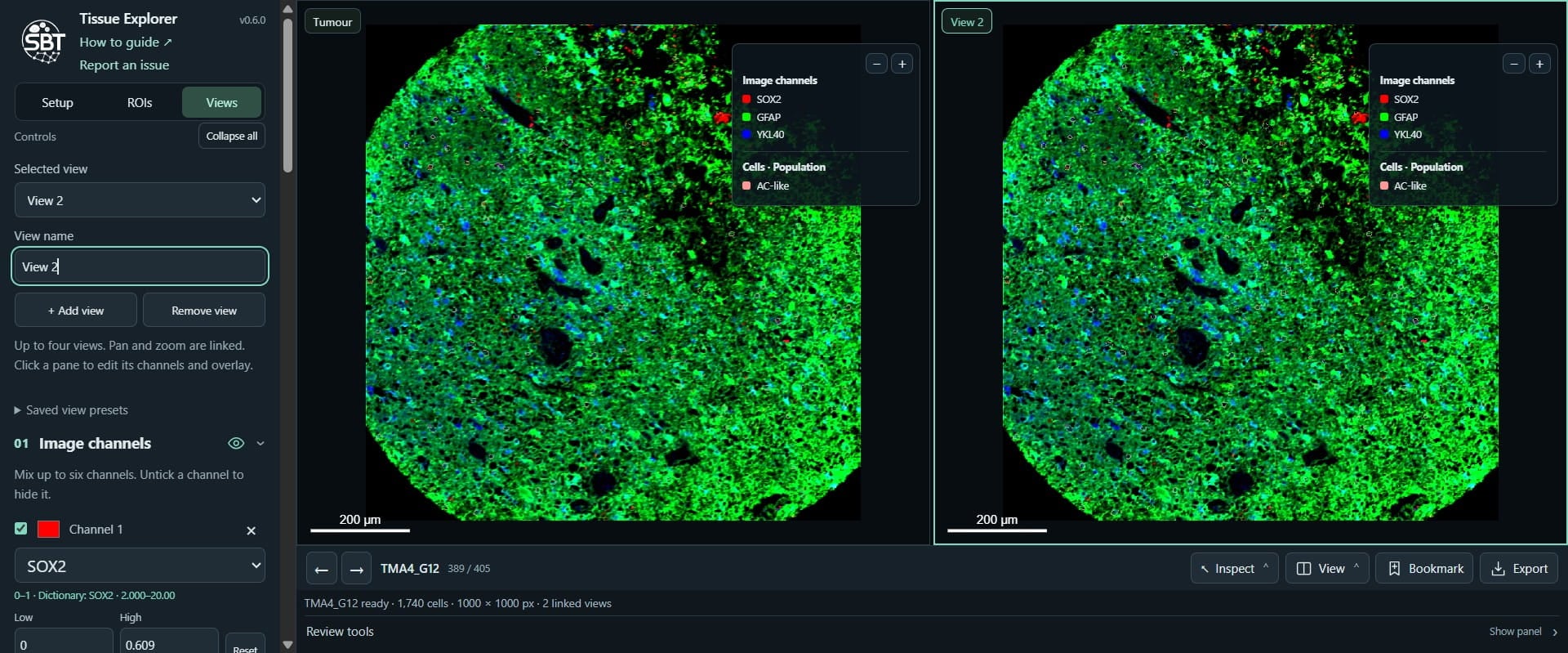
Click this image
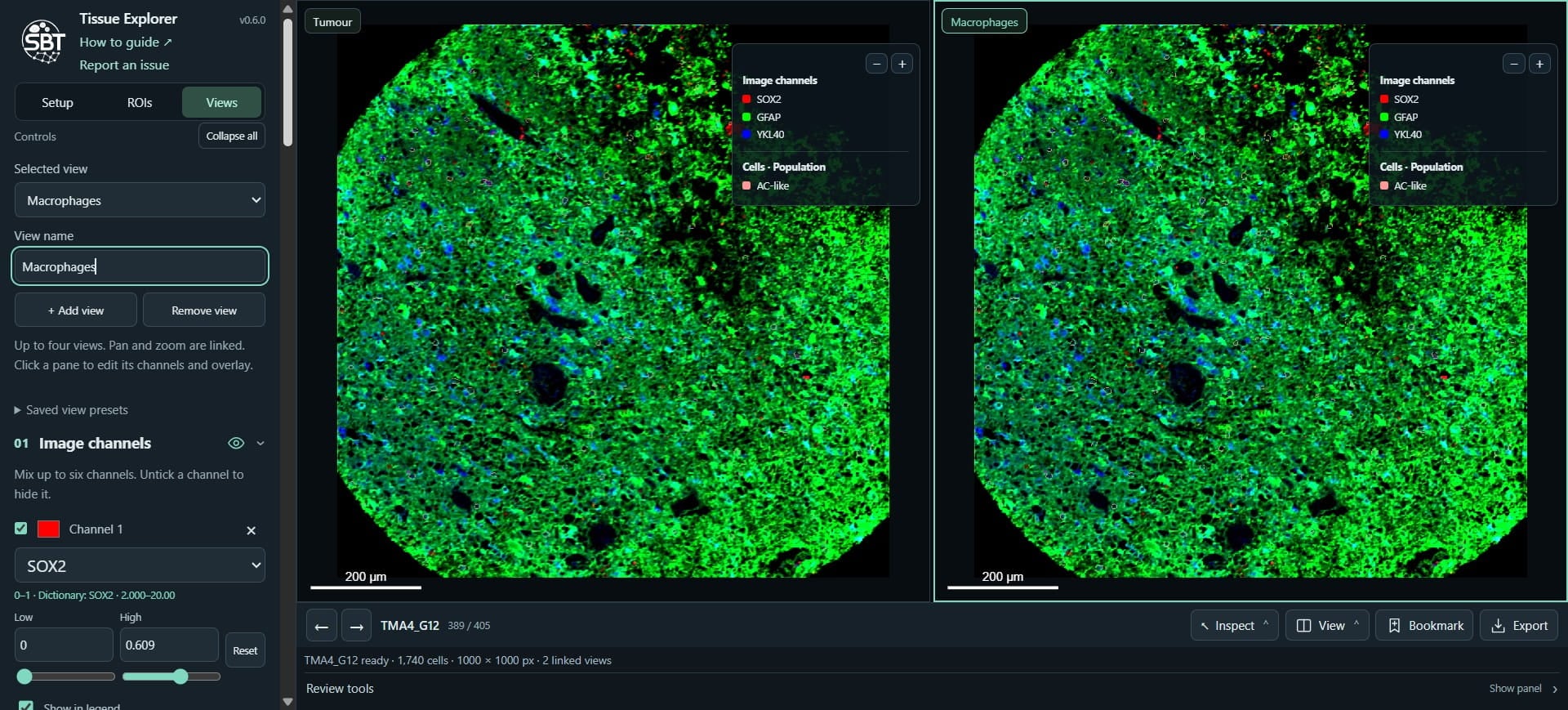
Click on "None"
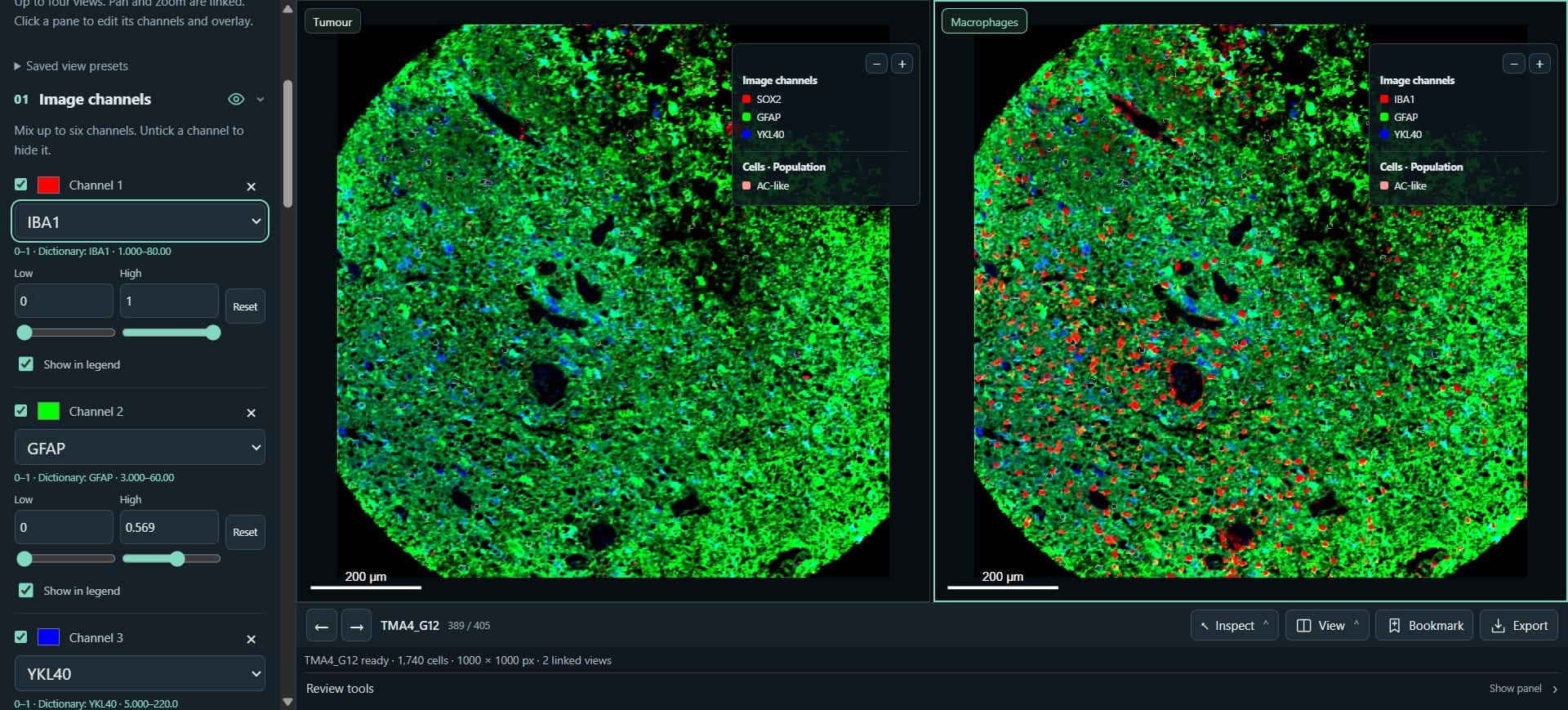
Click on "None"
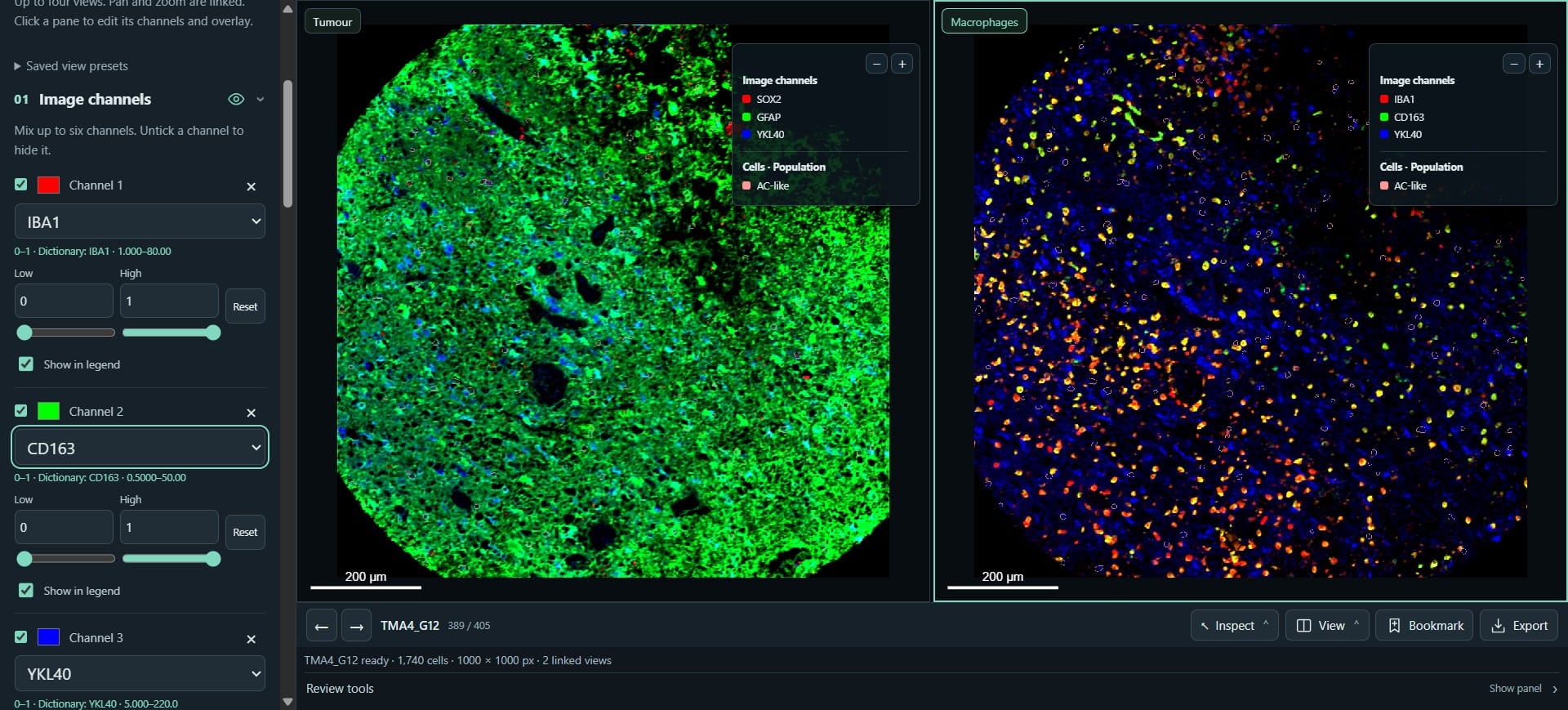
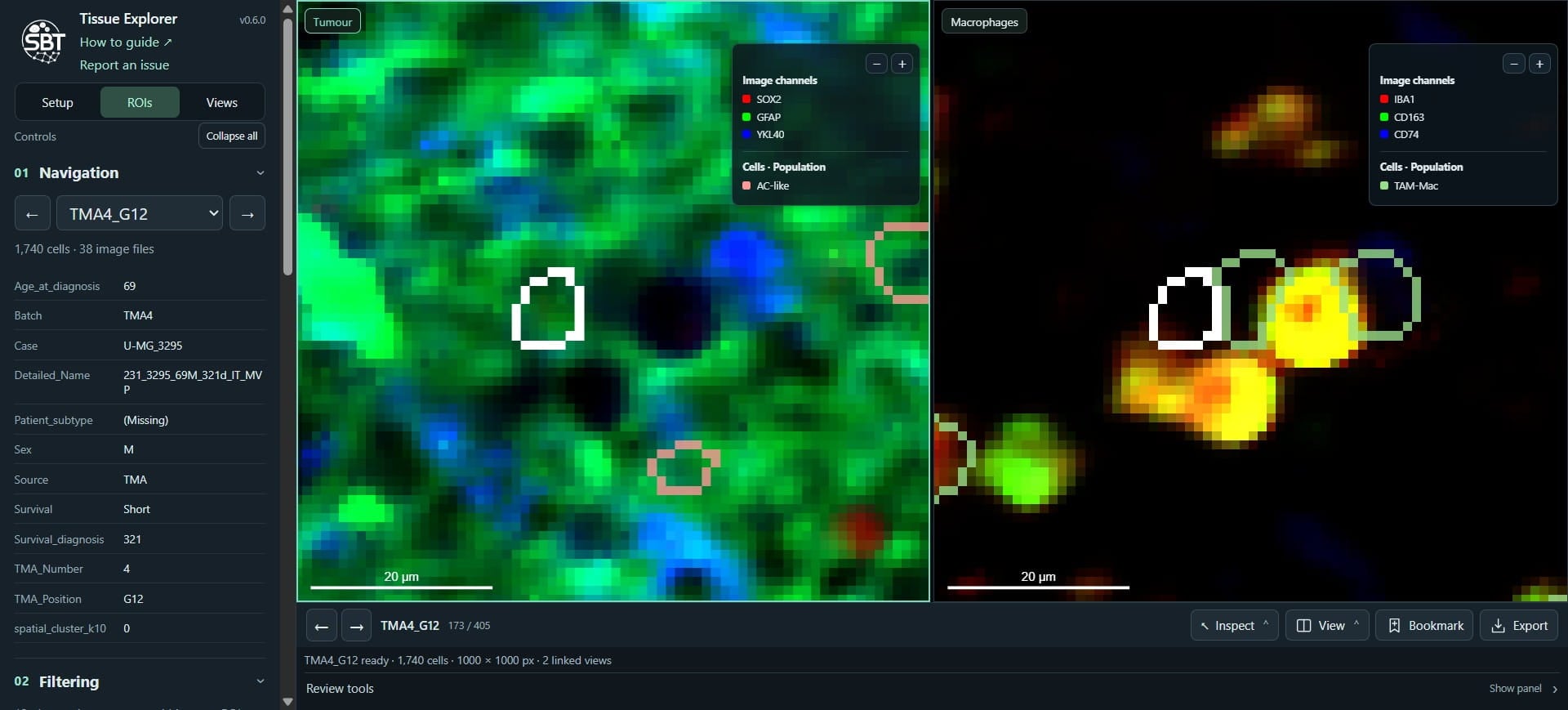
Click this image
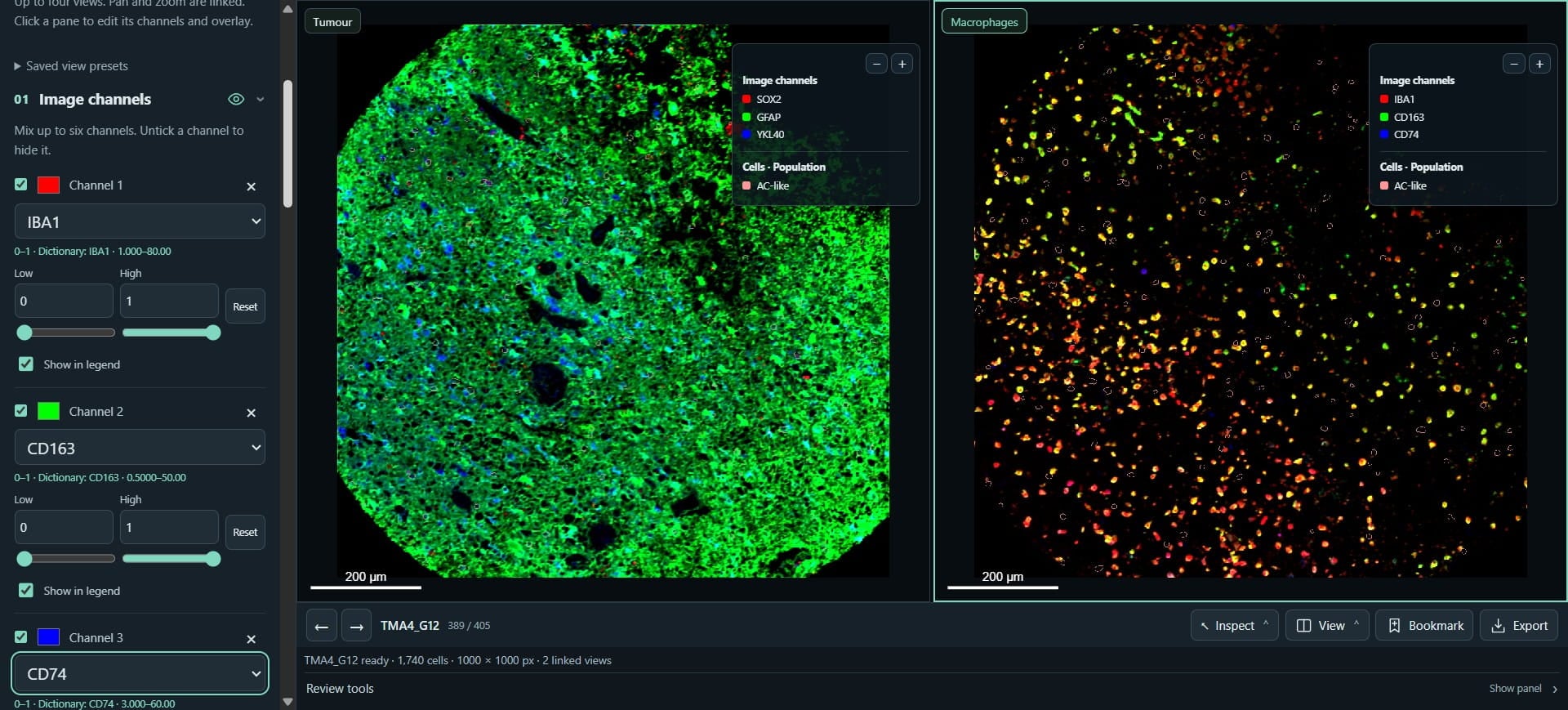
Click on "TAM-Mac"
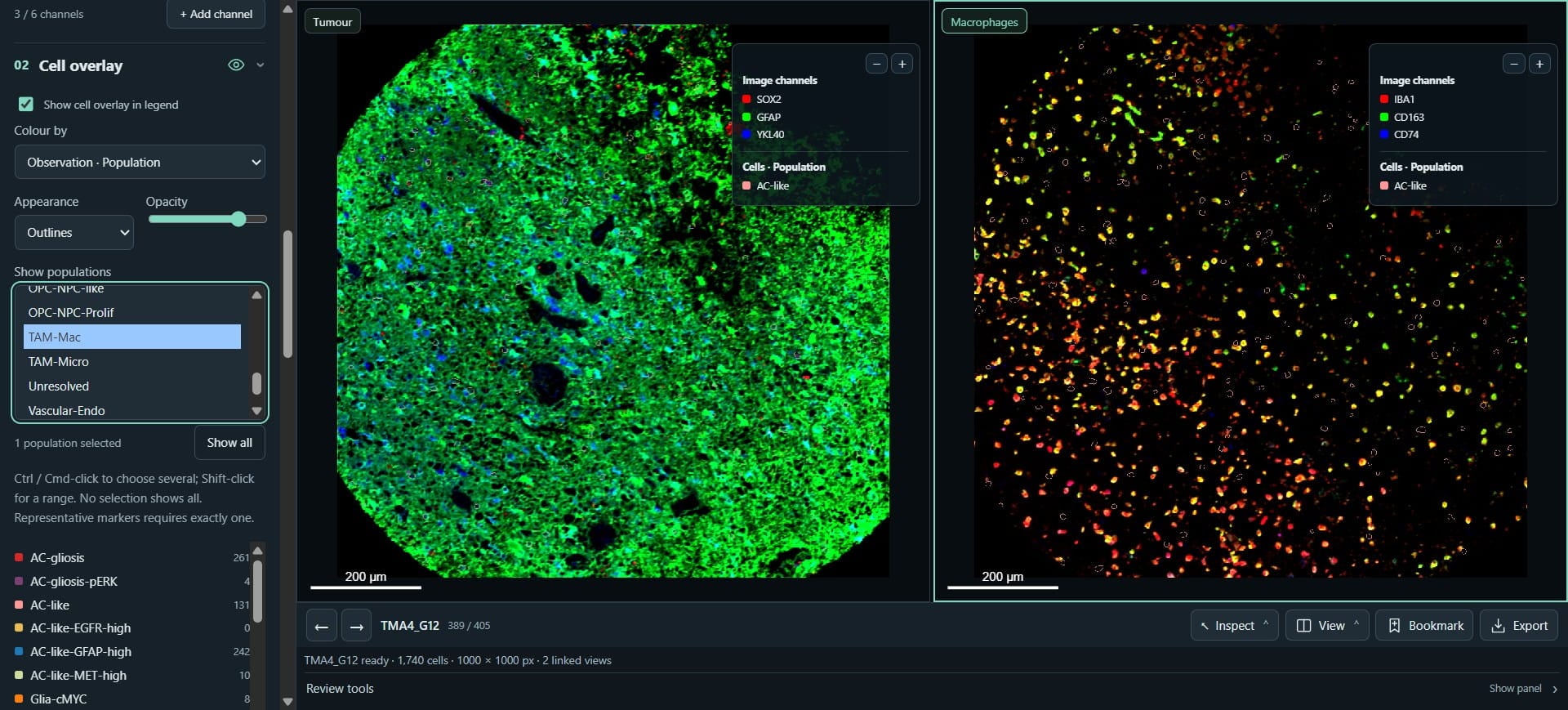
We can quickly toggle elements in each viewer pane
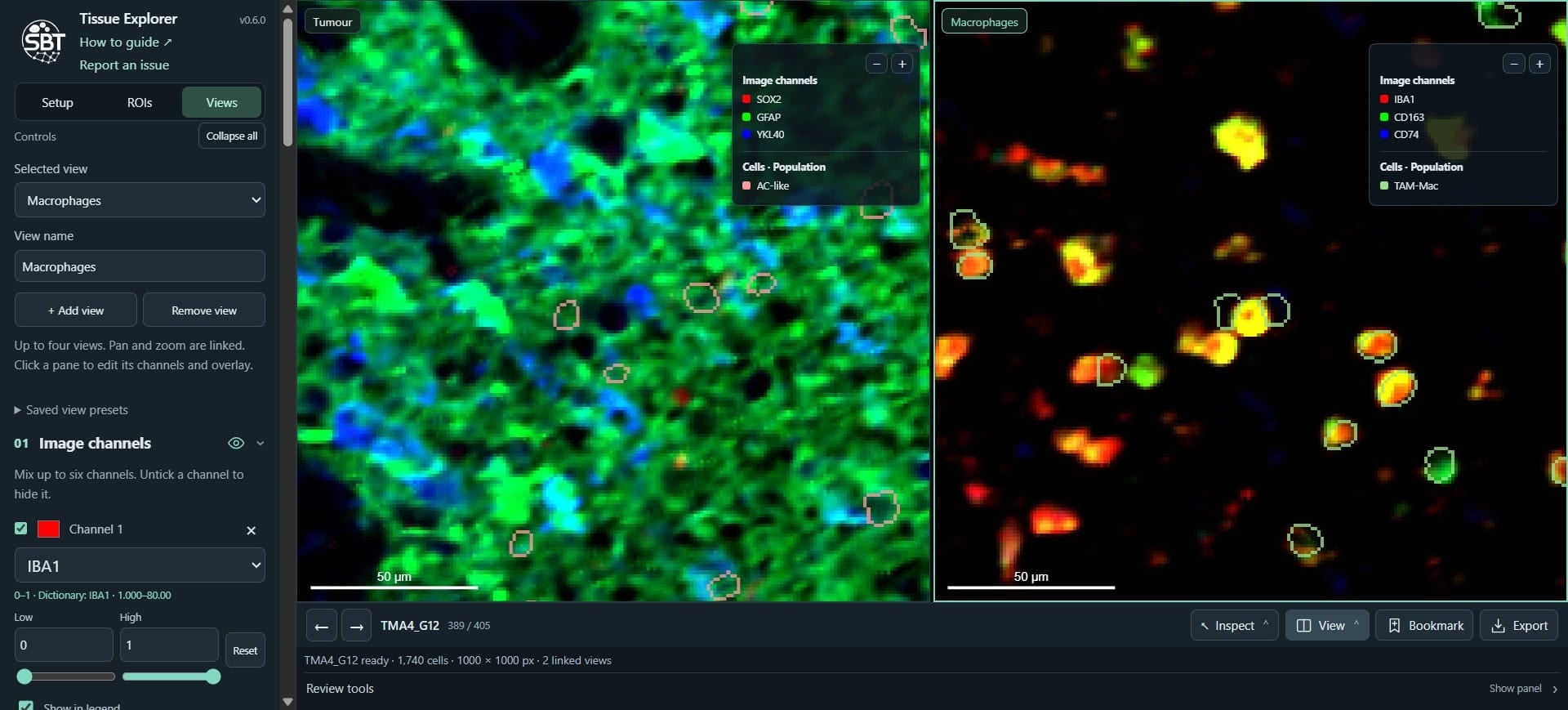
Click here
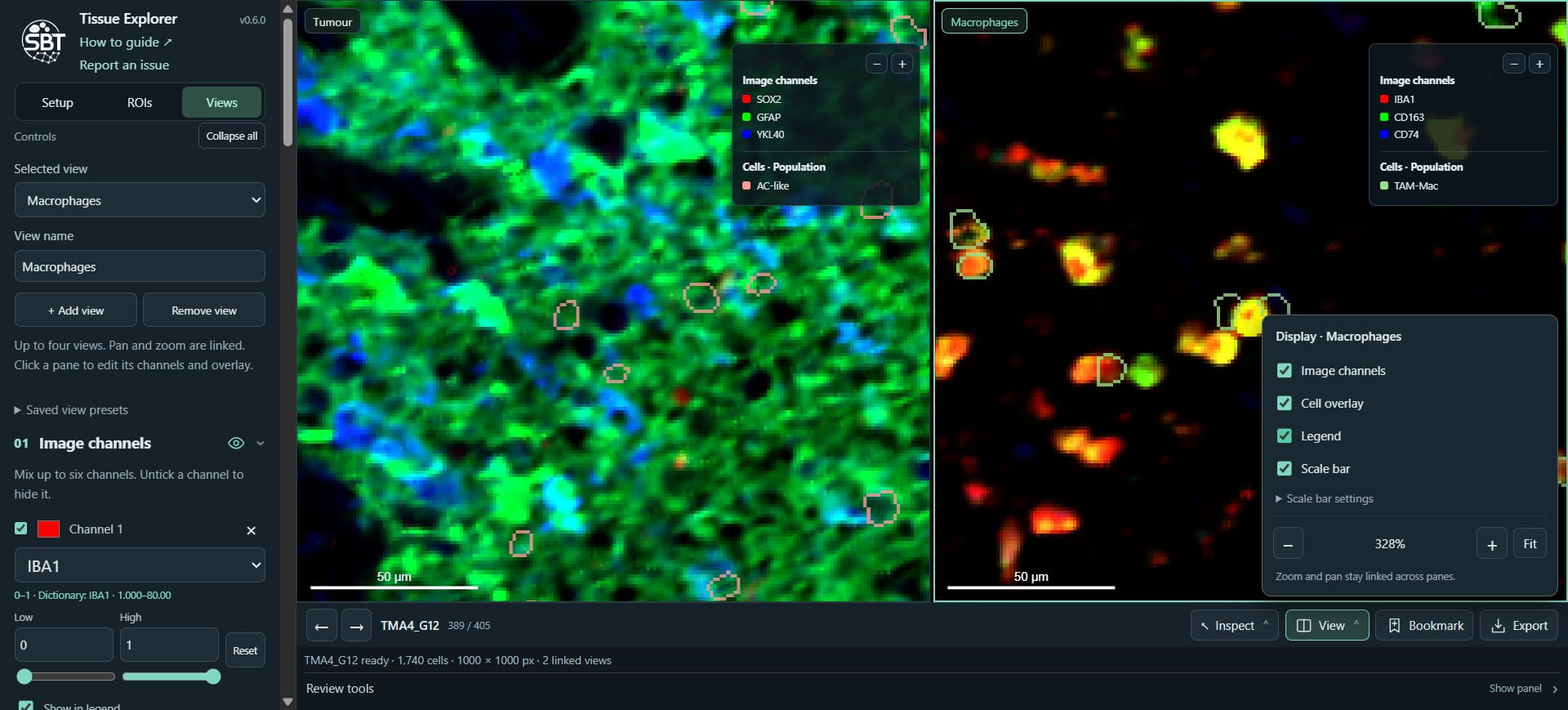
Click here
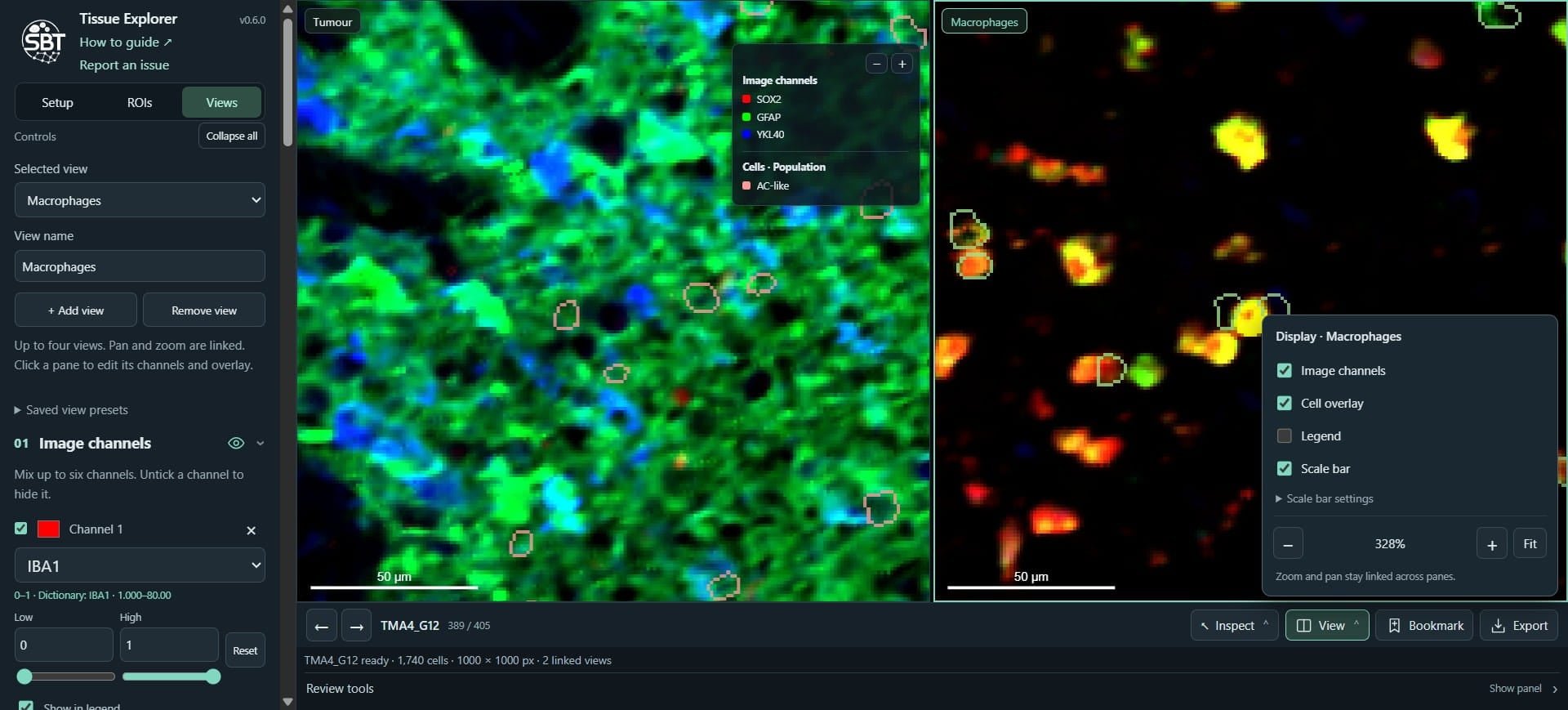
Click here
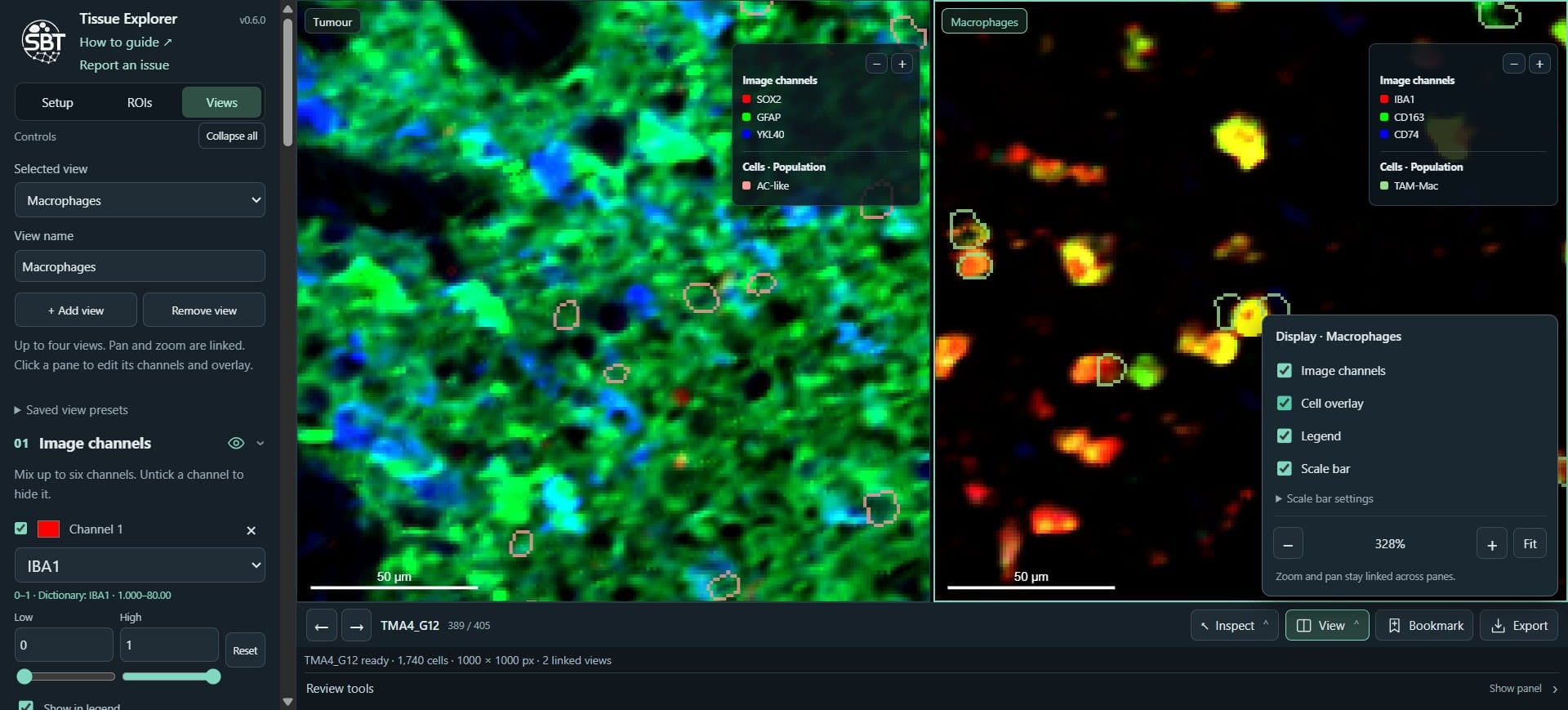
Click here
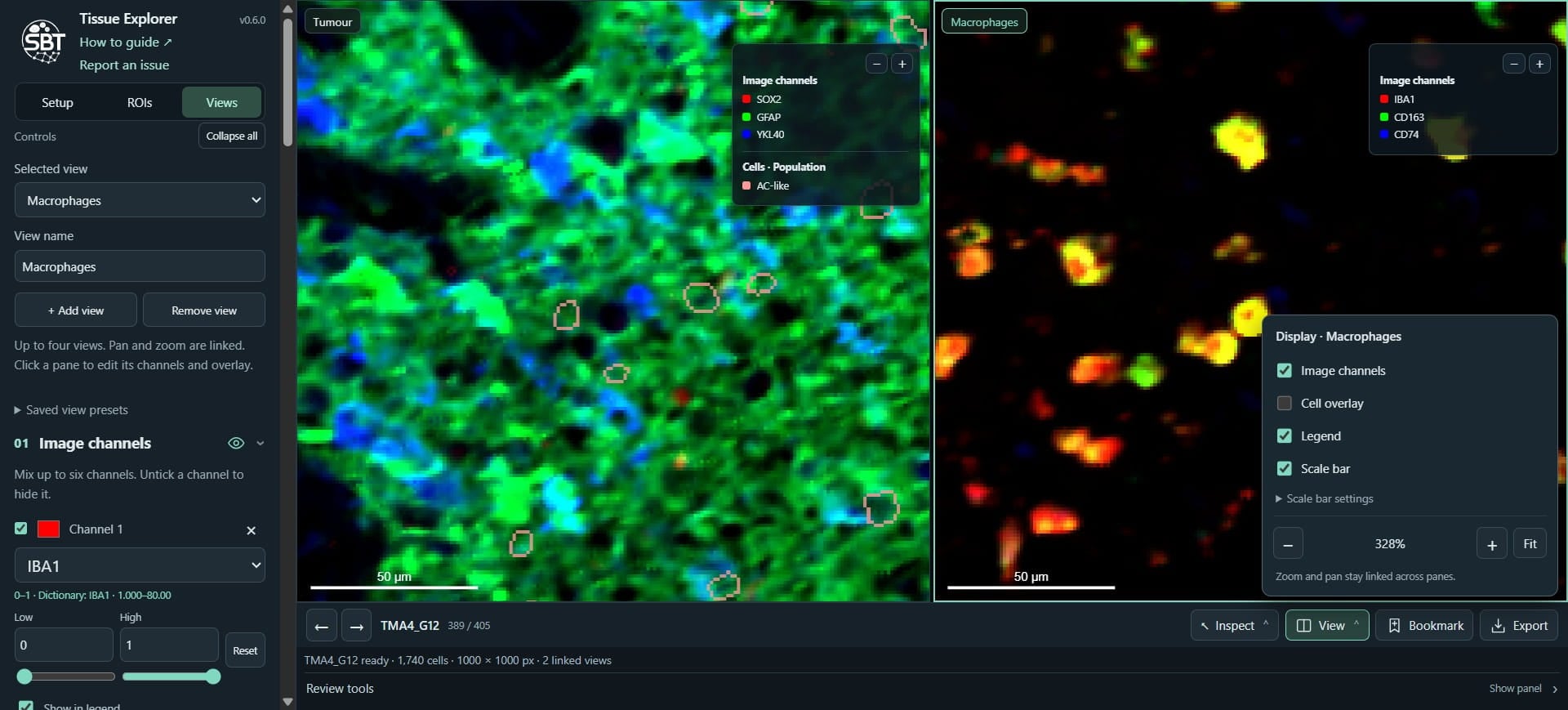
Click here
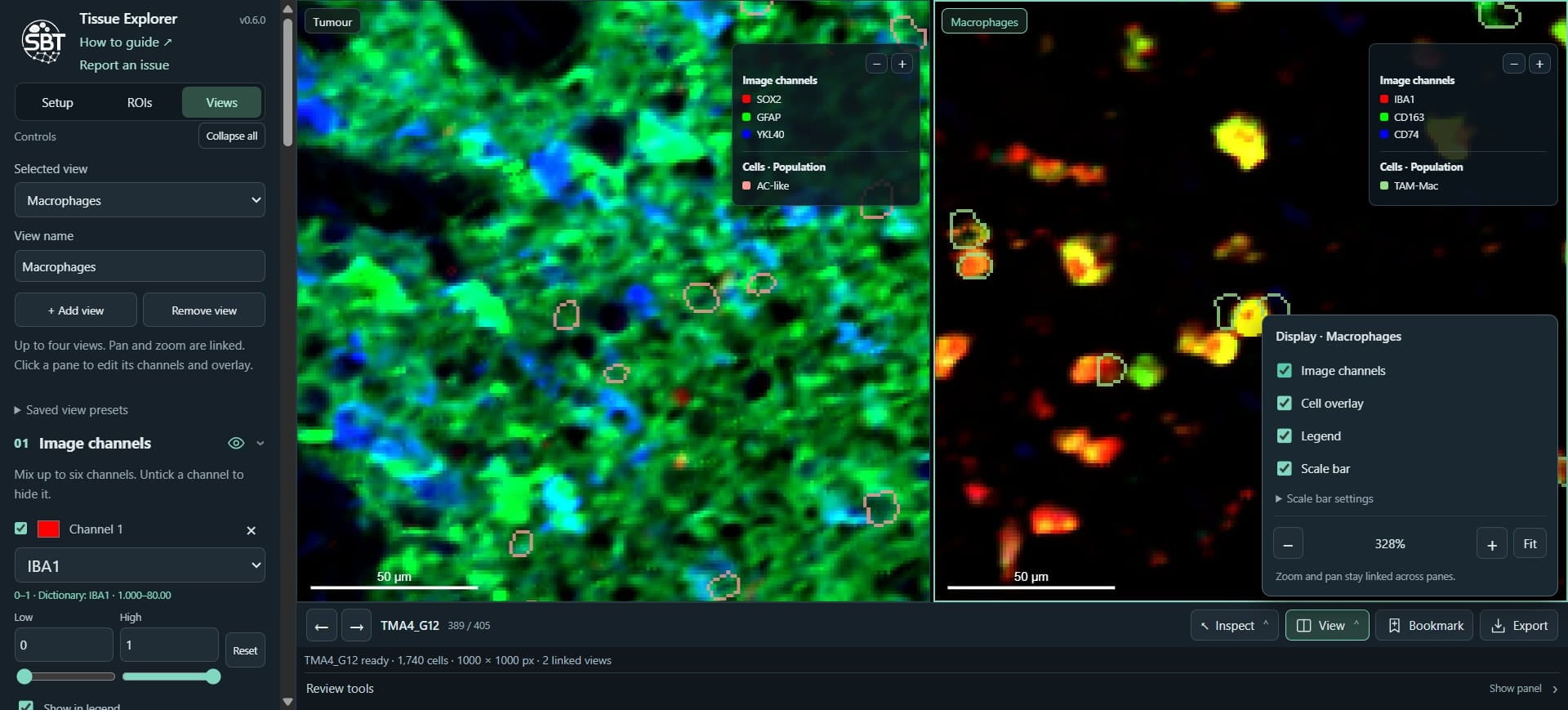
Click here
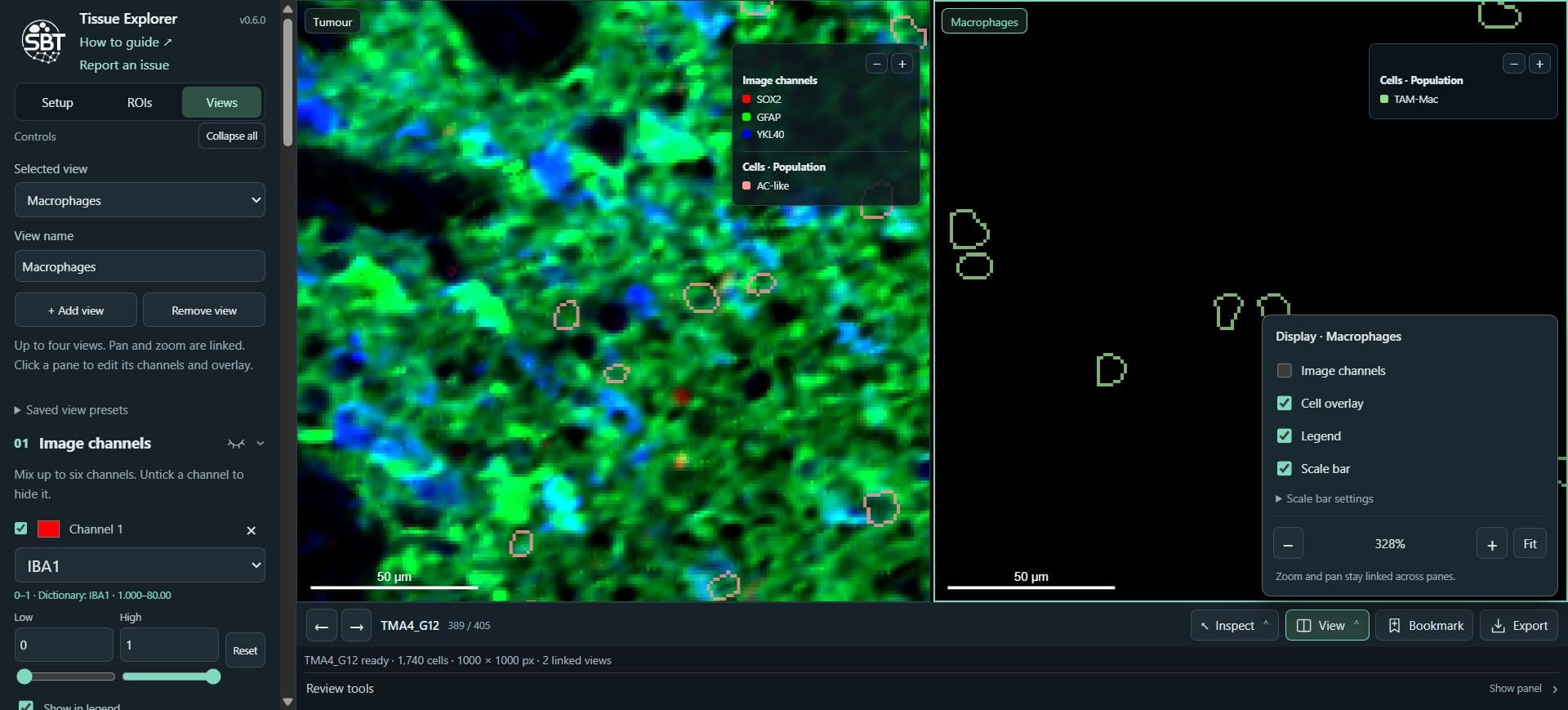
Click here
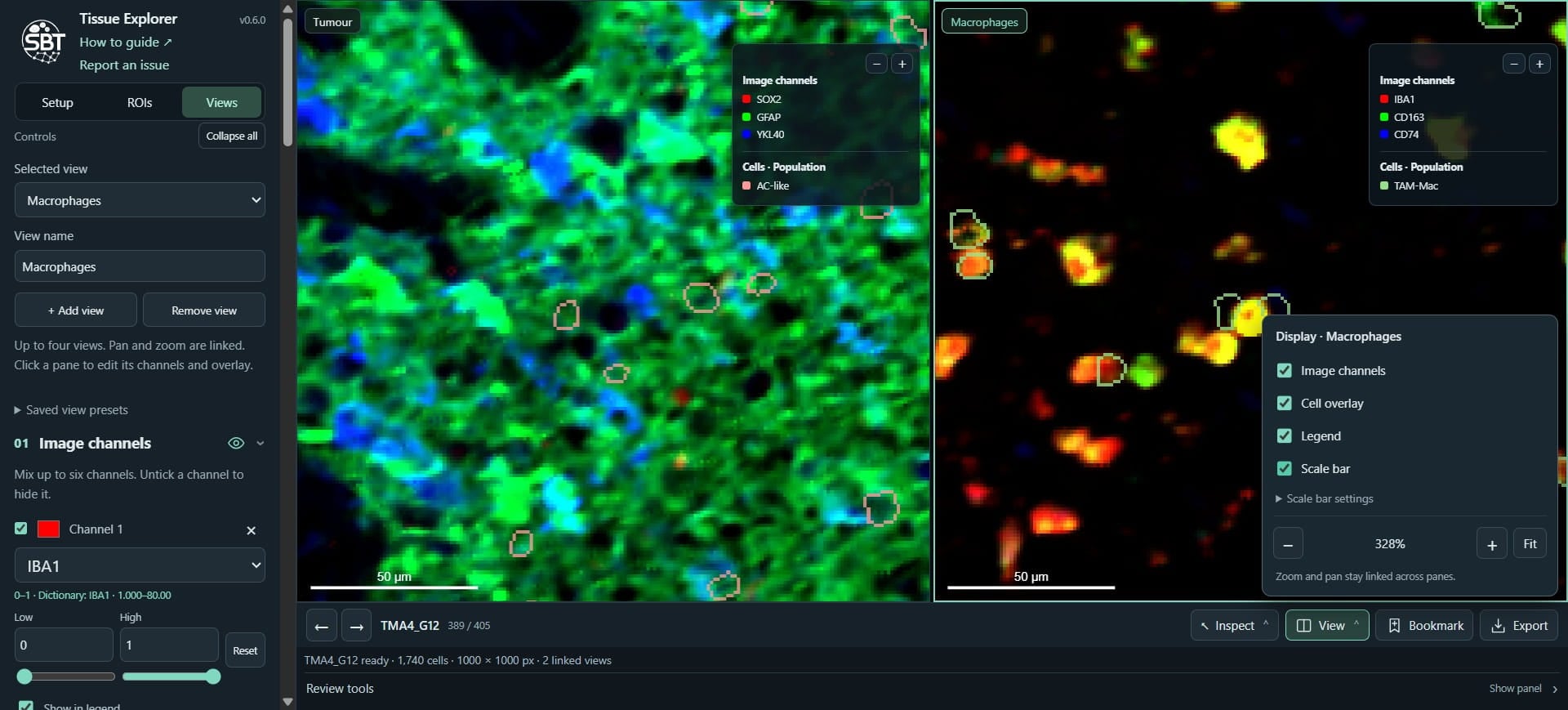
Click here
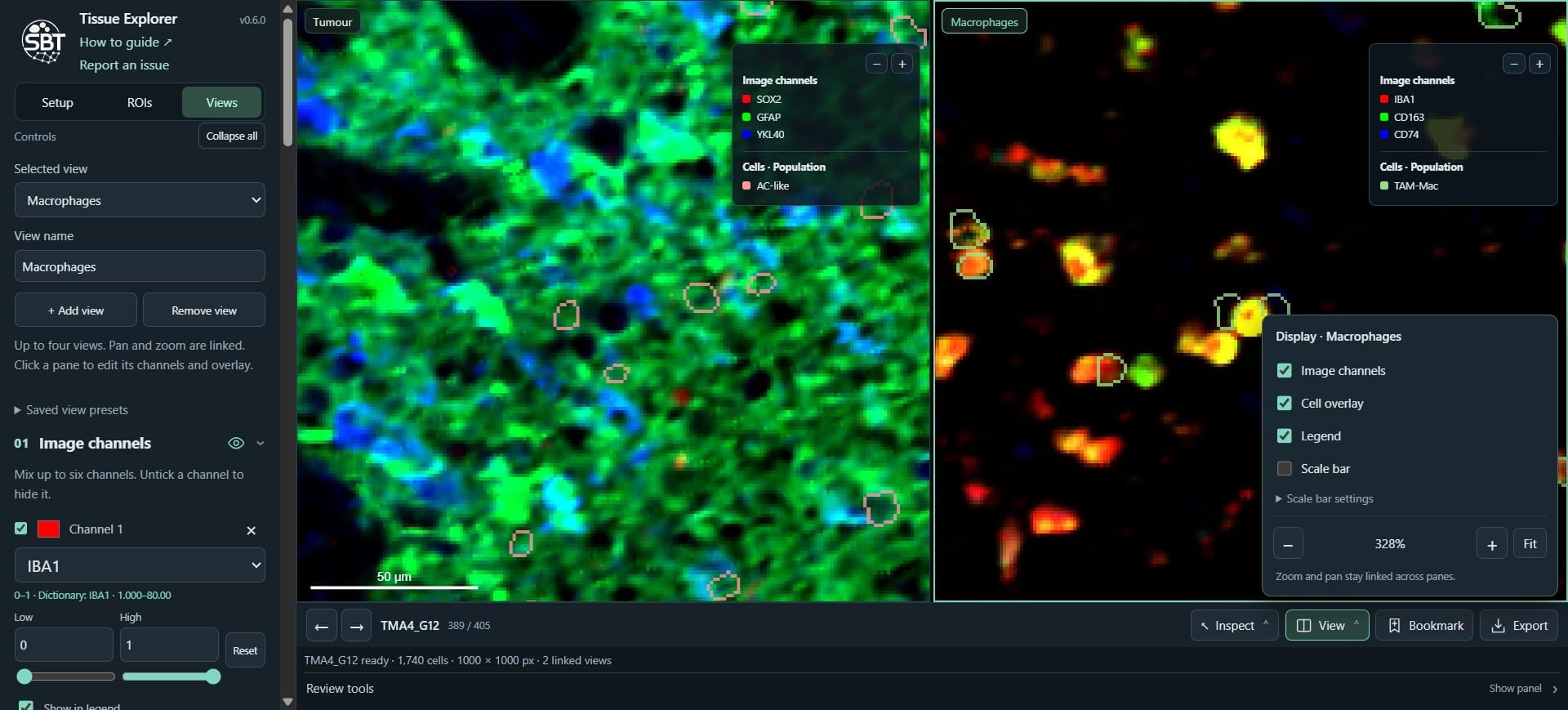
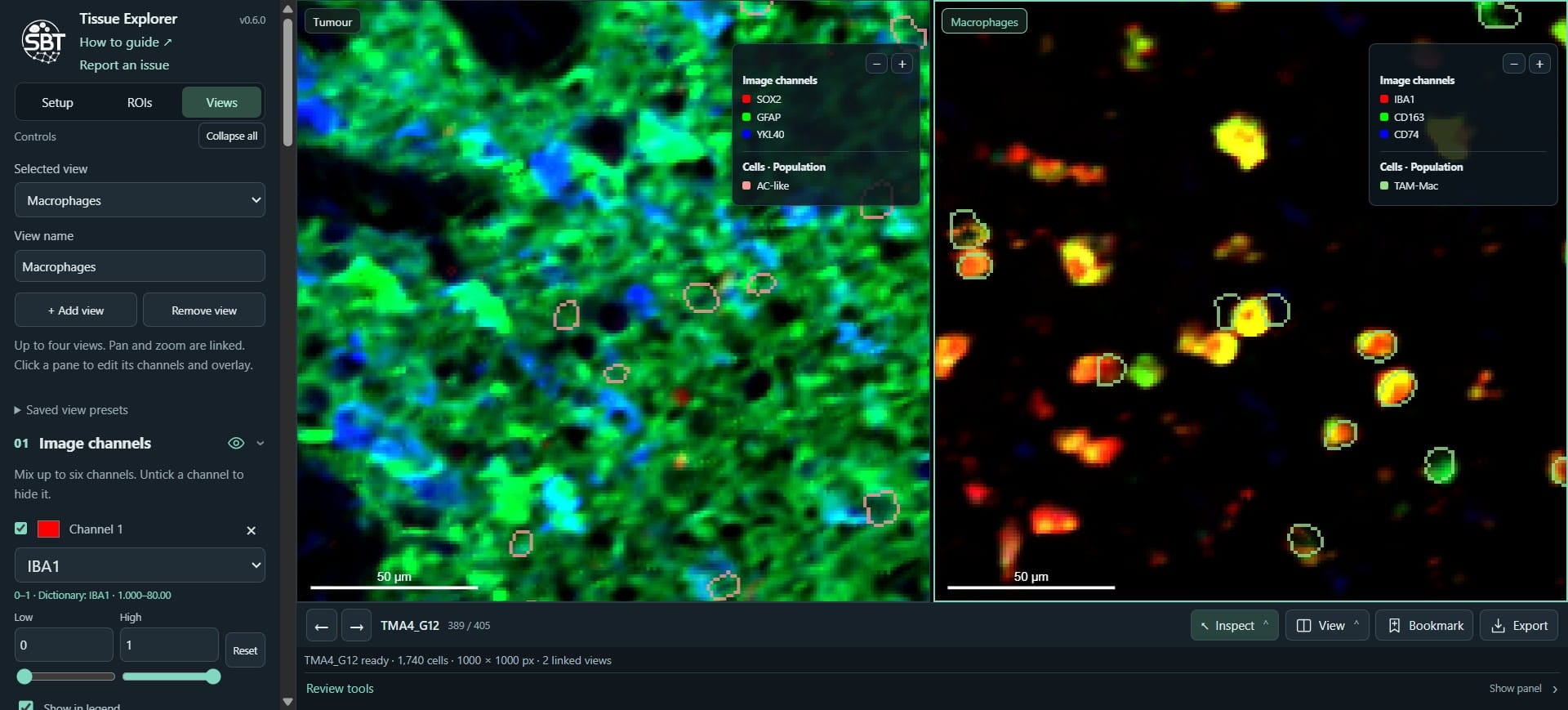
Click on "Show panel"
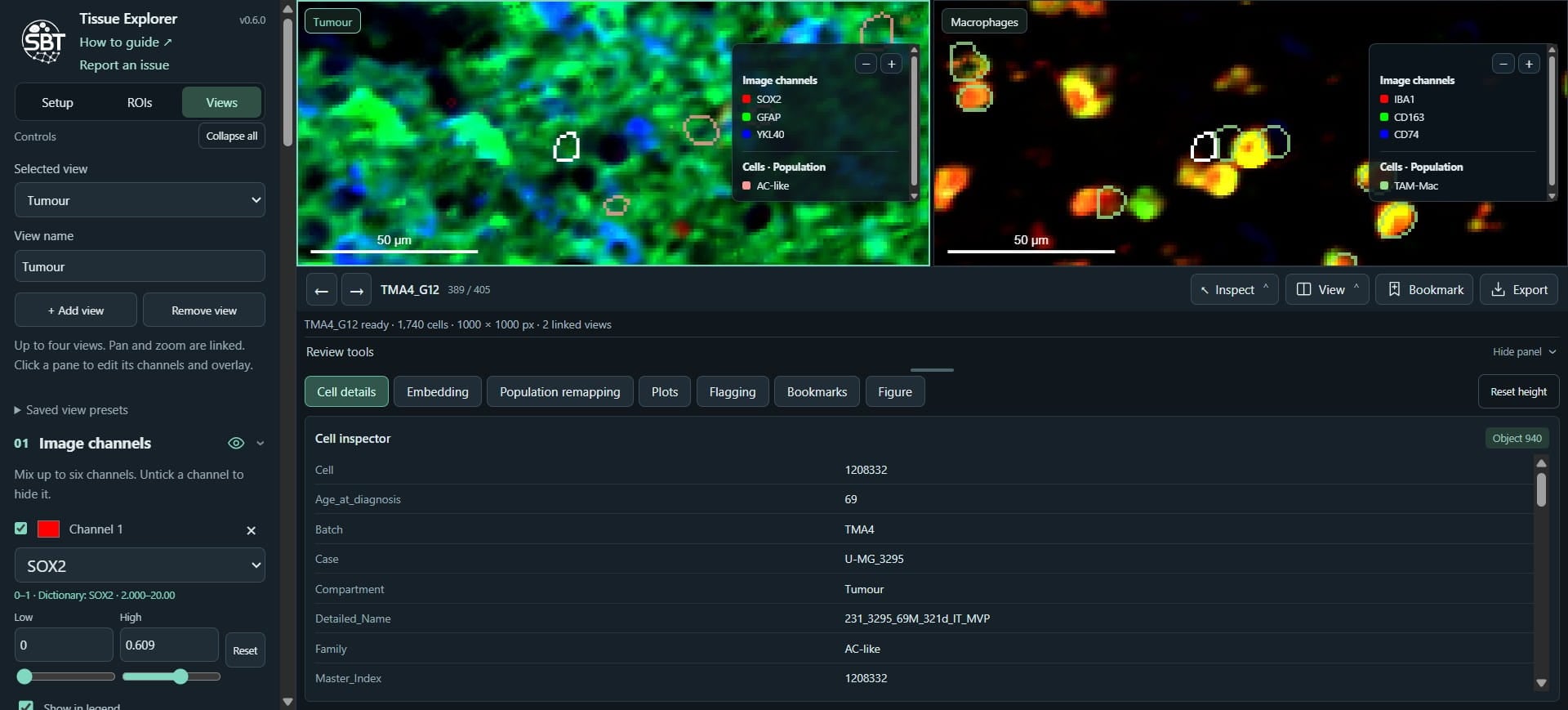
Click on "Cell details" - this gives metadata for individually selected cells.
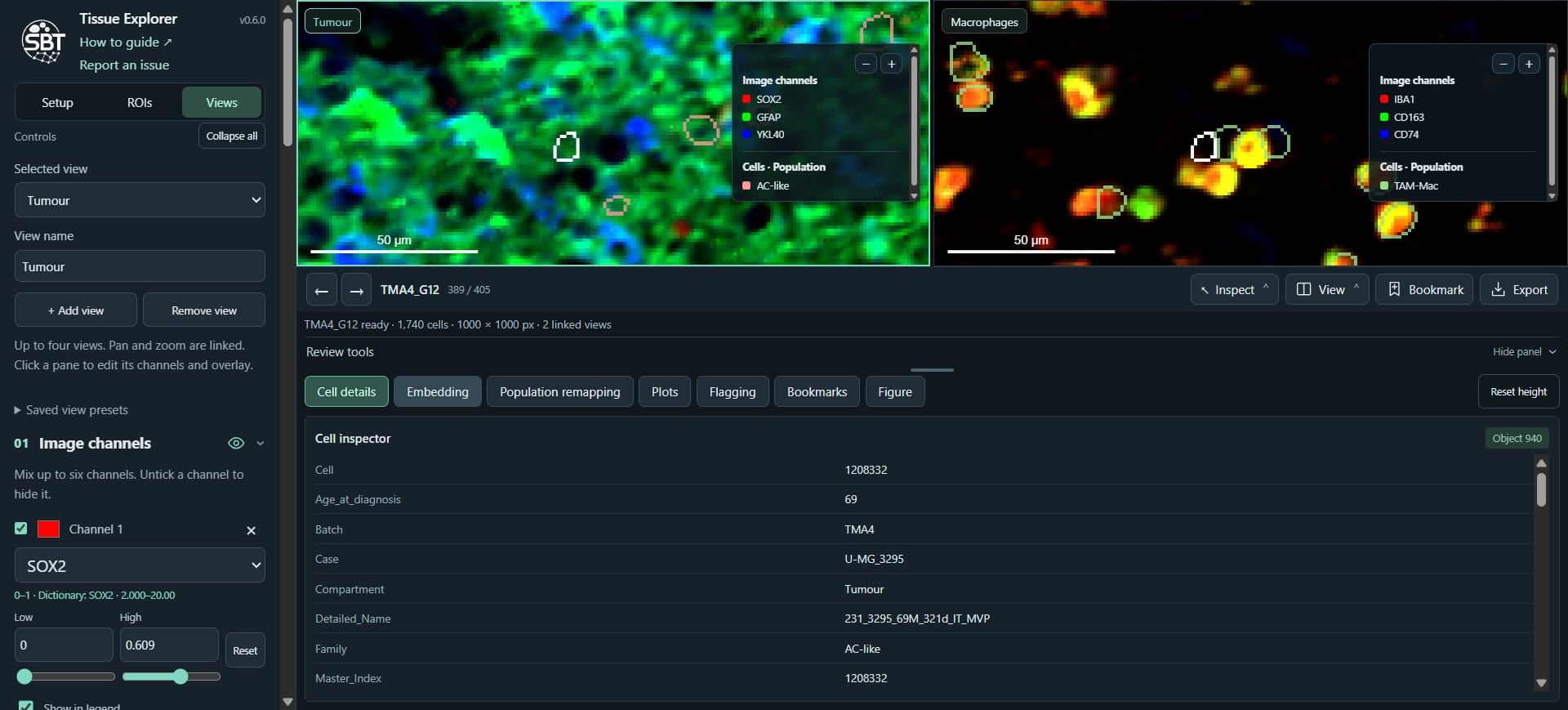
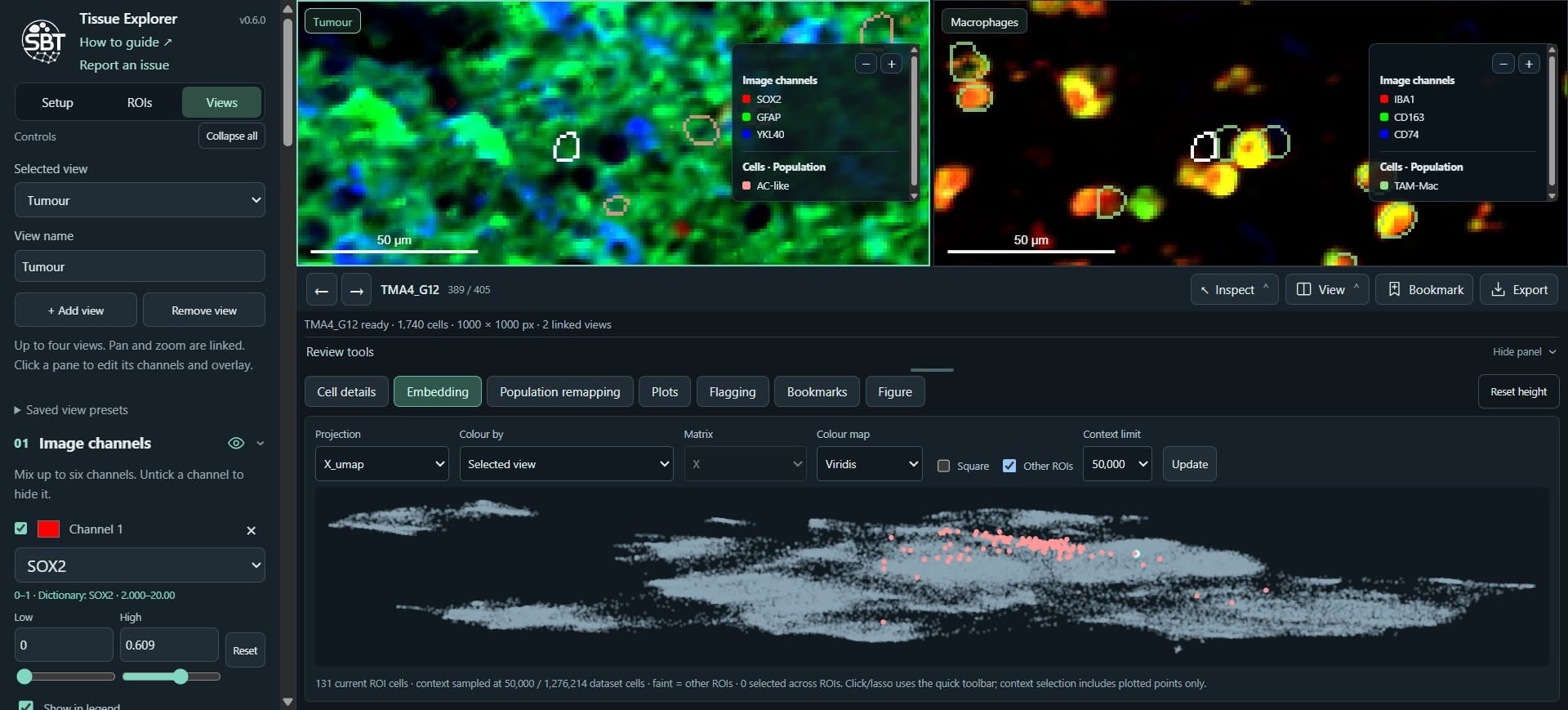
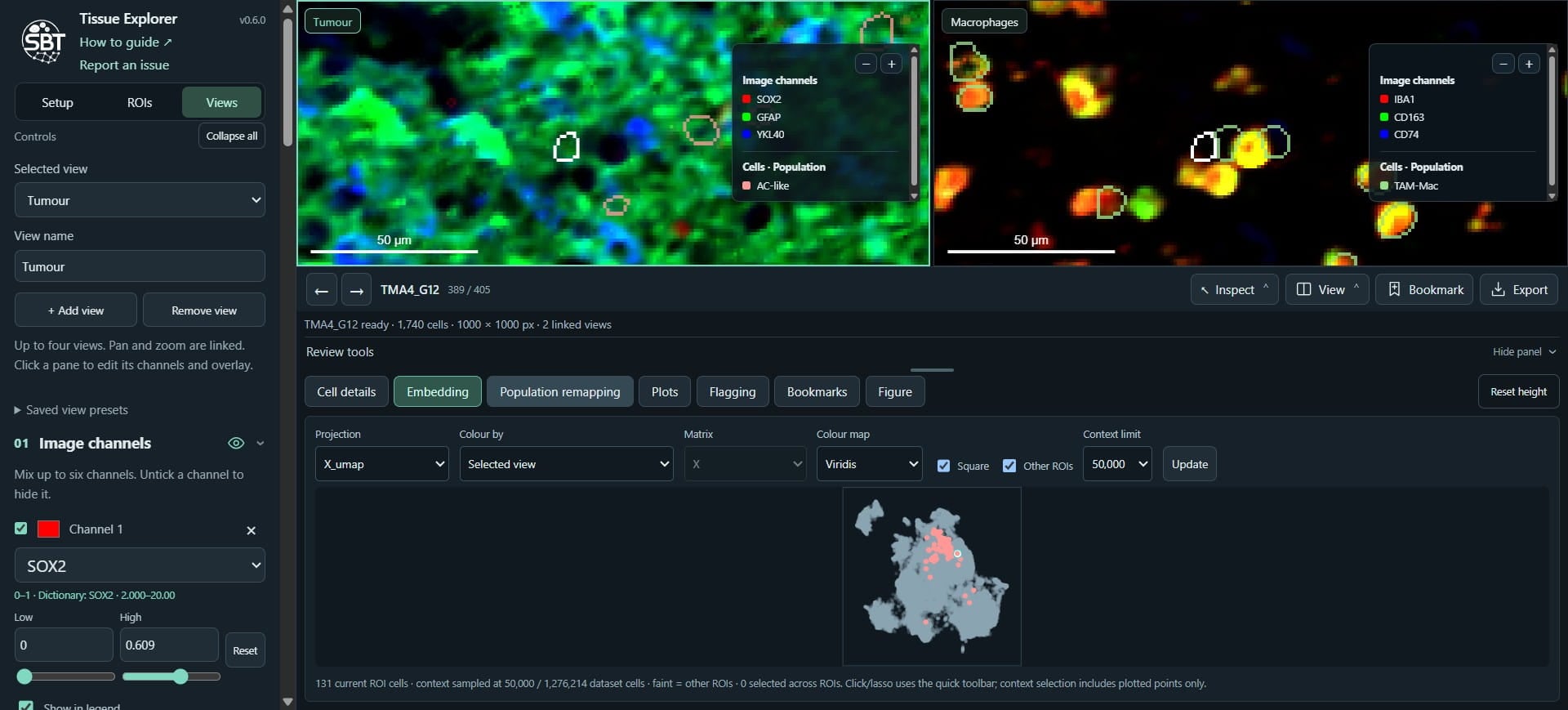
Click on "Embedding" - this allows us to visualise embeddings (e.g. UMAP)
Click on "Update"
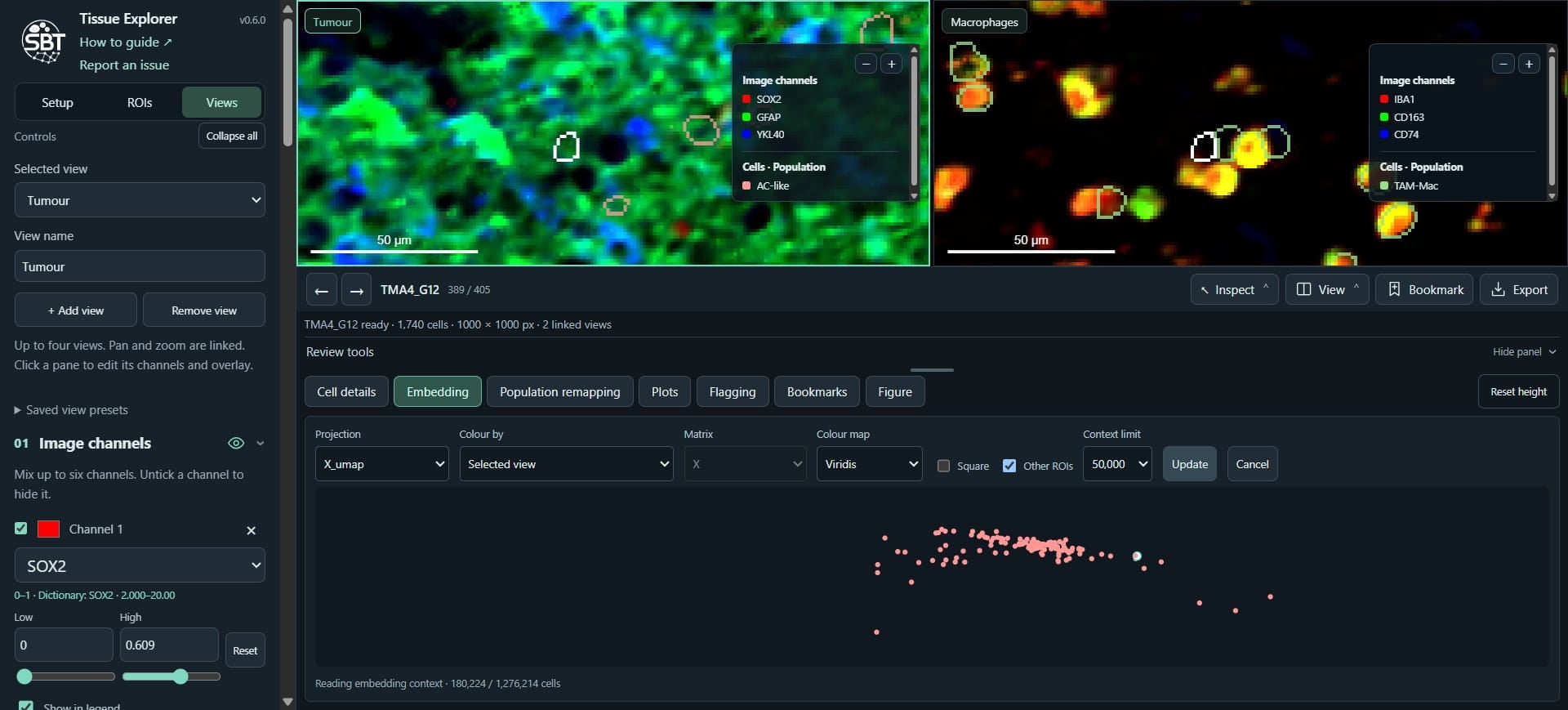
Click here
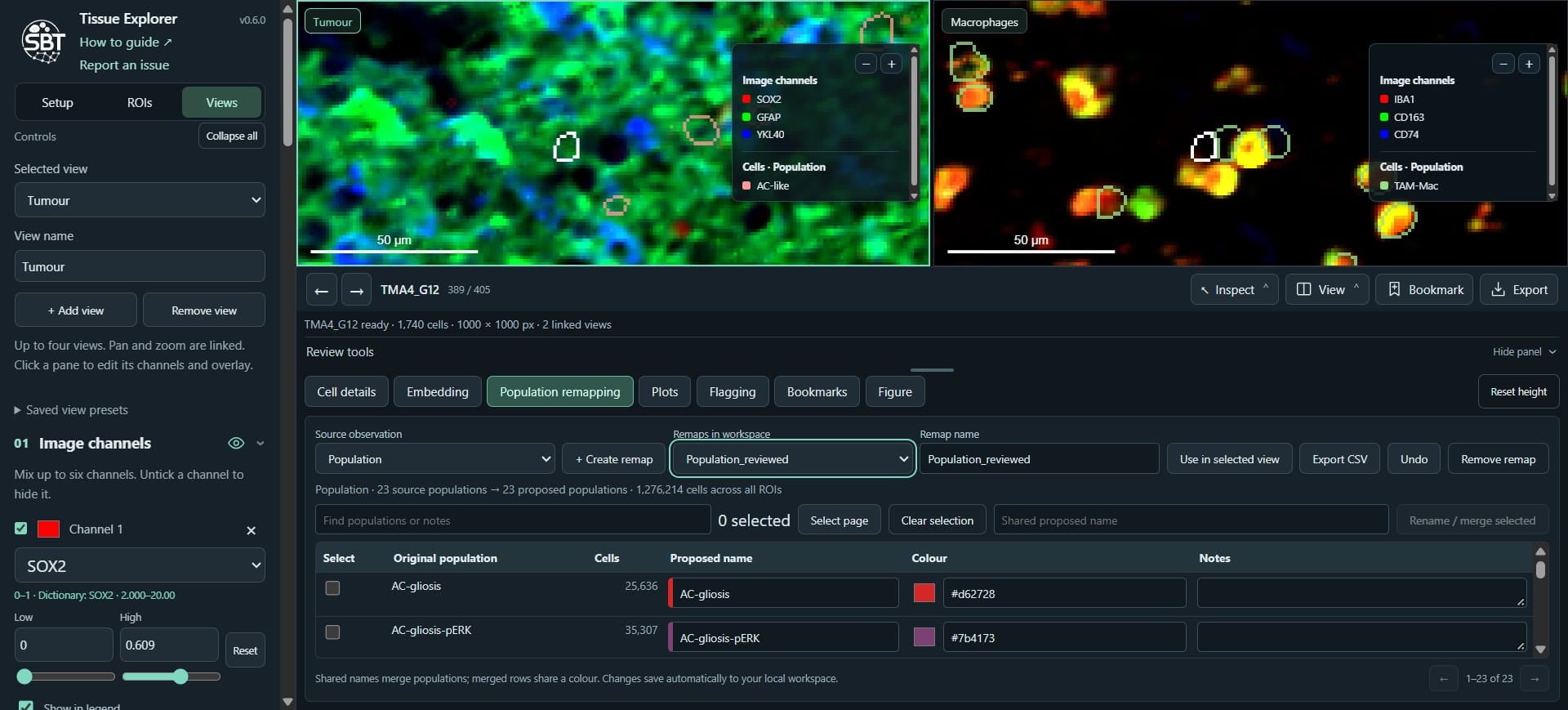
Click on "Population remapping" - we can create remapping, which allow us to rename populations.
Click on "Population_reviewed"
Click on "Plots" - we can create several plots, including matrix plots, alluvial plots, bar graphs, etc
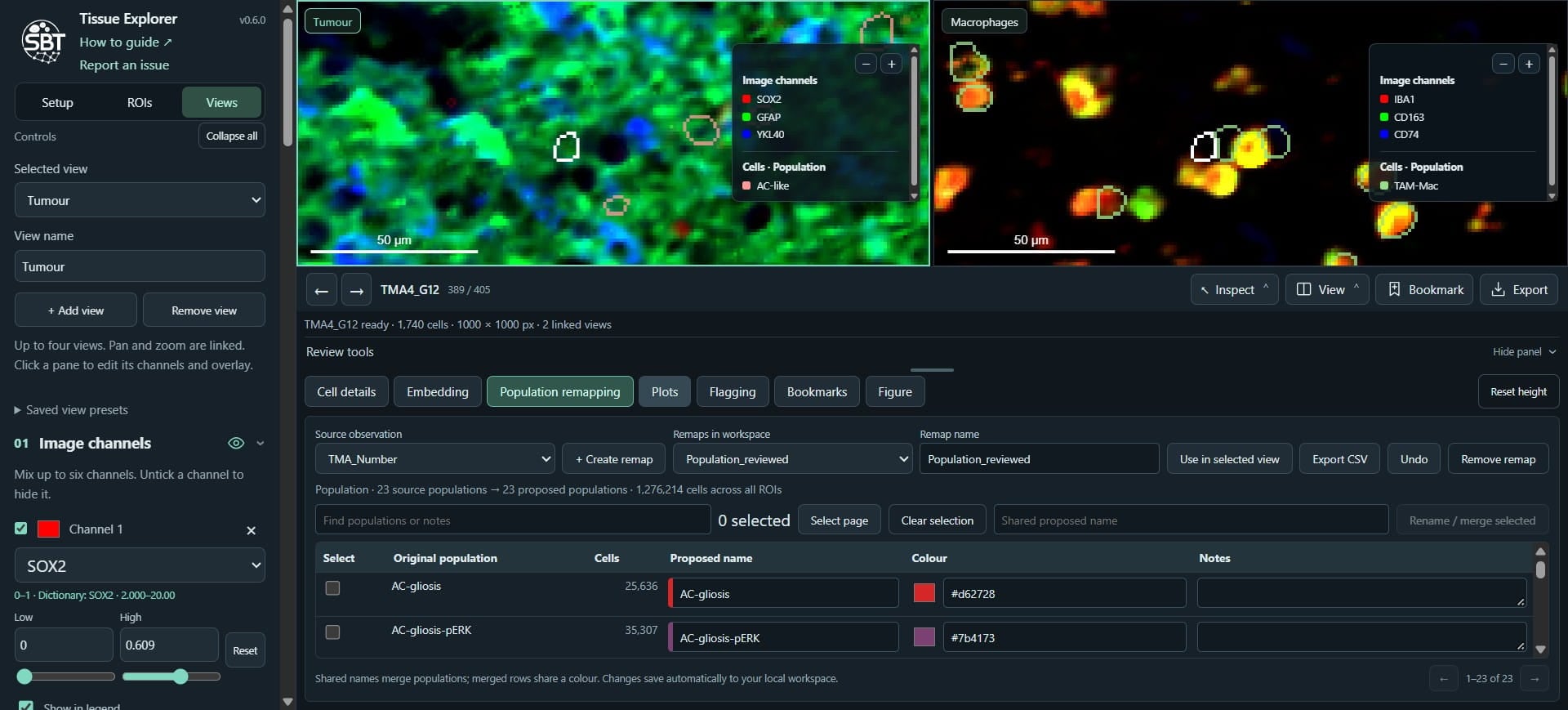
Click on "Marker matrix plot"
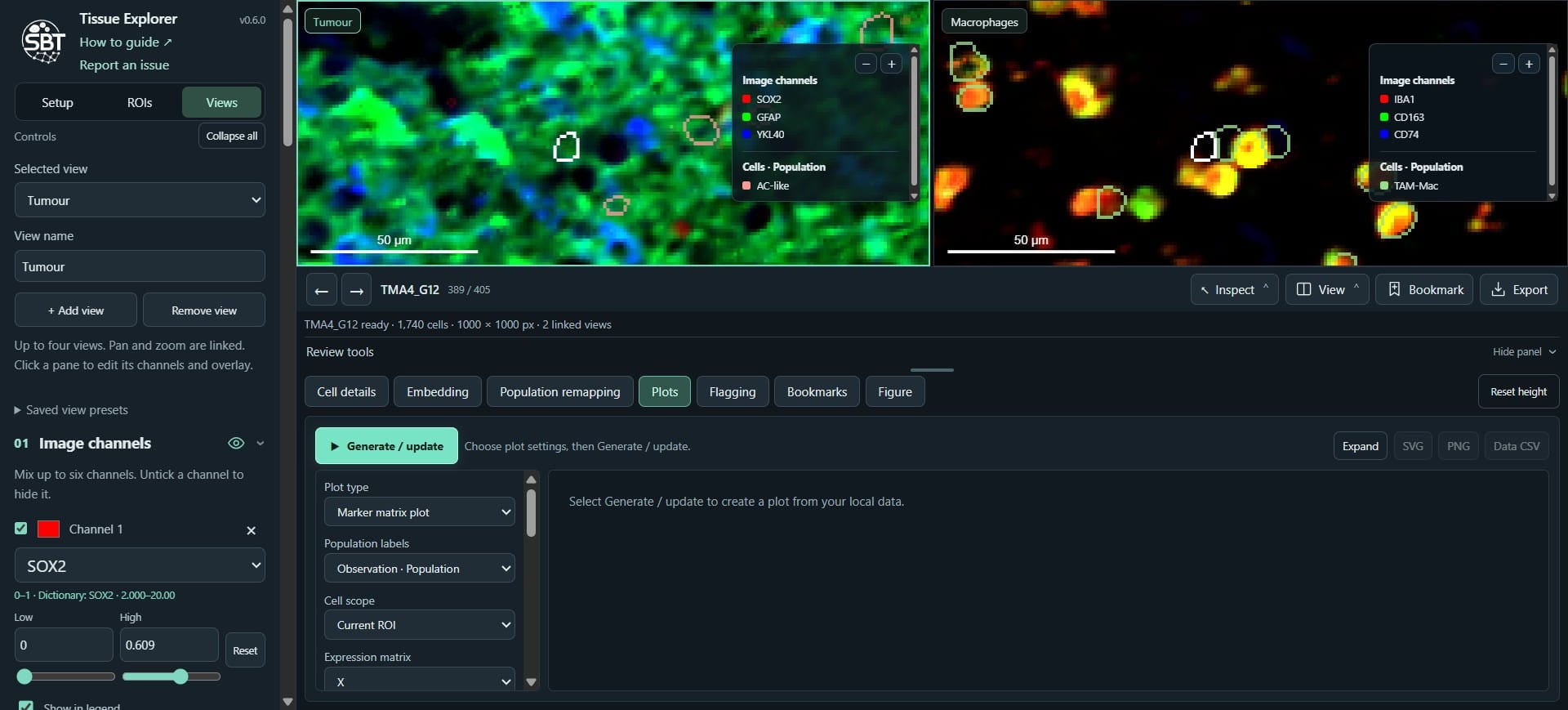
Click on "Generate / update"
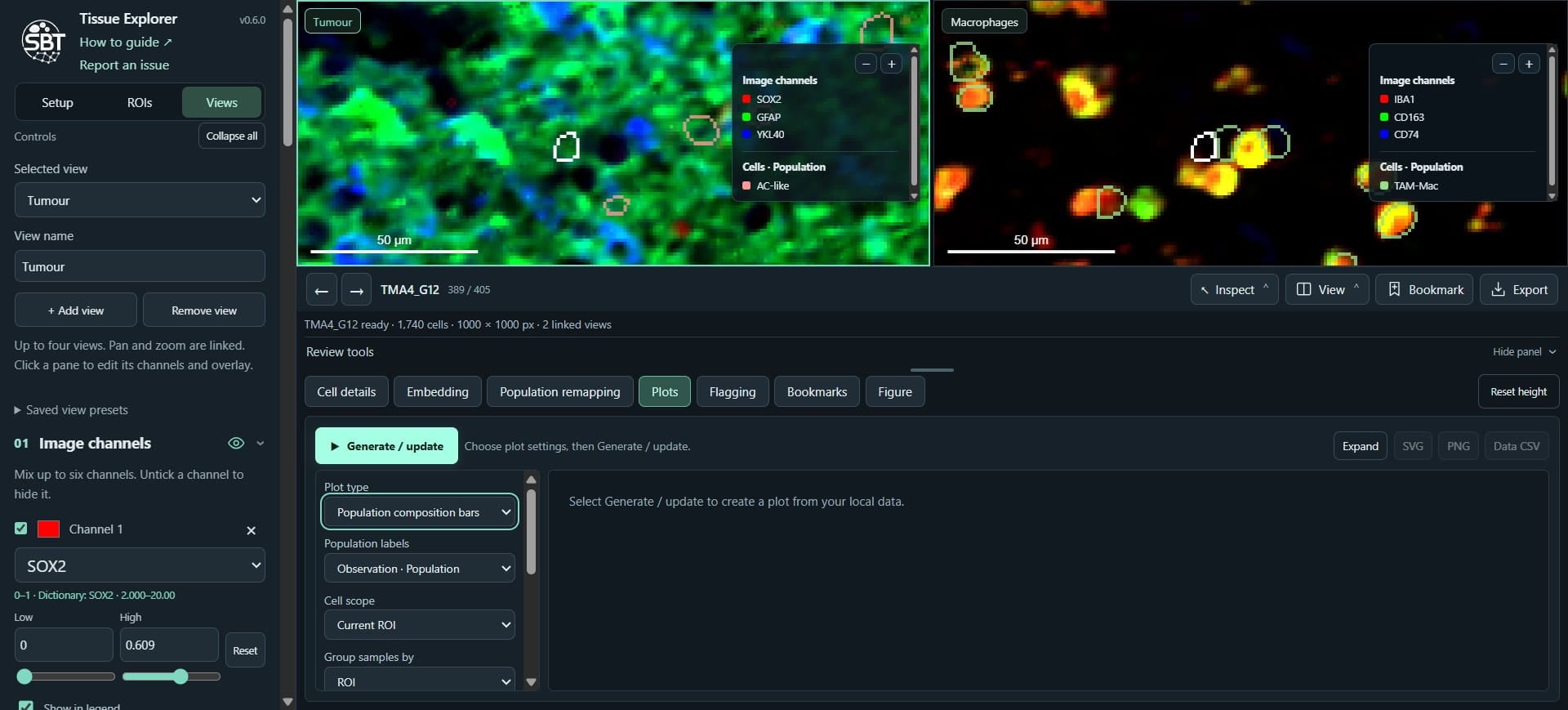
Click on "Figure"
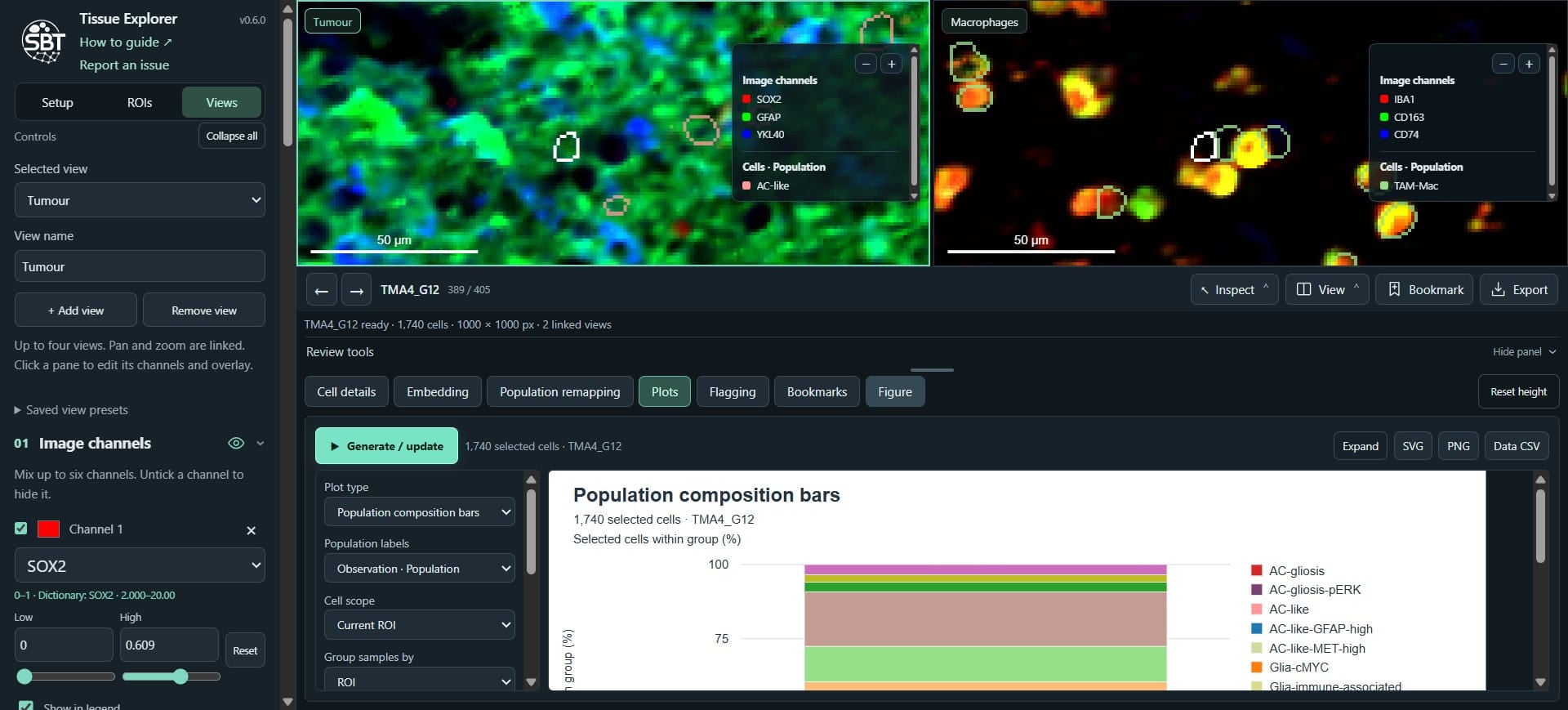
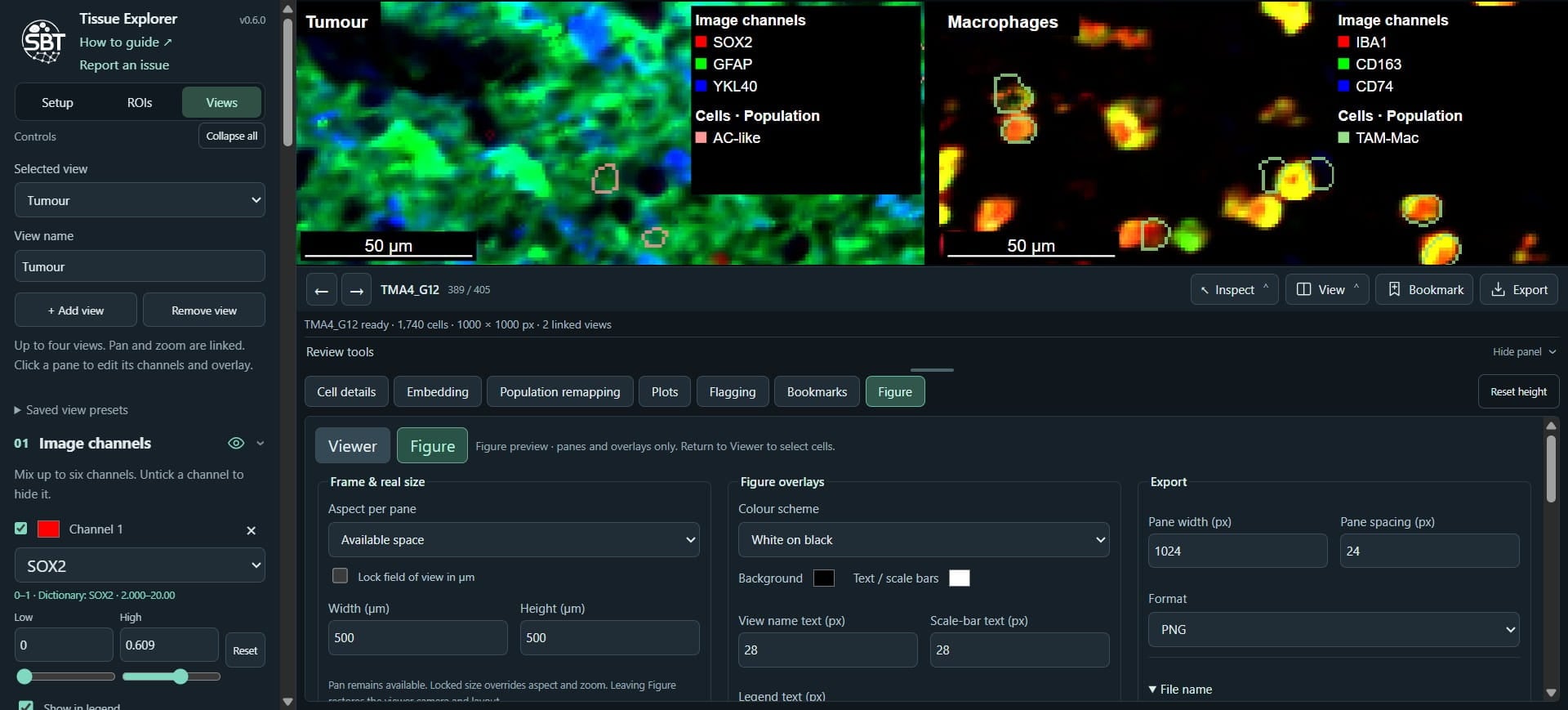
Click on "Figure" - where we can generate figure-ready visualisations, including exporting all our panels in paper ready format.
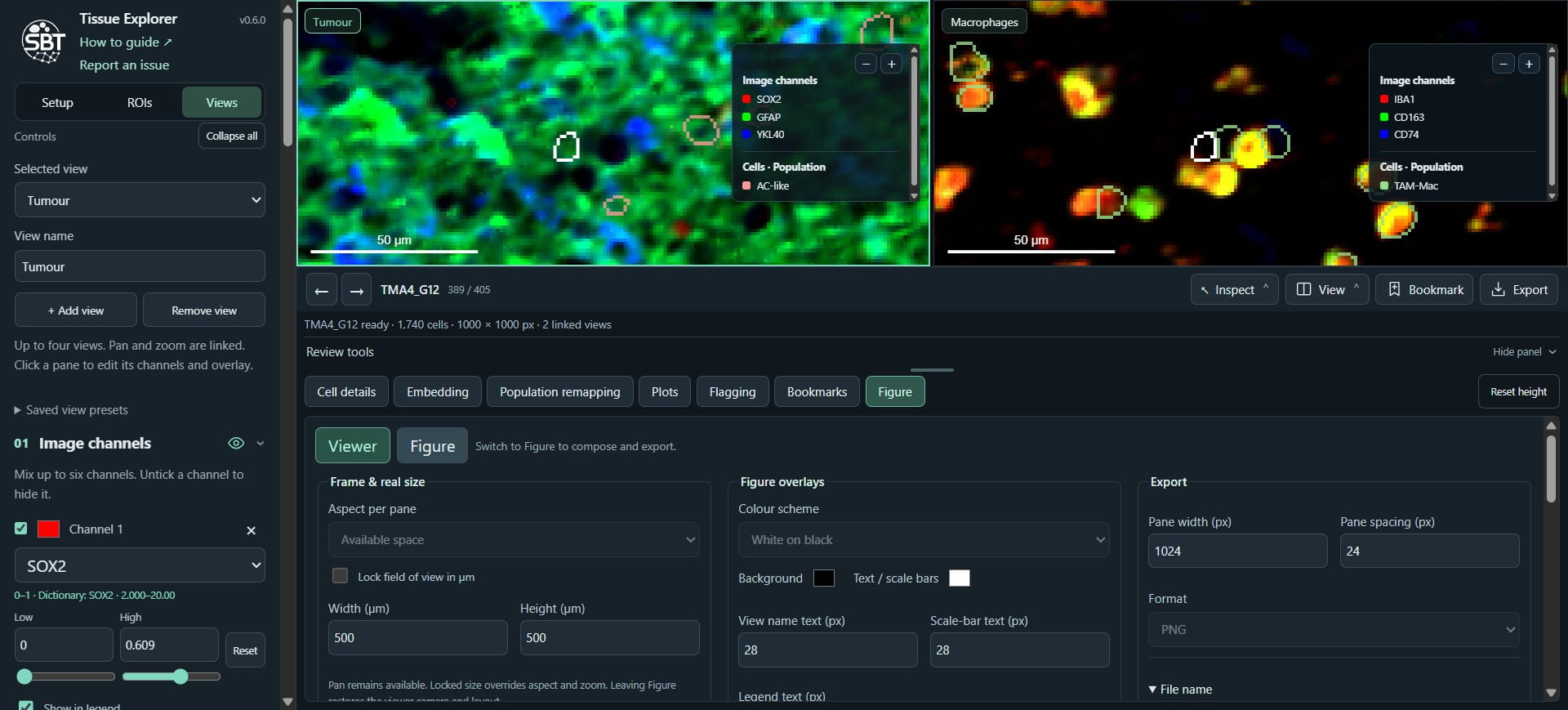
Click on "Hide panel"
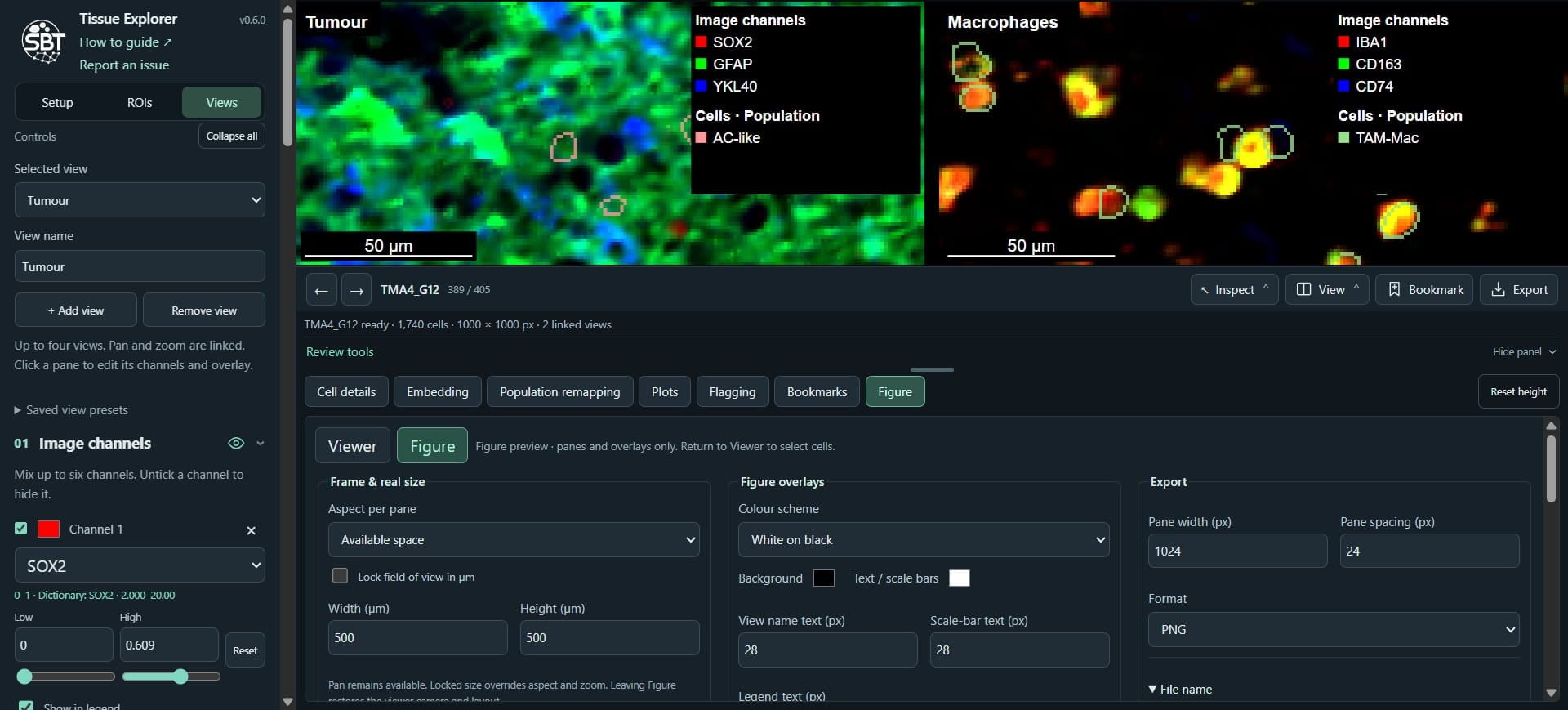
Click on "Viewer" - this goes back to the normal viewer mode.
Click "Bookmark" to save the current tissue position, ROI and view contents.
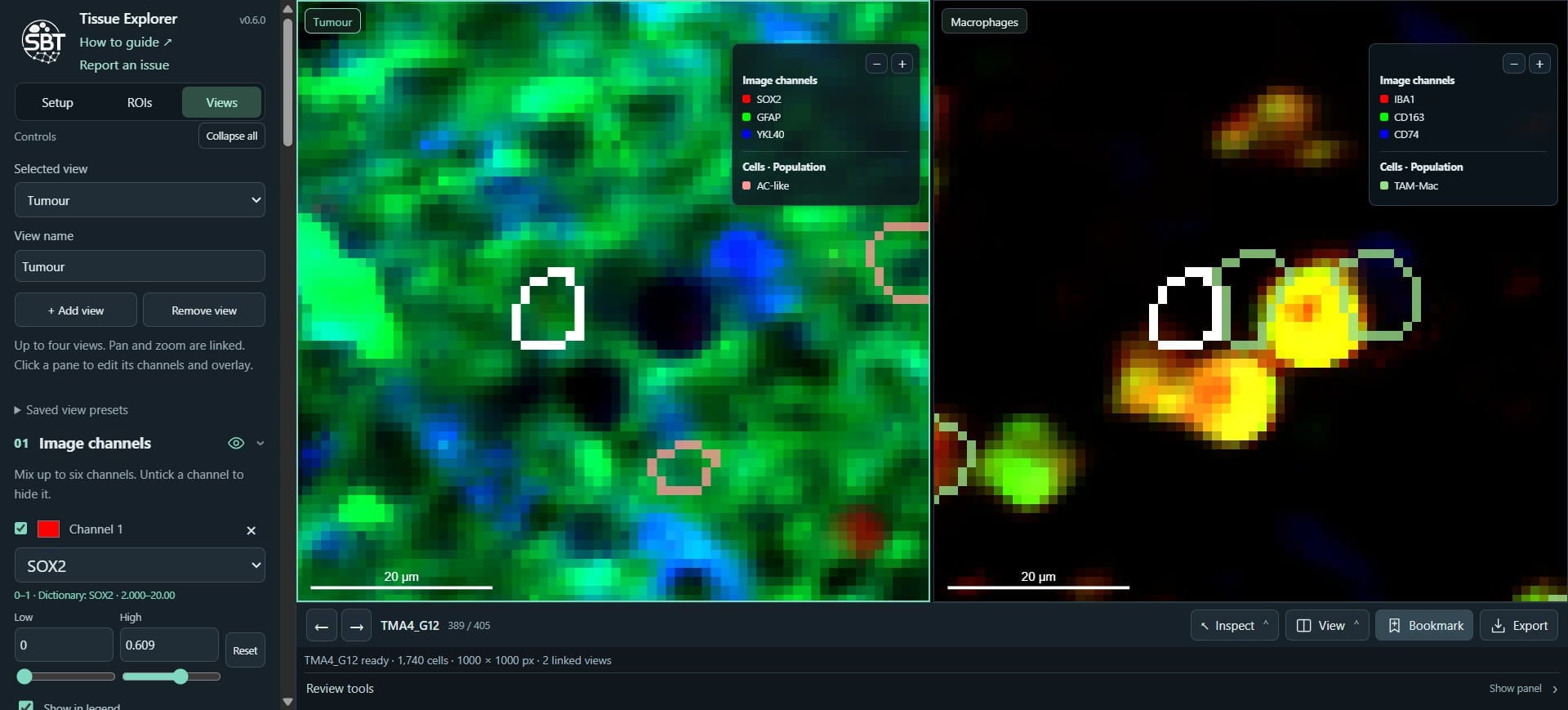
Add any comments
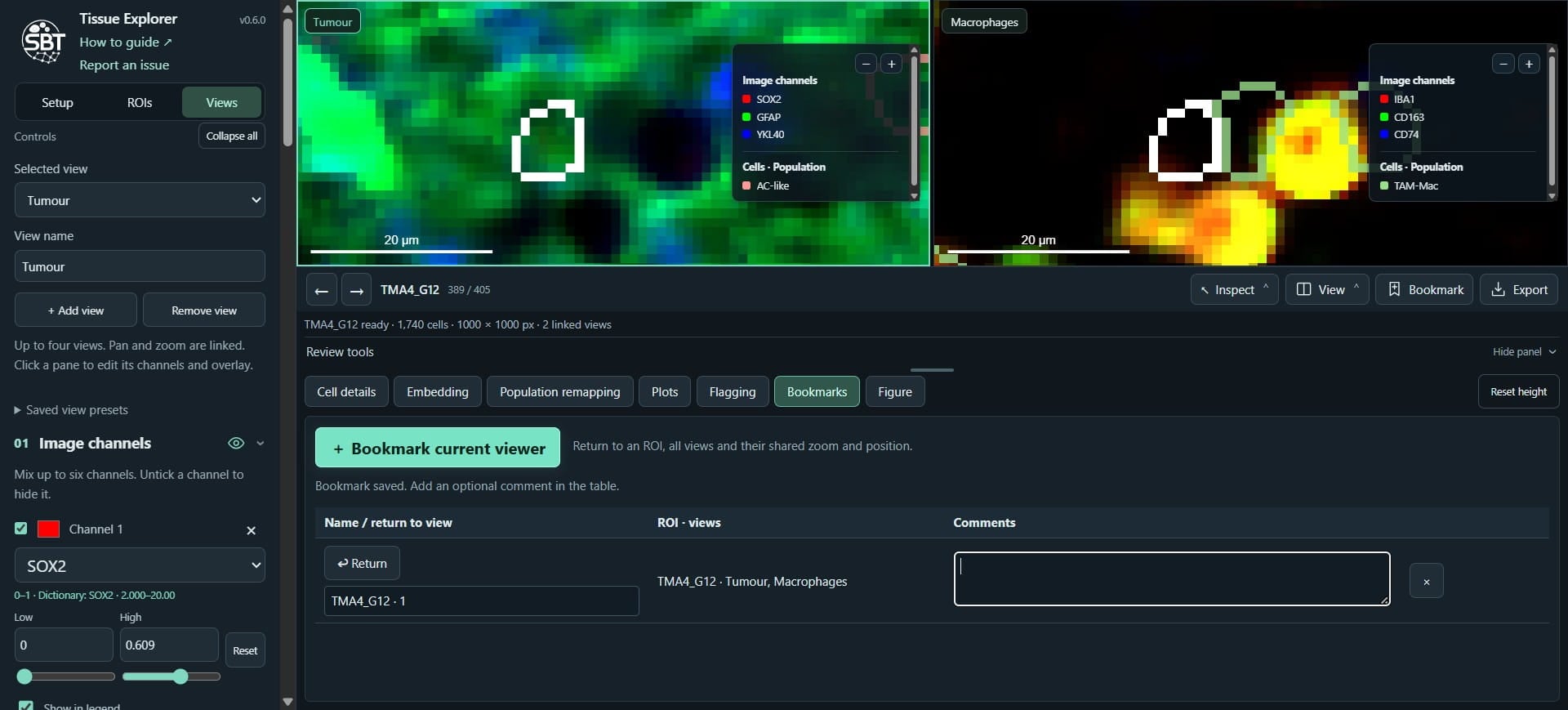
Click on "Setup" - we can also add other types of layer, we will add aligned and annotated H&E sections
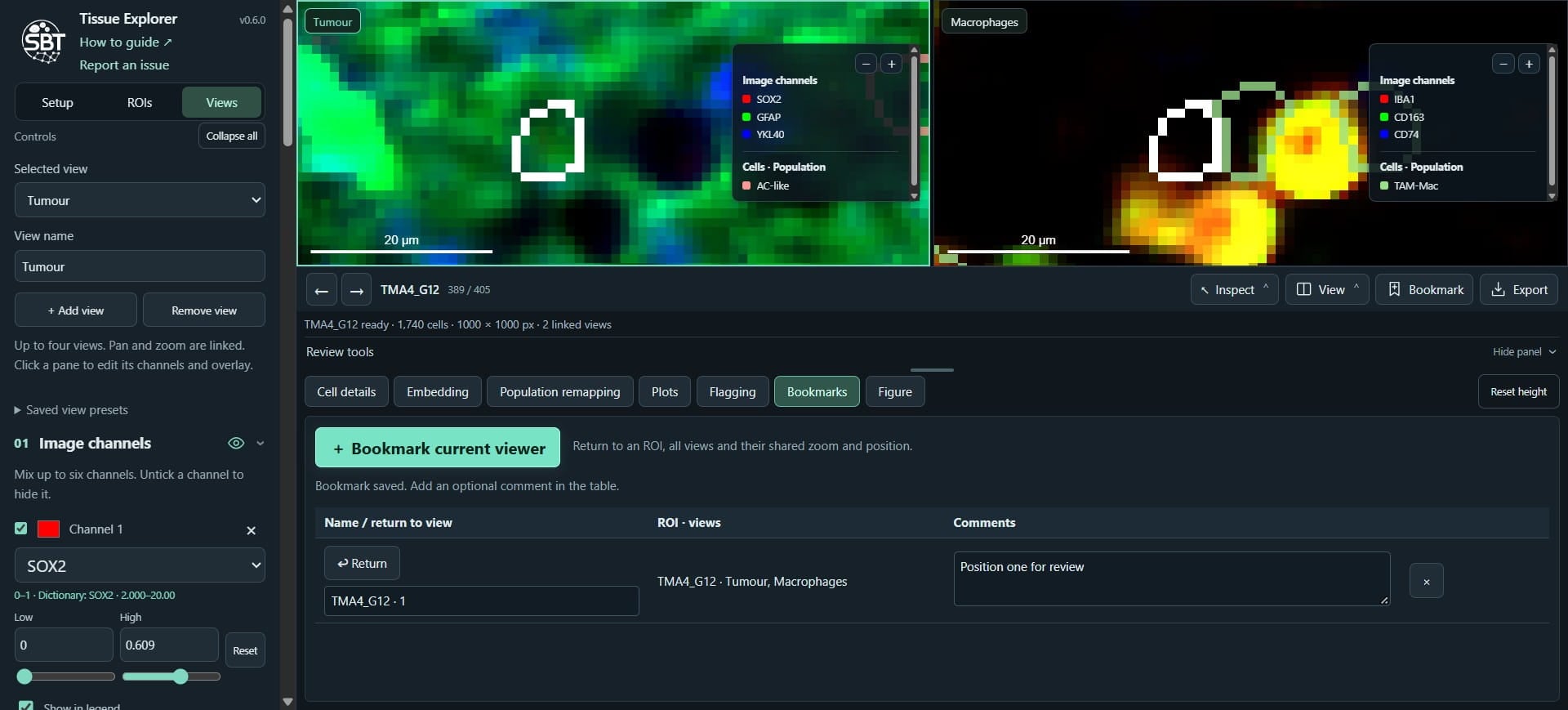
Scroll down
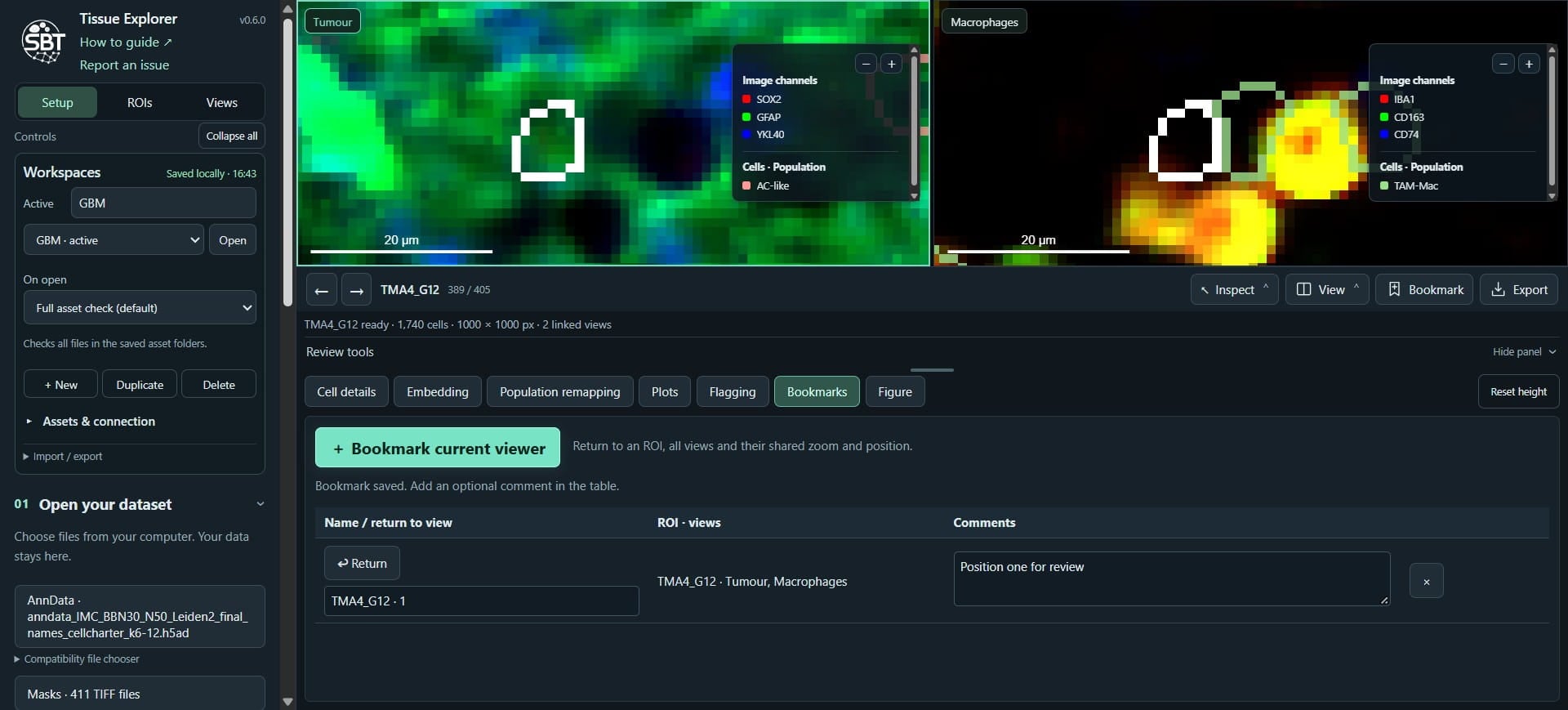
Click on "+ Add layer folder"
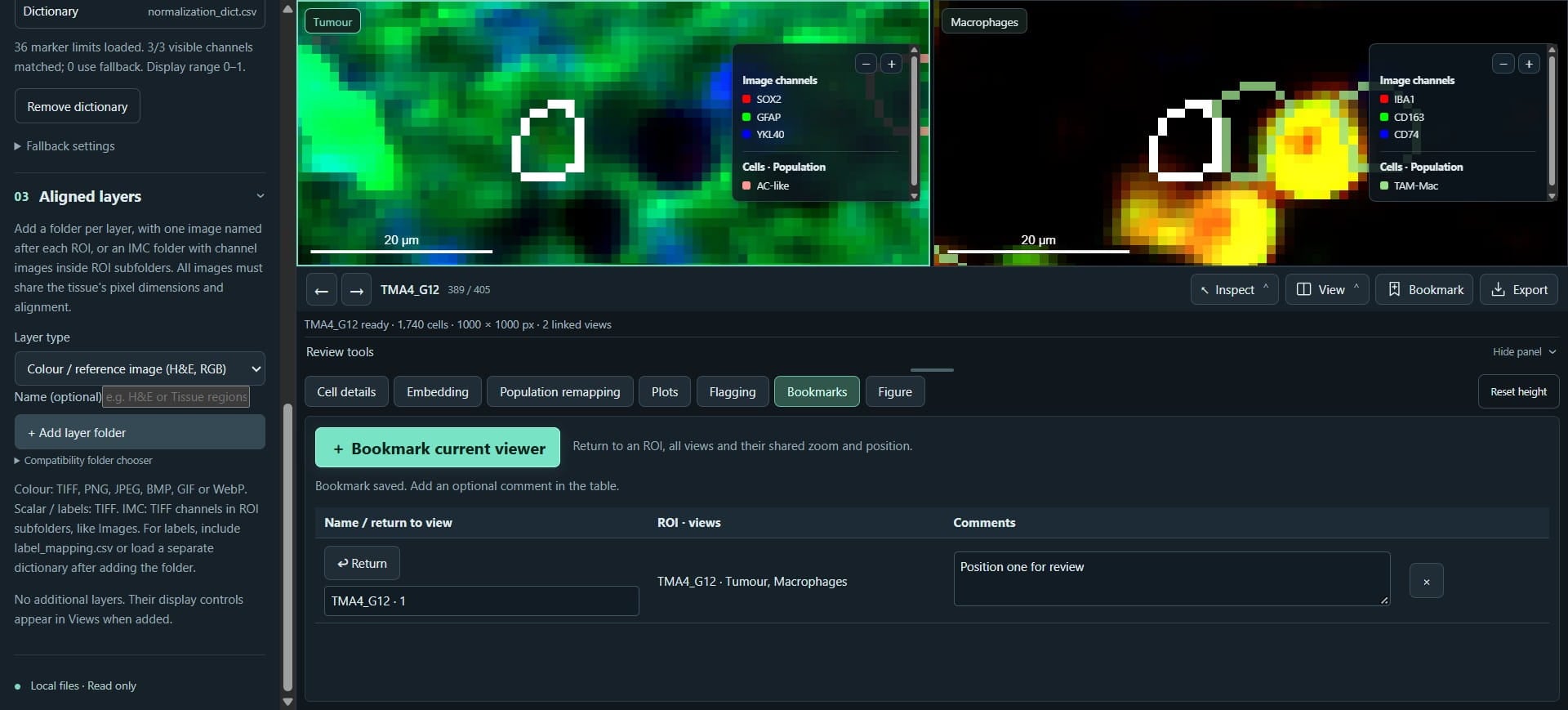
Click on "Colour / reference image (H&E, RGB)" and navigate to your folder of images
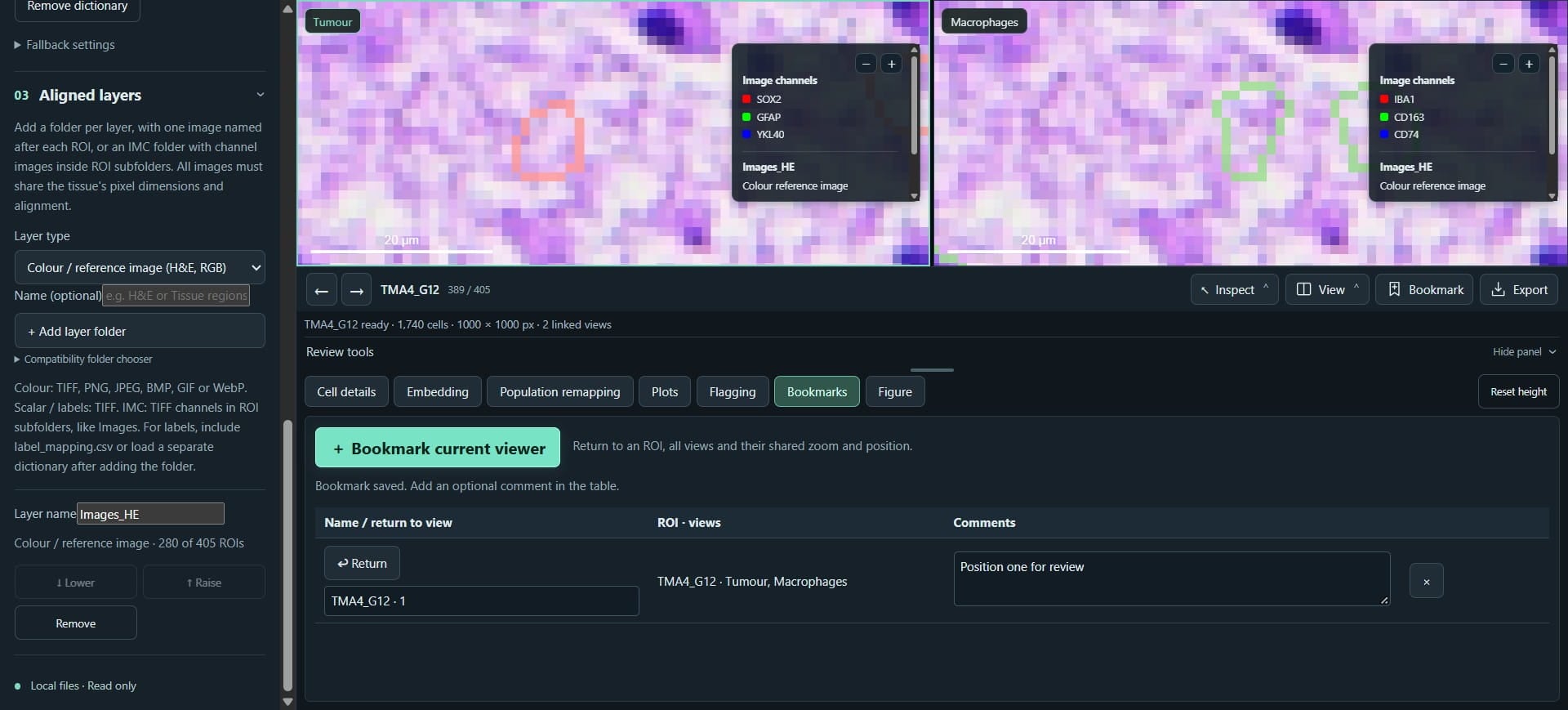
Click on "+ Add layer folder" and select 'Categorical labels'
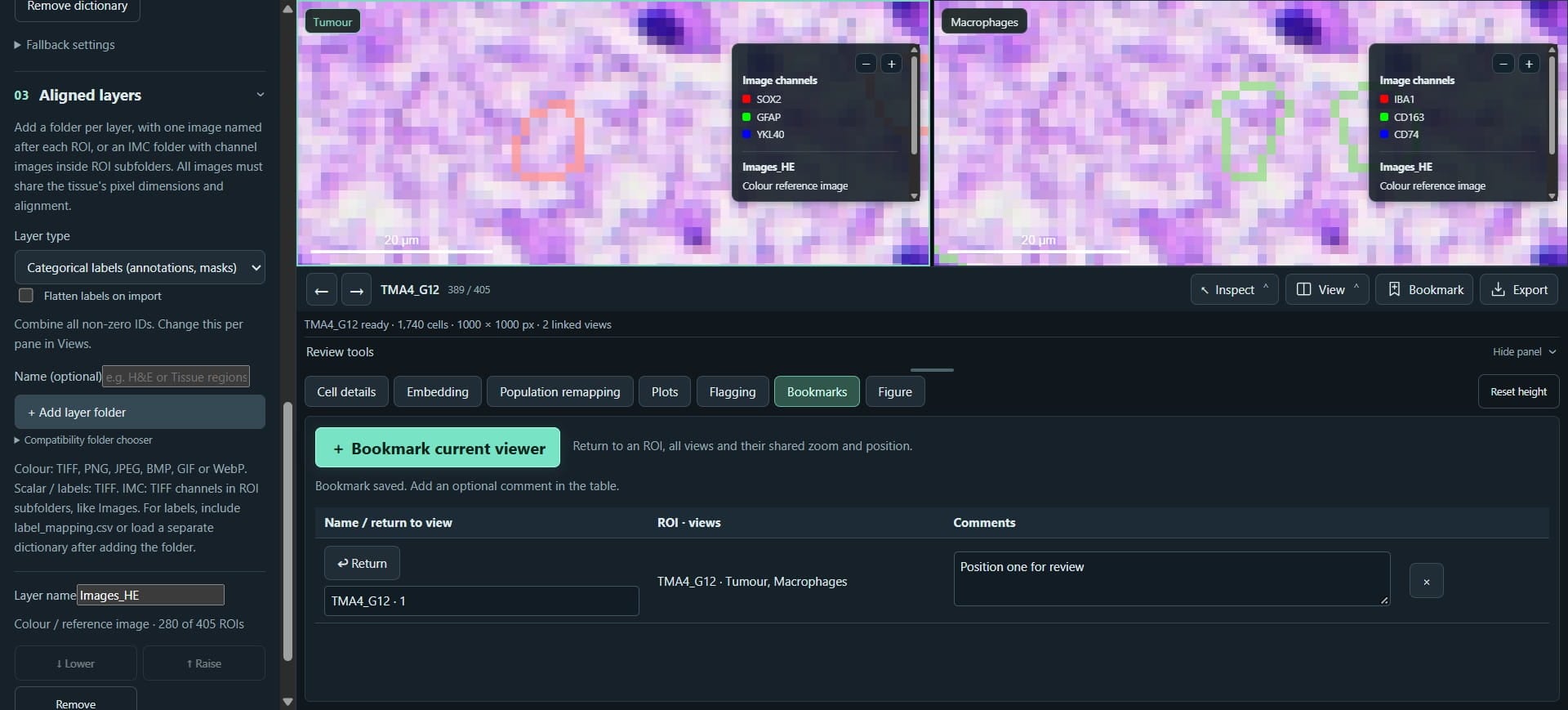
We can add a dictionary that names the annotations
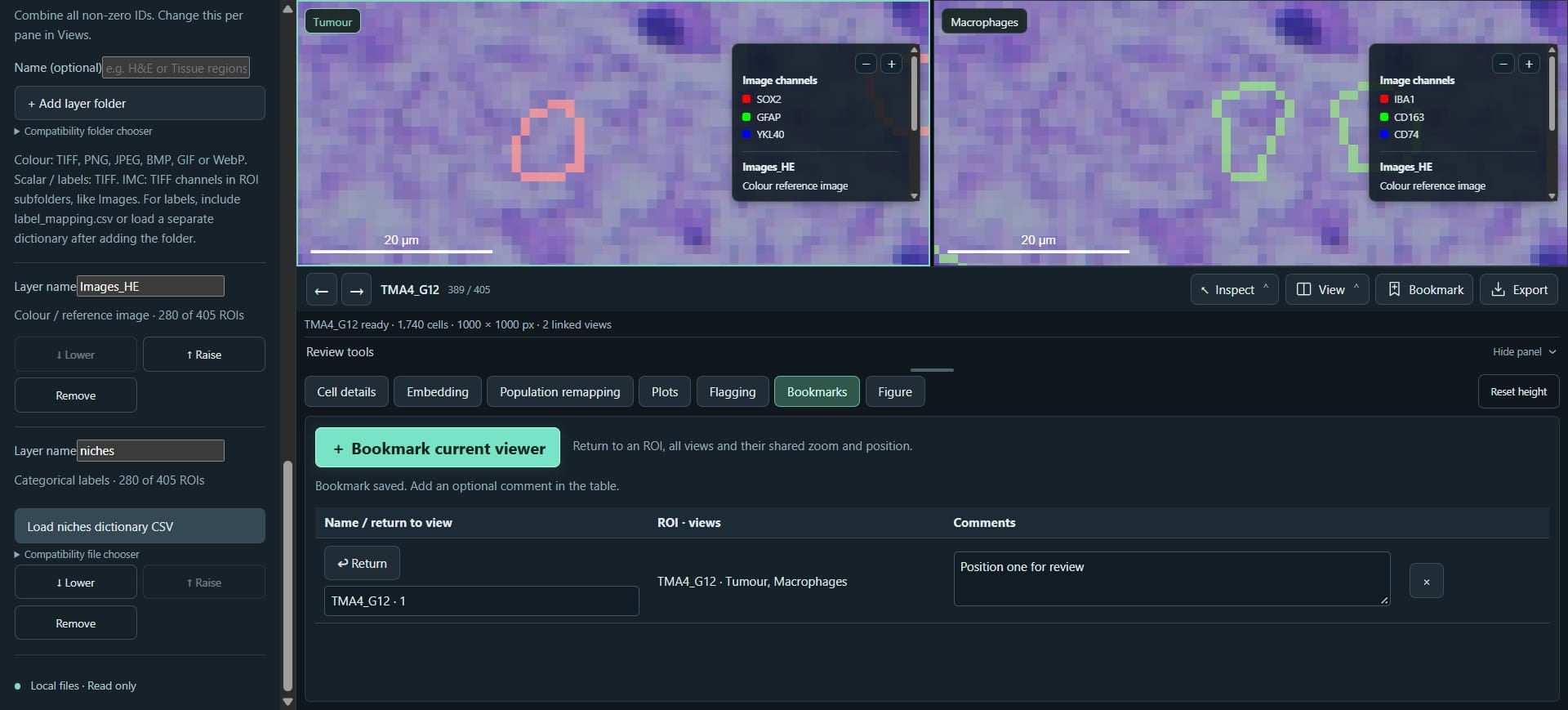
Click on "Views" - we can customise where the H&E images are shown in each view
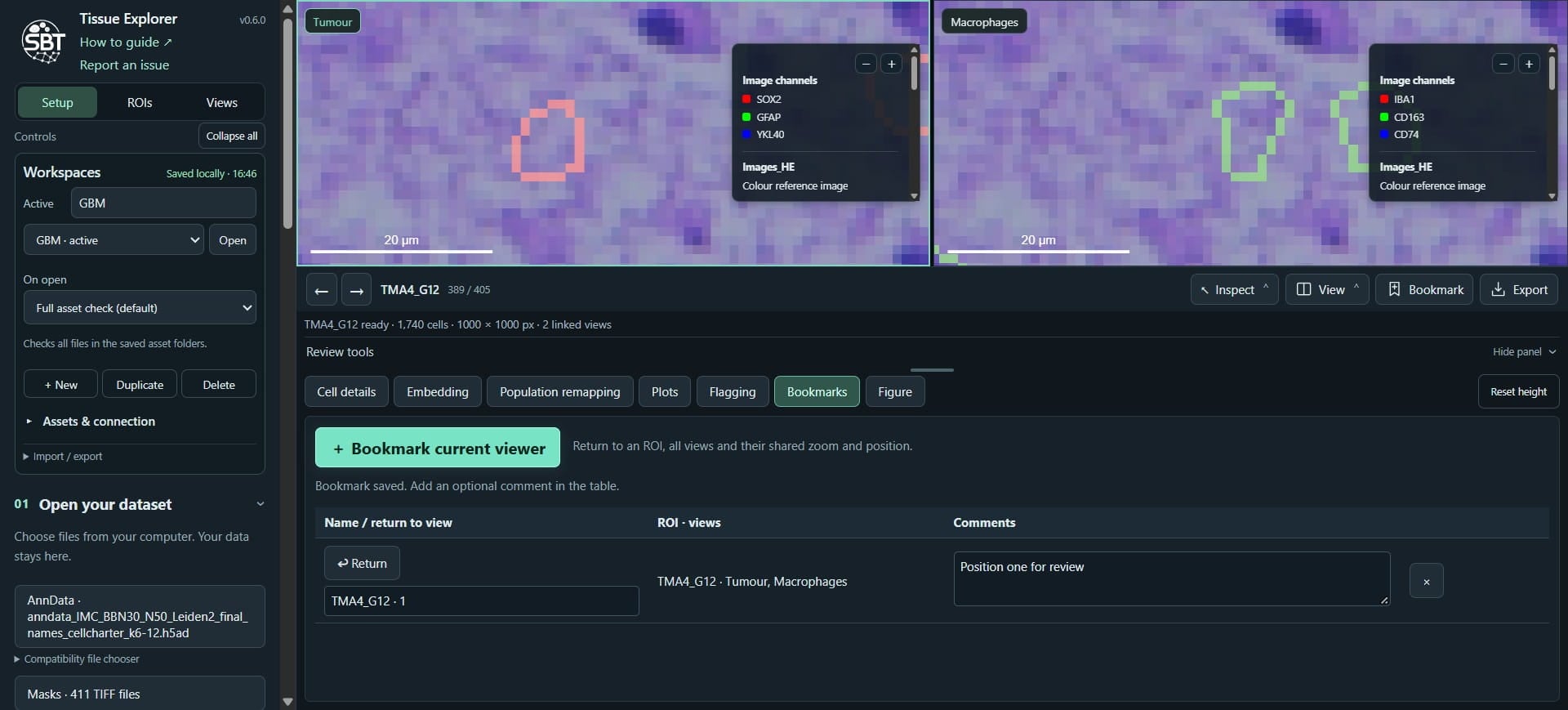
Click on "+ Add view", we will setup a new dedicated view for the H&E
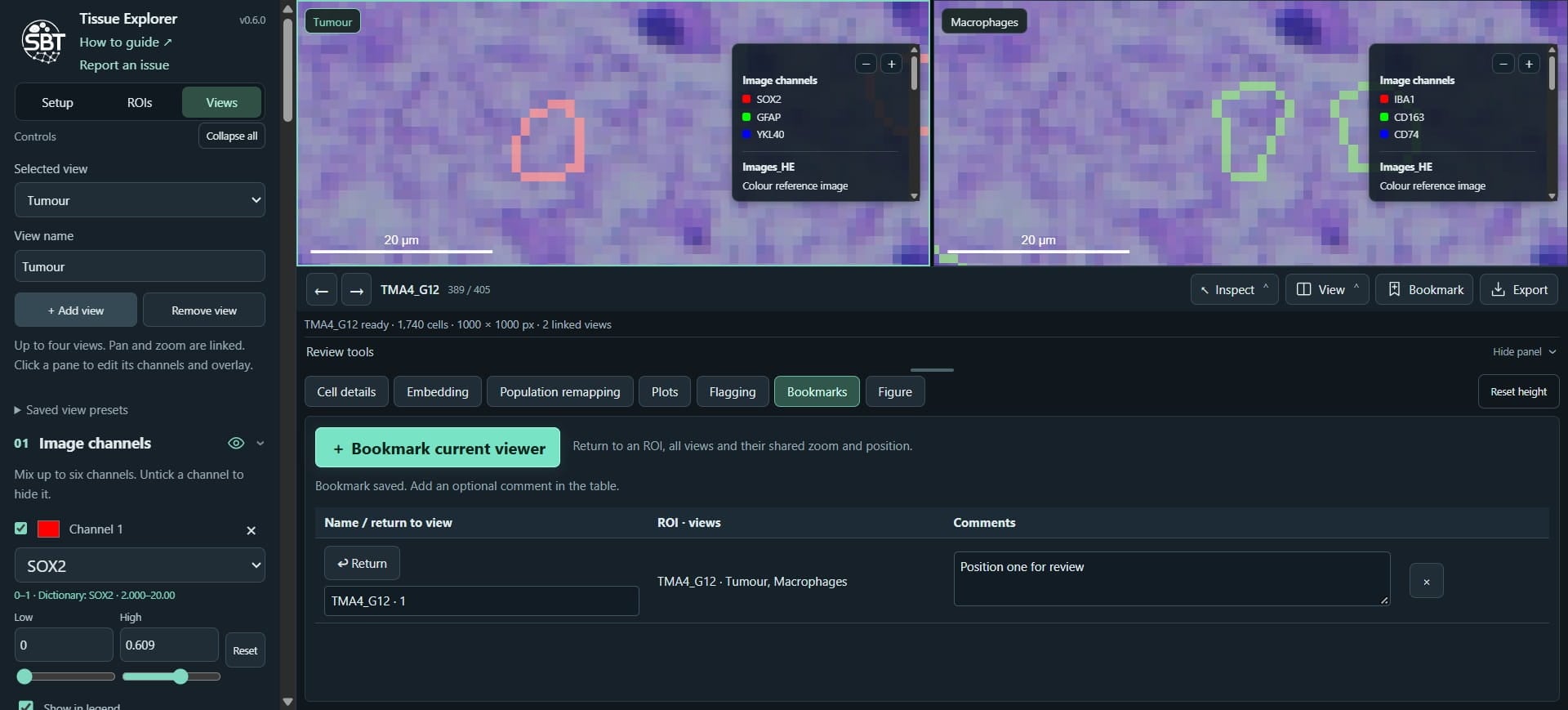
Lets call it H&E
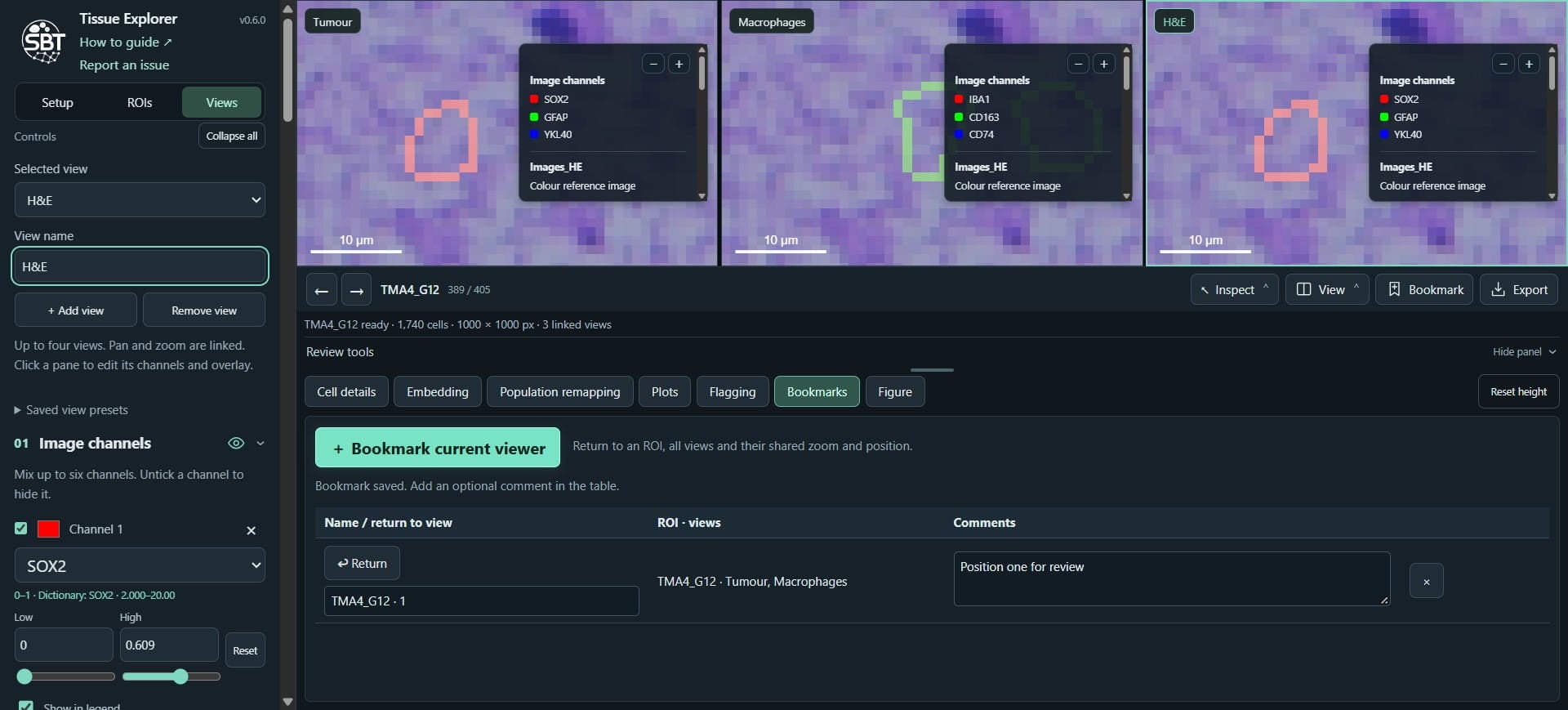
We can hide the H&E and annotation from the other views
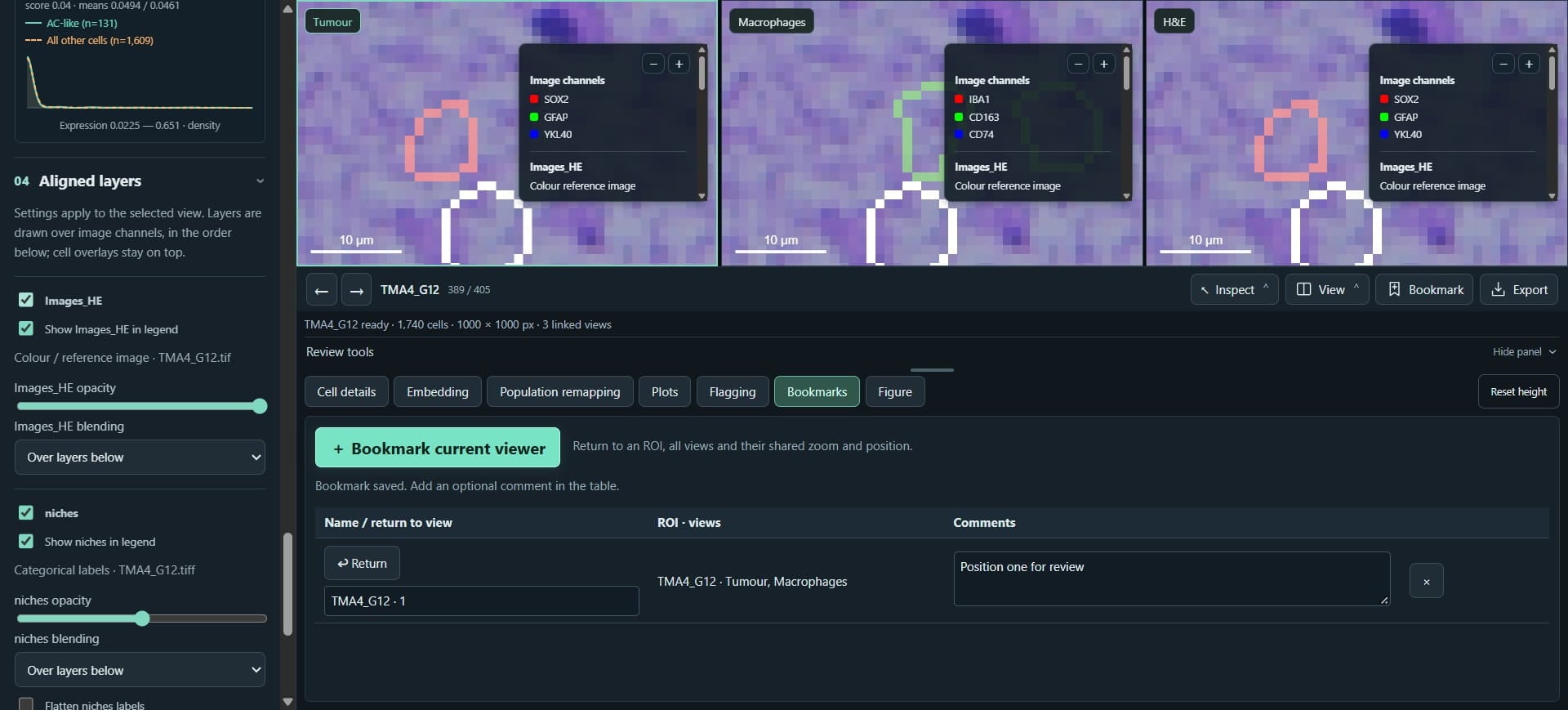
Click on "Hide panel"
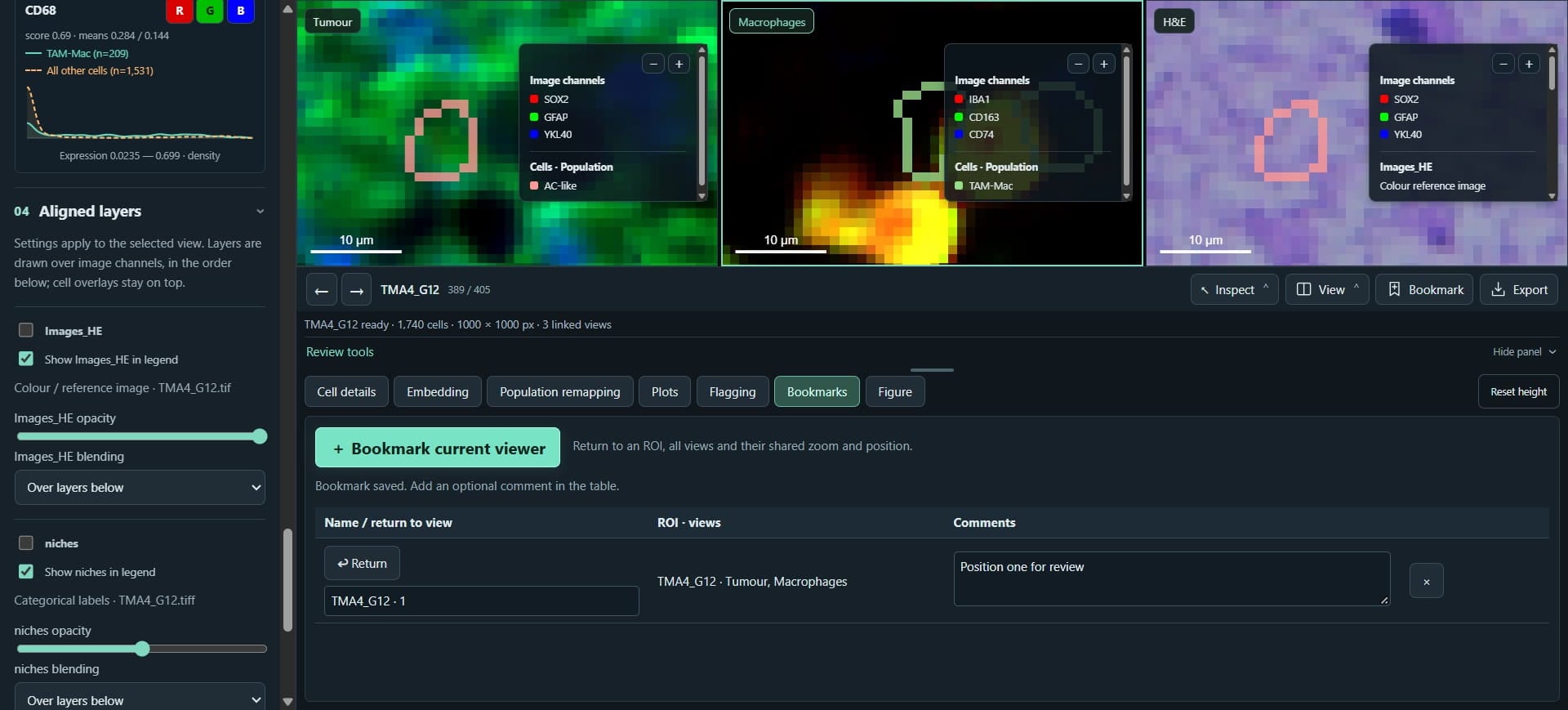
We can customise the extra layers, e.g. opacity
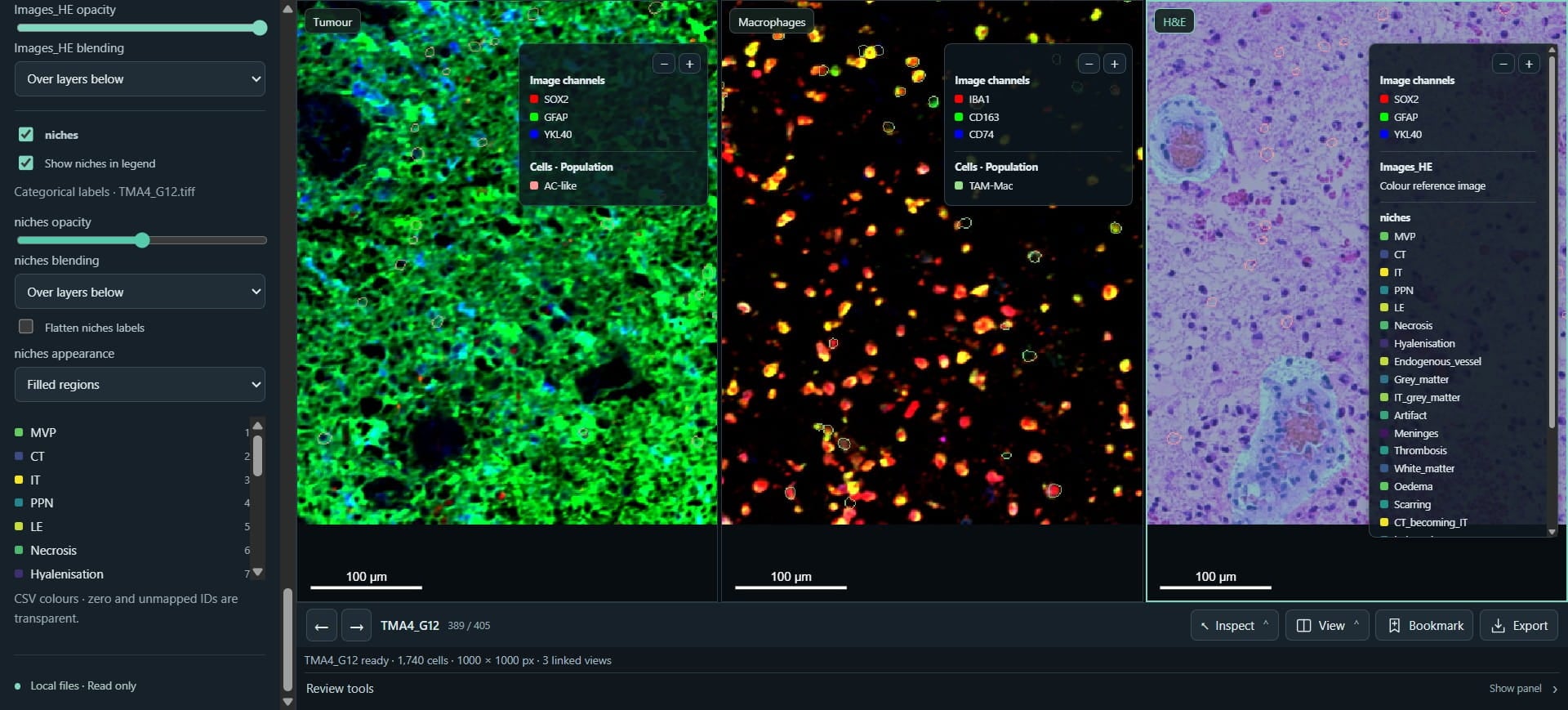
Click on "Figure", we can use our Figure interface to export the 3 views together
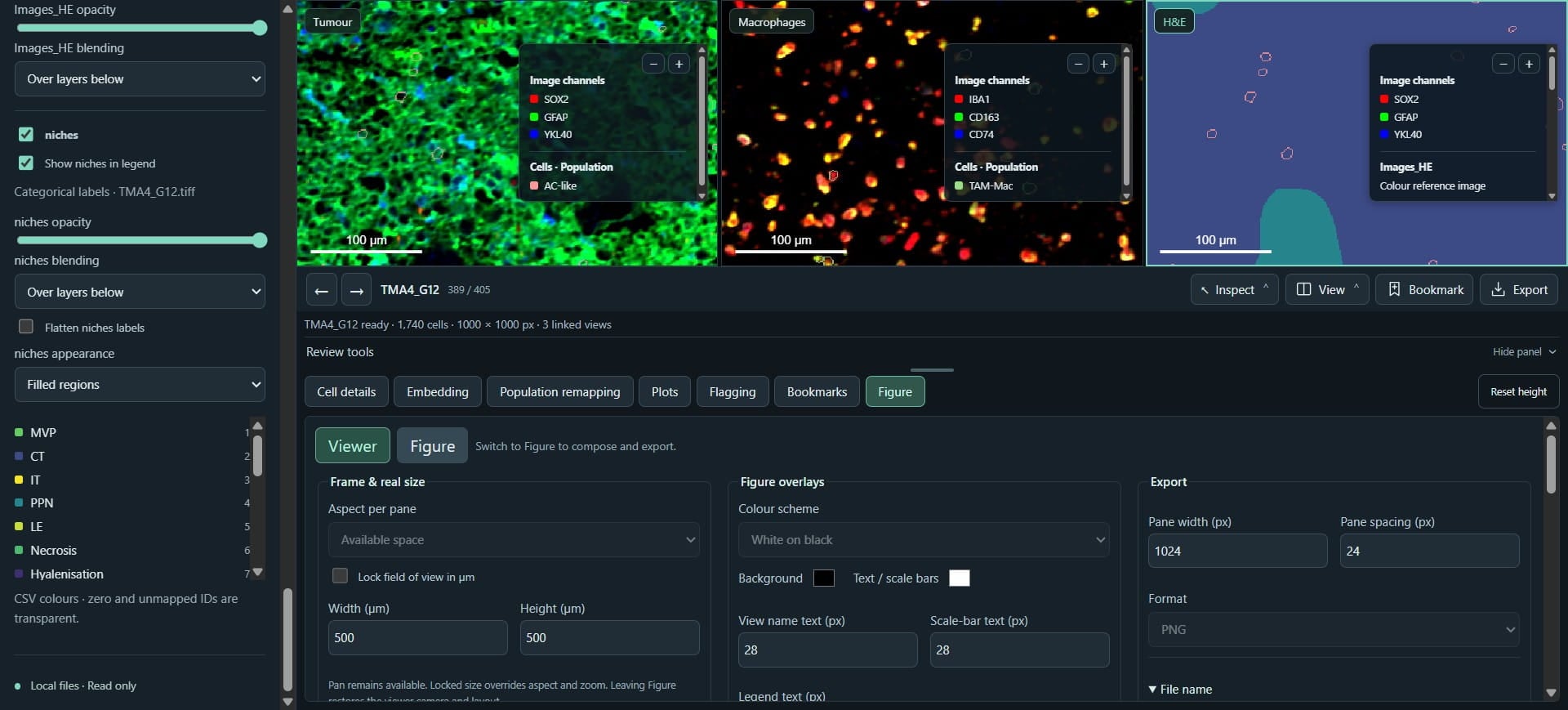
Click on "ROIs", where we can order, navigate and filter ROIs for review.
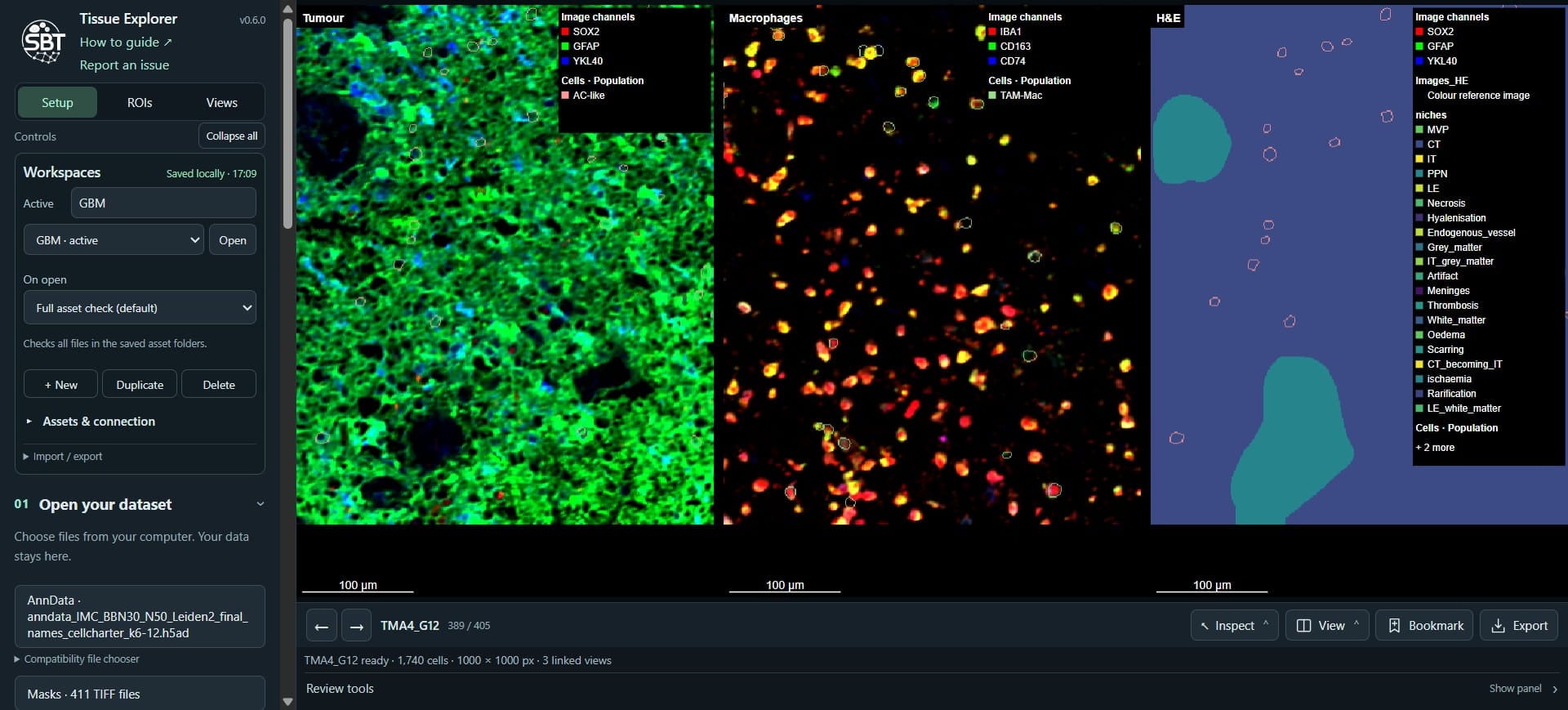
Click on "Read metadata" - this will take a while to population, depending on the size of your dataset.
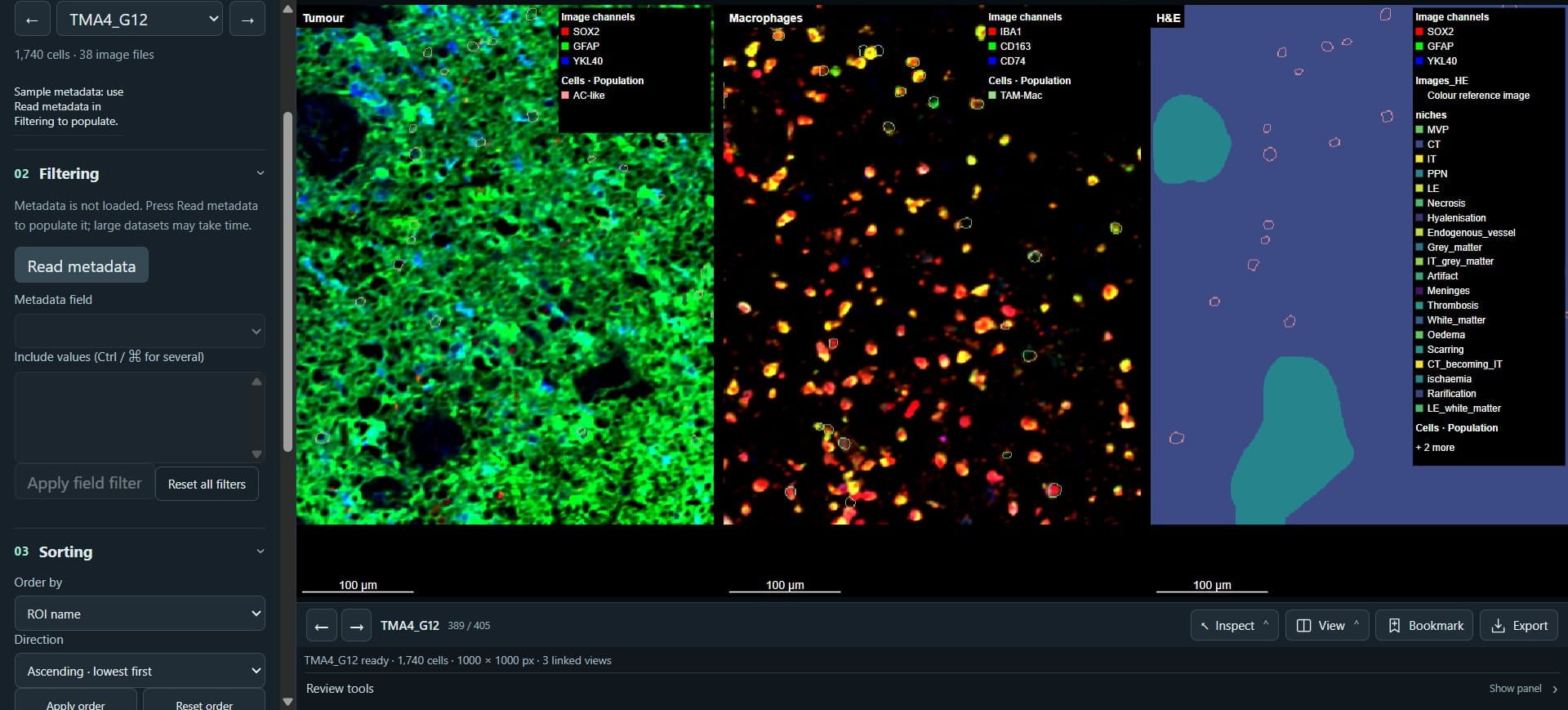
Click on "ROI name", we can instead order our ROIs with reference to the abundance of specific populations
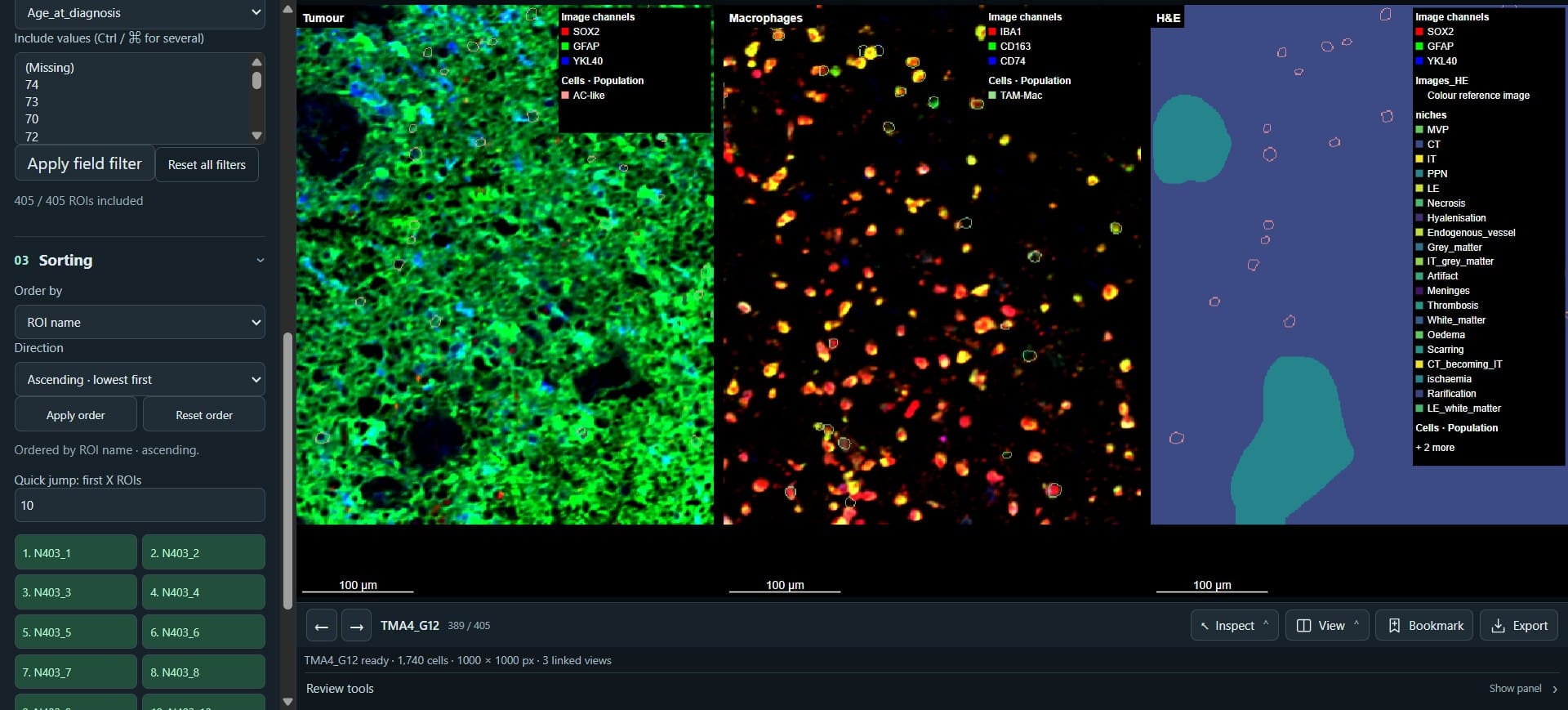
Click on "AC-gliosis"
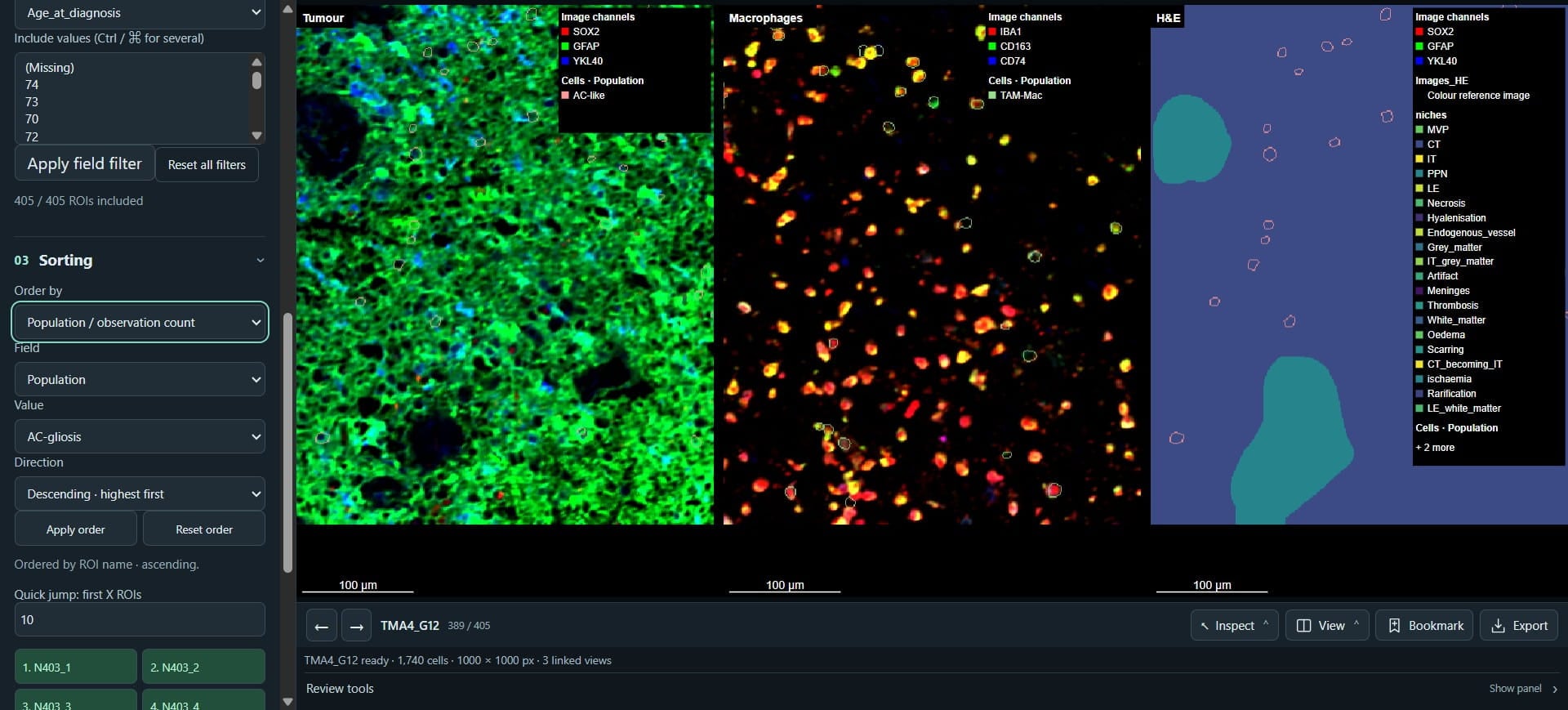
Click on "Apply order"
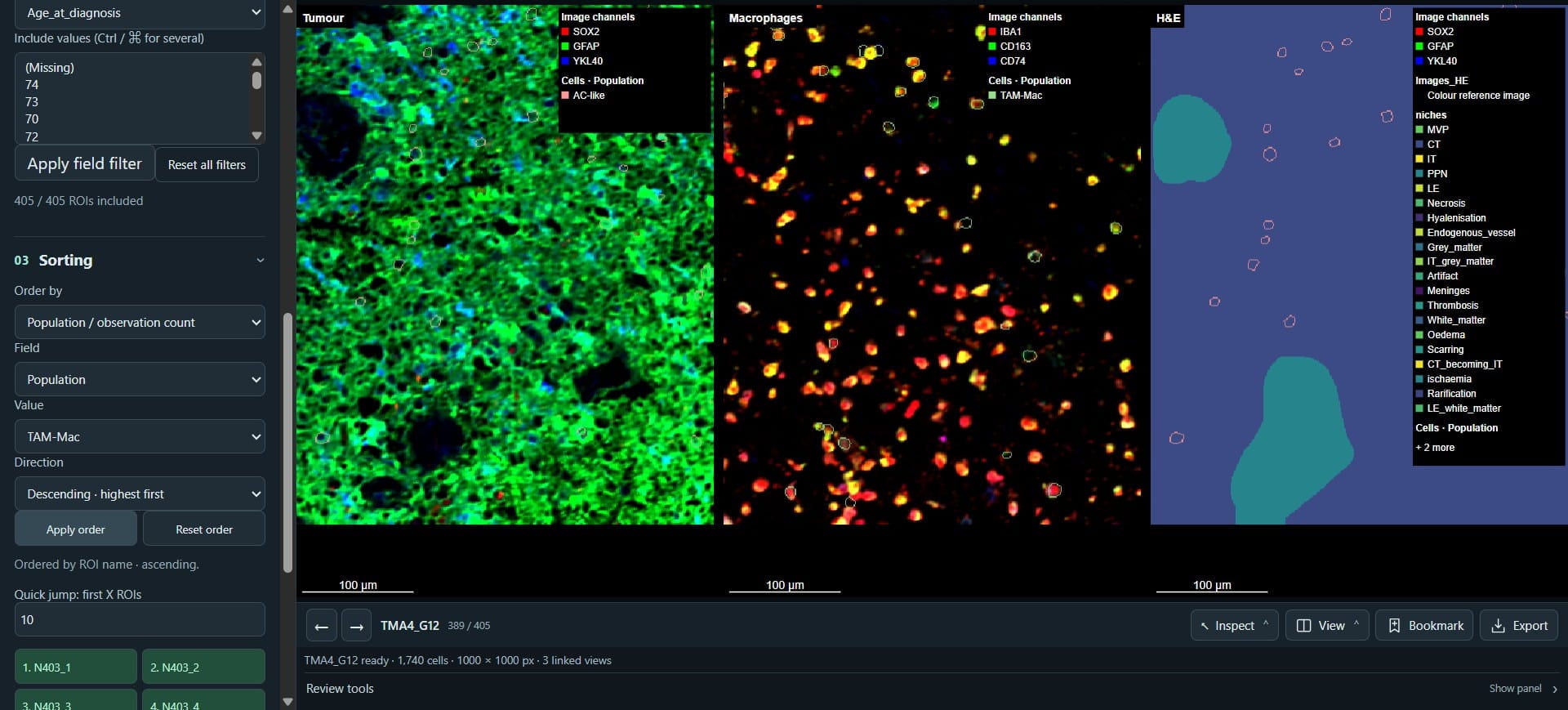
Click on "1. TMA3_B11 · 2,762" - this is the population with most TAM-Mac cells.
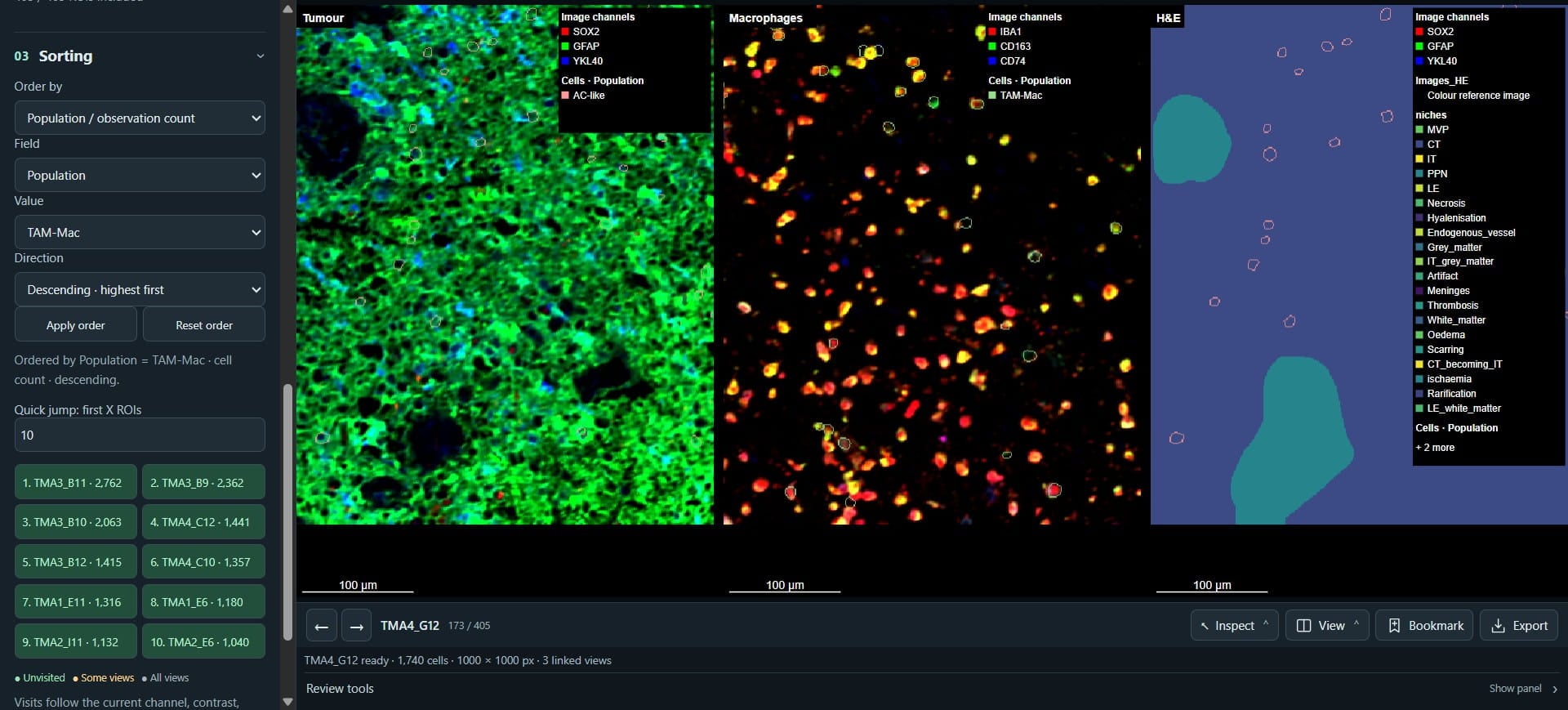
Click here
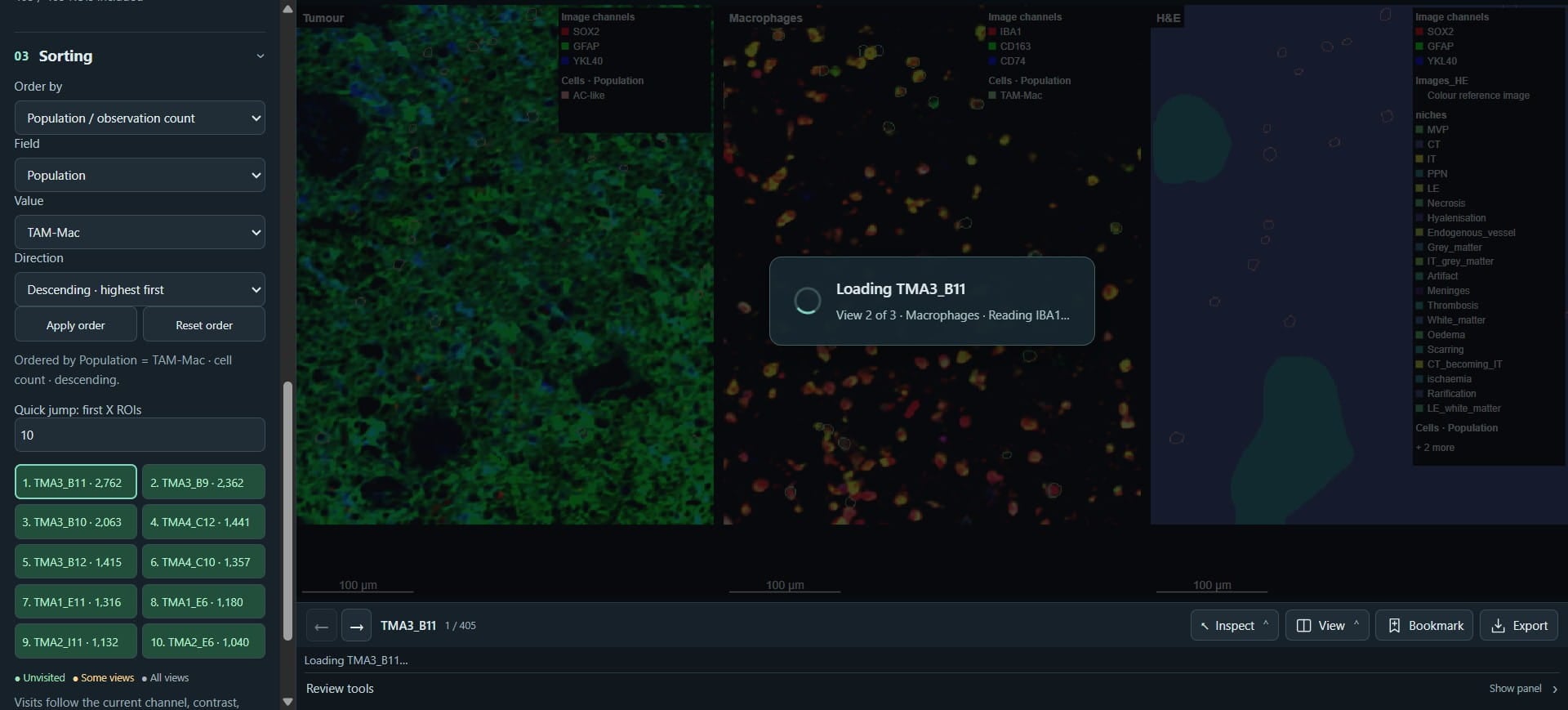
Scroll up and click on "Age_at_diagnosis" - we can filter ROIs by specific groups.
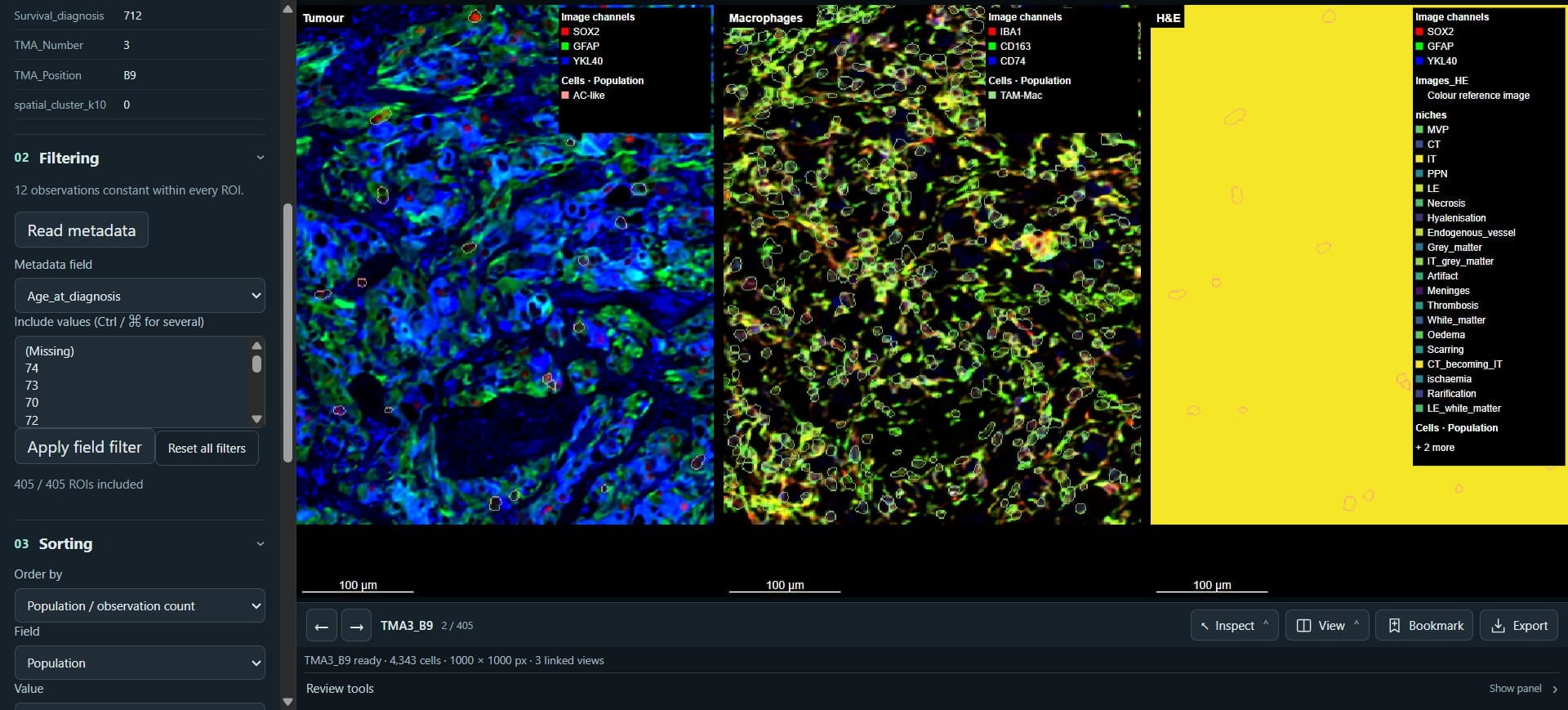
Click on "F"
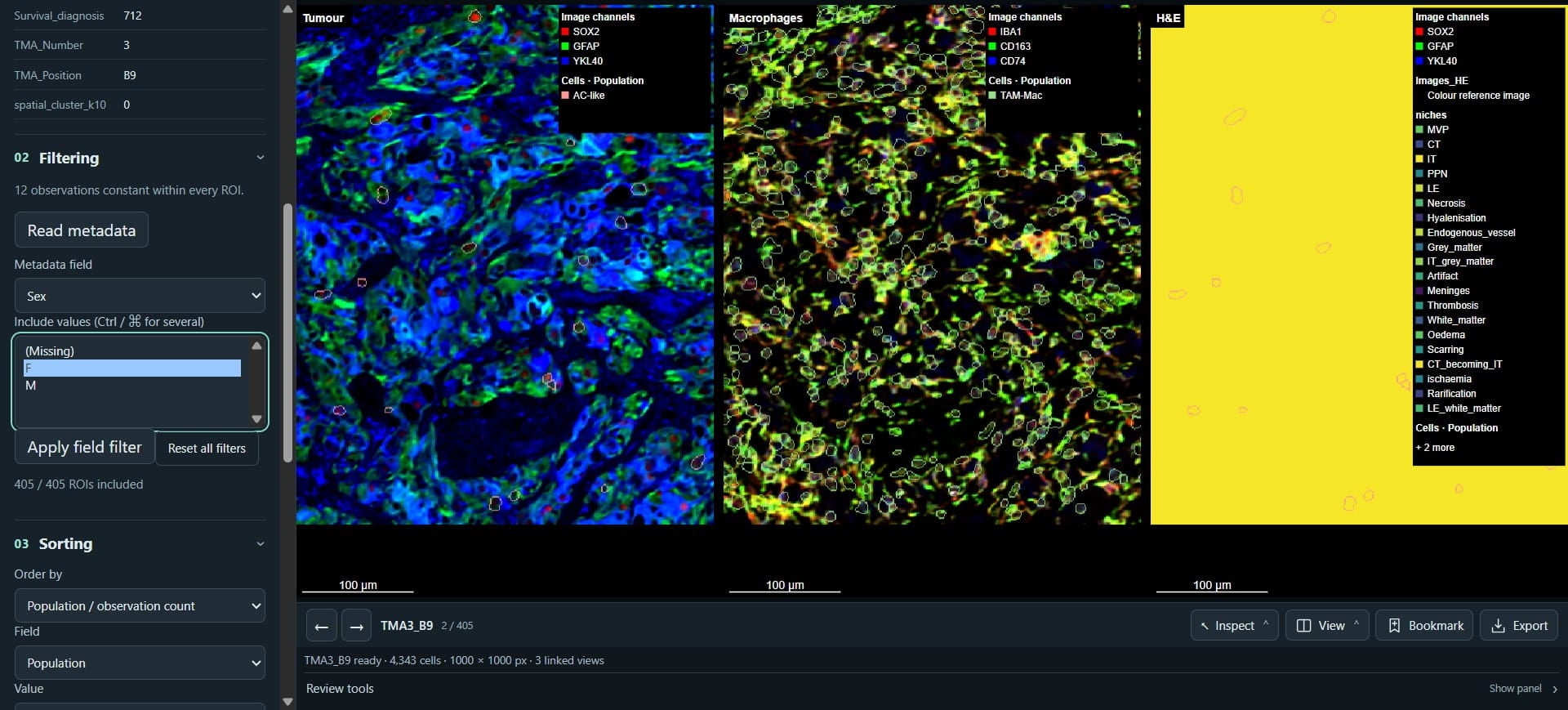
Click on "Apply field filter"
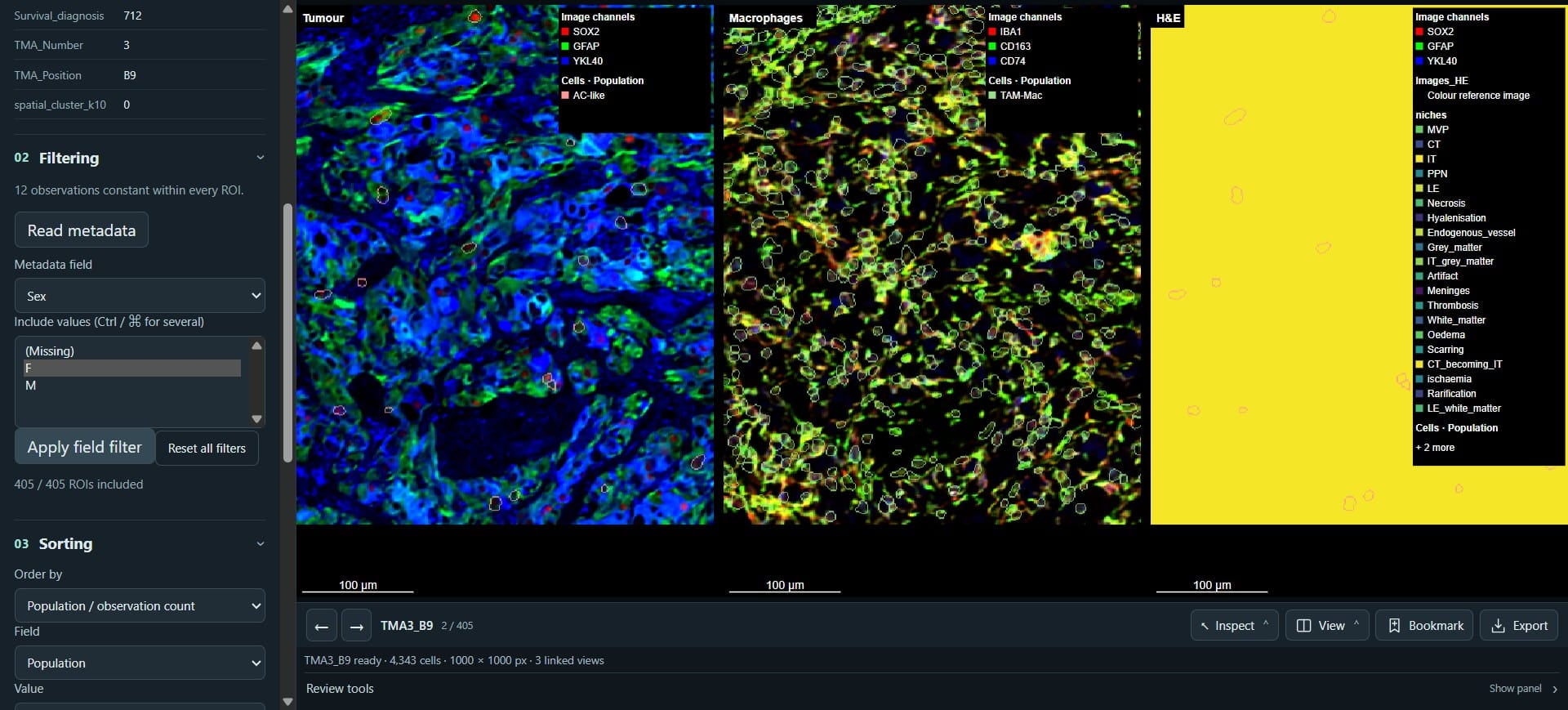
Click on "→", we can now navigate between female only cases.
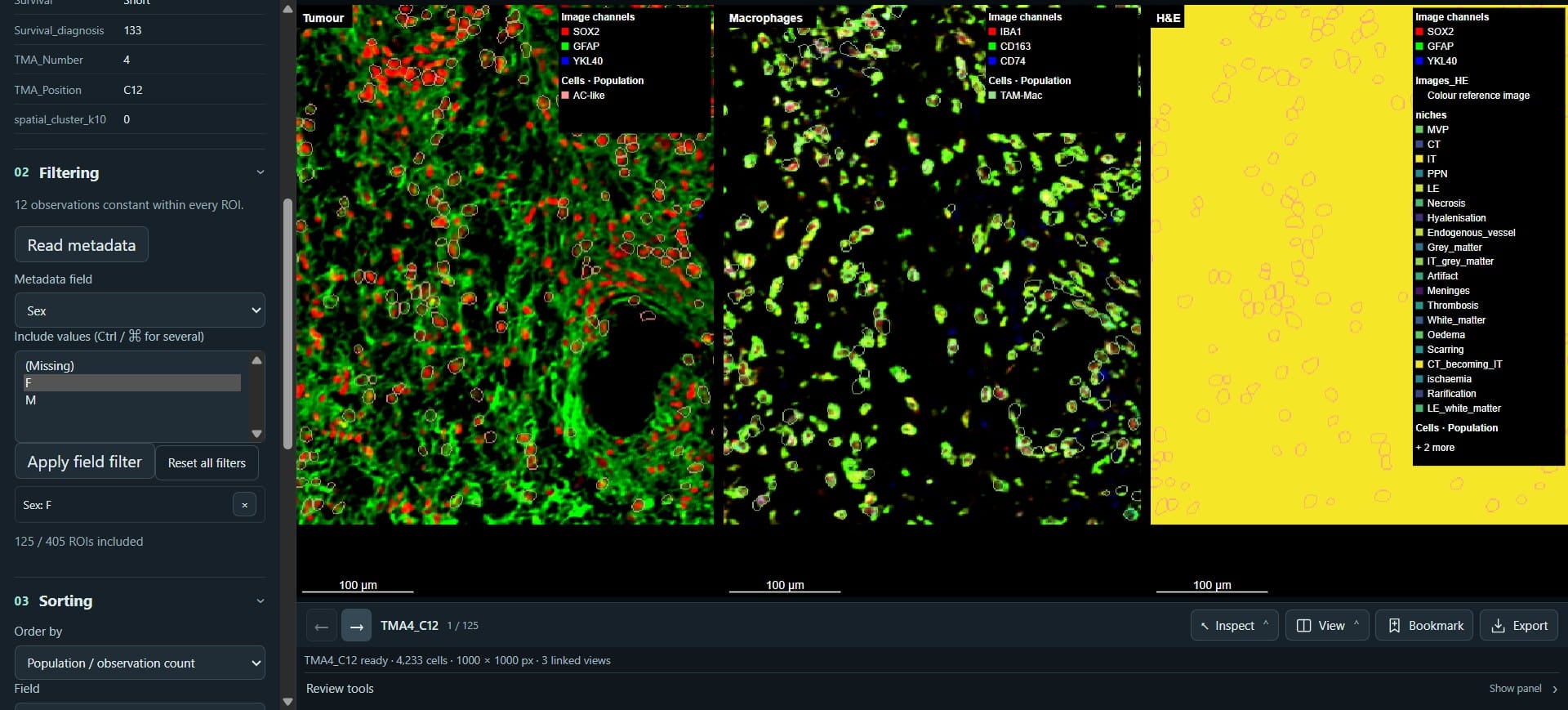
We can easily return to our earlier views and positions if we 'Bookmarked' them.
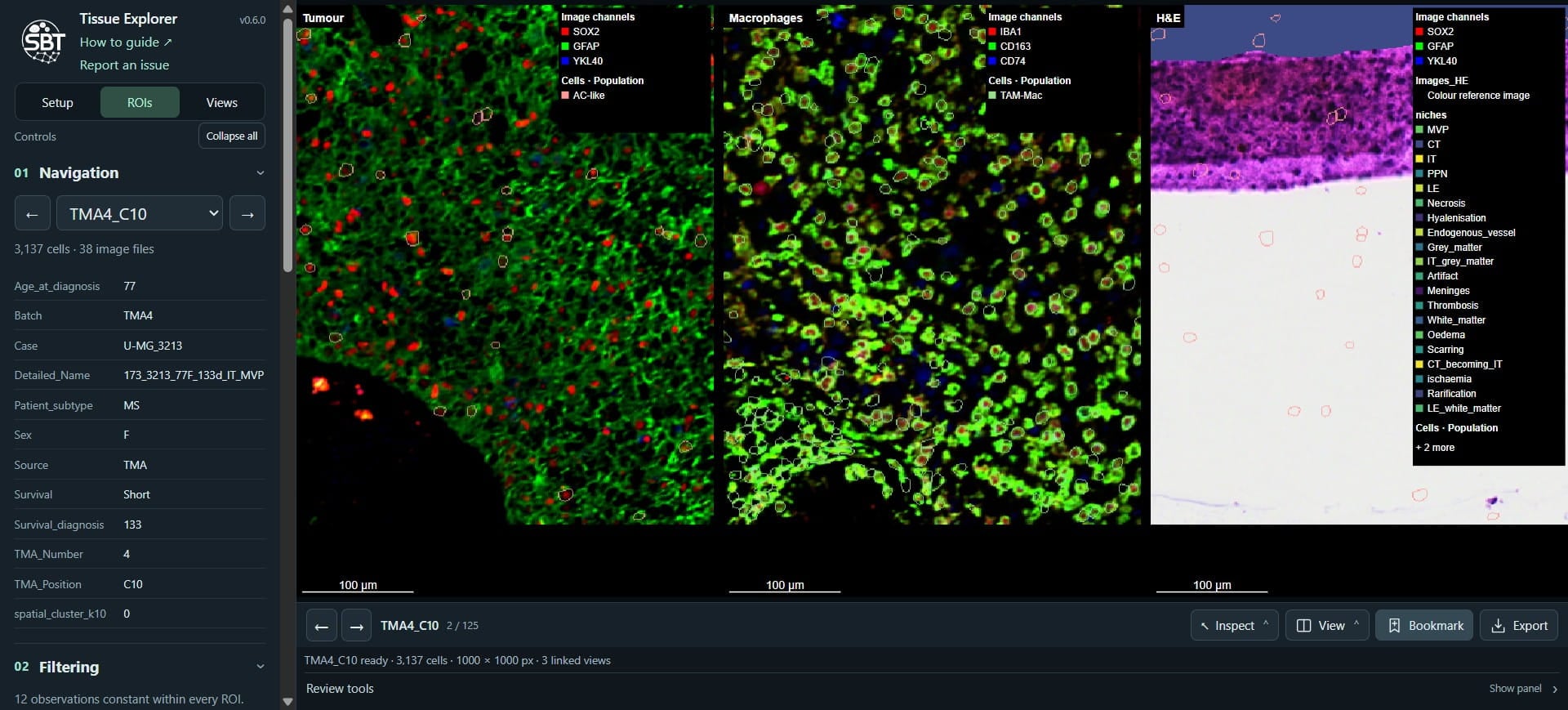
Click on "↩ Return"
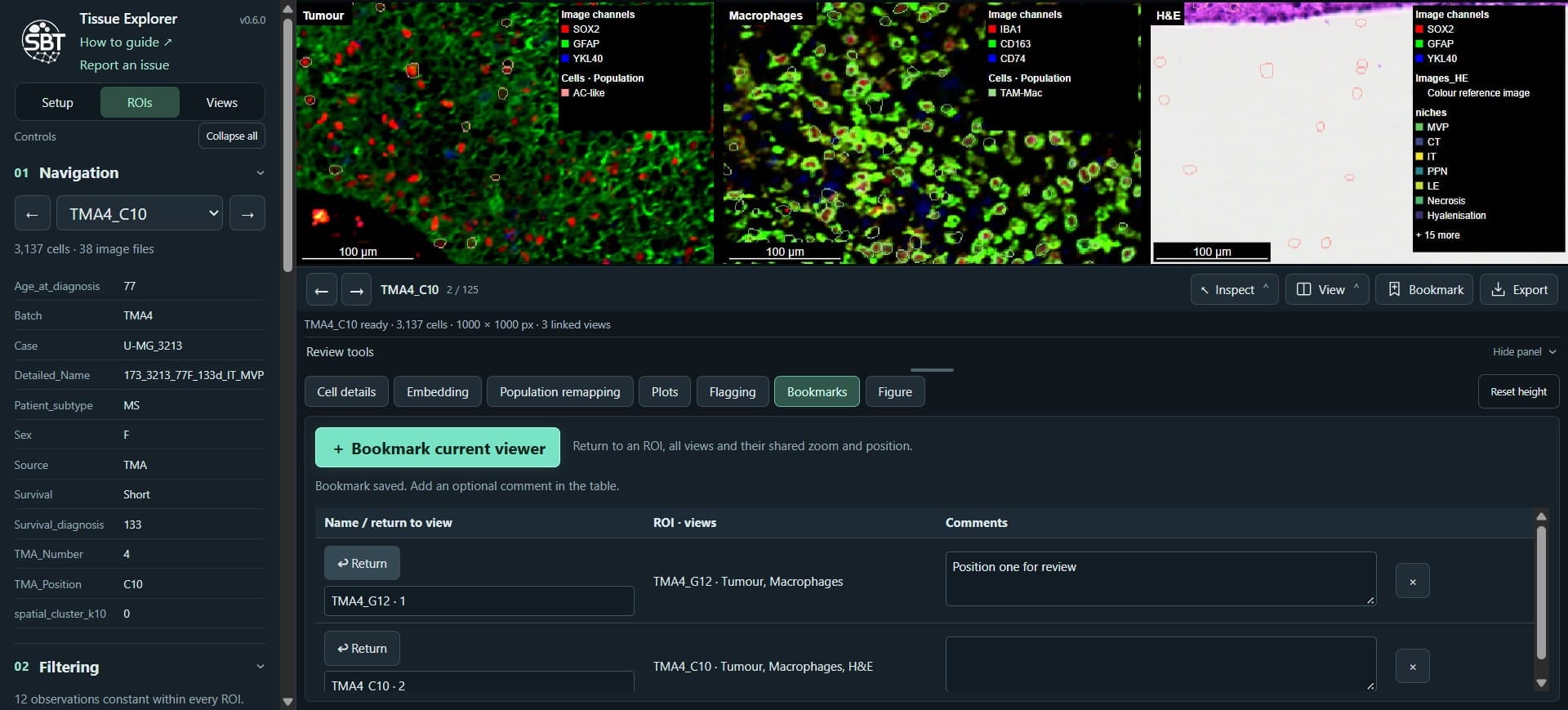
Click on "Hide panel"
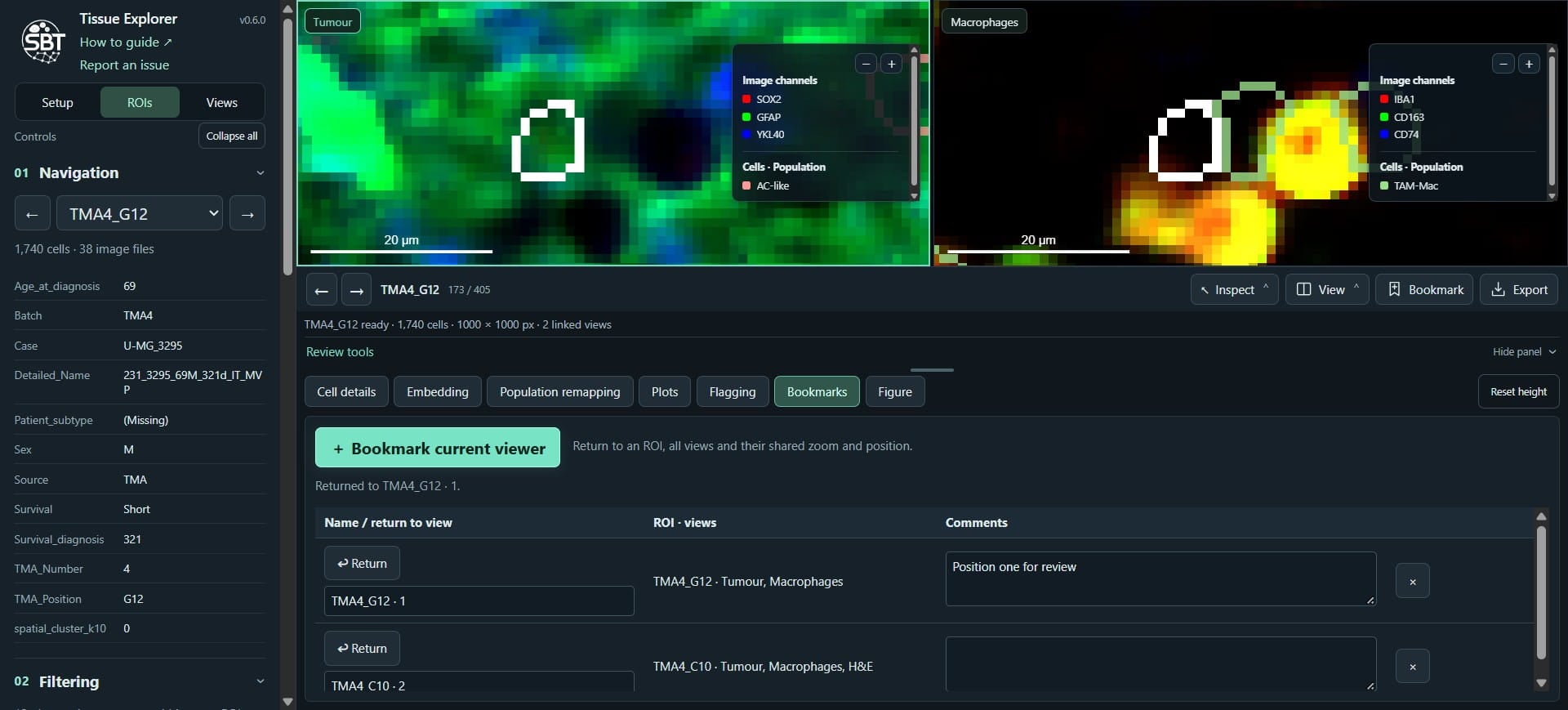
We are back at our original position and settings

Wanna create guides just like this?
Try Guidejar today.
Create informative guides and interactive product walkthroughs effortlessly with Guidejar and let your team always find answers to their questions.