ECPro - Camp Registration - Half Days
Navigate to https://grahamequestriancenter.ecpro.us/
Click on Events
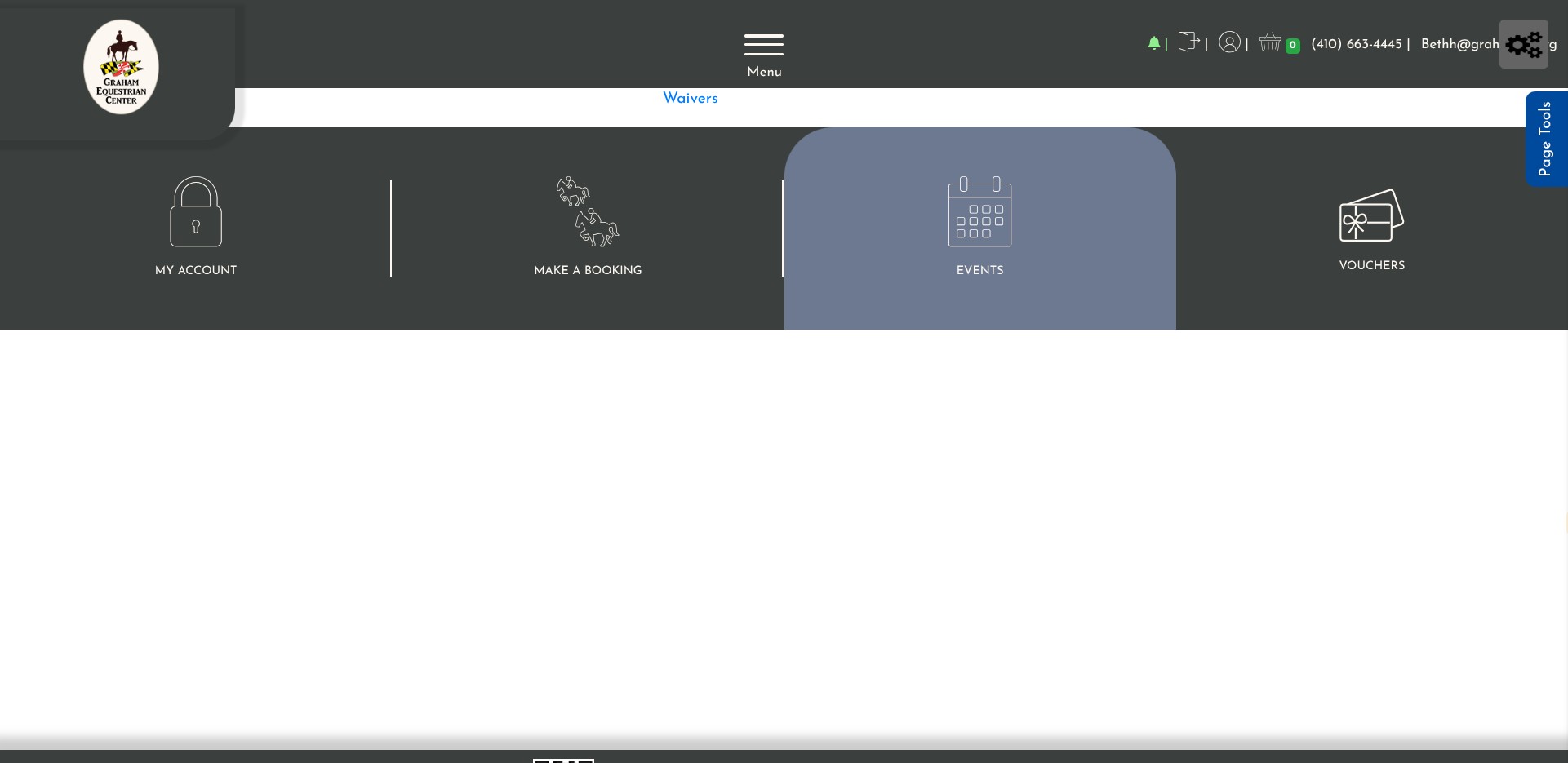
Click on "Upcoming Events"

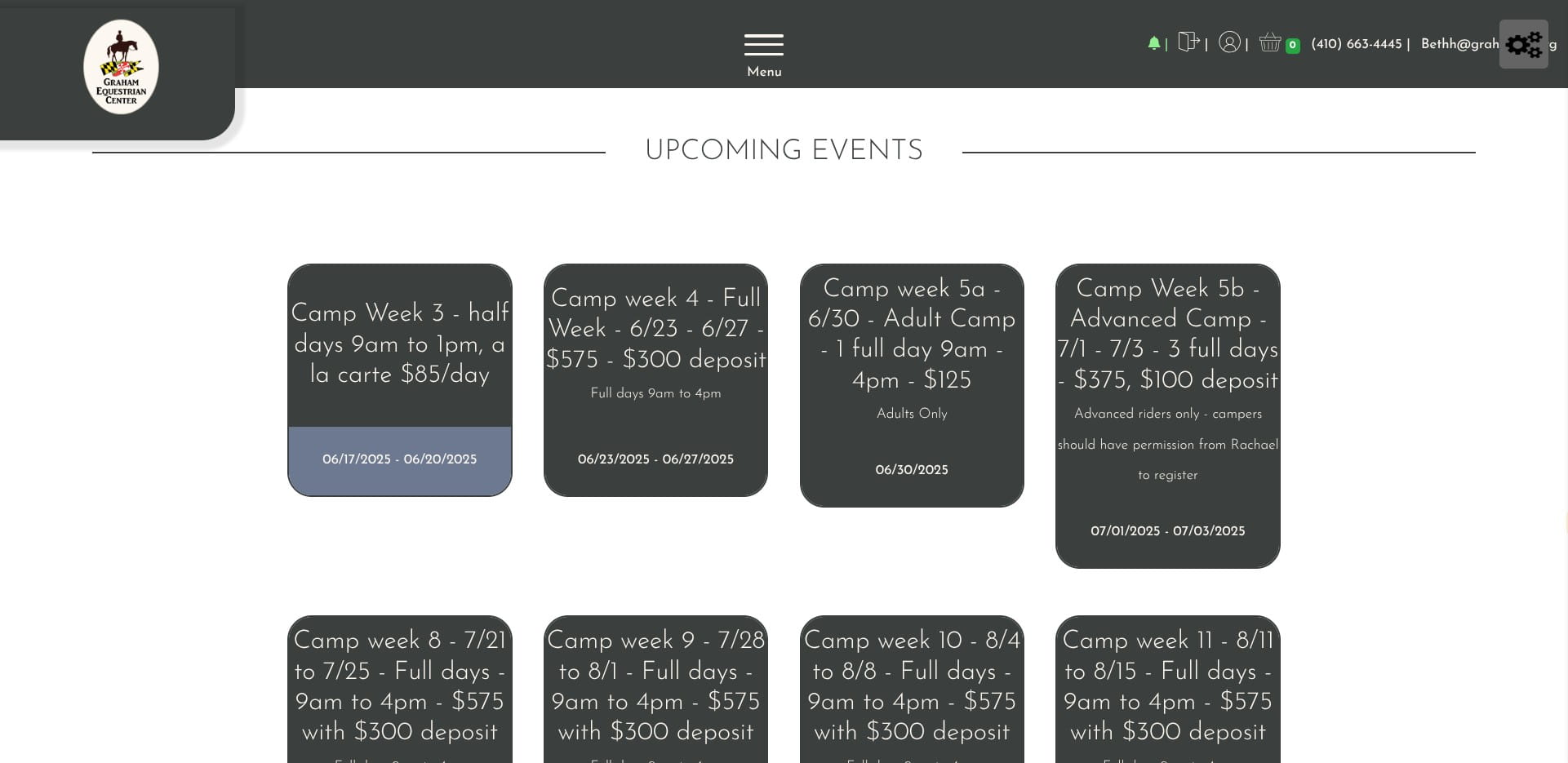
Click on "Camp Week 3 - half days 9am to 1pm, a la carte $85"
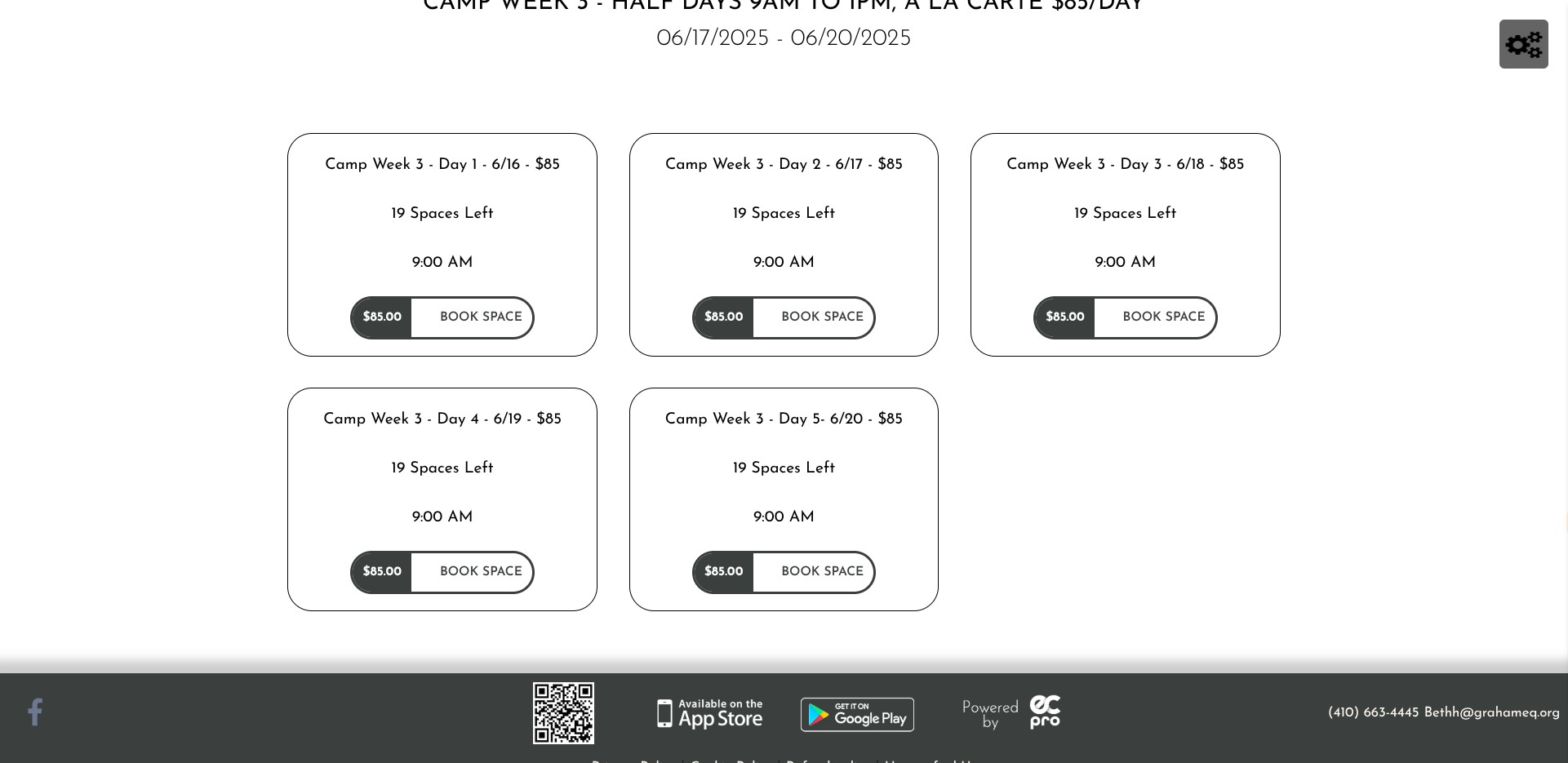
Click on the day you want to book (this is an example of a single day, example for multiple days is later in this script)
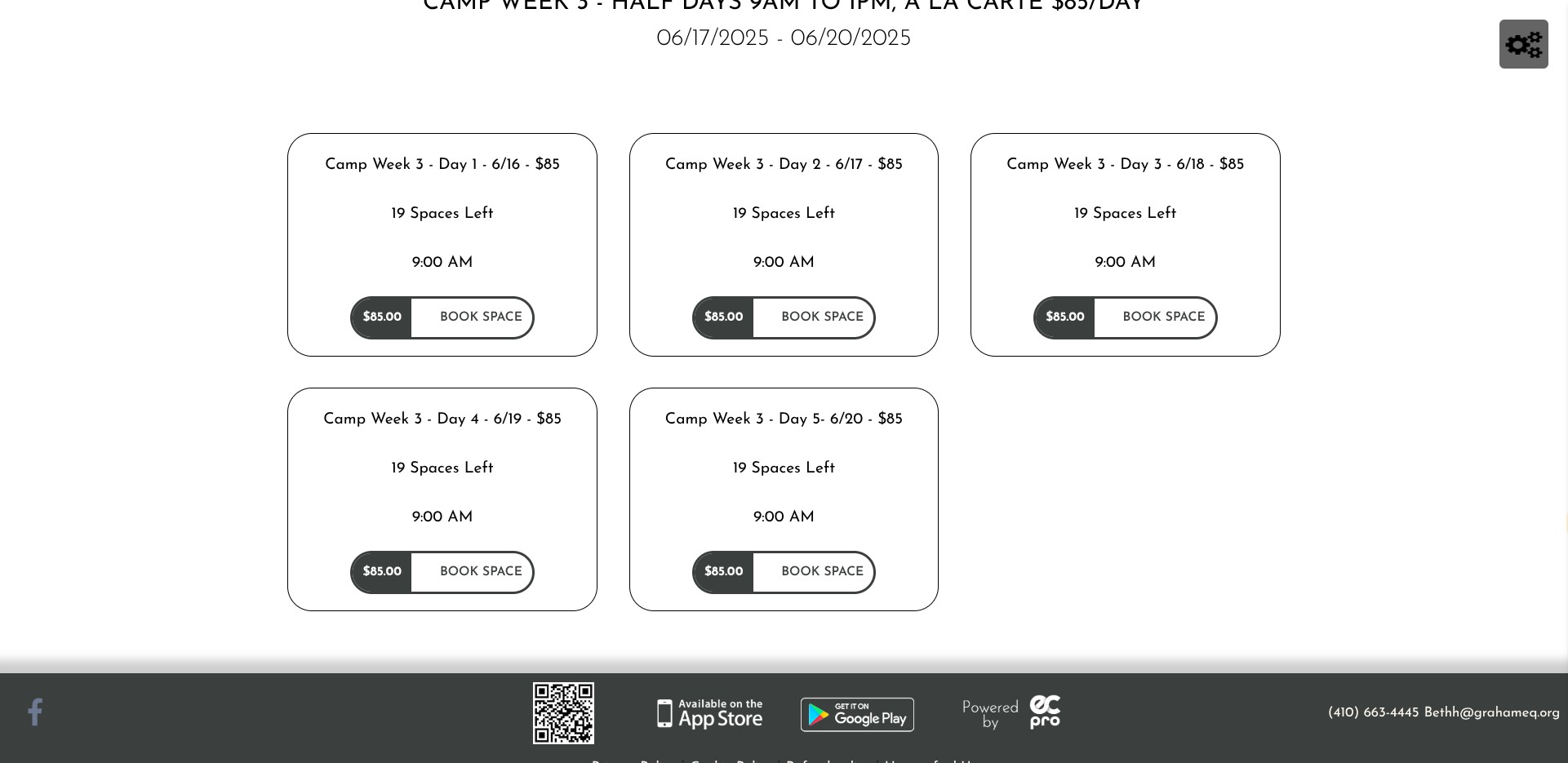
Click on "$85.00"
Click on "Enter Details Manually"
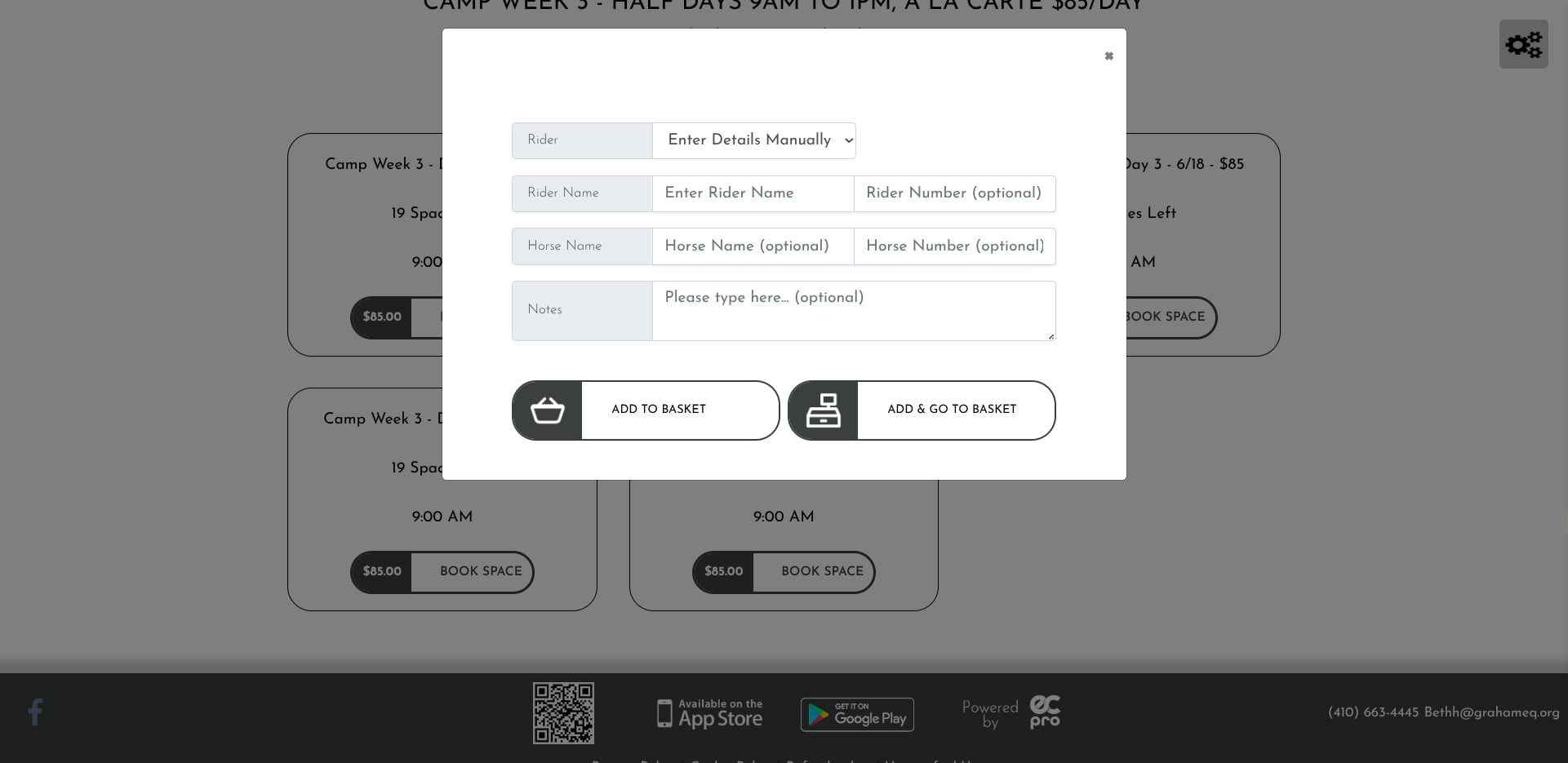
Select the rider name - please do NOT enter the other optional fields, (rider number, horse, horse number - that information is intended for shows) - then click 'Add and go to basket'
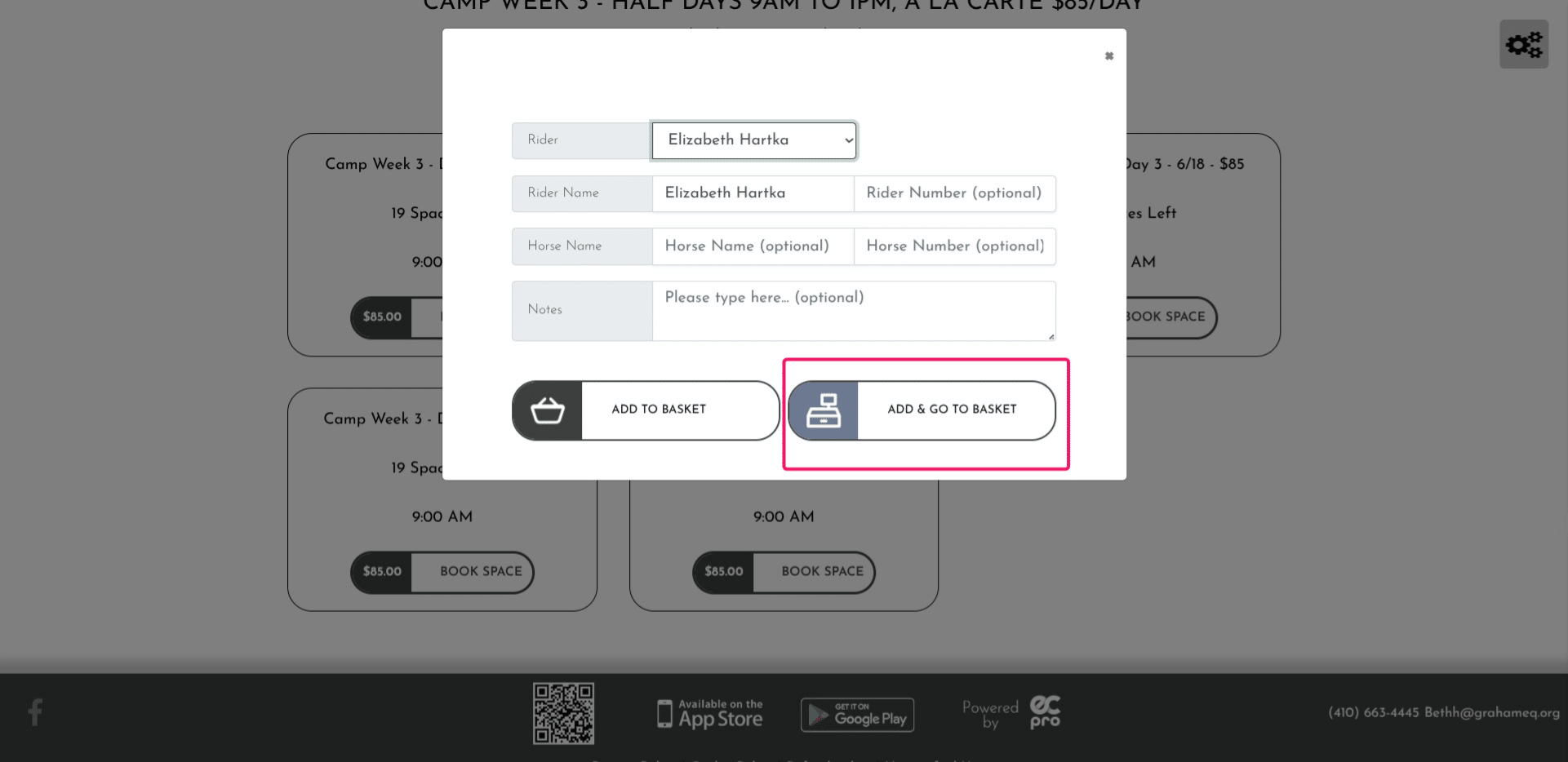
Click on "I agree to the T&Cs, take me to checkout"
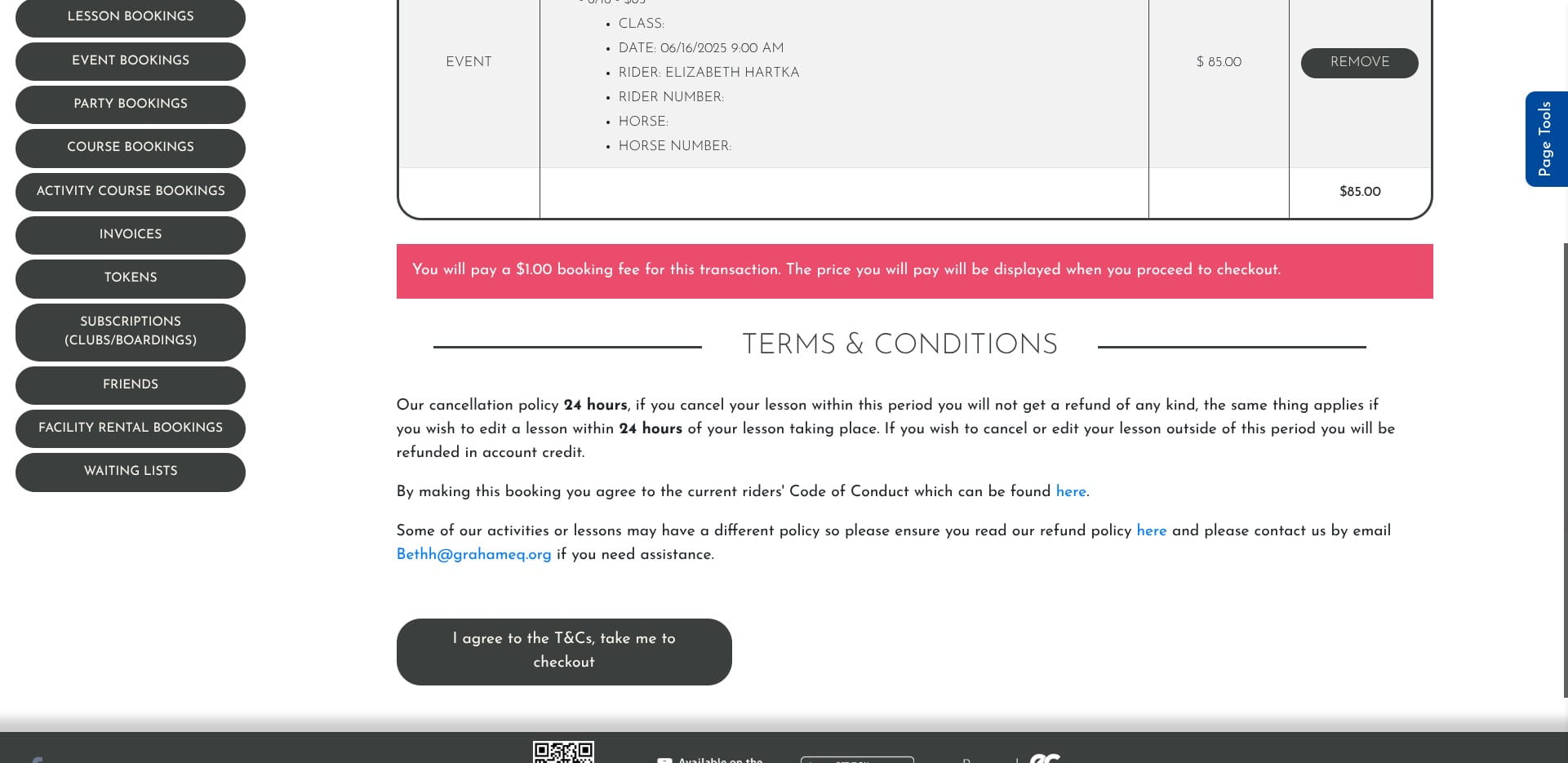
If you have credits in your account, click on account credits where indicated, if you are not paying with credits continue to the next step
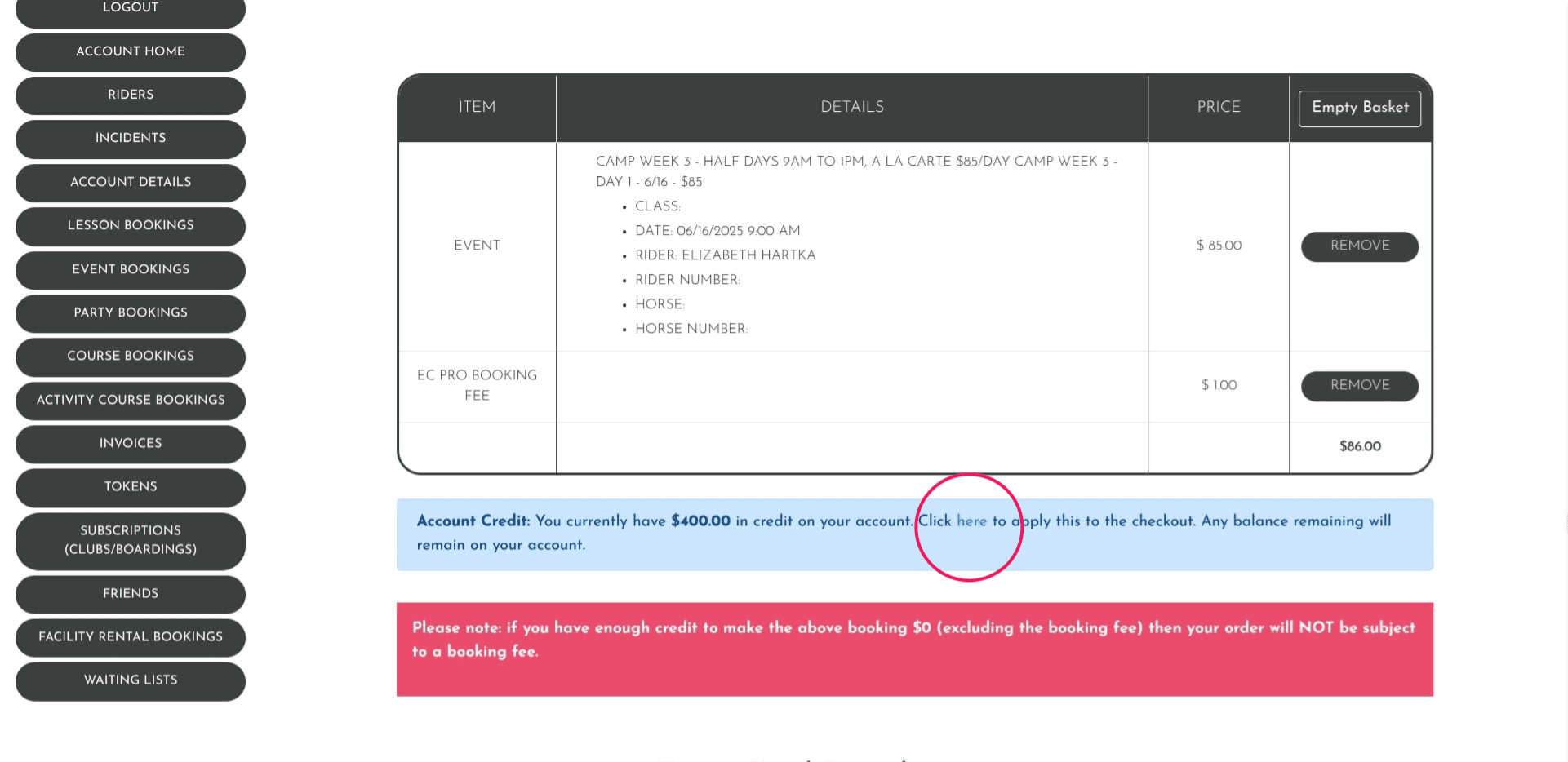
Click on "Enter Card Details", then click make payment. If you have already entered your card information when you registered it will be prepopulated.
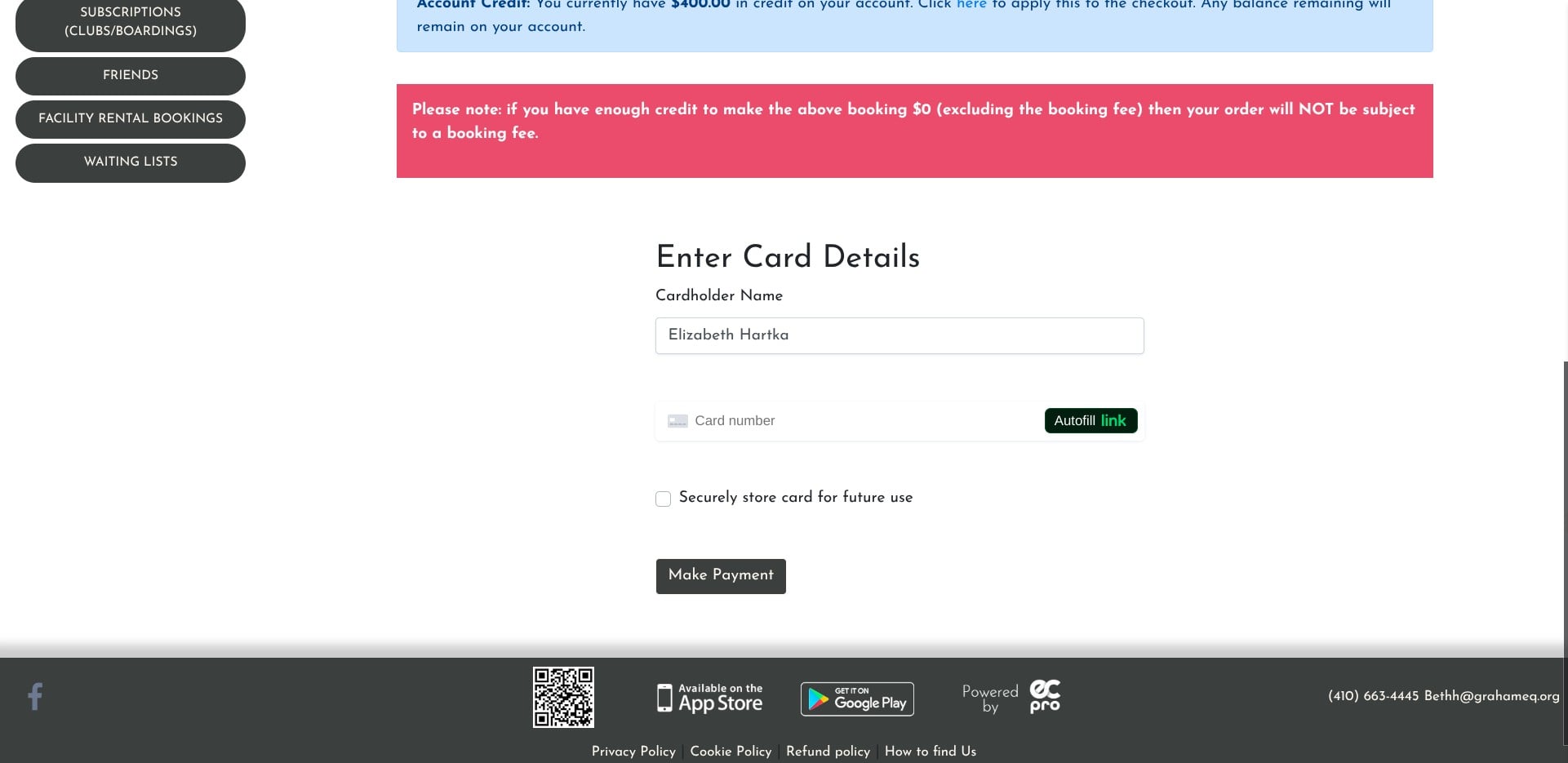
Click this image
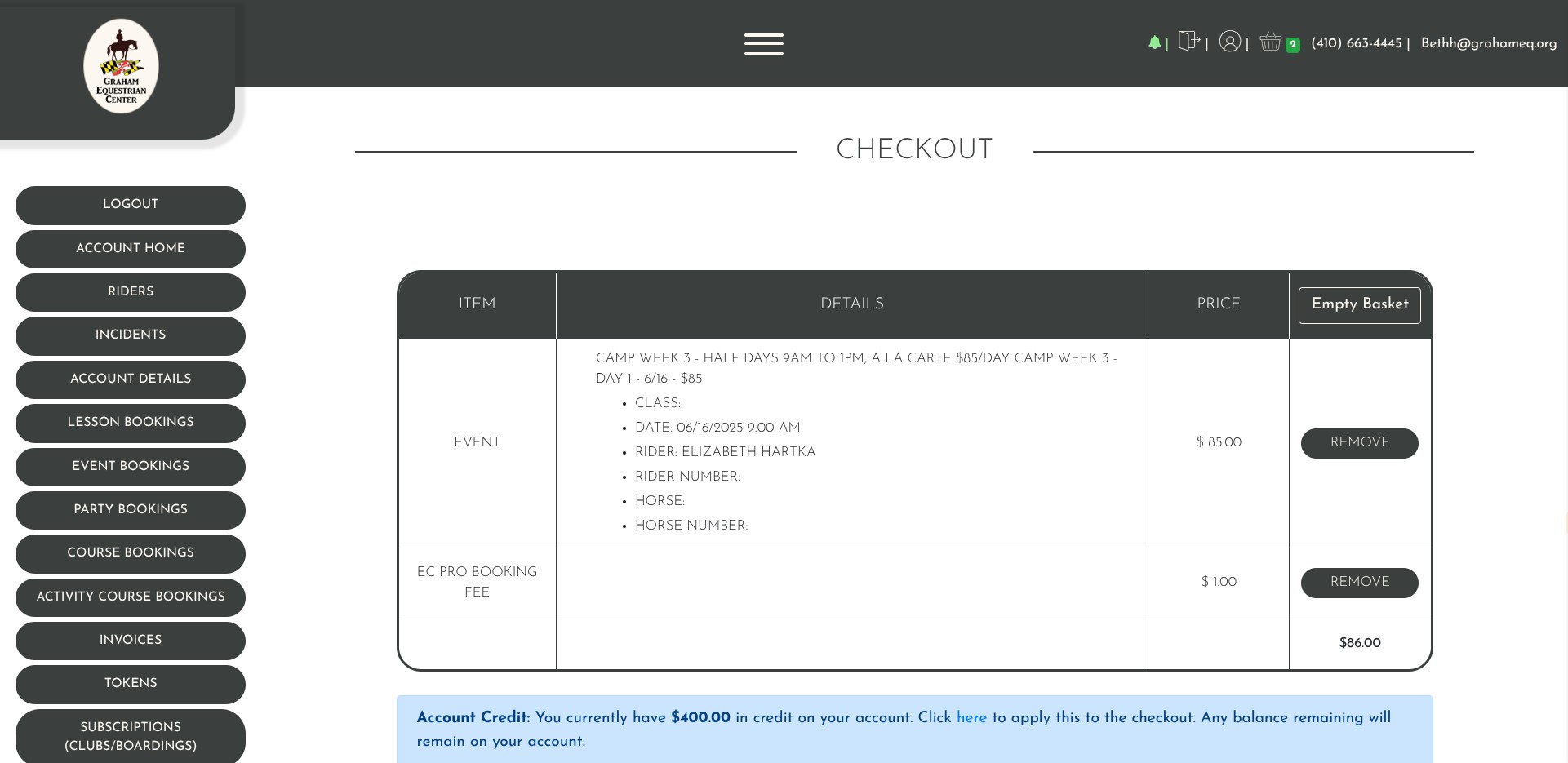
To register for multiple half day camps at once - click on events
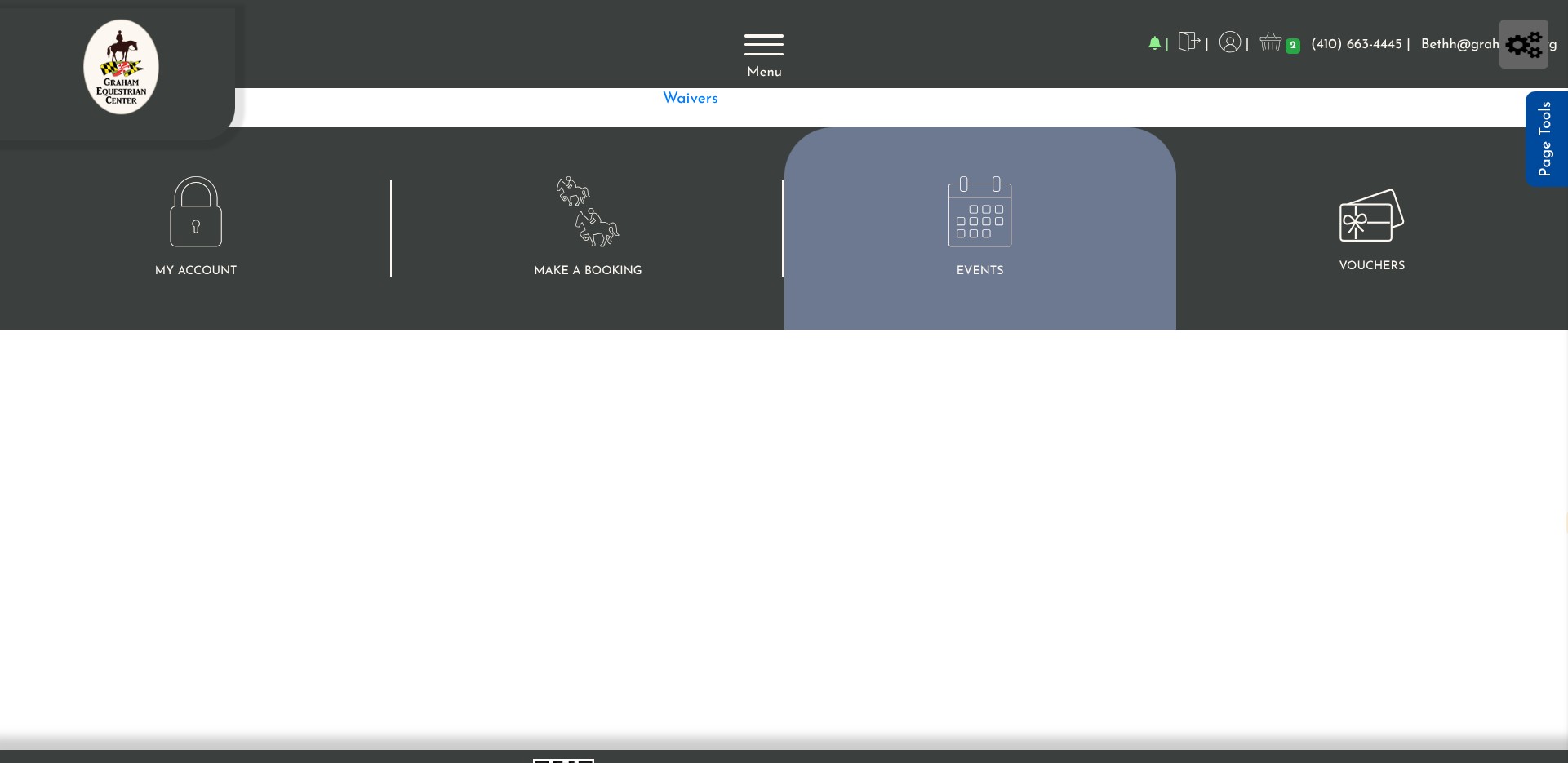
Click on "Upcoming Events"

Click on 'book space' under day 2
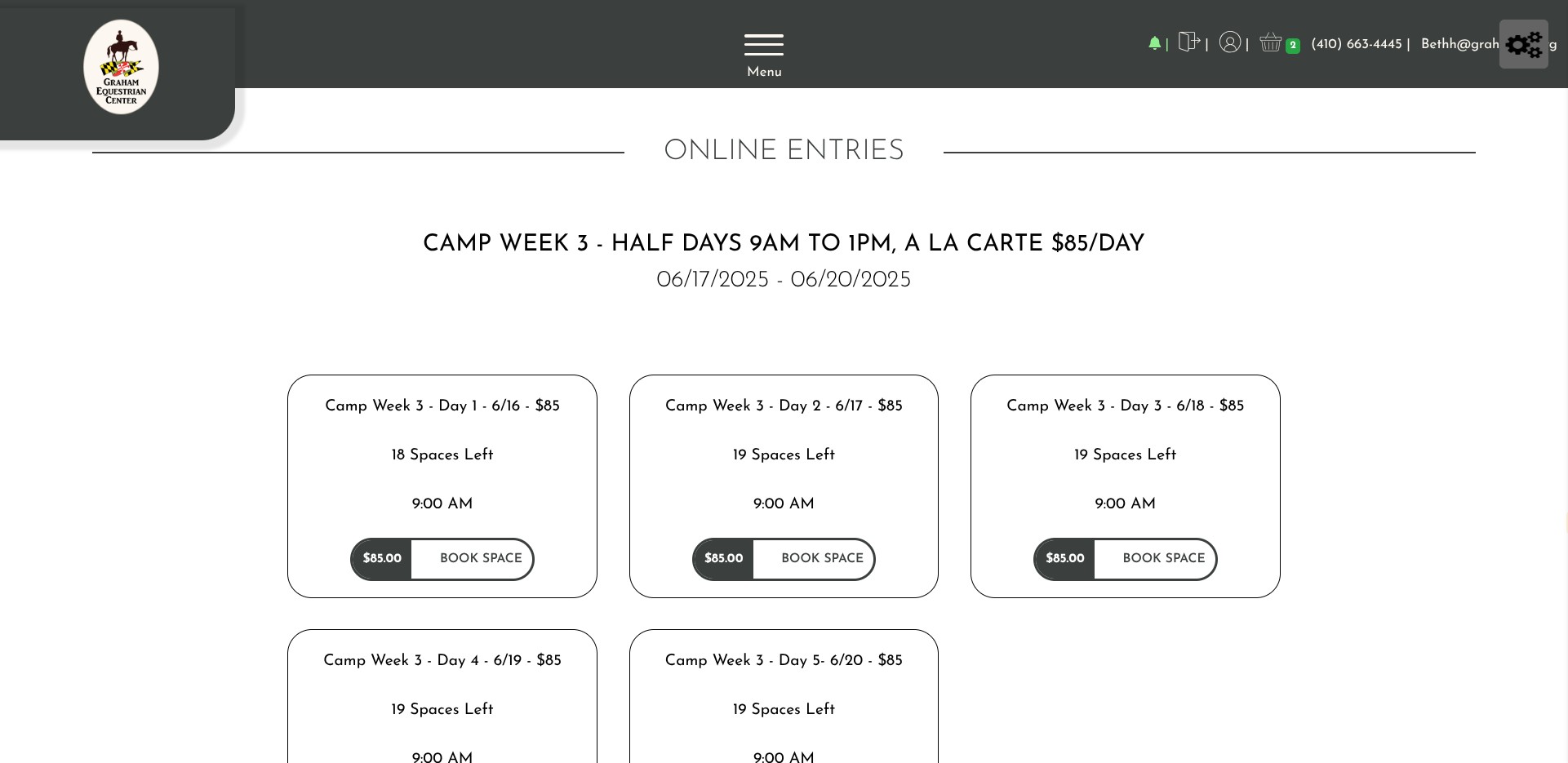
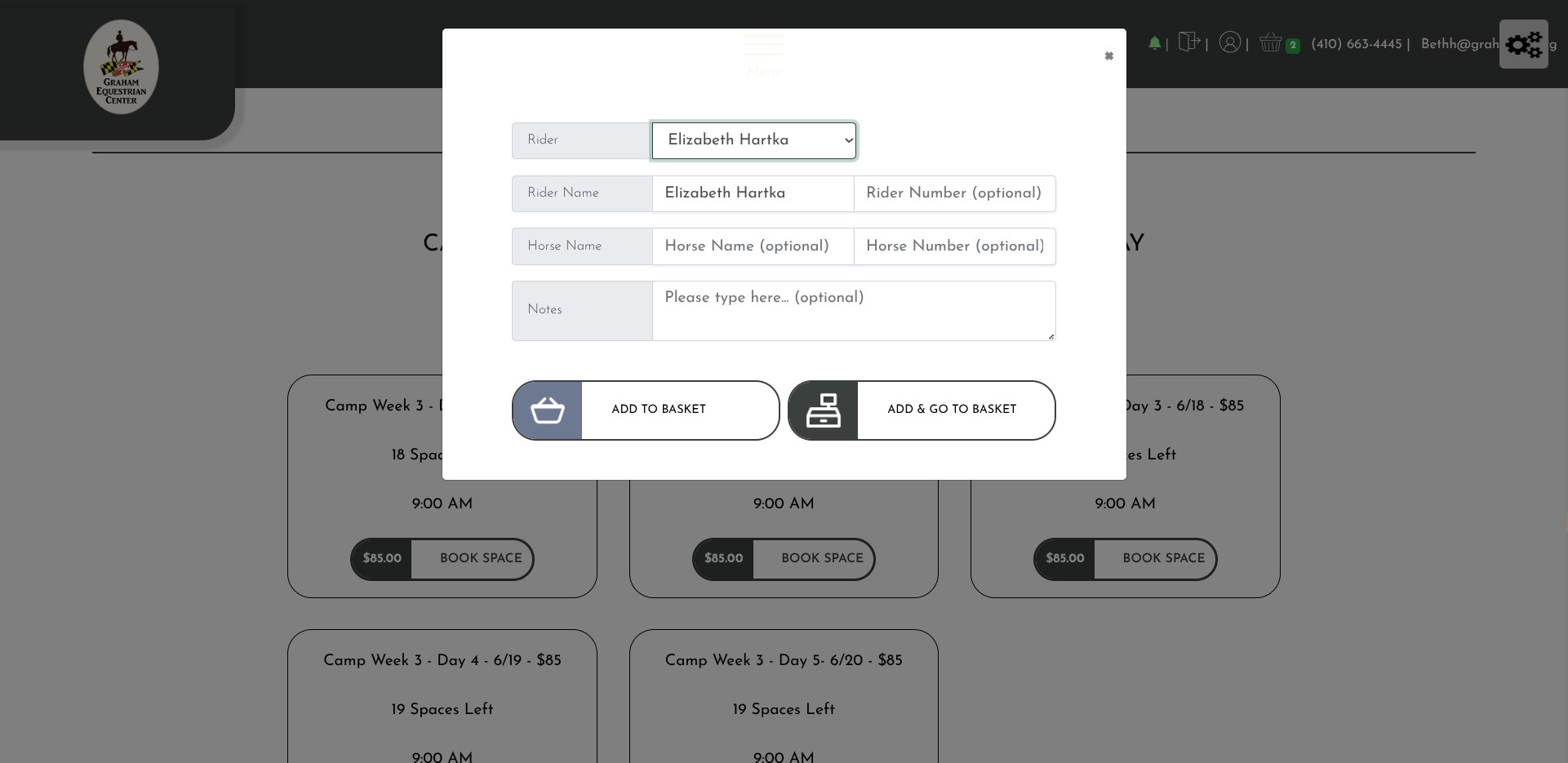
Enter the rider name ONLY
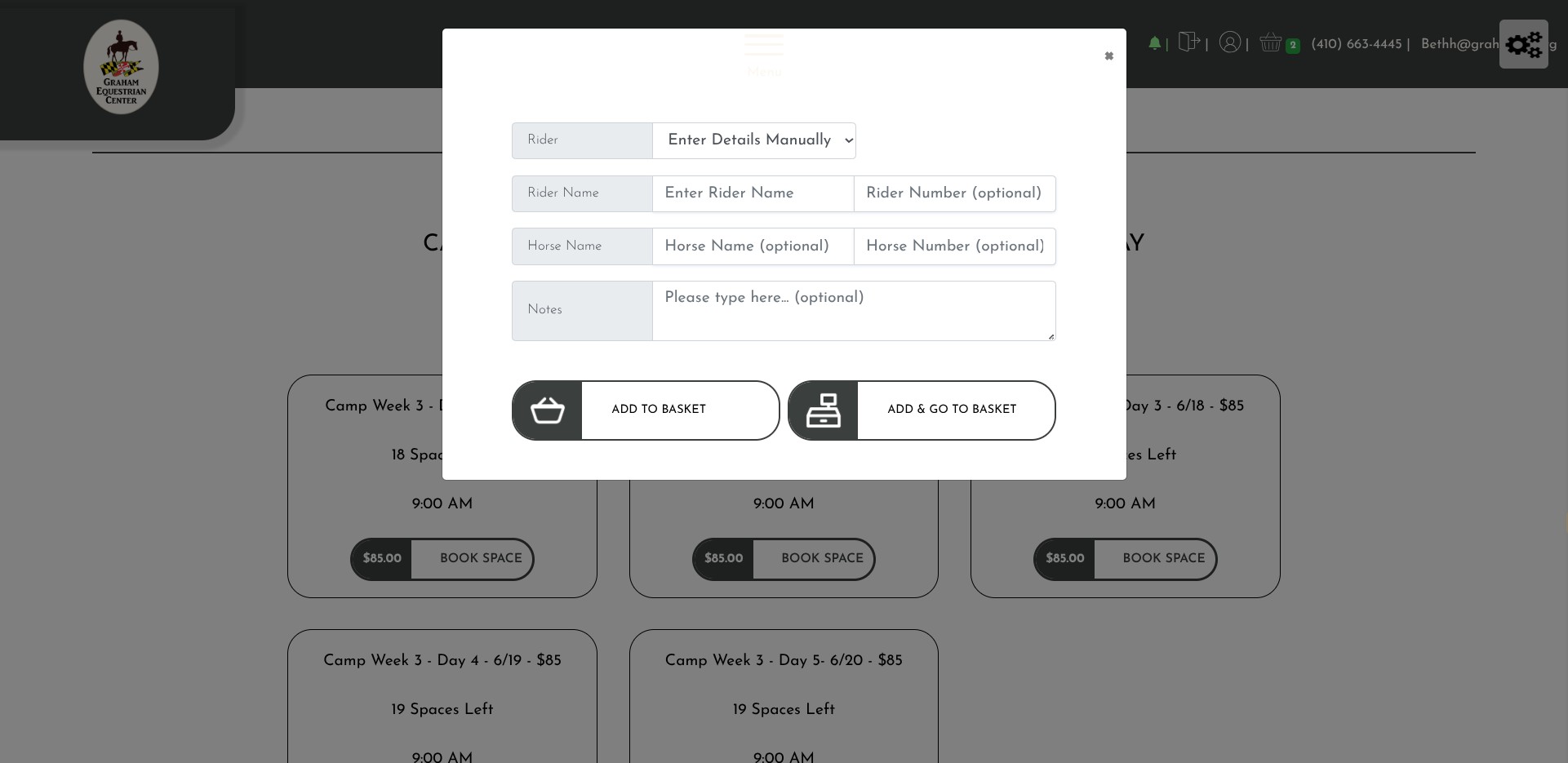
Click on "Add To Basket"
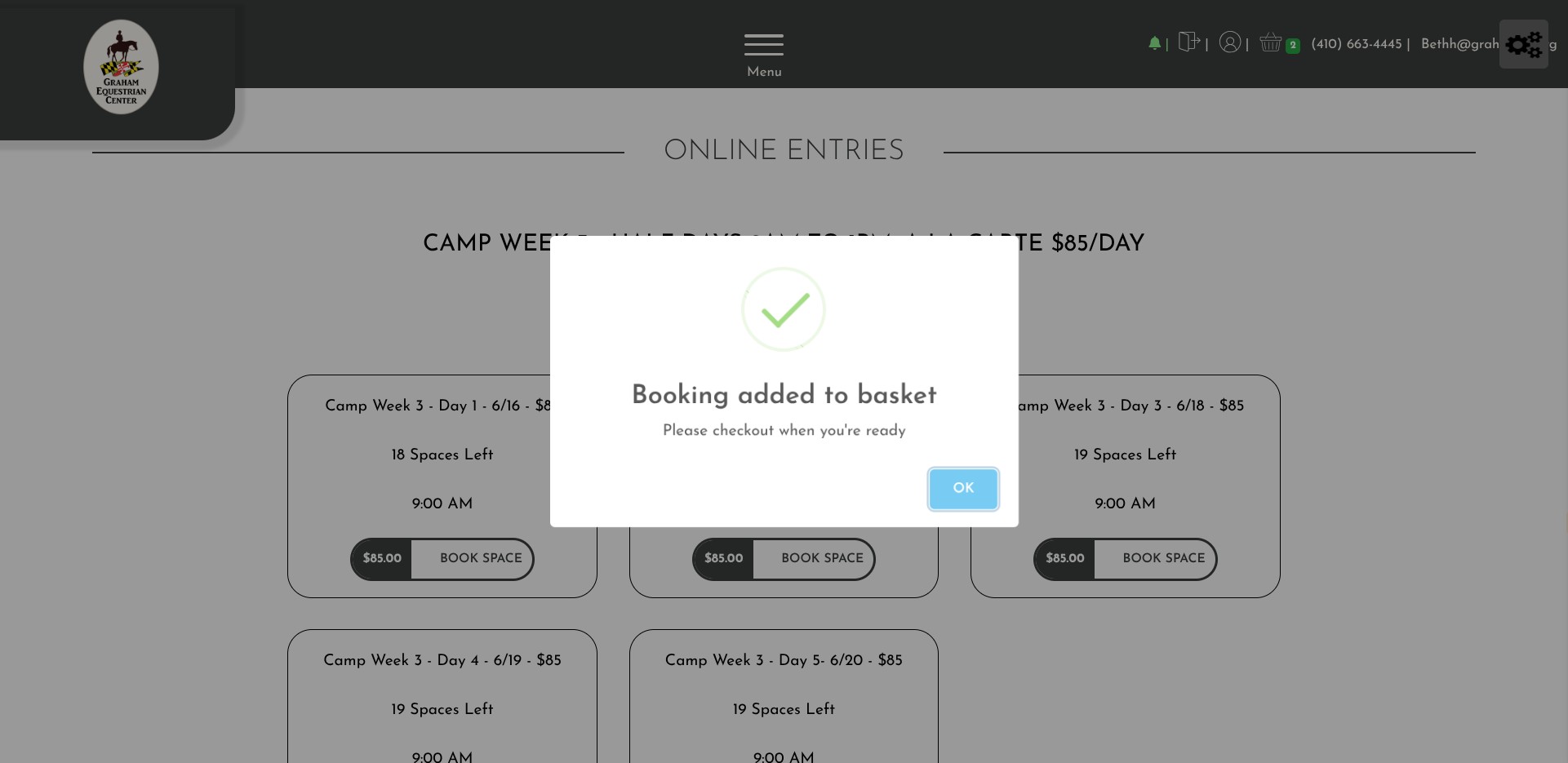
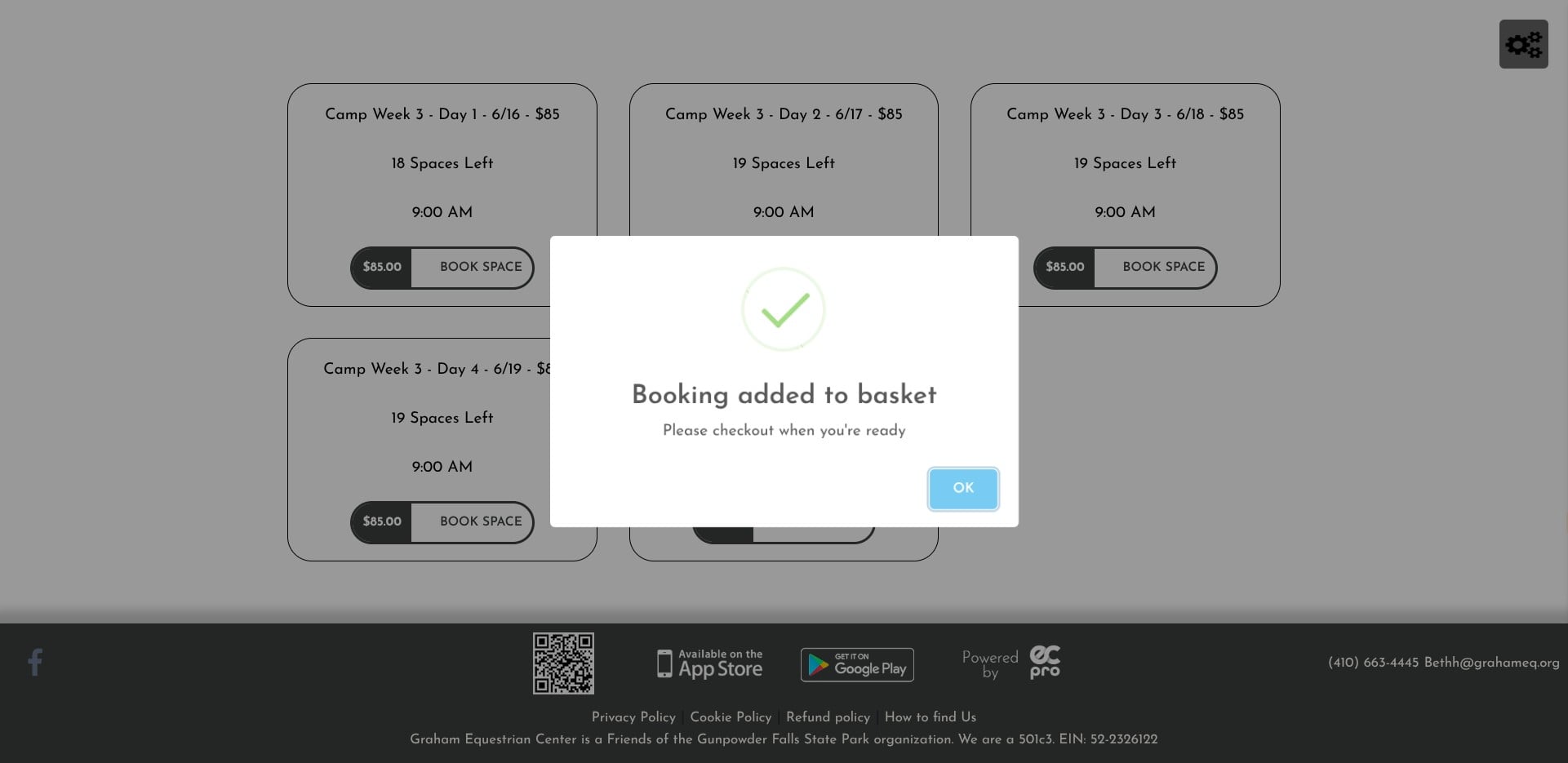
Click on "OK"
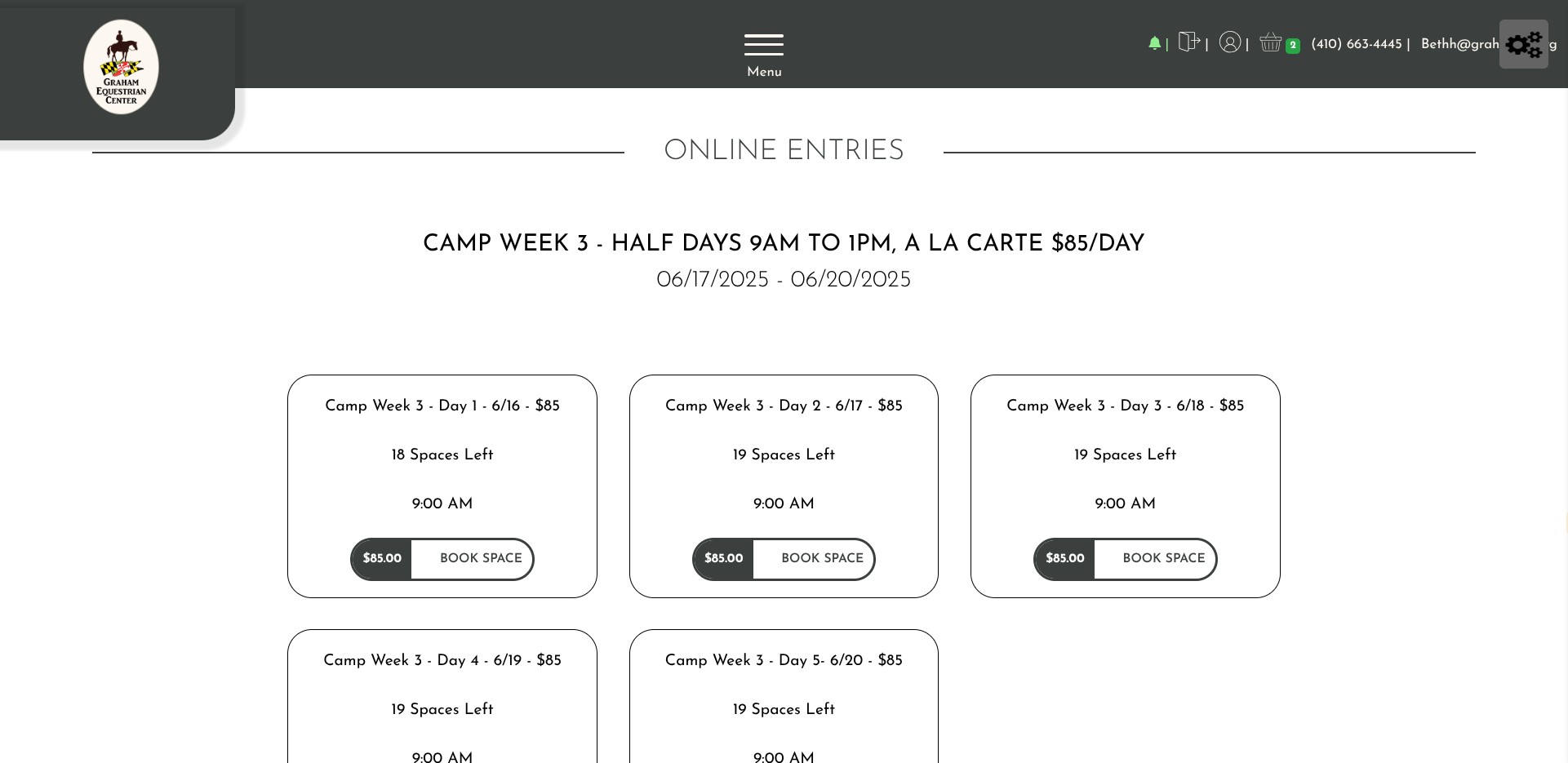
Click on 'book space' under camp day 3
Enter the rider name ONLY
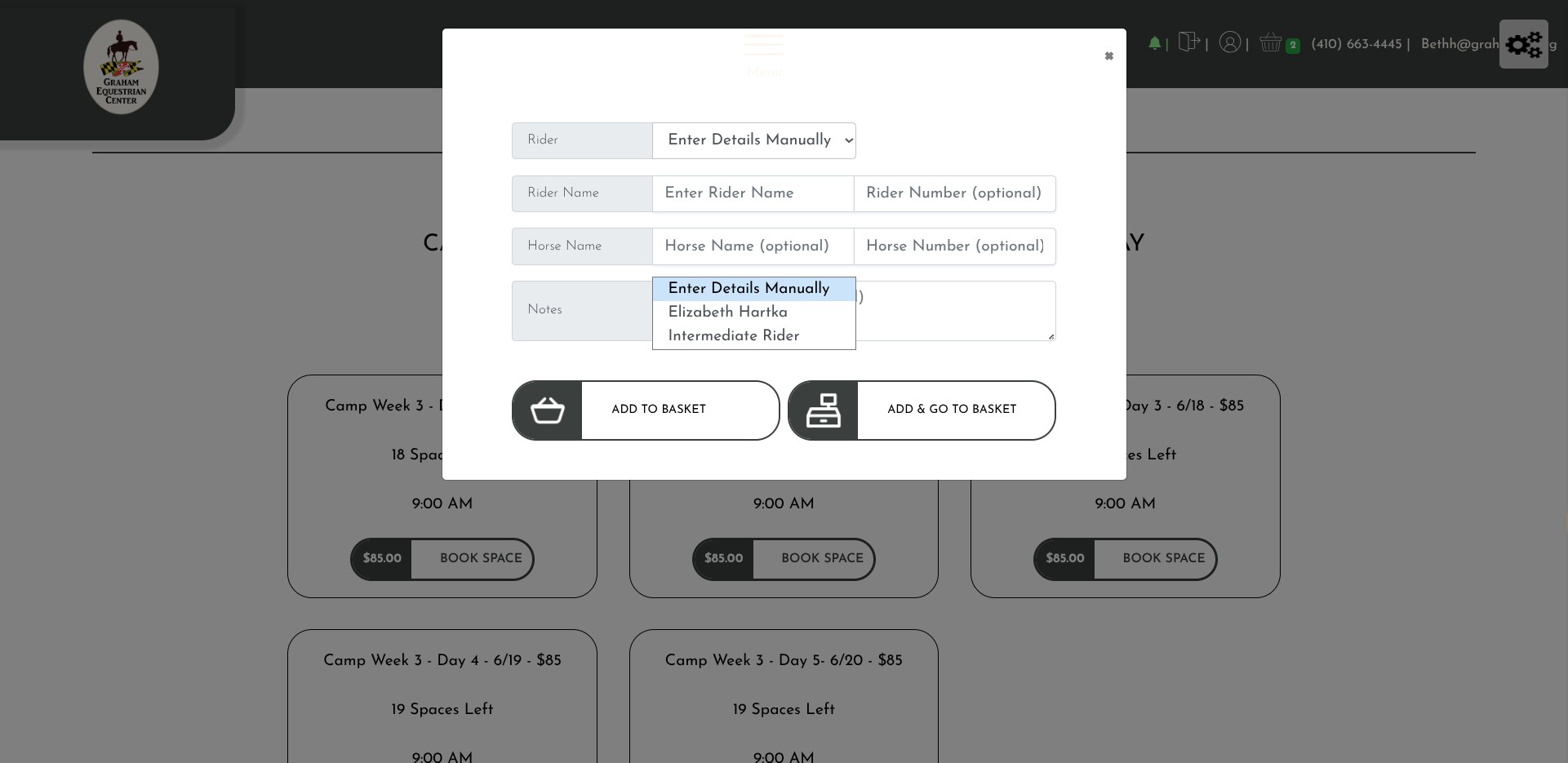
Click on "Add To Basket"
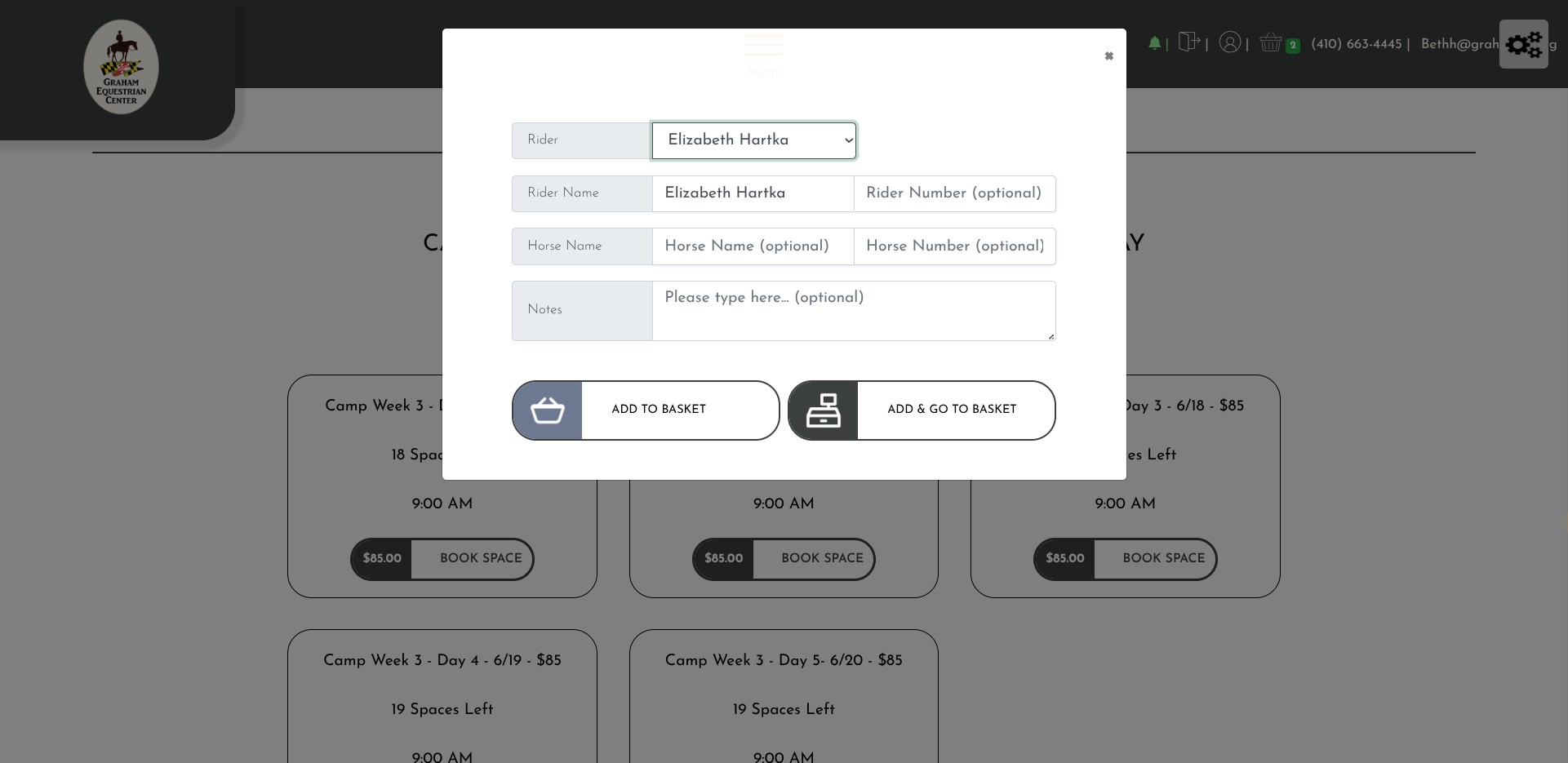
Click on "OK"
Click on 'book space' under camp day 4
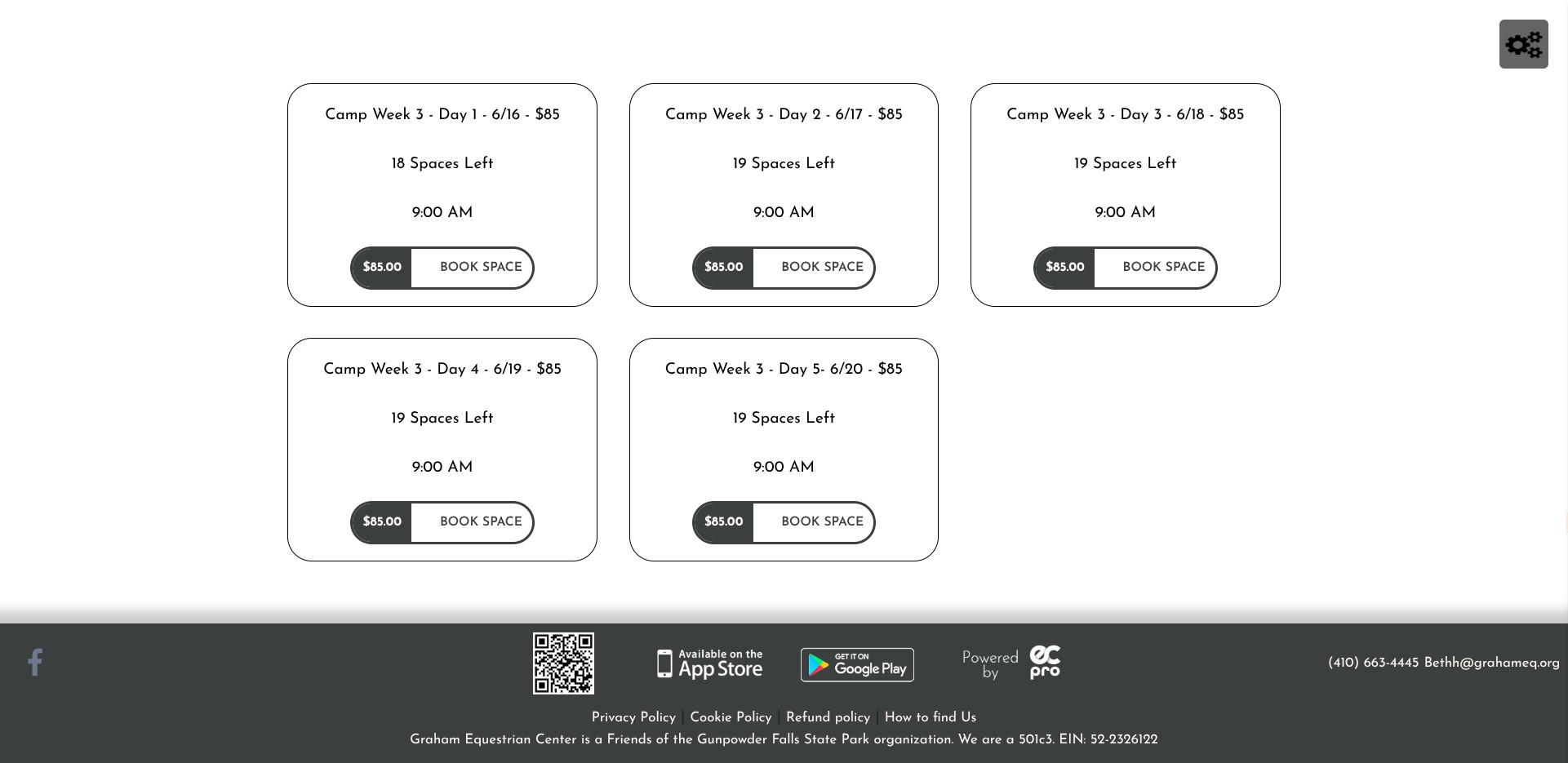
Enter rider name ONLY
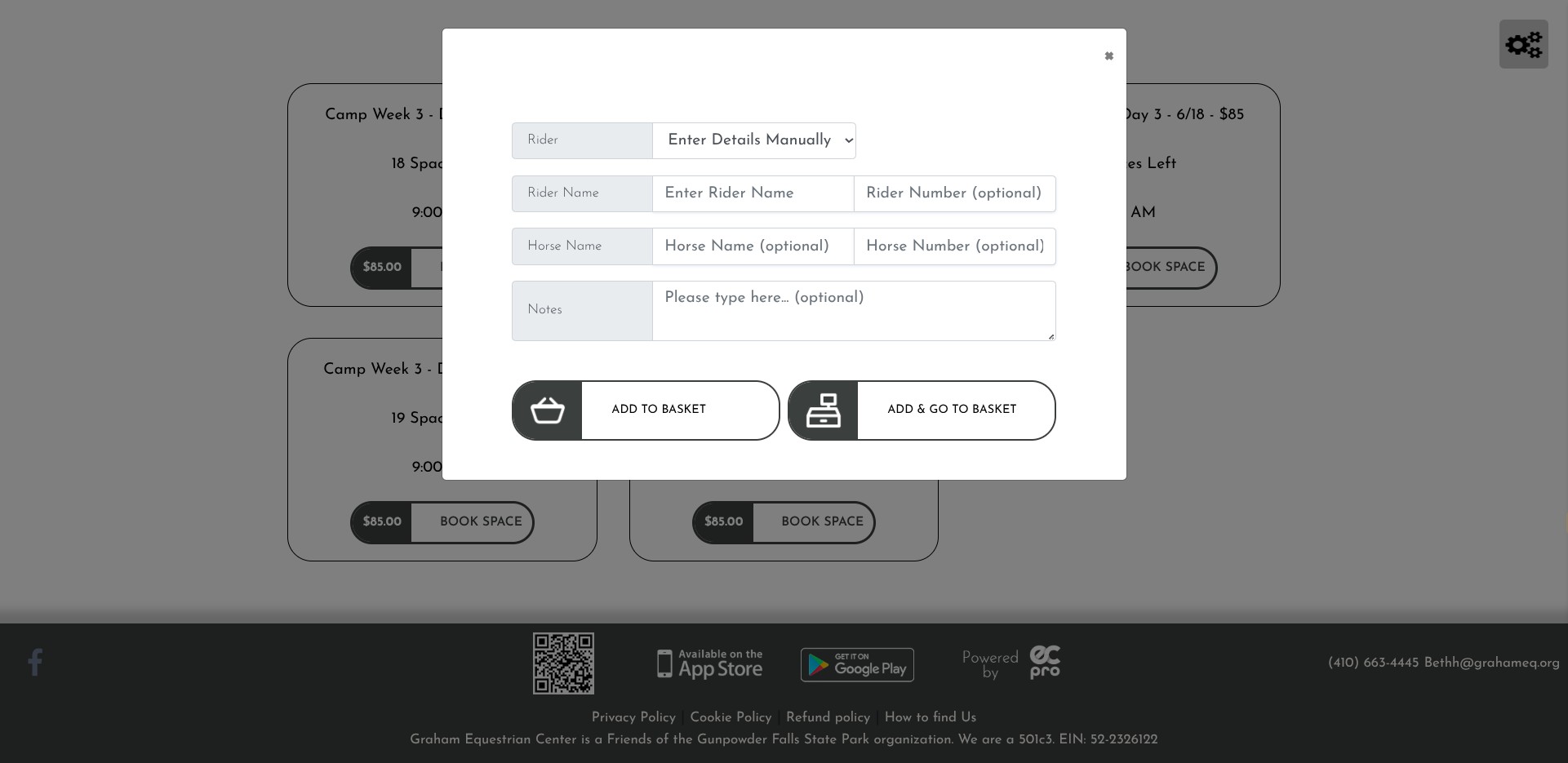
Click on "Add To Basket"
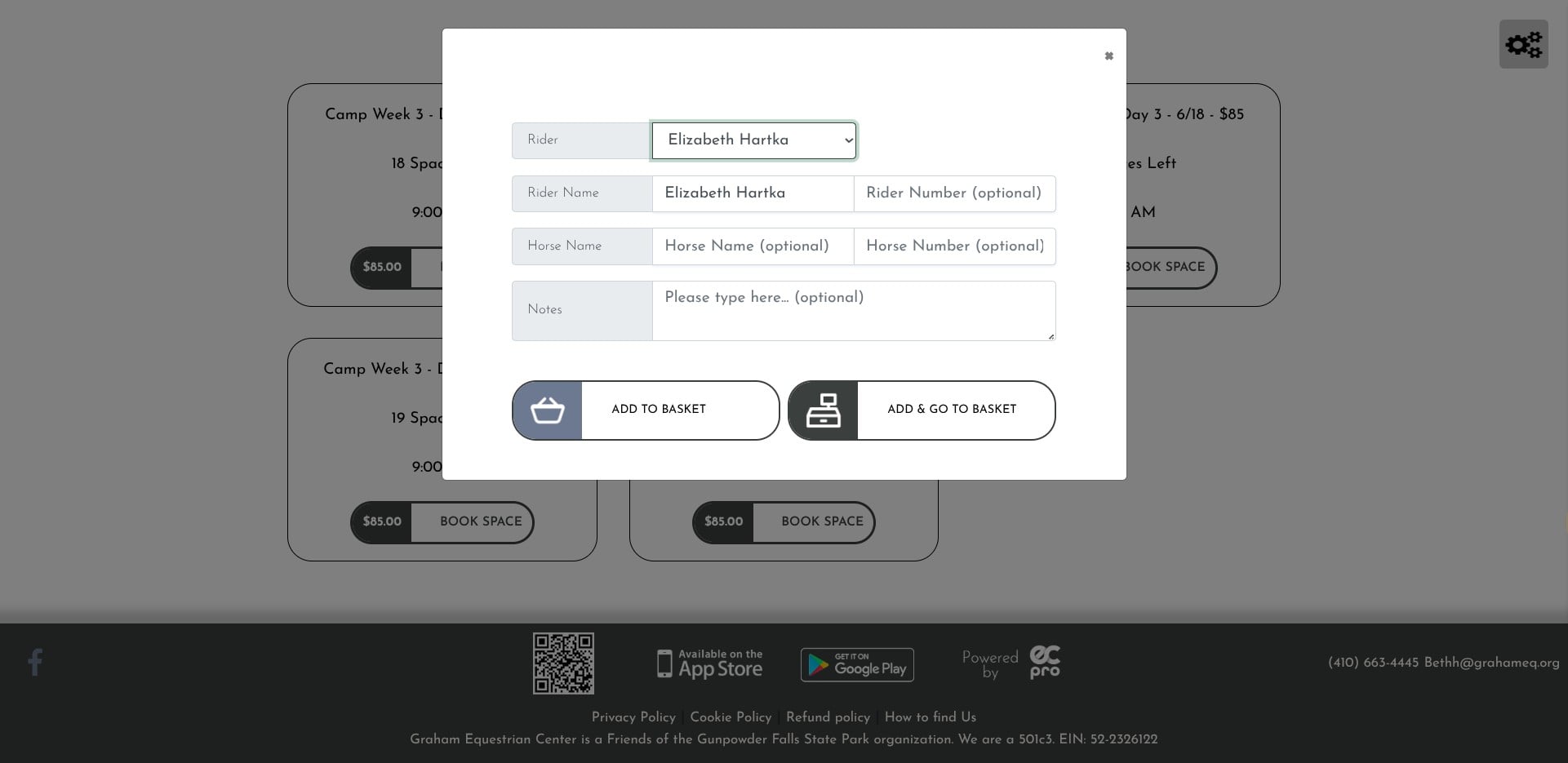
Click on "OK"
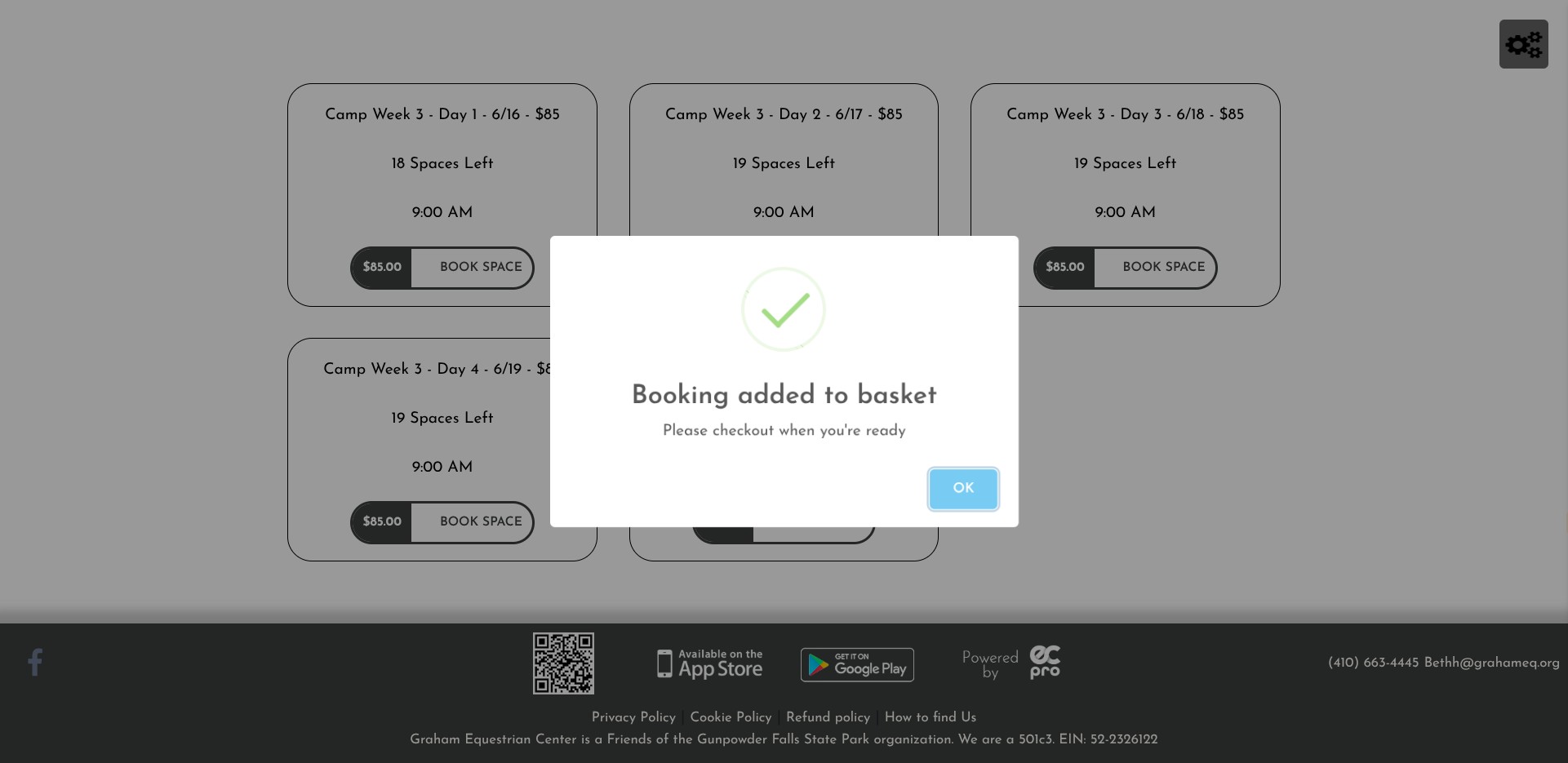
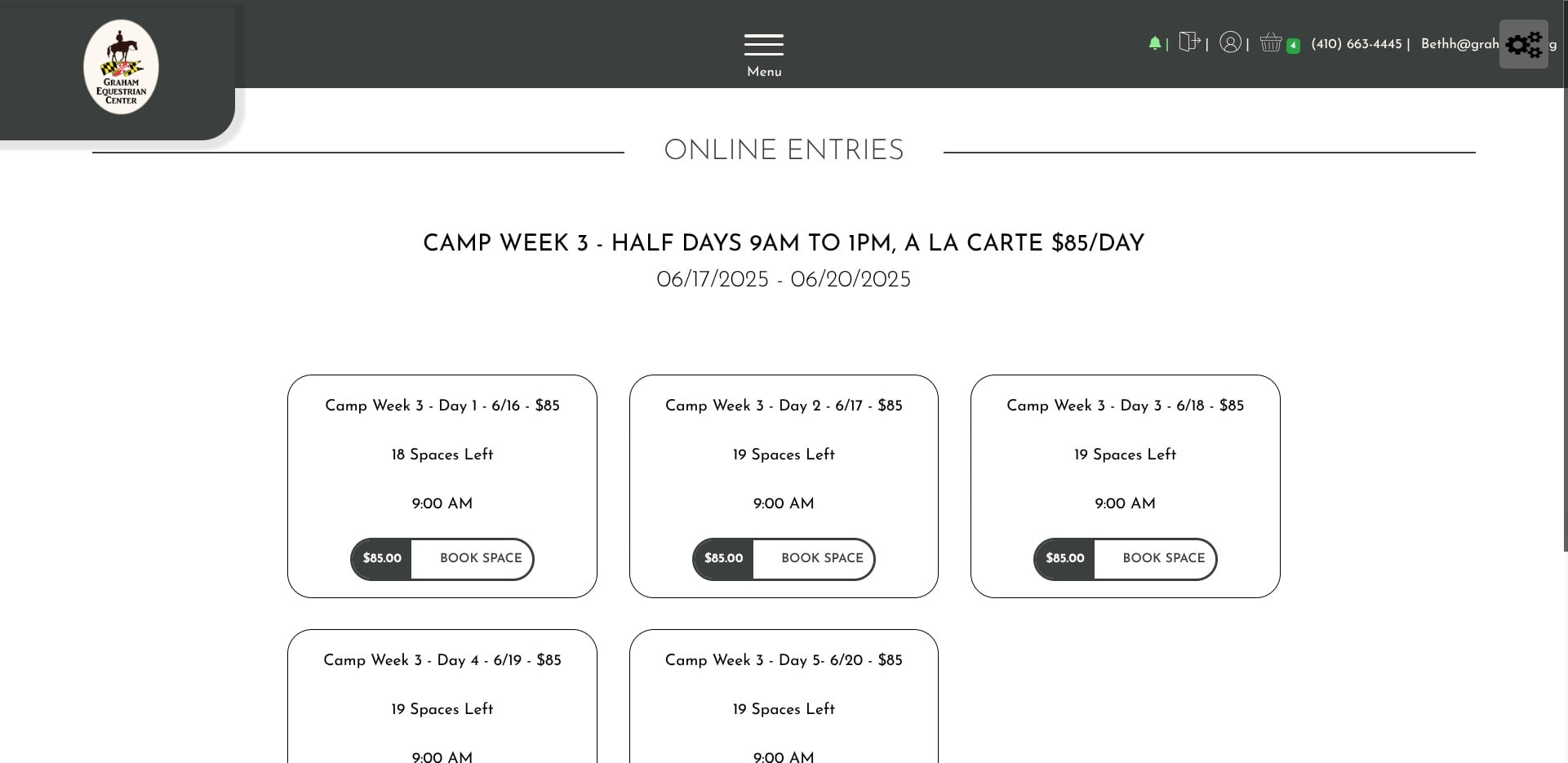
When you are finished selecting days, click on the basket icon in the upper right corner
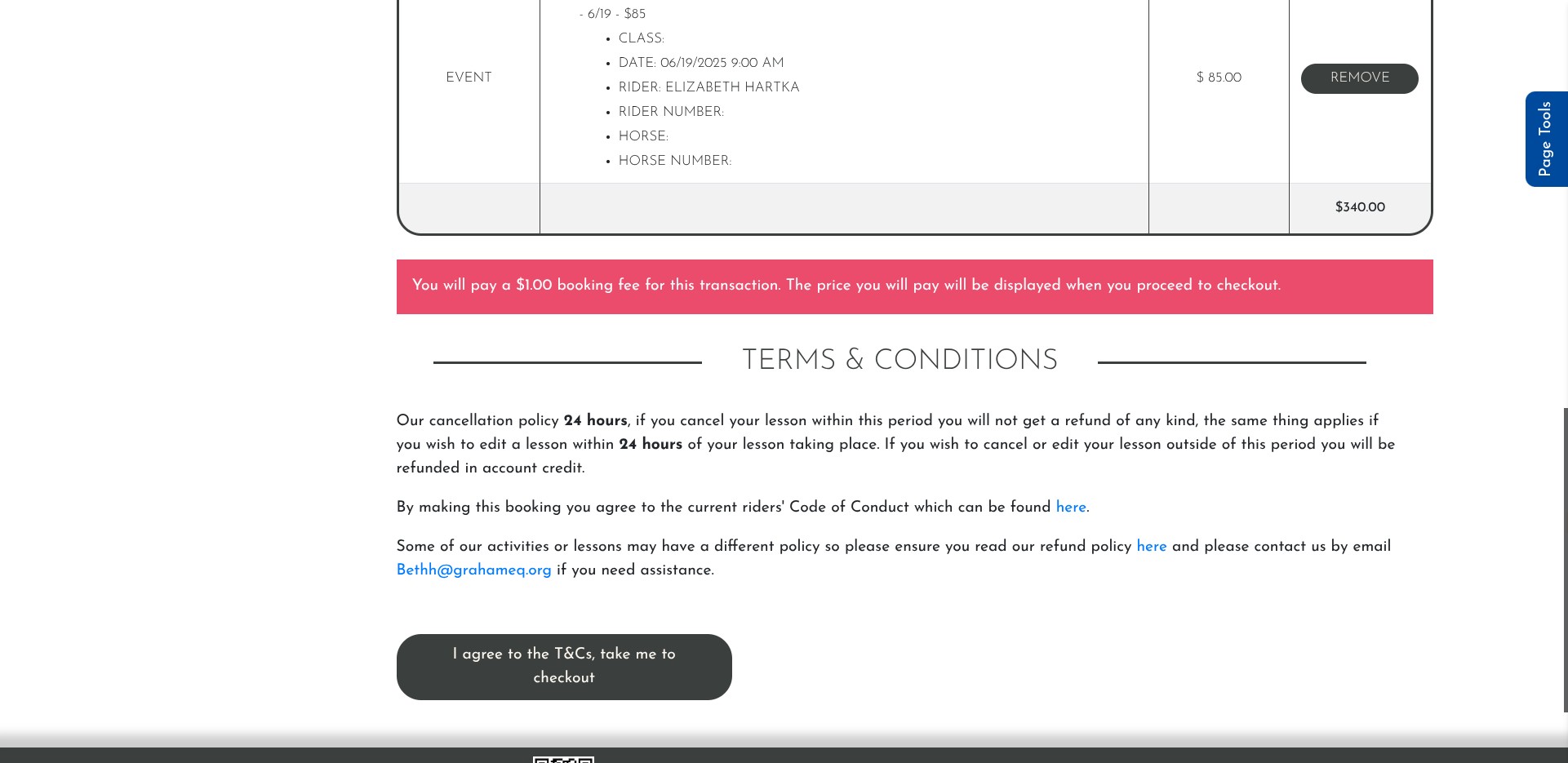
Click on "I agree to the T&Cs, take me to checkout"
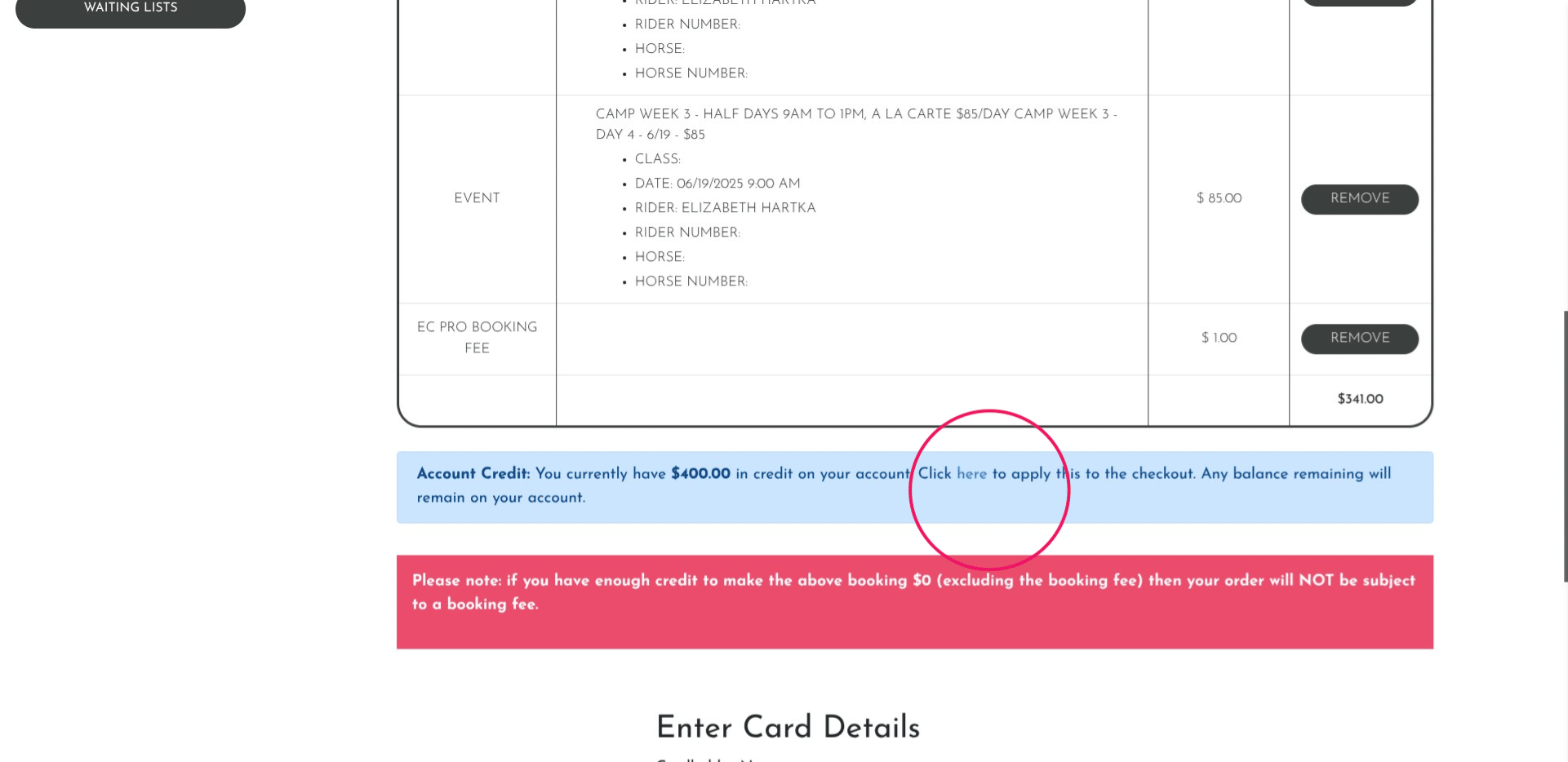
If you want to pay with credits, click where indicated
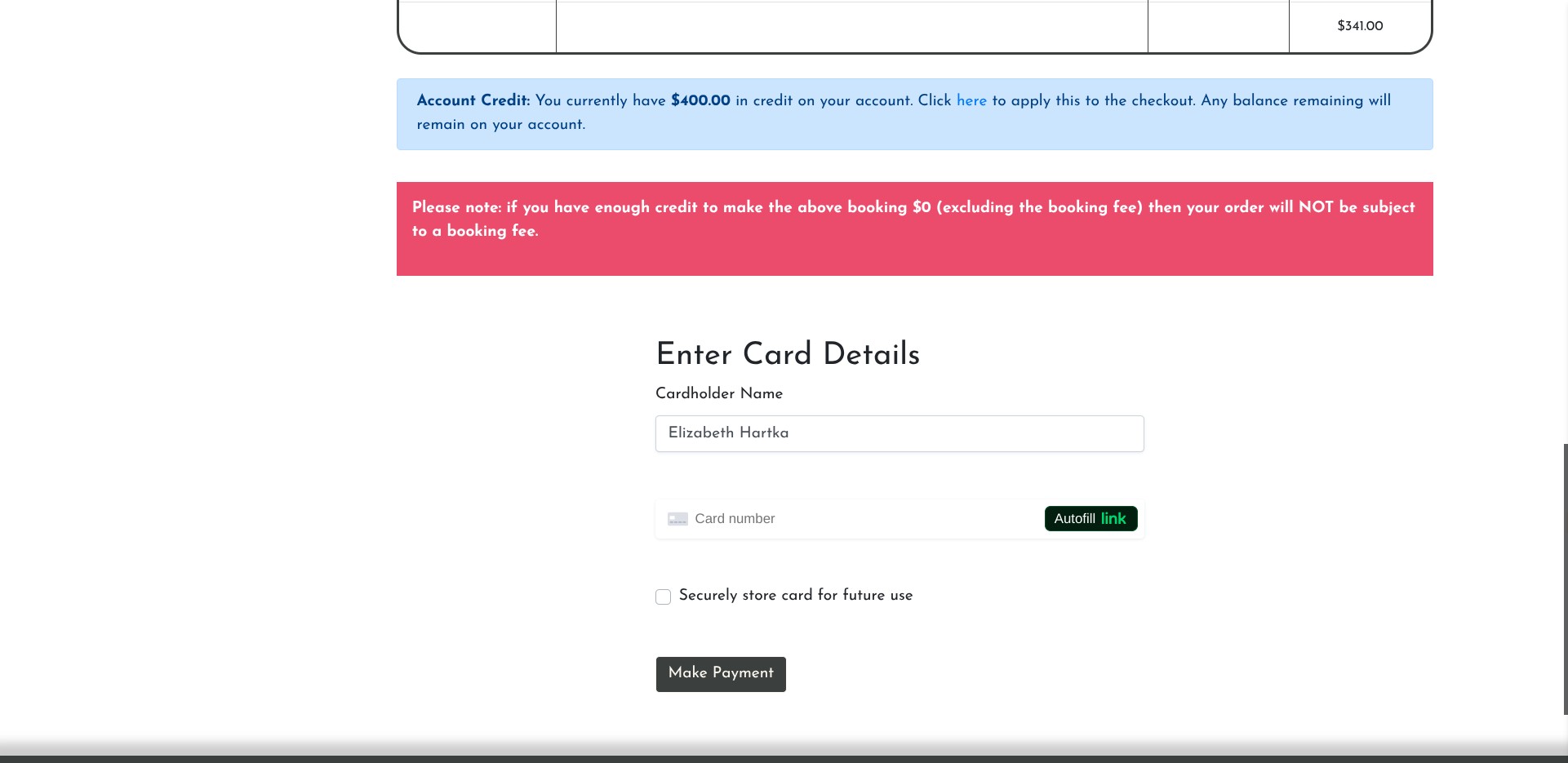
If you are not paying with credits, enter your card information then click 'make payment' - if you entered your payment details when you registered, your card information will be prepopulated.
Done 🚀
Frequently Asked Questions
- Can I register more than one rider when booking?
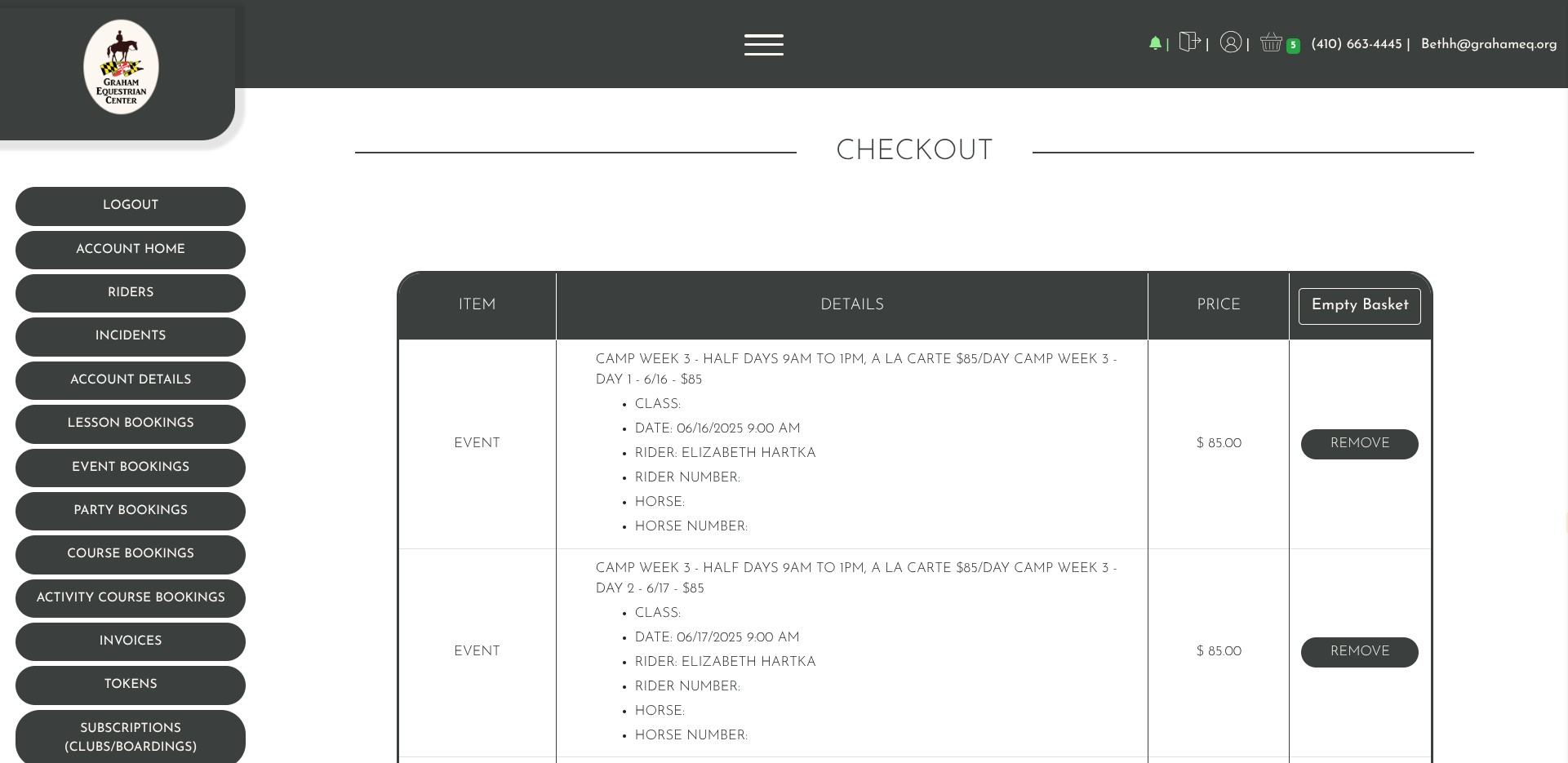
Yes - you can! Just go back to the day you are adding and enter the other riders name, then continue until finished.