Set Up Your Company in MonetizeNow
A click-along walkthrough for Revenue Operations admins: add your company logo and address, invite your team, attach your MSA and standard Quote documents, and create your first approval rule. Screens are real captures of the MonetizeNow app using a fictional demo company (Acme Inc.). Companion to the "Set Up Company" onboarding page.
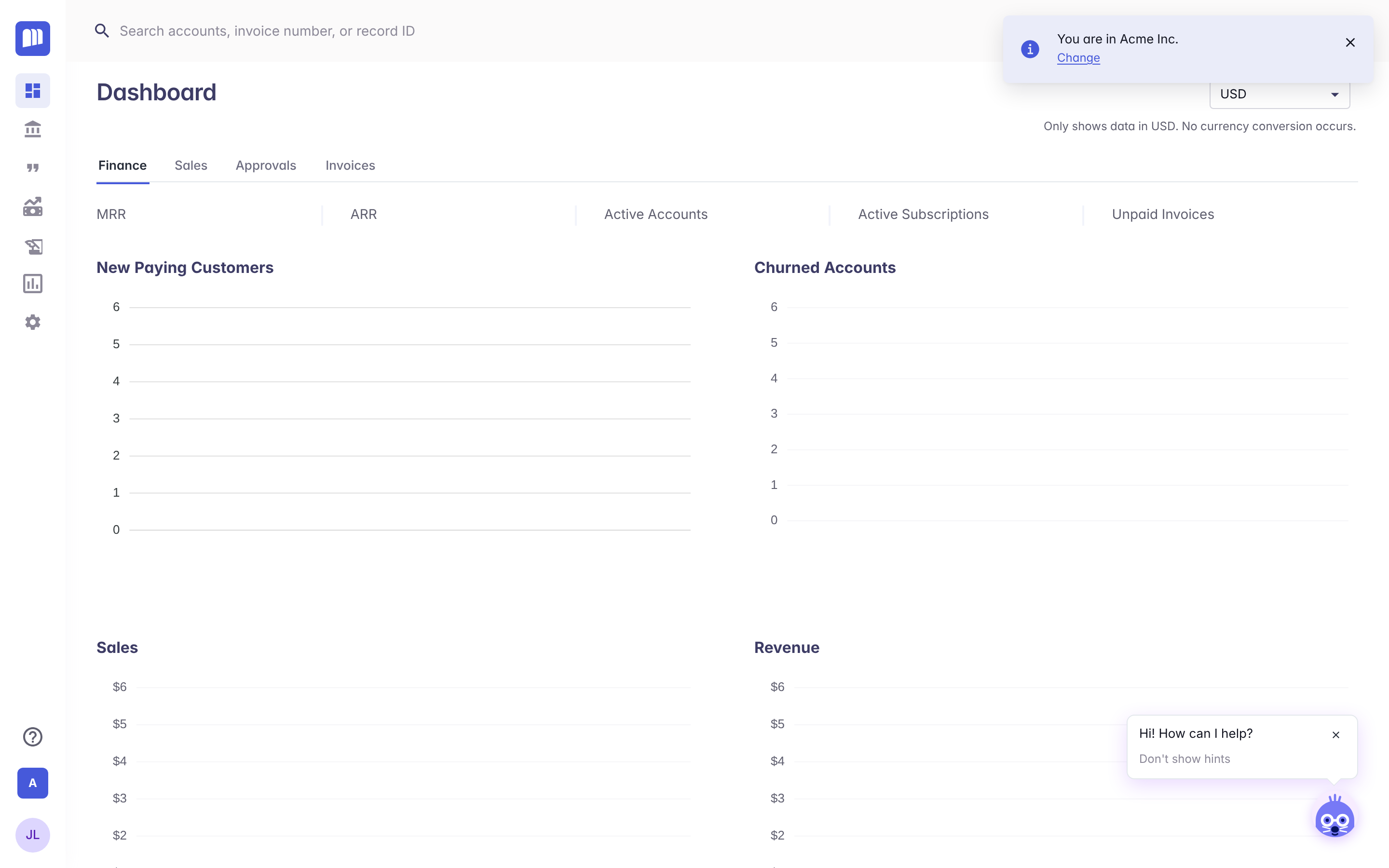
Set up your company in MonetizeNow
Four steps for RevOps admins: company details, your team, Quote documents and deal rules. Allow about 30 minutes. You need the Tenant Admin role.
Frequently Asked Questions
- Who can complete these steps?
A Tenant Admin can complete all four steps. Only Tenant Admins can invite users. Sales Admins can also manage Quote Settings and Rules.
- Can I upload a JPG or SVG logo?
No. The logo must be a PNG file of 10 MB or less. It displays at 200px wide.
- We sell under more than one company or brand. What should we do?
Create one legal entity for each. Each one can have its own logo, address, Quote Template, Quote Documents and invoice terms by currency. Reps choose the Legal Entity when they create a Quote, and you can set a default legal entity on each Account.
- What is the difference between approval rules and validation rules?
An approval rule sends a Quote to a person or team for approval. A validation rule shows an Error, Warning or Info message on the Quote; an Error stops the Quote from being submitted until it is fixed.
- My Quote Documents section shows Cover and Footer instead of Upload from computer. Why?
Your account uses the earlier version of this section. Upload or link your Master Service Agreement (MSA), then upload a Cover and a Footer. All three are added to the PDF of every Quote.