Avallain Author - Release 52 - Copying multiple activities
May 22, 2026●

2
When editing your Learning Objects, you can now copy multiple activities from one Learning Object to another.
3
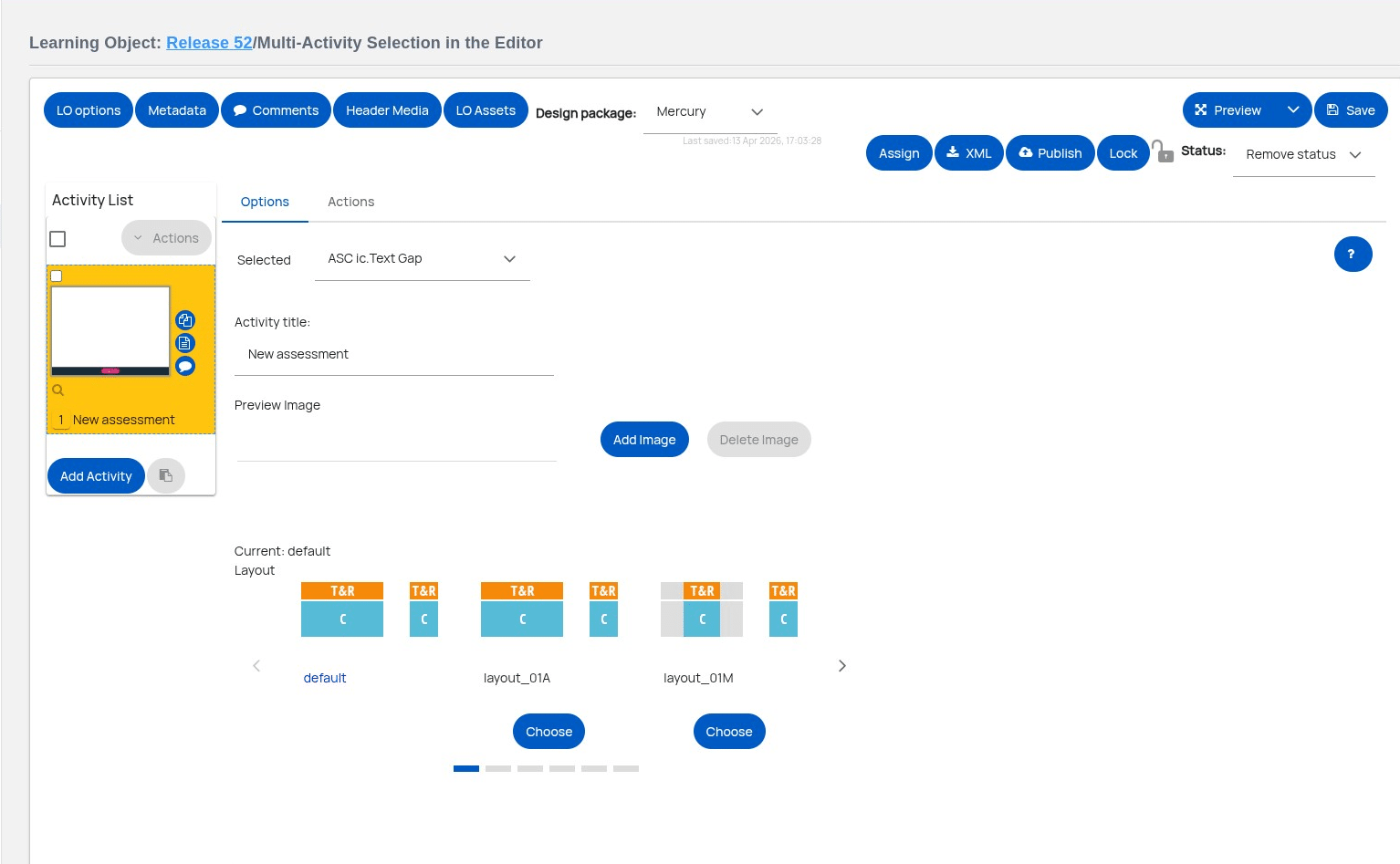
First select the source from which you want to copy your activities.
4
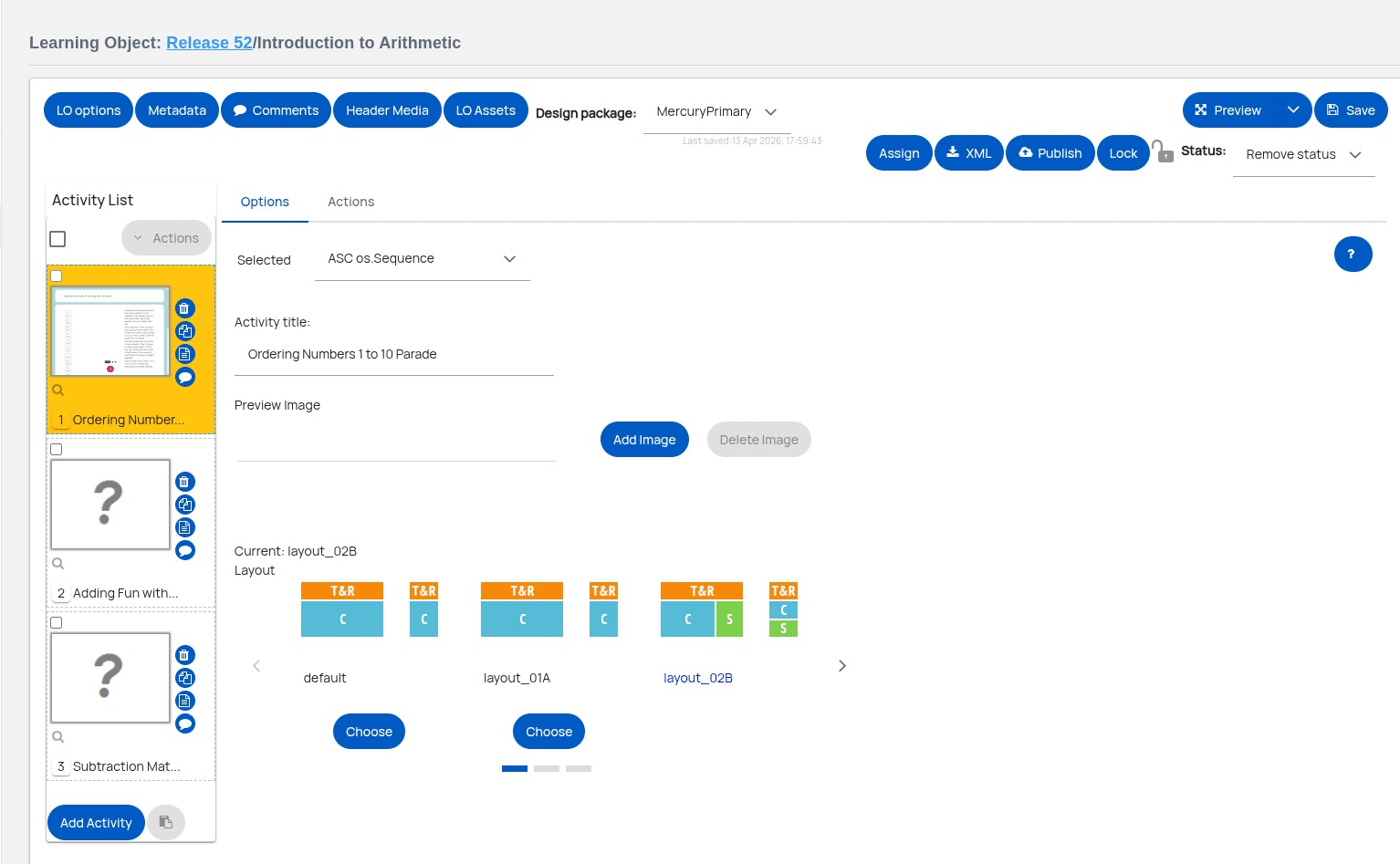
Next use the checkboxes above the activity previews to select one or more activities.
5
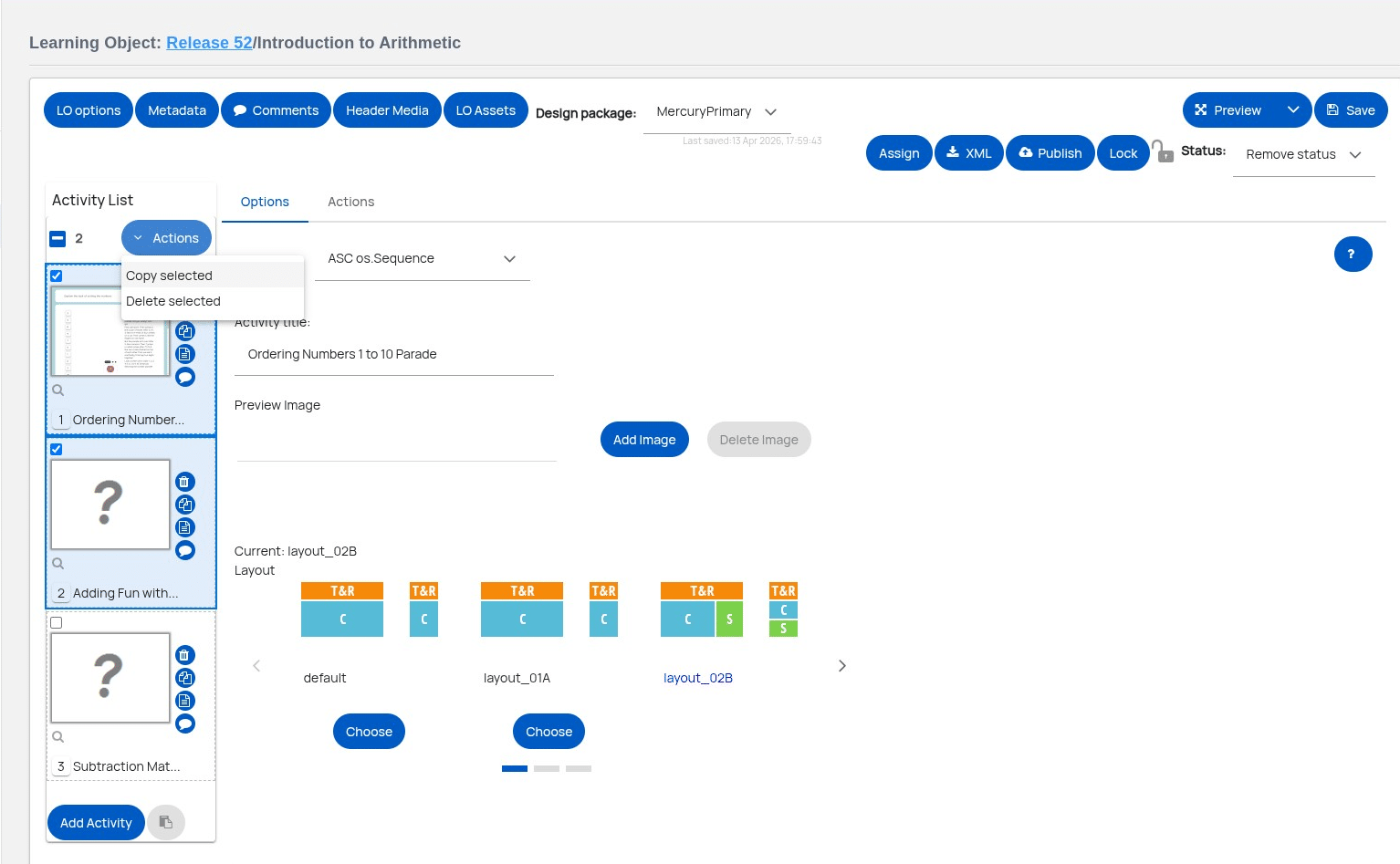
Once you have finished your selection, use the dropdown menu above the activity list to copy the activities.
6
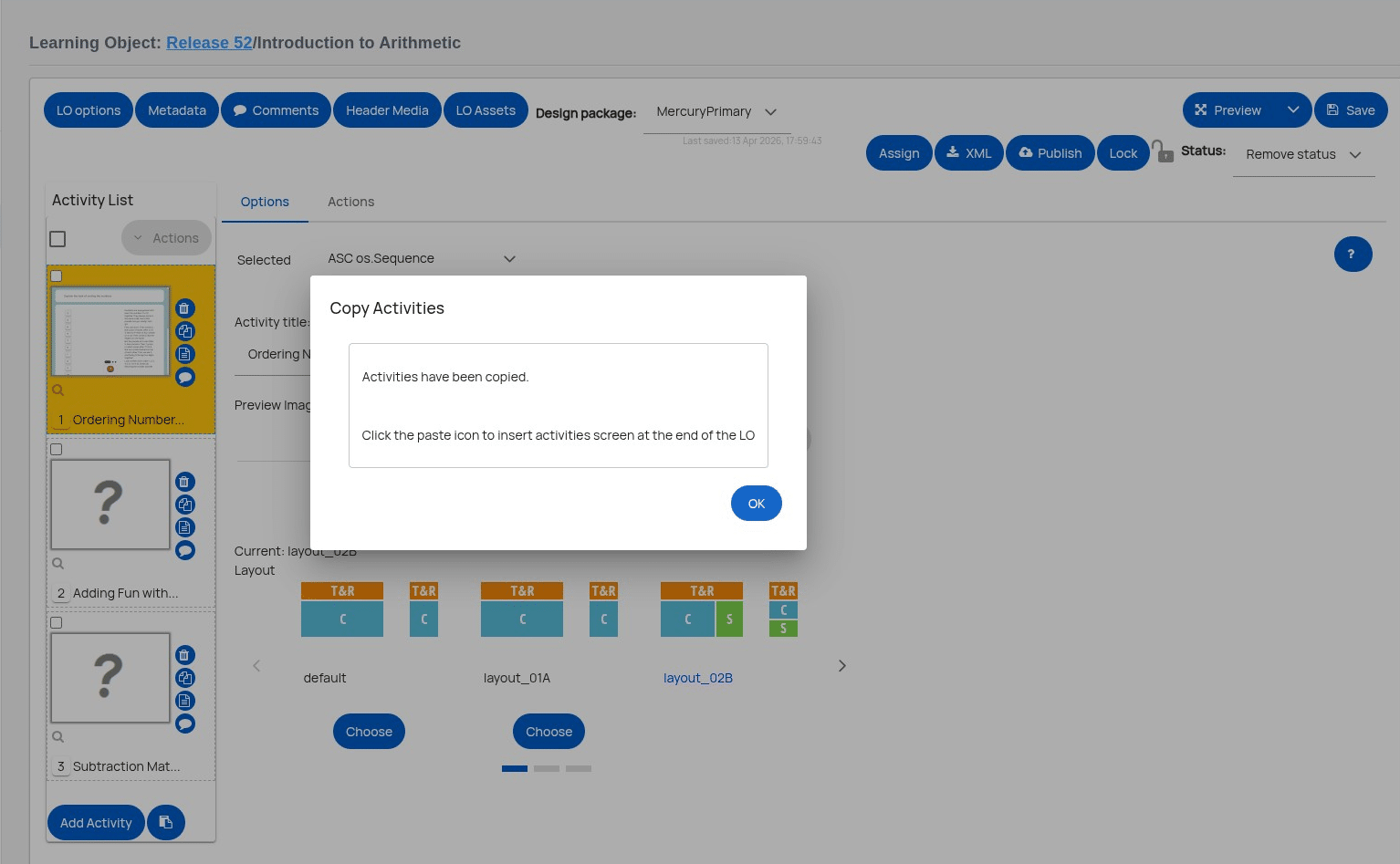
As before, you will see a dialogue confirming that activities have been copied.
7
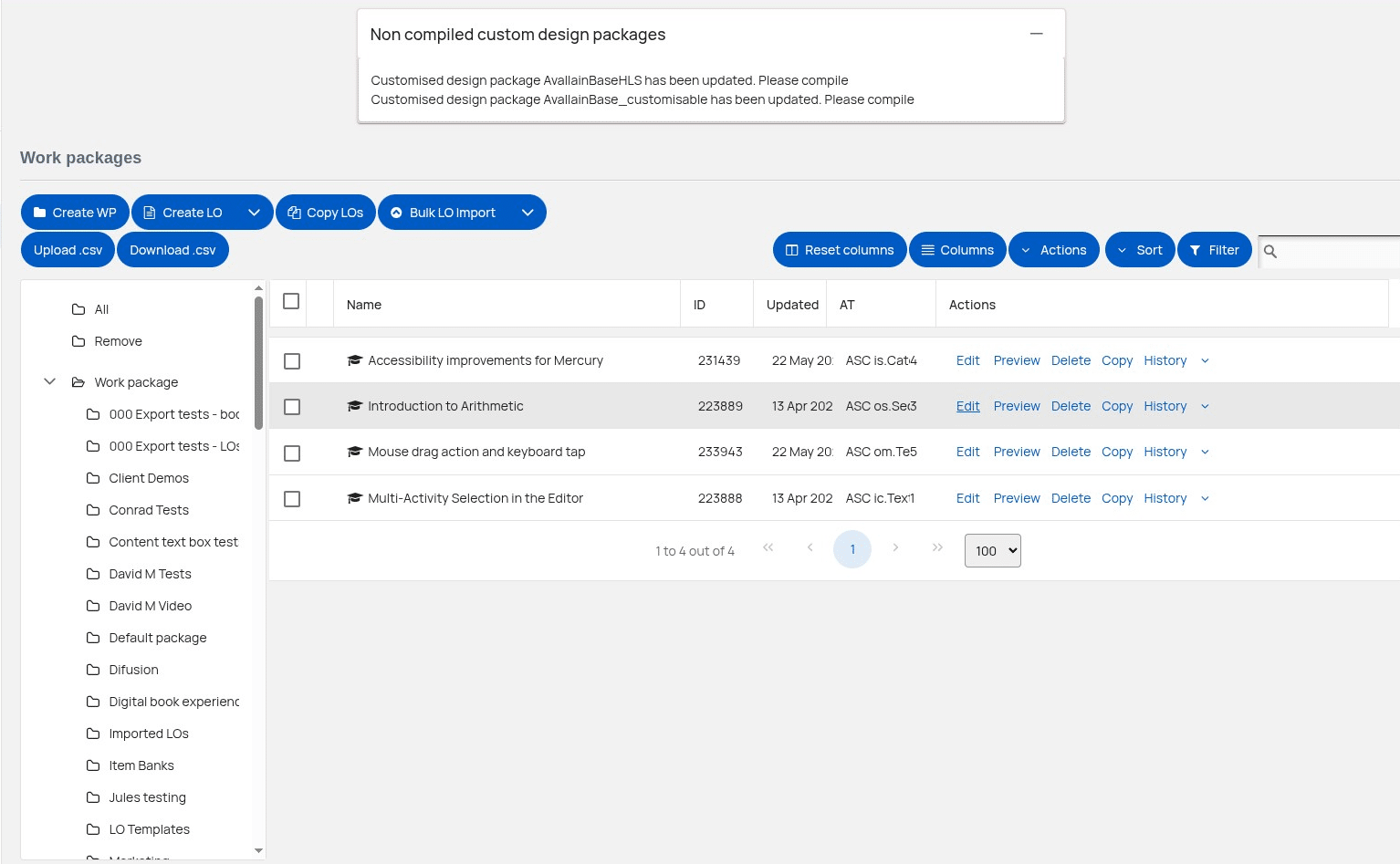
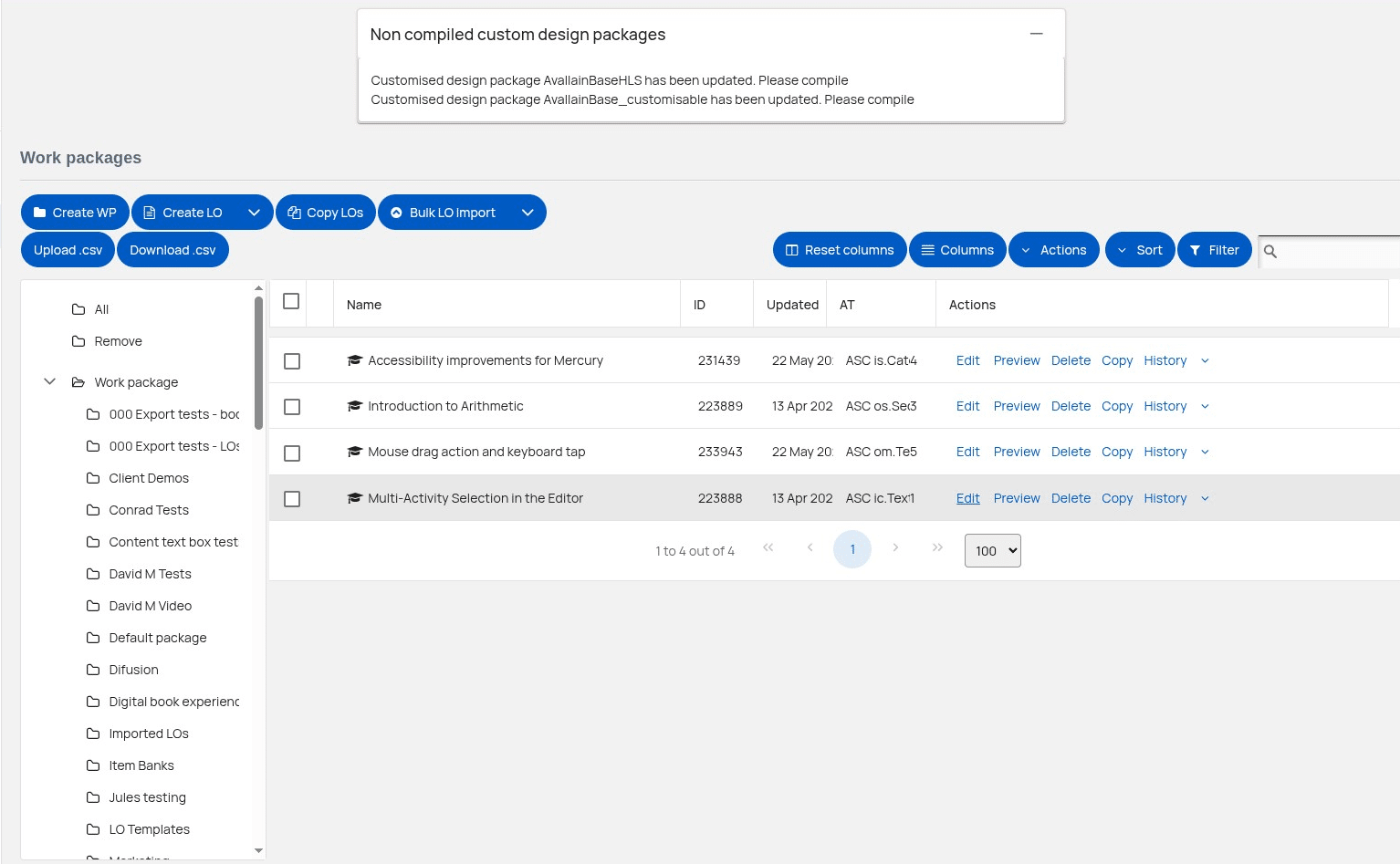
Select your destination LO from the work packages list.
8
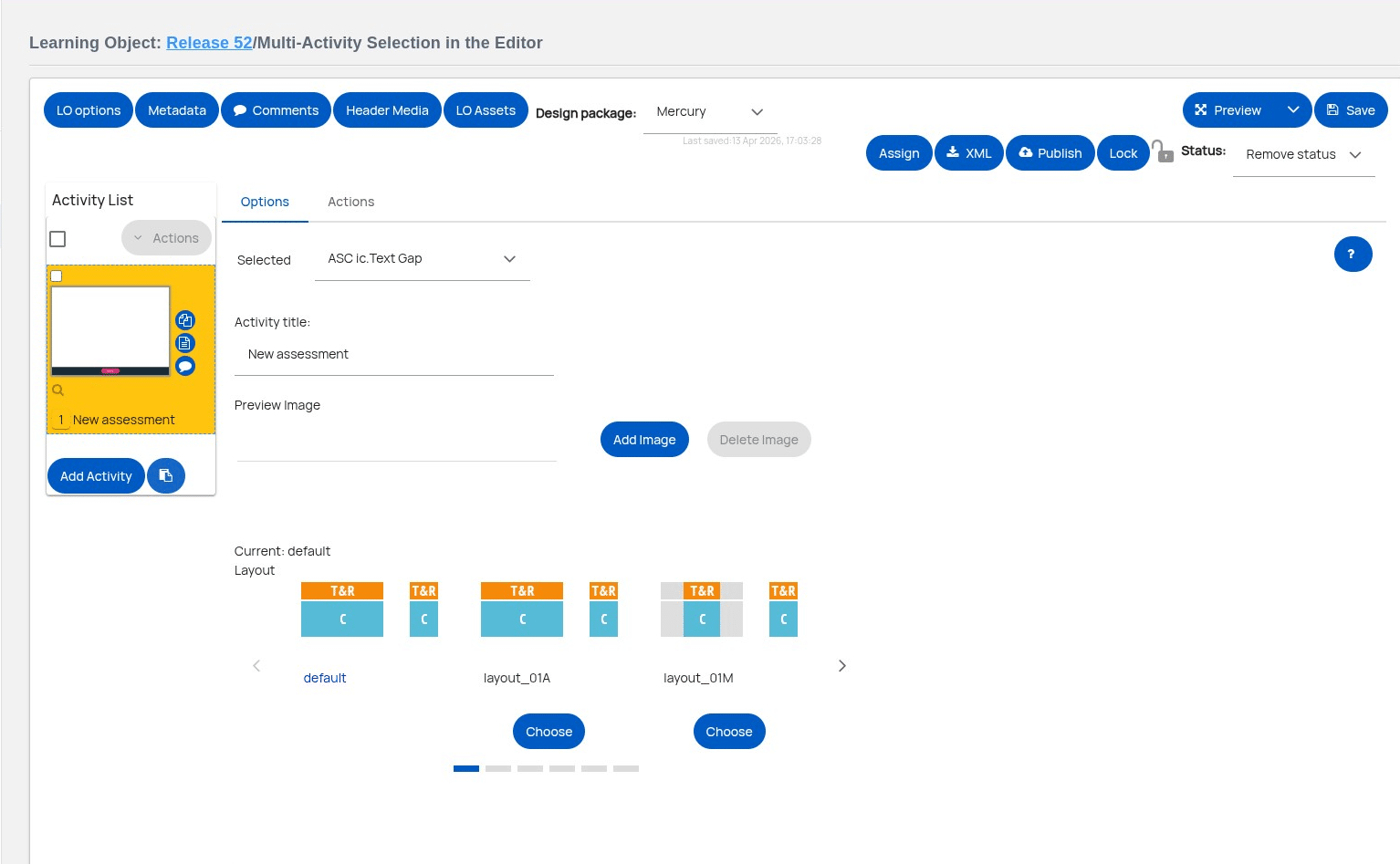
And as before, use the insert button below the activity list to paste the copied activities.
9
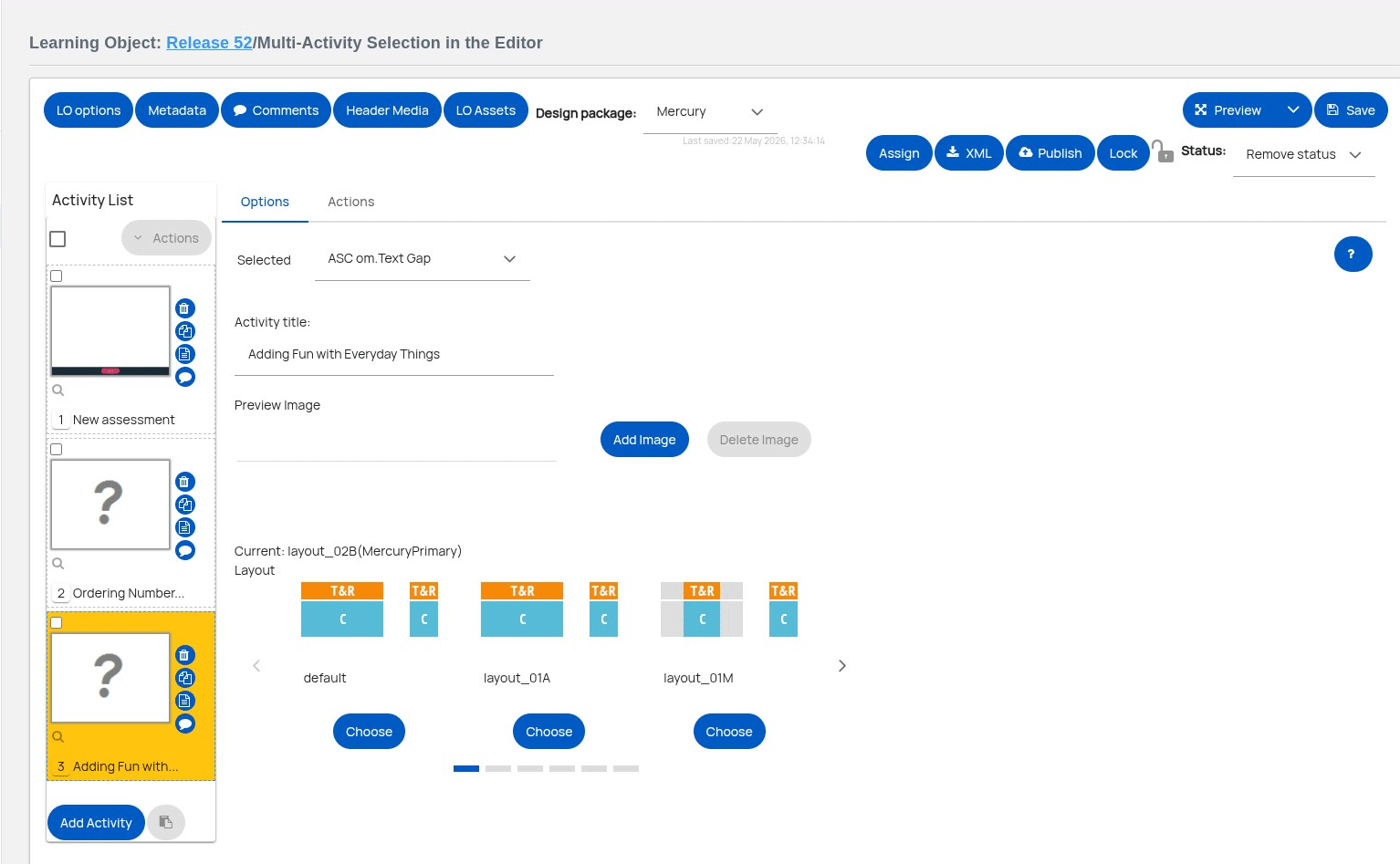
The copied activities are inserted at the end of the activity list.
10
Thank you.