GuildLink - Staff
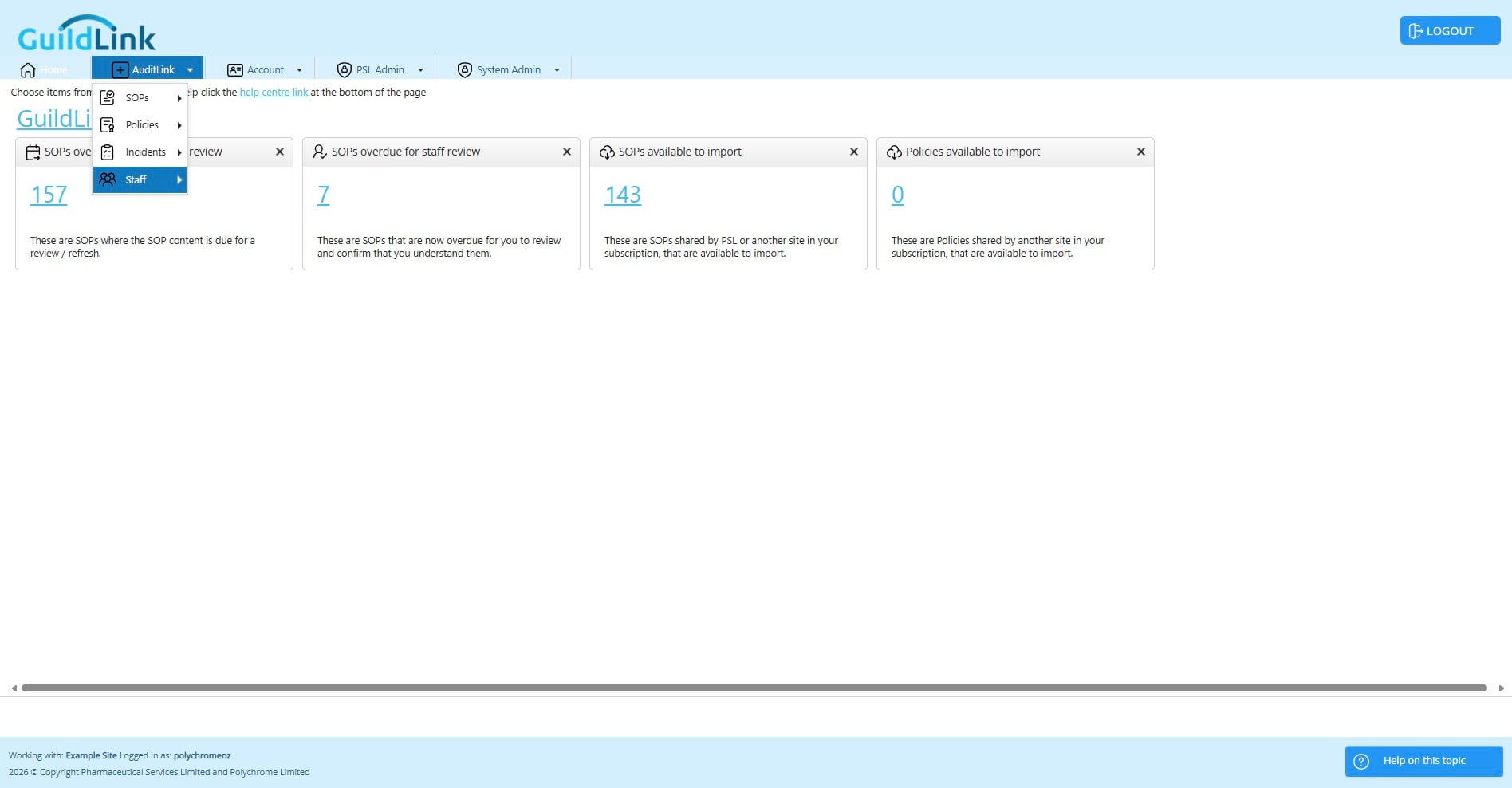
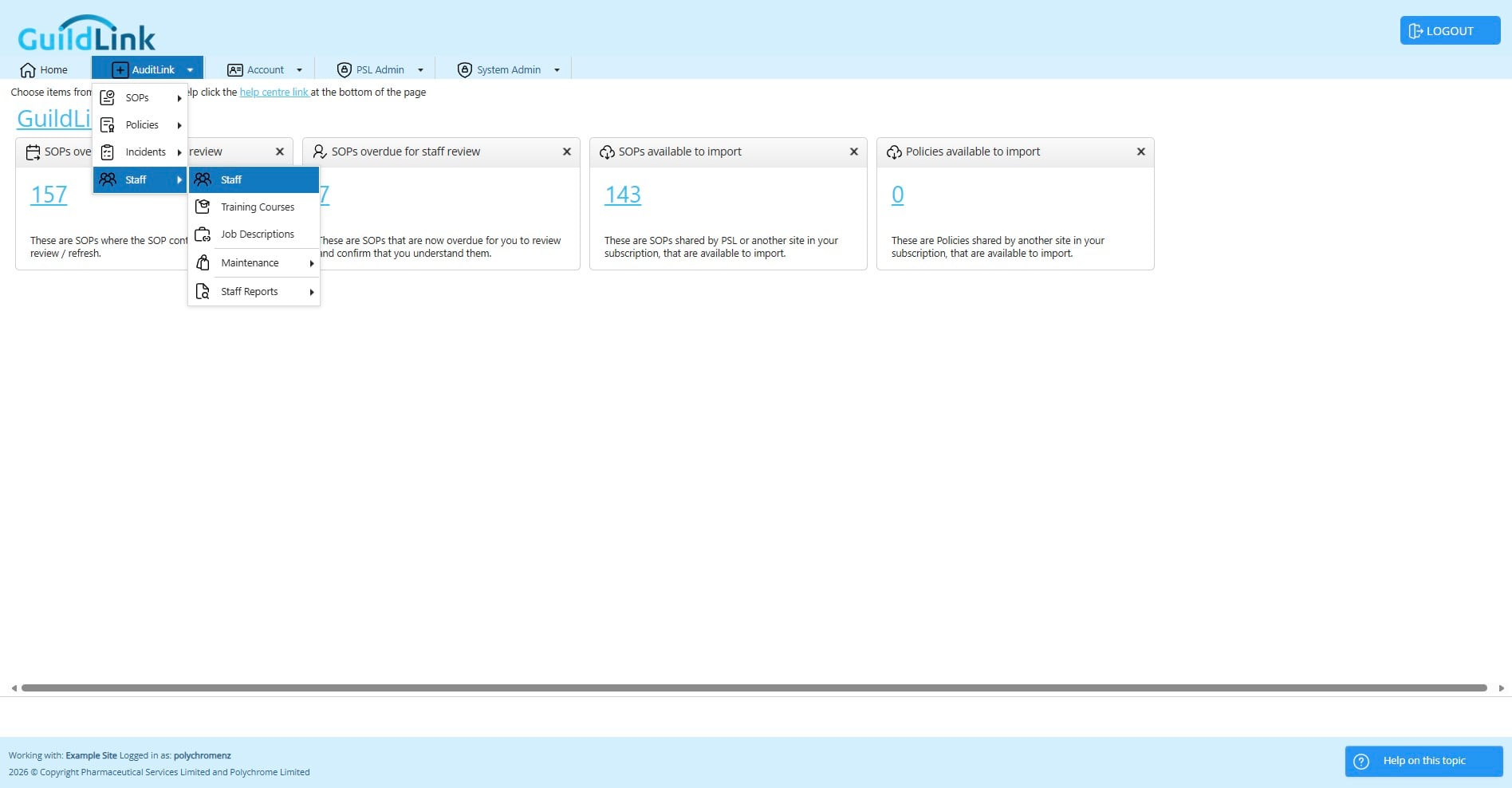
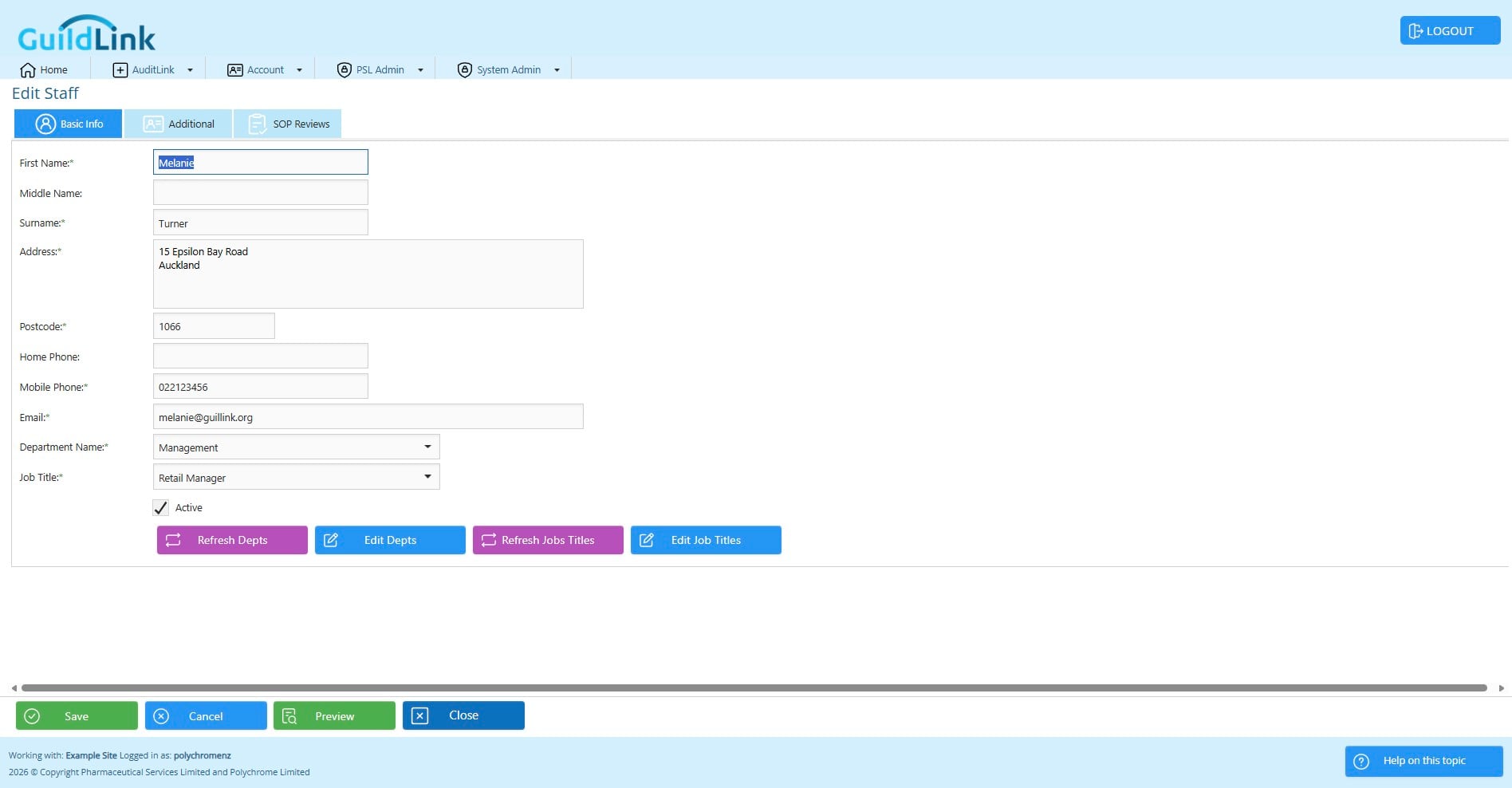
Navigate to AuditLink > Staff > Staff
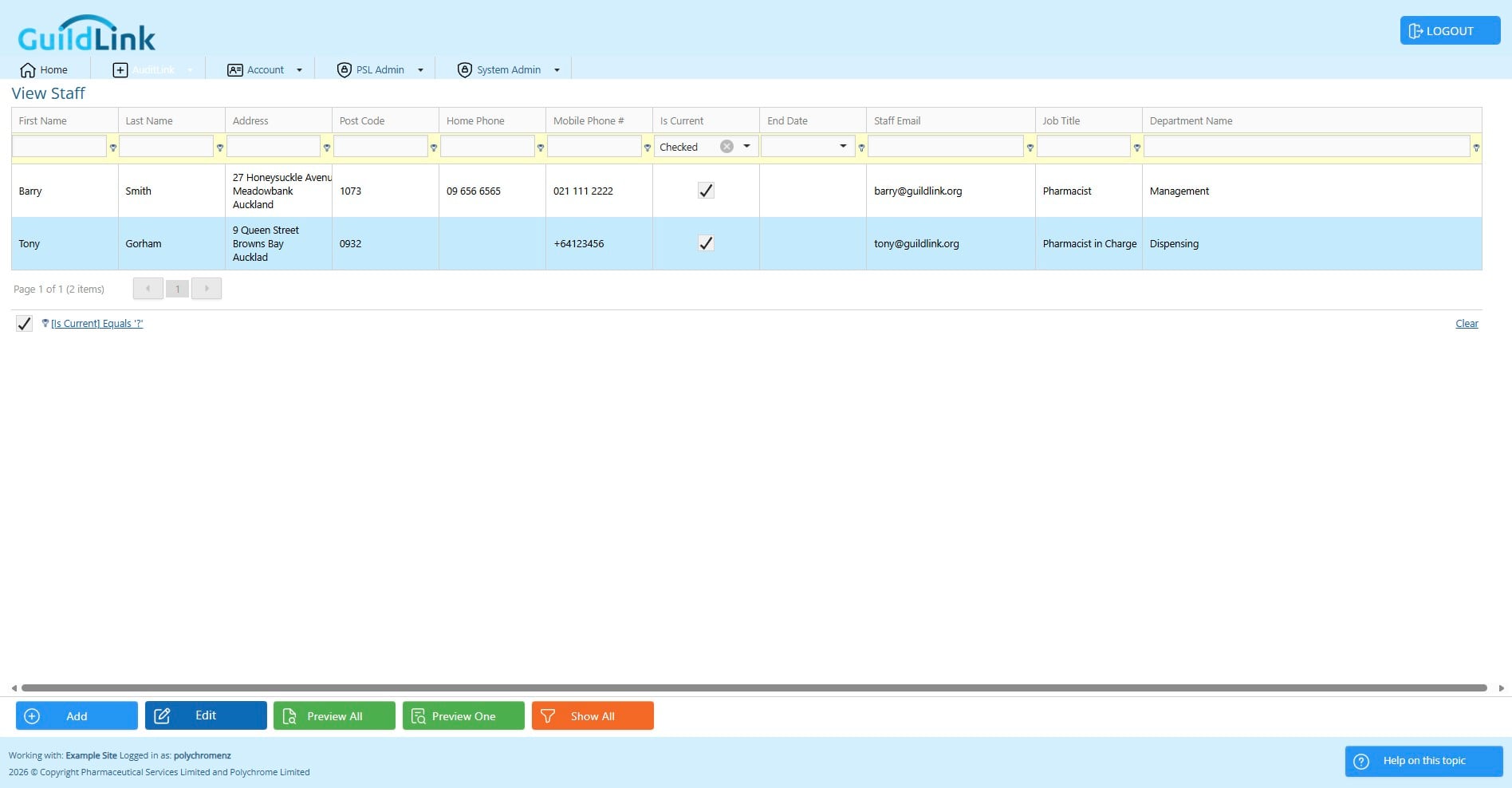
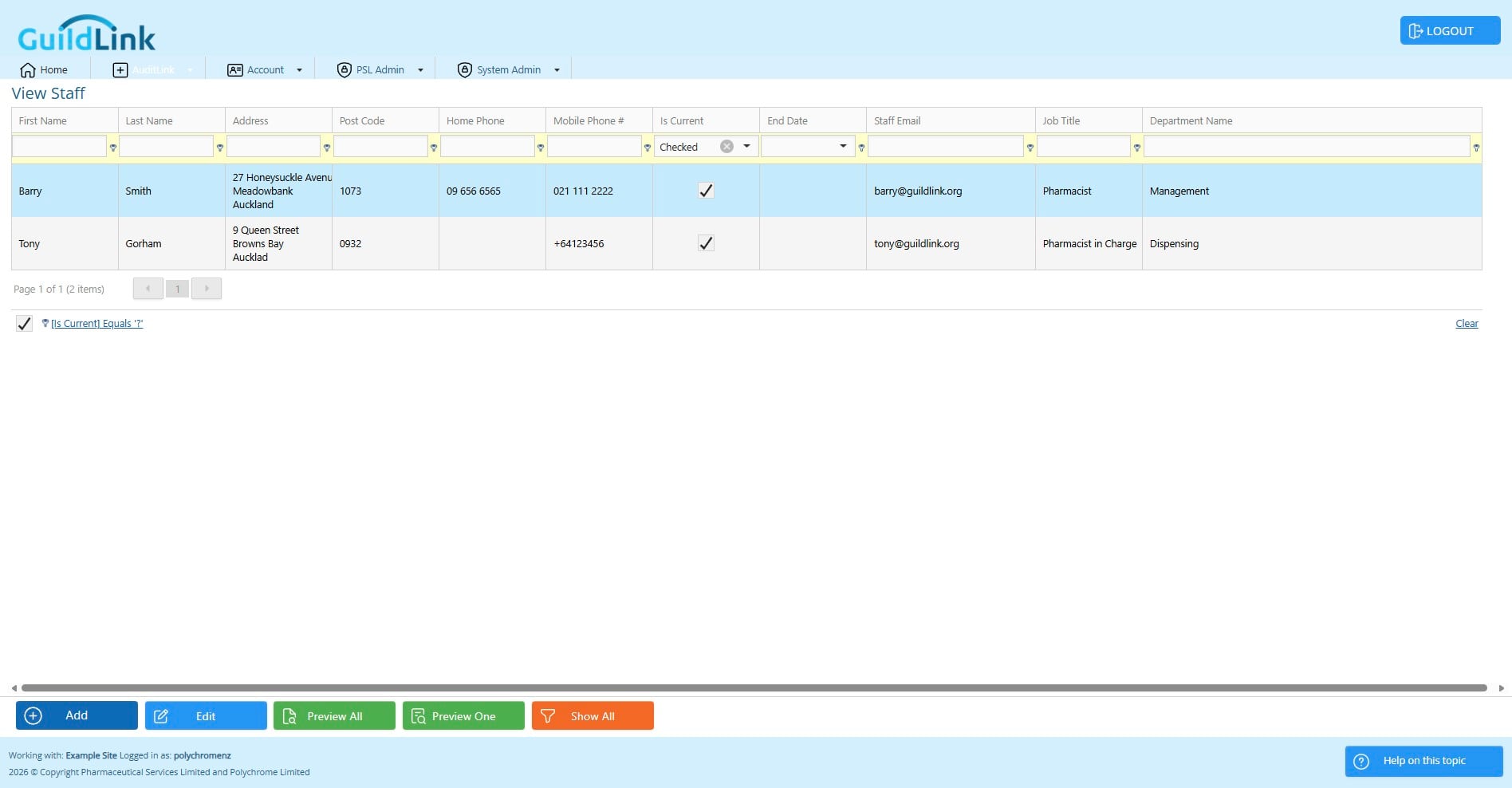
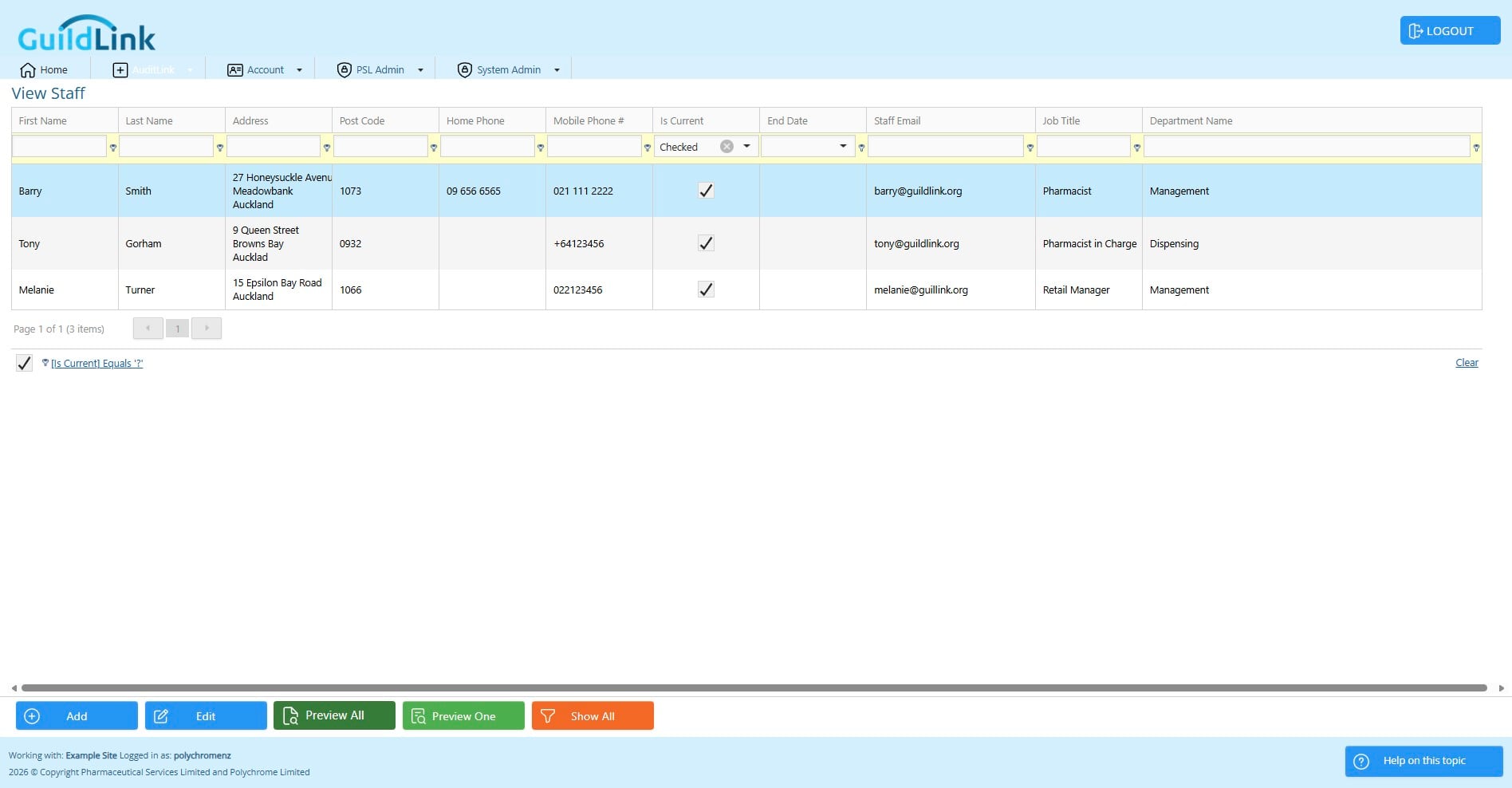
Choose a staff member to edit
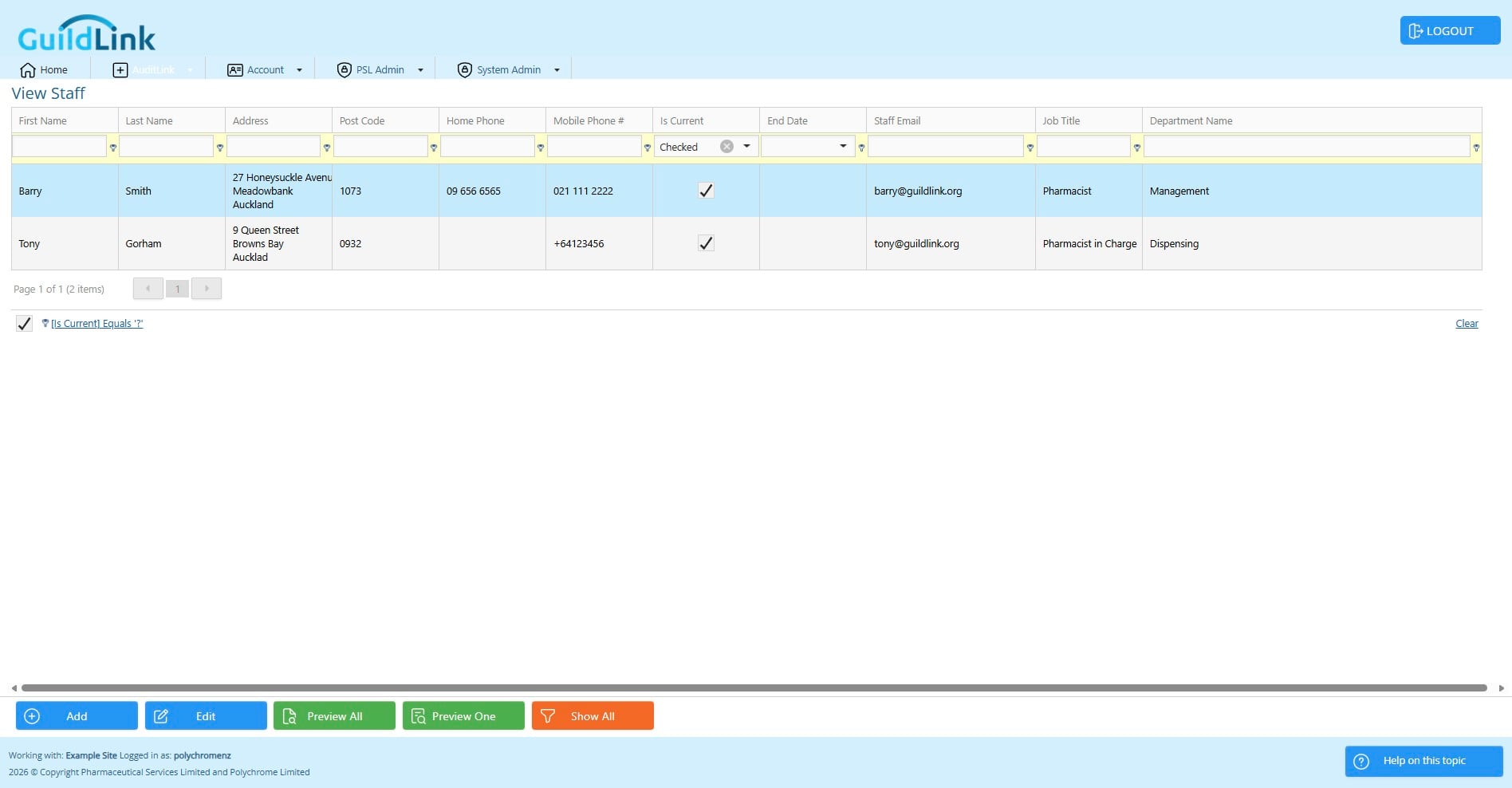
Click on "Edit"
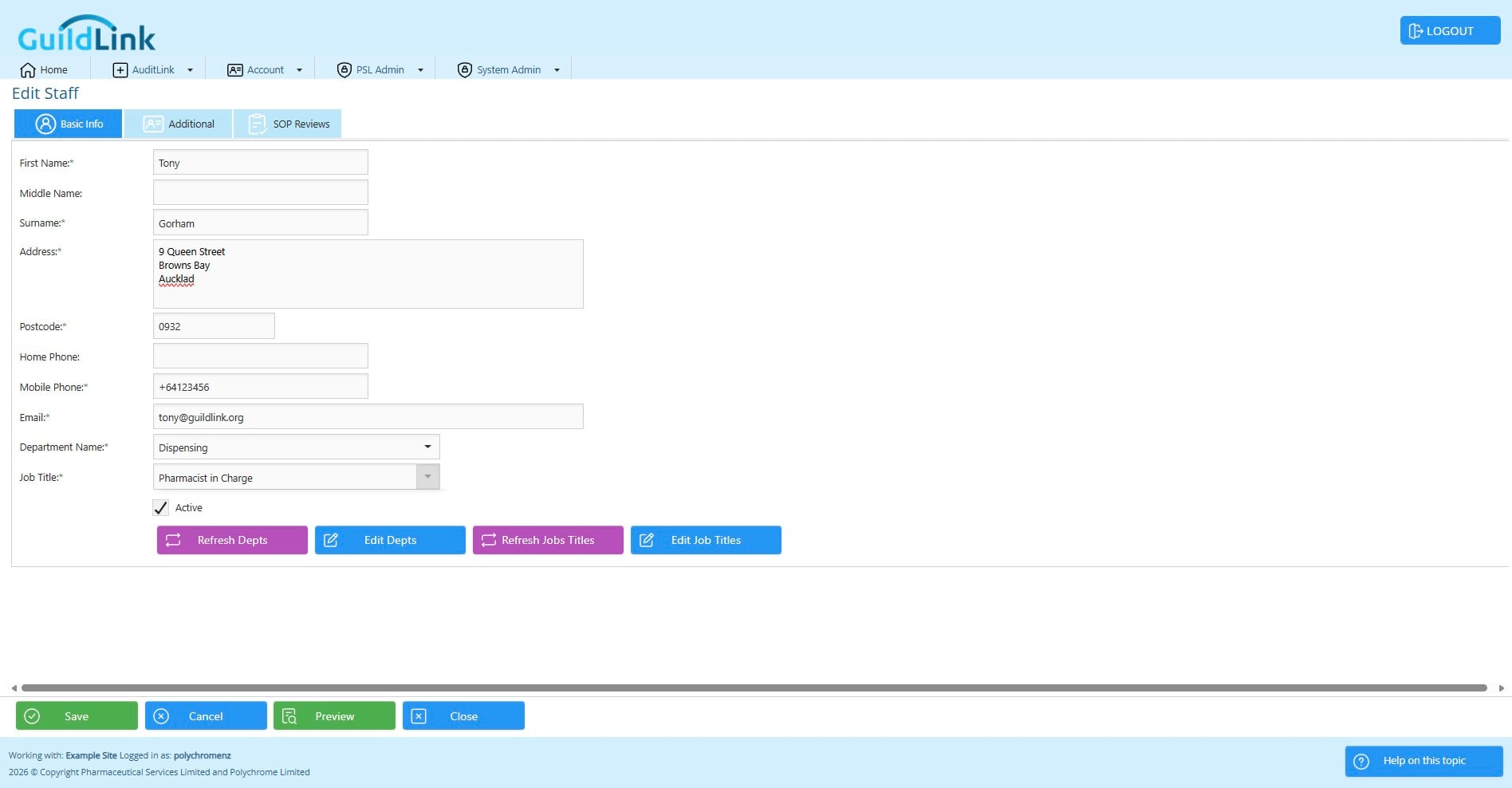
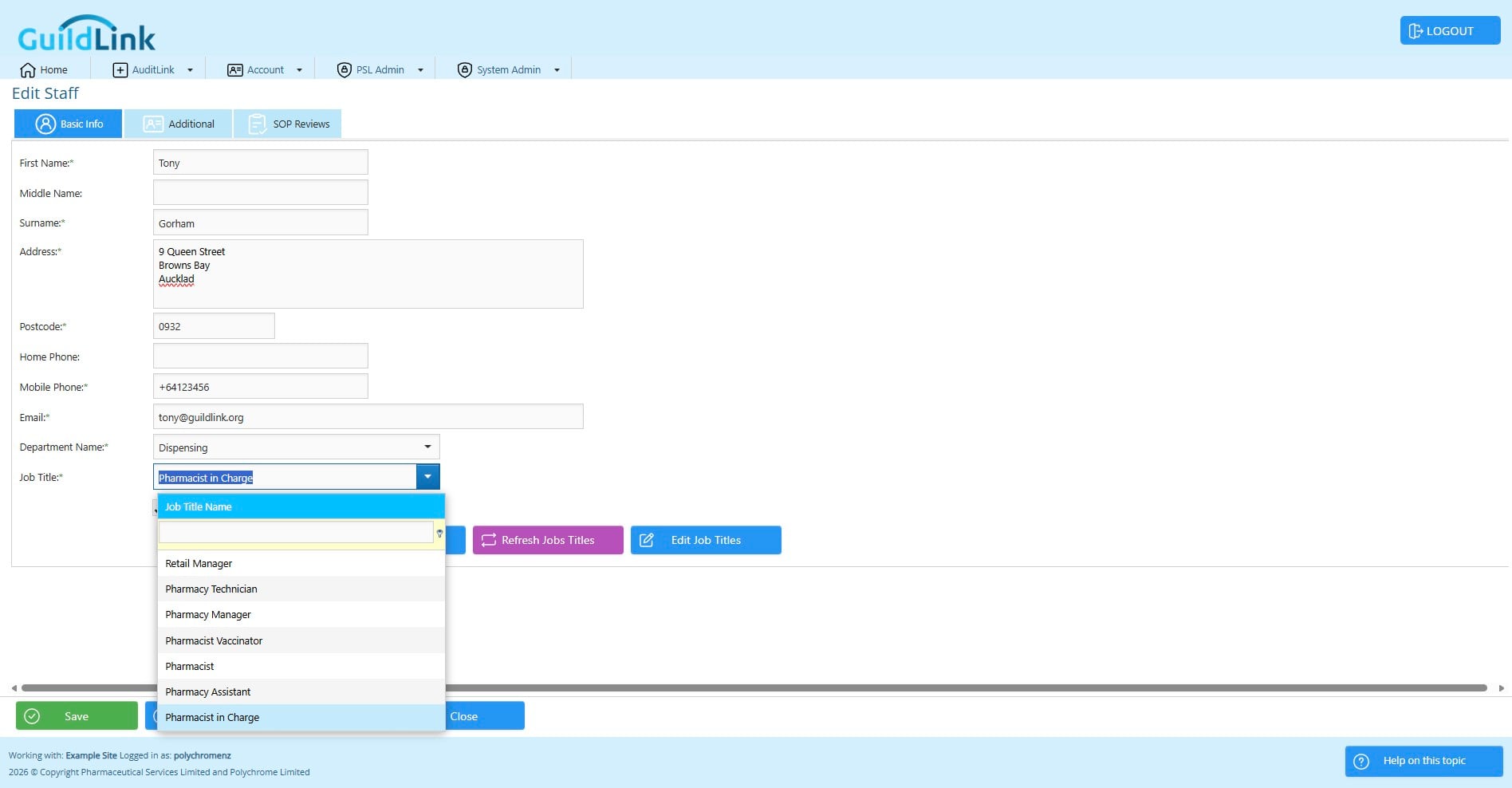
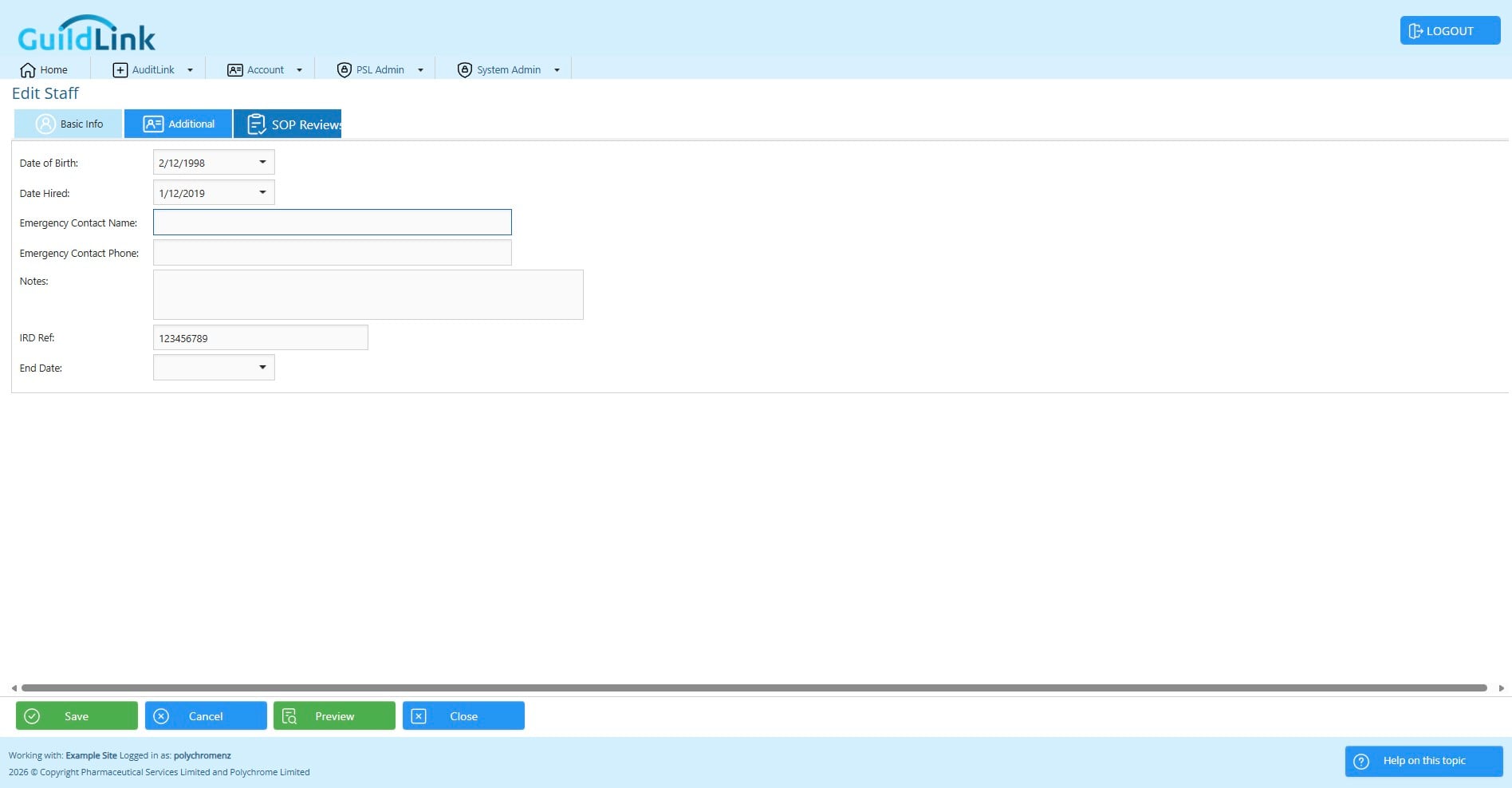
Click on "Additional" to see extra info - this is all optional information
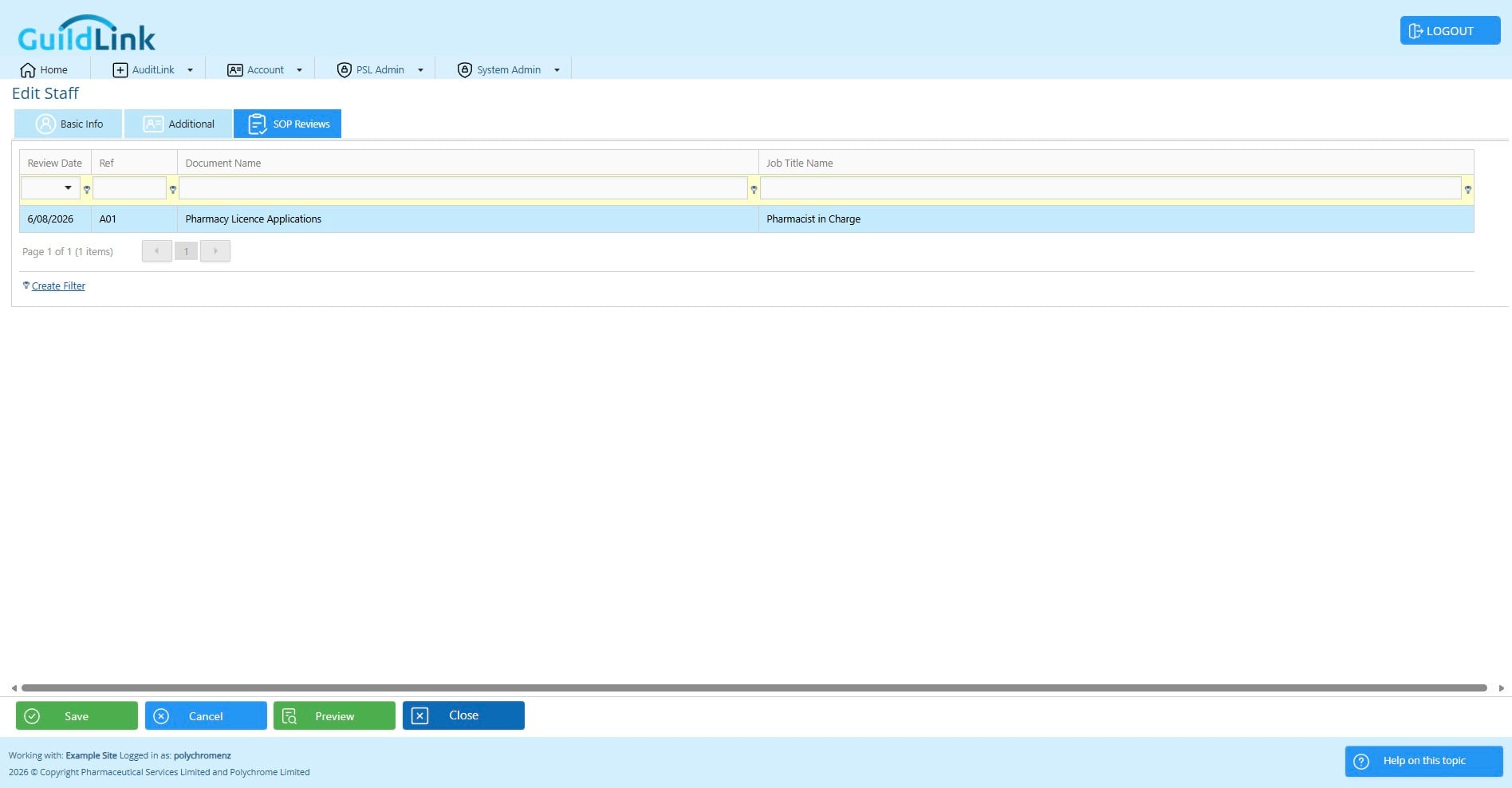
Click on "SOP Reviews" to see a list of the SOP reviews this staff member has added.
Staff reviews are only relevant to pharmacies collection review info electronically. This does not apply to paper based systems.
Click on "Close"
Click Add to add a staff member
Enter thier basic info
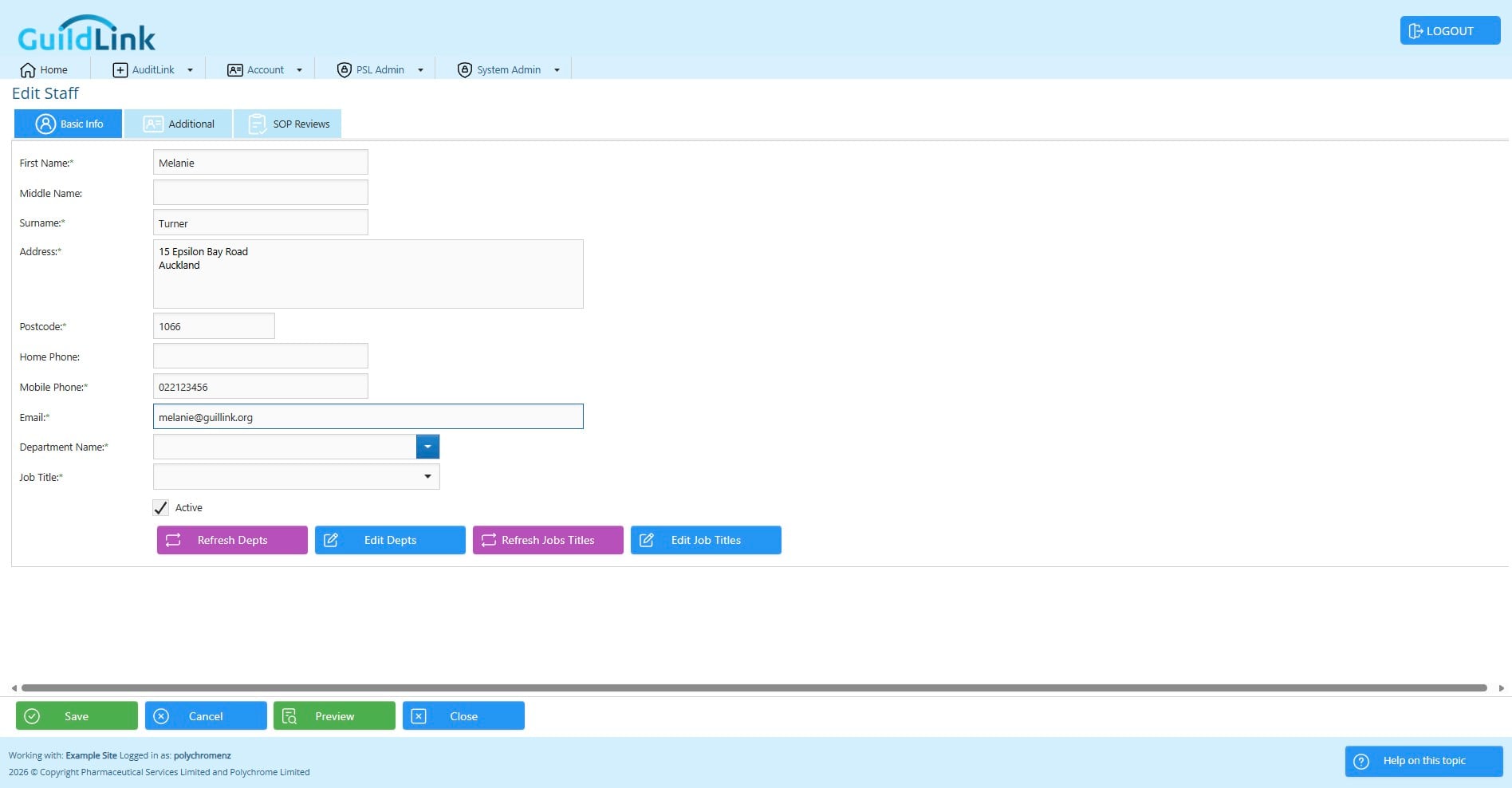
If you are adding a staff member for an existing GuildLink user, the email address MUST match so that GuildLink is able to link the staff and user info. That allows GuildLink to determine what job title a user has and this let's it show a list of any SOPs they need to review.
Note that not all users will be staff as they may be a temp or even an auditor. Also, not all staff will be users, if you have a paper-based system then some staff will never need to access GuildLink but you may want their details in GuildLink.
Choose a department and job title.
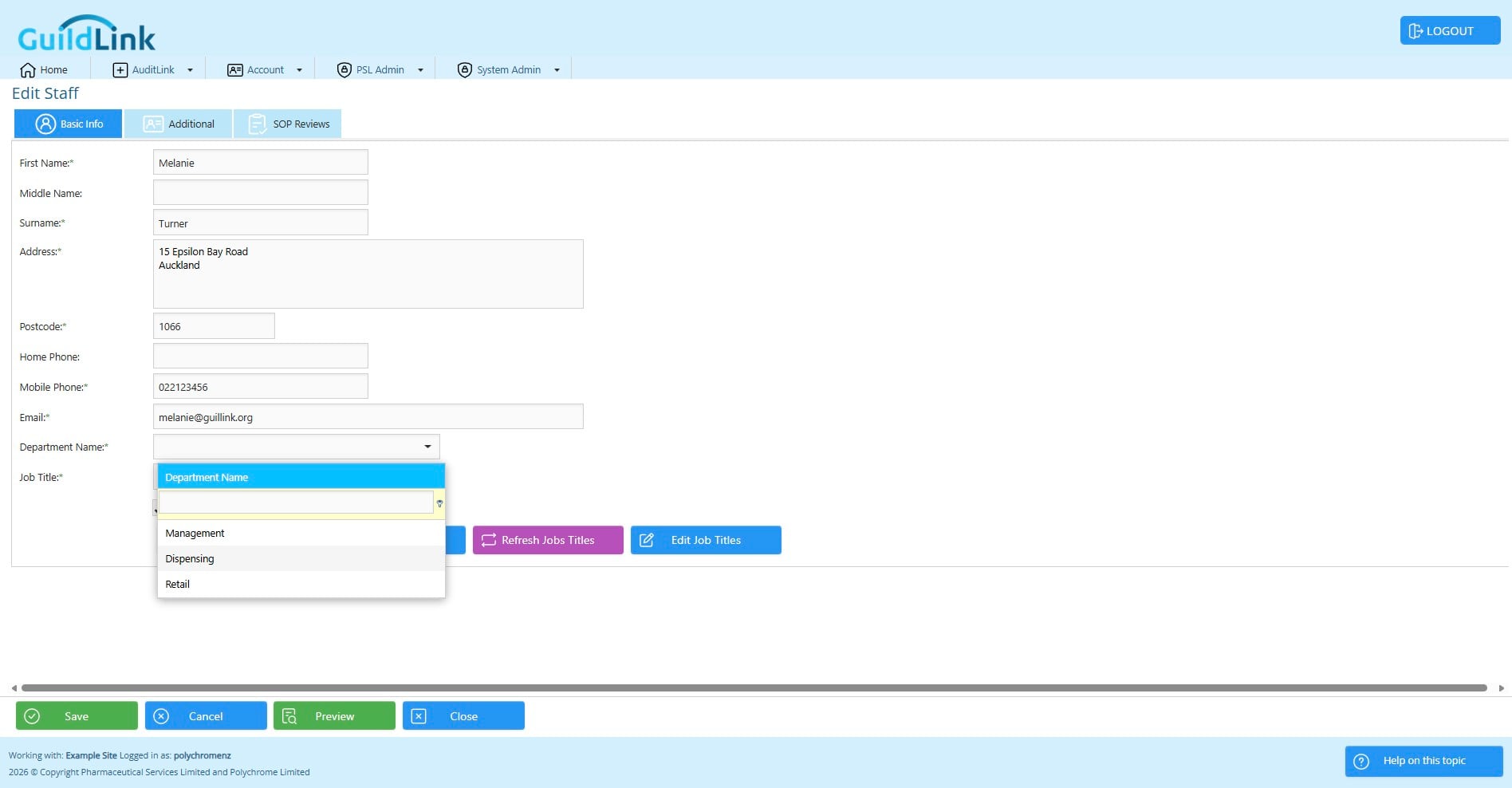
If you need to add one you can click the button, add in a new browser tab and then come back and hit refresh to see the new department/job title without starting over.
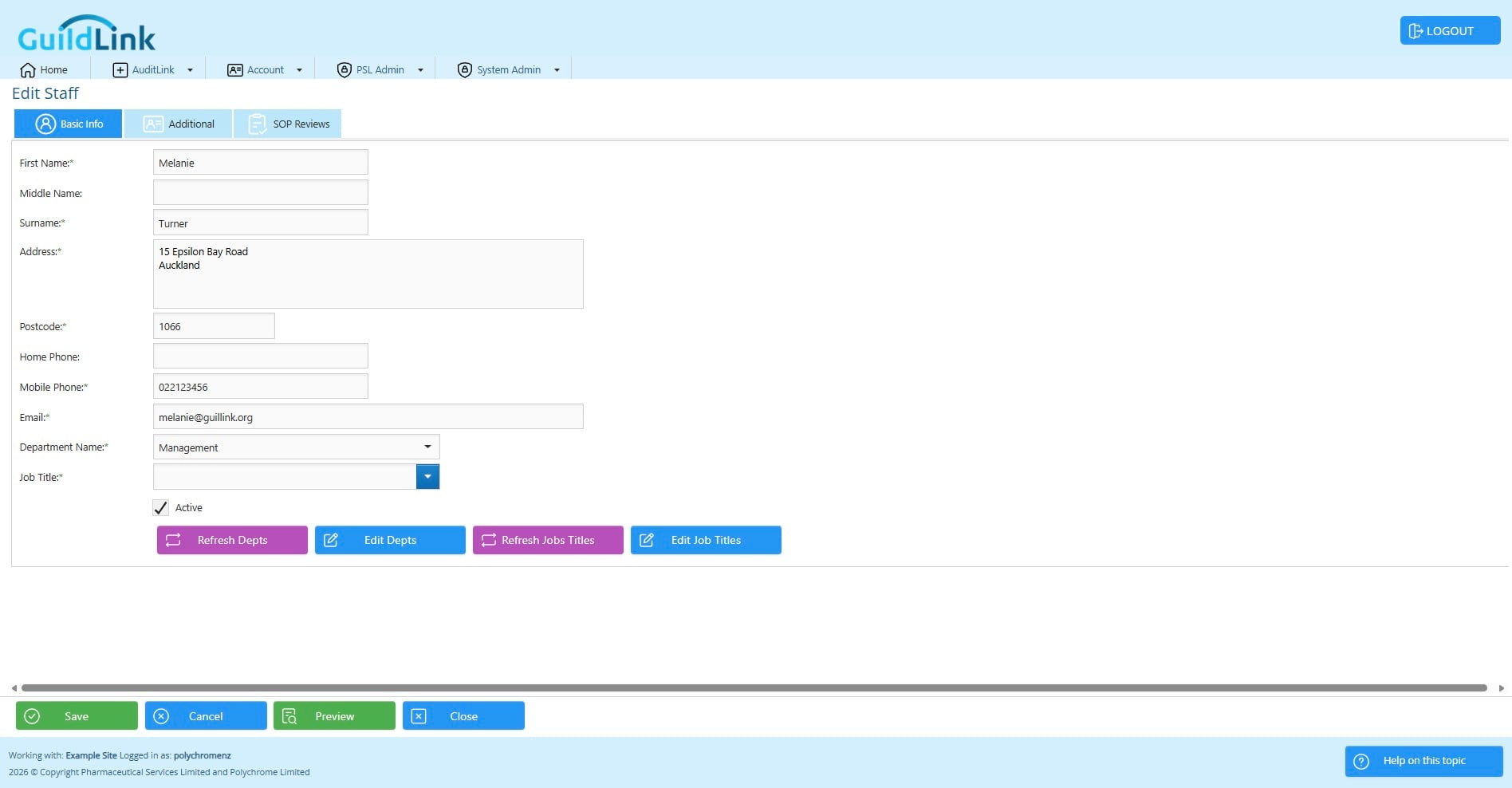
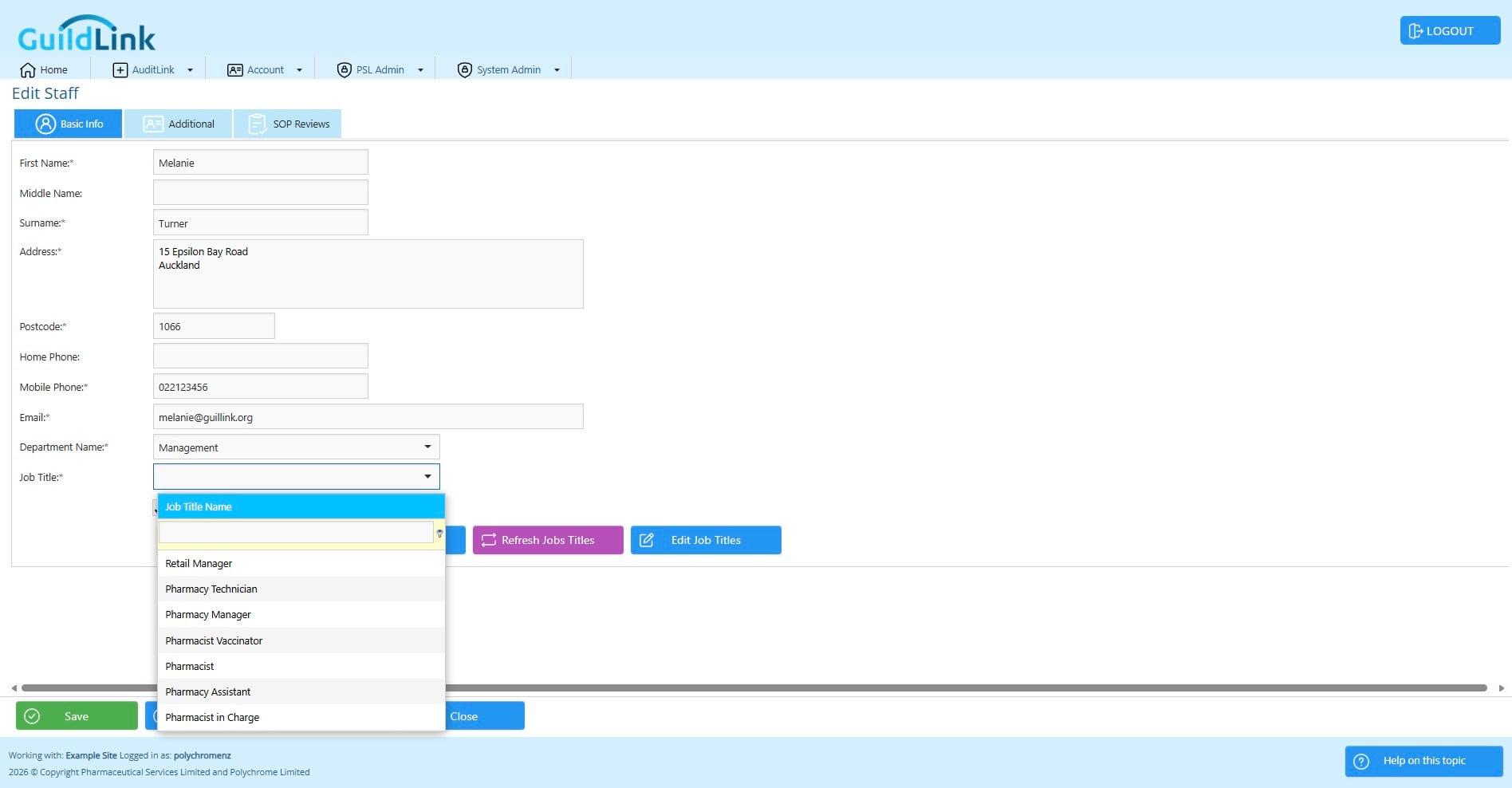
Click on "Additional" to see that extra info - this is all optional.
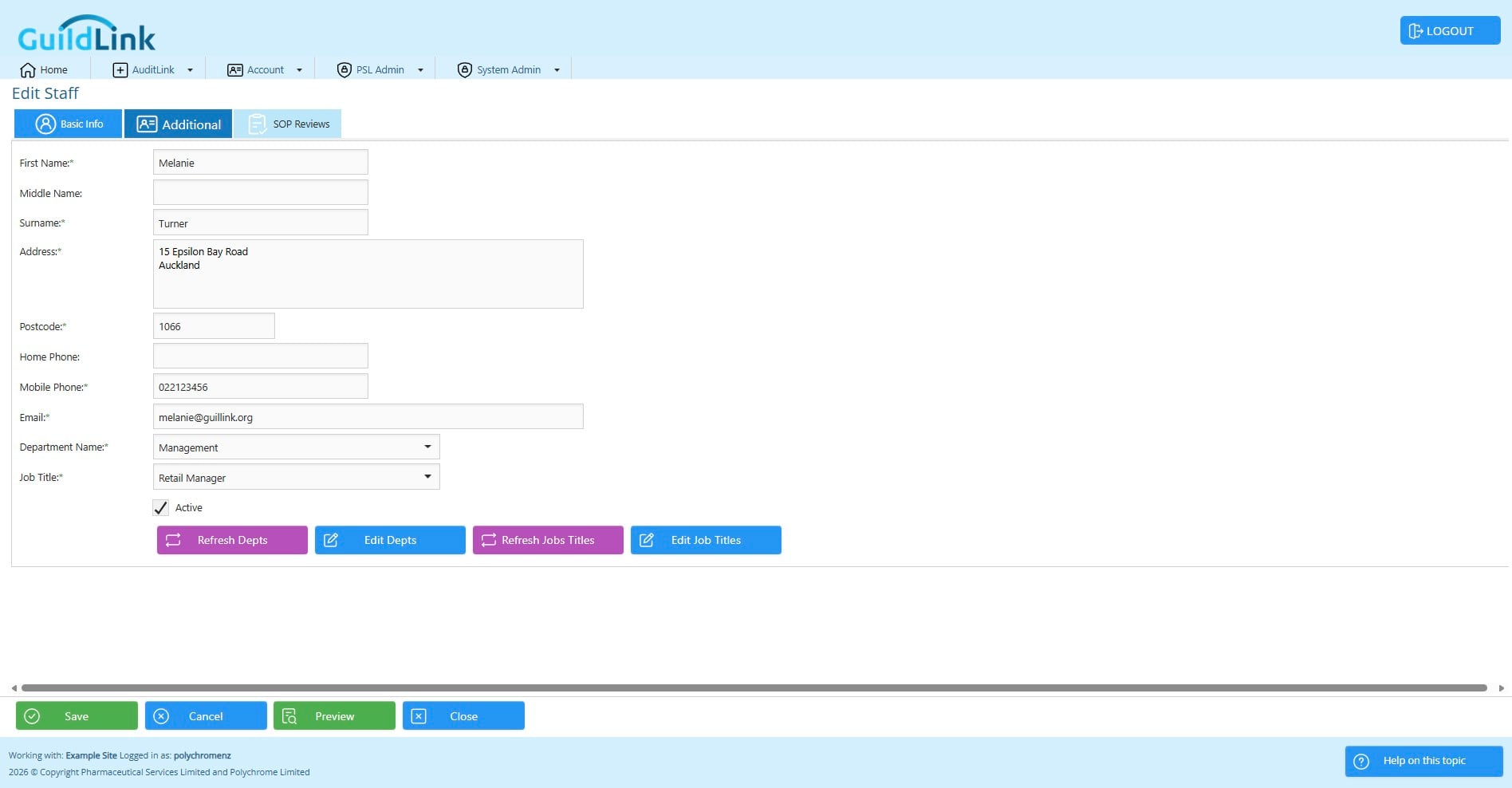
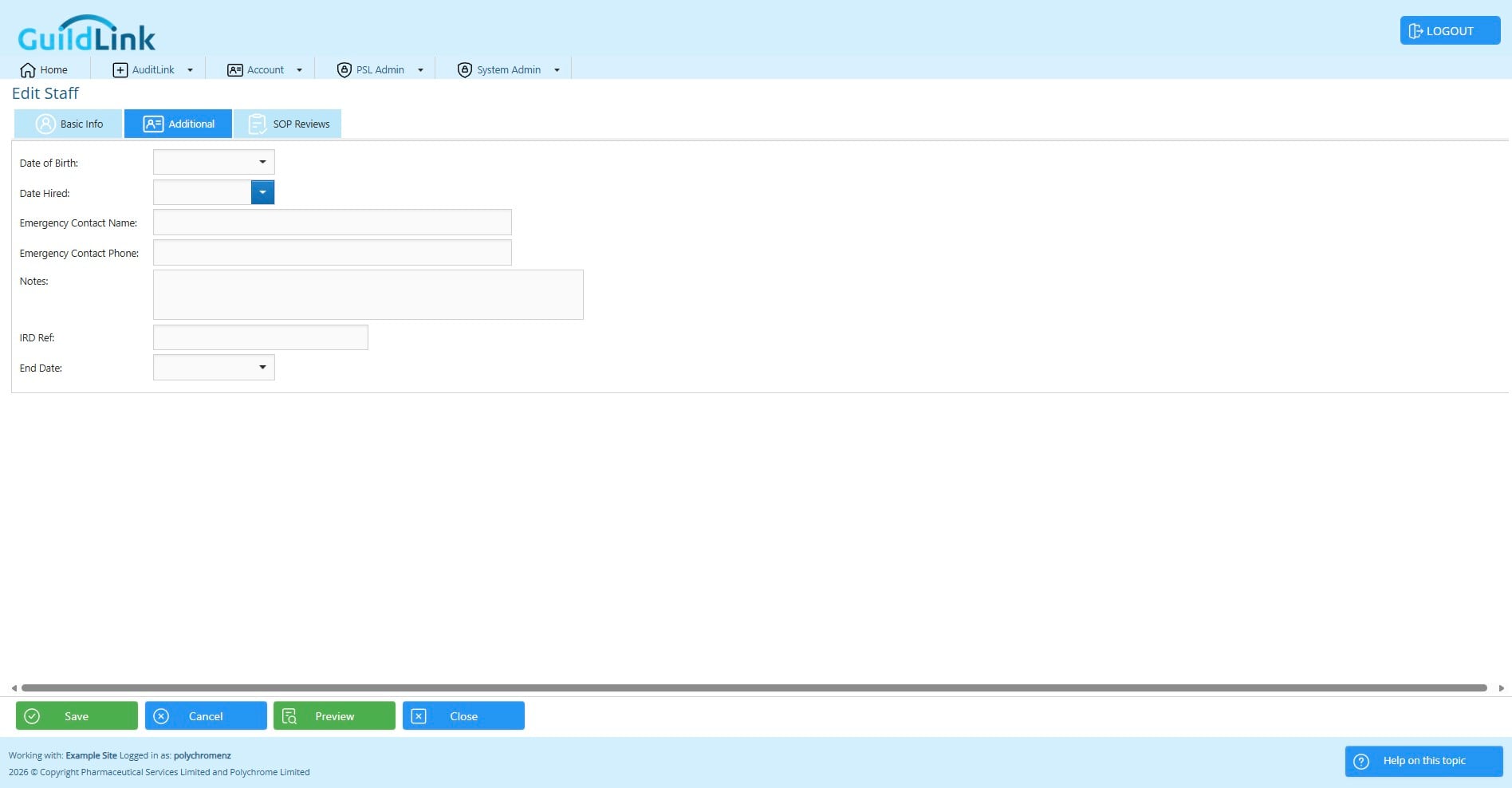
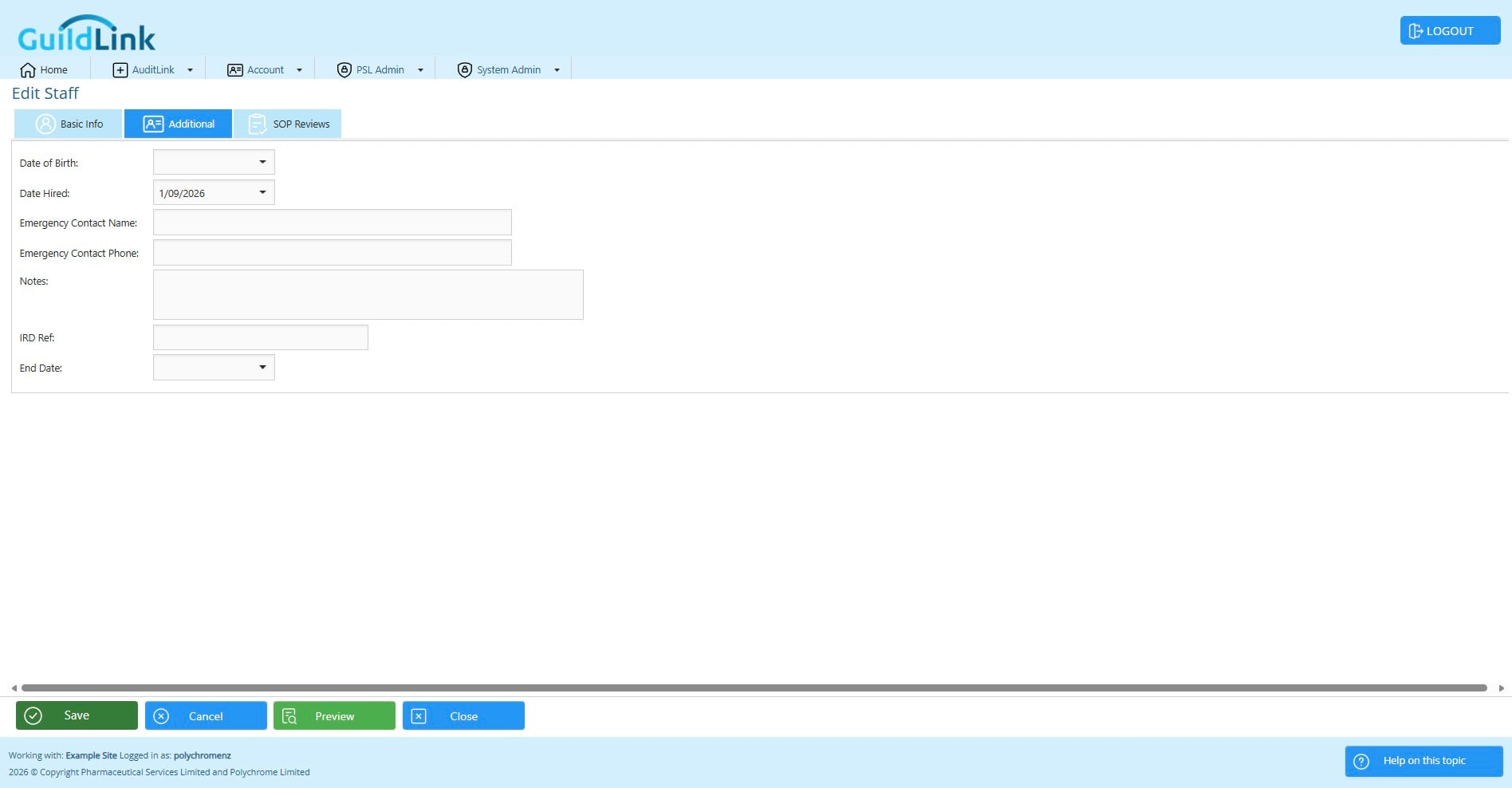
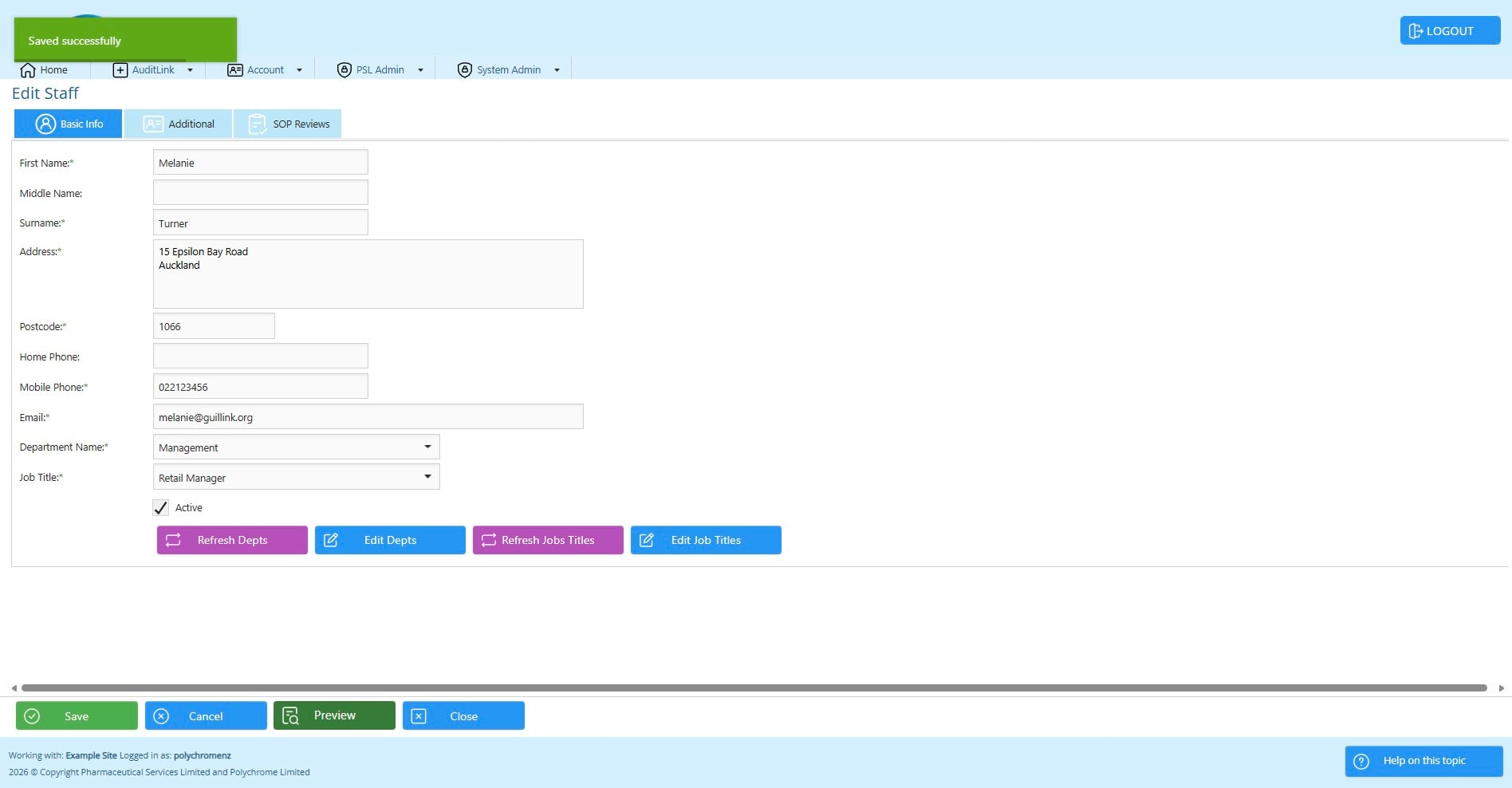
Click on "Save"
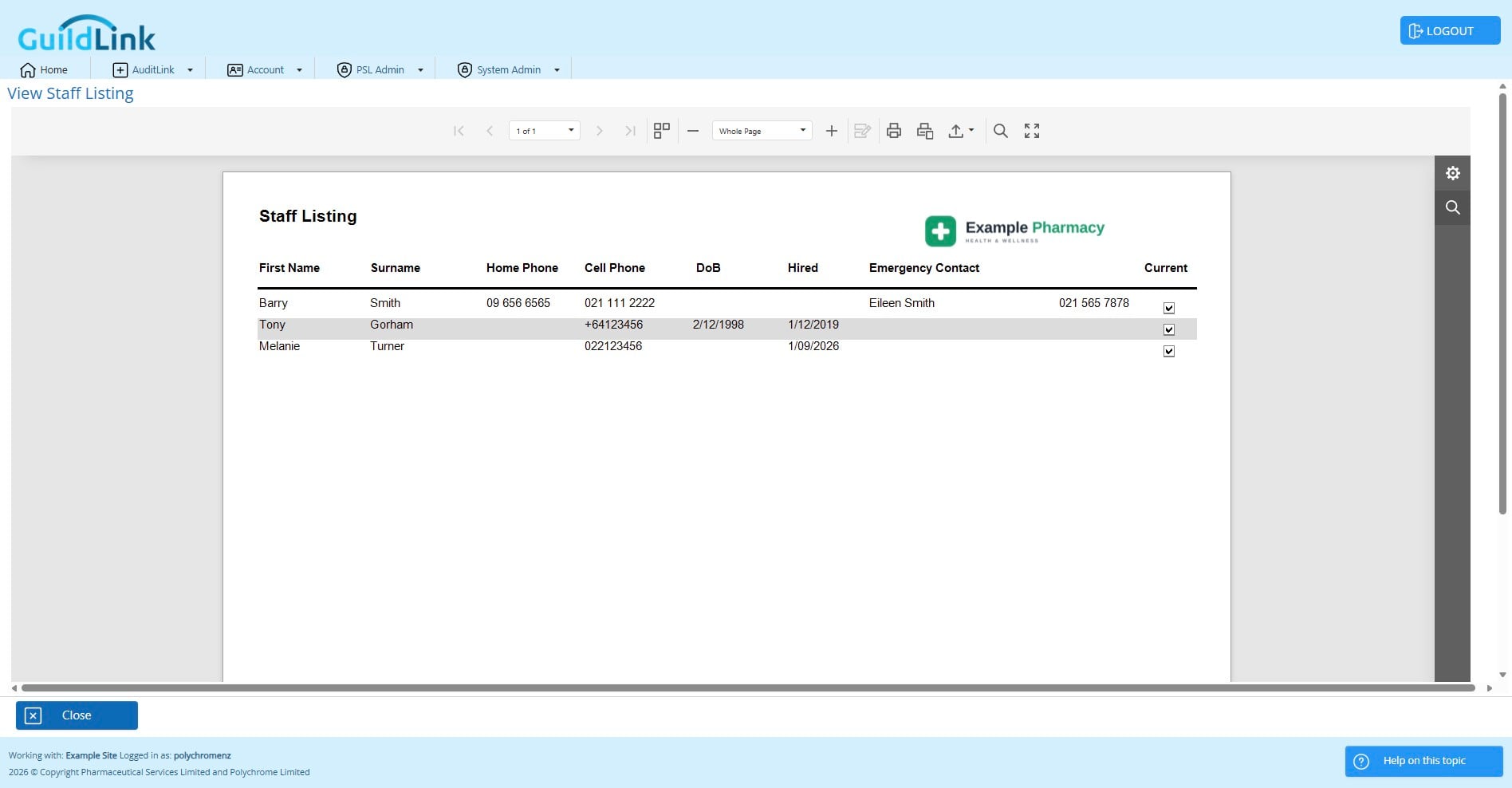
Click on "Preview" to see the staff details for this staff member.
Click on "Close"
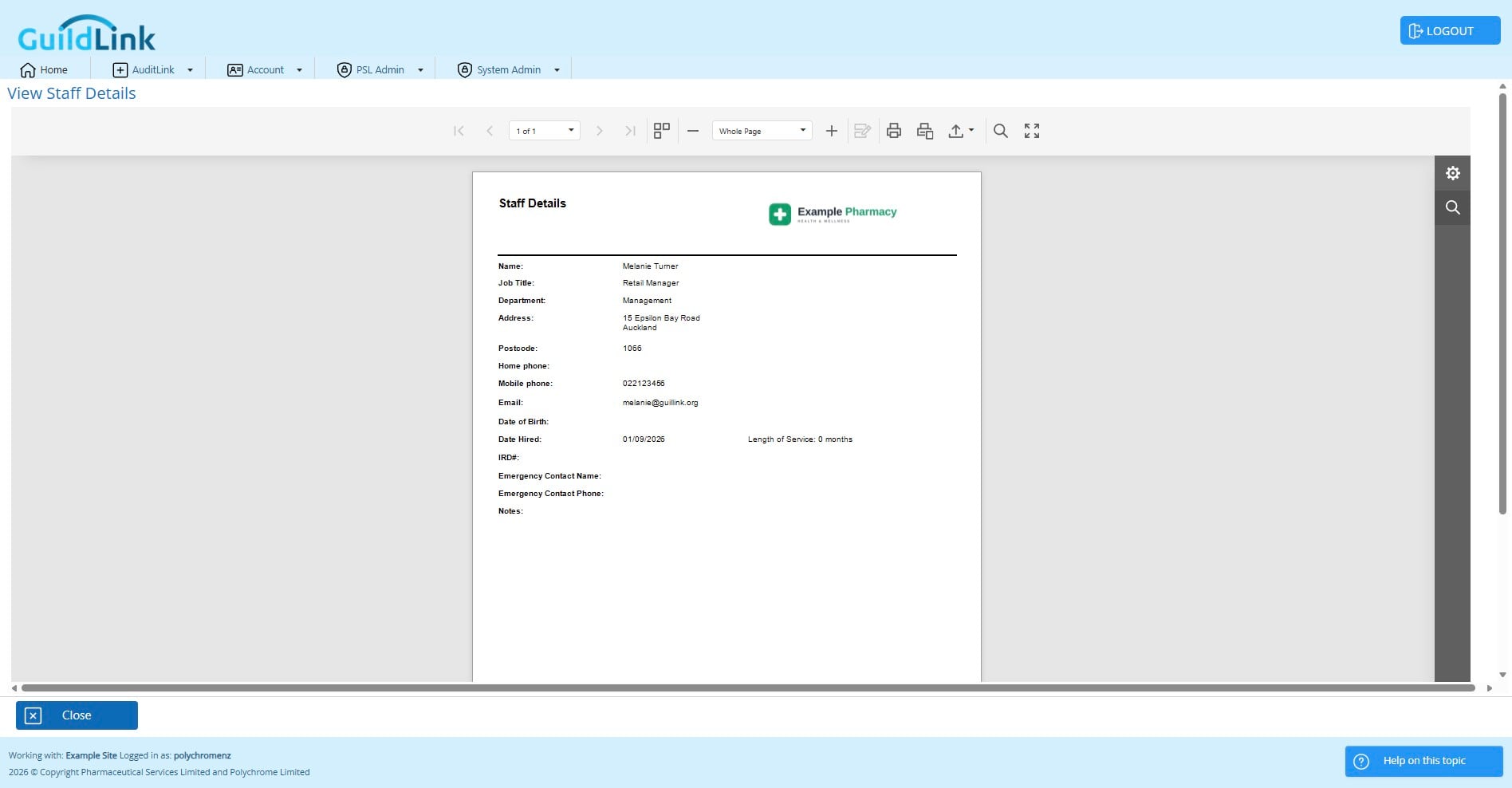
Click on "Close"
Click on "Preview All"
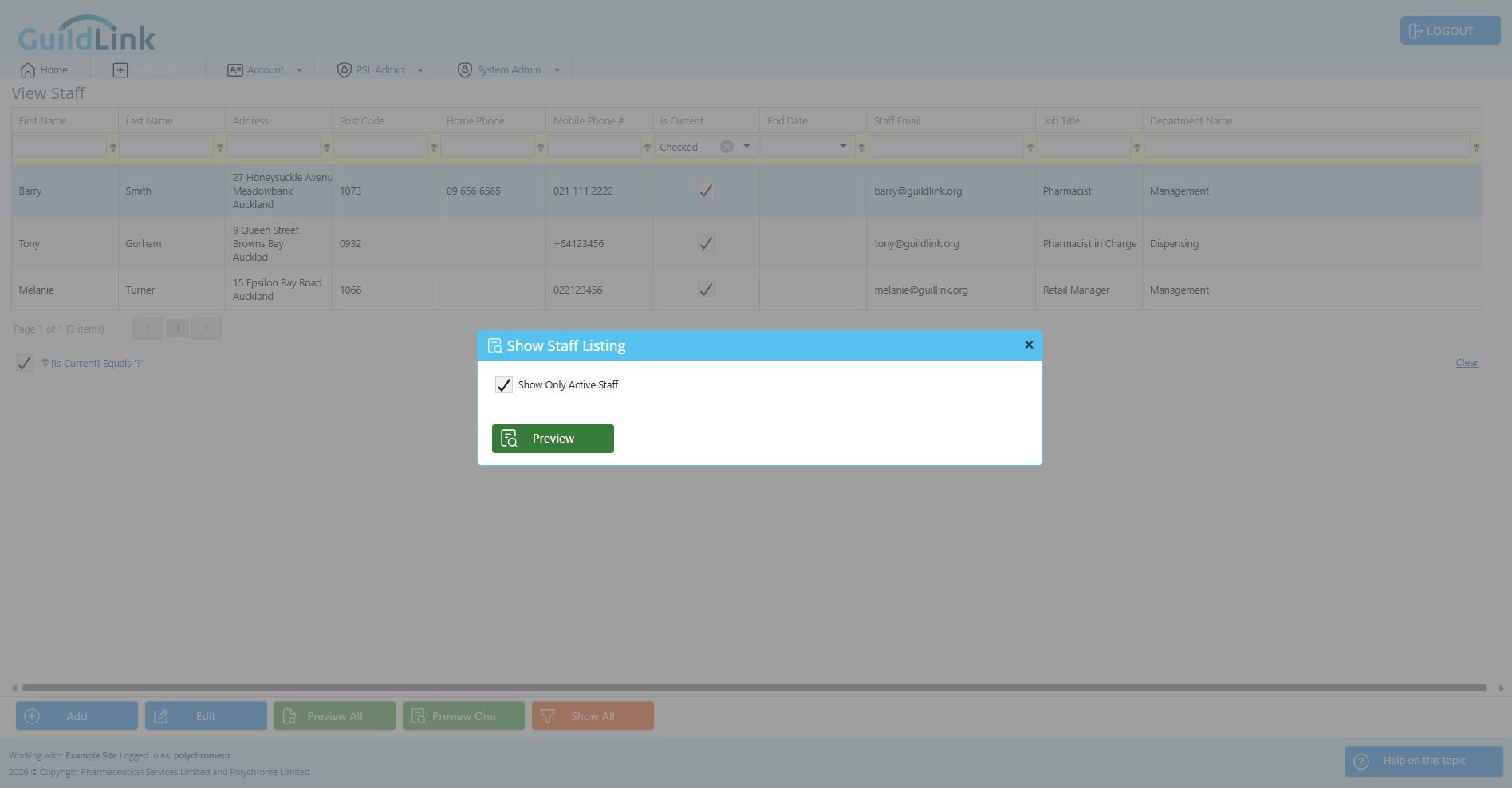
Click on "Close"
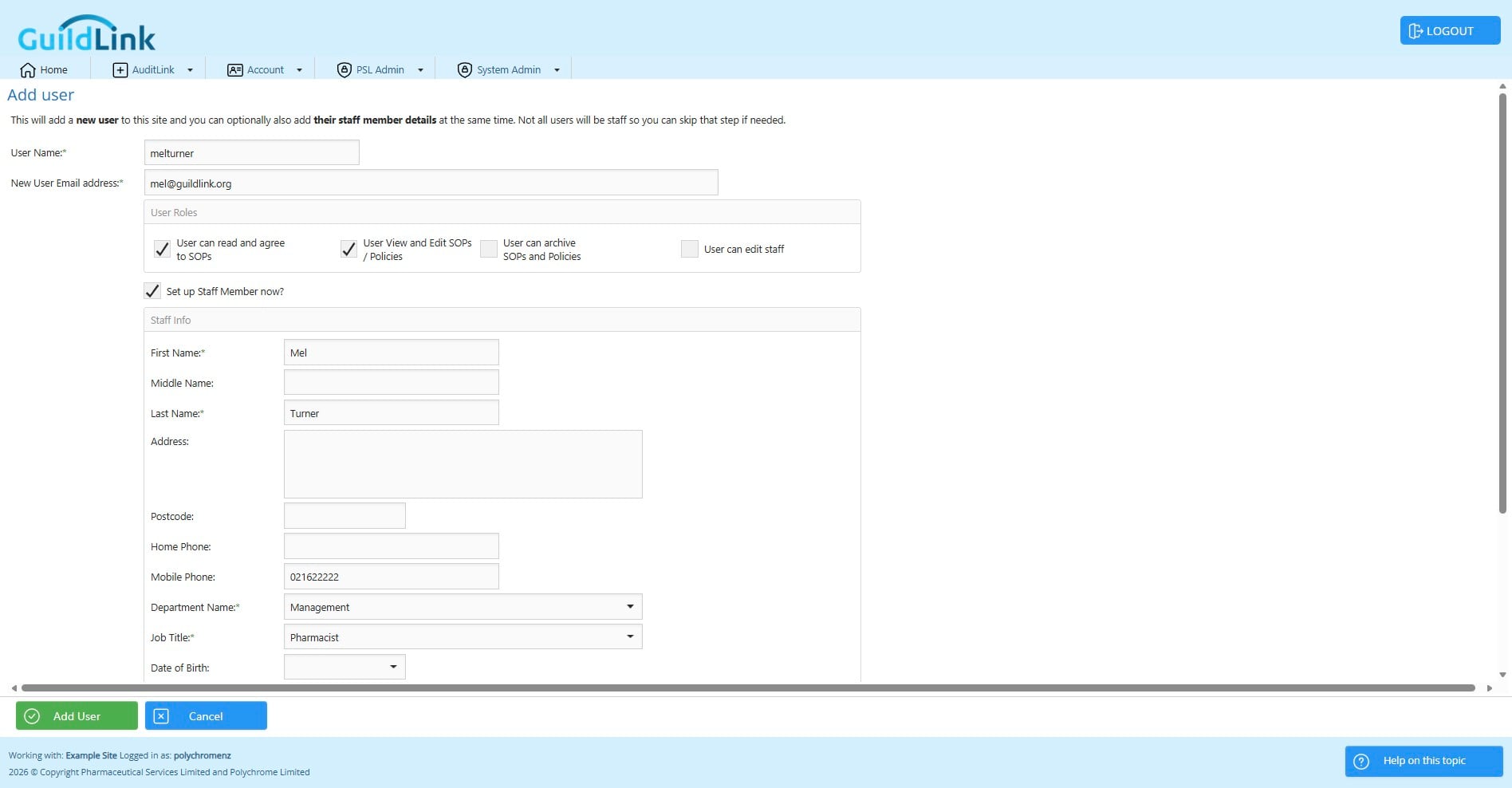
The site admin can also add a new user and make the staff record all in one pass. This is a better way to add a new user that is also a staff member as it can link the two records and make everything in one screen.
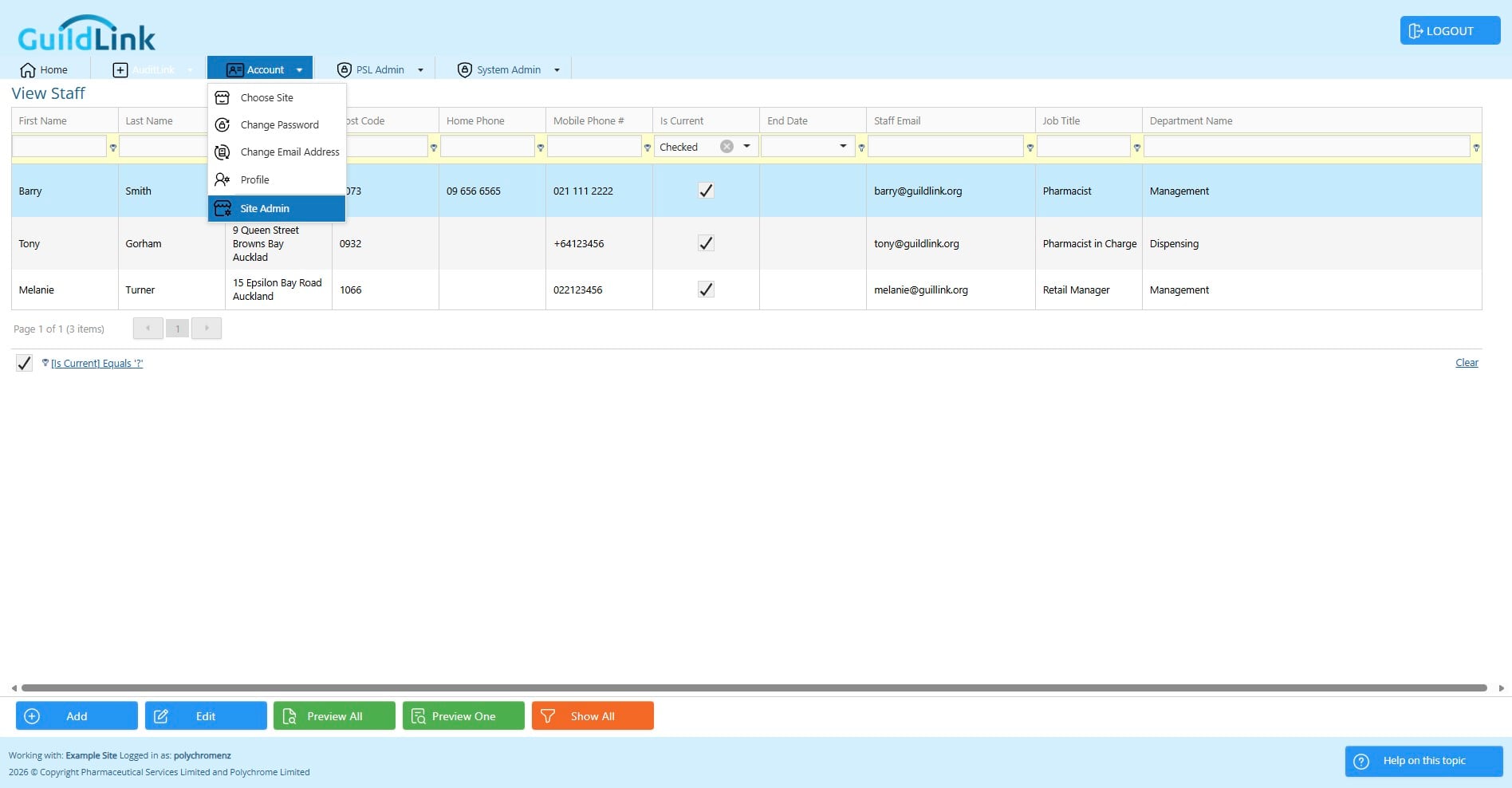
Click on "Site Admin"
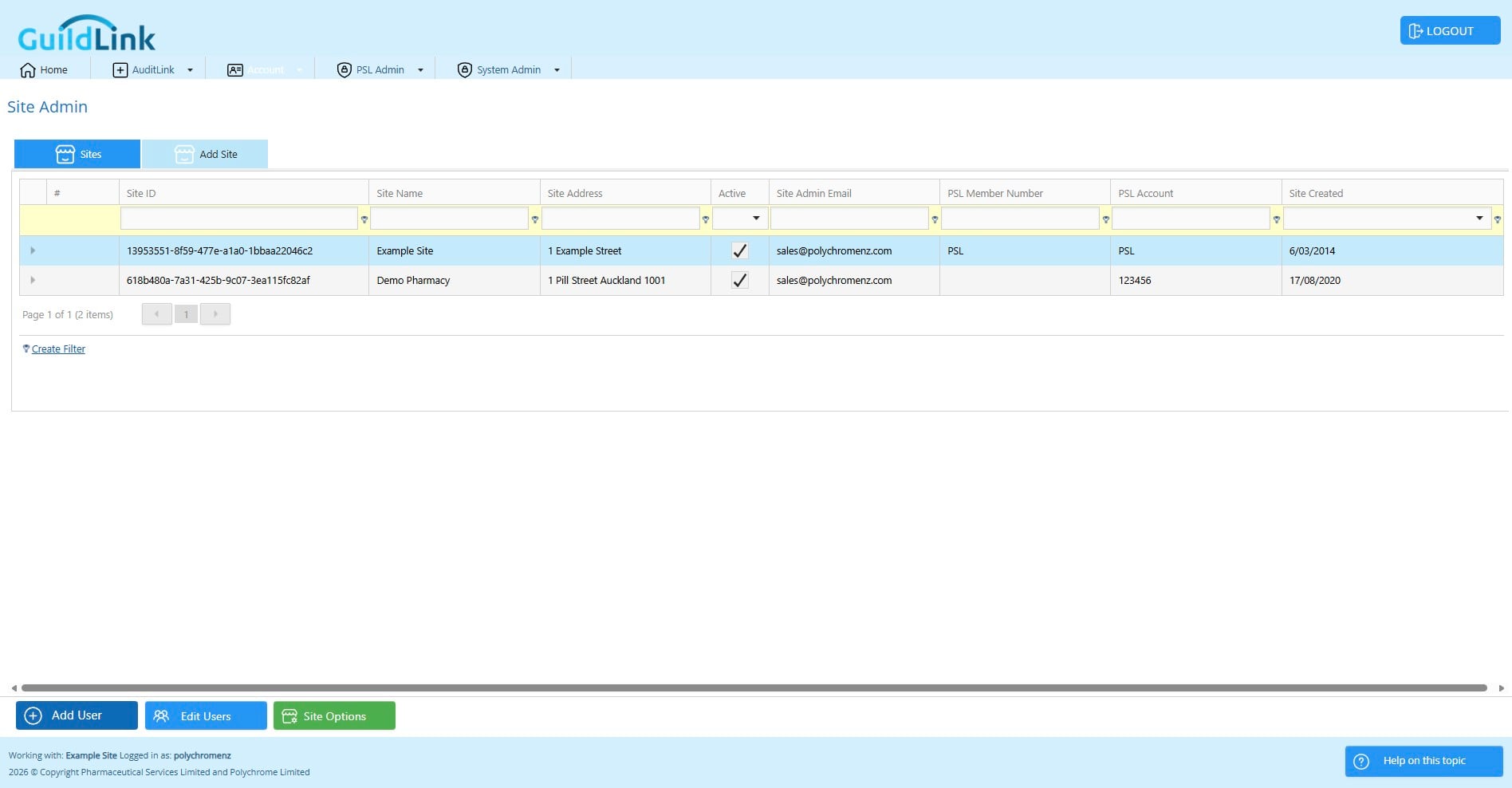
Click on "Add User"
Choose a unique user name - same as registering as a new user
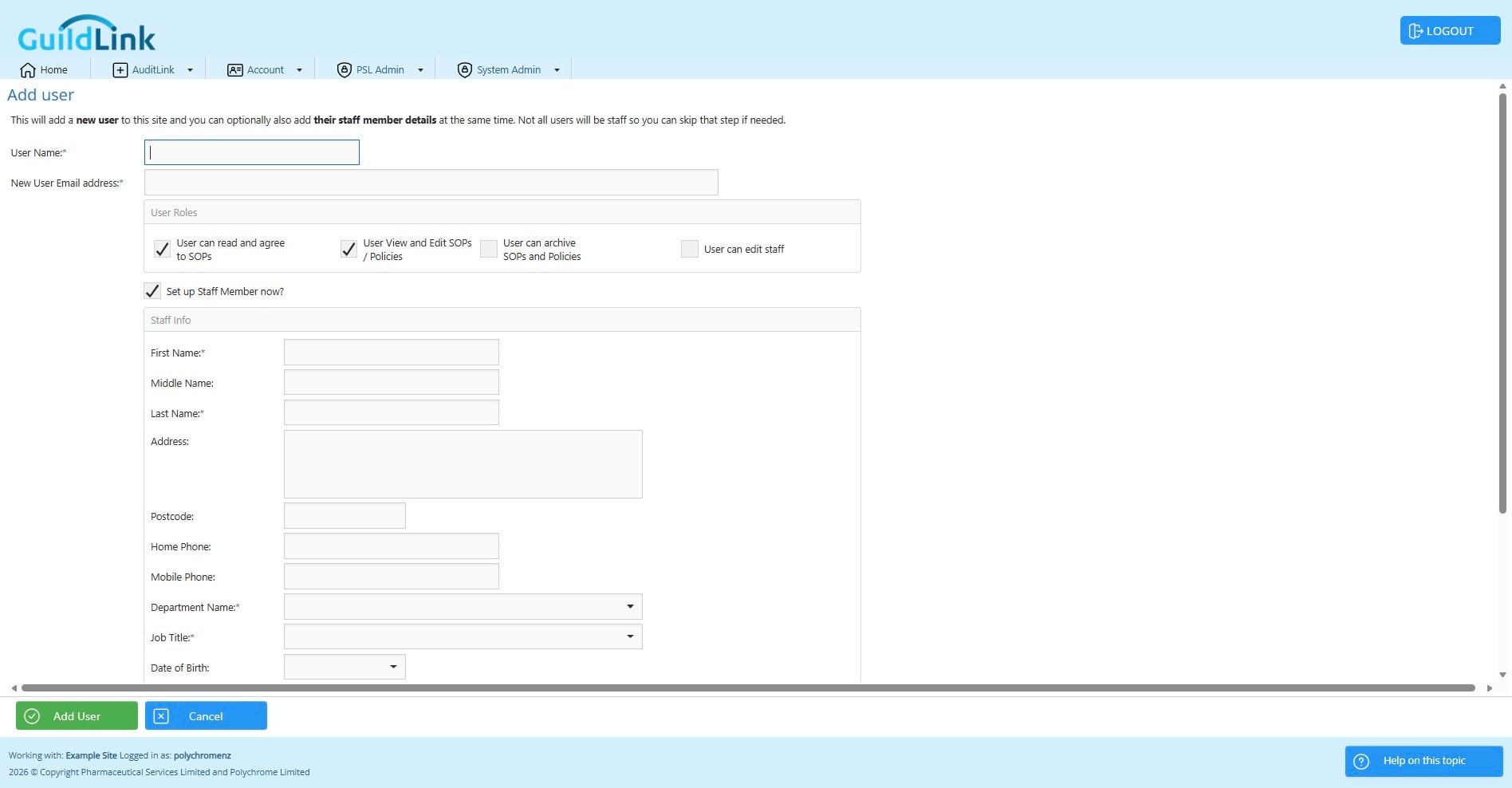
Click on "User can archive SOPs and Policies"
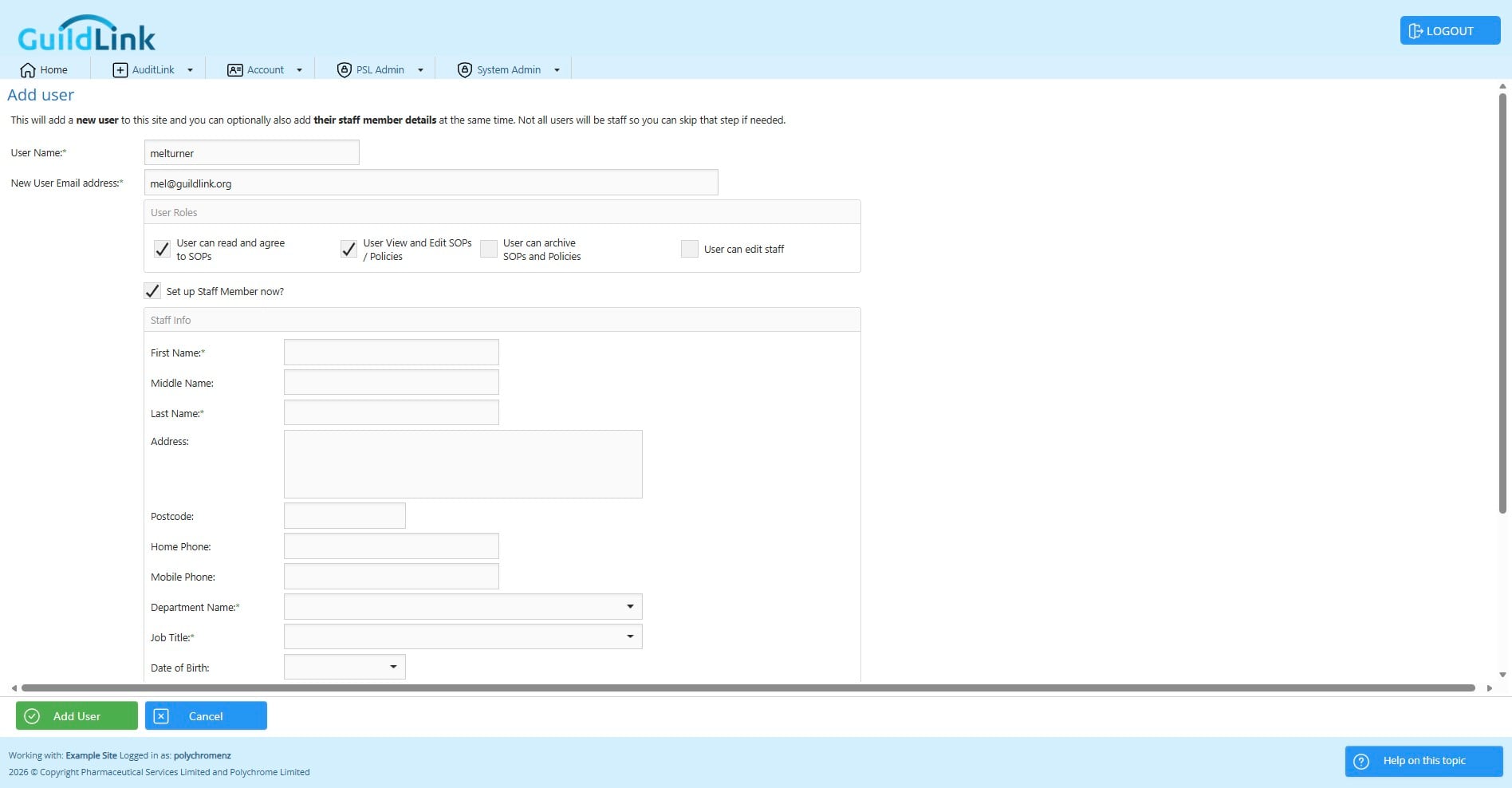
Enter a valid email address
Set any permissions now as that is easier them manually adding them later
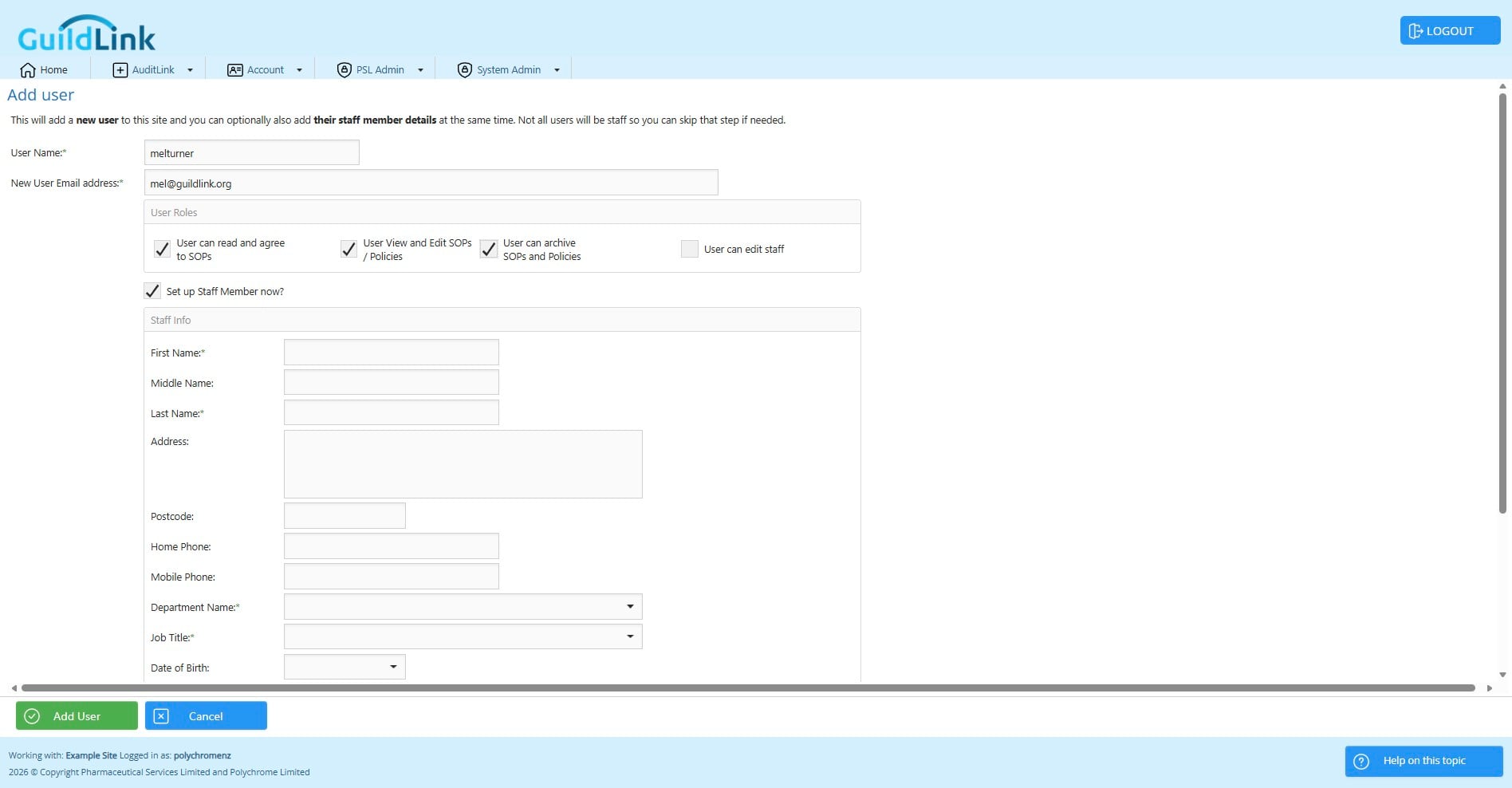
By default users have basic access but you can assign additional permissions now.
Enter their basic info
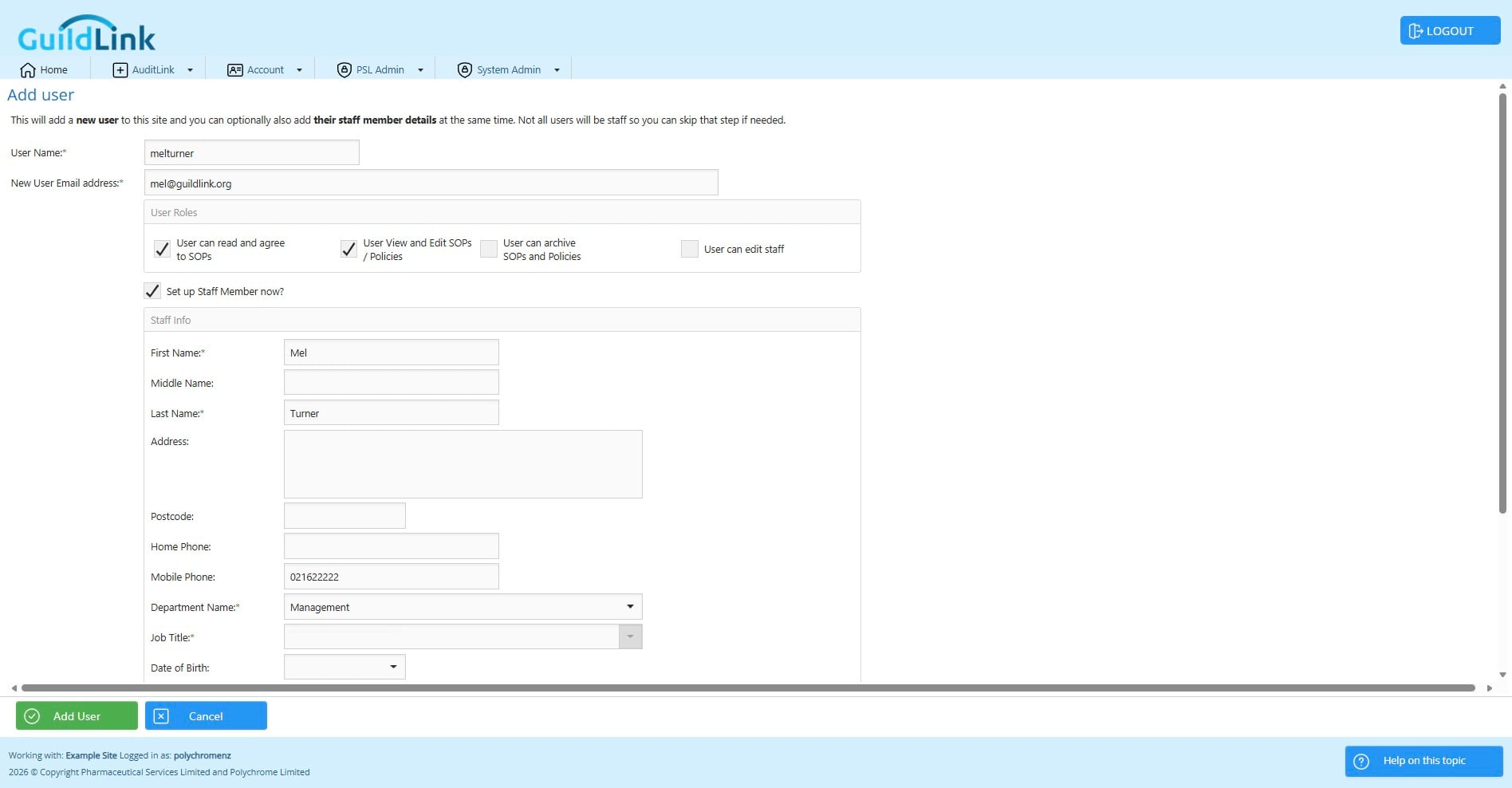
Done 🚀