
Setting Up Google Analytics with AI Cofounder: Integration Guide
To seamlessly track and analyze your website’s performance, integrate Google Analytics with AI Cofounder. This will allow you to monitor user behavior, track conversions, and gain valuable insights into how visitors interact with your site. Here's how you can do it:
Step 1: Create a GA4 Account and Property.
Open your web browser and go to Google. In the search bar, type: “Google Analytics” and hit Enter!
Or click on the link directly : https://marketingplatform.google.com/about/analytics/
Click on "Analytics Tools & Solutions for Your Business"
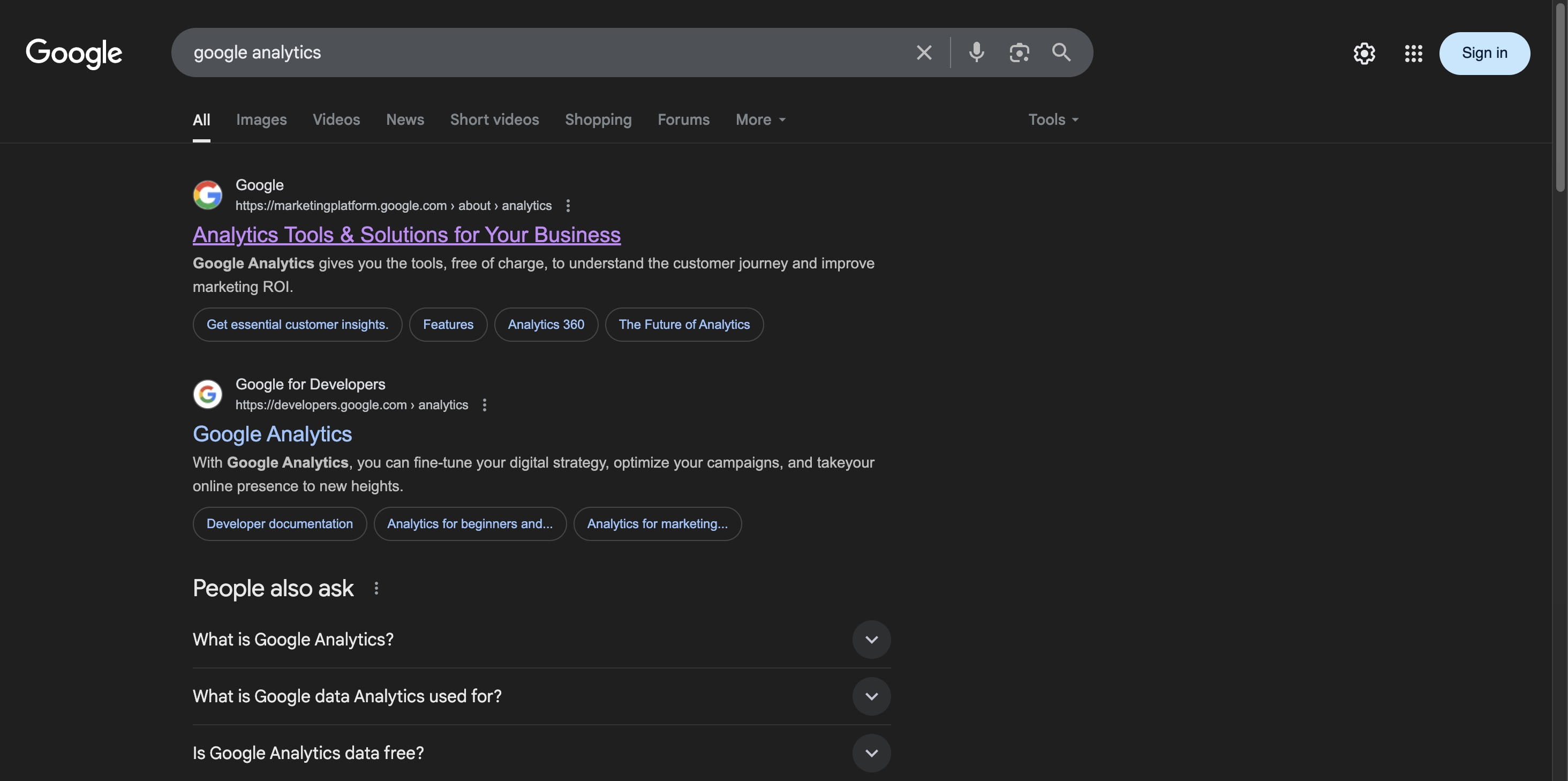
Click on "Sign in to Analytics

Click on “Start Measuring.”
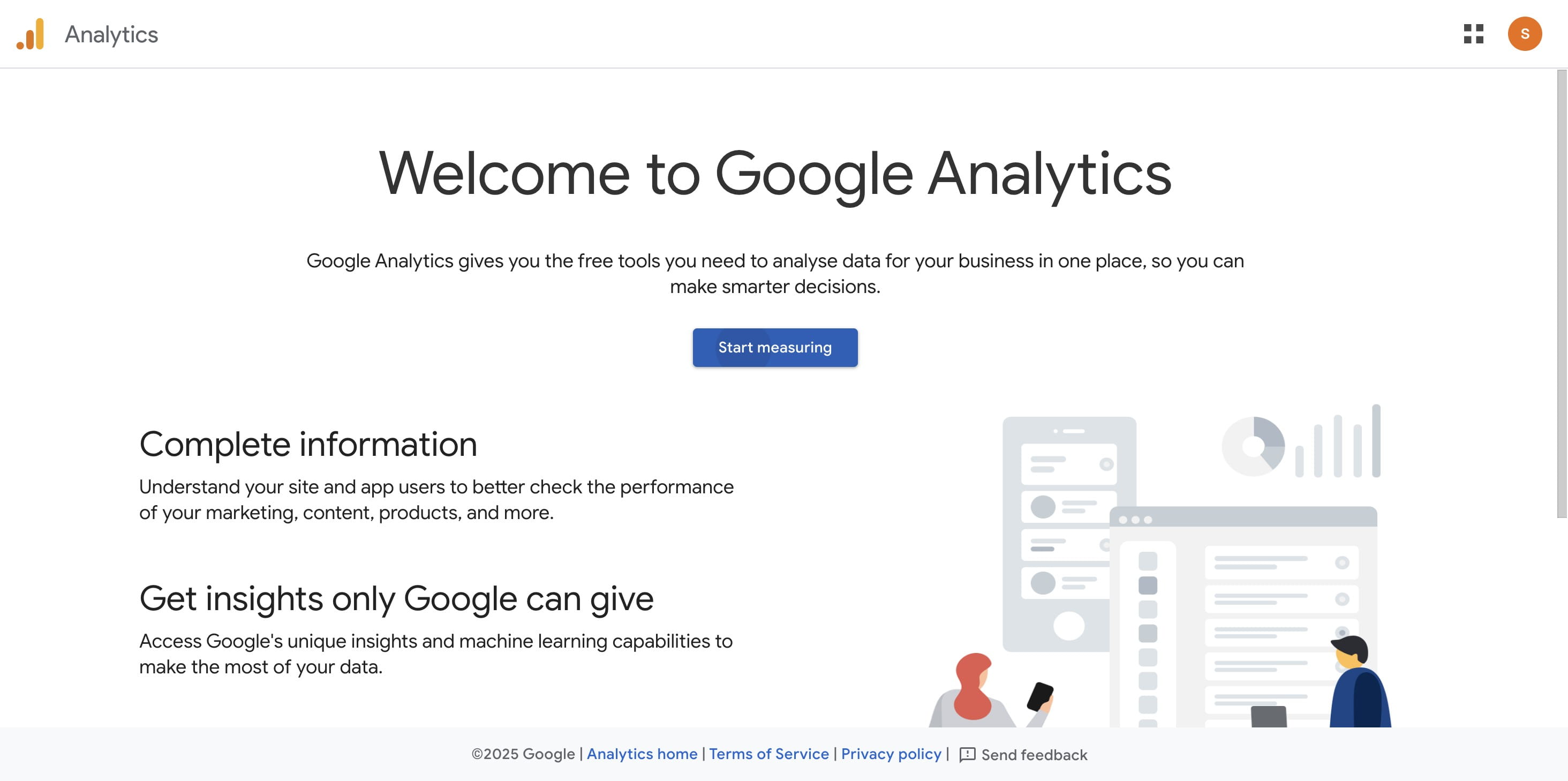
Step 2: Set Up Your Account!
Enter your account name (e.g., “Your Business Name”).
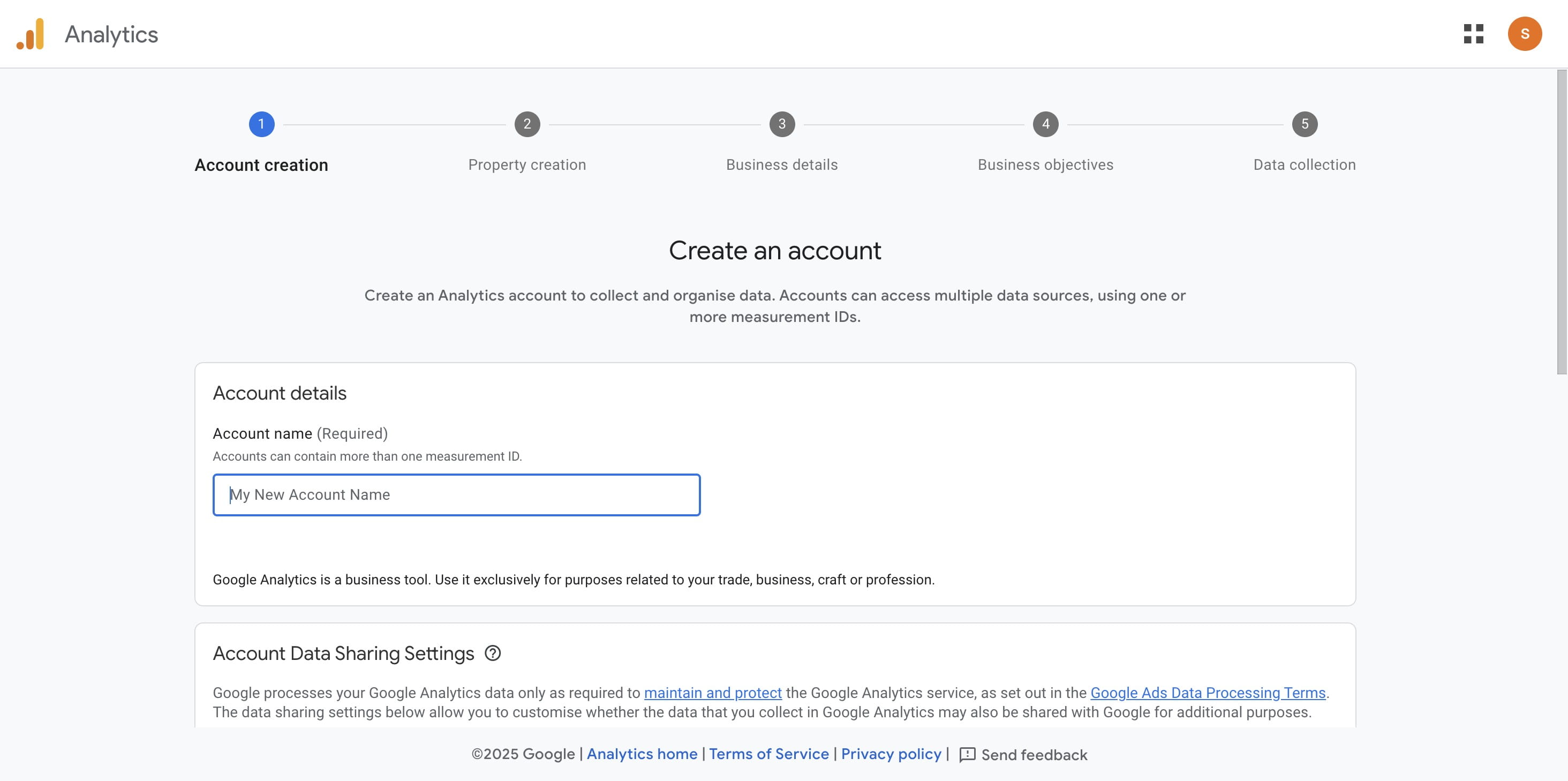
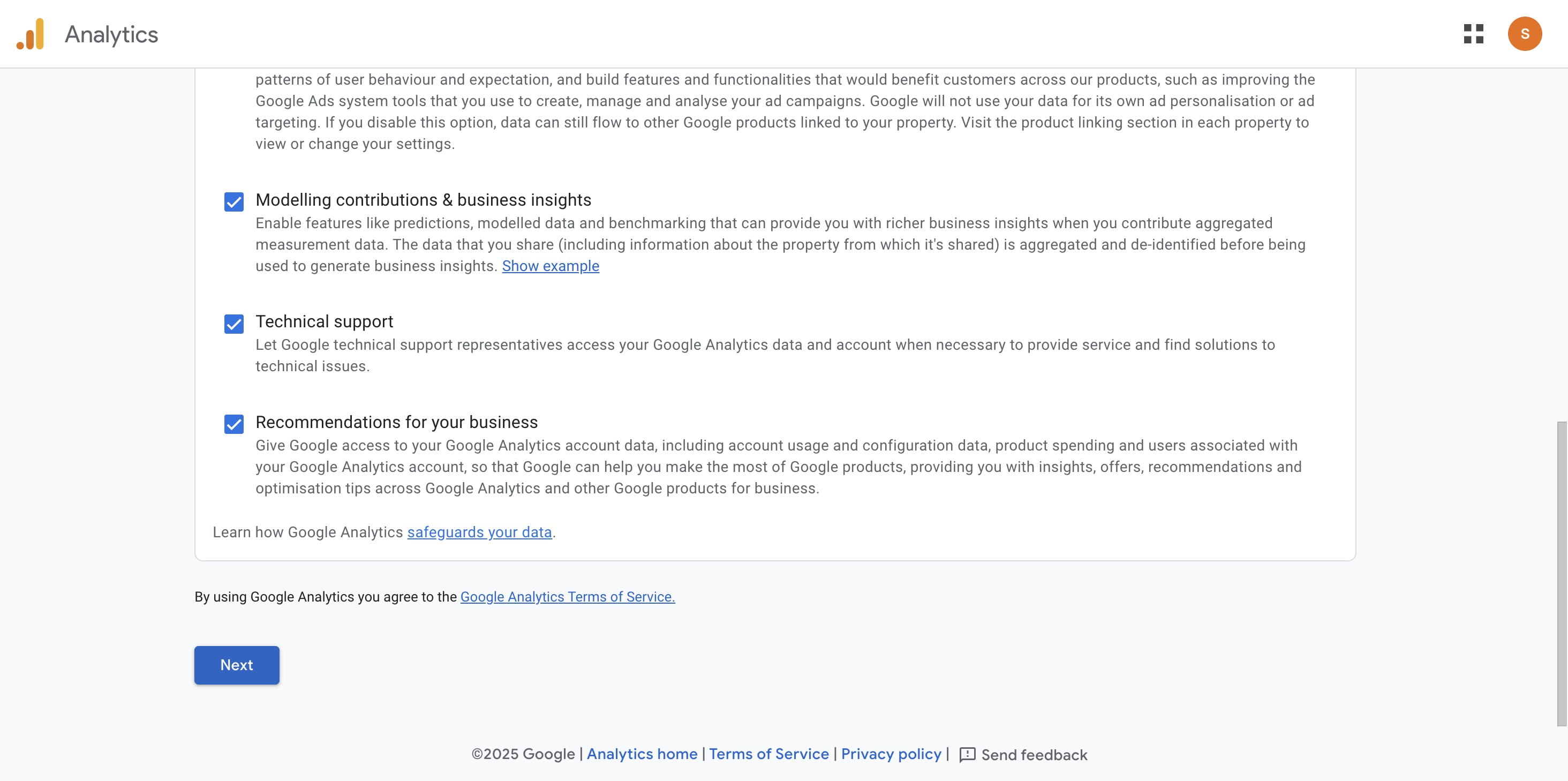
Choose your preferred data sharing options.
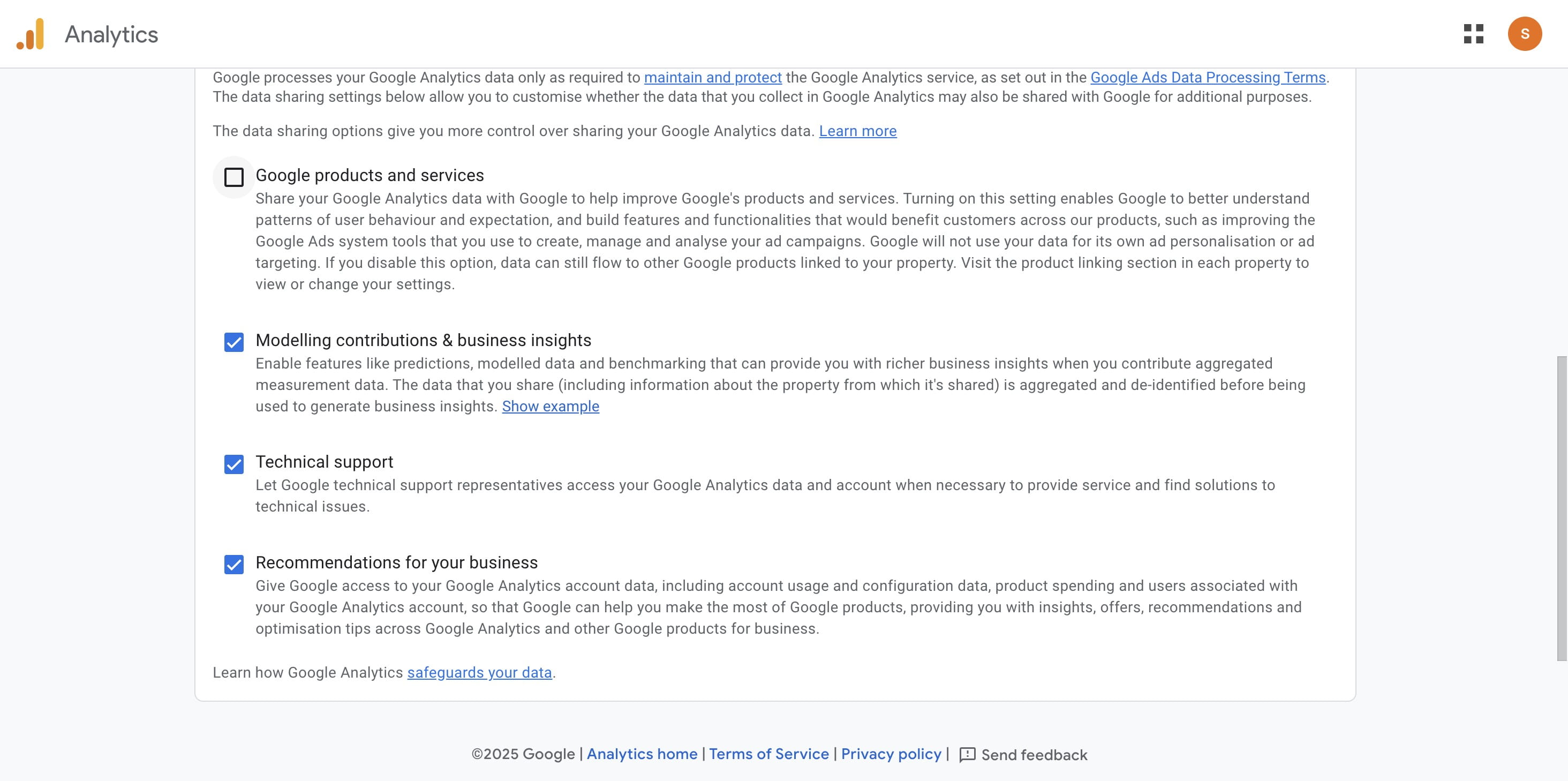
Click on "Next"
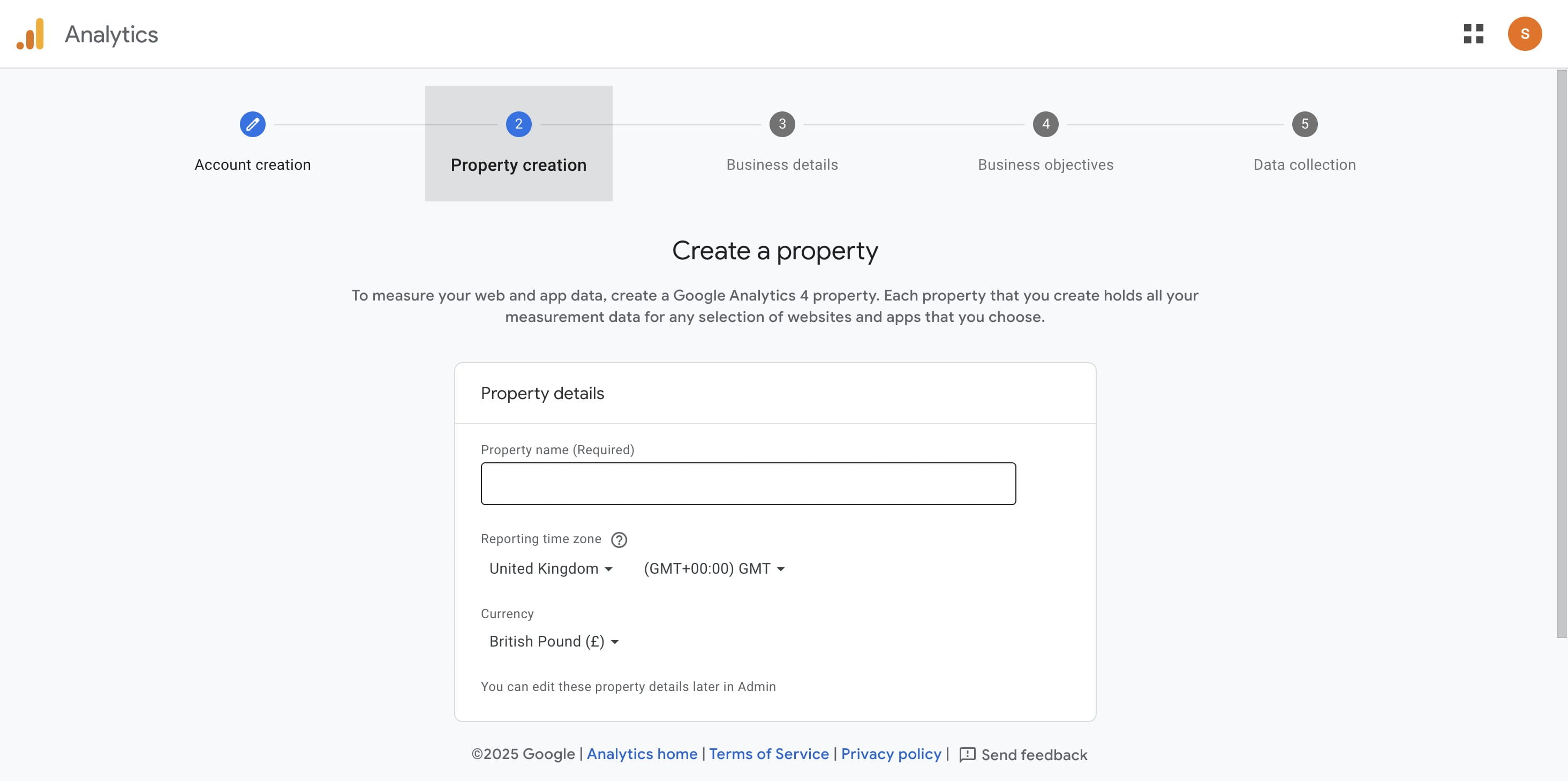
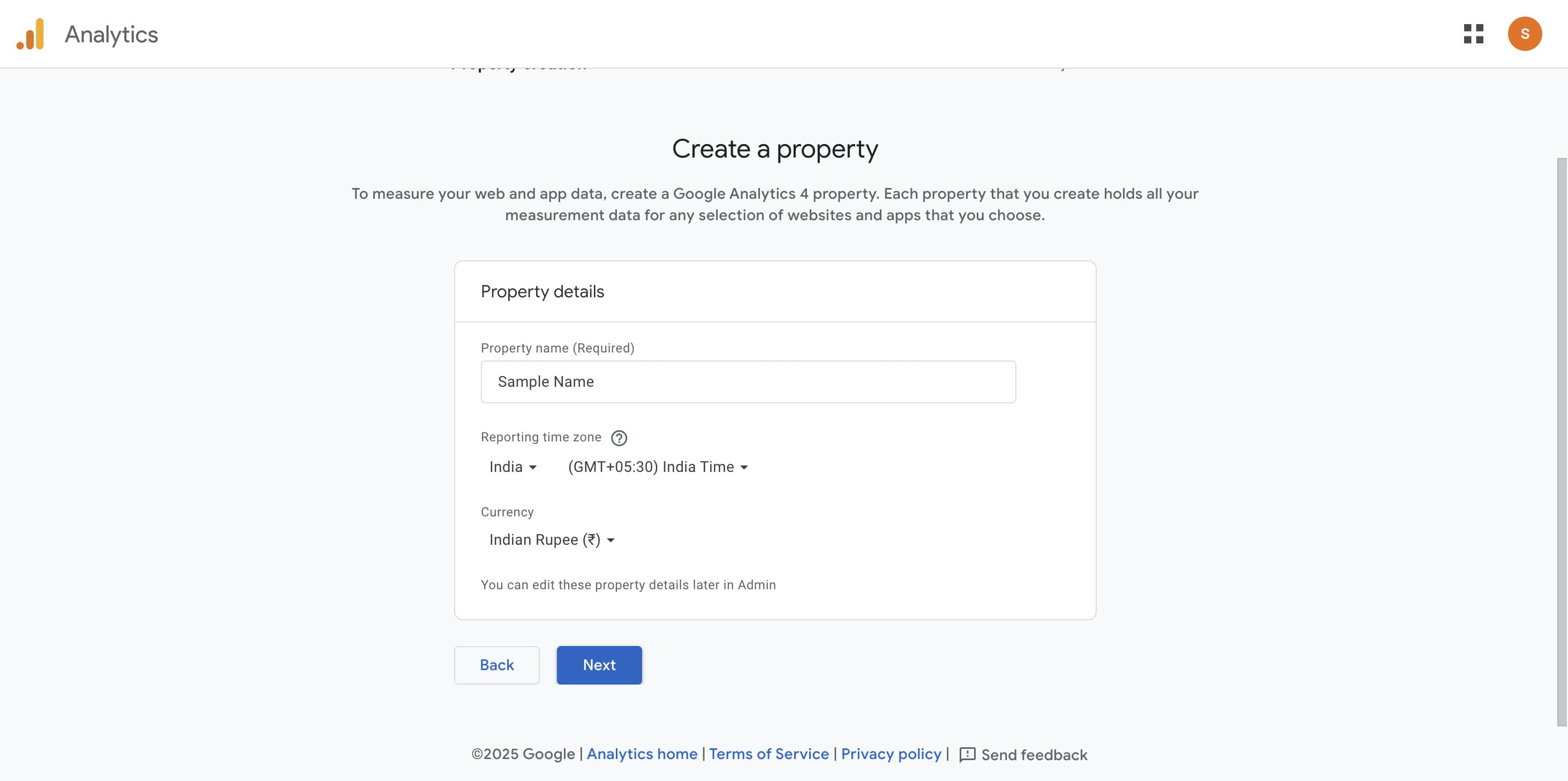
Step 3: Property Setup:
Enter your property name (e.g., “Your Website”).
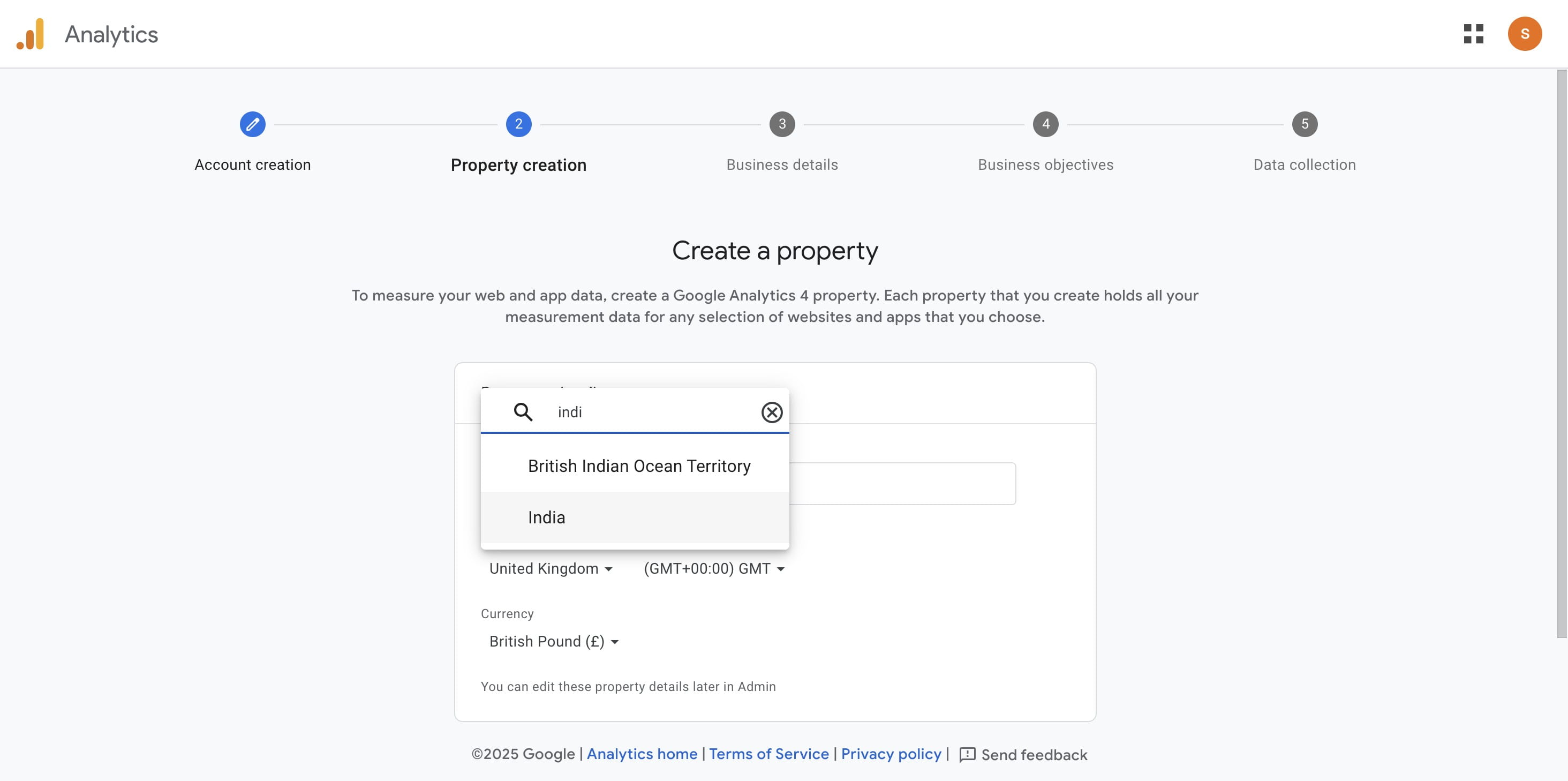
Select your time zone
Choose your currency.
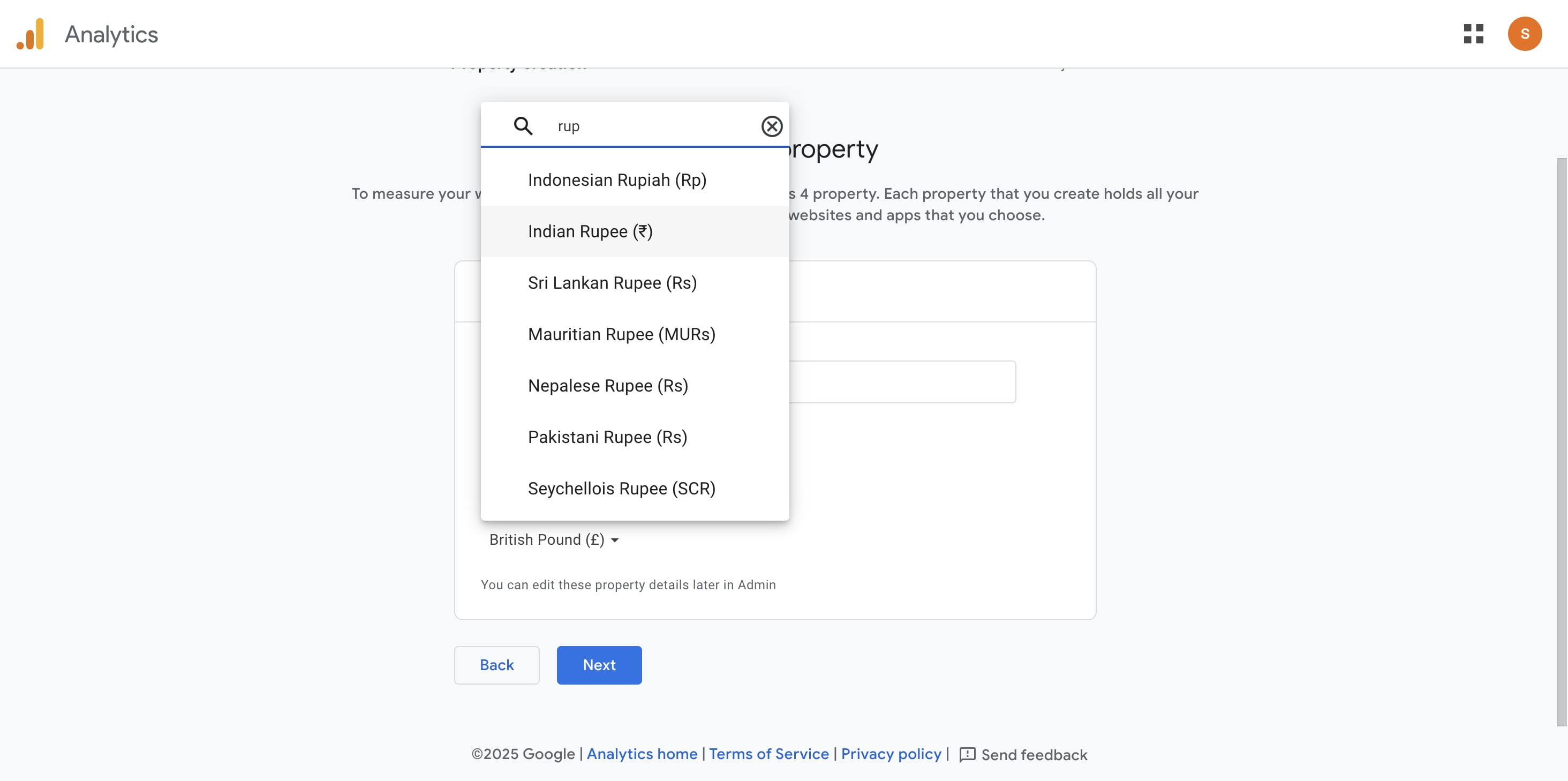
Click on "Next"
Step 4: Provide Business Information:
Select the category that best describes your business.
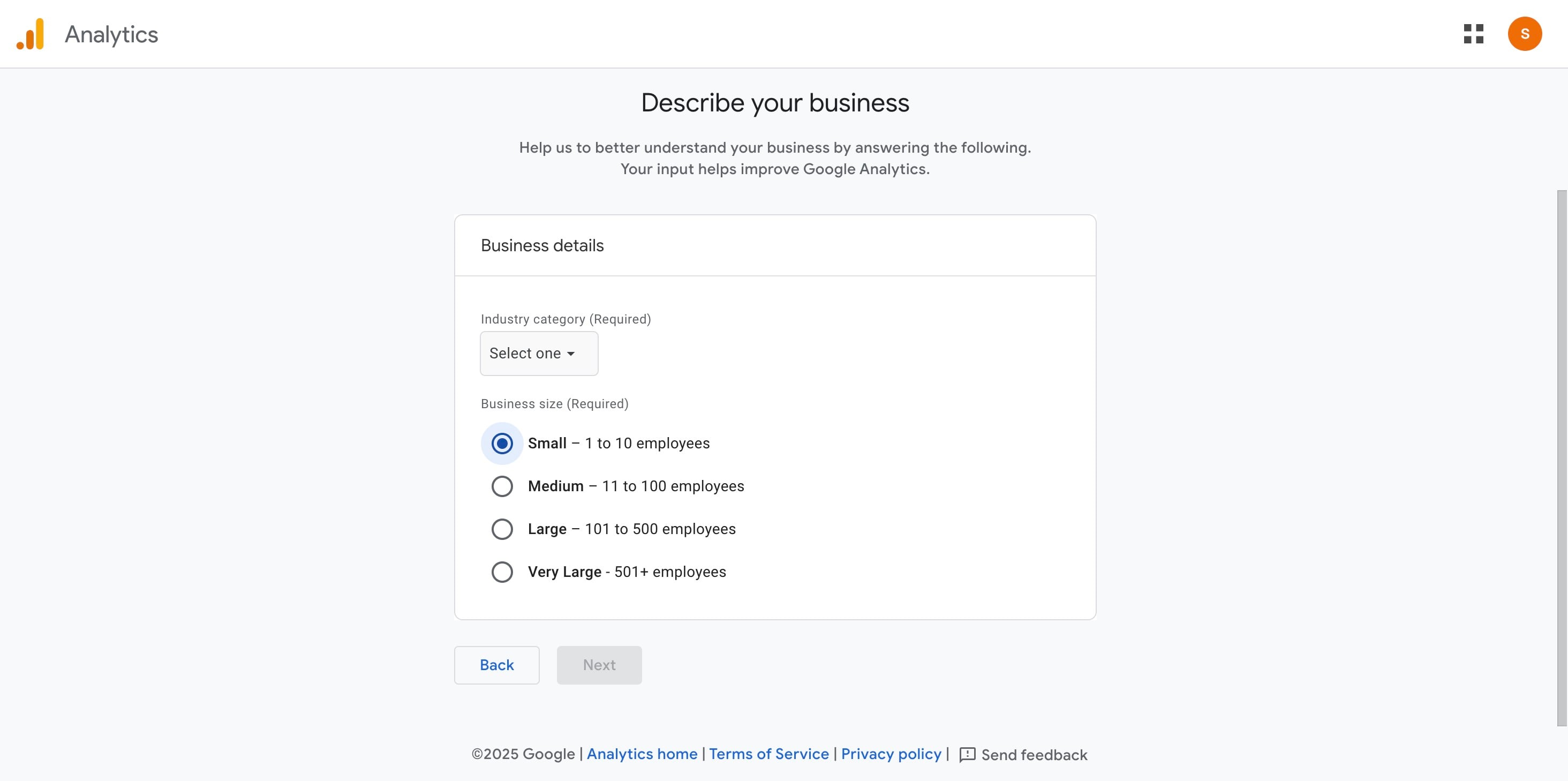
Click on "Beauty & Fitness" (choose your own category)
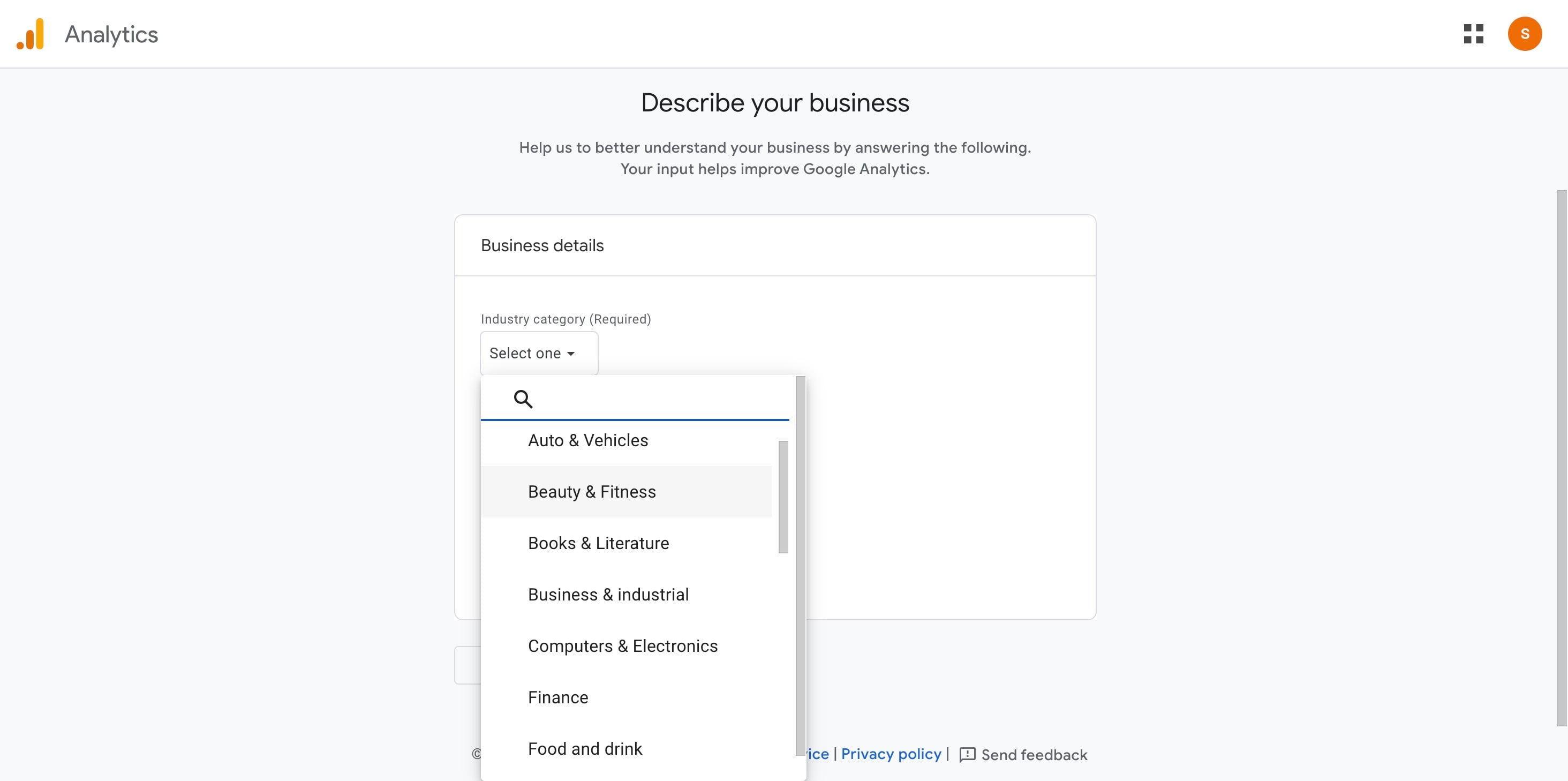
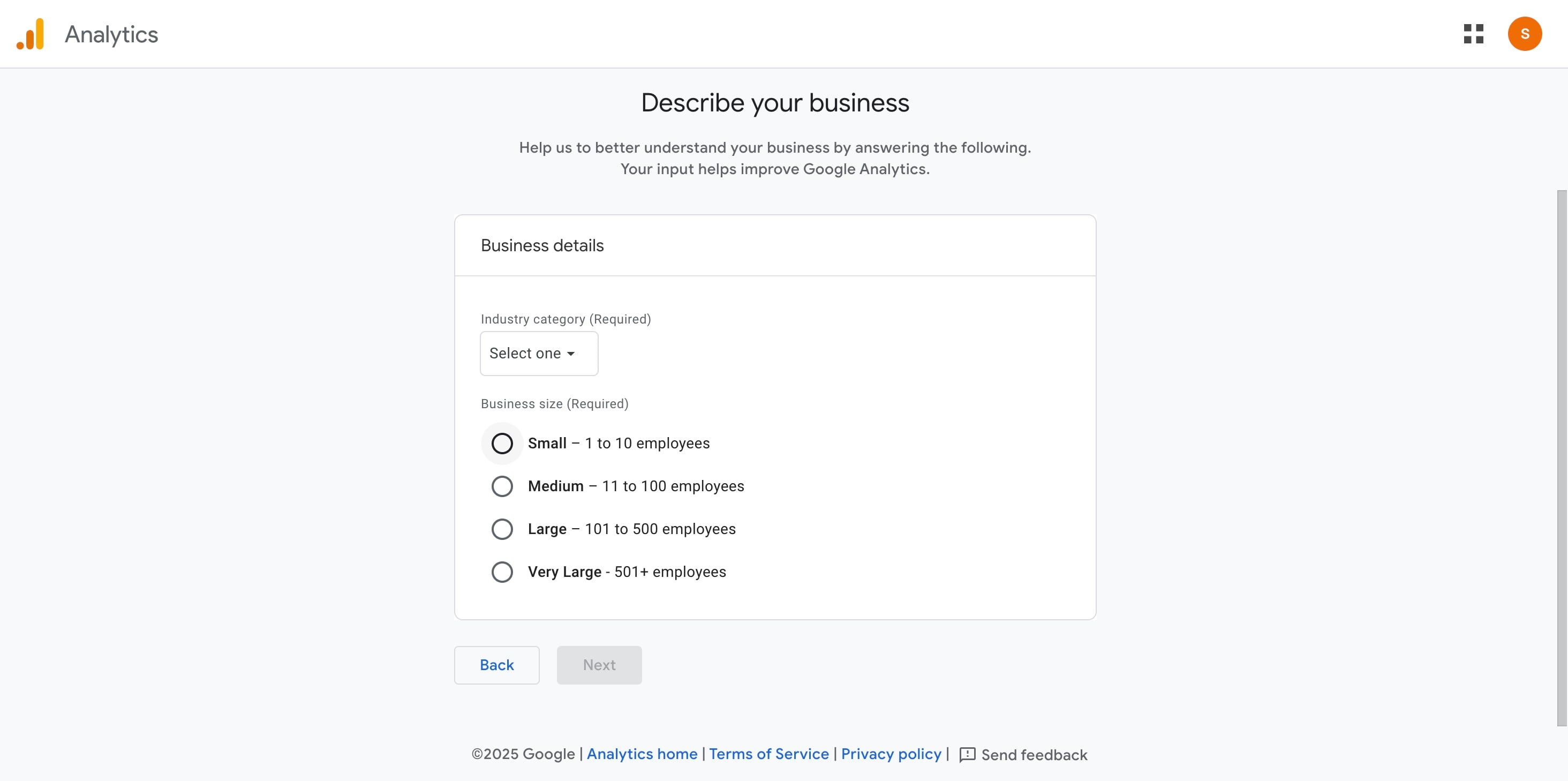
Choose the size of your business.
Select how you intend to use Google Analytics.
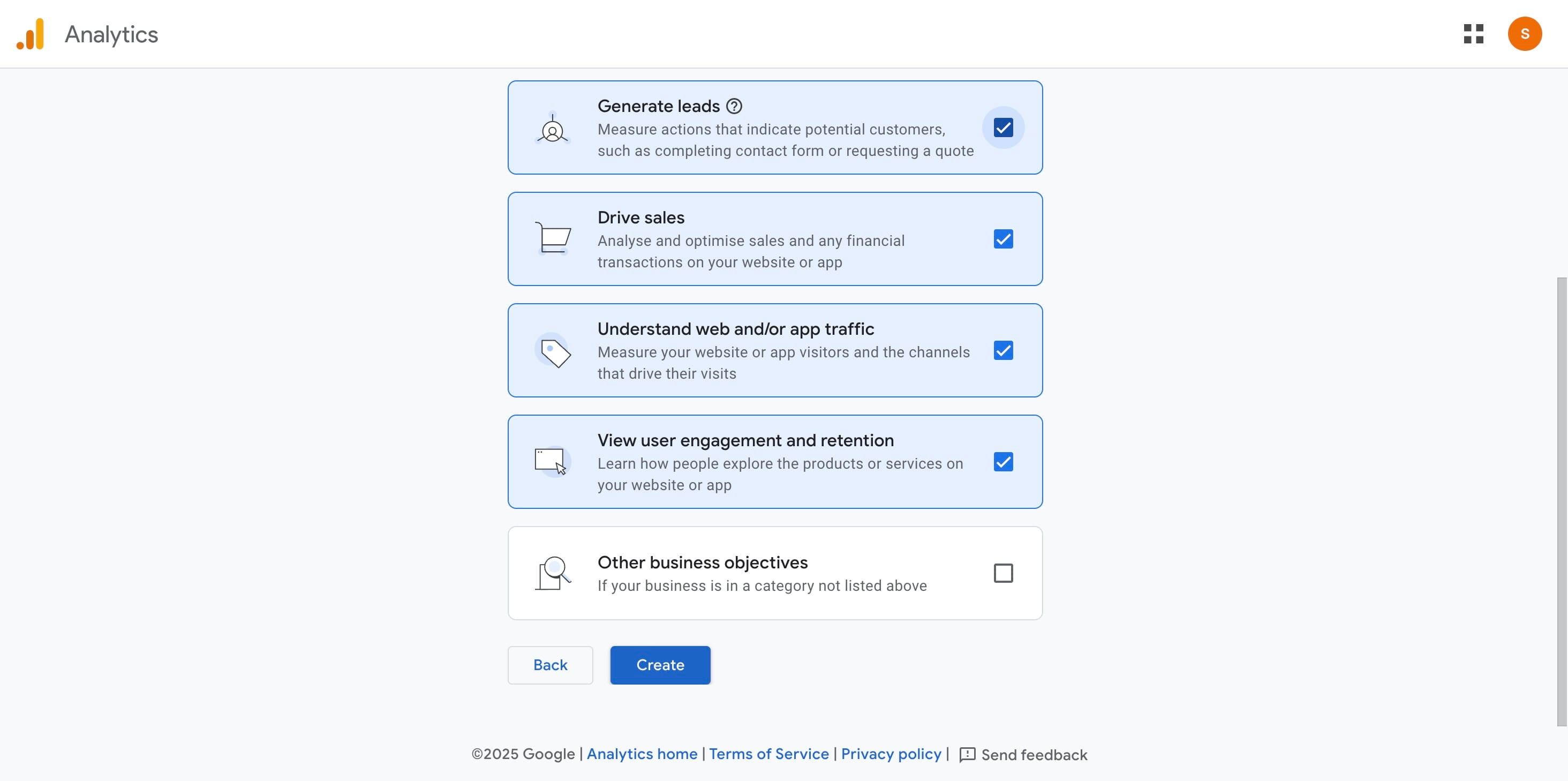
Review your settings and click “Create.”
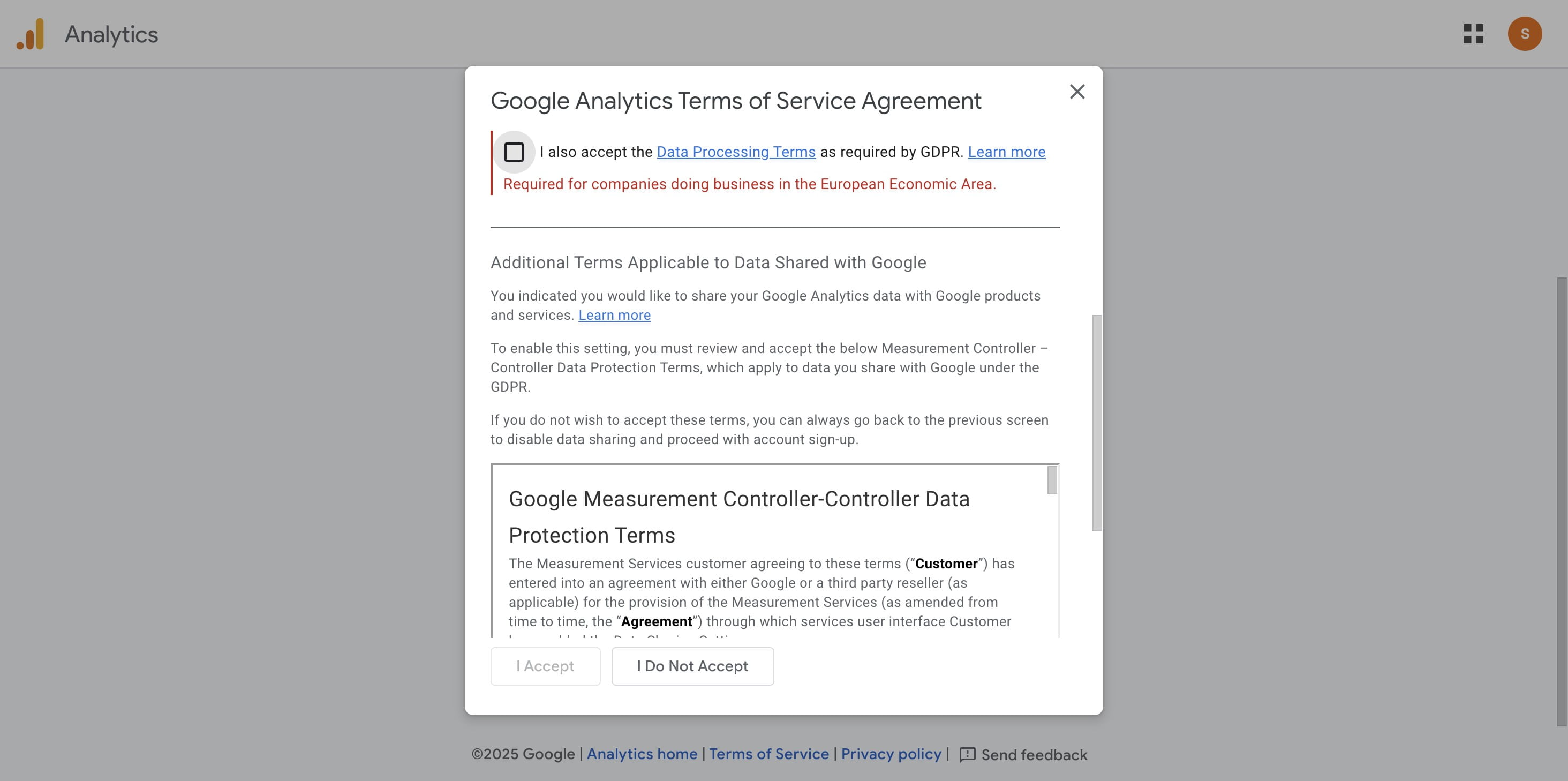
Click on "I Accept"
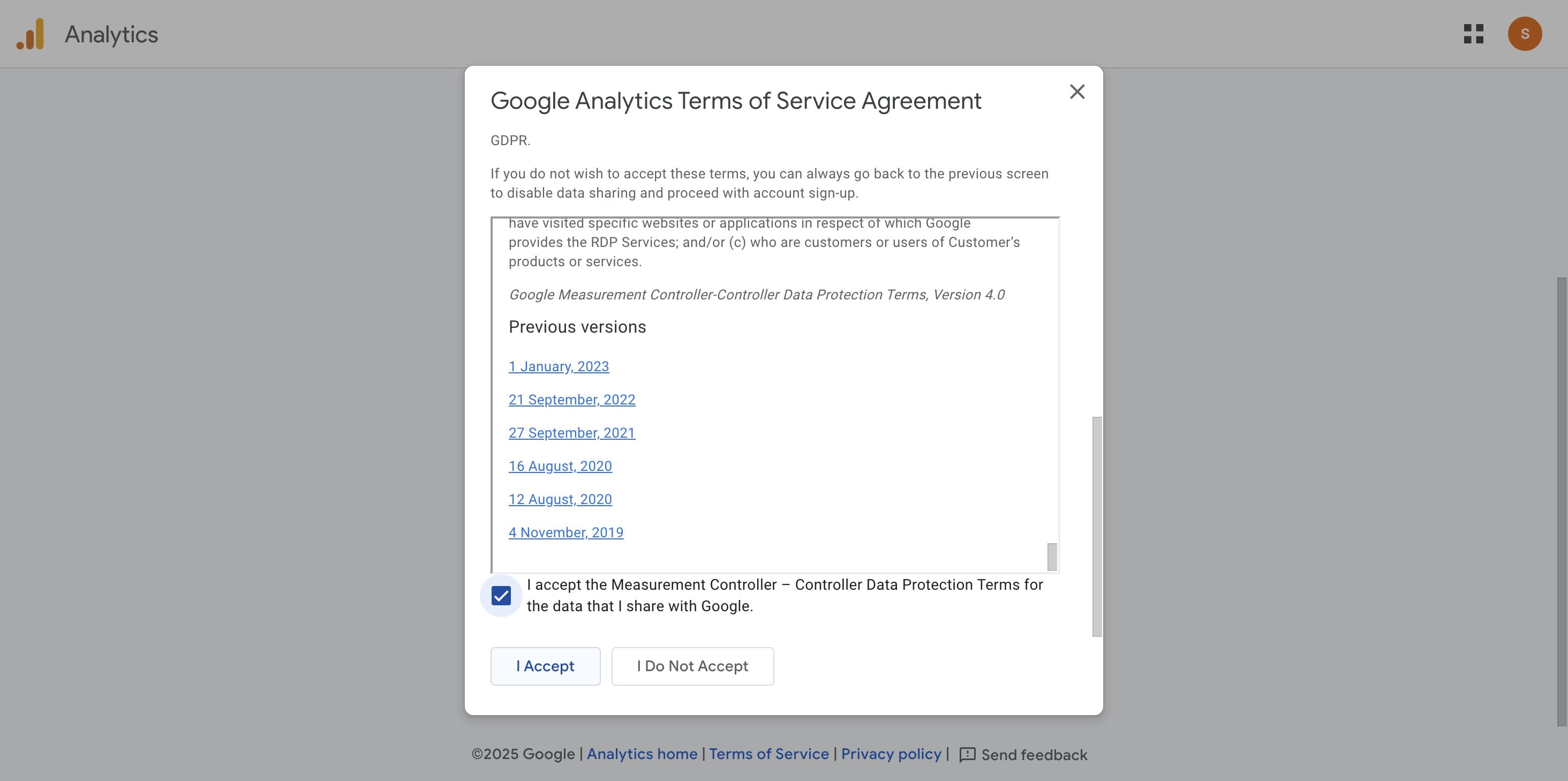
Click on "Continue to Home"
Click on your preferred way and "Save"
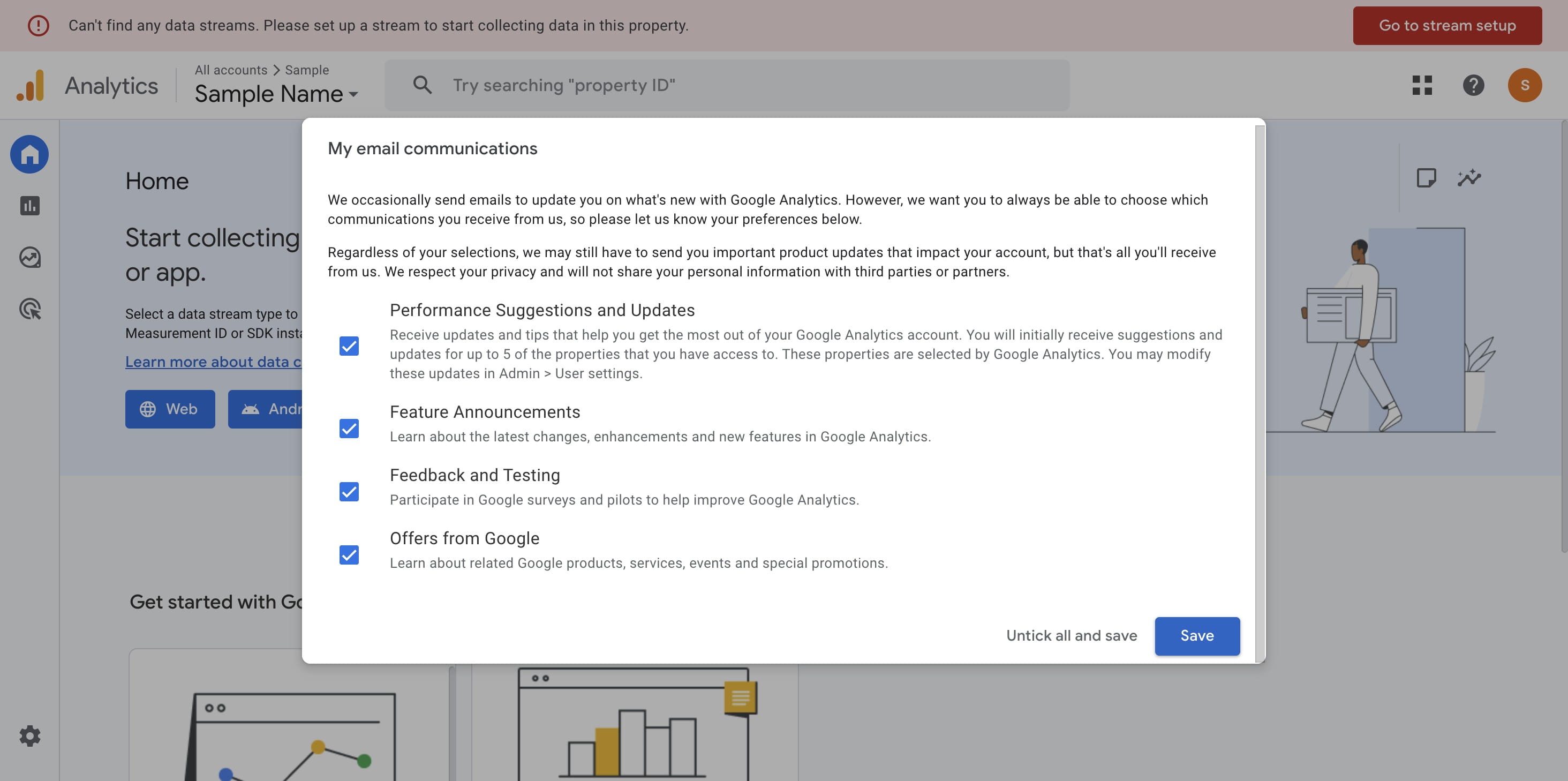
Generating New Measurement ID (For New and Existing Users)
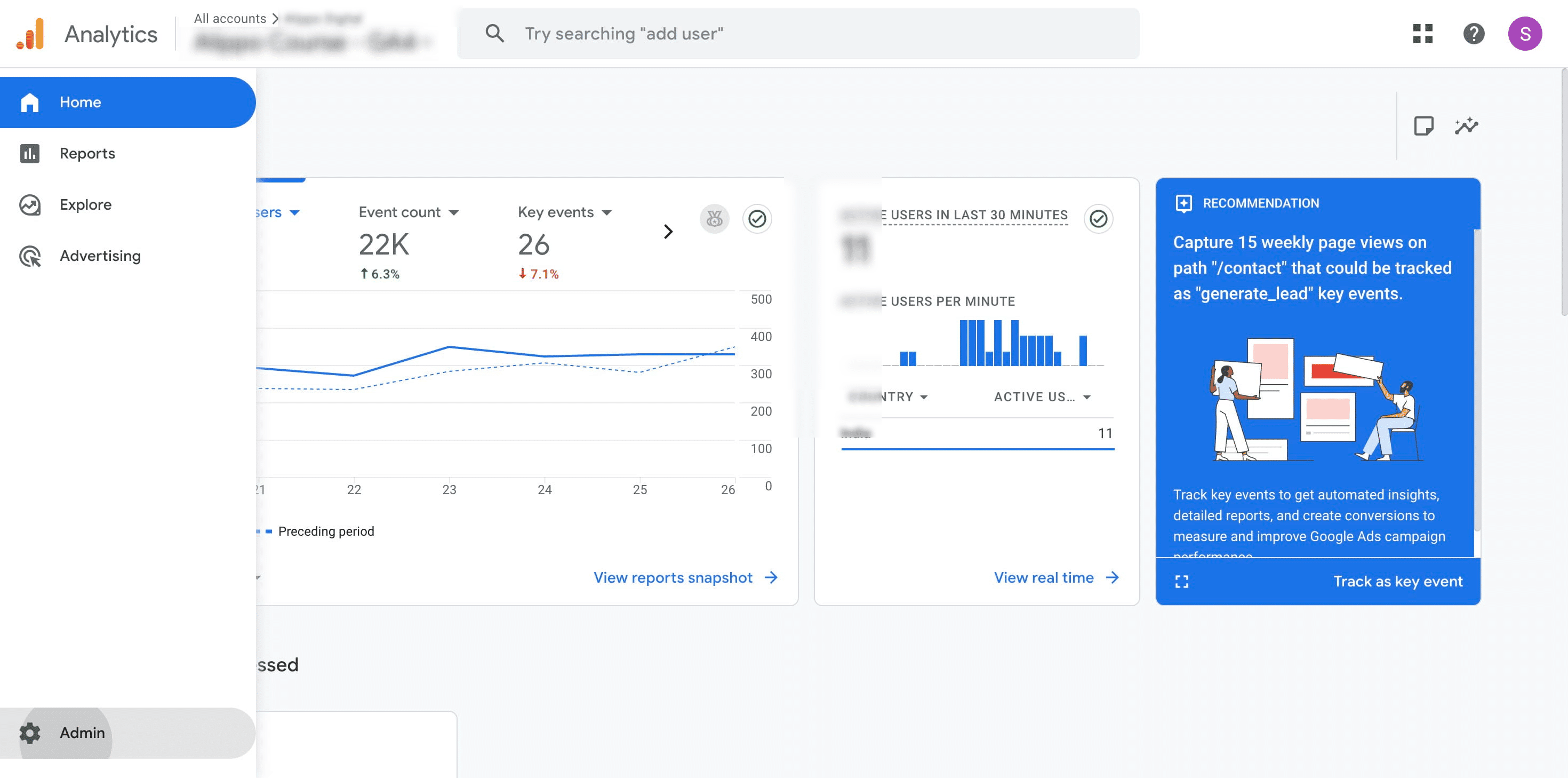
Click on "Admin"
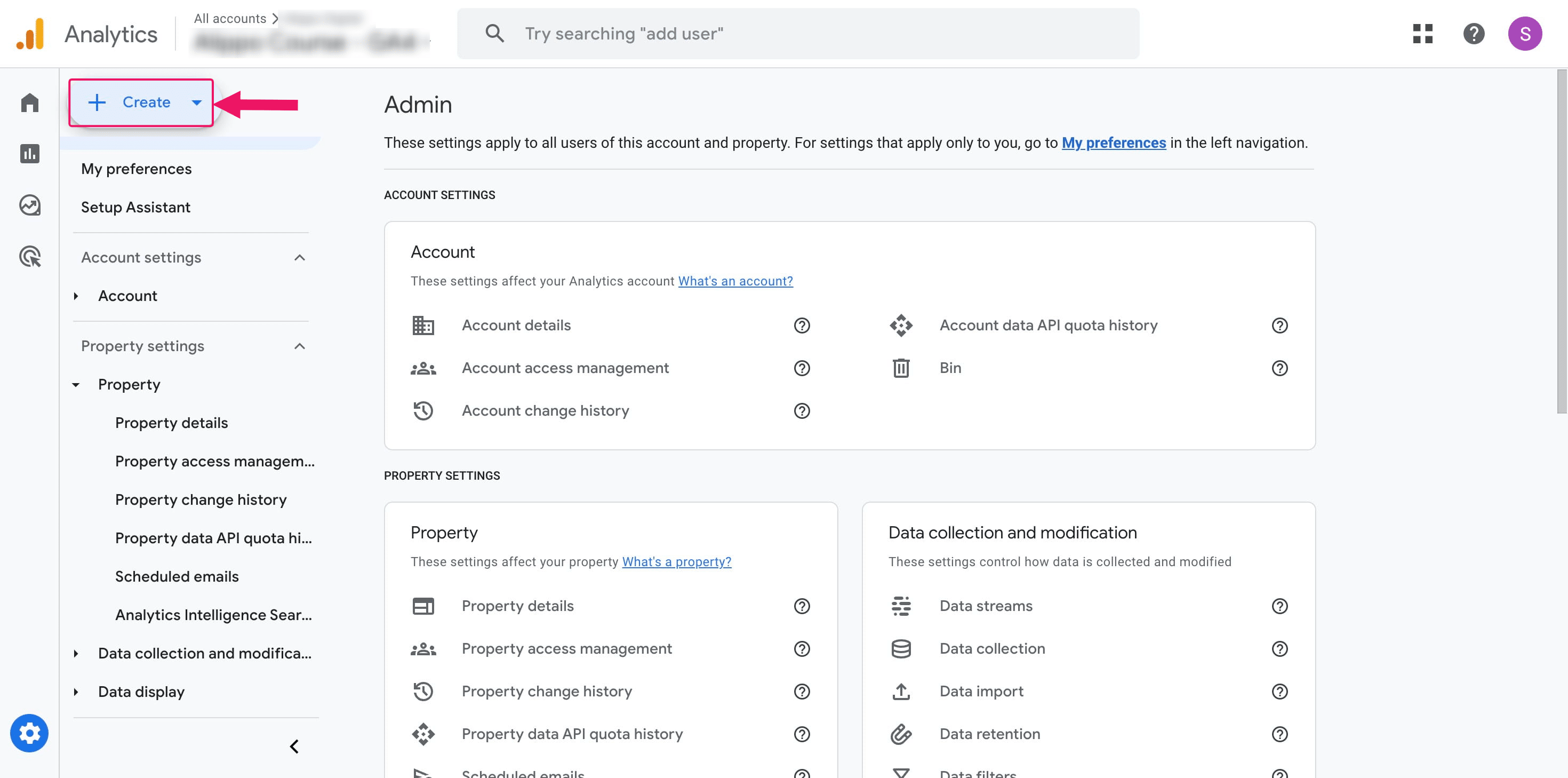
Click on "Create"
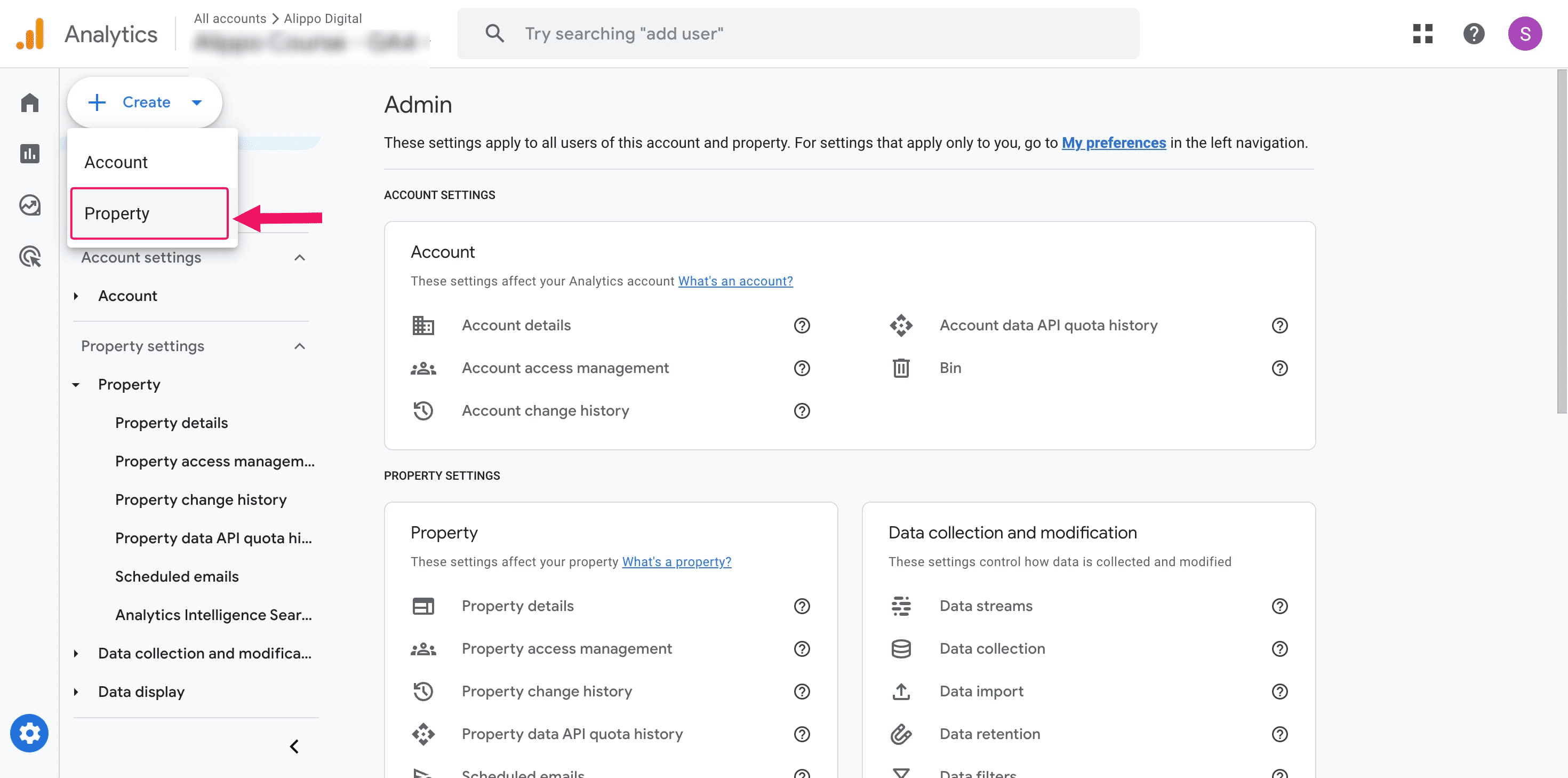
To add a new property, click on "Property".
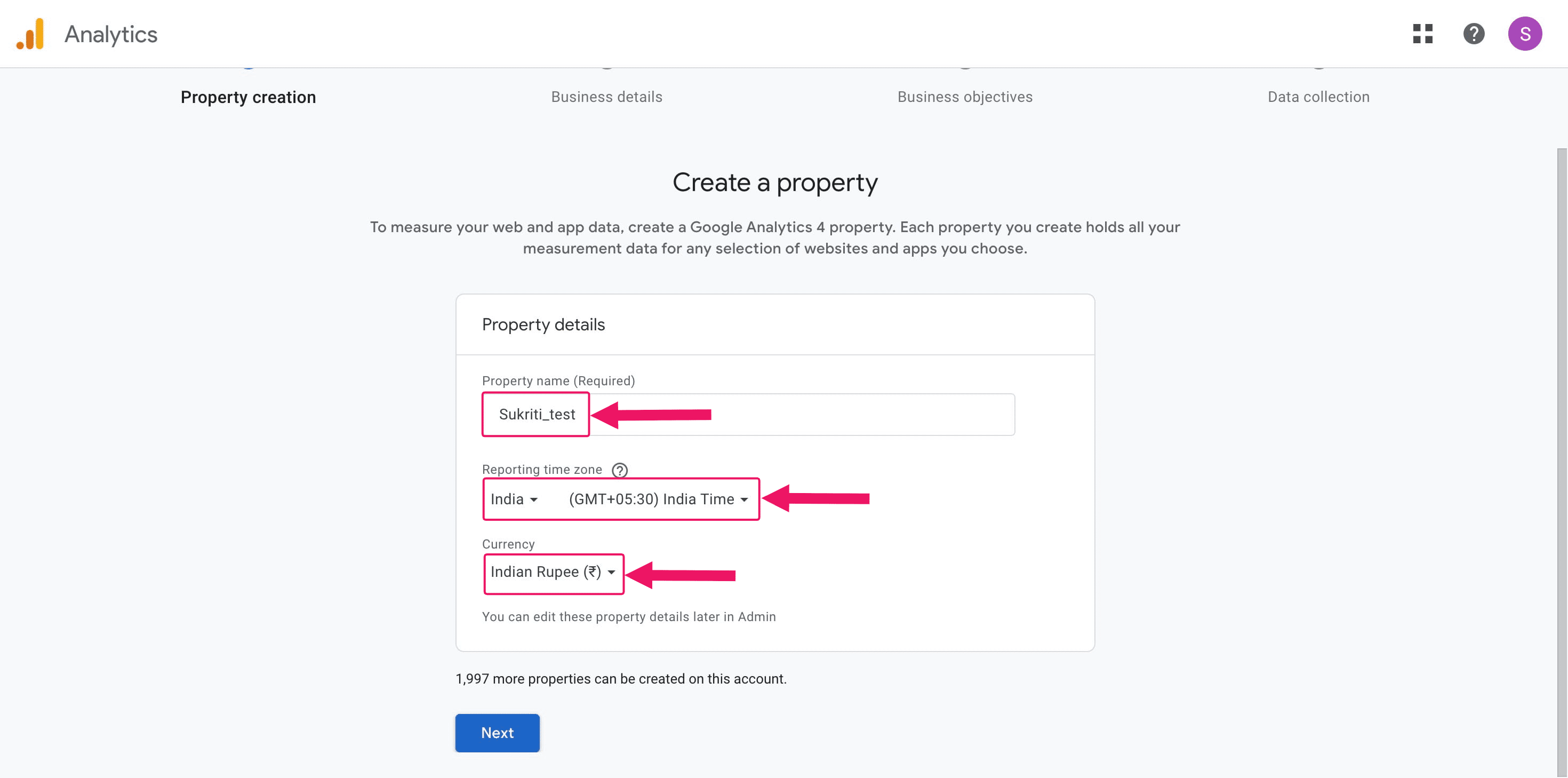
Enter the required information to create the property, and then click Next to proceed.
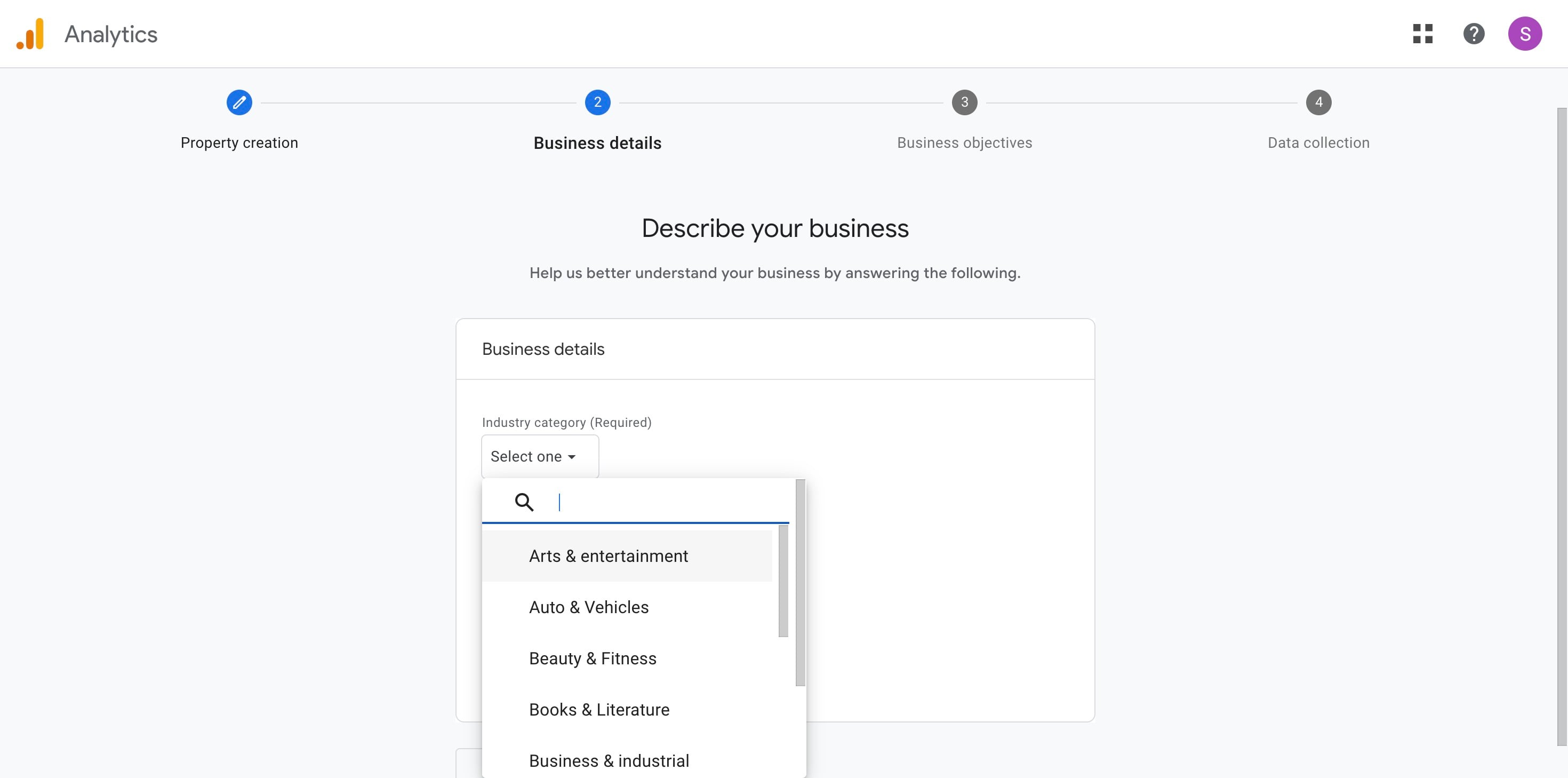
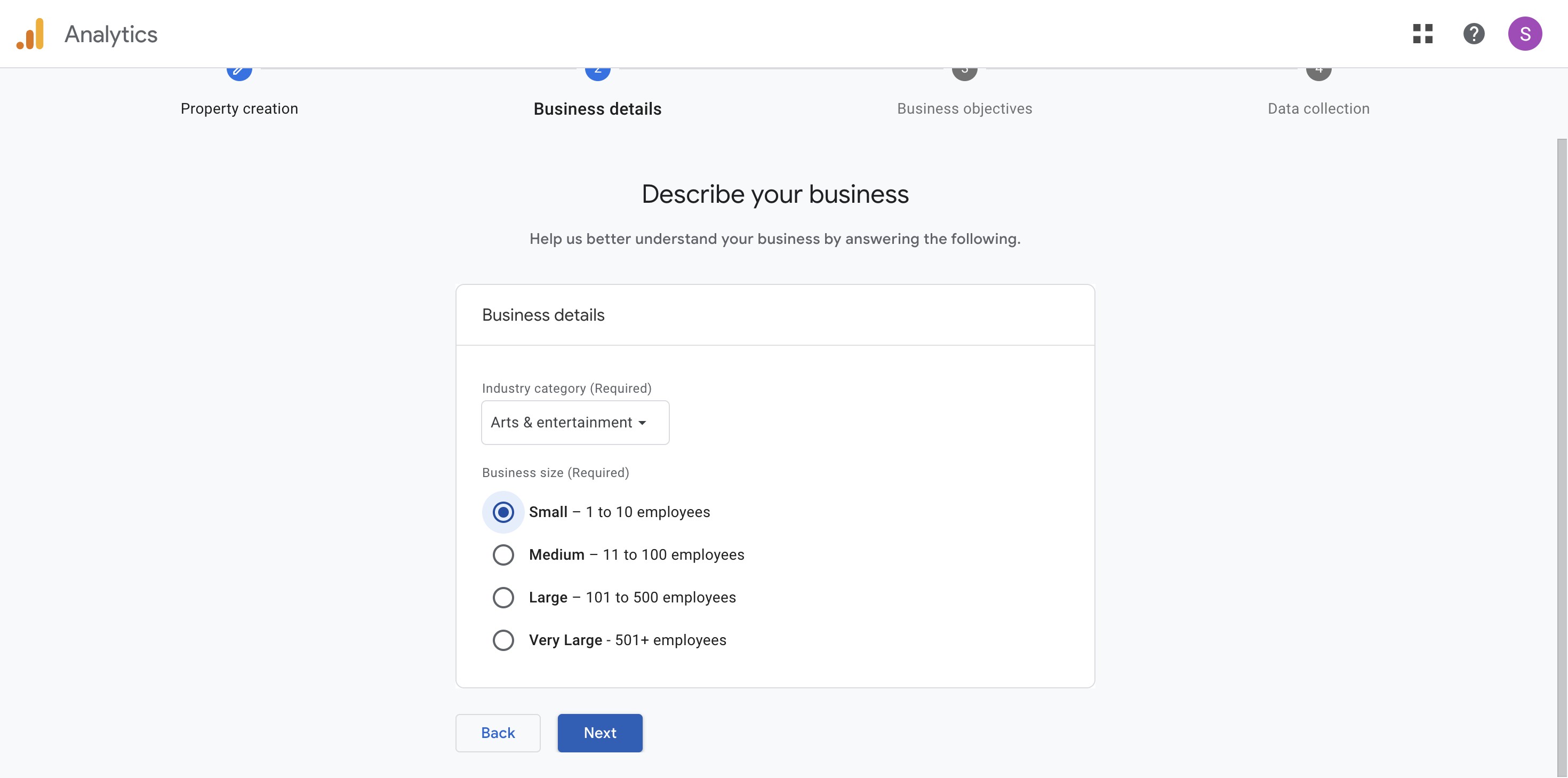
Provide the business details, including the category and team size.
Click on "Next"
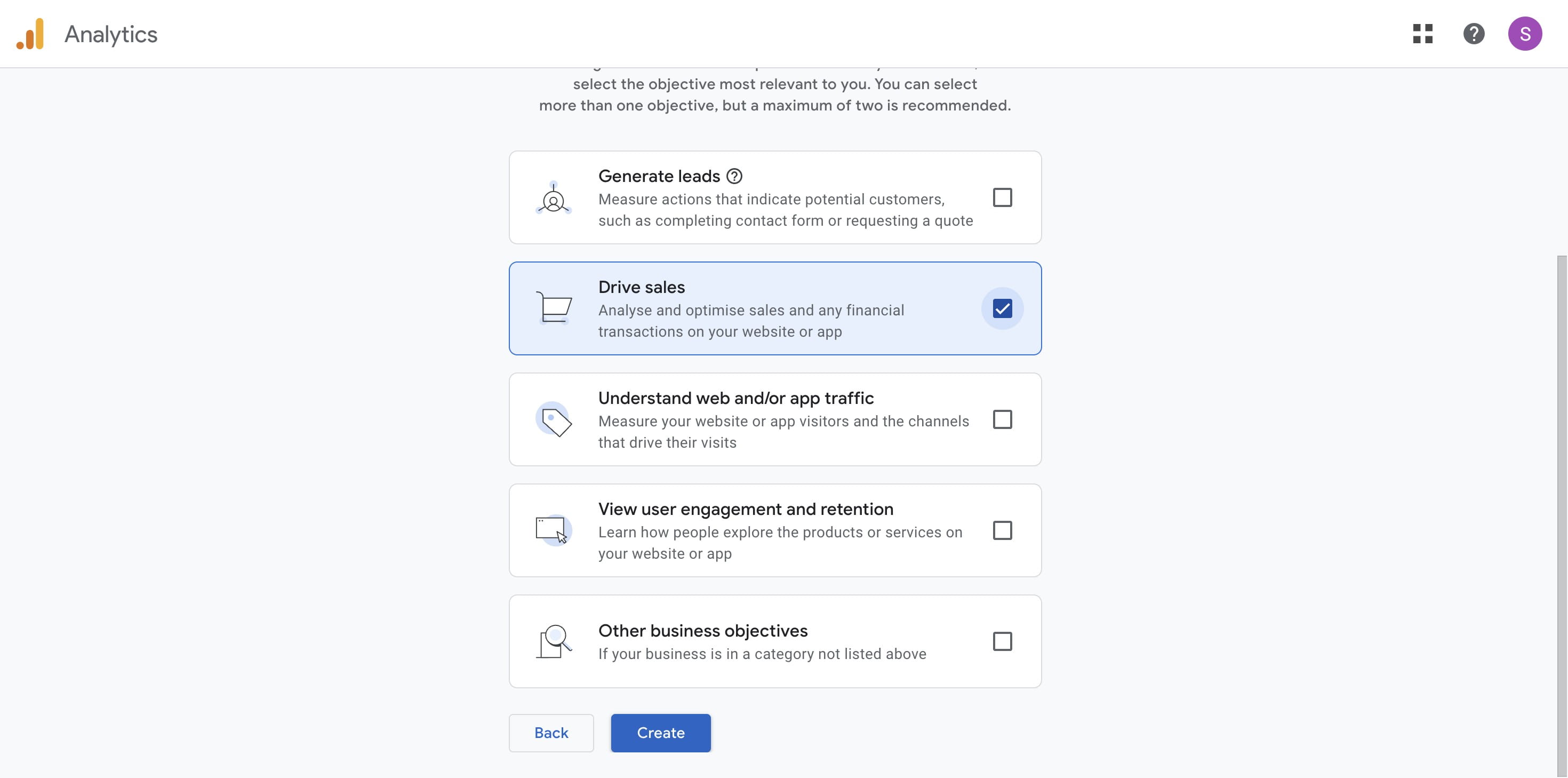
Select the objective that is most relevant to you.
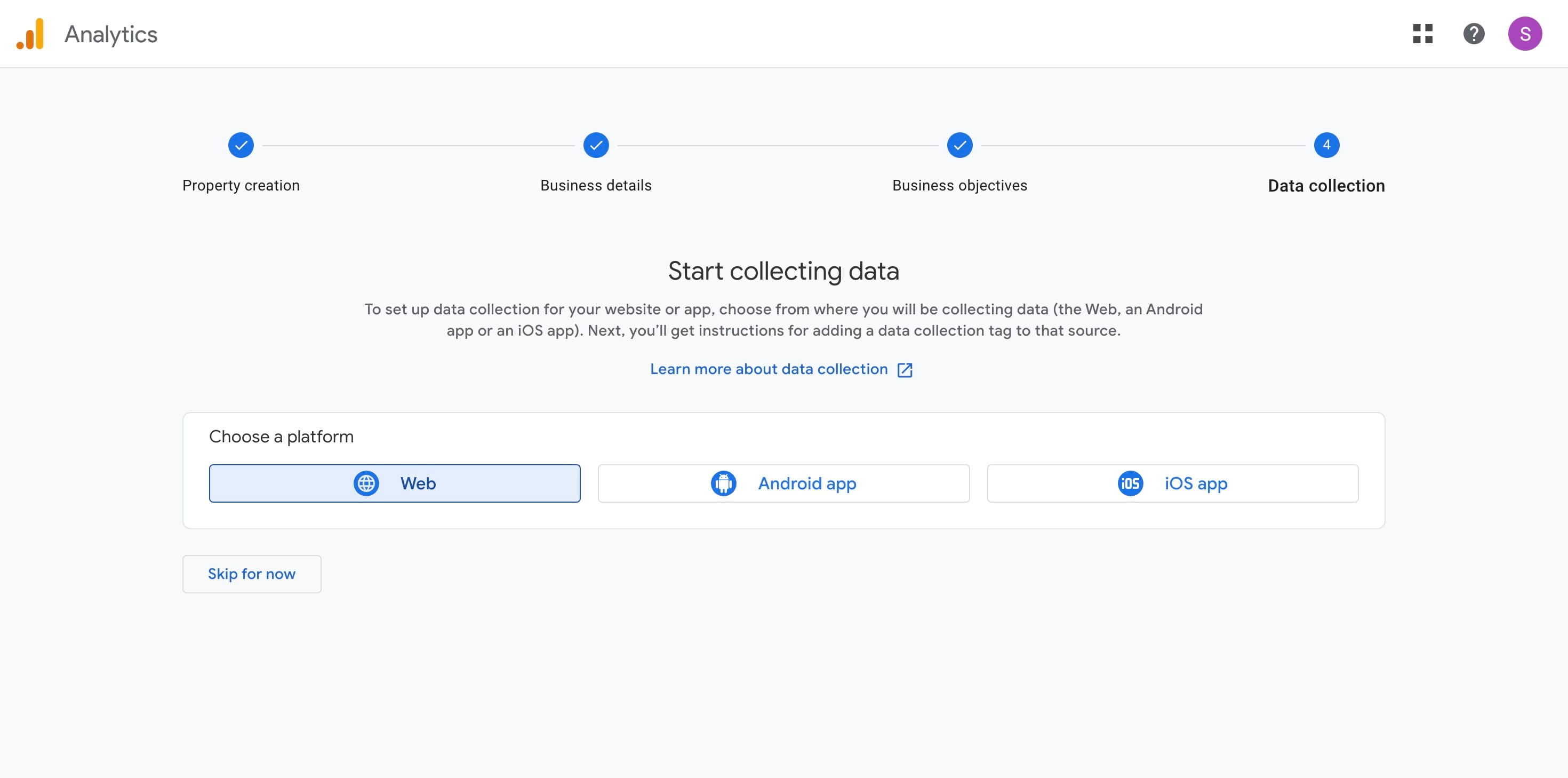
Choose a data collection platform. For this example, select "Website."
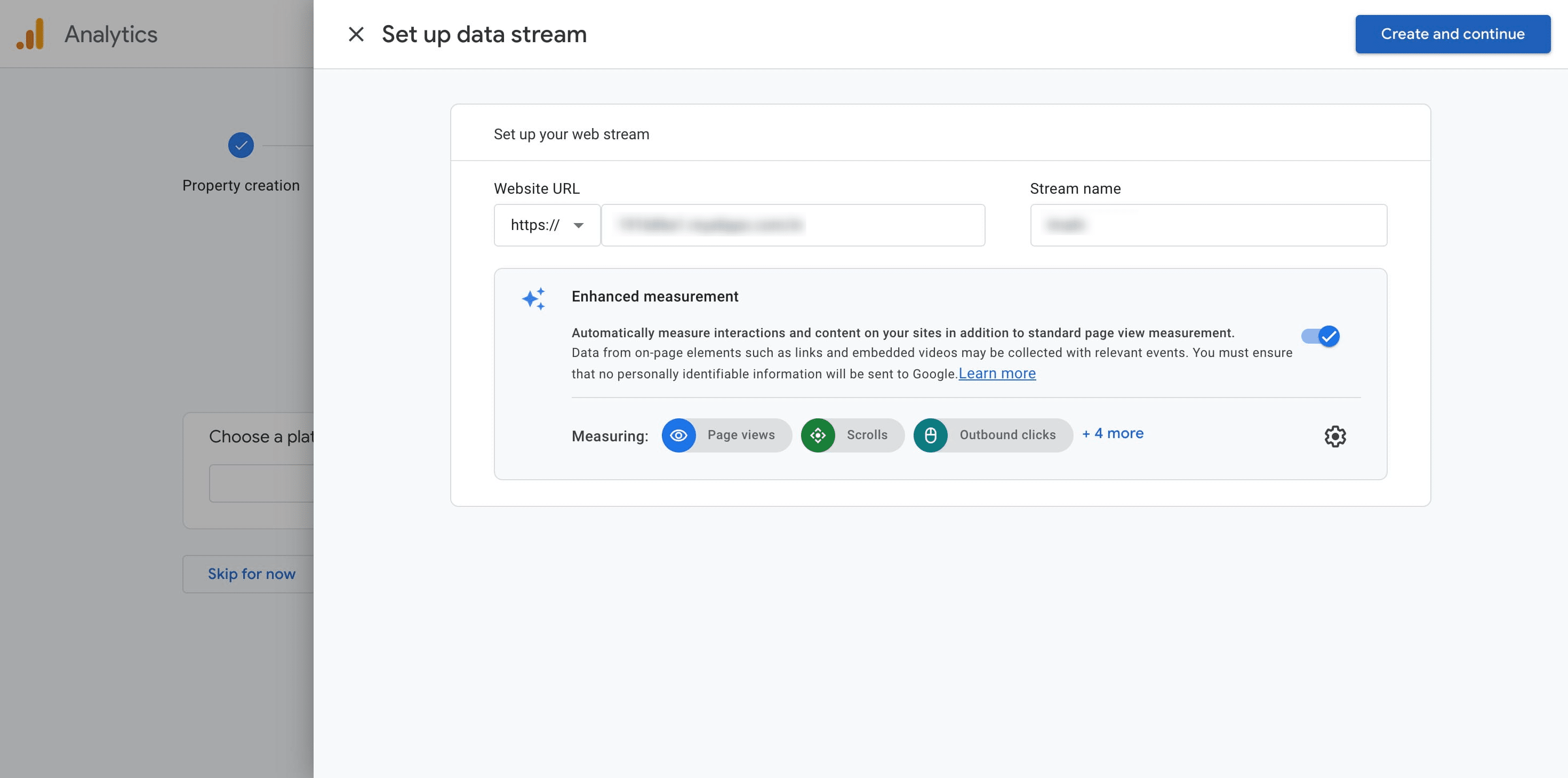
Enter the website URL and Stream name, and then click "Create and Continue."
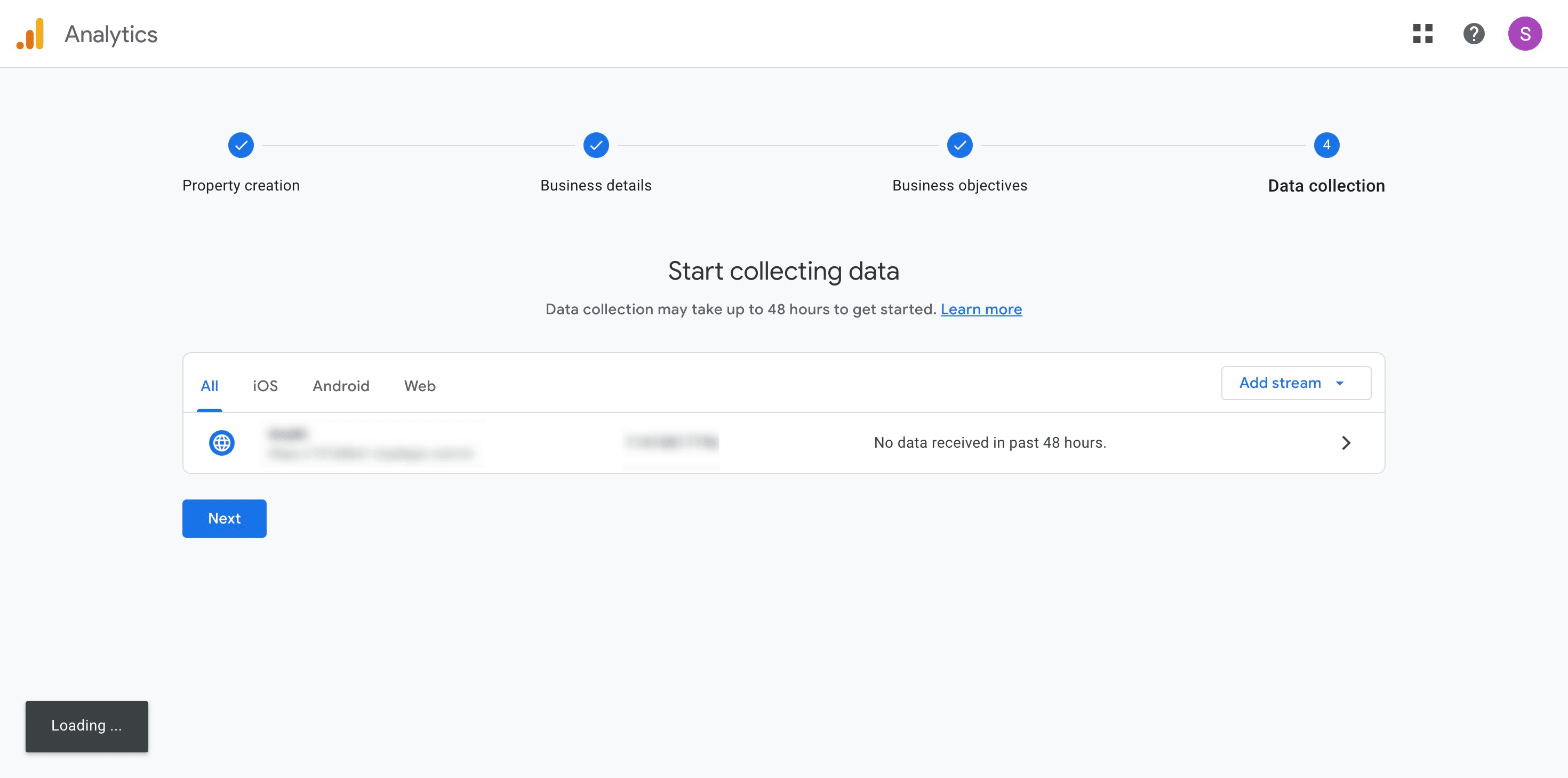
Click here
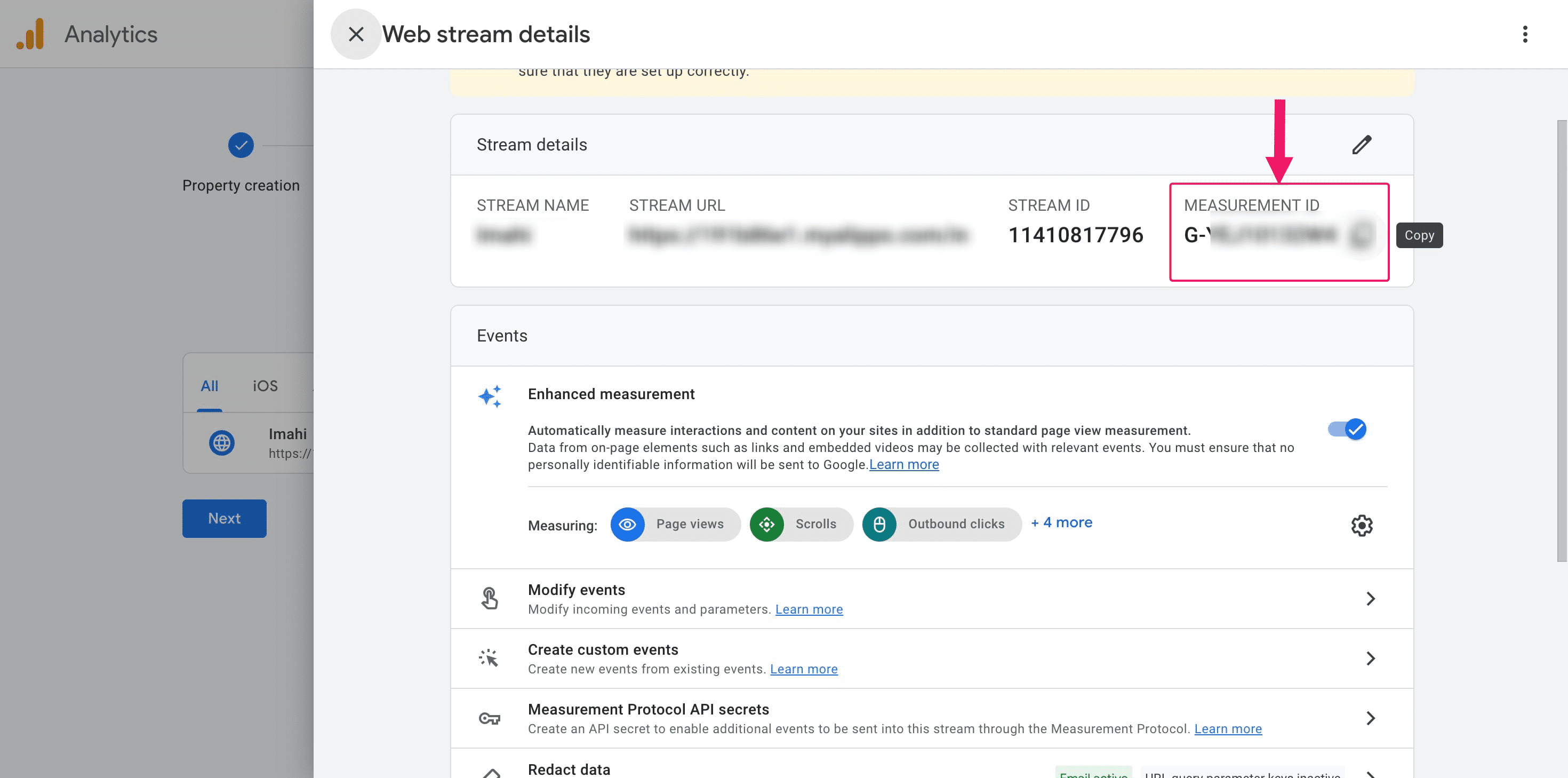
Under “Stream Details,” locate the “Measurement ID” starting with “G-” (e.g., G-XXXXXXXXXX).
Retrieve GA4 Tracking ID for Existing Users :
Log in to your Google Analytics account 👉 https://analytics.google.com
From the left sidebar, click on “Admin” (gear icon at bottom-left)
Under the “Property” column, select your GA4 property
Click on “Data Streams” → then choose your Web stream
You'll now see details of your web stream. Look for something like this:
Measurement ID: G-XXXXXXXXXX
Copy this Measurement ID — you’ll need it for integration (e.g., in AI Cofounder or any tracking setup)
Integration of GA4 with Alippo AI Cofounder CMS:
Log in to aic.alippo.com using your credentials. Then, access the CMS by navigating to aic.alippo.com/cms/admin/collections/website.
 using your credentials. Then, access the CMS by navigating to [aic.alippo.com/cms/admin/collections/website](aic.alippo.com/cms/admin/collections/website).](https://assets.guidejar.com/uploads/21cec30a-96d0-4e1f-9a5c-9df3b2cf3782/Ehf5NYlEDuaayJ7EoRJL7A6mhiG2/ebb5966d-bd18-420a-ab7e-35c16a99e14d/1751127749865.jpeg)
Navigate to the Google Analytics ID section.
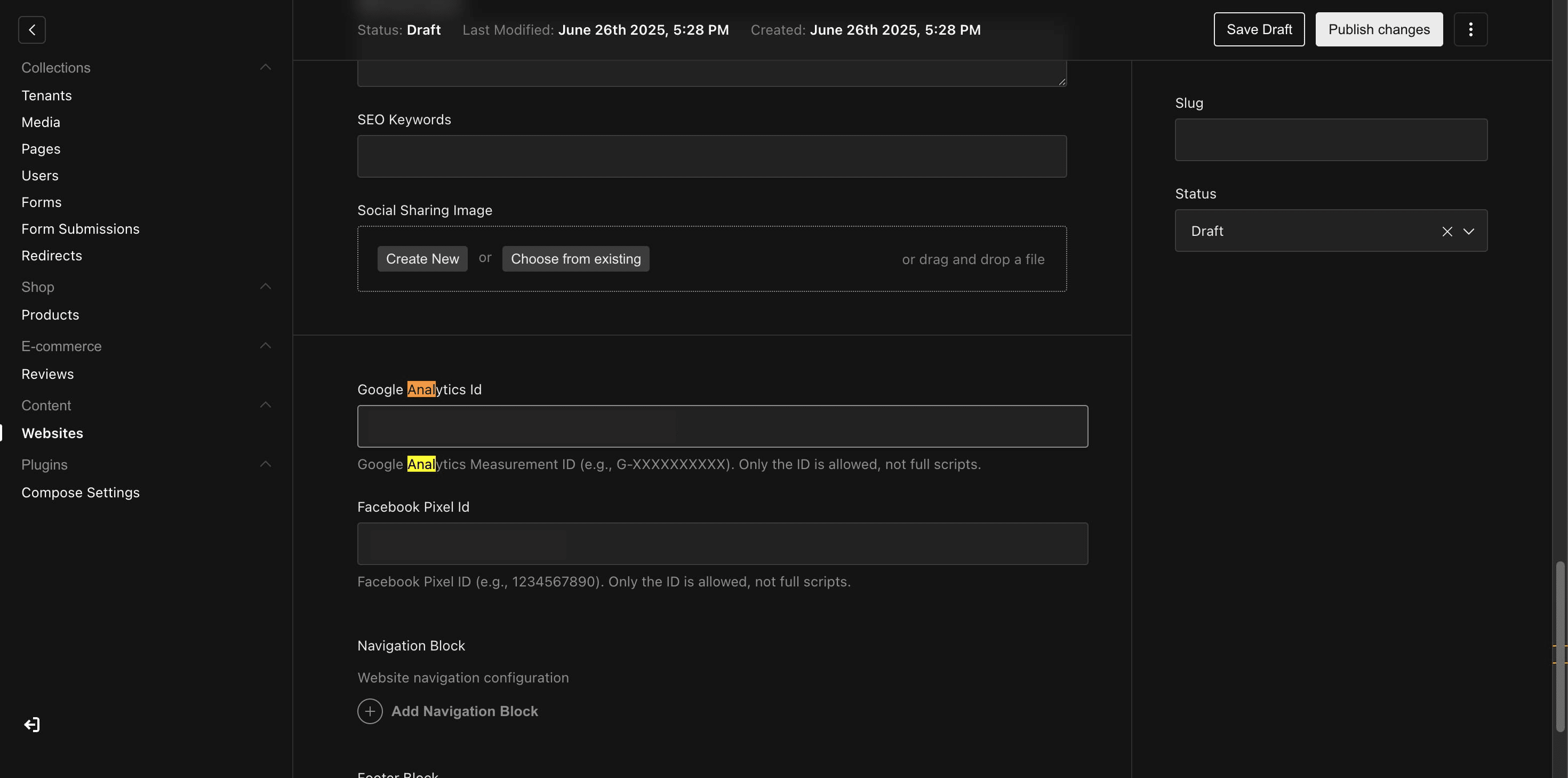
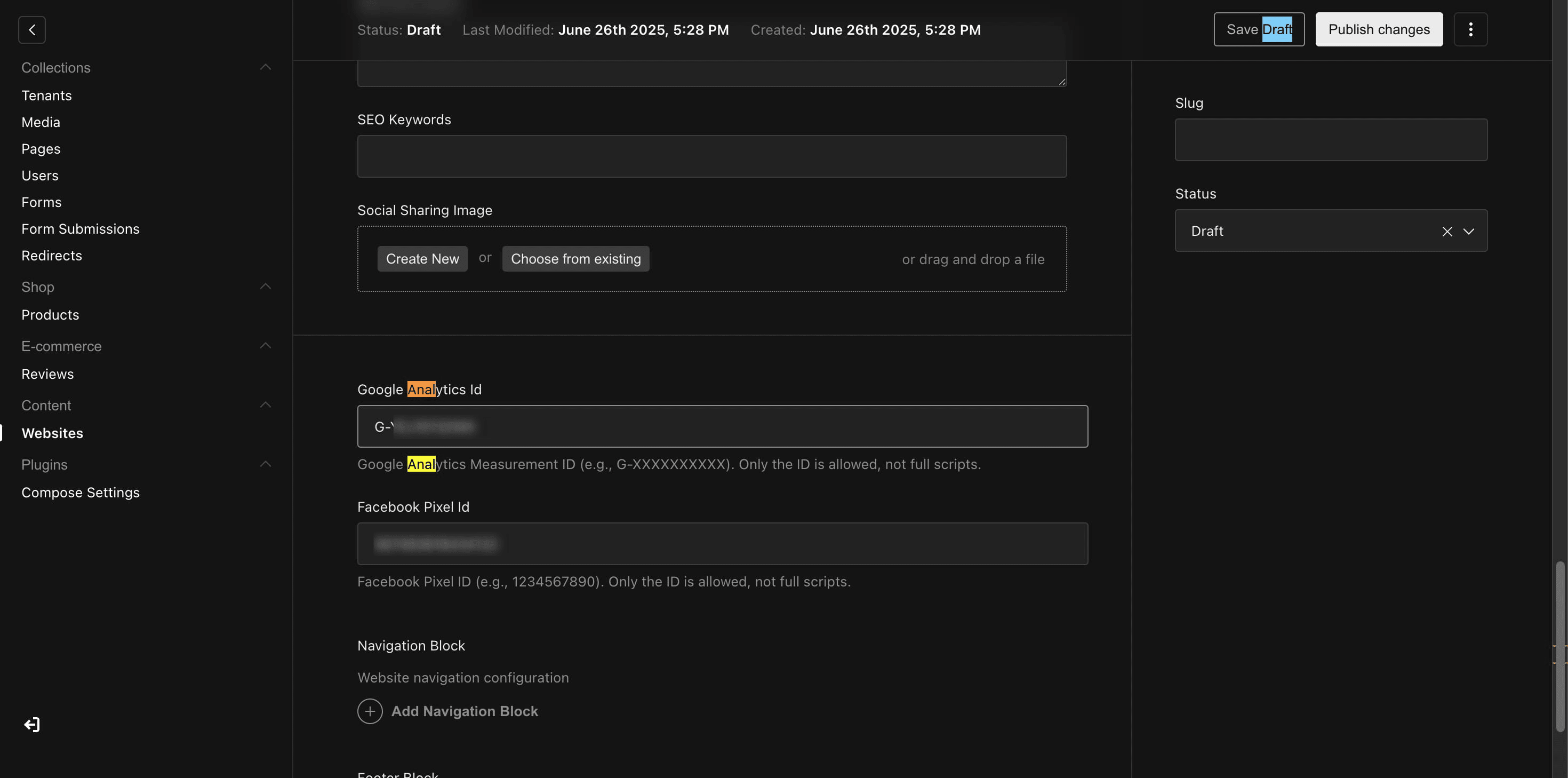
Paste the "Measurement ID" and then click "Publish Changes."
Frequently Asked Questions
- What is the "Measurement ID," and where can I find it?
The Measurement ID is a unique identifier for your website’s GA4 property. You can find it in the "Stream Details" section after setting up your GA4 property. It starts with "G-" followed by a series of numbers and letters.
- How do I know if the GA4 integration is working properly?
After publishing the Measurement ID in the AI Cofounder CMS, you can check the real-time data in GA4. If data is being tracked, it indicates that the integration is working correctly.
- What data can I track using GA4 with AI Cofounder?
GA4 allows you to track user activity such as page views, clicks, conversions, events, and other custom user actions on your AI Cofounder-powered website. This helps you gather insights about how visitors are engaging with your site.
- Is there a cost associated with using GA4 for tracking?
Google Analytics 4 is free for most users. However, if you exceed certain data thresholds or require additional advanced features, you might need to explore Google Analytics 360, which has a cost associated.
- What is Google Analytics 4 (GA4), and why should I integrate it with AI Cofounder?
GA4 is the latest version of Google Analytics that allows you to track user behavior, conversions, and insights on your website. Integrating GA4 with AI Cofounder helps you understand how visitors interact with your site, improving your decision-making and marketing strategies.