How to Insert OpenAI Key In Wabot
Jan 03, 2025●
1
Remember to create your API Key from OpenAI. If you haven't done this, click this tutorial to obtain the key first
2
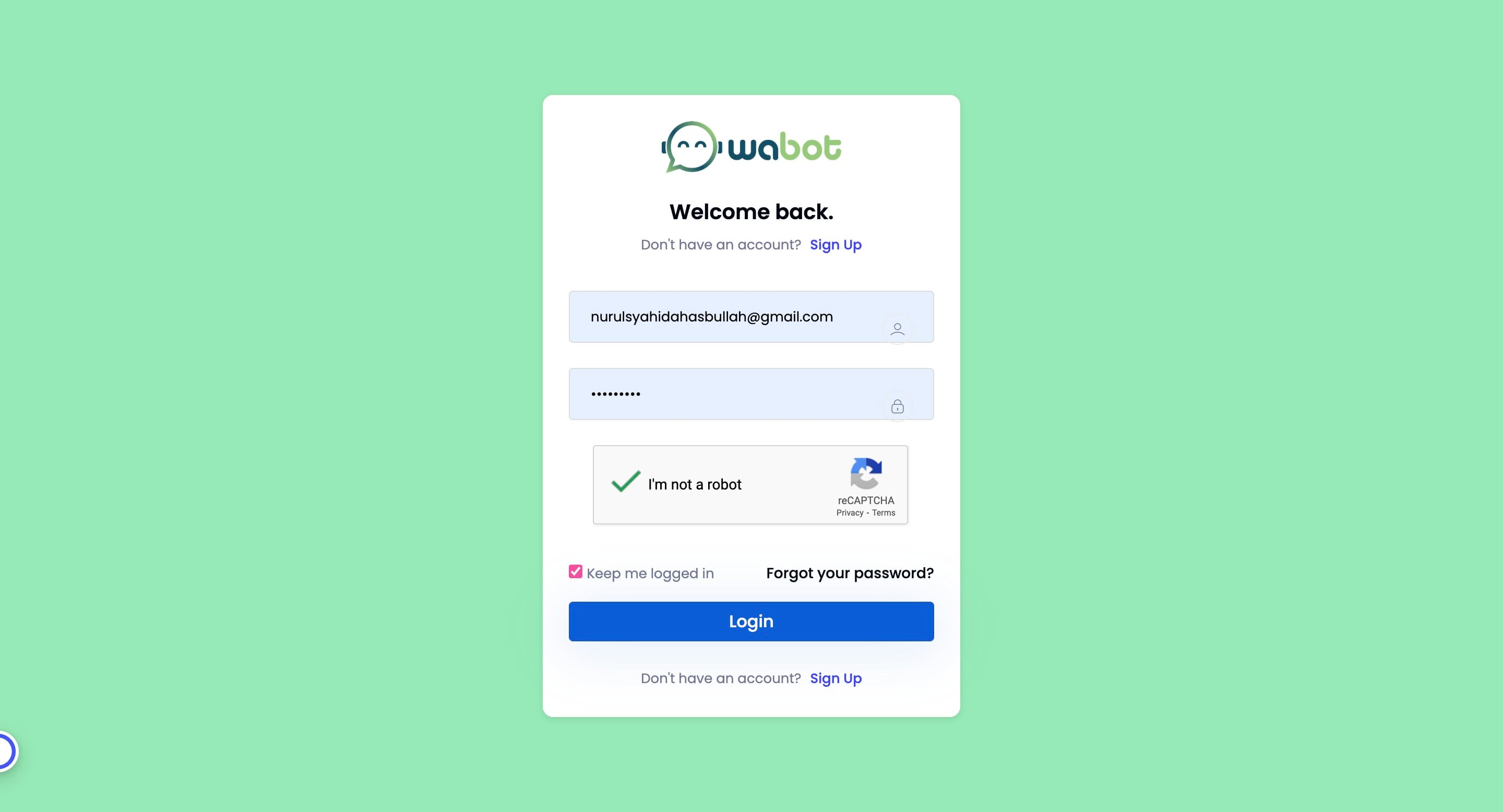
Then head to https://app.wabot.my/login to login your Wabot account

3
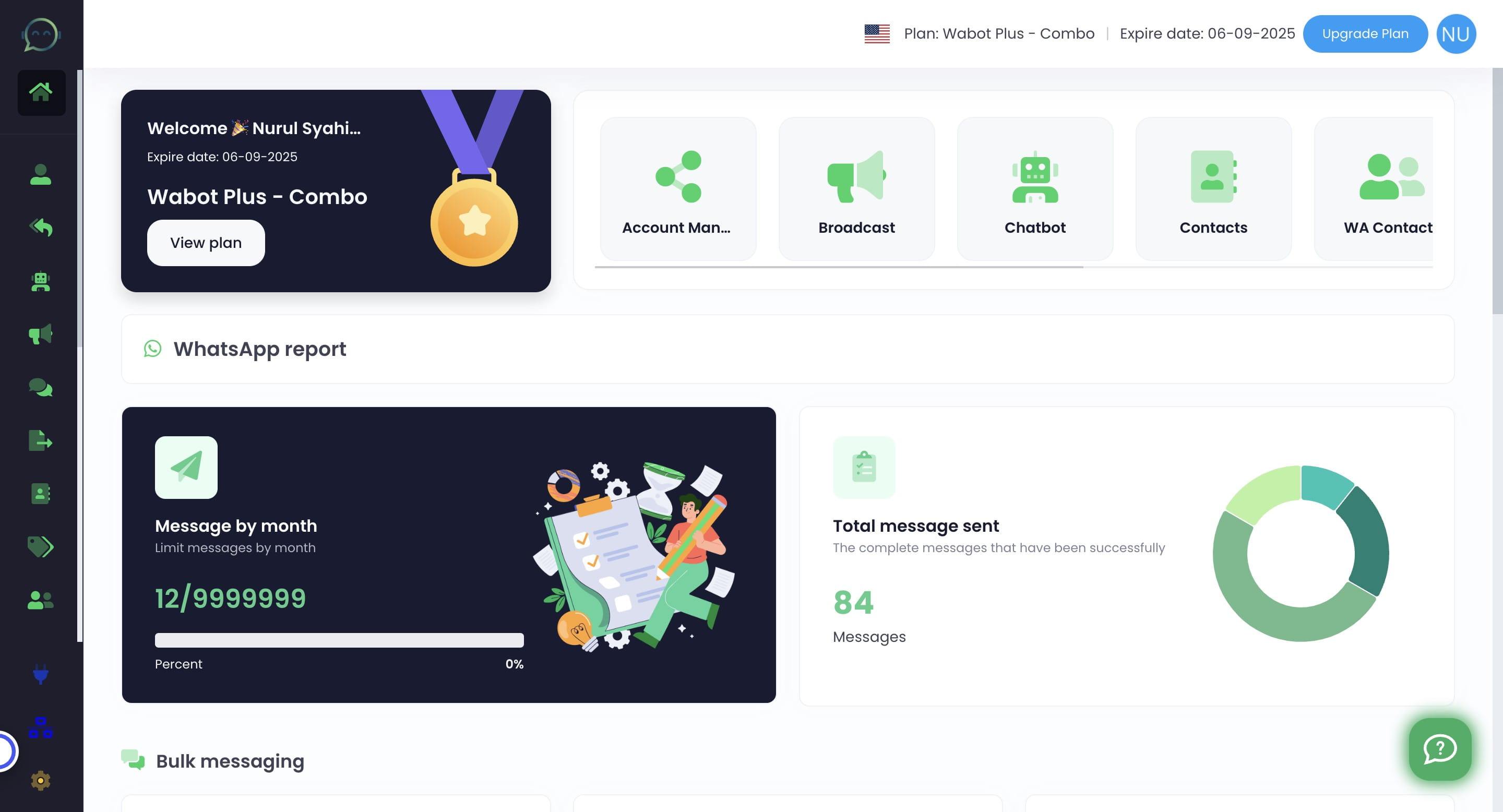
Go to chatbot
4
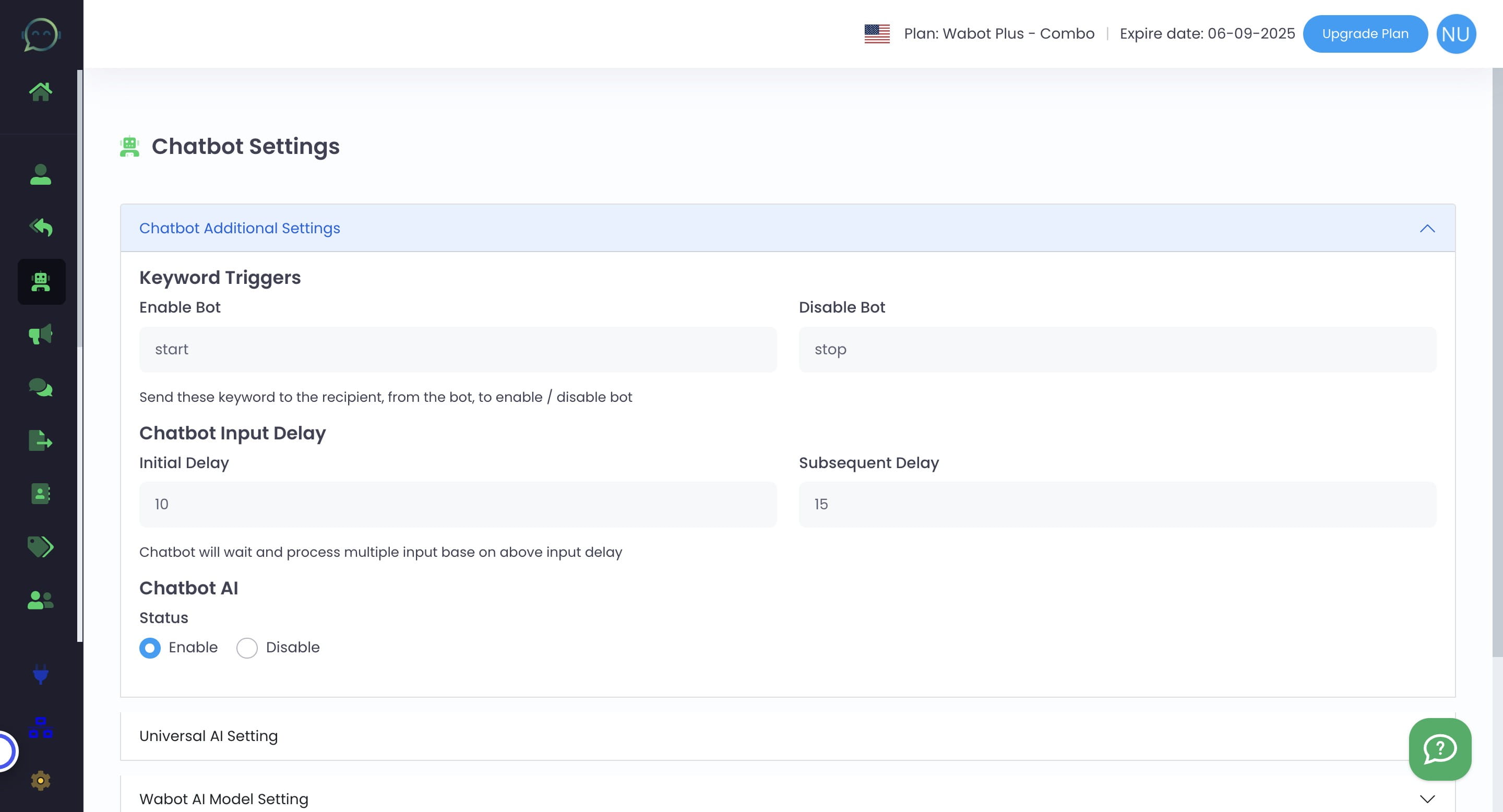
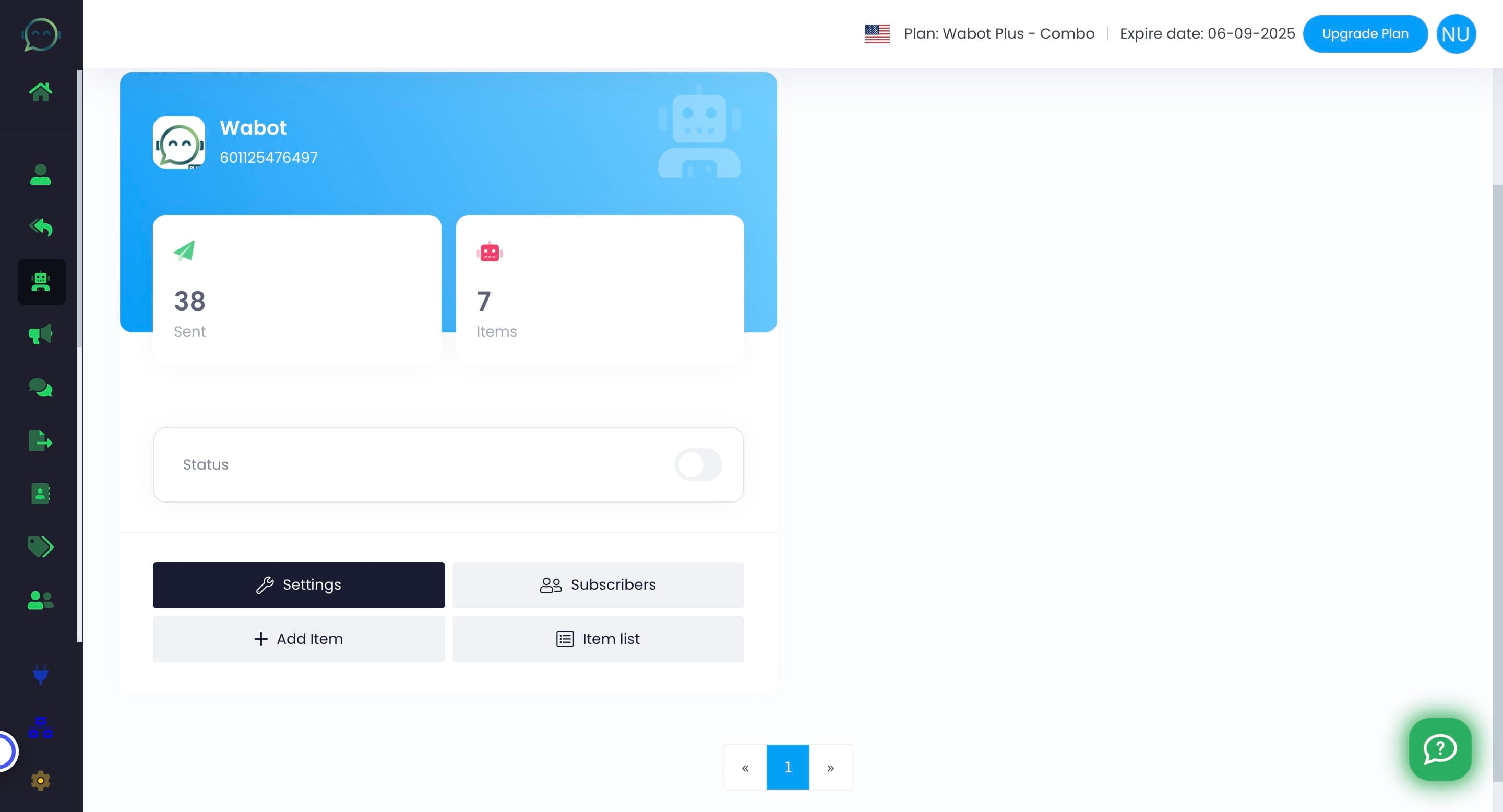
Go to settings
5
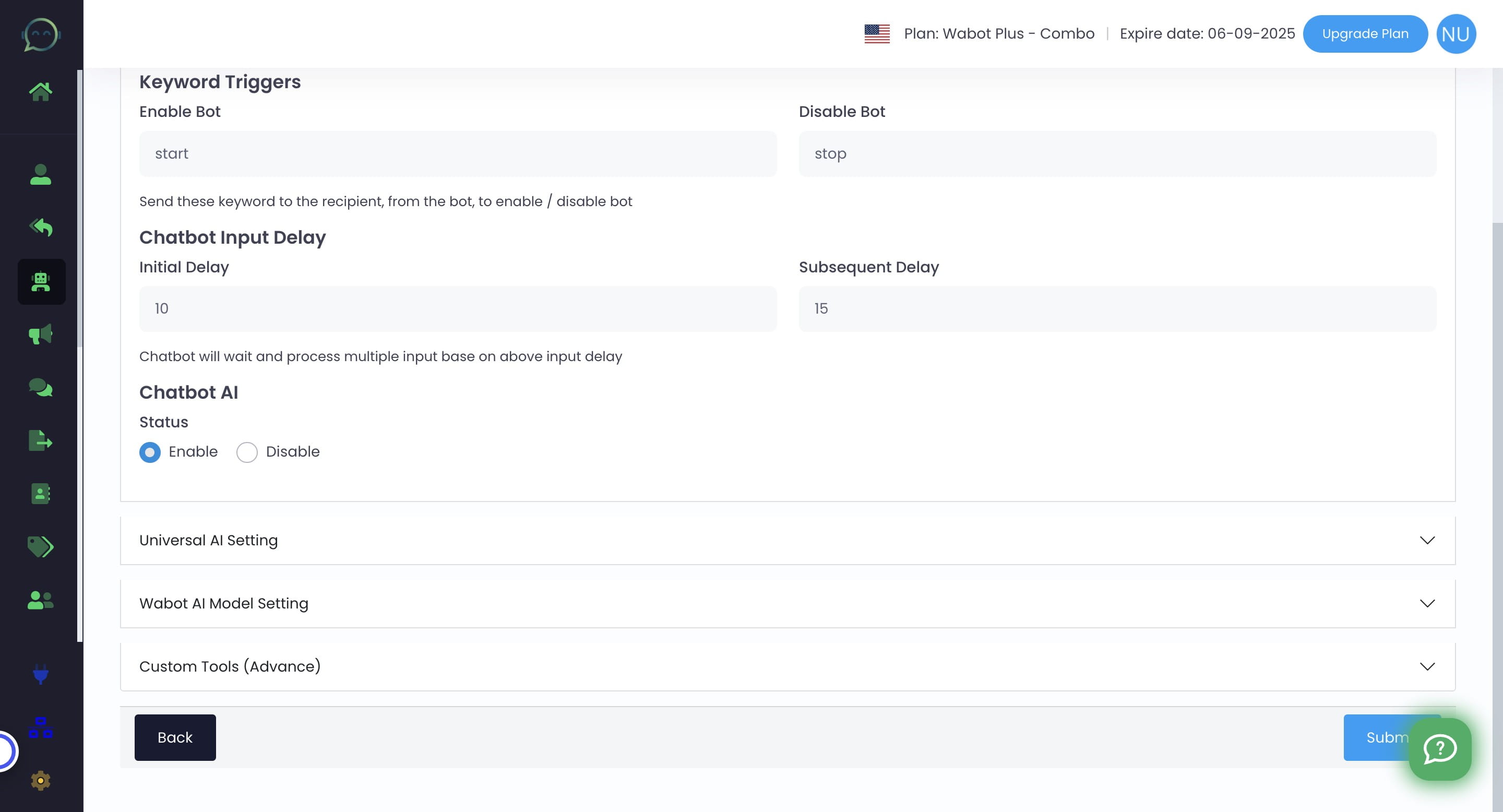
Enable chatbot AI
6
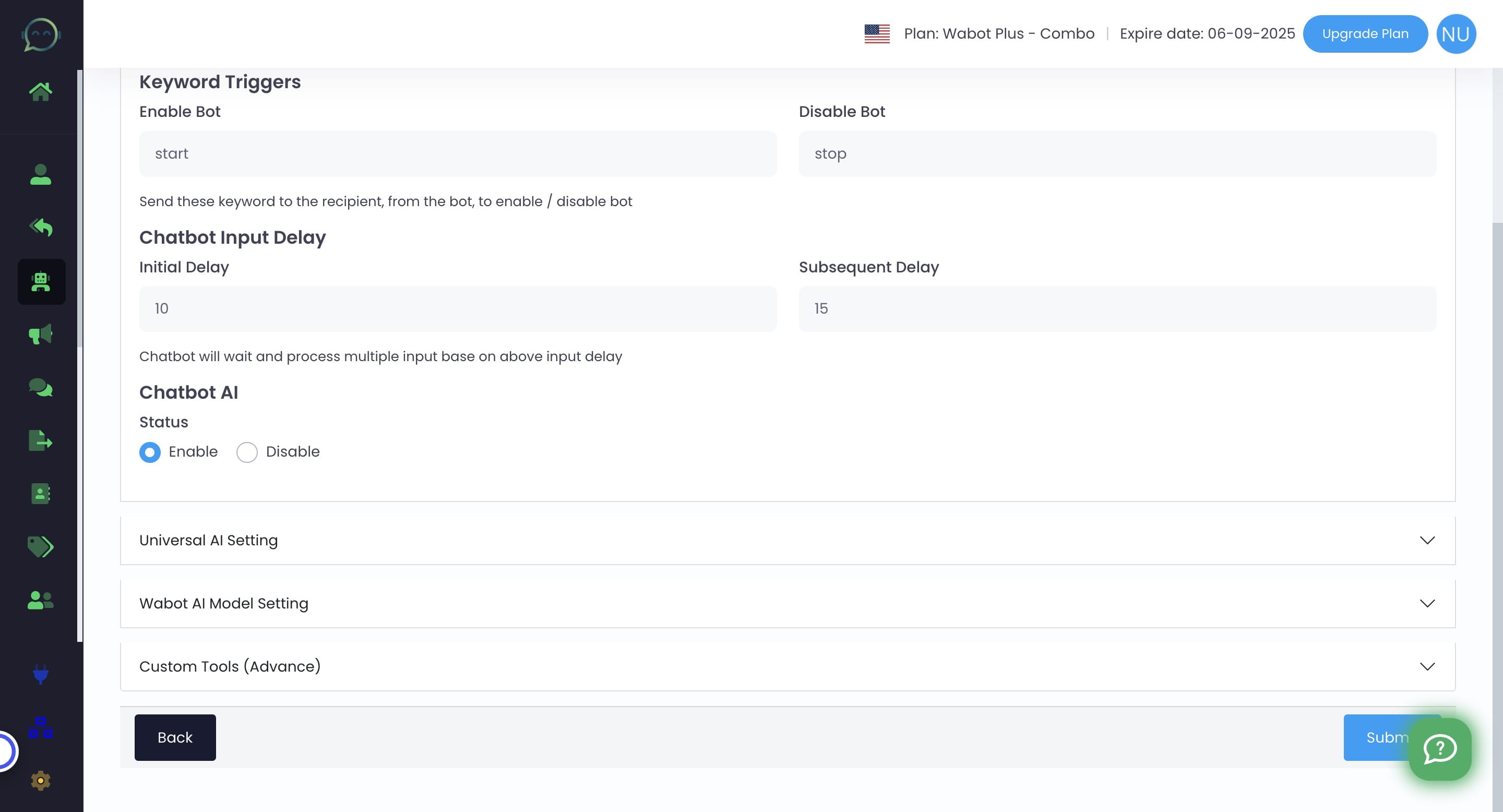
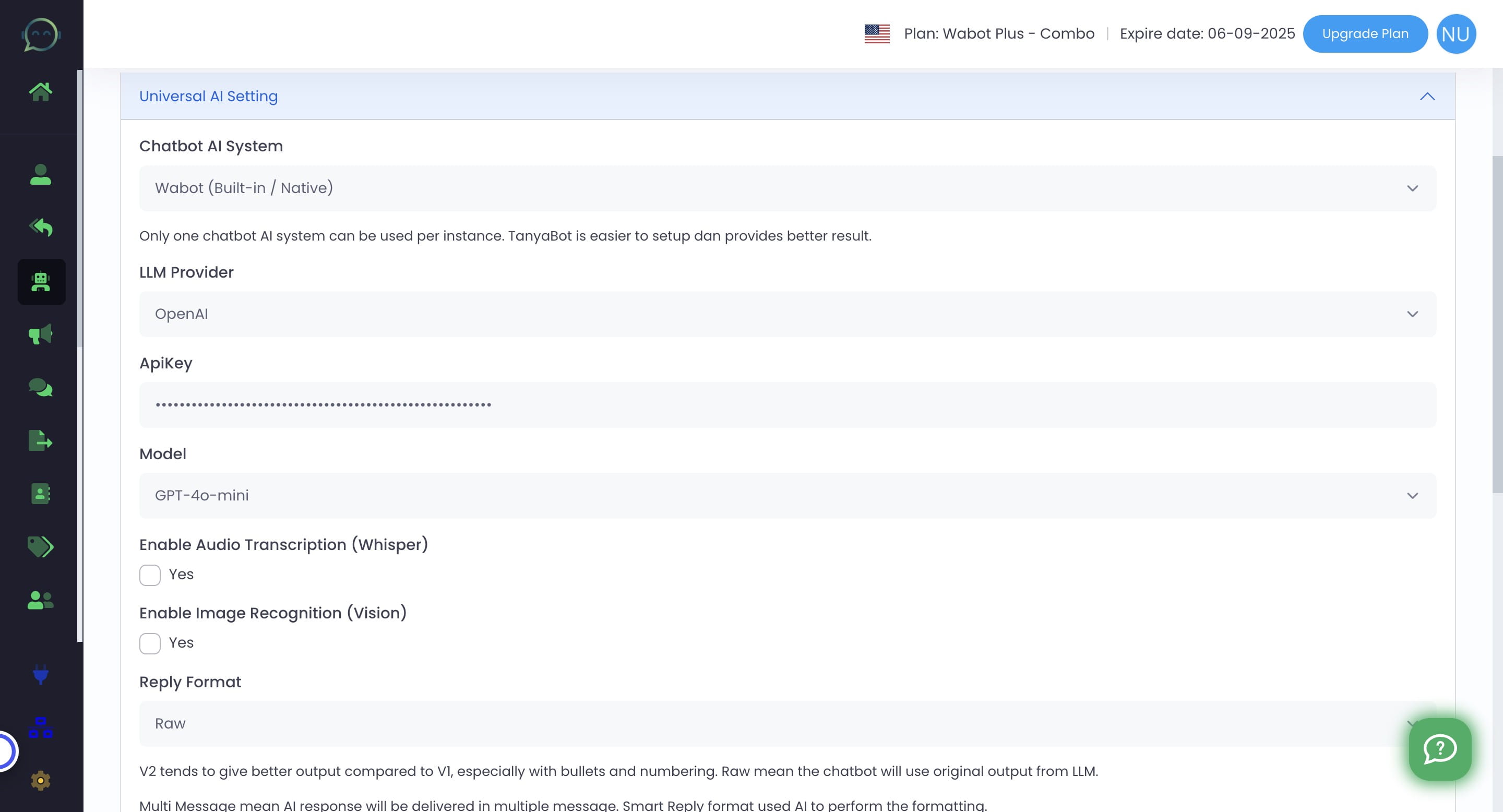
Click on "Universal AI Setting"
7
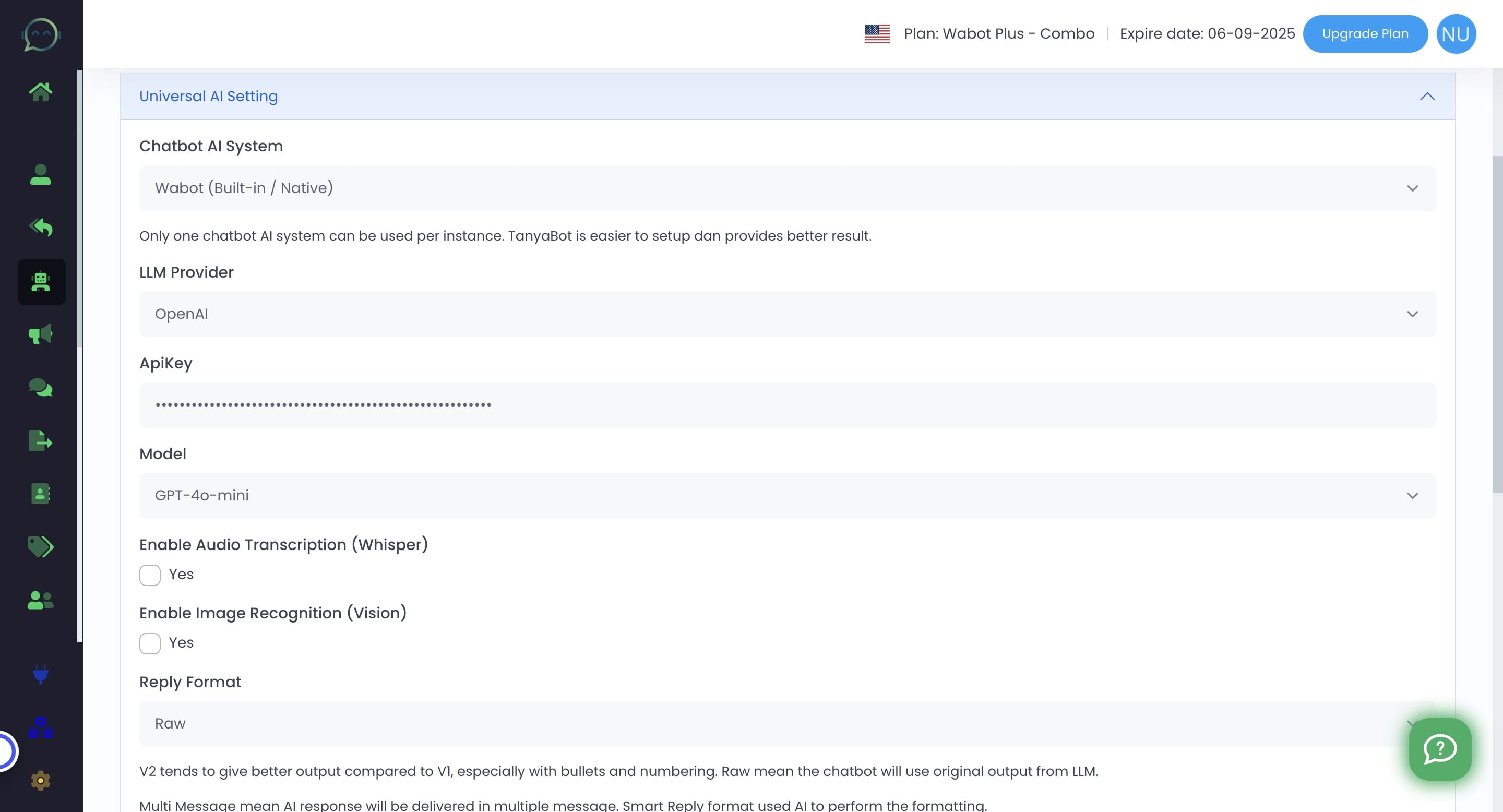
Click on "Wabot (Built-in / Native)"
8
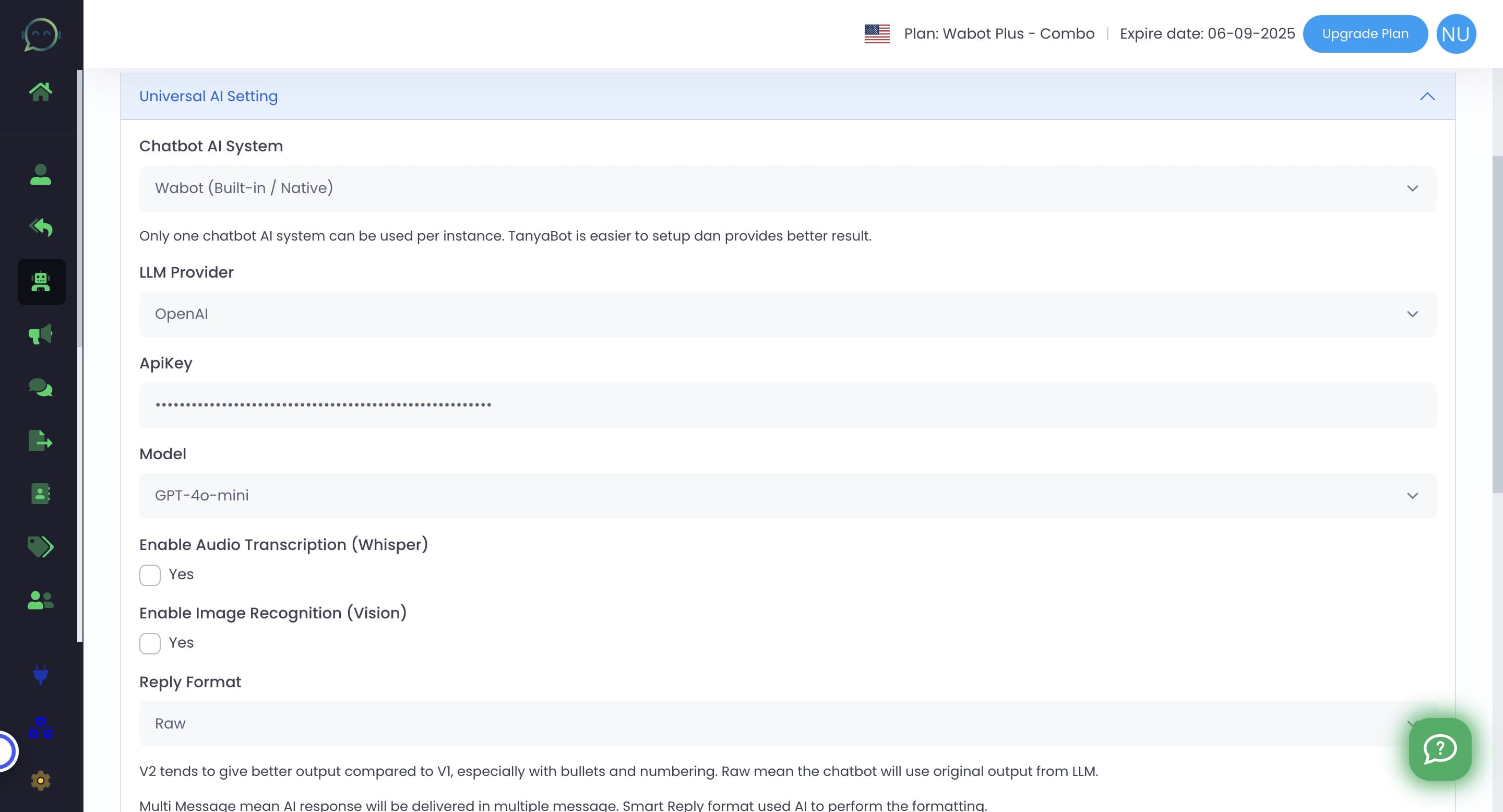
Click on "OpenAI"
9
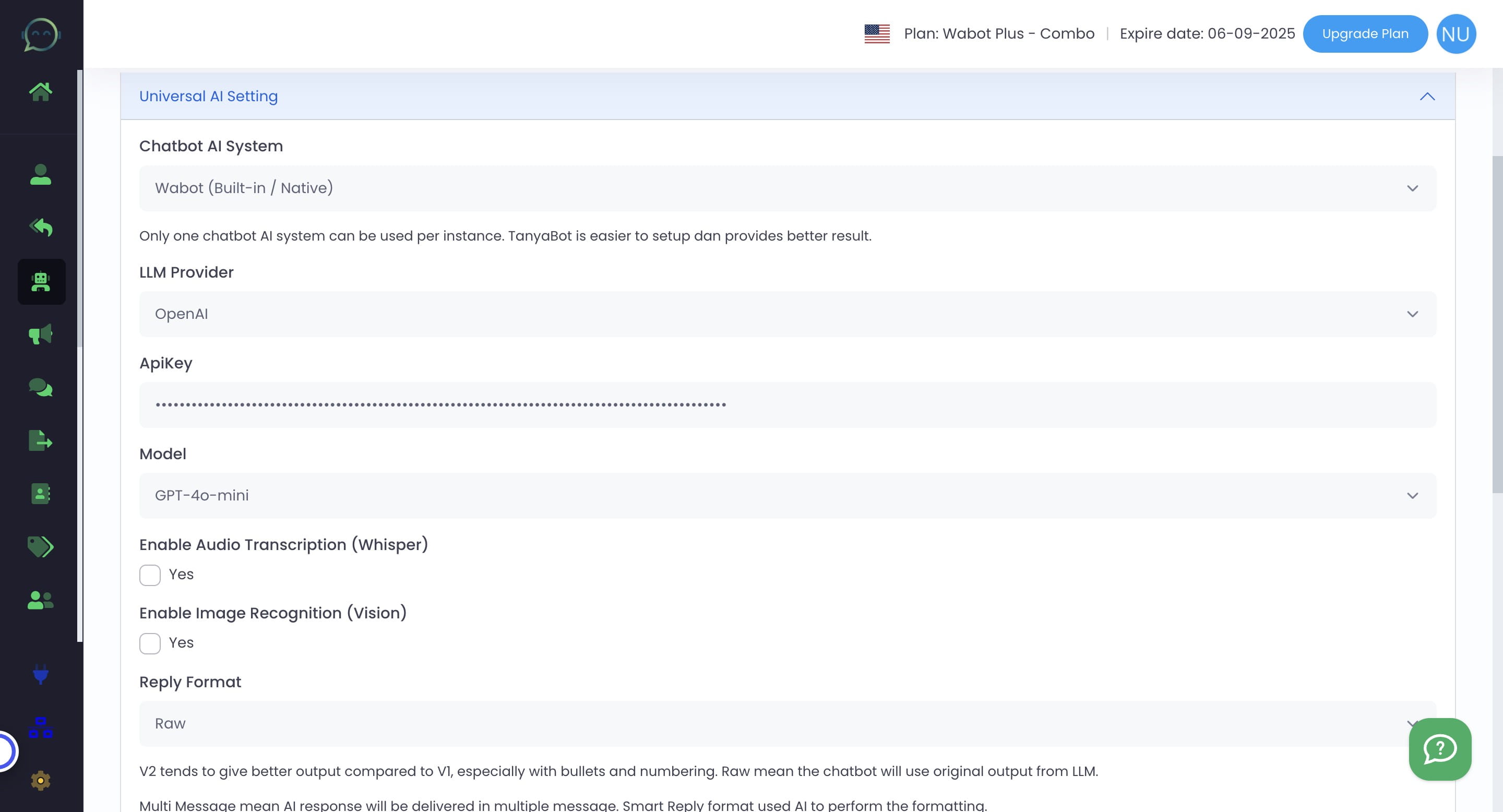
Insert the API Key that you have copied
10
Click on "GPT-4o-mini", for the cheapest and reliable respond
11
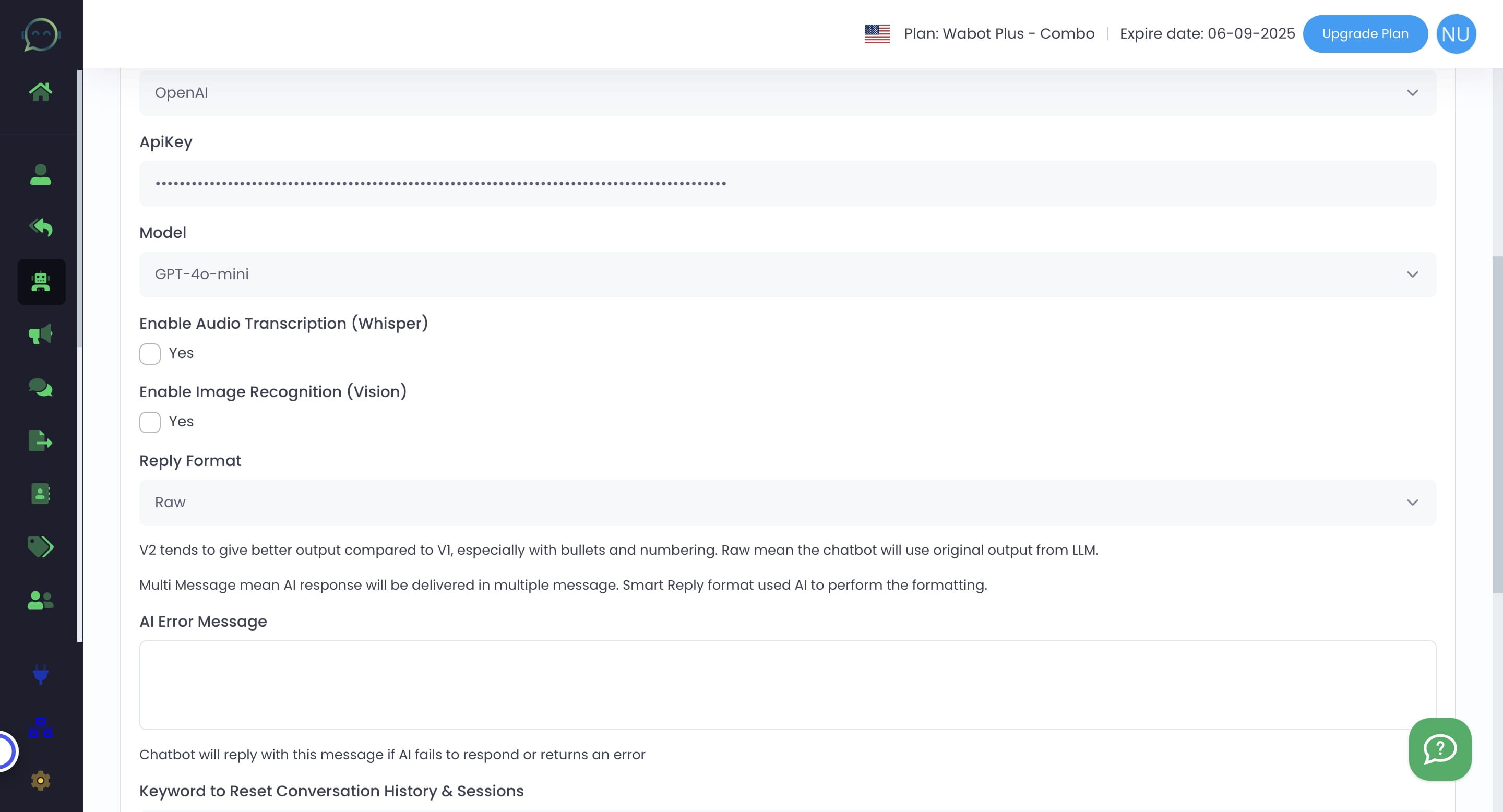
Click on reply format and choose your preferred reply format
12
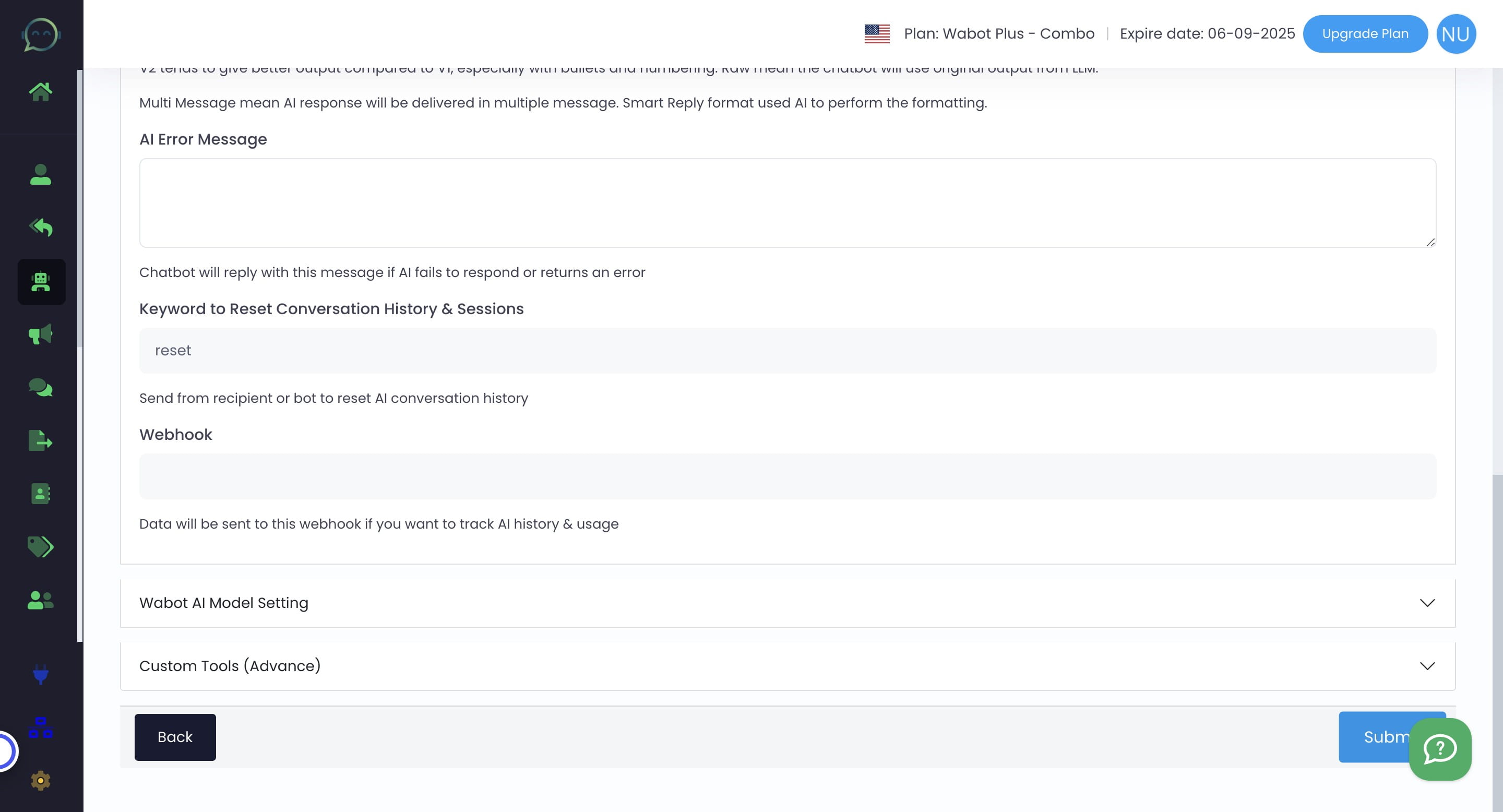
Click on "Submit"
13
Done 🚀