Adding your scheduling link to your .com profile
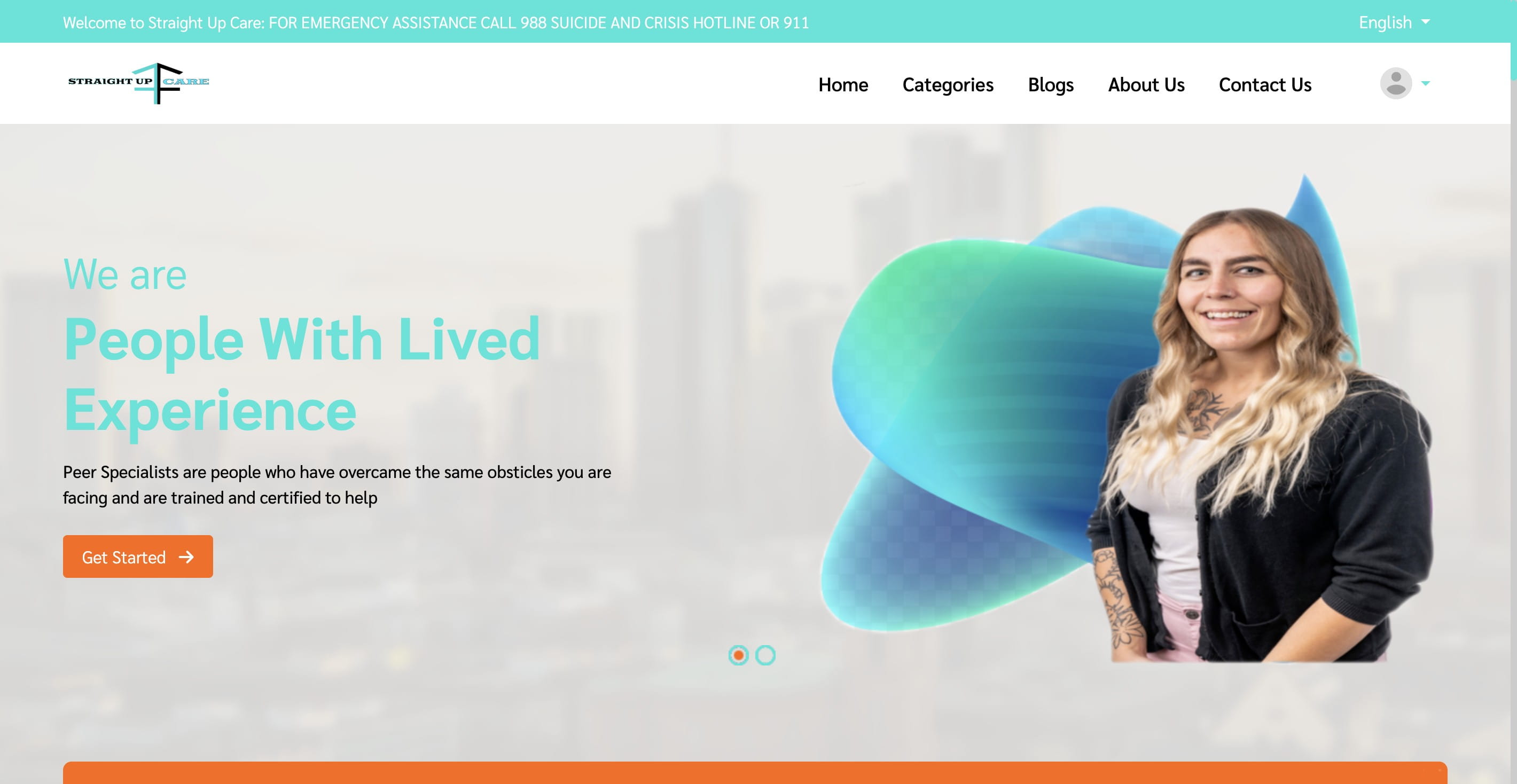
Navigate to https://straightupcare.org
Click on "Categories"
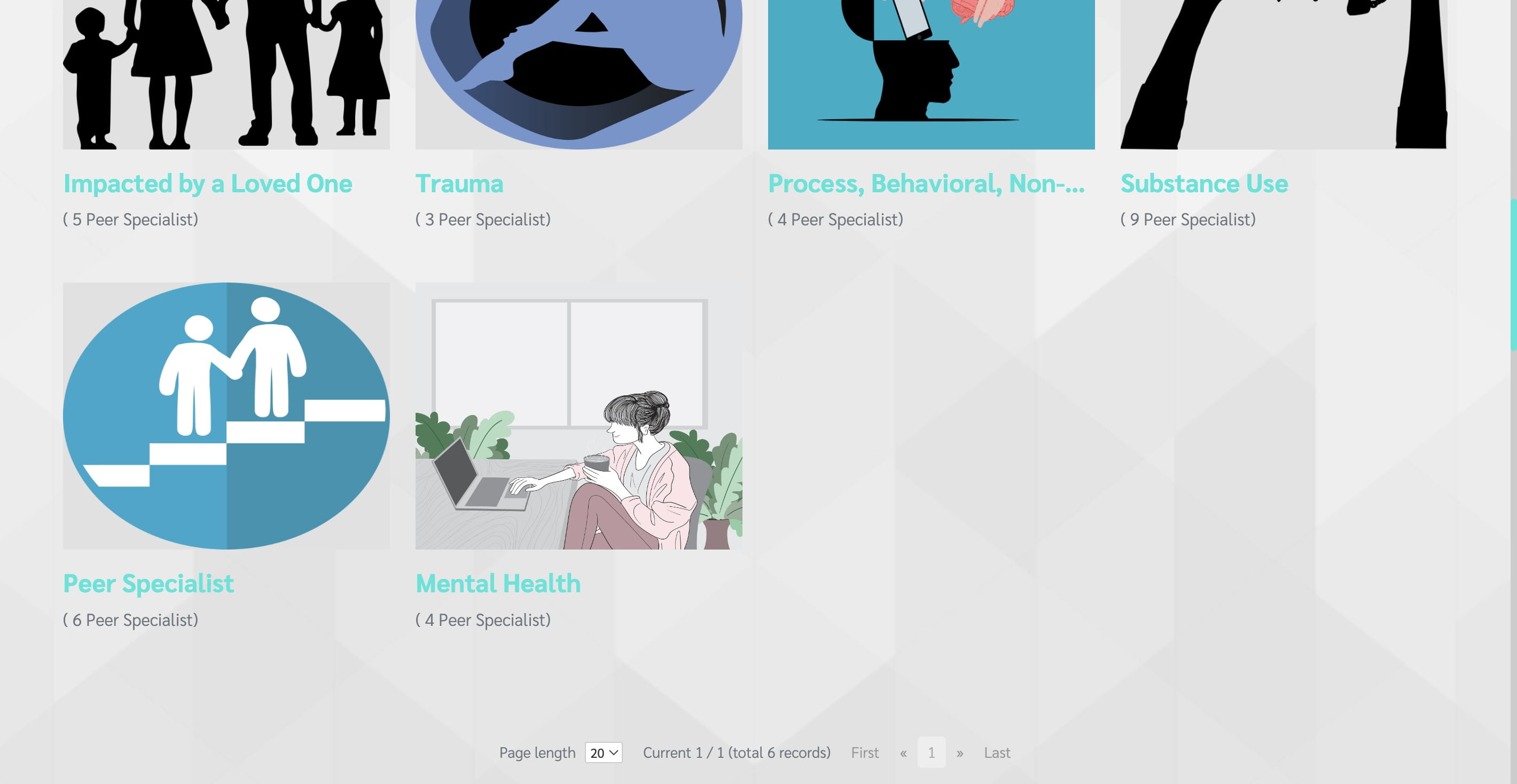
Click on a category that you selected during your profile creation.
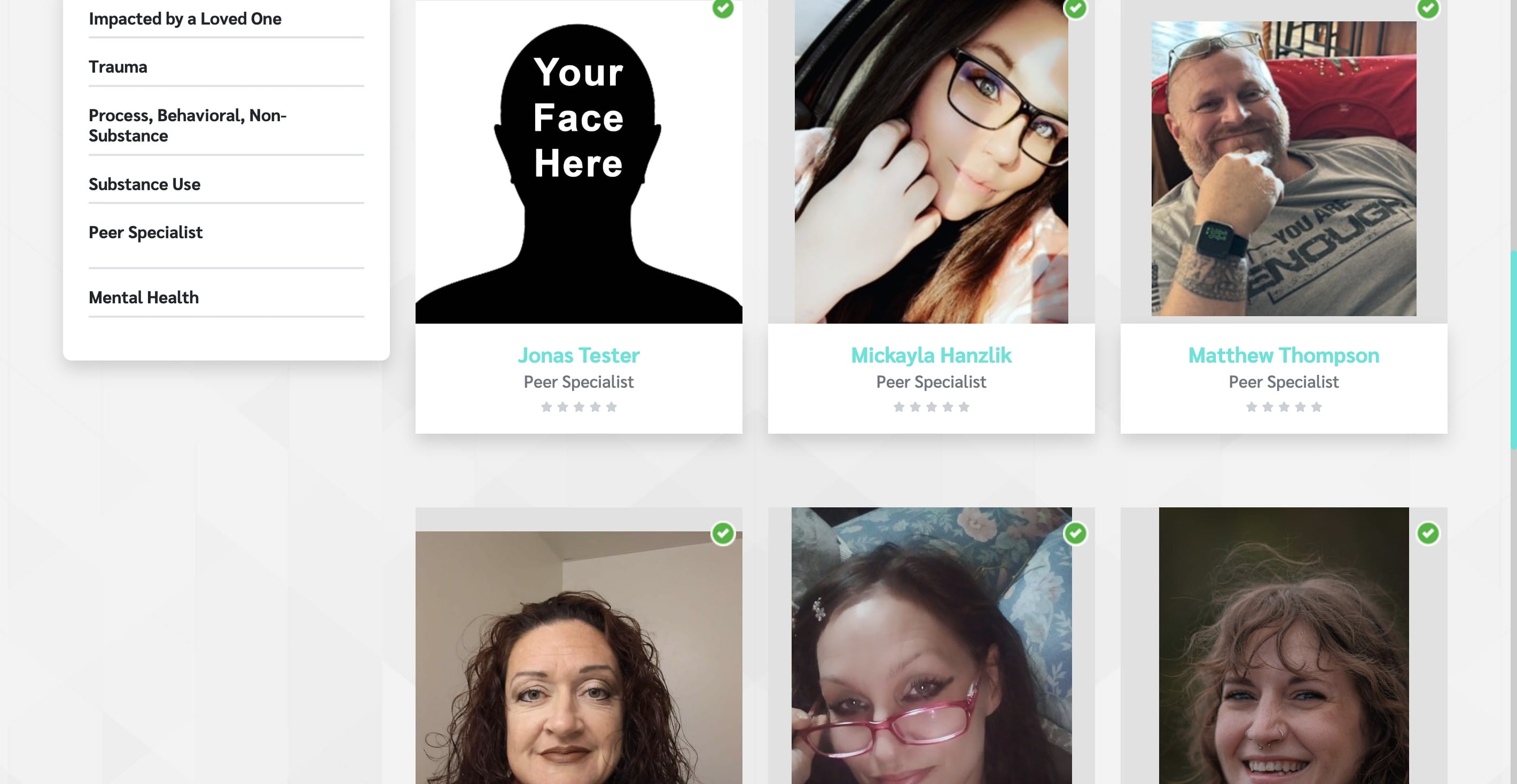
Find your profile, and click to open.
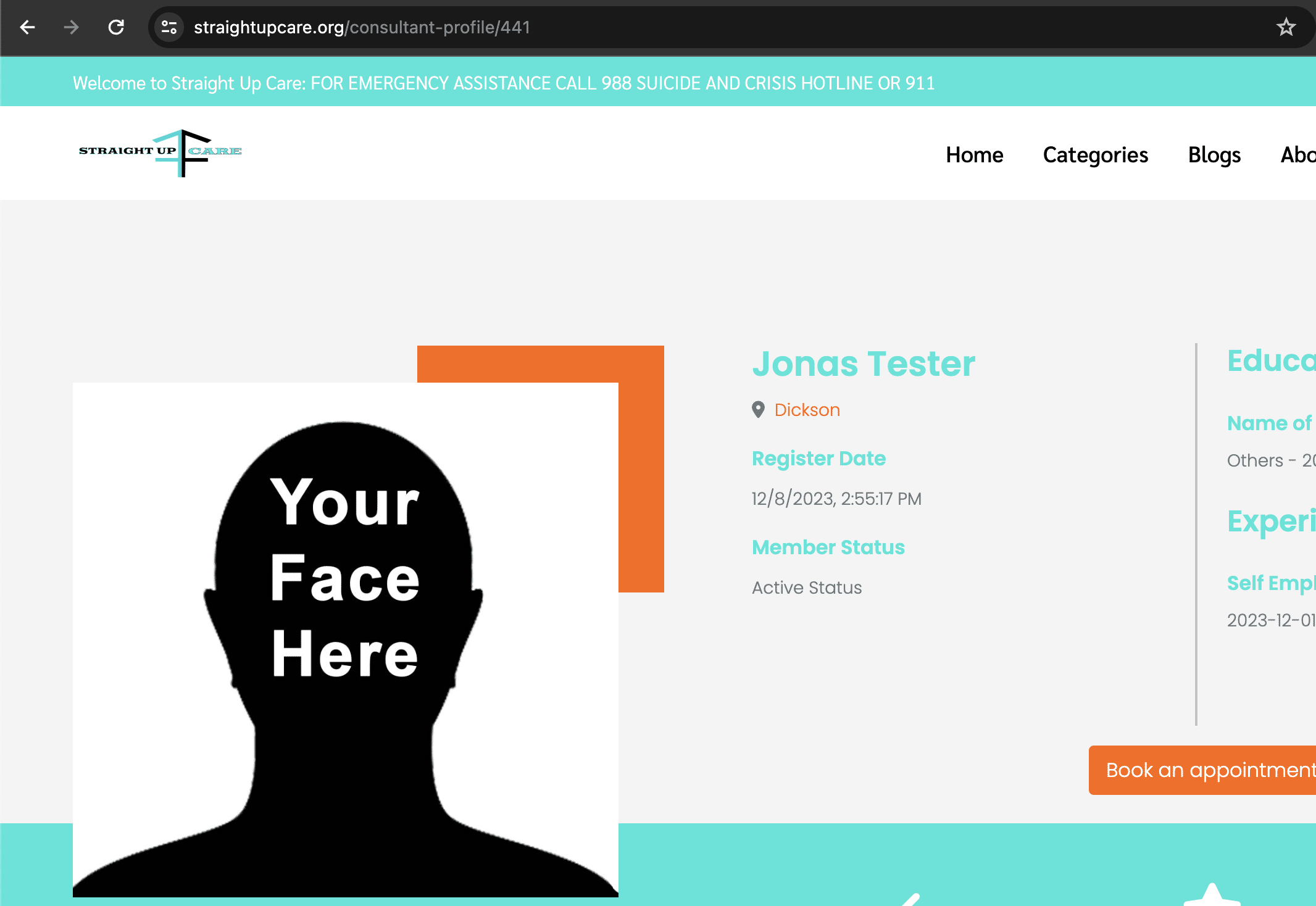
Copy the address in the address bar.
Go to your profile on https://straightupcare.com and go to "Profile Settings"
 and go to "Profile Settings"](https://assets.guidejar.com/uploads/a4dd4984-b27f-4011-b909-c621bd791889/QwB3YYJ914WVEw6RZF1EfWxnQcQ2/46ac219d-64f3-4de3-8ec2-8d8746859828/1708290909942.jpeg)
One the left, click on "Single Fields"
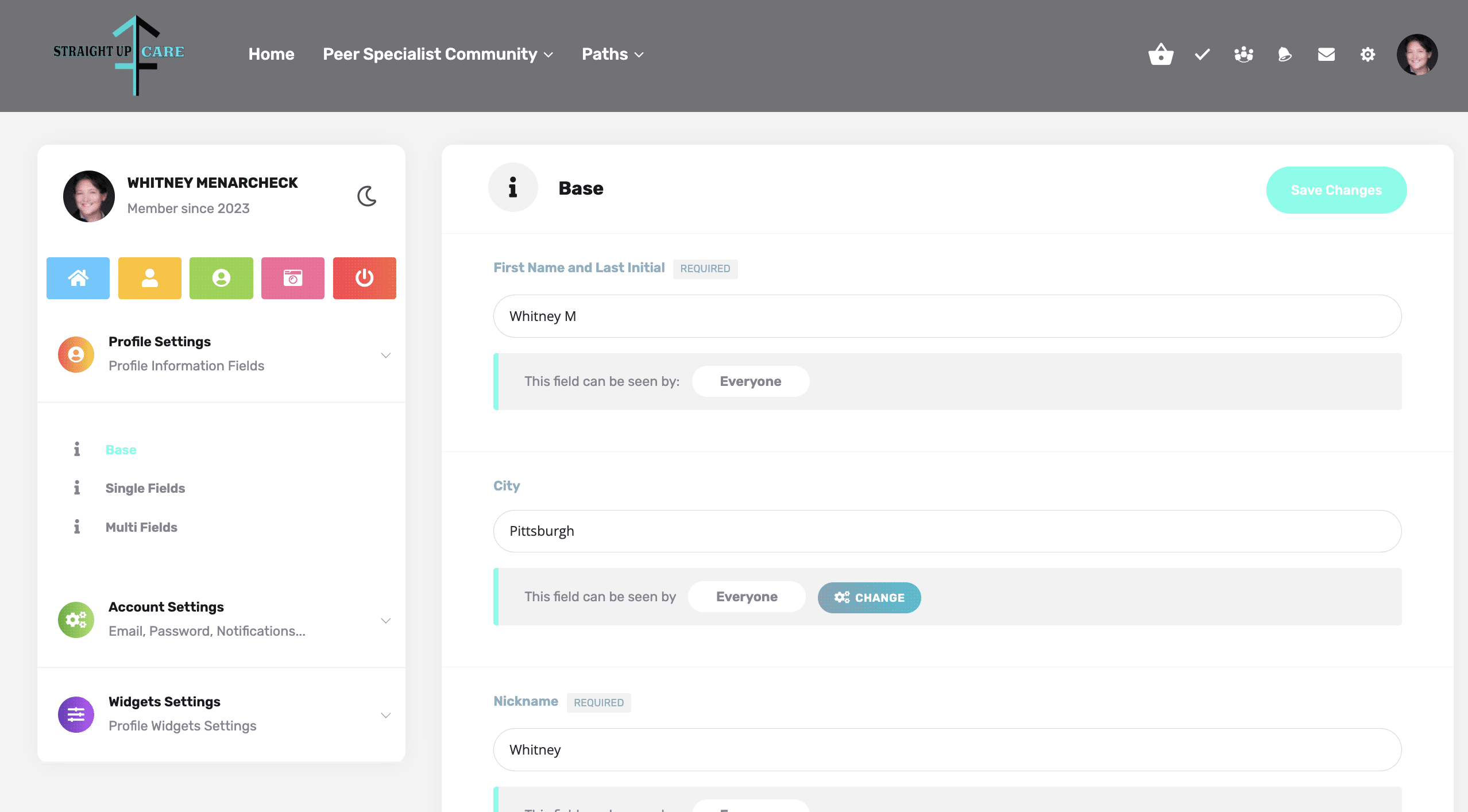
Scroll down to "URL" and enter the webaddress you copied for your .org profile.
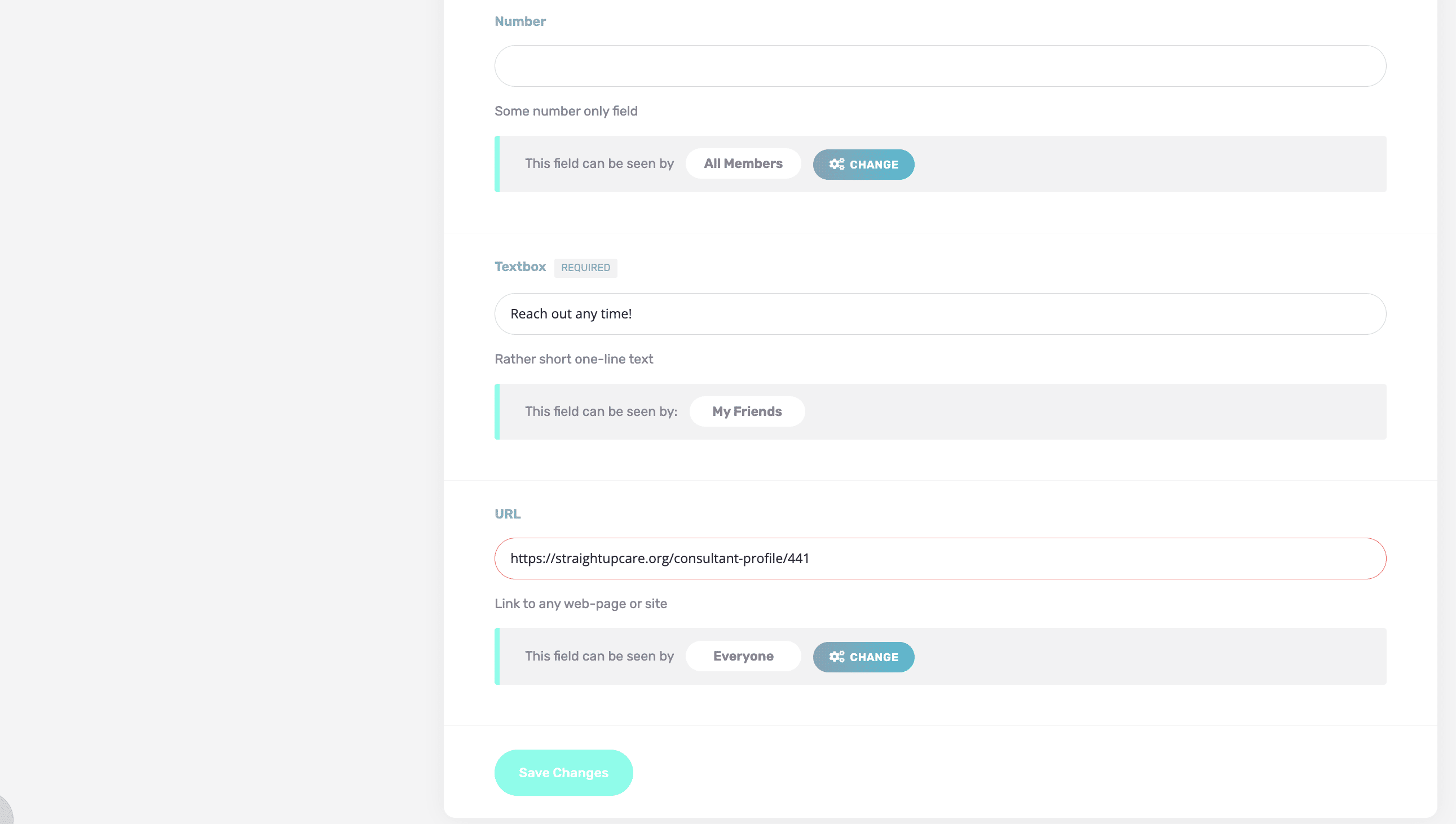
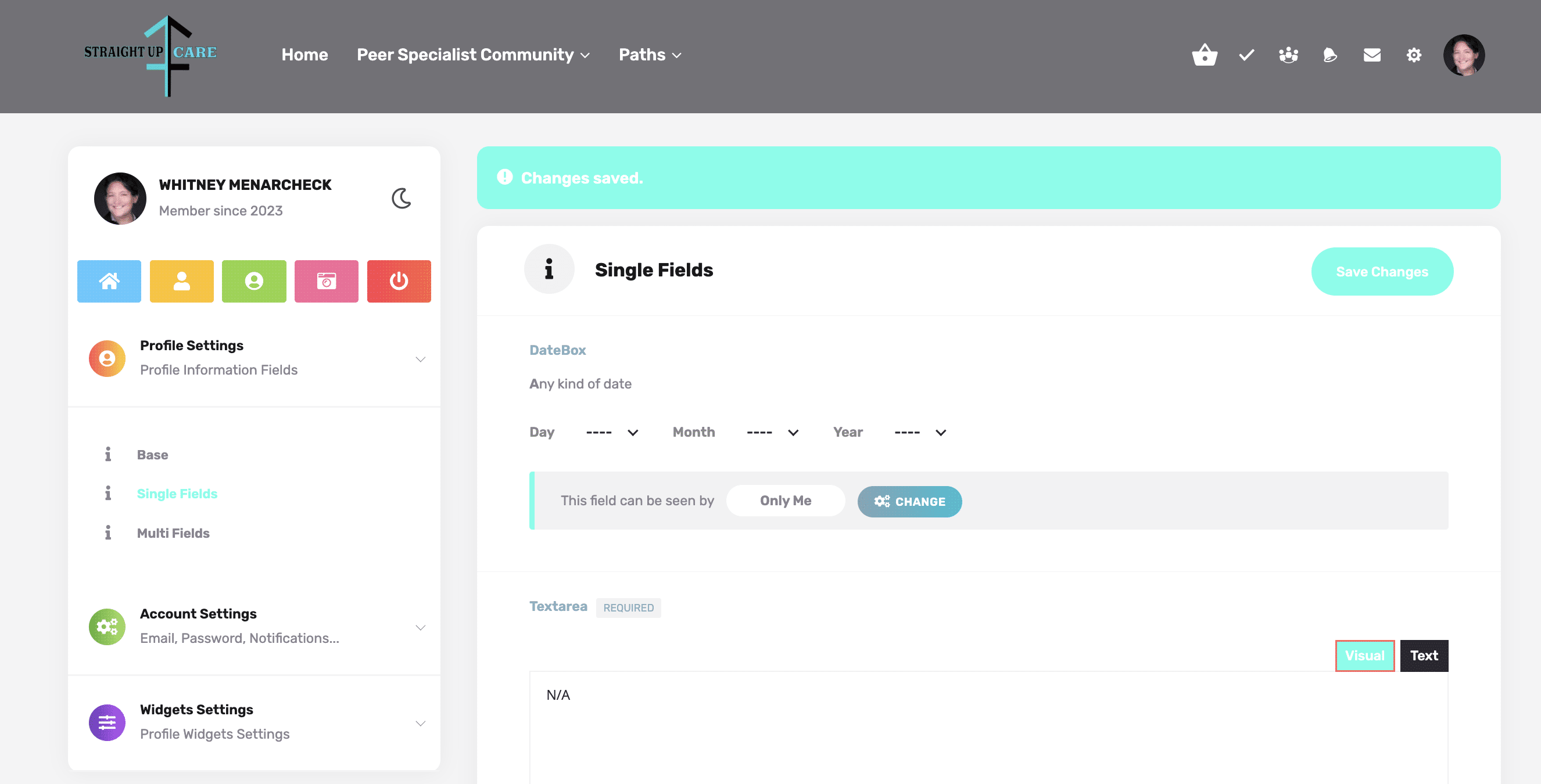
Click "Save Changes."
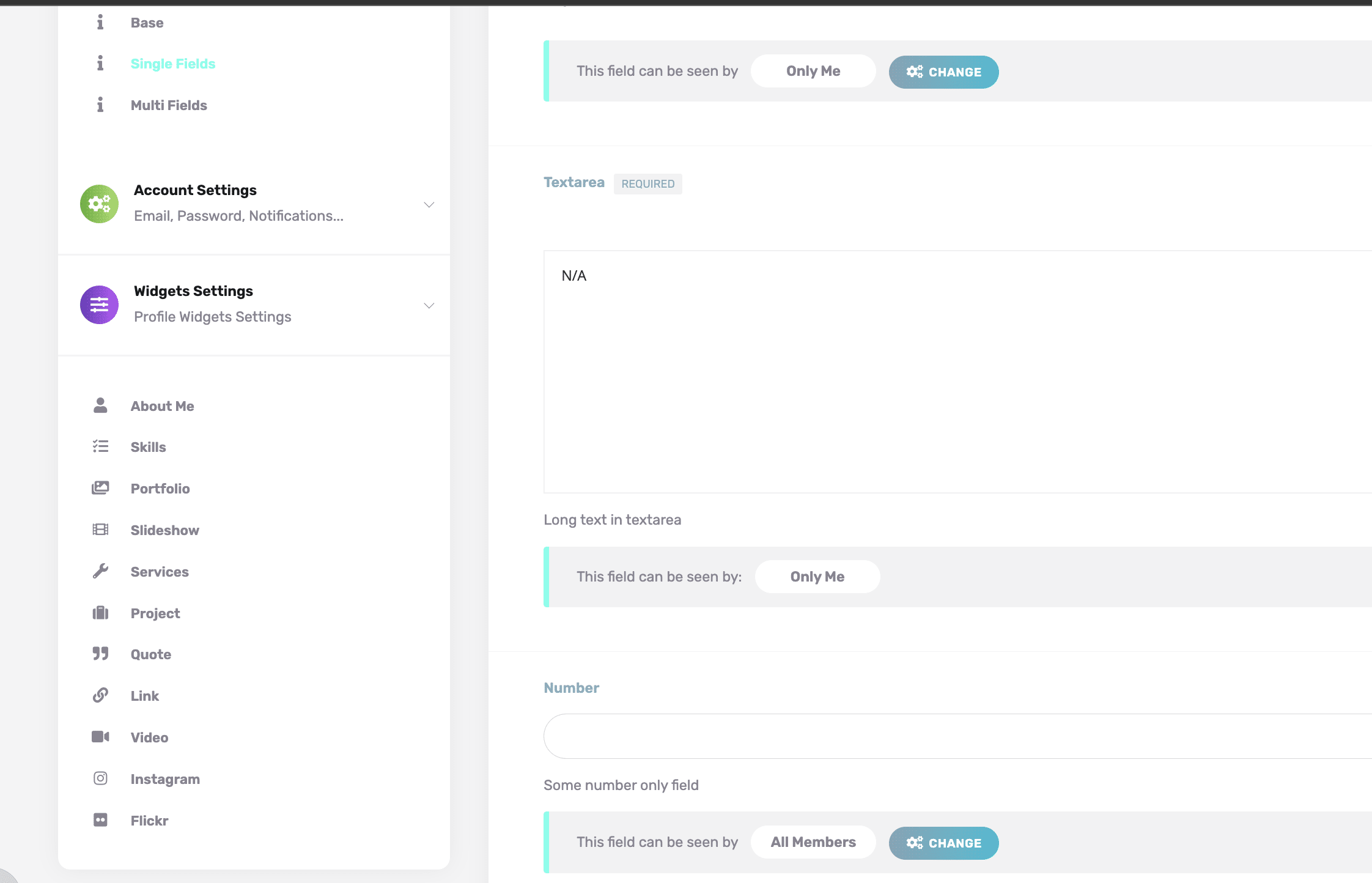
Click on the down arrow for "Widget Settings"
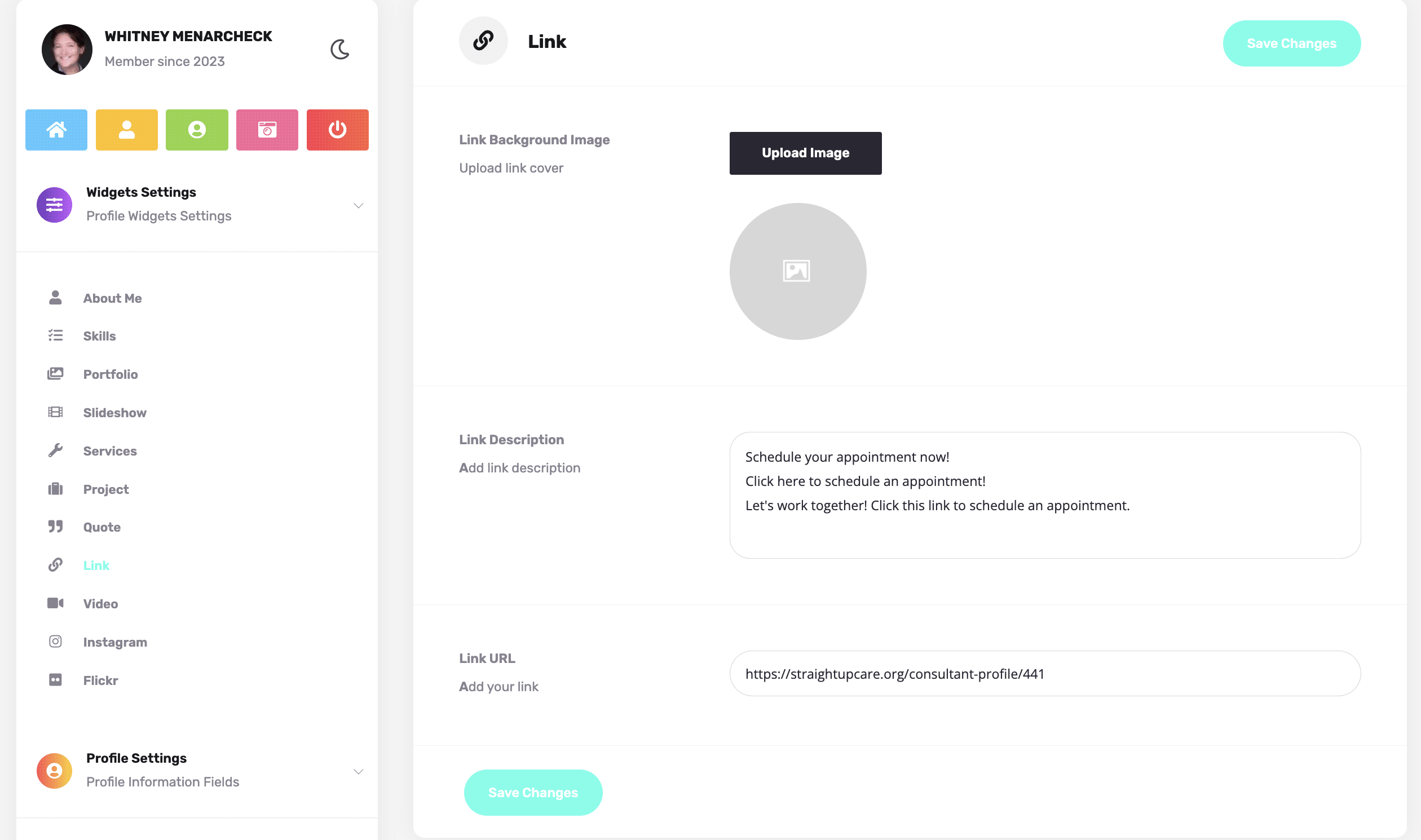
Click on "Link"
Enter something into the "Link Description," such as "Let's work together! Click this link to schedule an appointment." Paste the webaddress for your .org profile into "Link URL."
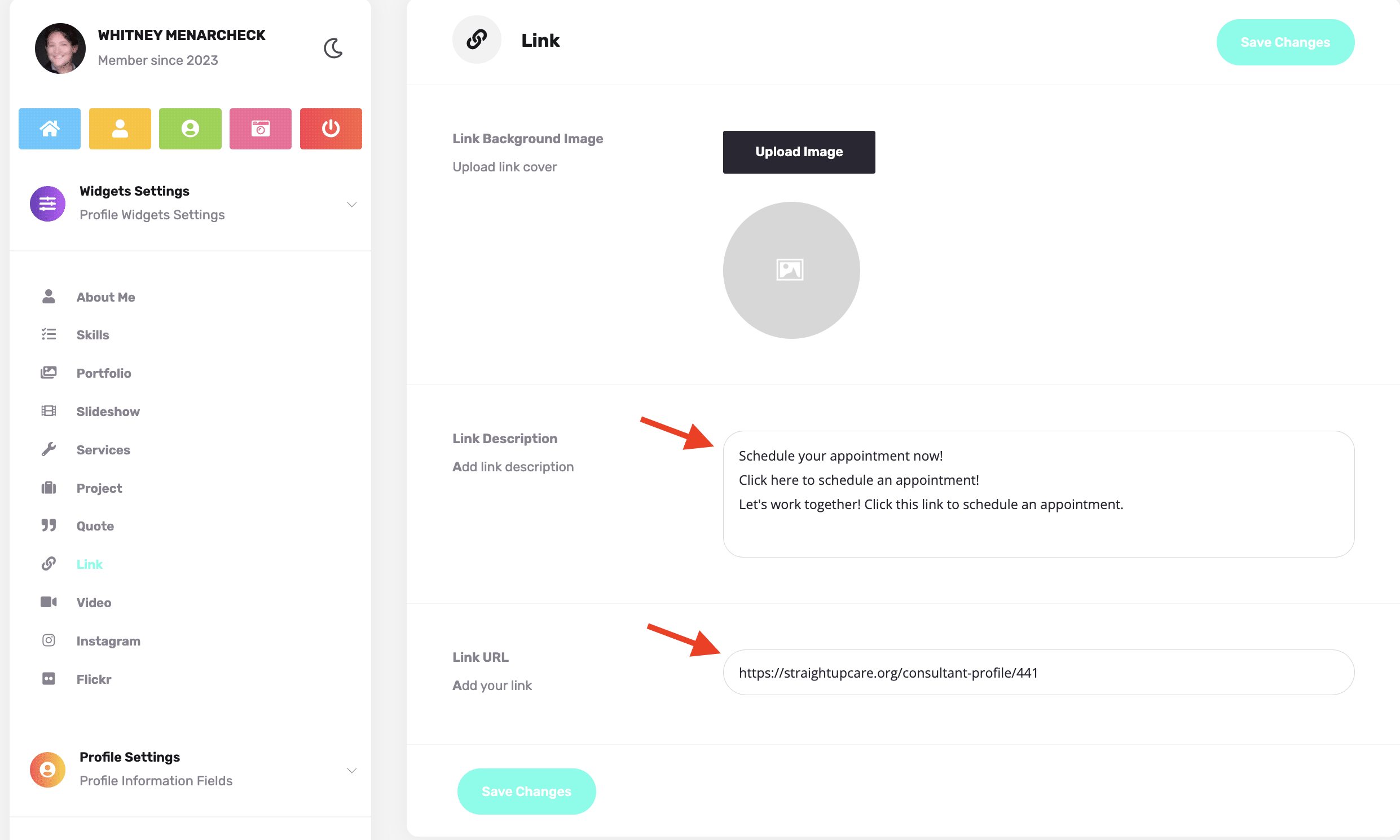
Click "Save Changes."
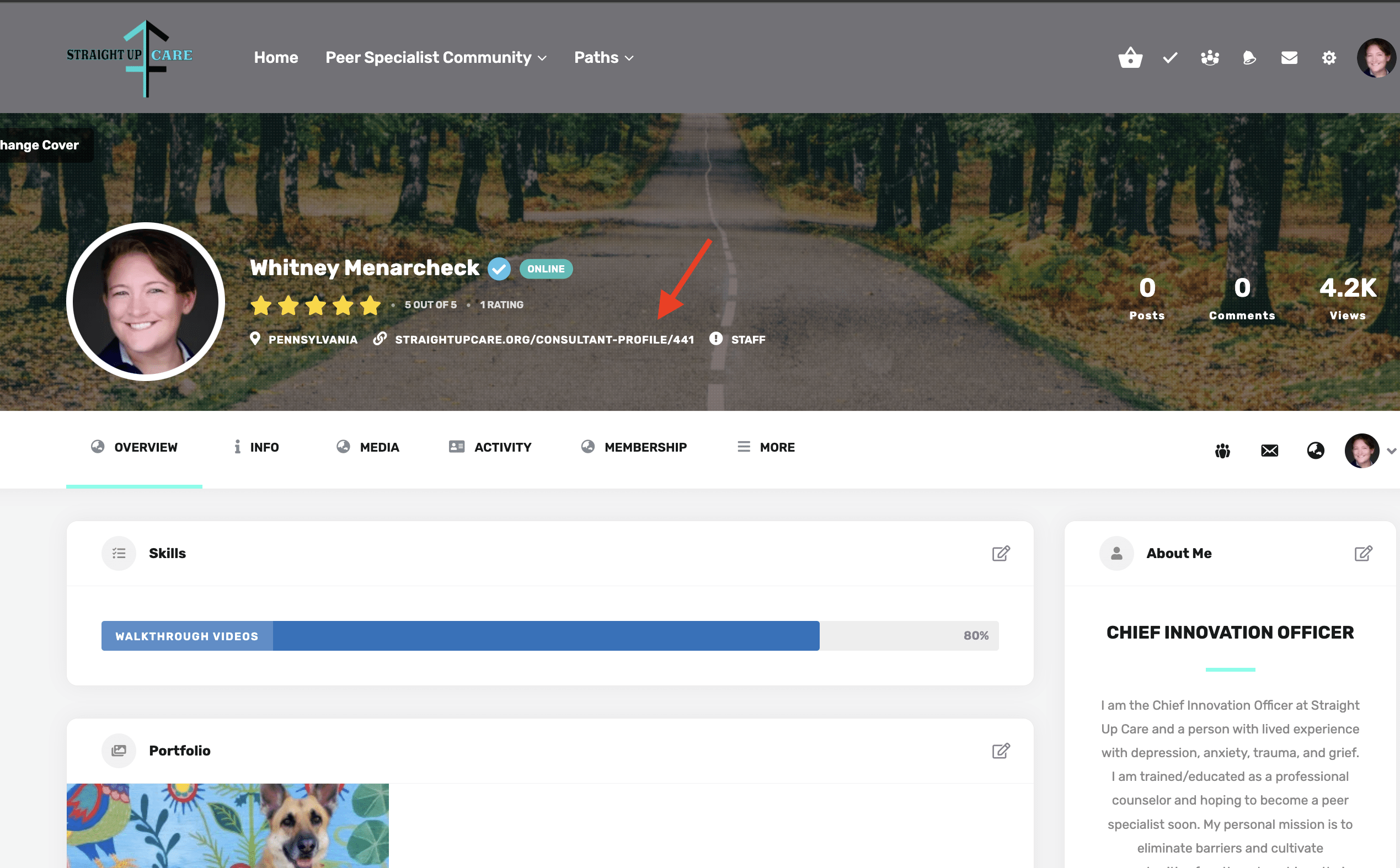
Your link is now in your banner...
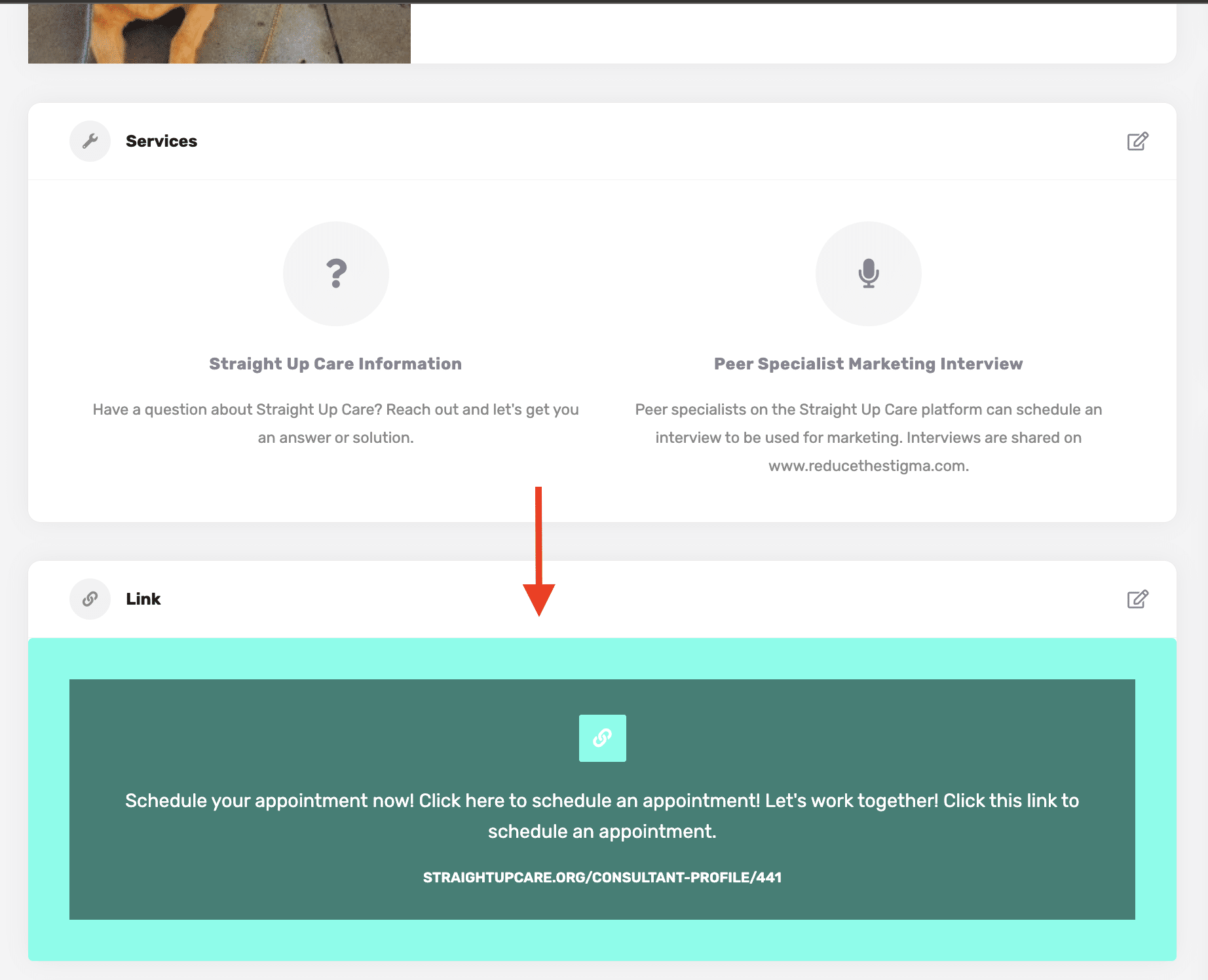
...and on your profile's overview.
Email [email protected] with any issues.