
Adding a Task to a Student's Profile
This guide explains how to add and manage Student Tasks and Advisor Tasks on a student’s profile.
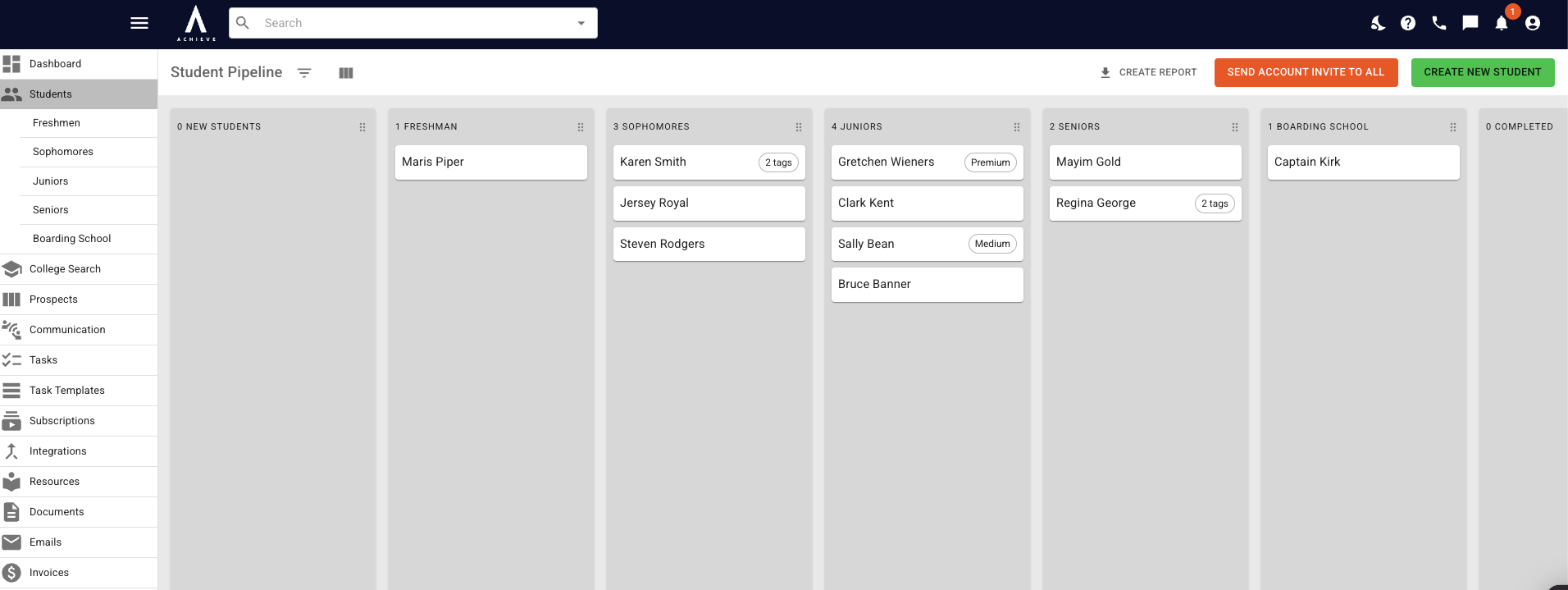
Navigate to the profile of the student you are assigning the Task to.
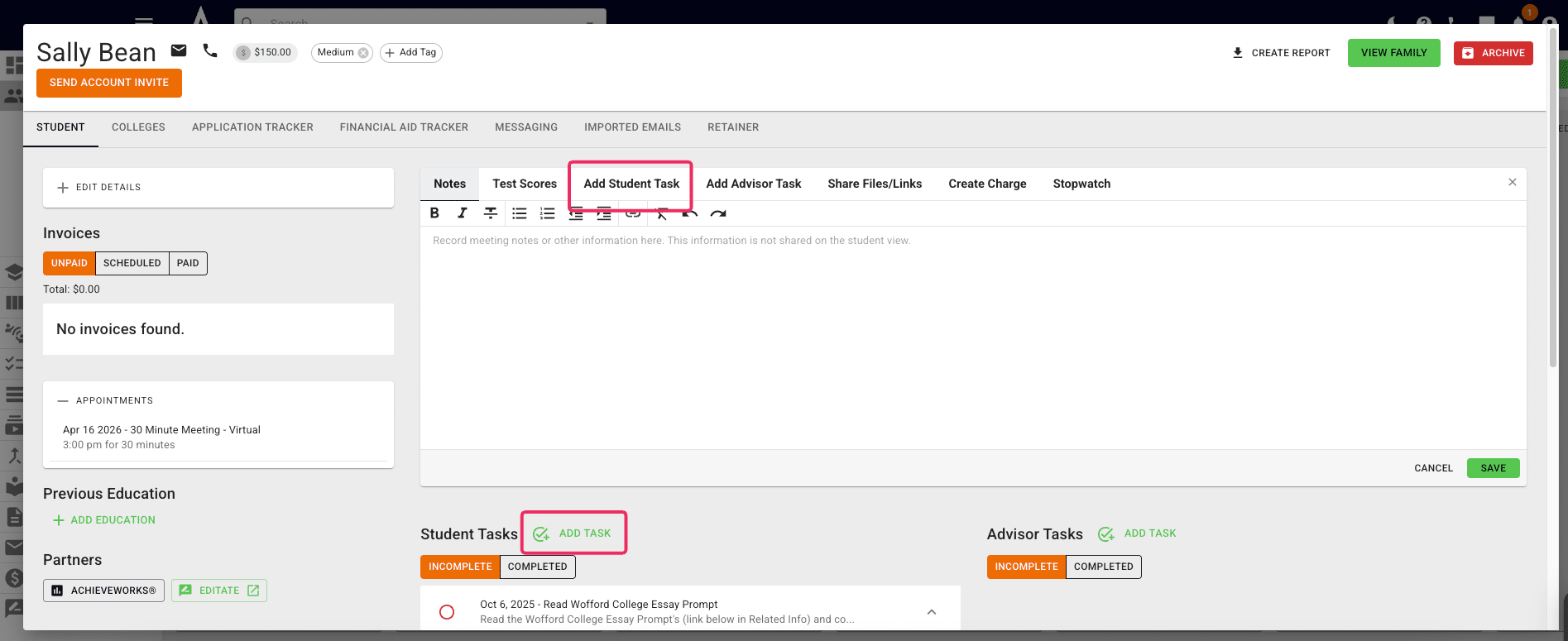
There are two places to add a Student Task on a student's profile: in the action bar and as part of the Student Tasks section. Clicking either Add Task button will bring up the same pop-up.
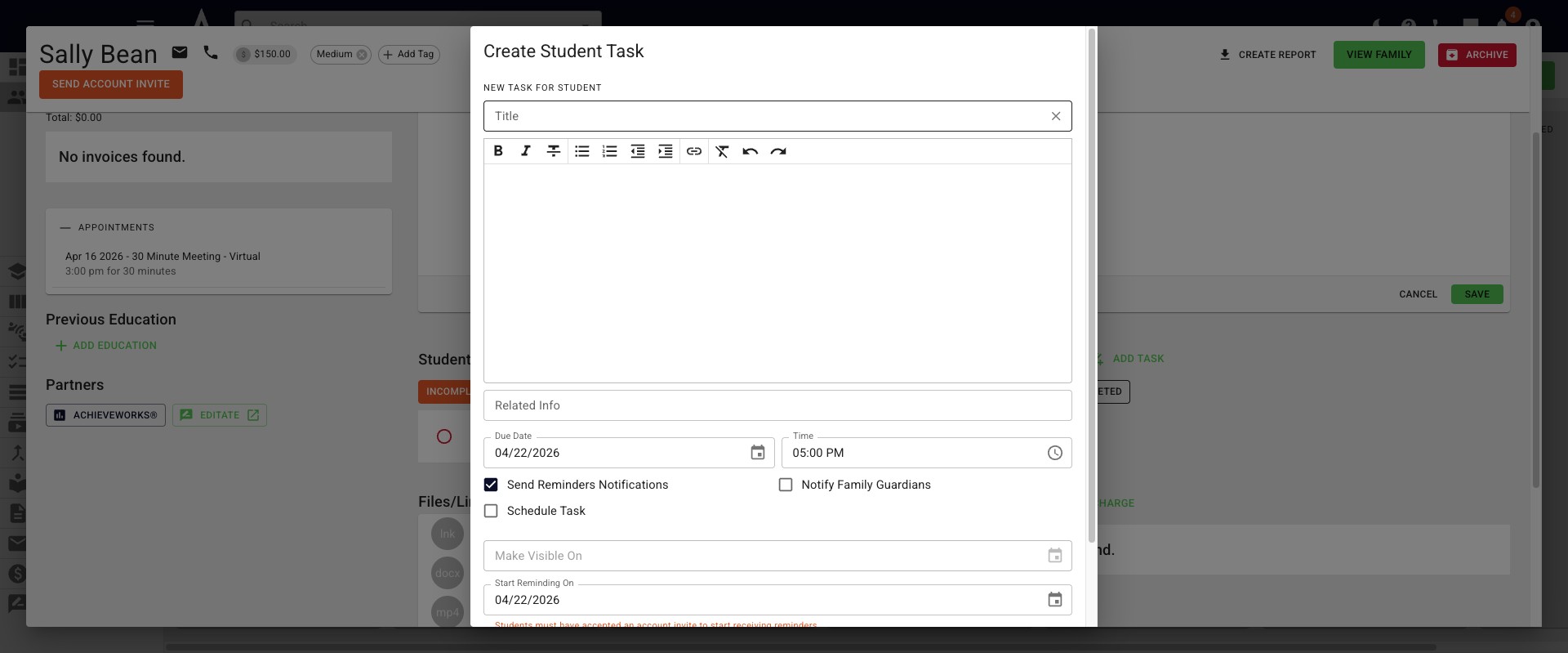
Within the pop-up, click the Title box to name the Task. The task bank will then appear, which will include Default Tasks and any Task Templates you've added to Achieve. You can select a task from the bank or start typing the title of a one-off task.
In the body of the task, you can add any task details and below that, under Related Info, you can add additional information or related links.
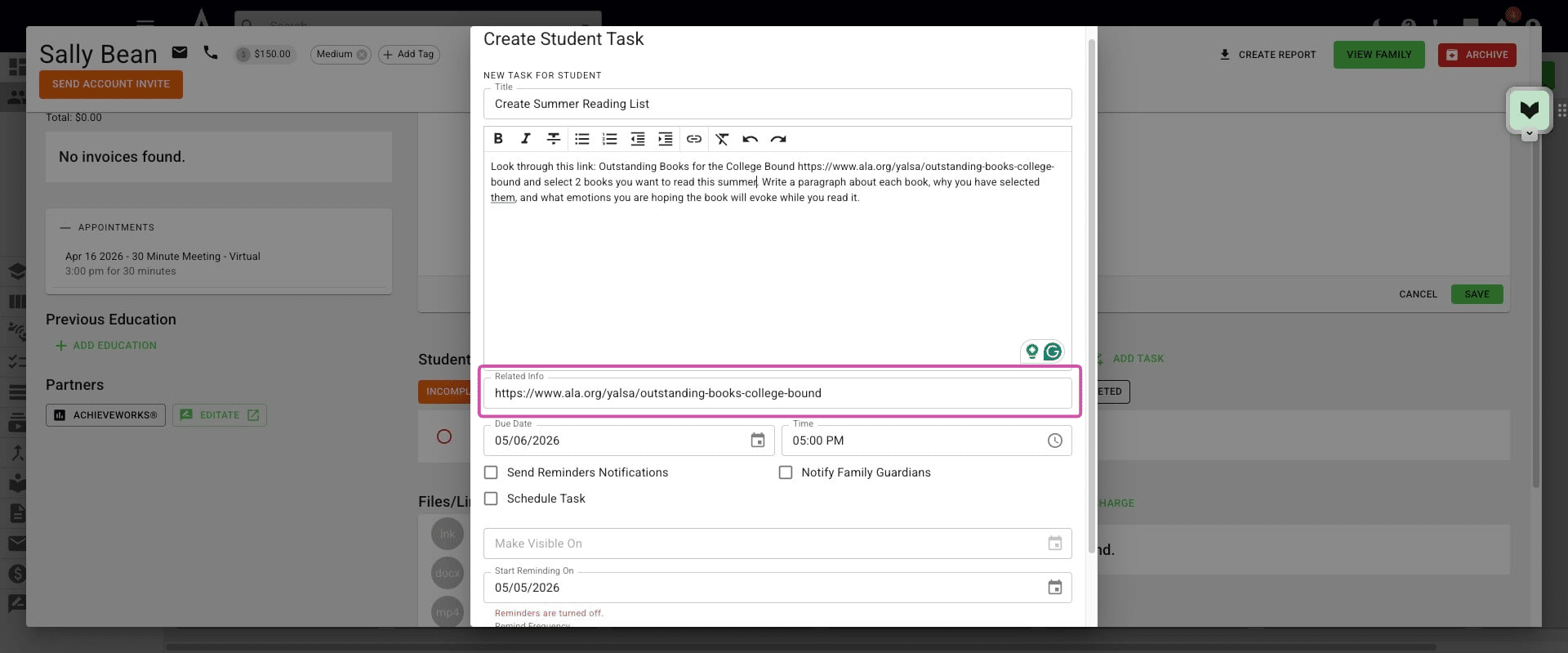
If you'd like to change when the task is due, you can change the Due Date and/or Time fields.
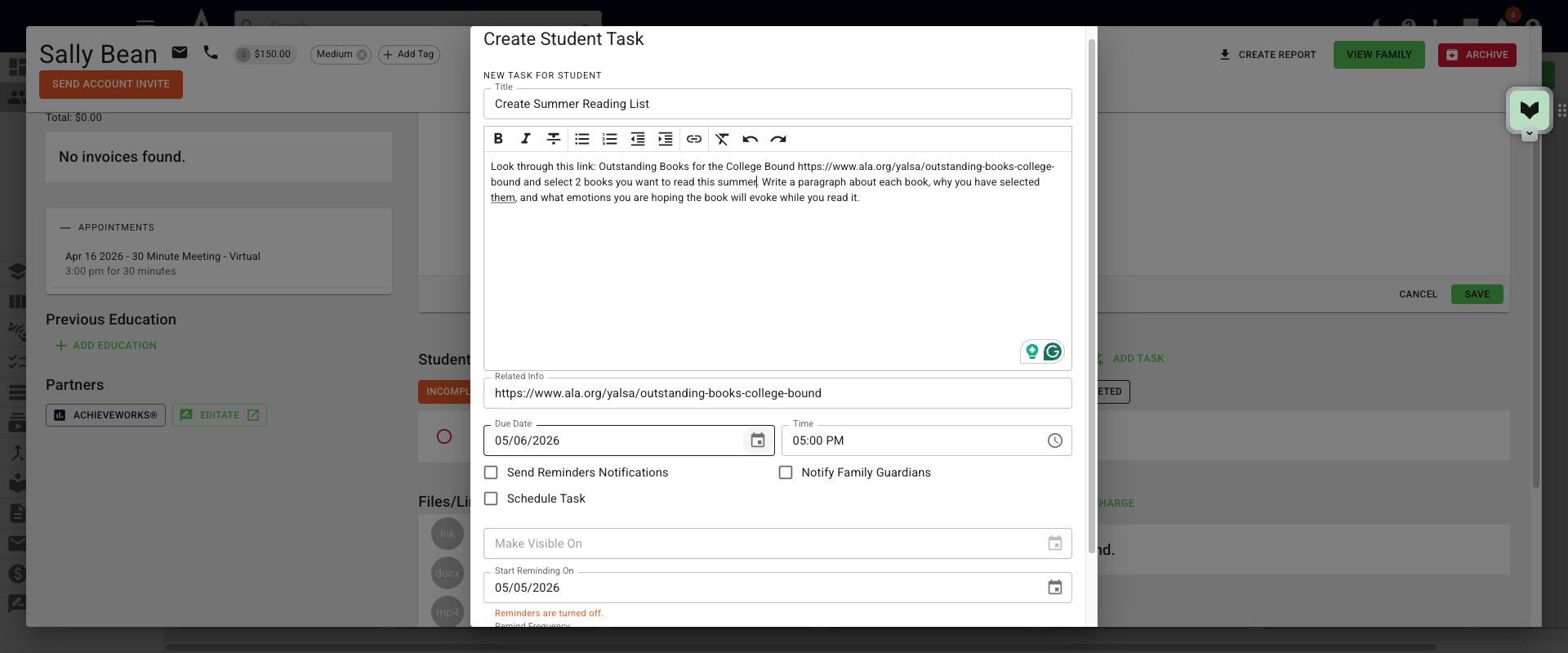
To set a reminder, click Send Reminder Notifications, and Achieve will automatically send Reminders until the task is closed out.
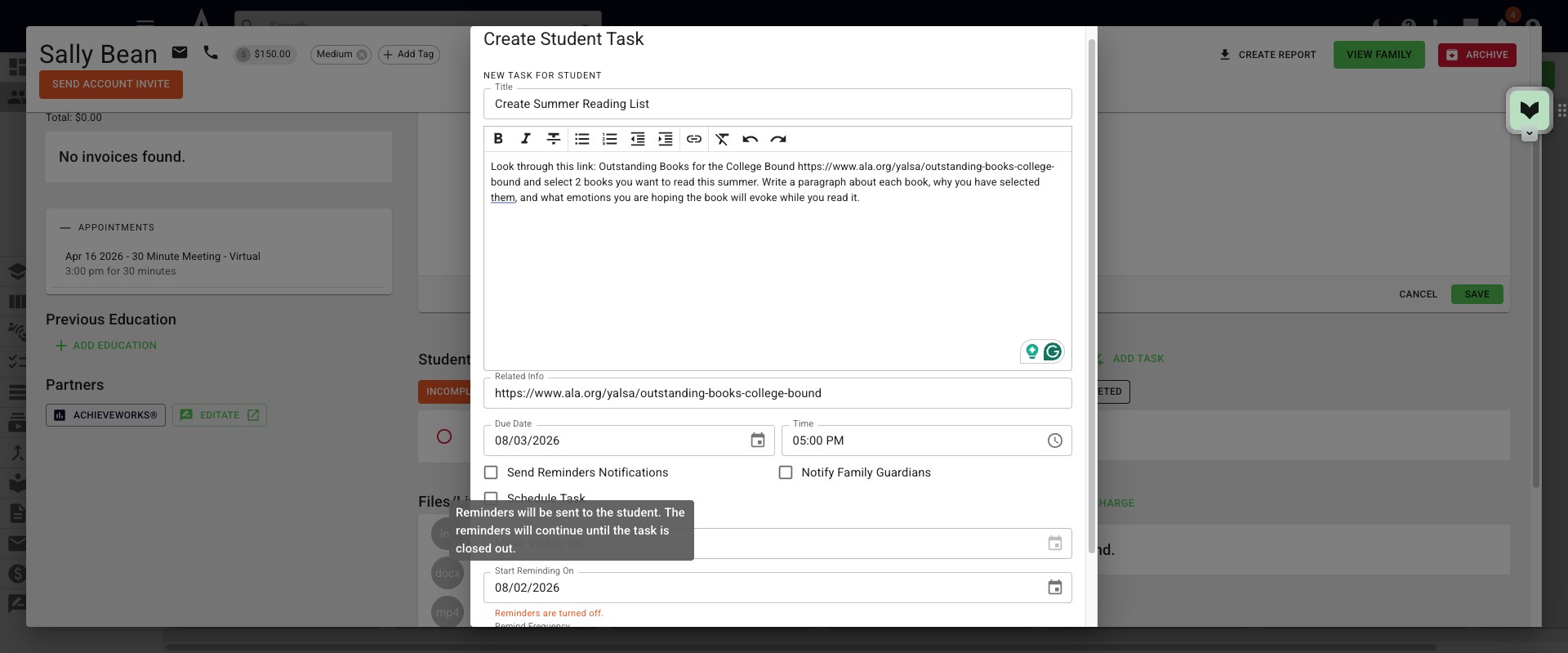
Click Notify Family Guardians if you would like reminders to be sent to parents/guardians who have the Receive Task & Broadcast Emails box checked under the Family Profile.
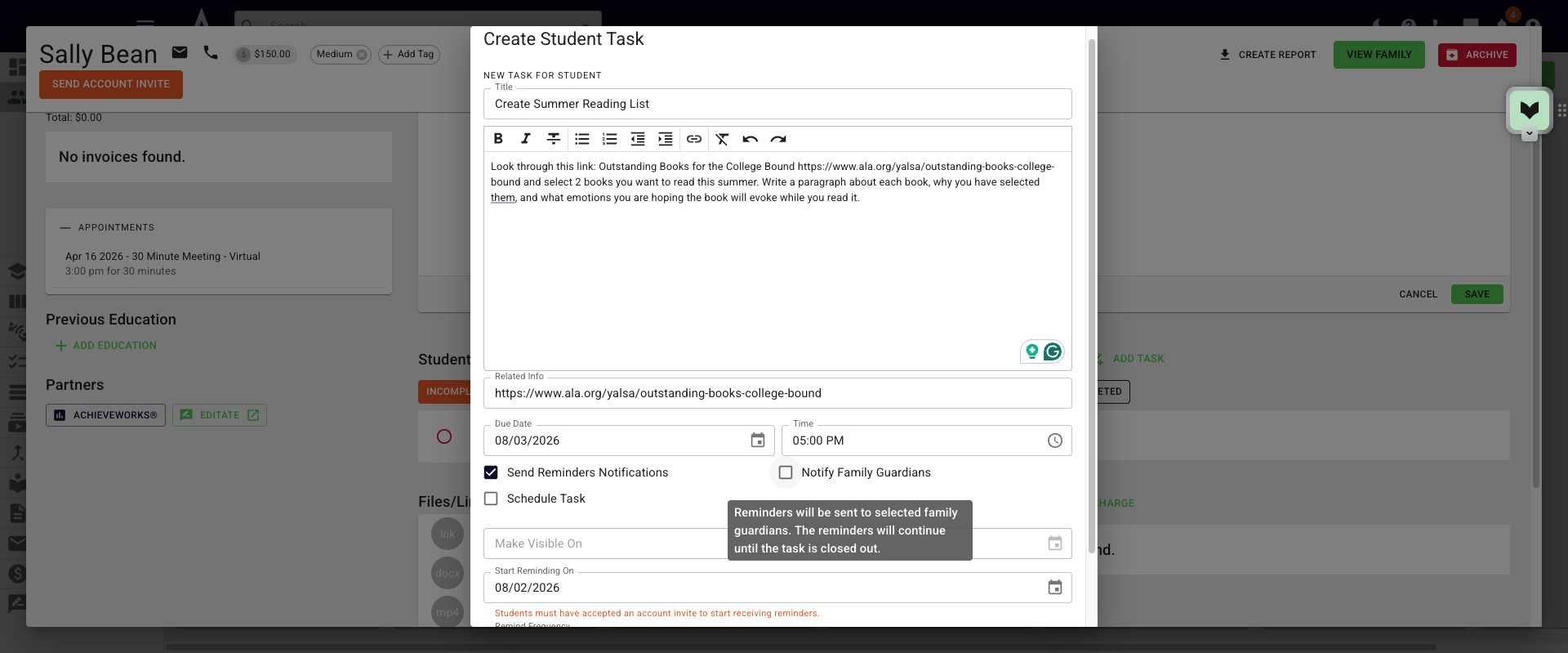
Click on Schedule Task if you do not want the task to show on the student's side or send reminders until a specific date. If you do not set a date, the task will stay hidden from the student until you uncheck this box.
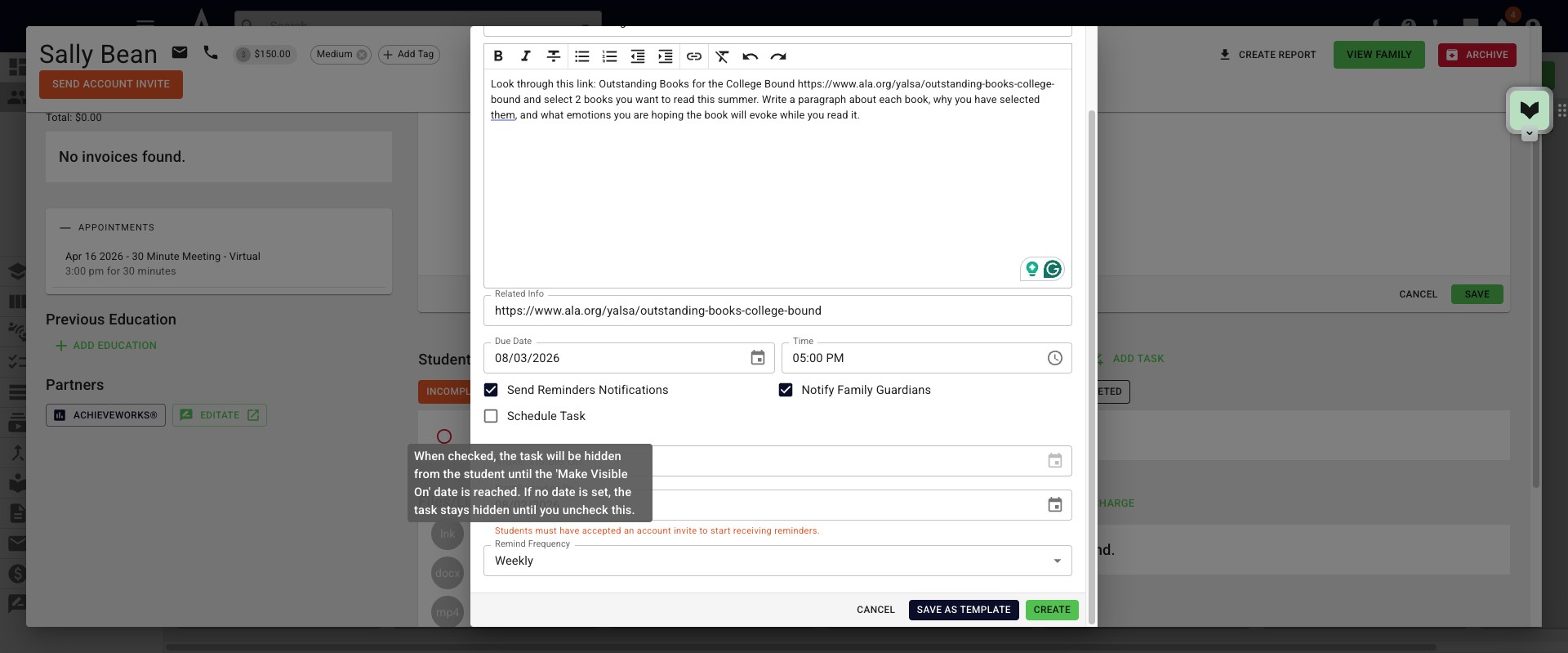
Click the Make Visible On box to select the date you would like the task to be visible on the student's profile.
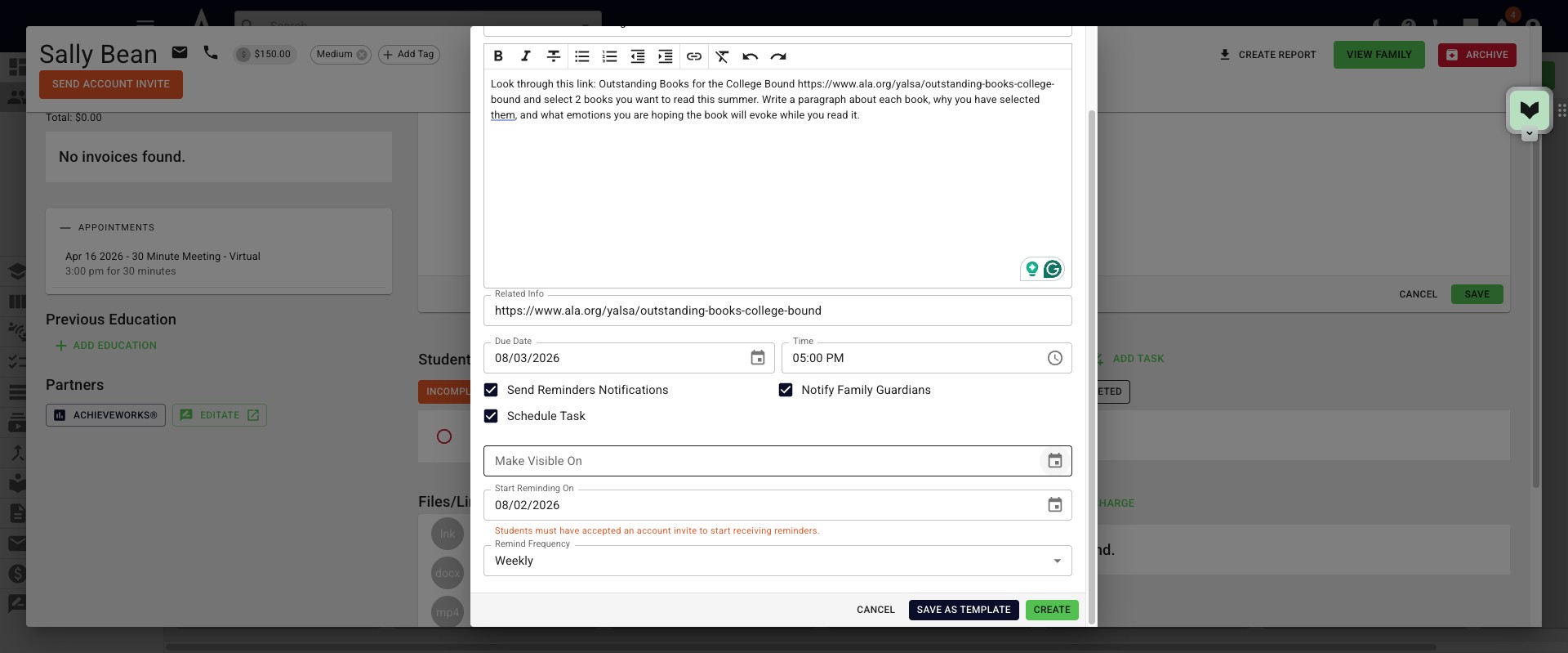
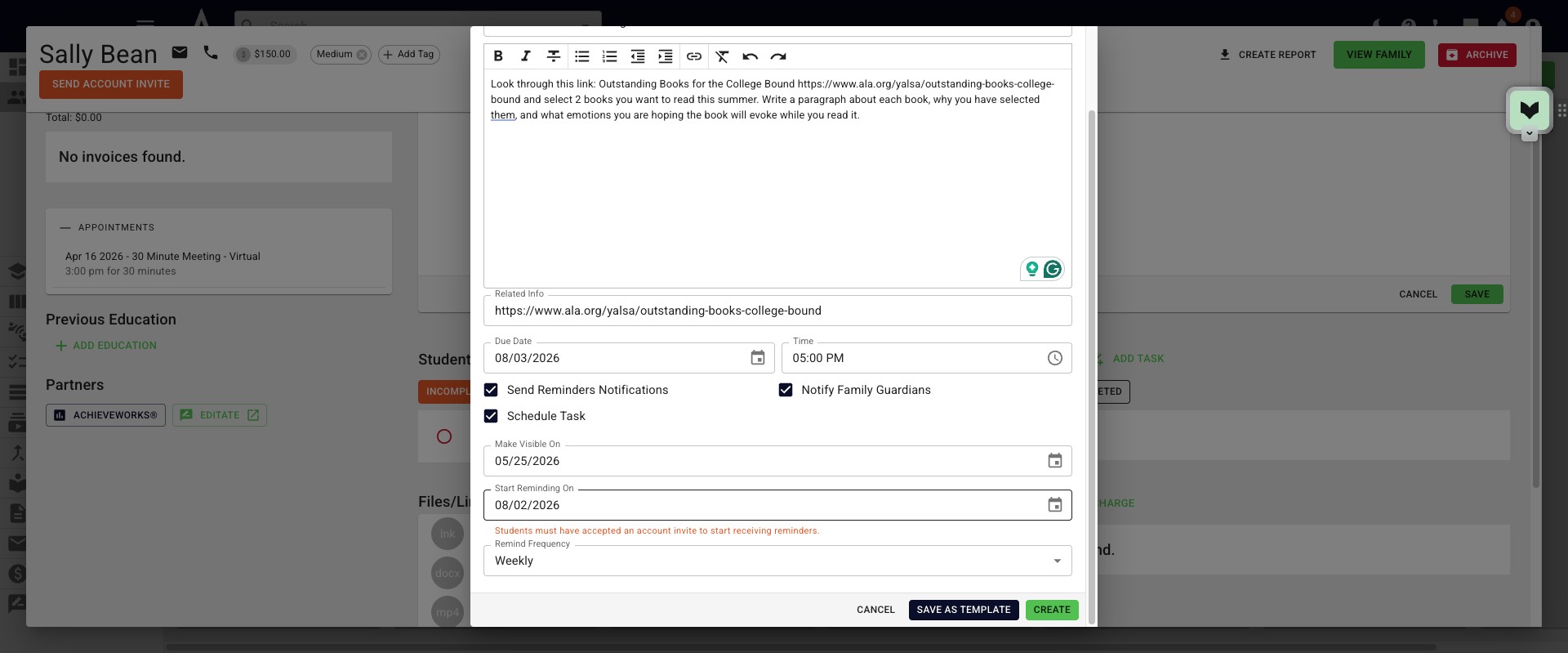
To change when reminders will be sent change the date in the Start Reminding On field.
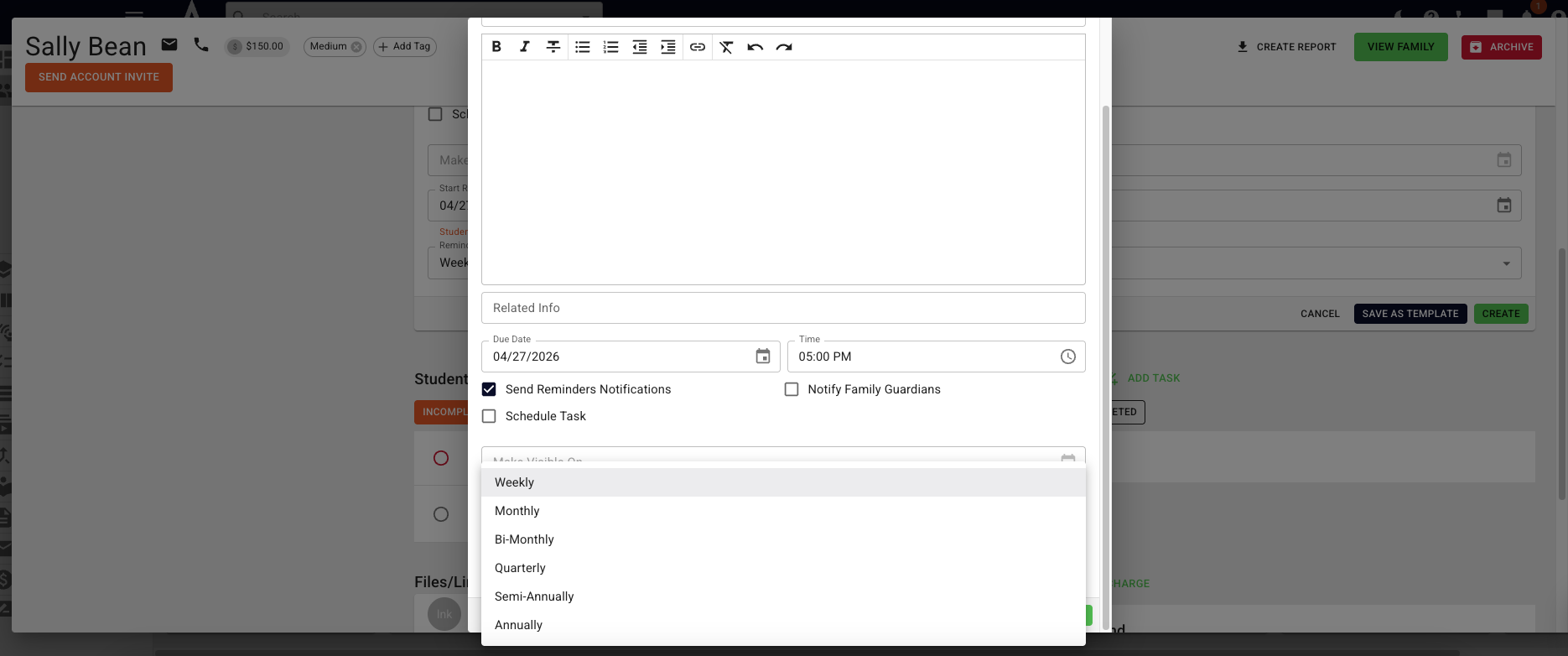
When you click on the Frequency field, a drop down will appear with different reminder intervals. You can then choose the reminder frequency for this task.
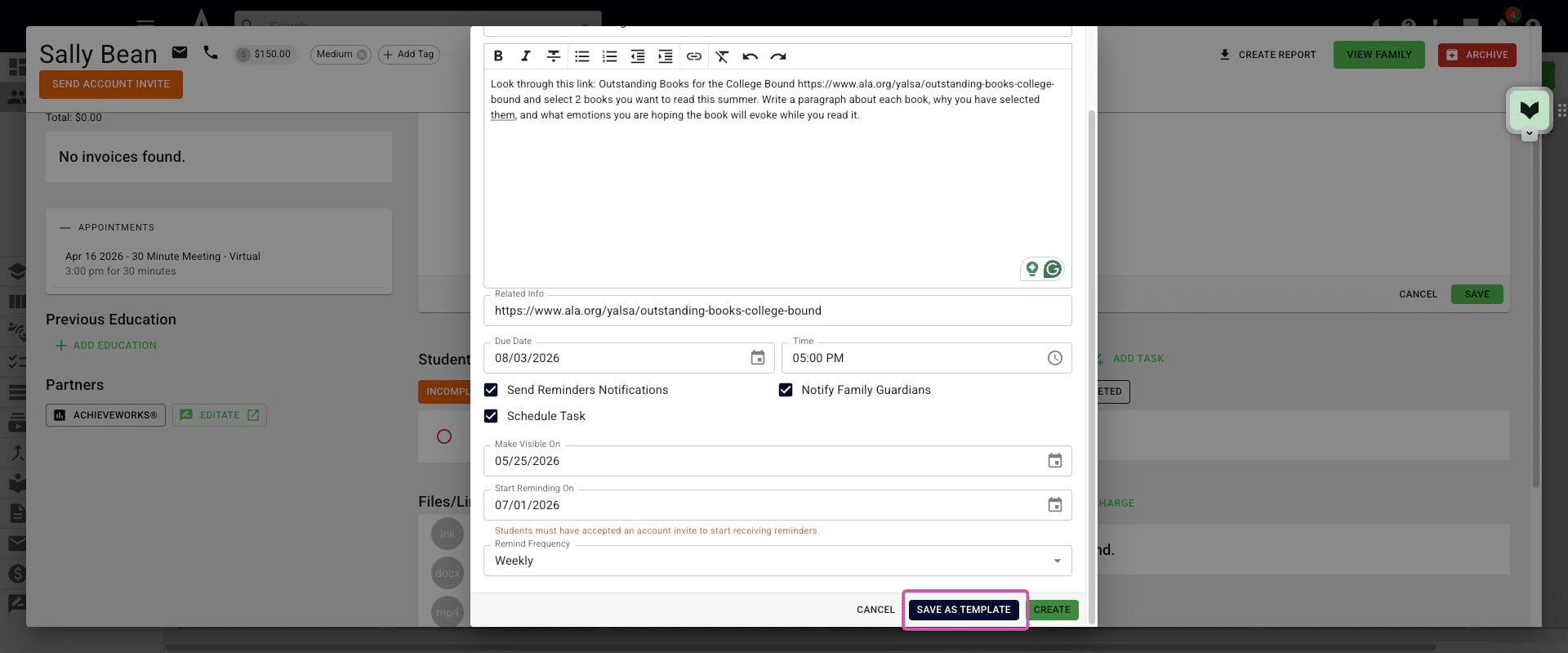
When you’re finished, for a one-time task, click Create to add the task to the student's profile. You can also choose Save As Template to save it as a reusable Task Template.
The Task will appear on the student's profile. If you have Scheduled a task, you will see Scheduled in blue next to the task's name.
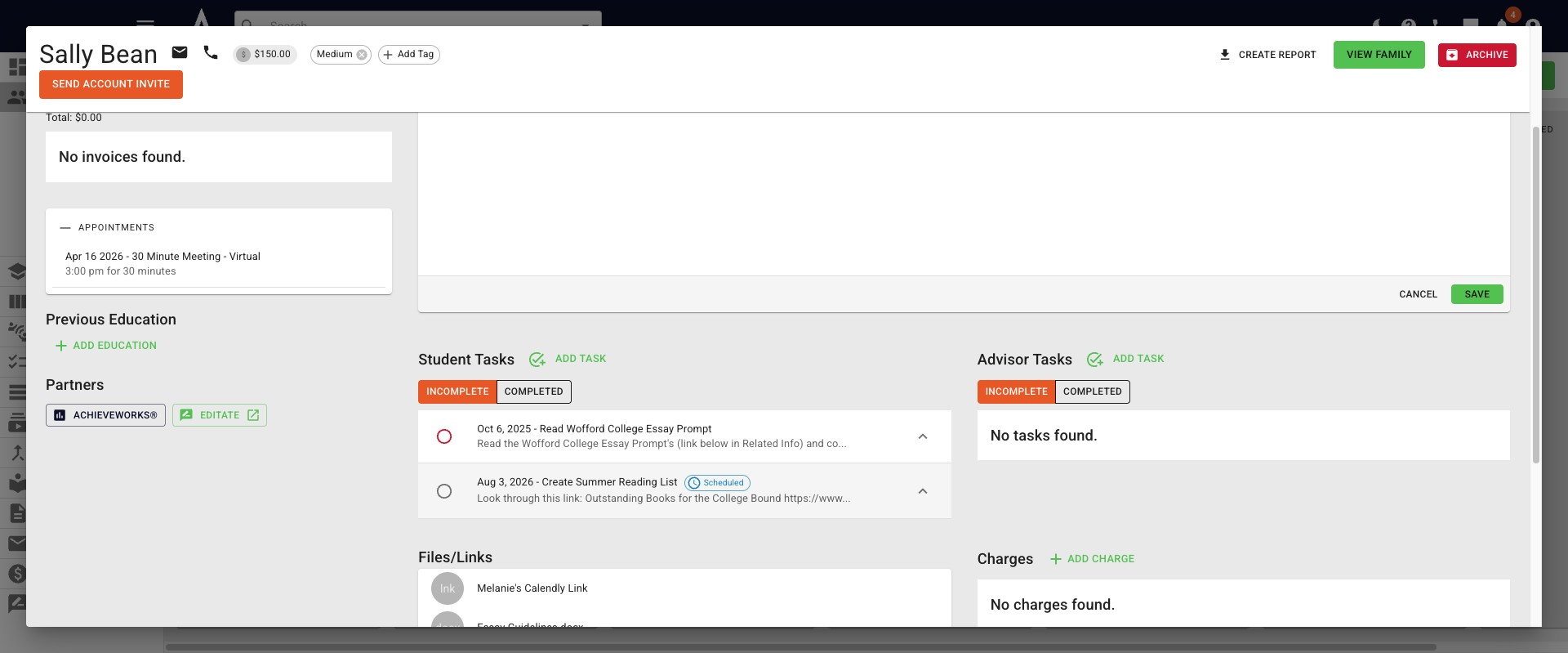
To mark a task as Complete, click on the circle to the left of the task title.
If a task is marked as Completed and needs to be moved back to Incomplete, you would click on the Completed heading and click on the radio button again. It will then show back up under the Incomplete heading.
To delete a task, expand the task & scroll to the bottom. Click the red Delete and then click Confirm.
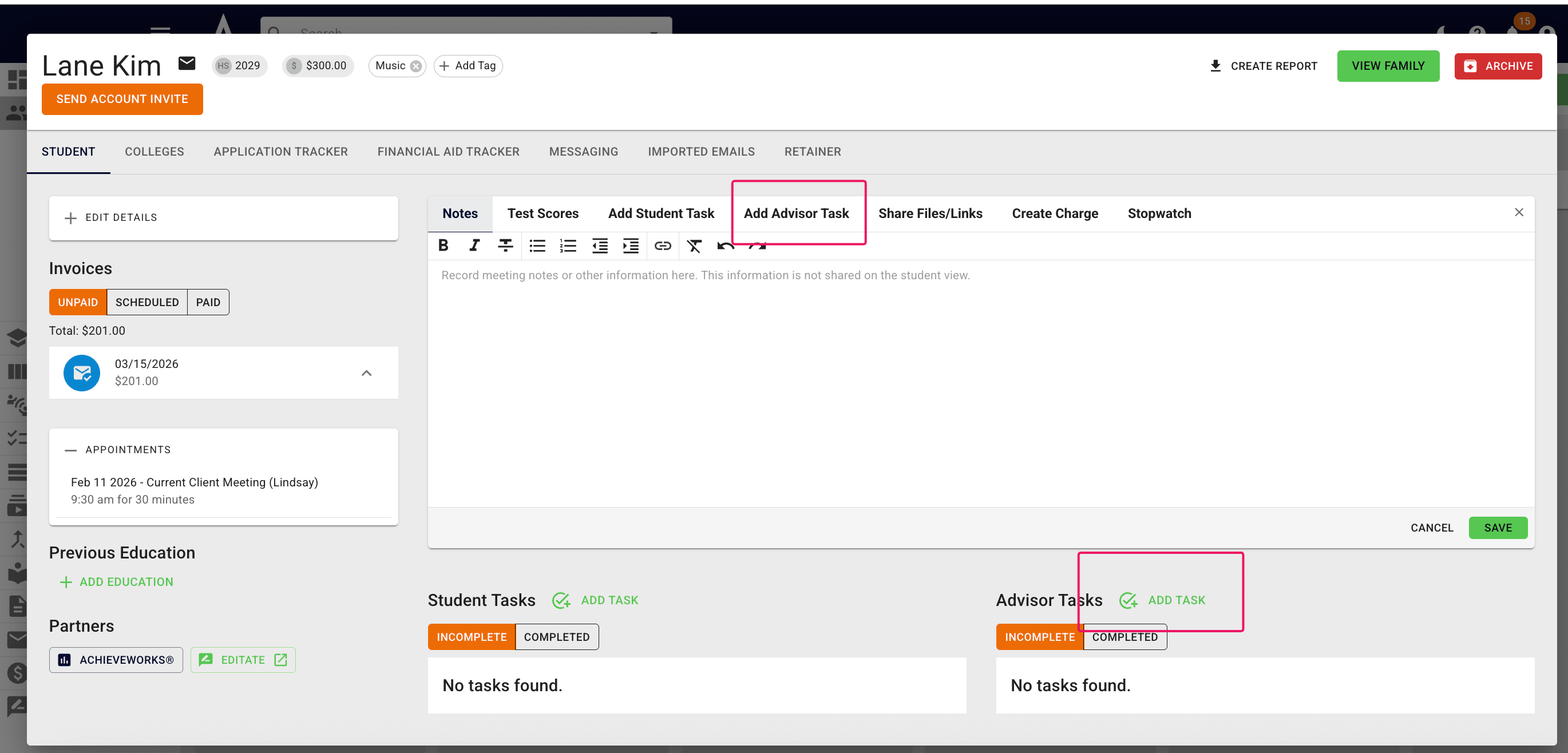
To add an Advisor Task to a student's profile, you would press Add Task in either place indicated below and then follow the same steps listed above.
Done 🚀