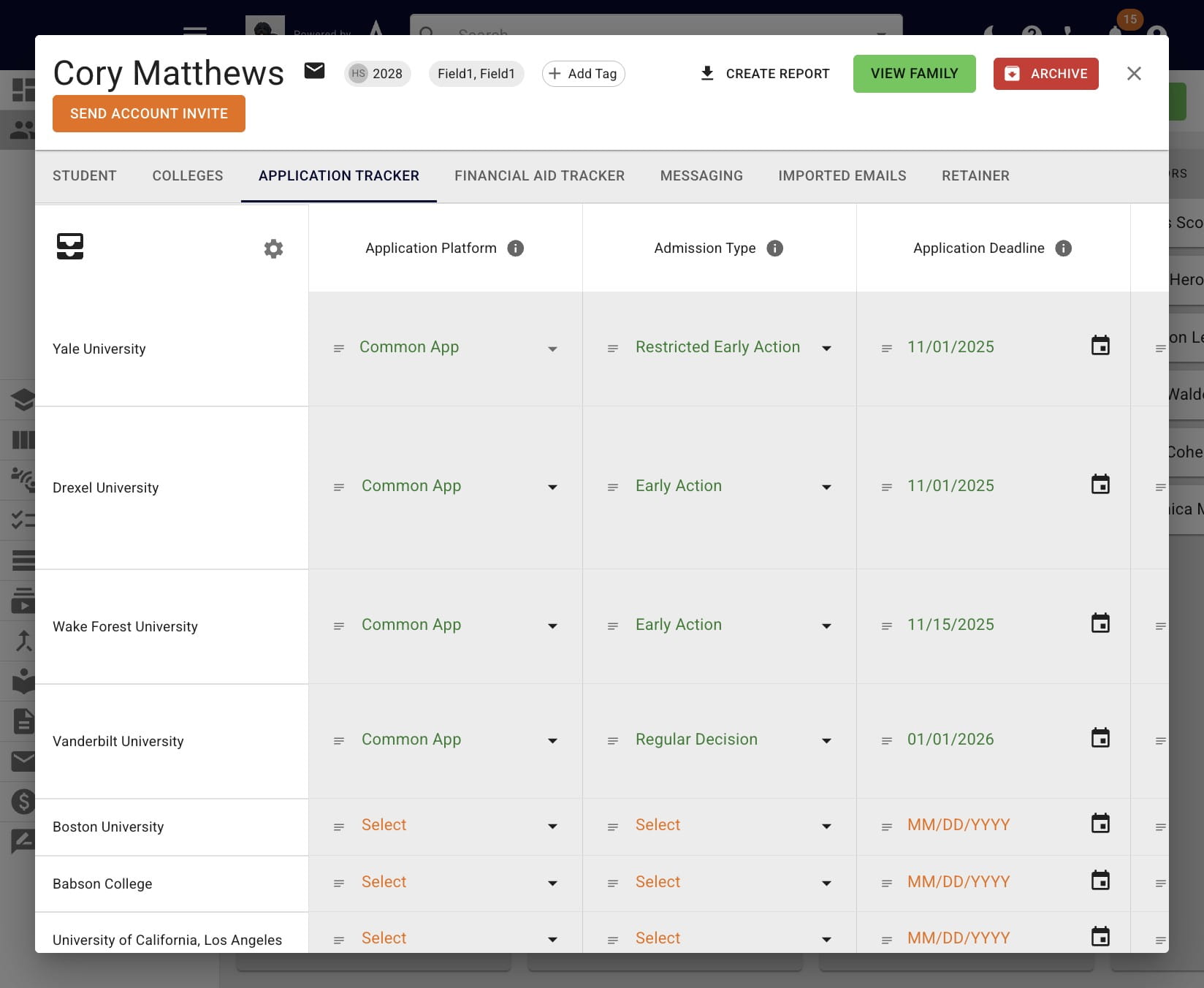
Application Tracker Templates
A guide to easily creating different application tracker templates for grad students, VPA students, international students, and more.
Jul 24, 2026●
1
Open up a student's profile in Achieve and click on Application Tracker.
2
Click the gear icon.
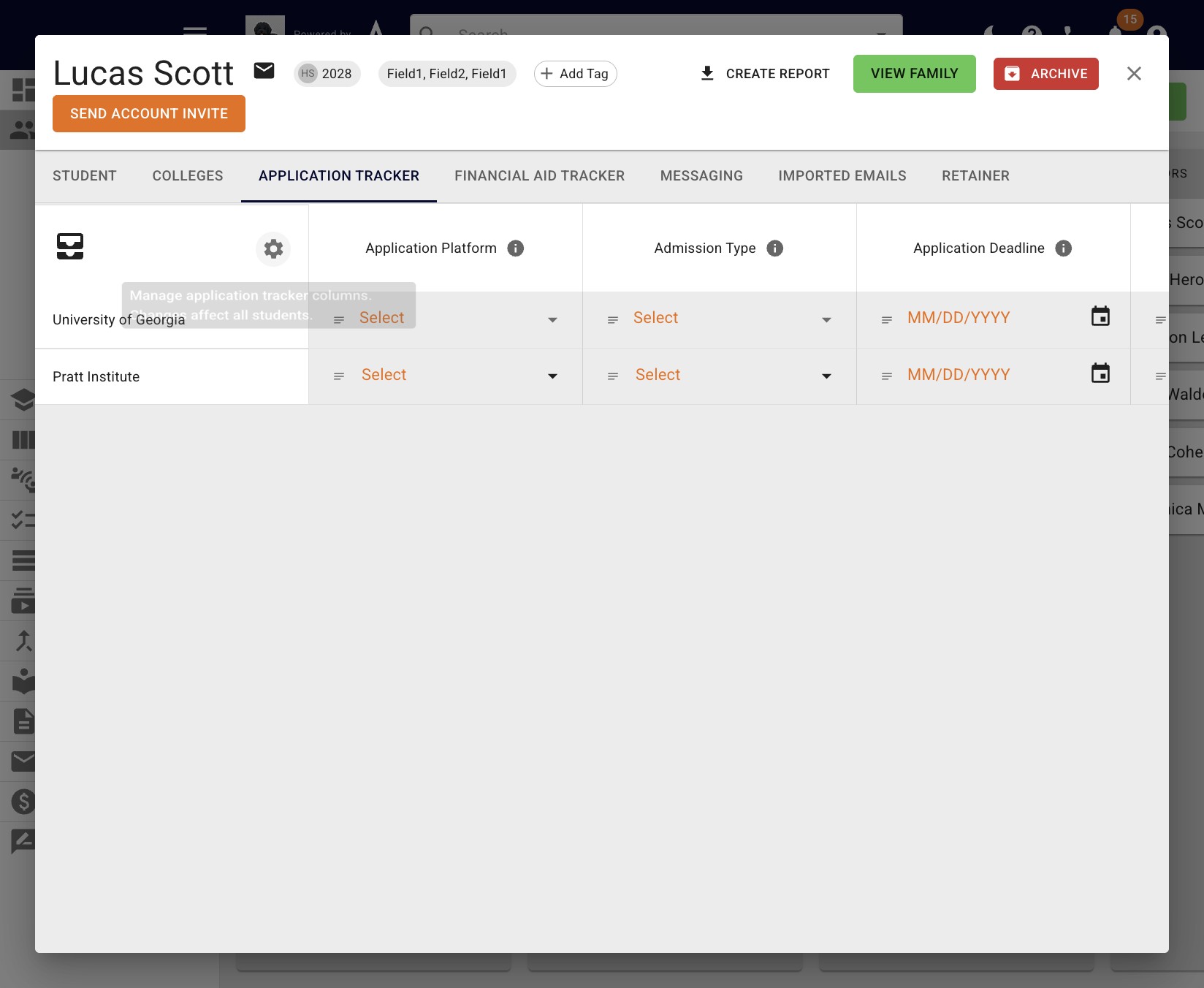
3
Choose the columns you'd like to be included in the app tracker template and press Save as Template. These columns can be default columns and/or custom columns.
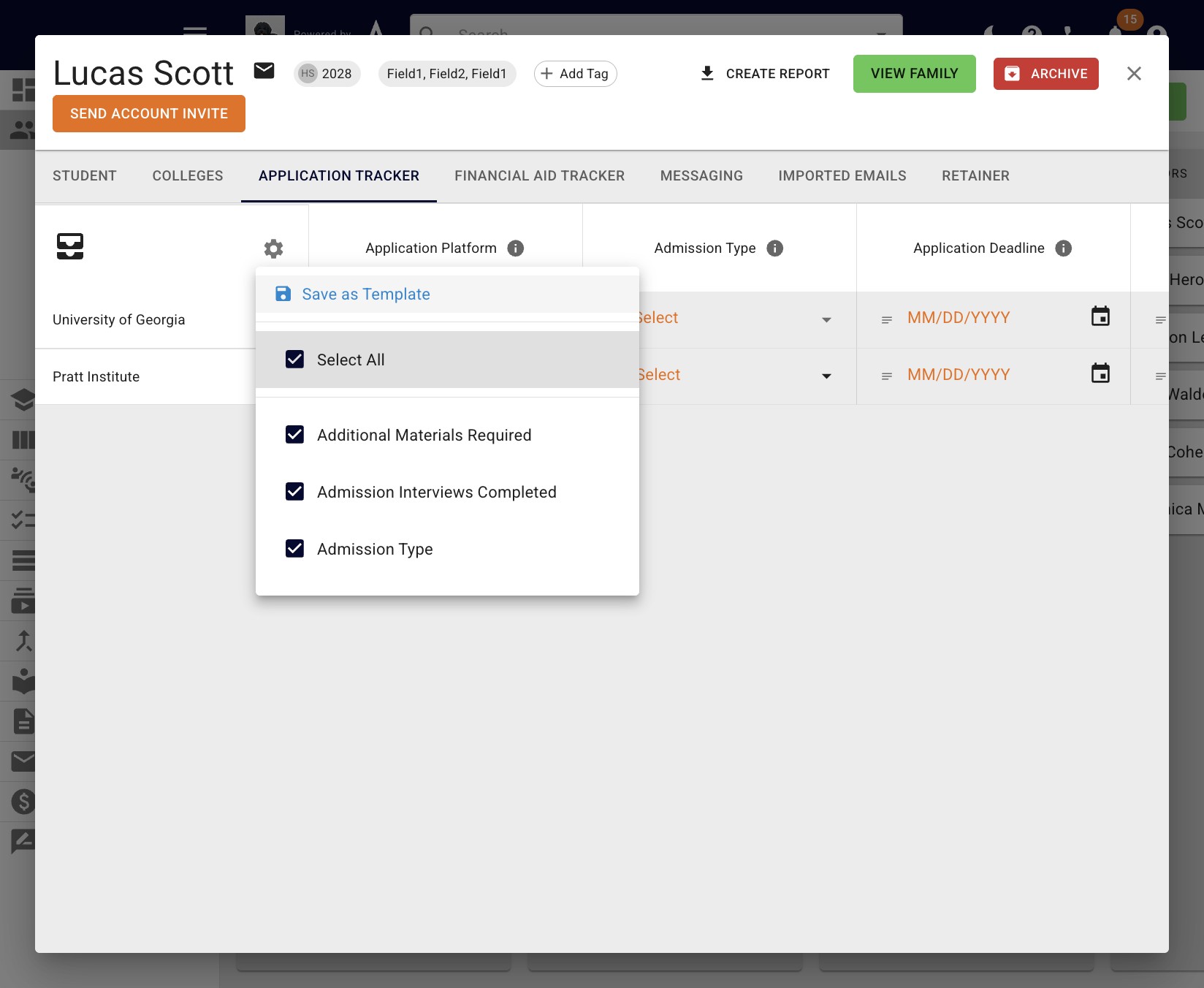
4
Rename the template and press Save.
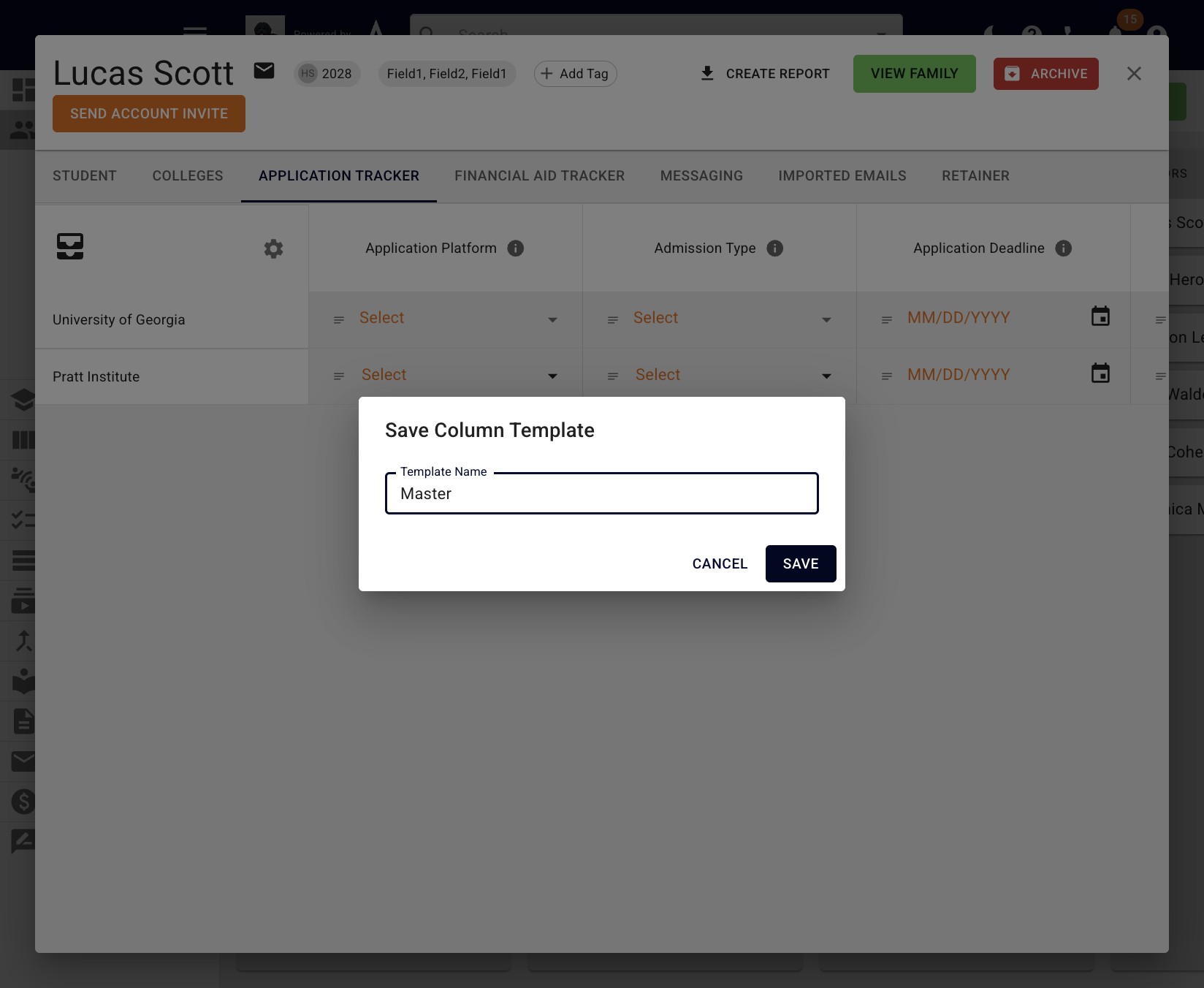
5
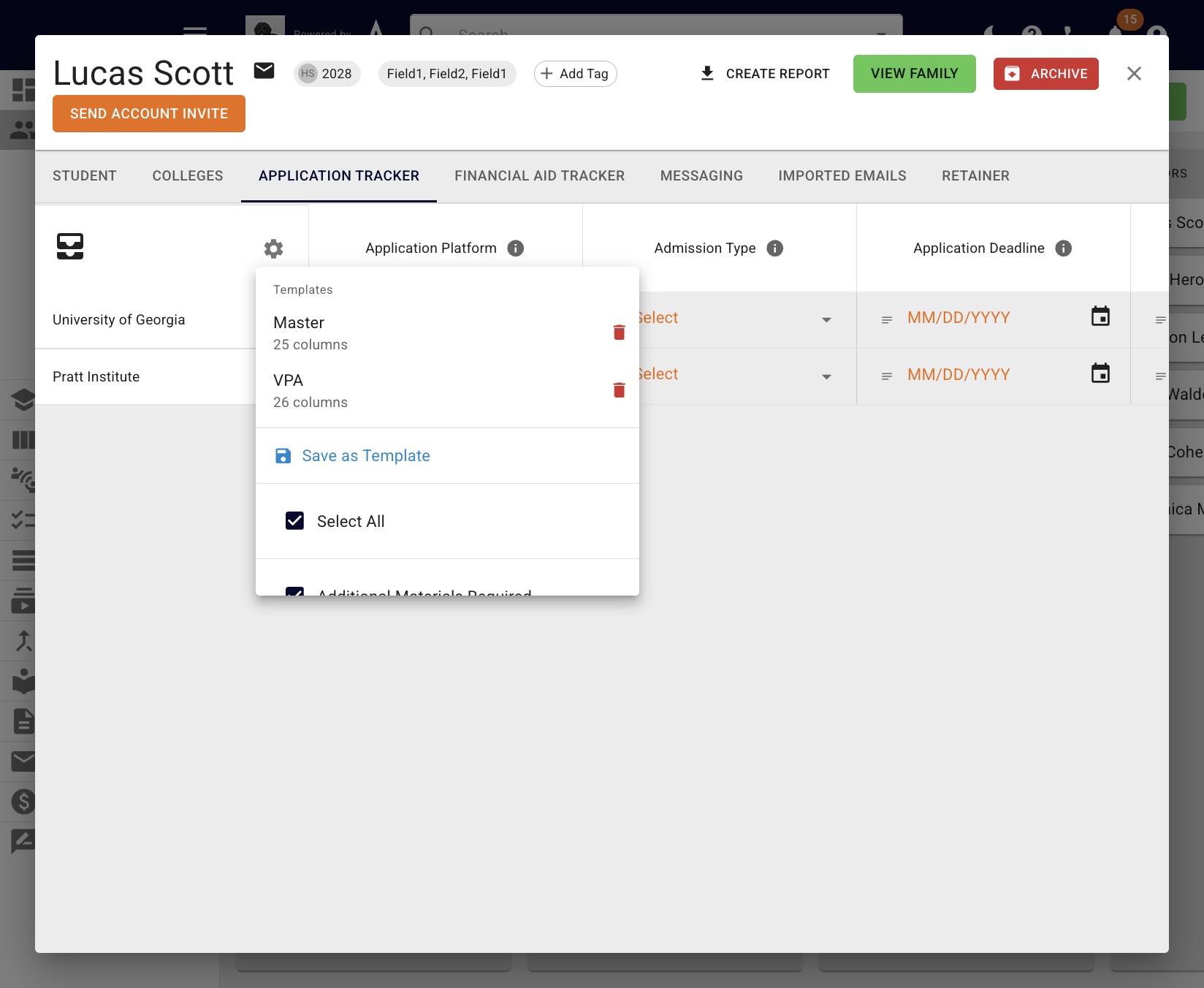
Going forward, you will see the templates listed at the top of the drop down when you click the gear icon.
6
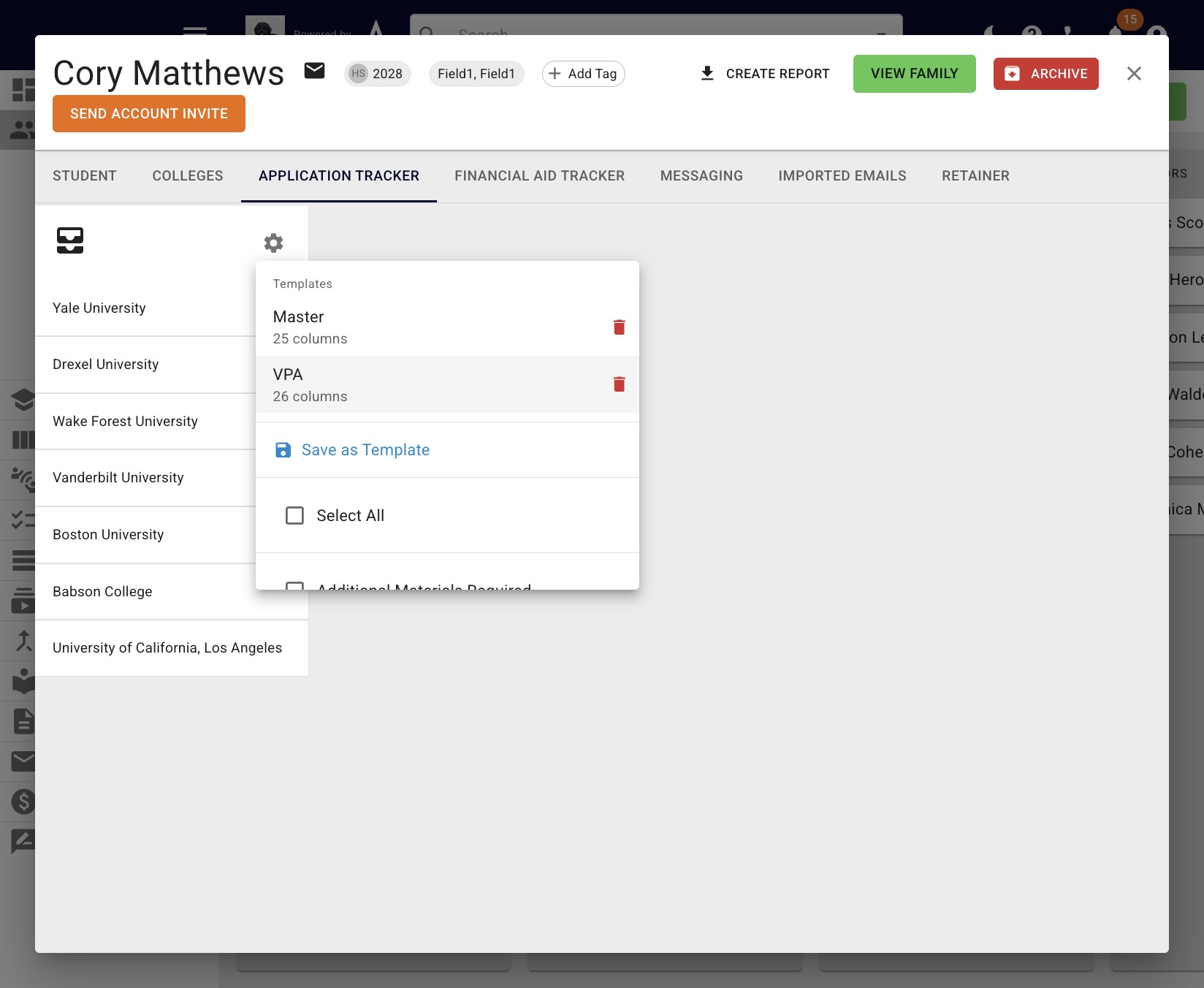
To add or change a student's app tracker template, simply click on the template you want to use.
7
Done 🚀