LinkedIn Campaign Manager | Set up Campaign
The goal of this guide is to provide a step-by-step walkthrough for creating an effective ad campaign on LinkedIn using Campaign Manager. This guide is aimed at marketers or business owners looking to promote their products, services, or brand on LinkedIn.
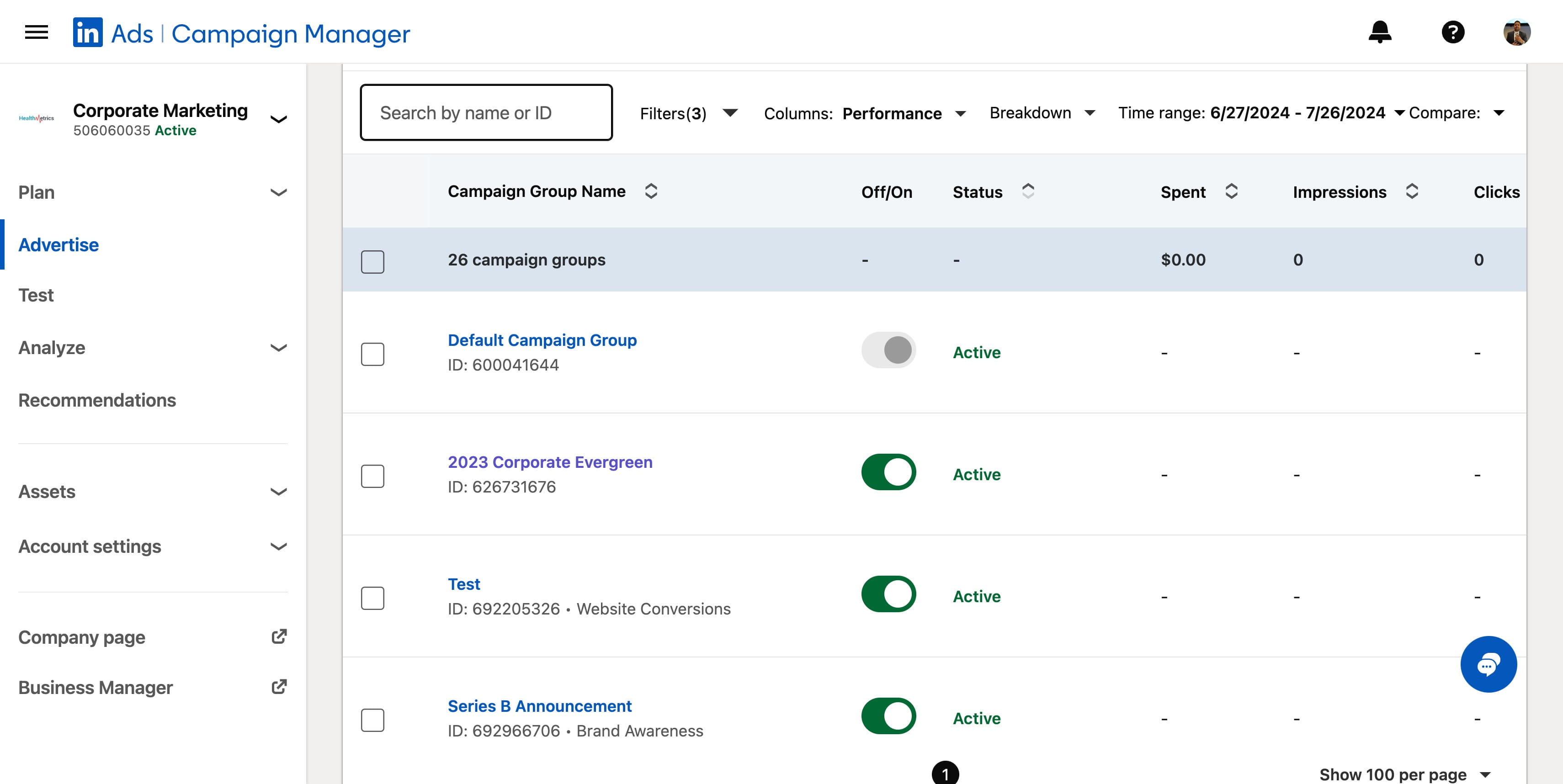
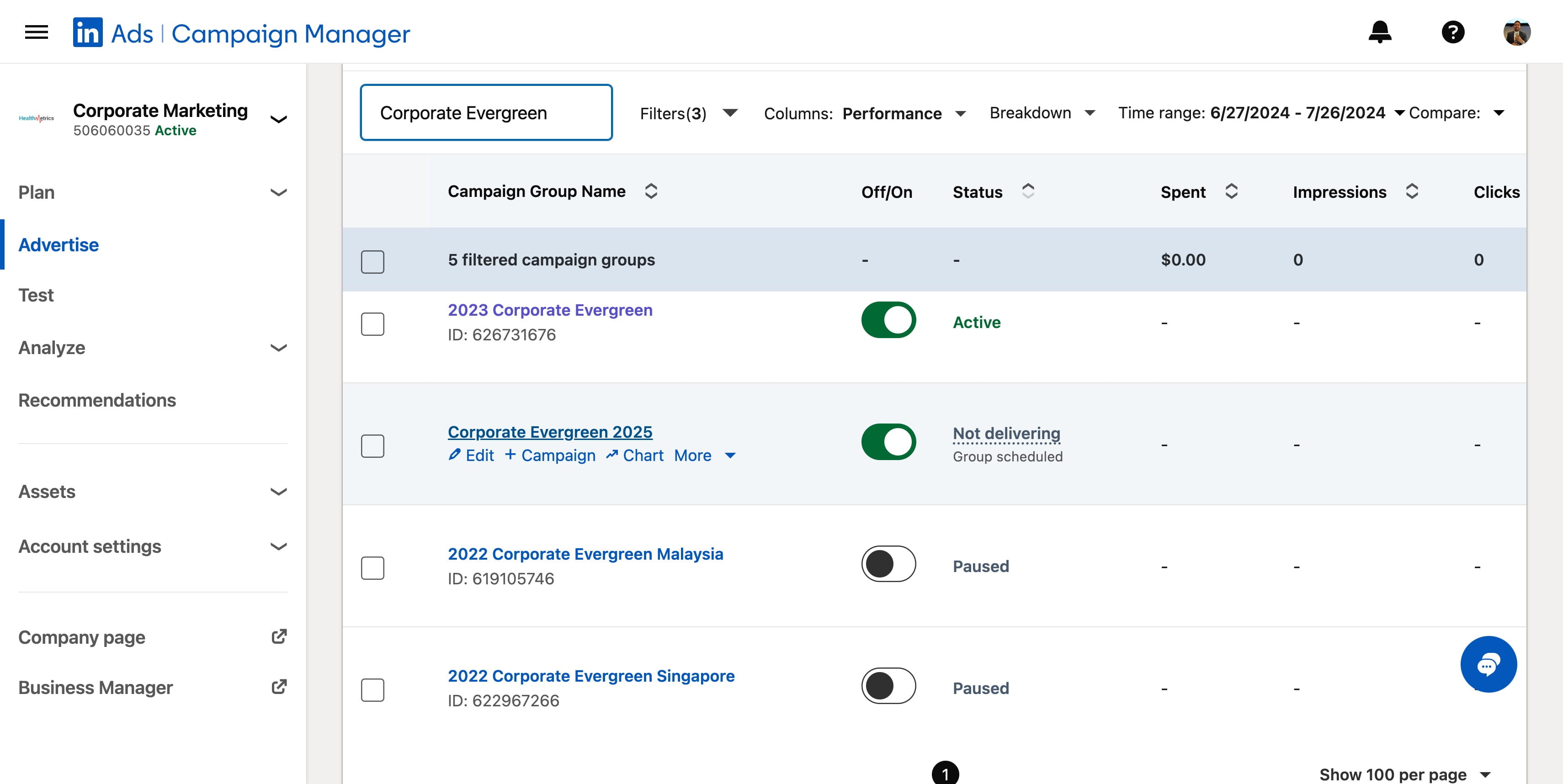
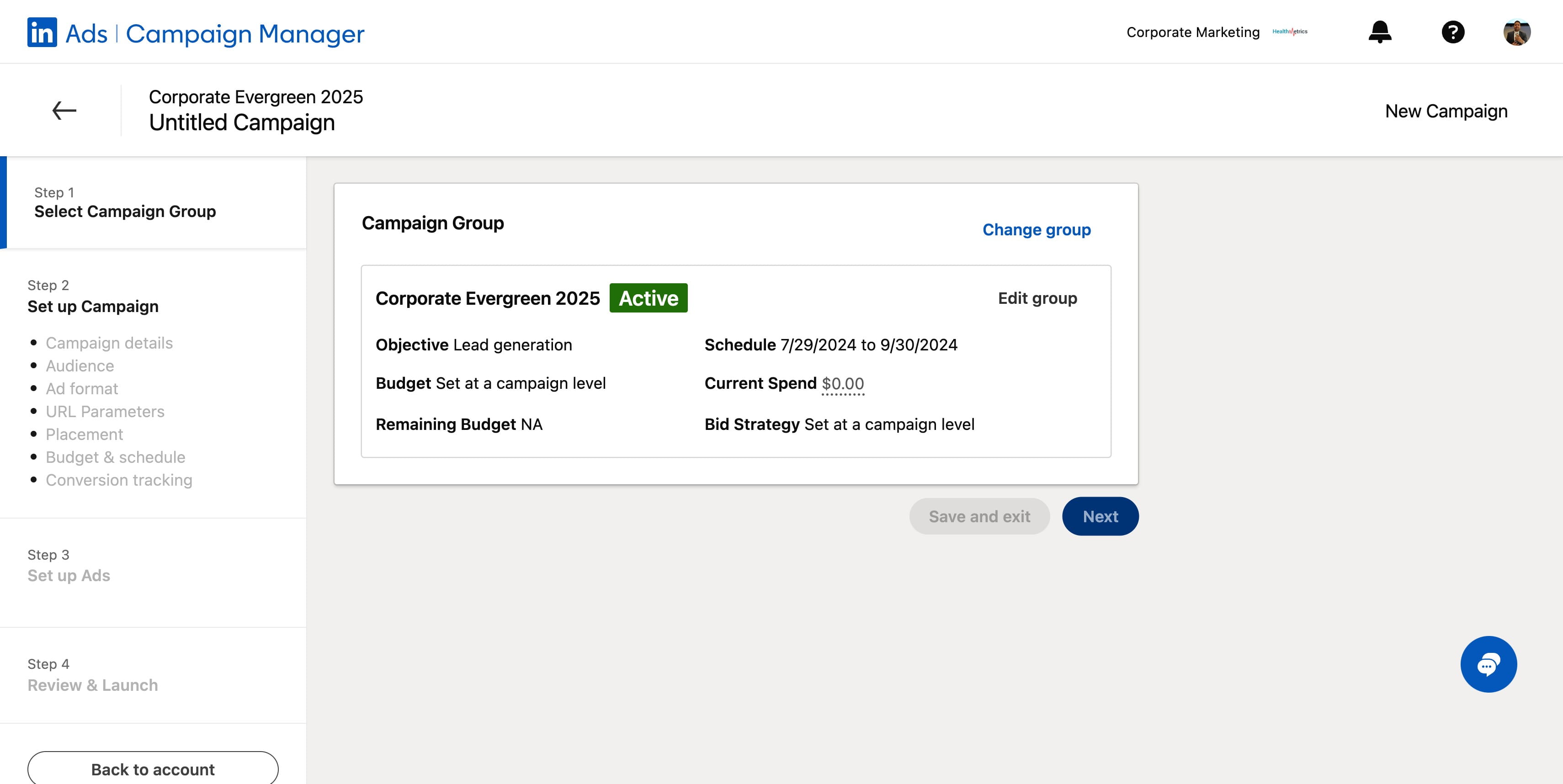
Once you have finished creating your camping groups, you may know proceeded to create campaign. search for the campaign group you have created to proceed. In this example, I am using 2025 corporate Evergreen.
Click here
Click on "Corporate Evergreen 2025"
Click this icon
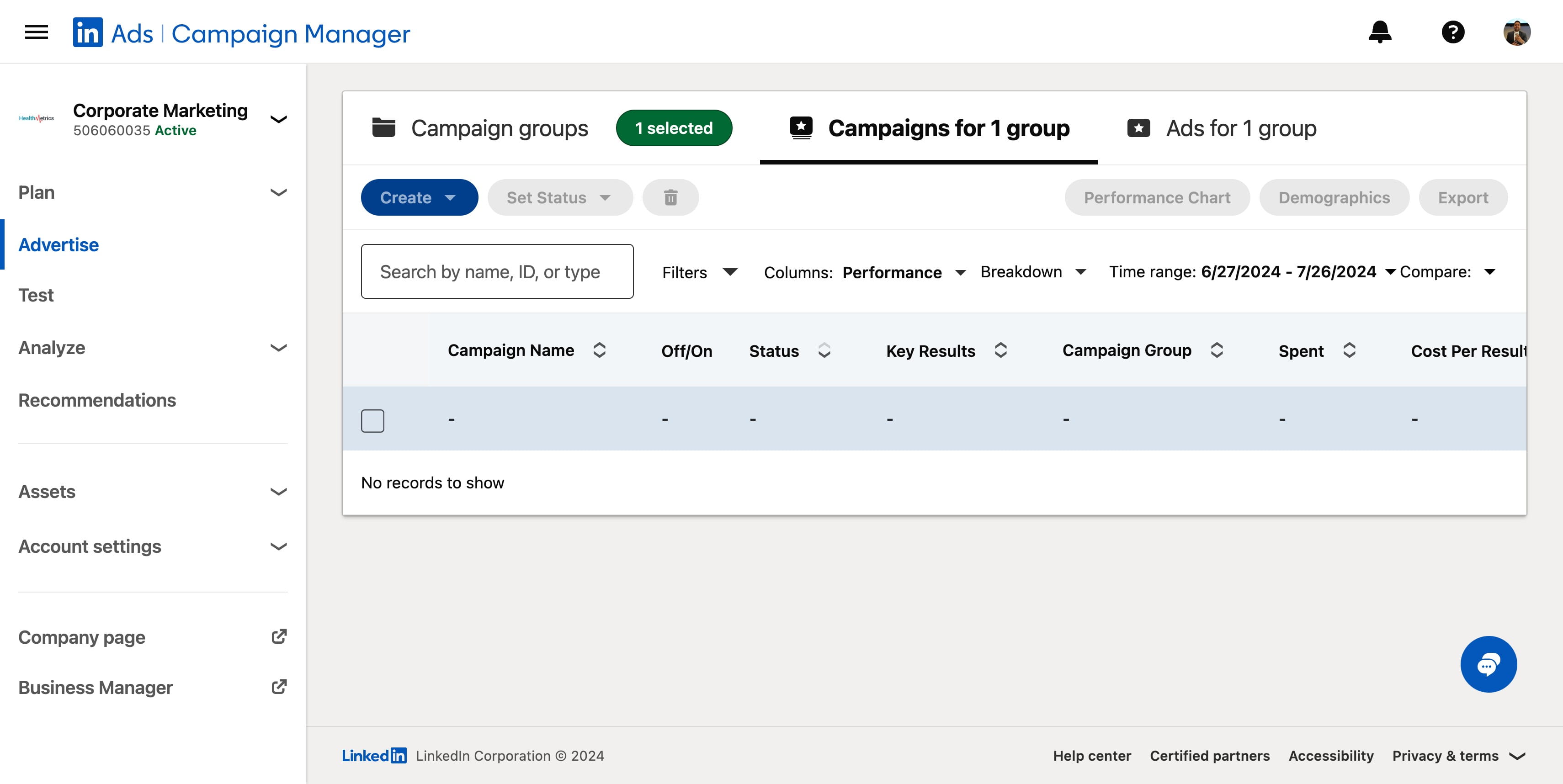
Click on "Campaign"
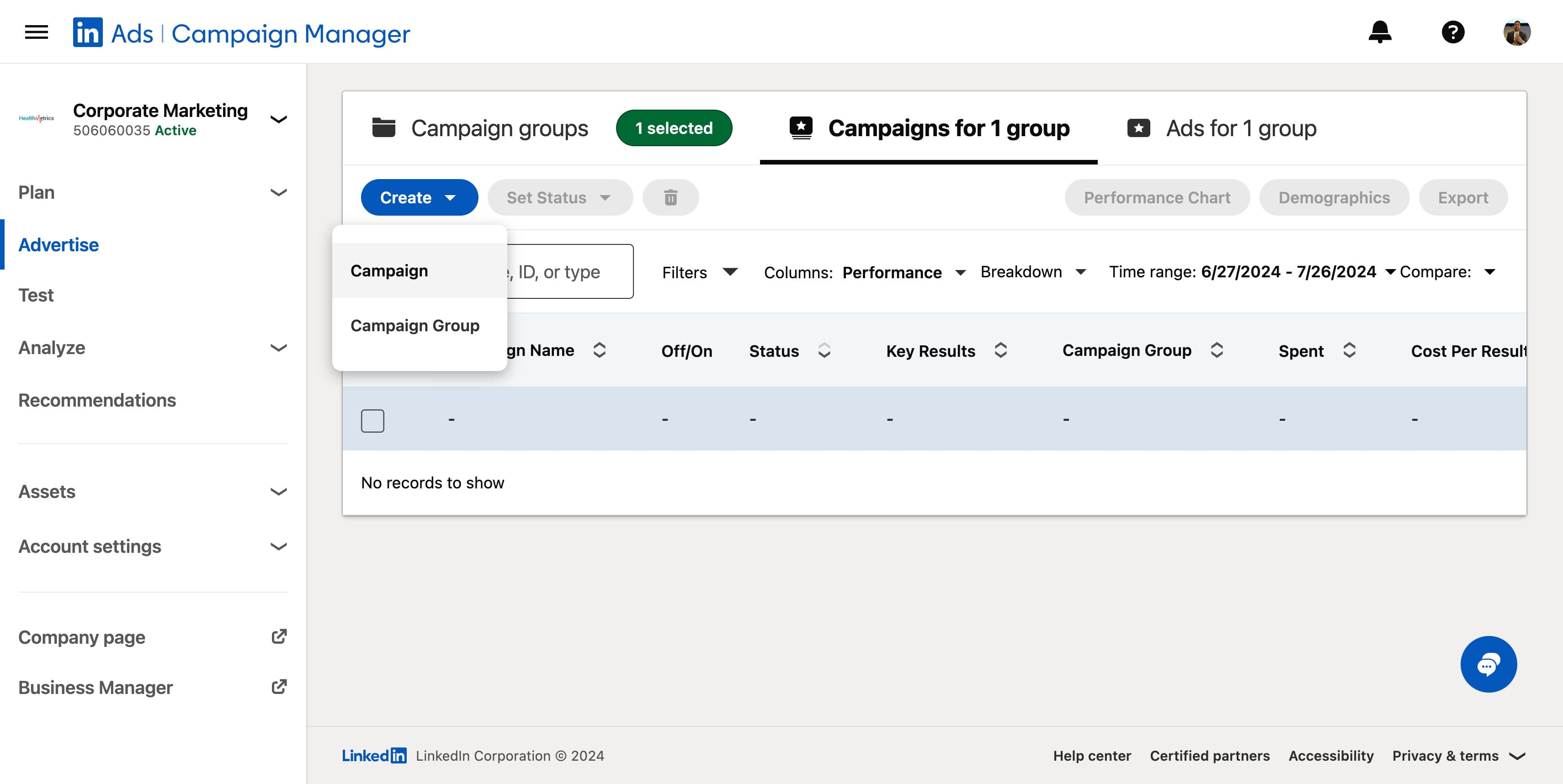
Click on "Gather info from people interested in your busines"
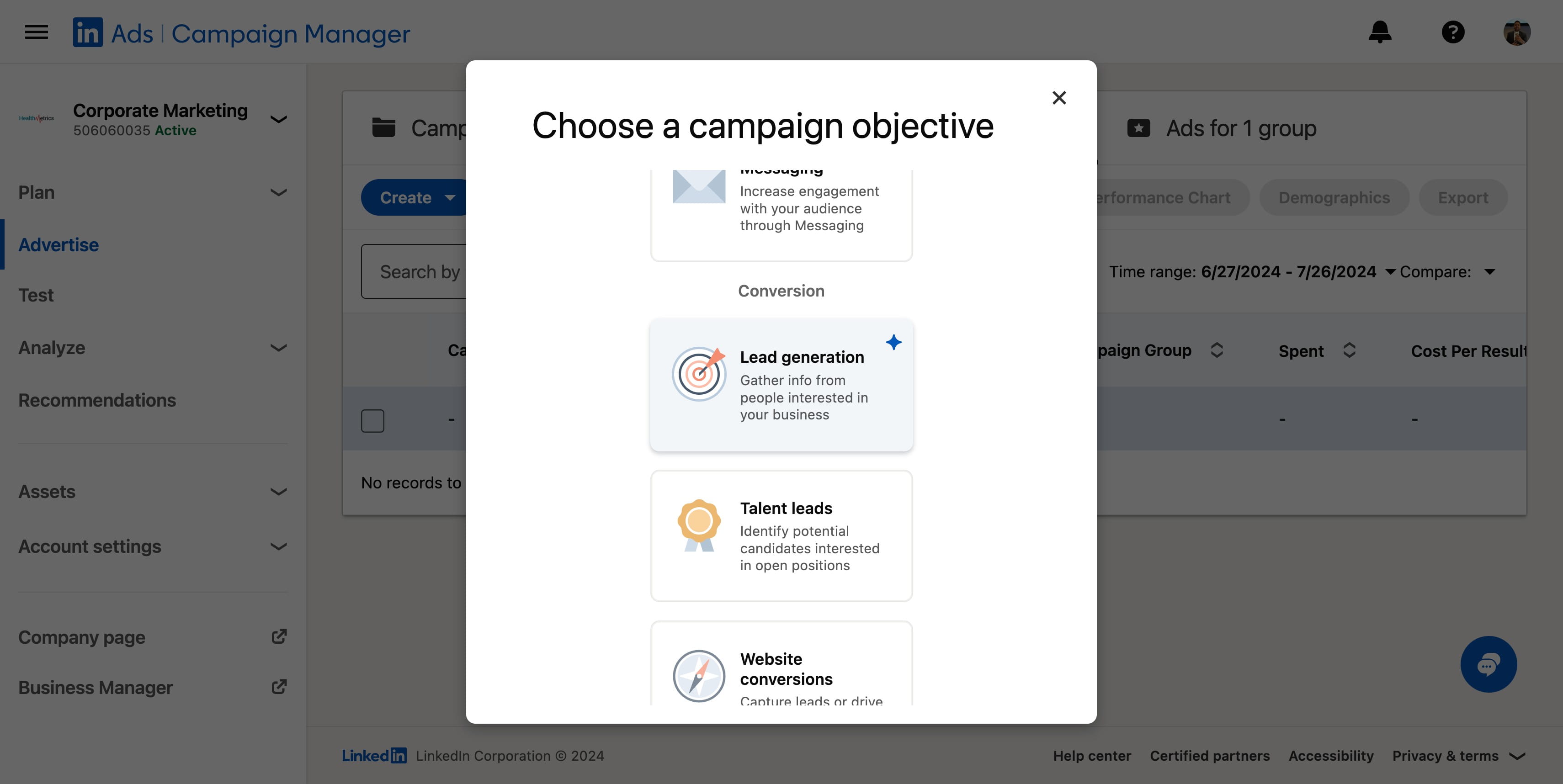
Click on "Build a campaign yourself using the features avail"
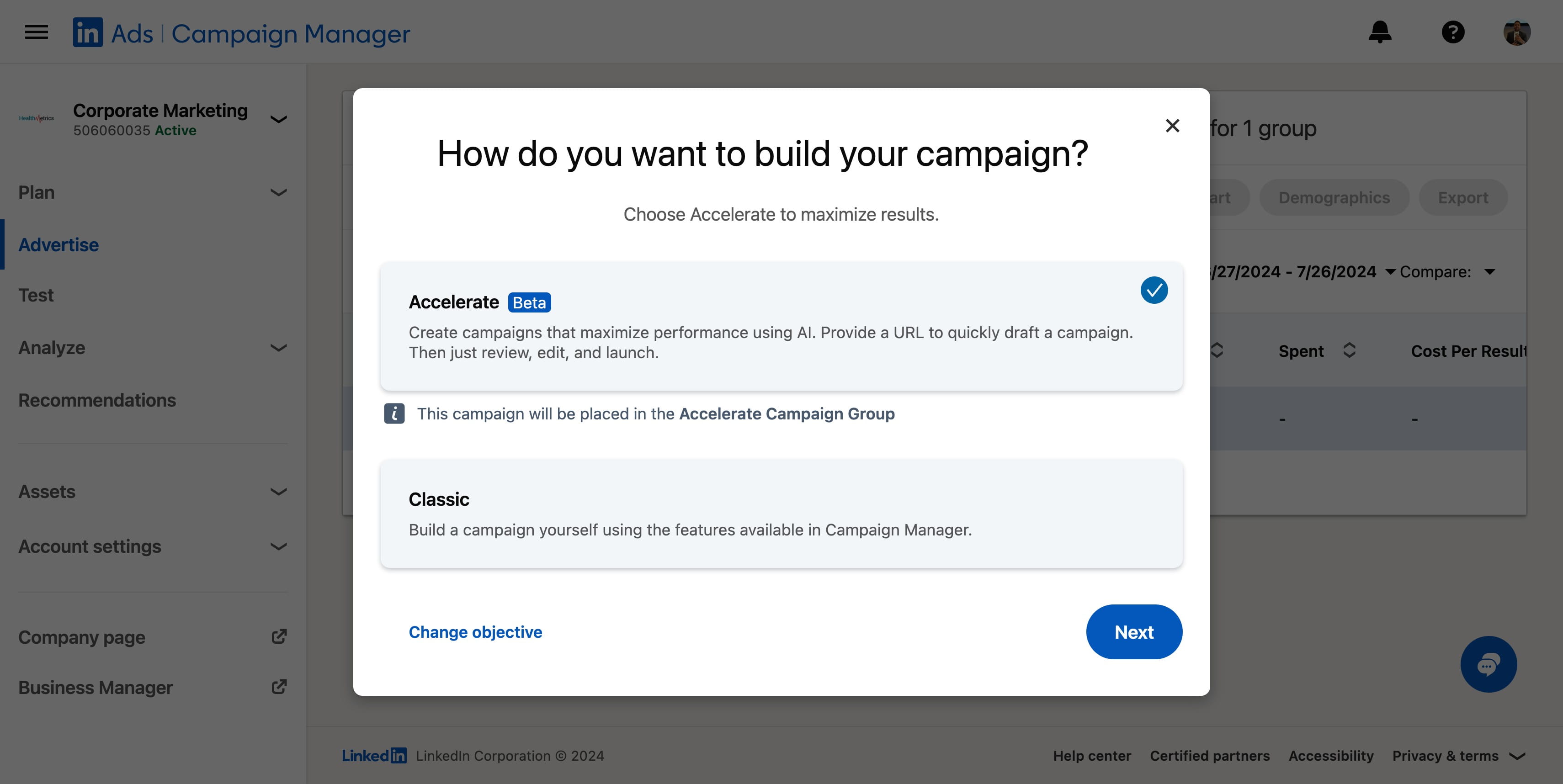
Click on "Next"
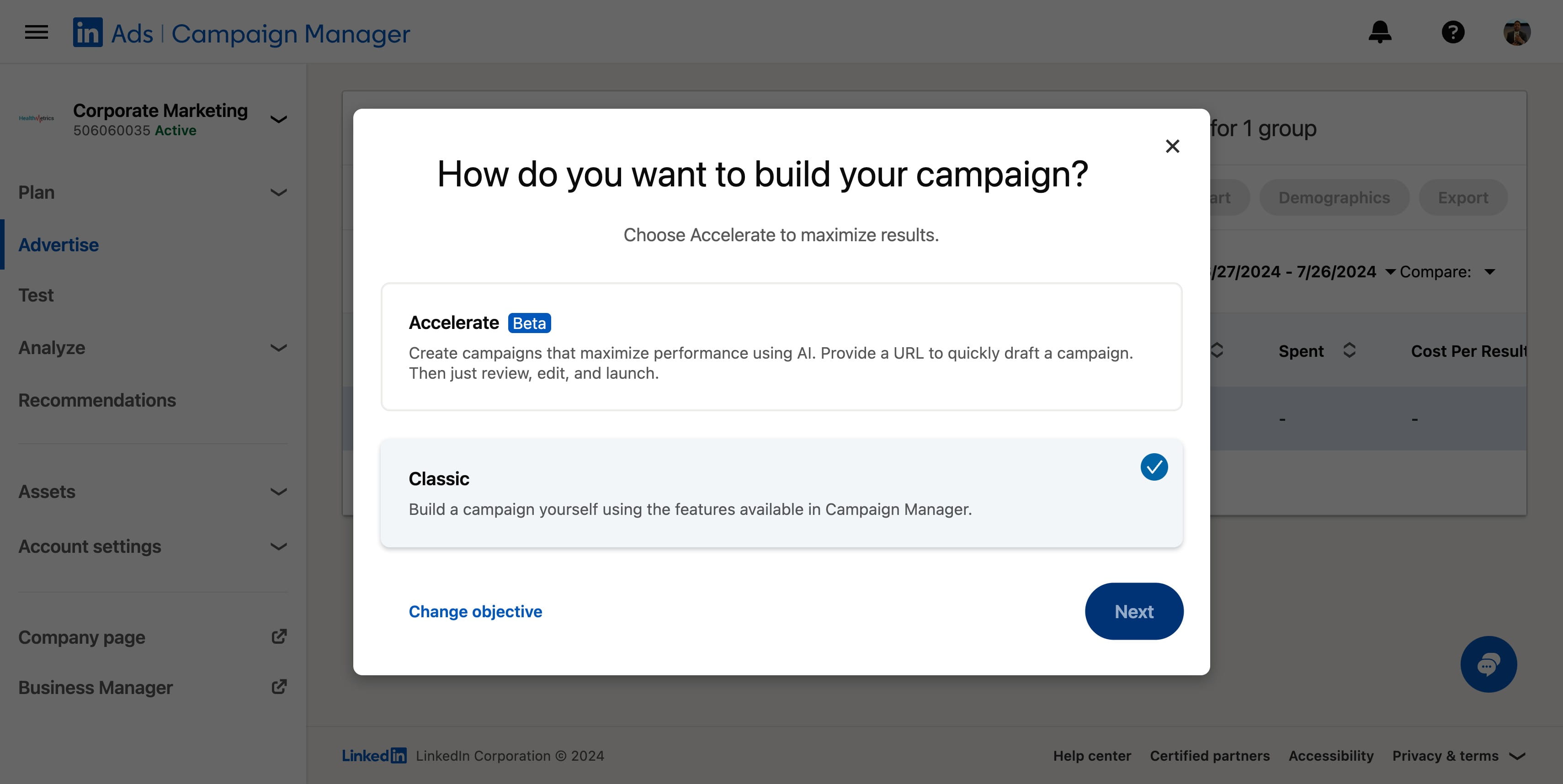
Click on "Next"
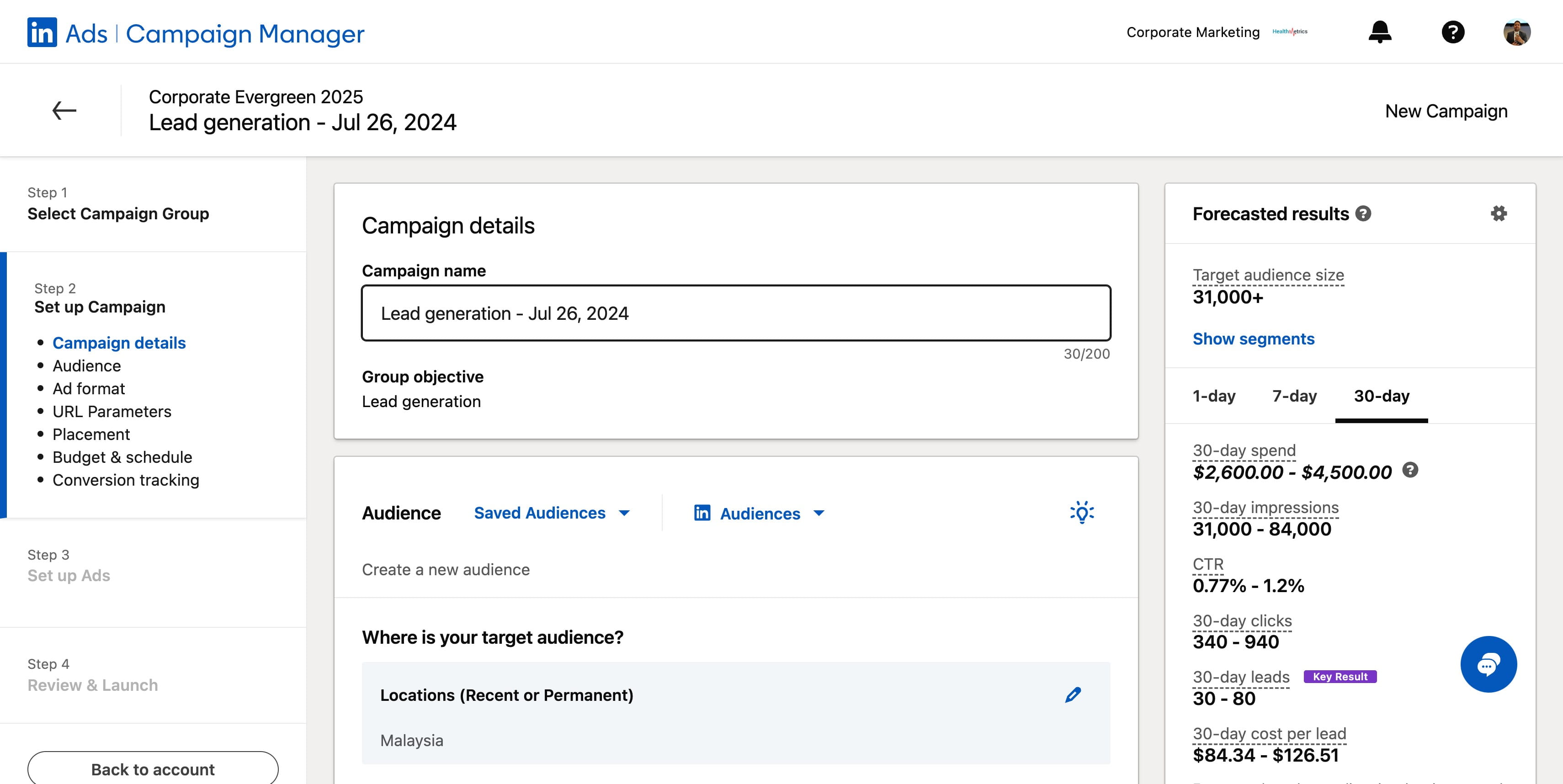
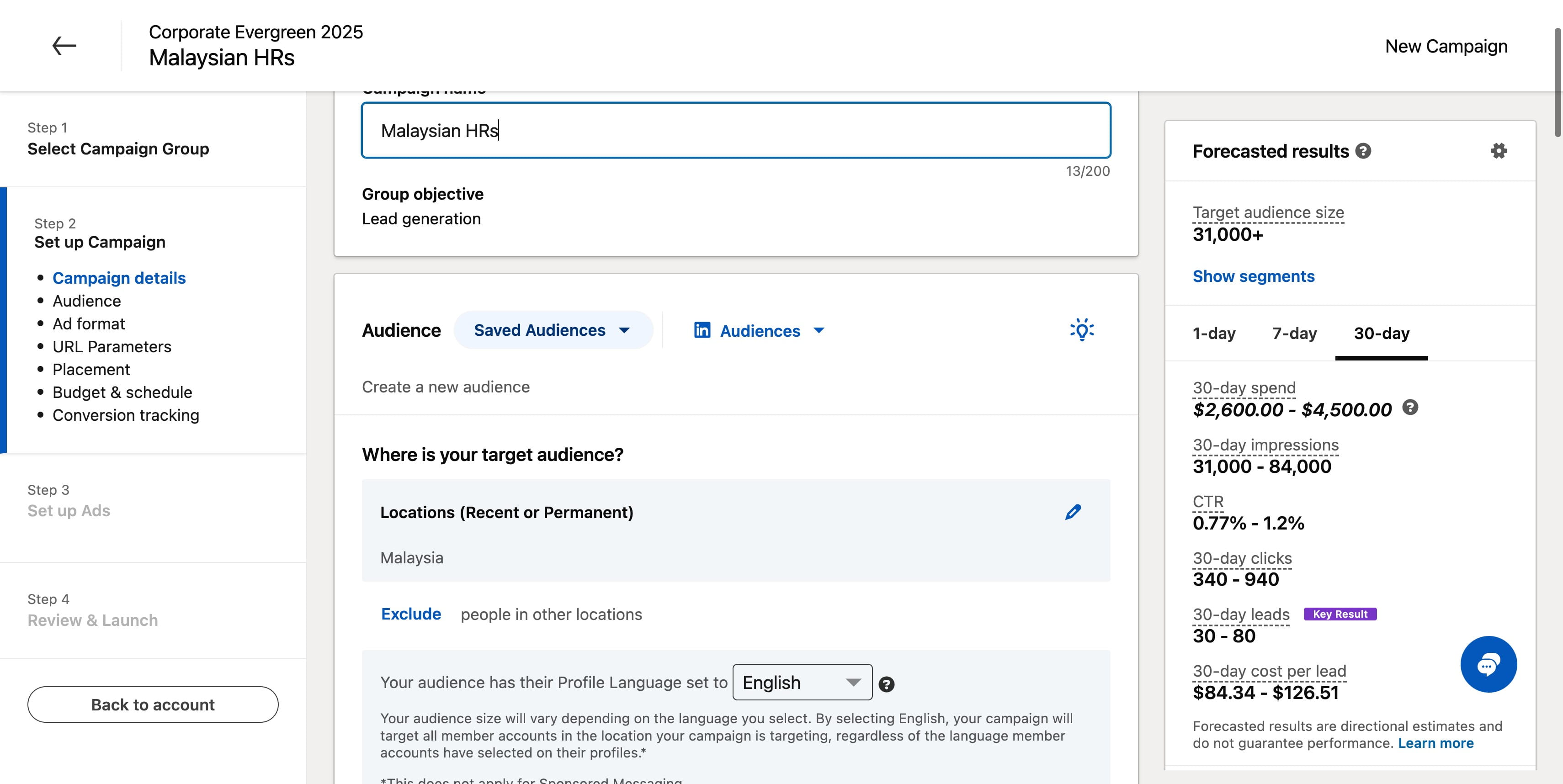
Rename your campaign name in this case I will be naming you, Malaysian HRS
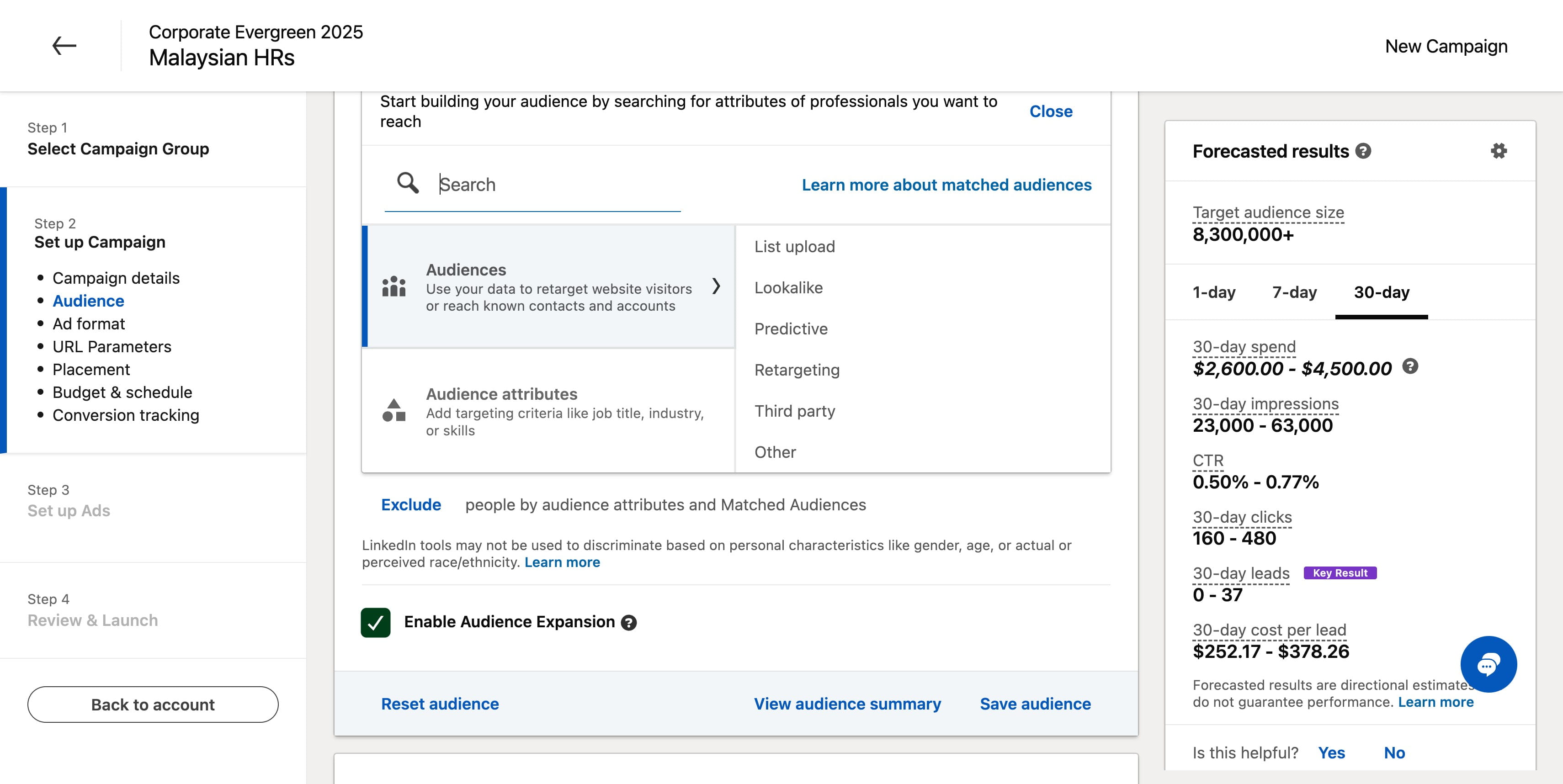
If you have a save audience you may proceed with the following steps, if you have not saved any audience. You may refer to another guide here.
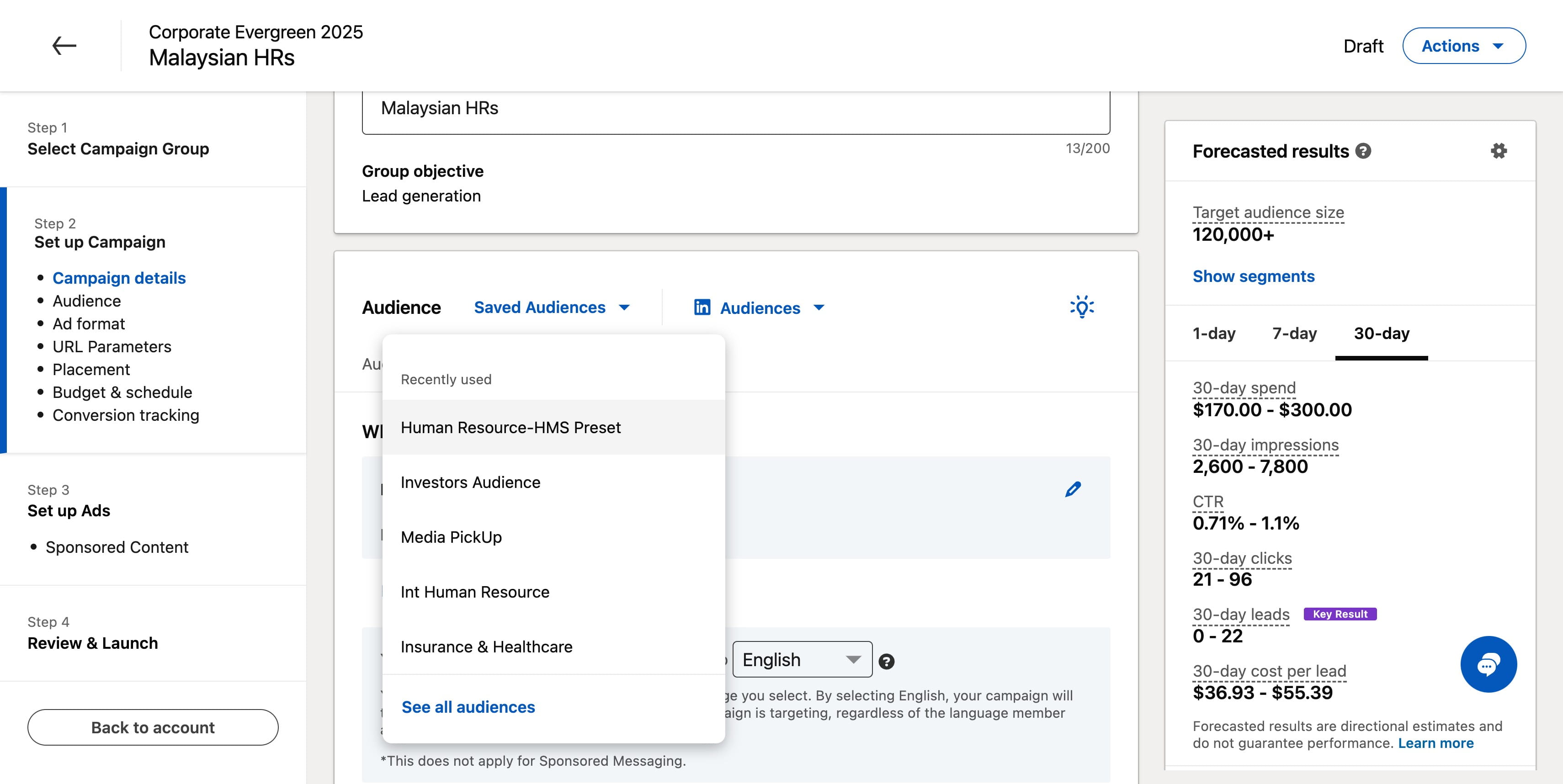
Click on "See all audiences"
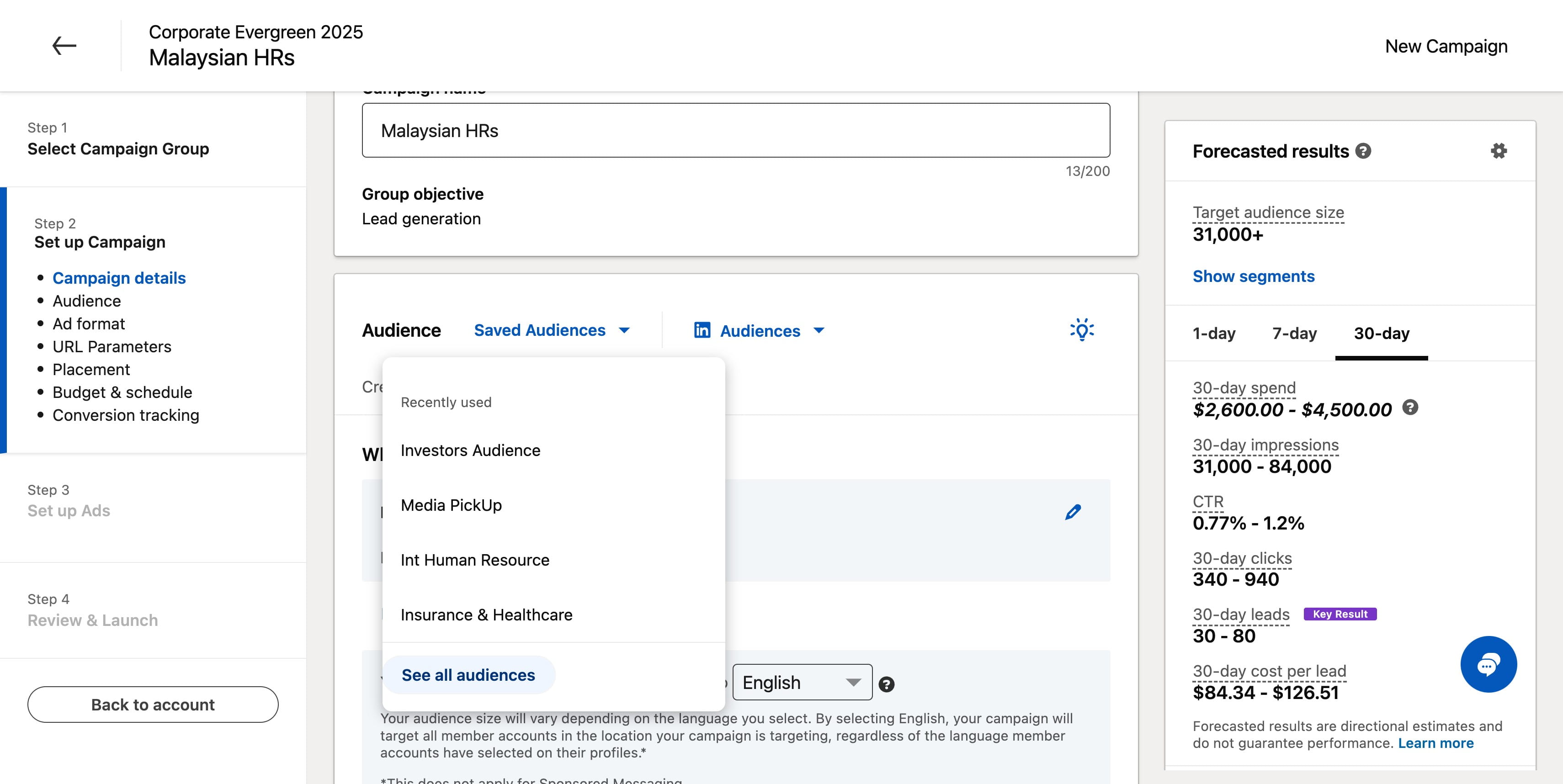
Click on "Saved Audiences"
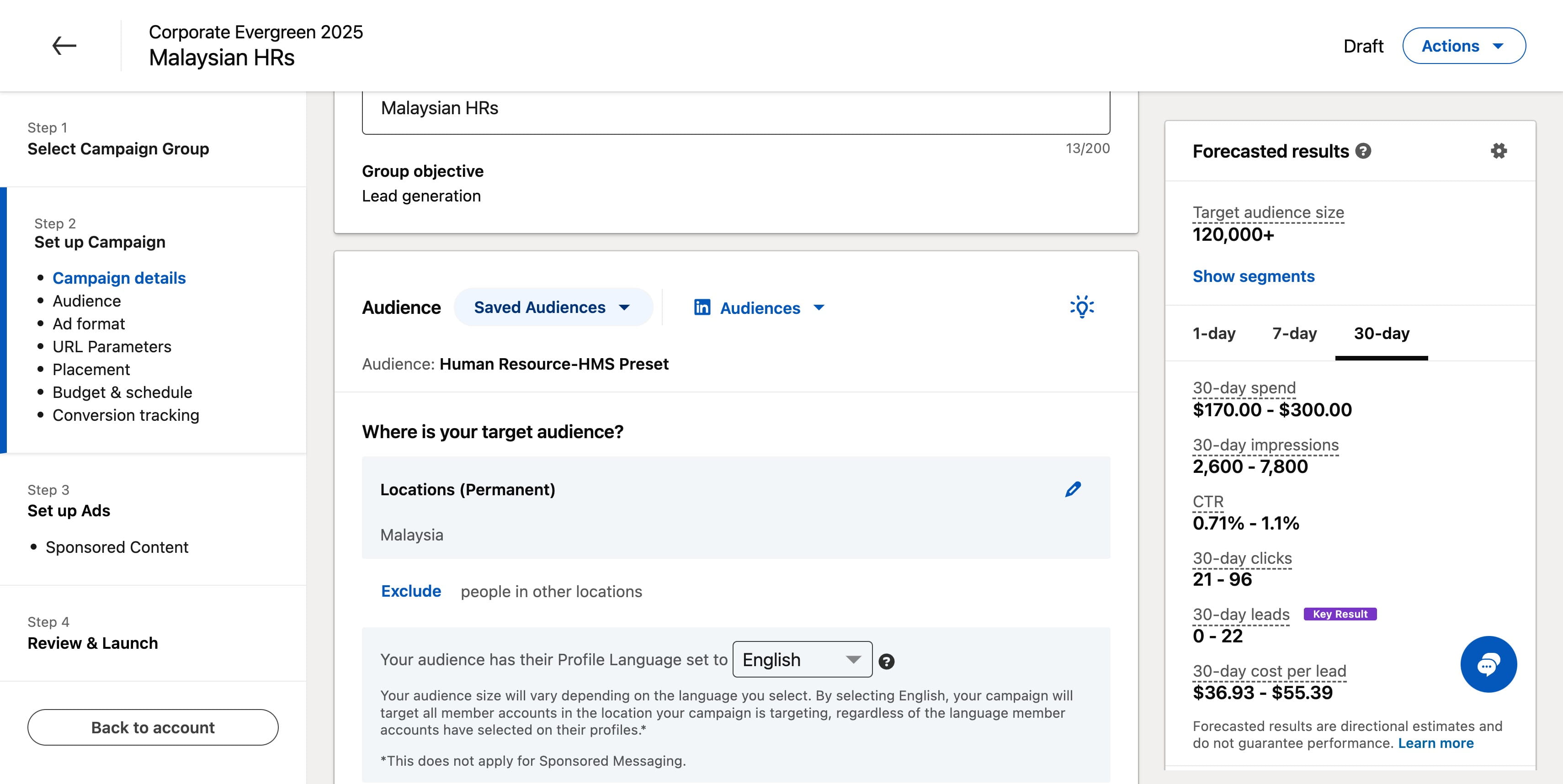
Click on "Human Resource-HMS Preset"
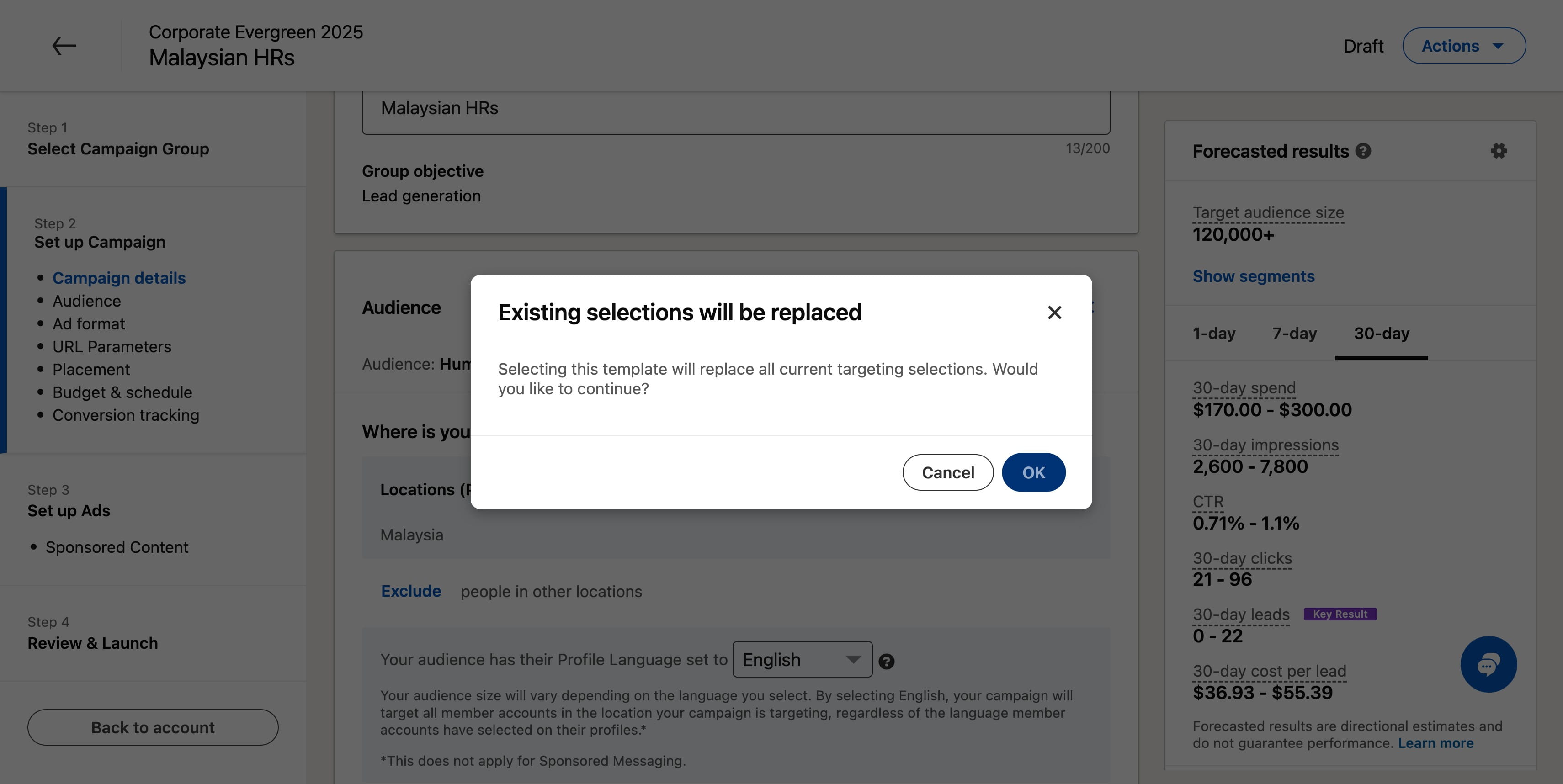
Click on "OK"
Click on "Remove all attributes". If you see any irrelevant attributes attached to your audience, remove them as you see fit
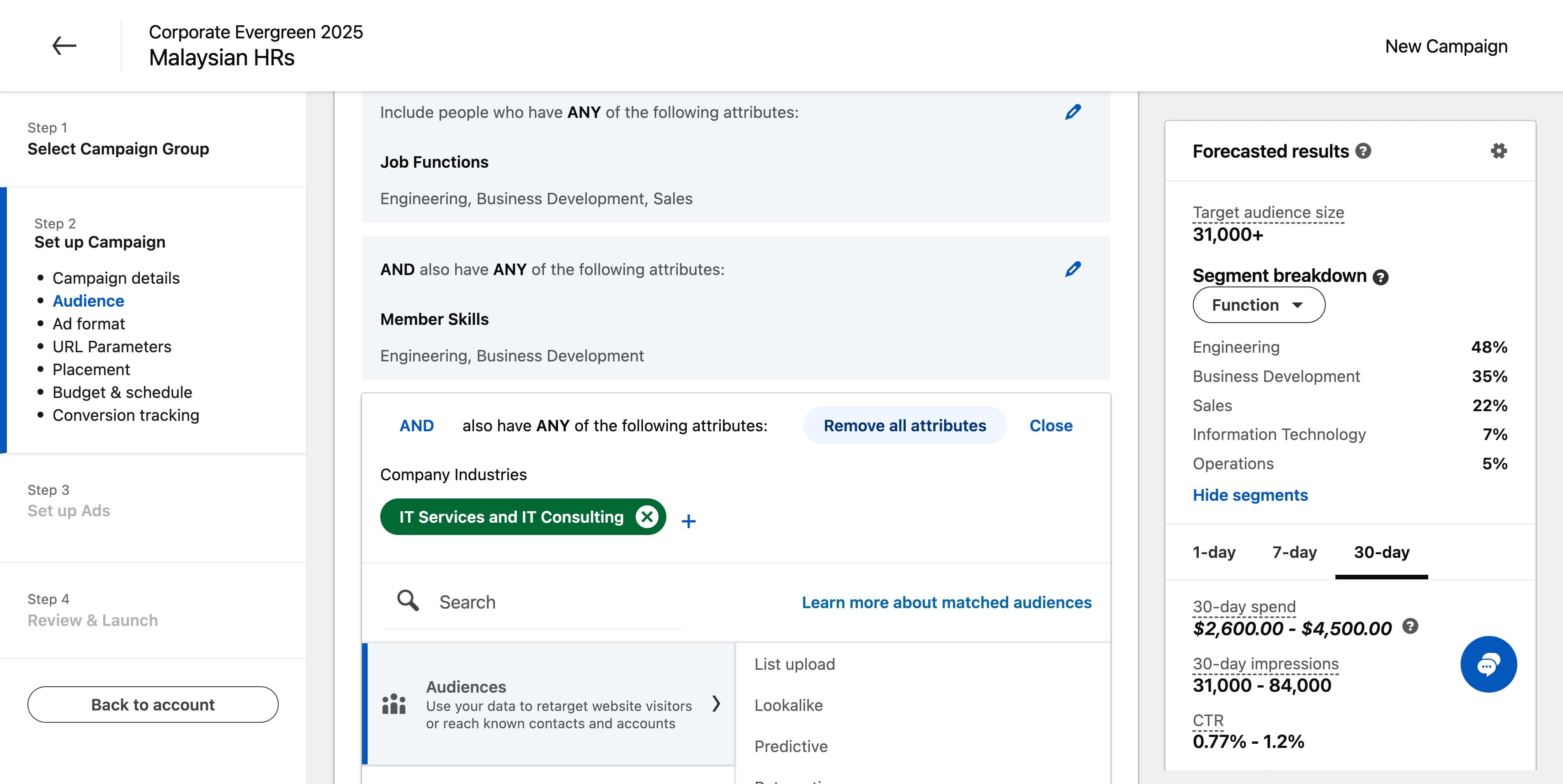
Click on "Remove"
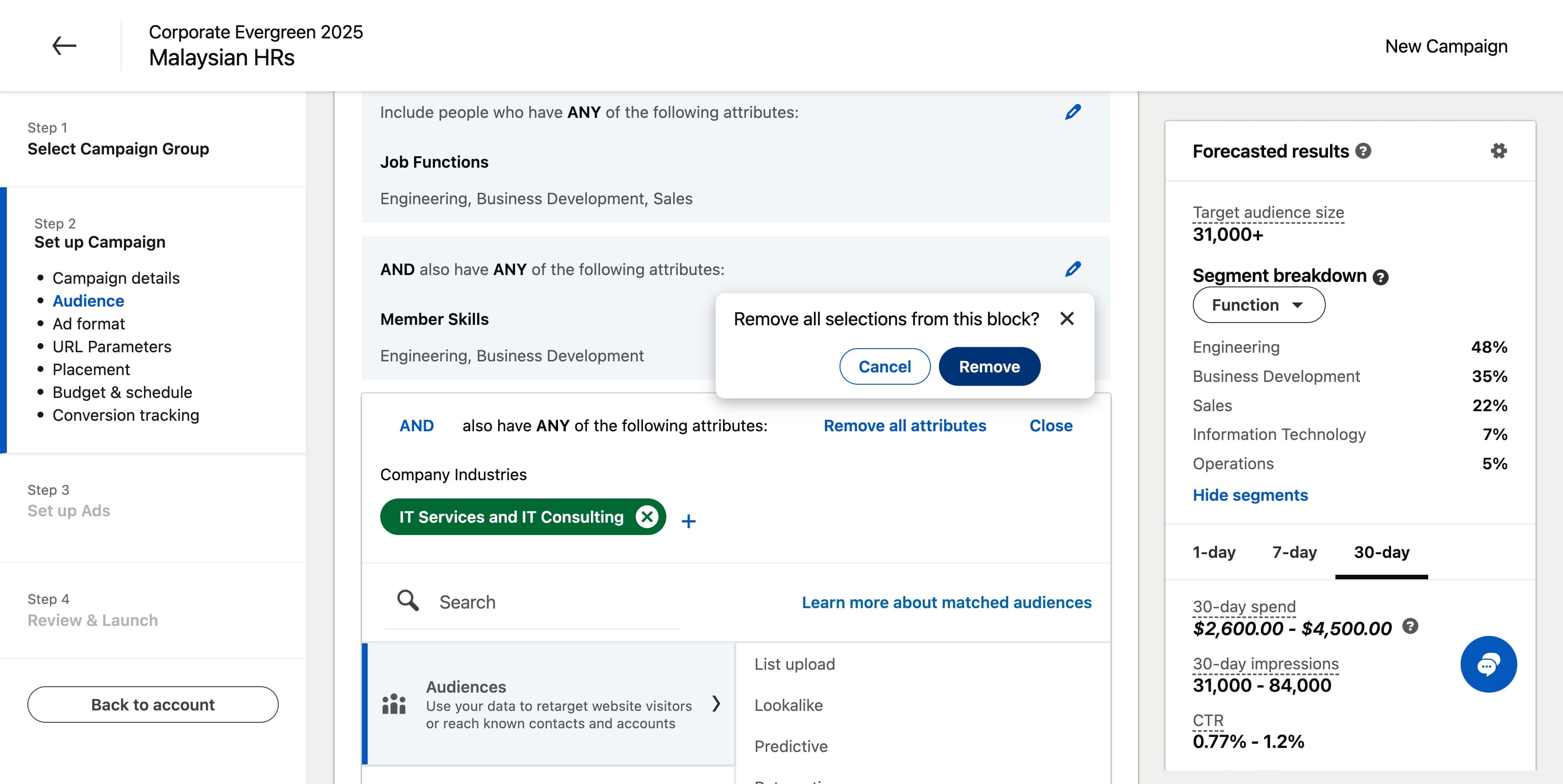
Click on "Remove"
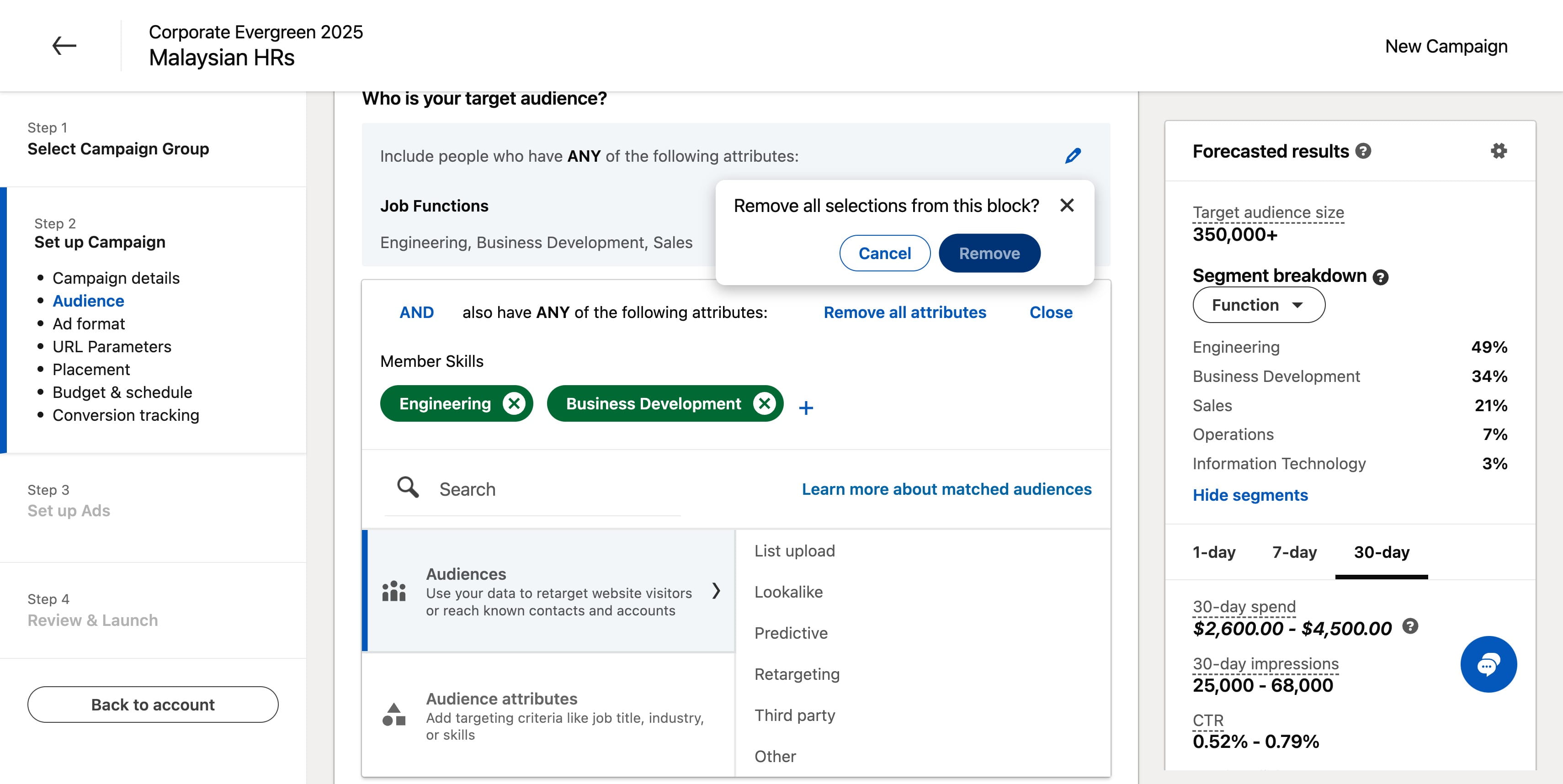
Click on "Remove all attributes"
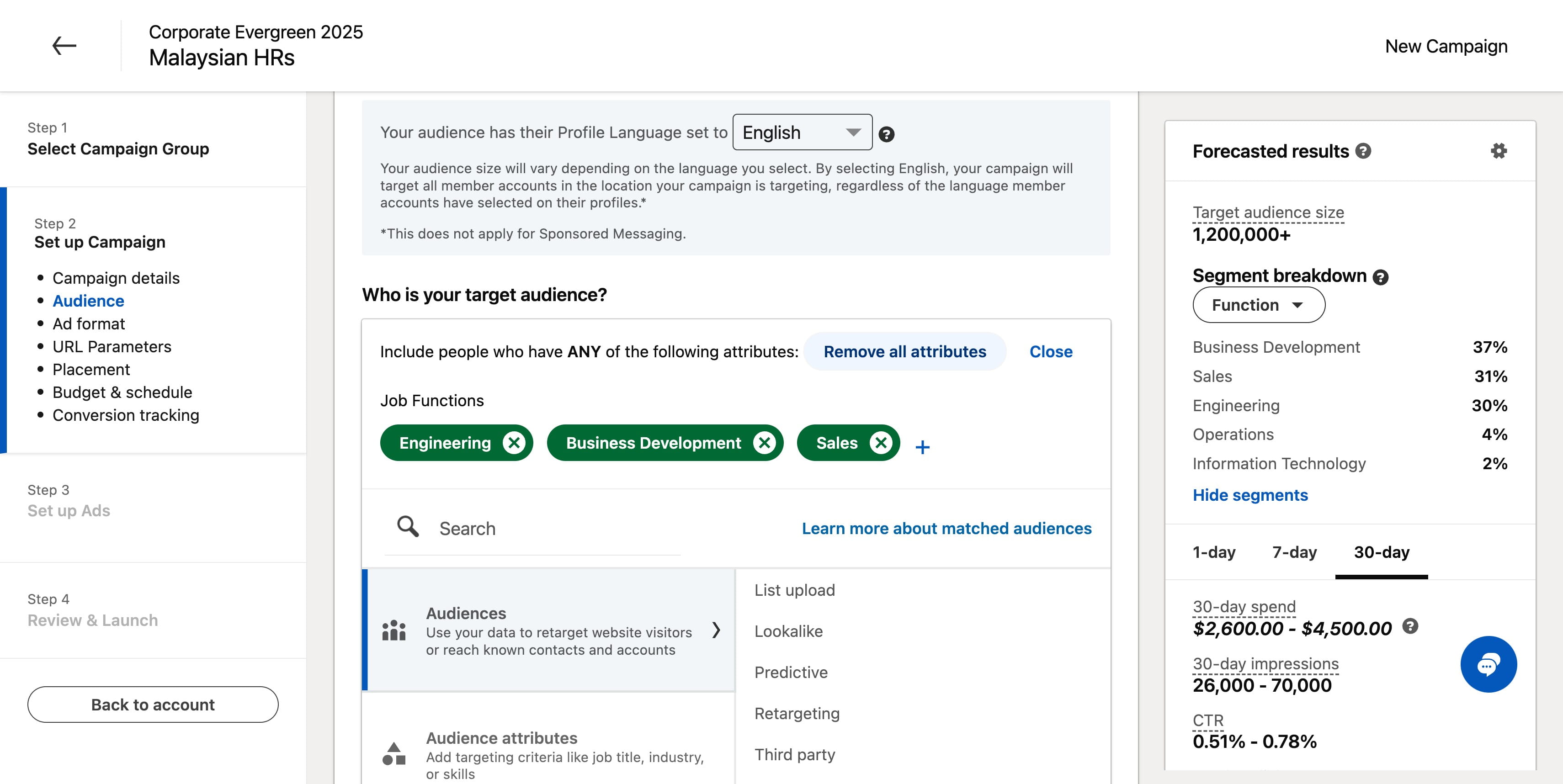
Click on "Remove"
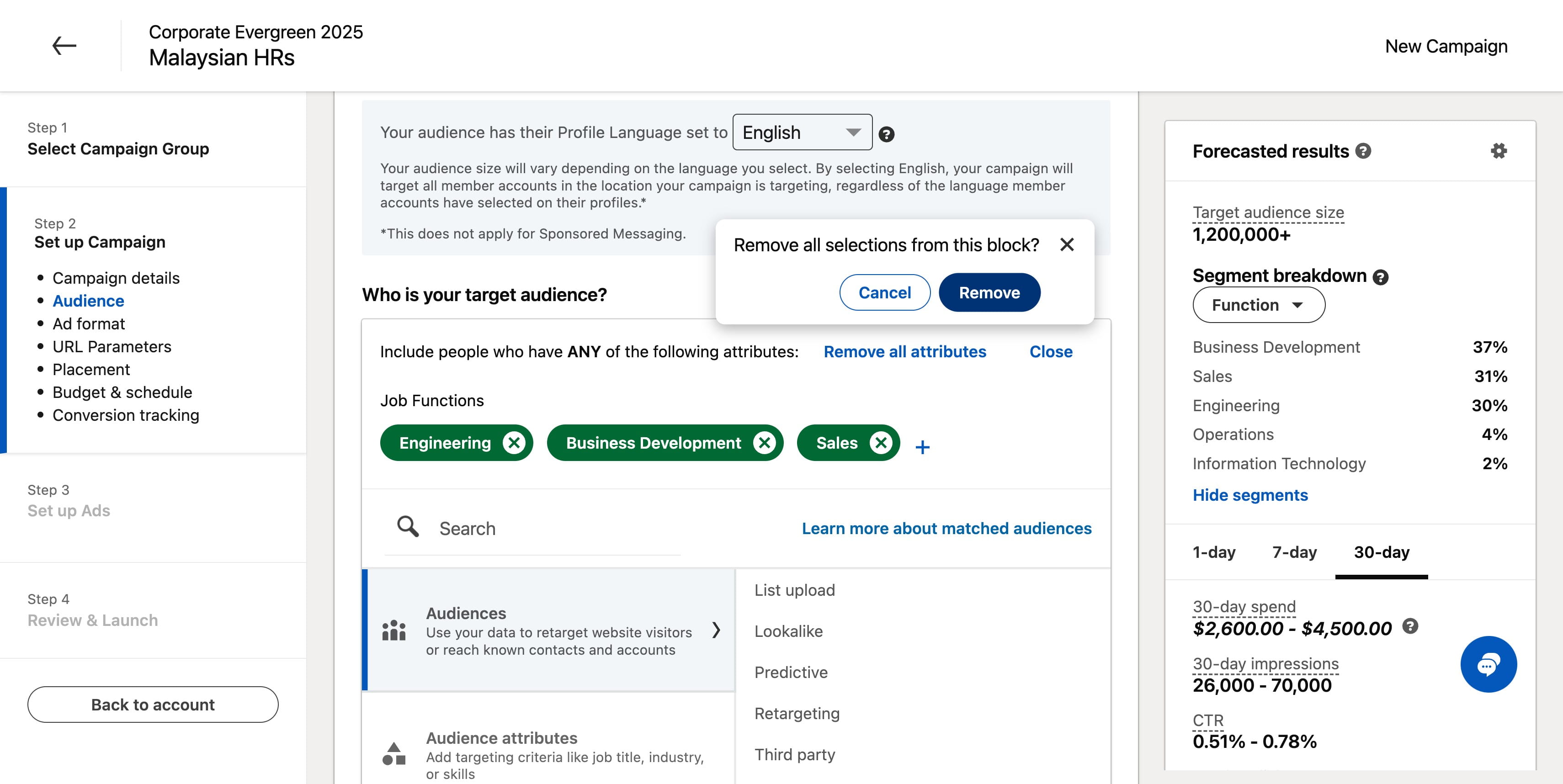
Click here
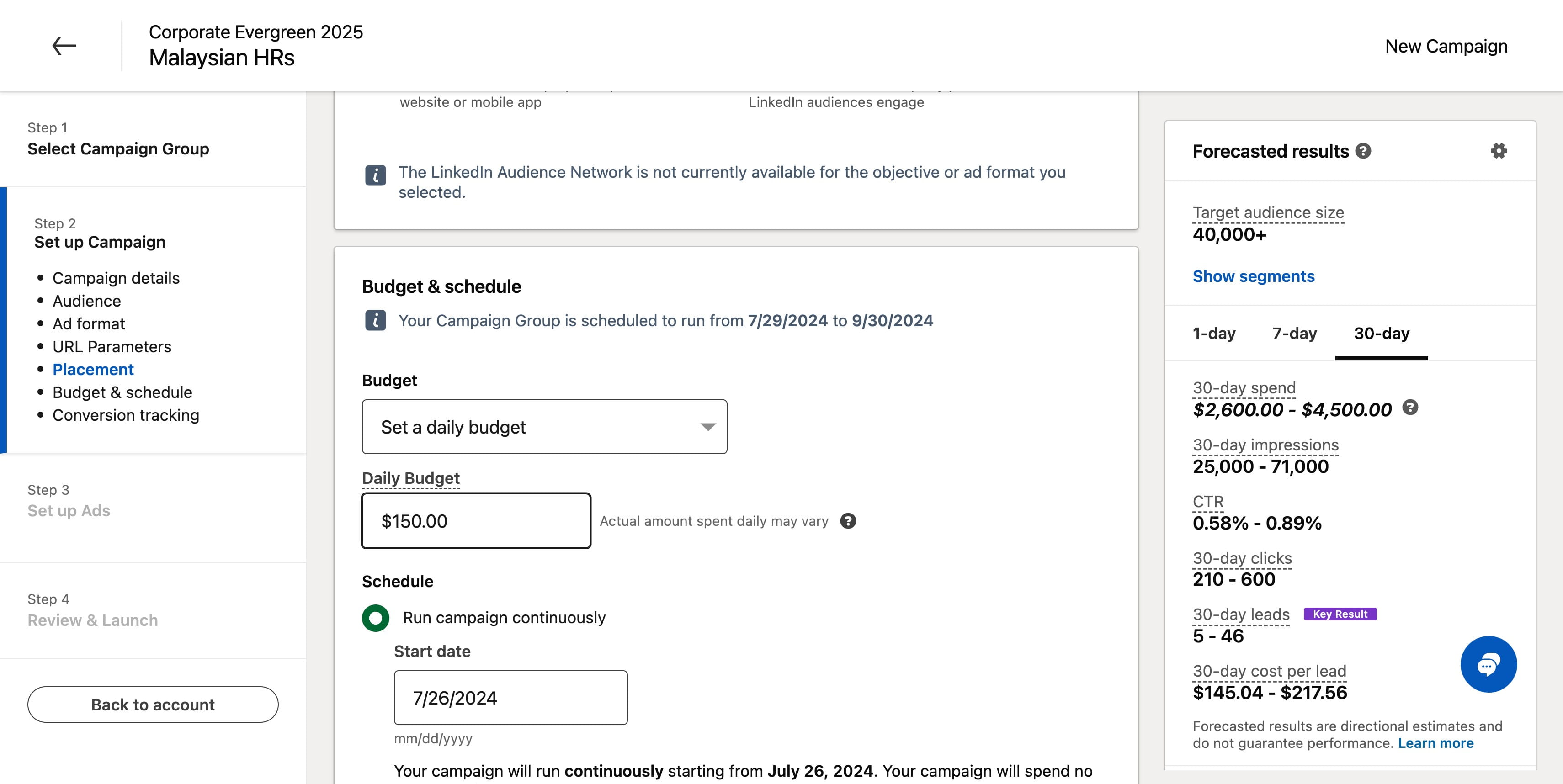
Set the daily budget based on your requirements please do note that Essa minimum of $10 that is required for every ad campaign that you wish to run.
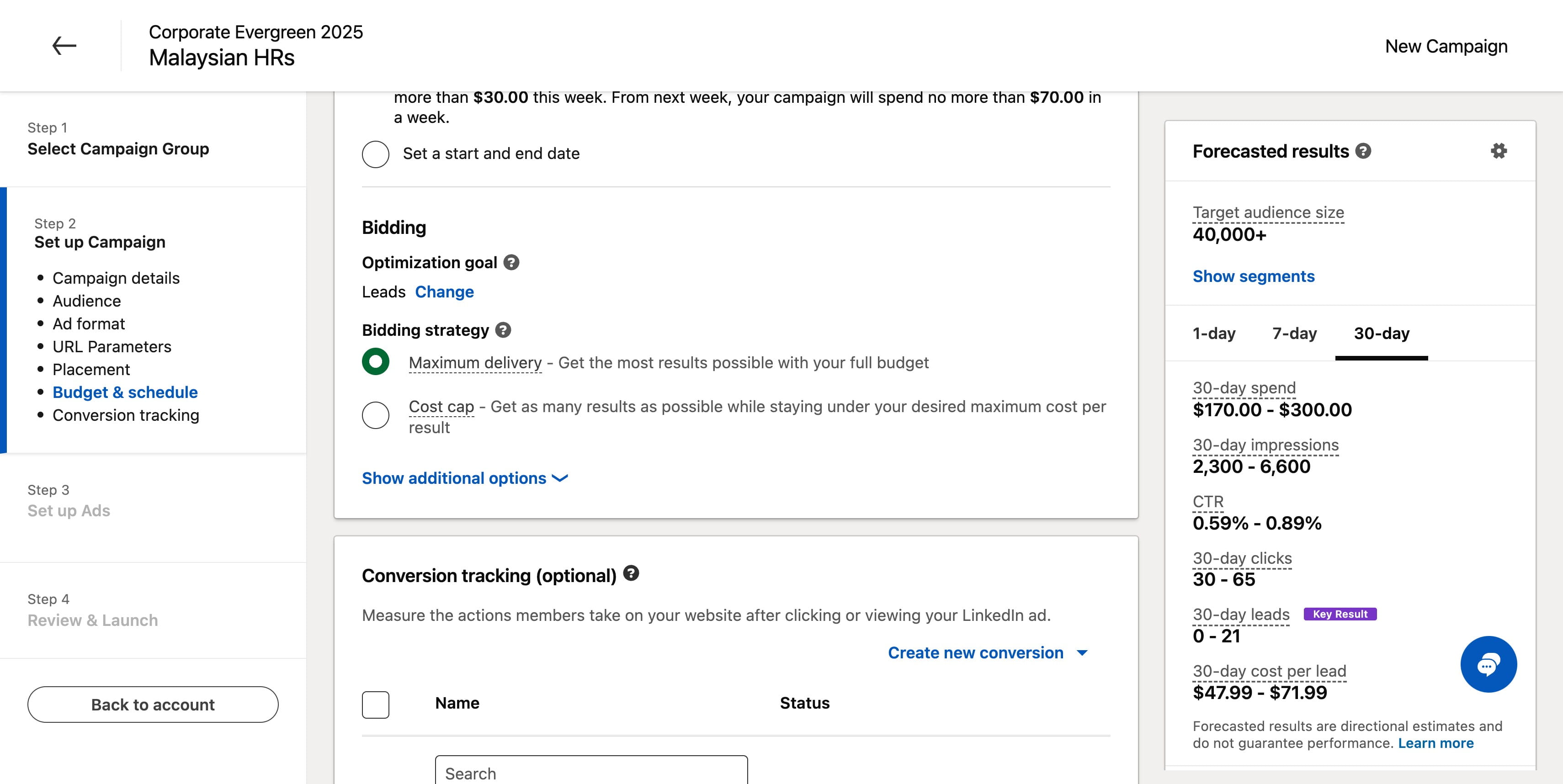
Click on "Show additional options"
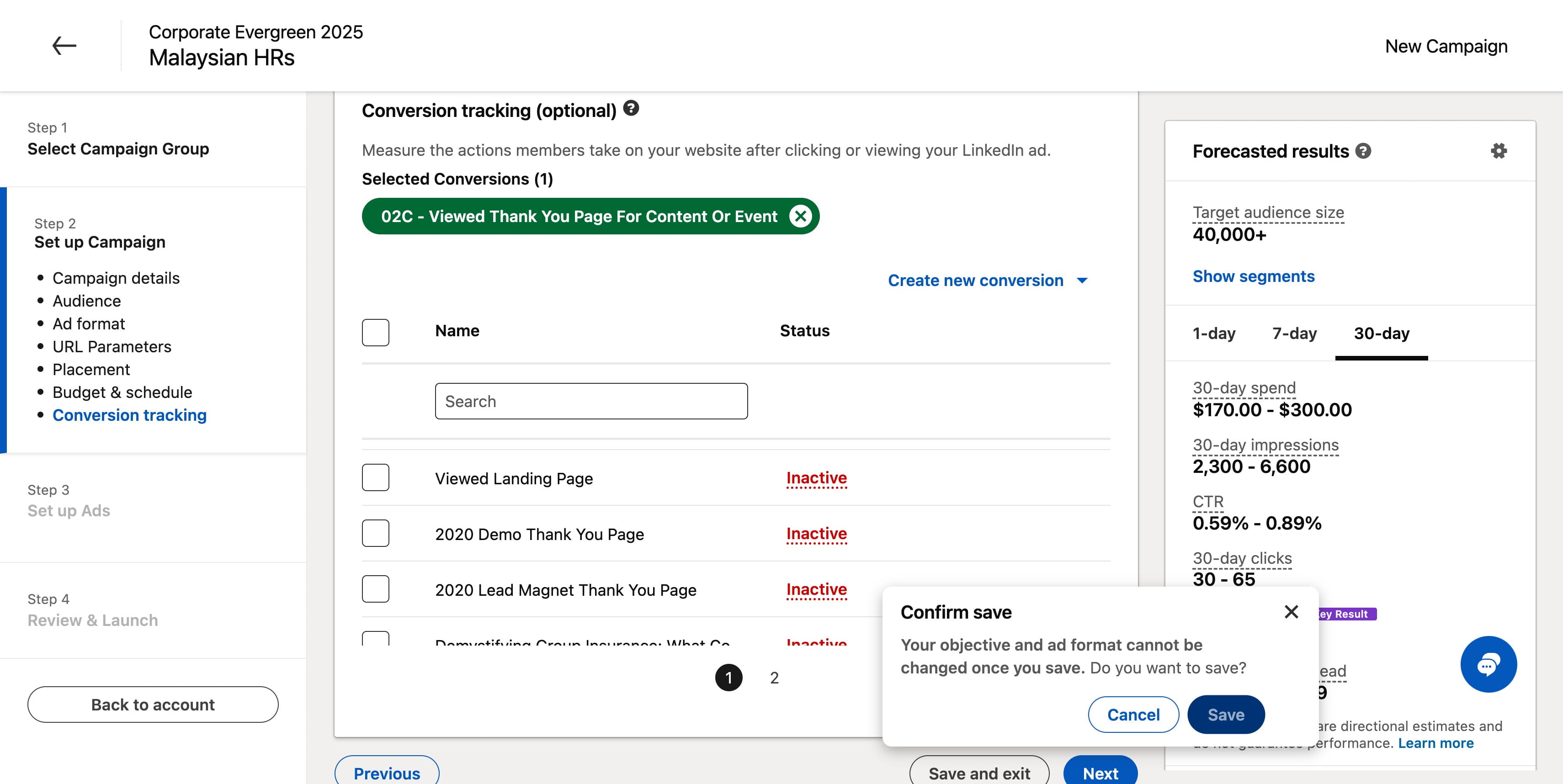
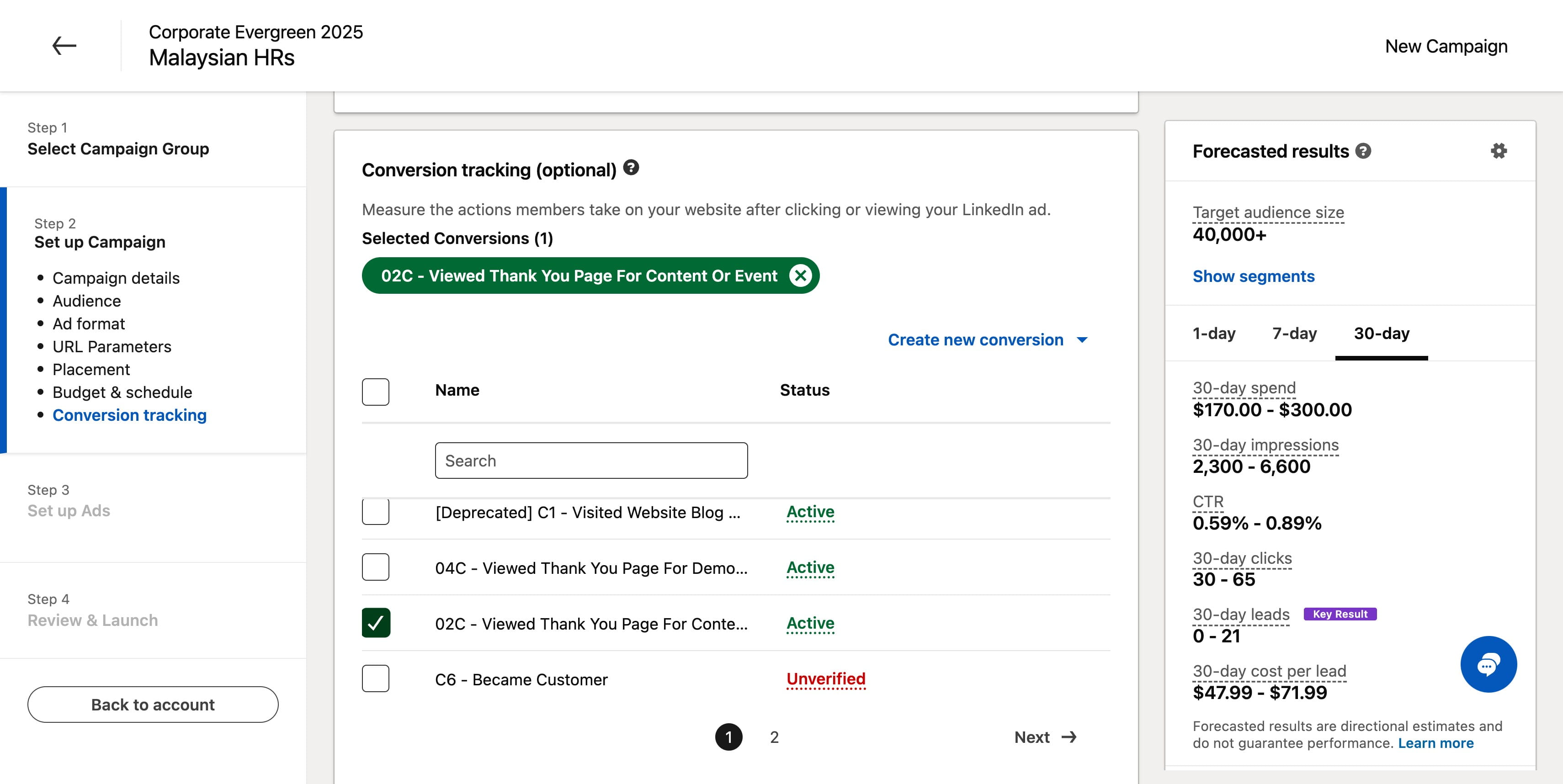
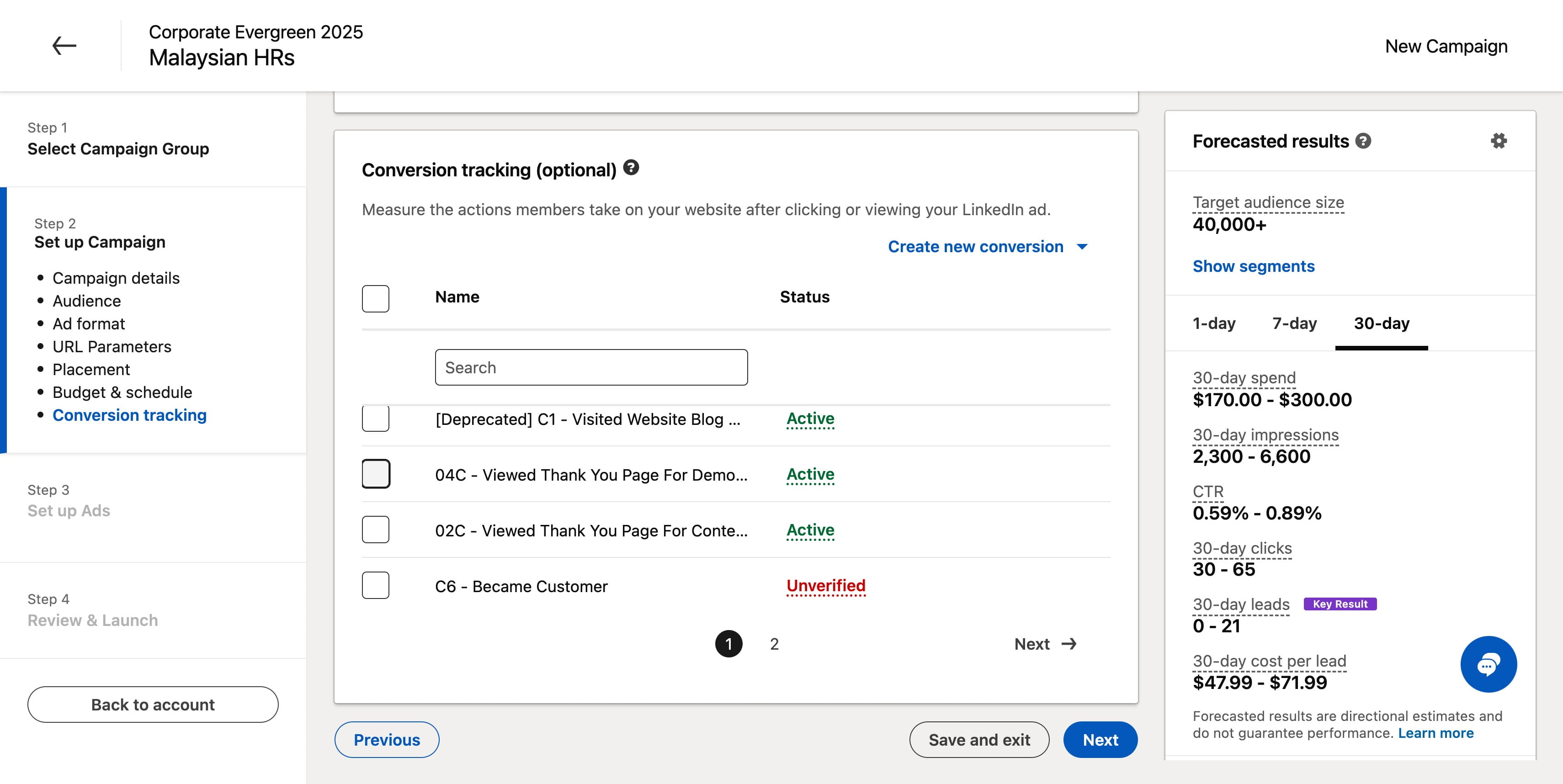
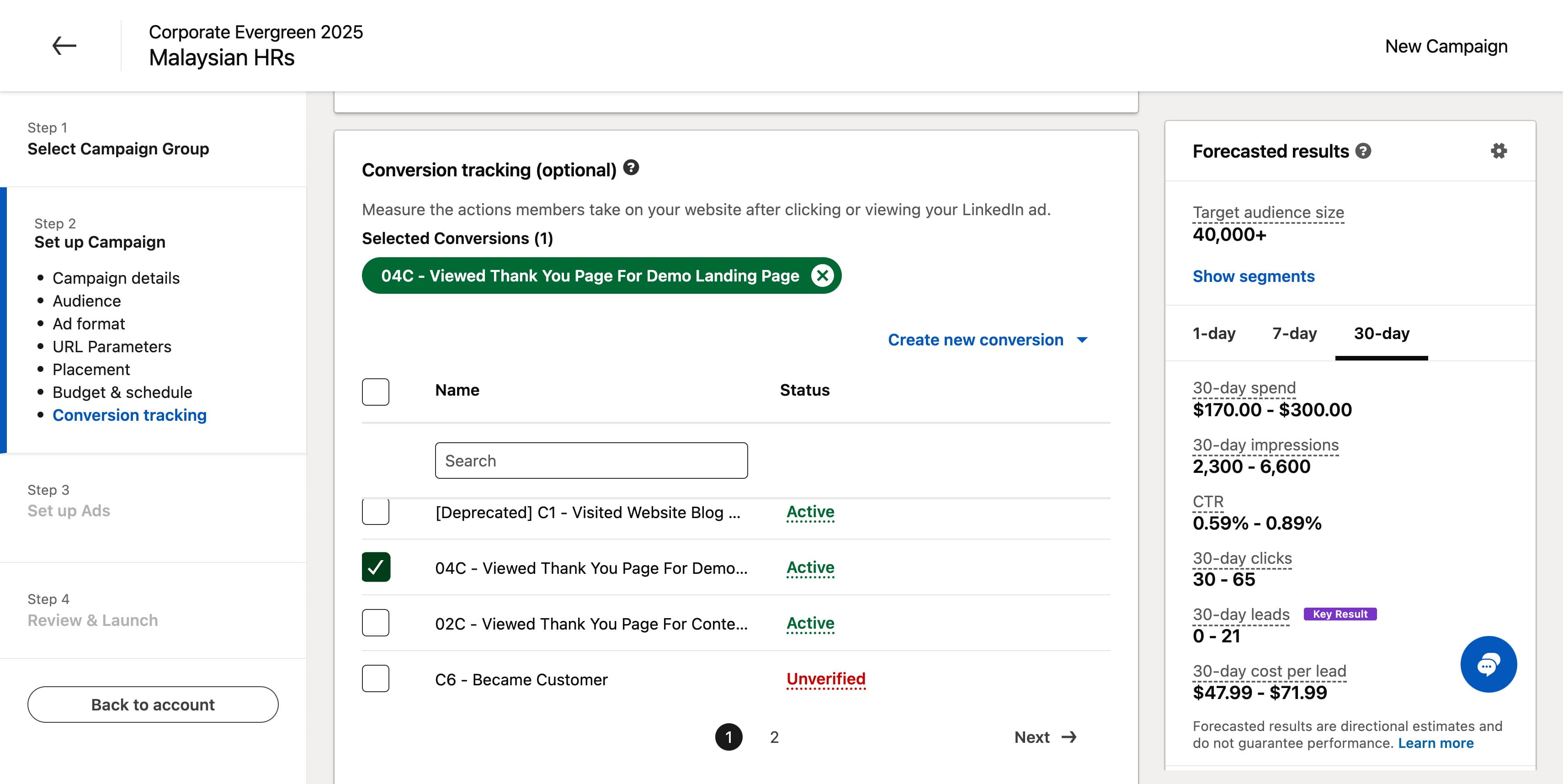
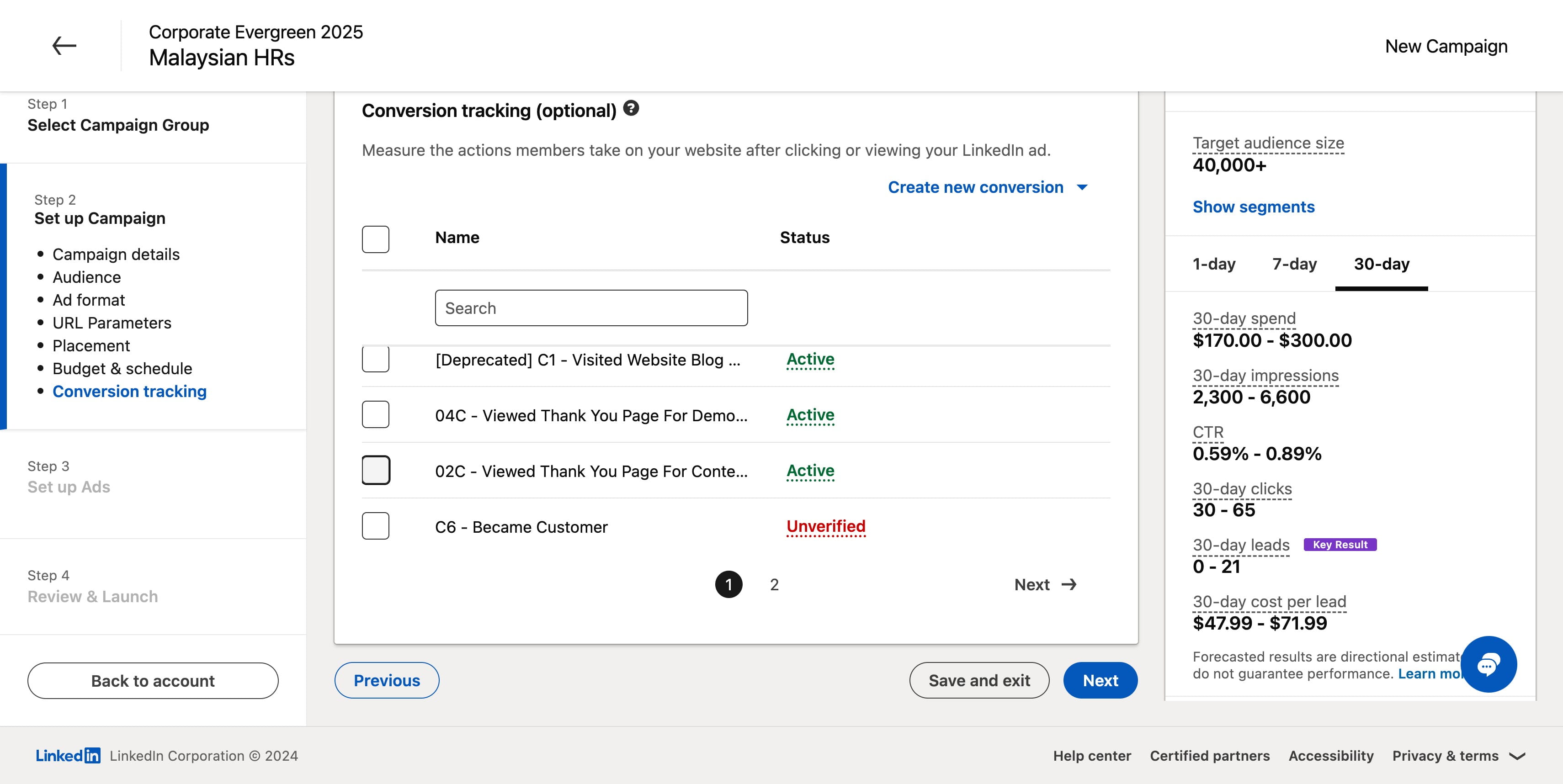
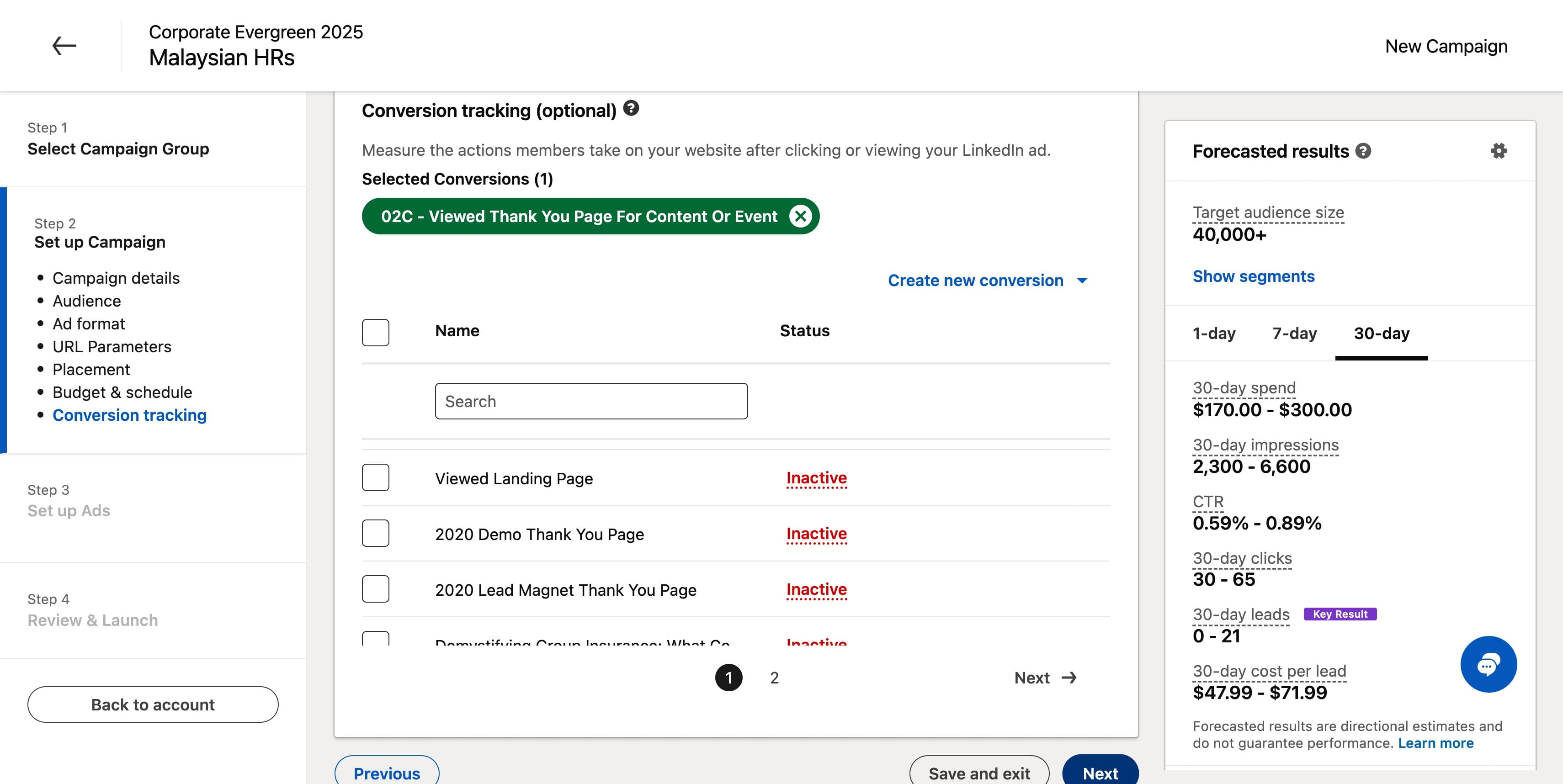
For the conversion tracking it is mandatory to select the right conversion event. Now if you goal is for people to submit an form to download a lead magnet select 02C thank you page however if you are running an ad which is for this submit demo submission form then you will need to select 04C.
Click here
Click here
Click here
Click here
Click on "Next"
Click on "Save"