logo

Set-Up Square Self Service Ordering

2

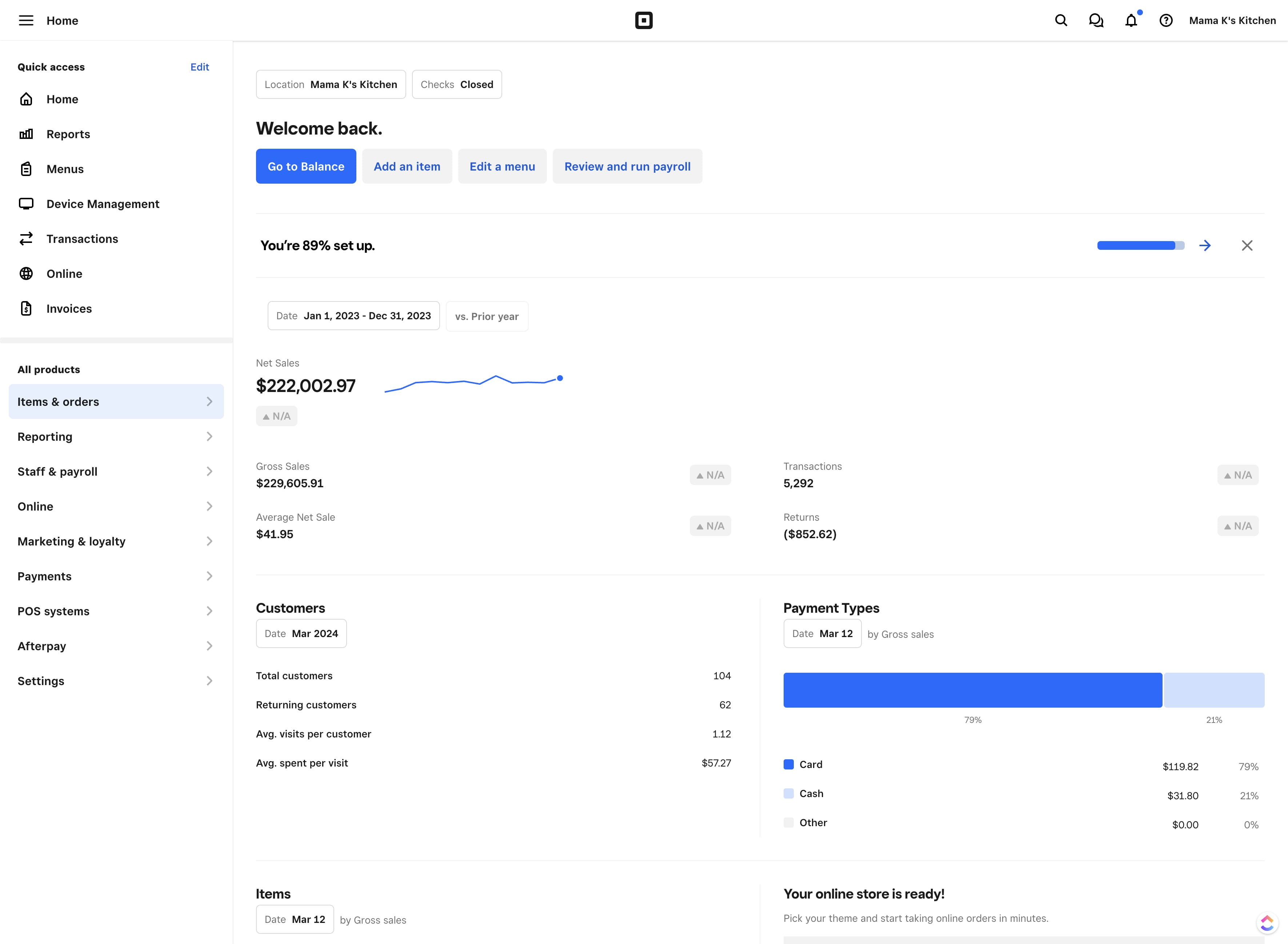
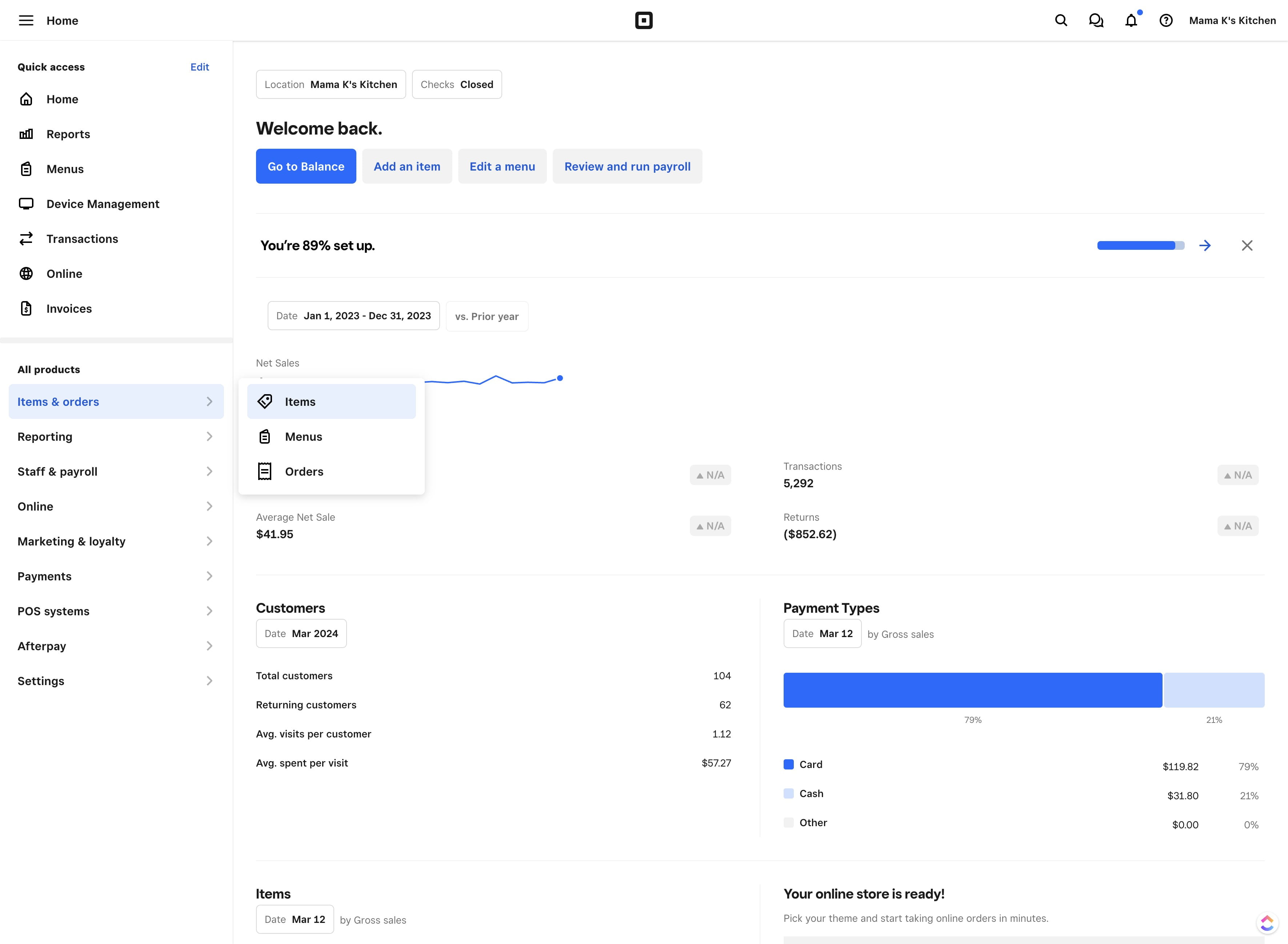
Click "Items & Orders"

Click "Items & Orders"
3

Click "Items"

Click "Items"
4

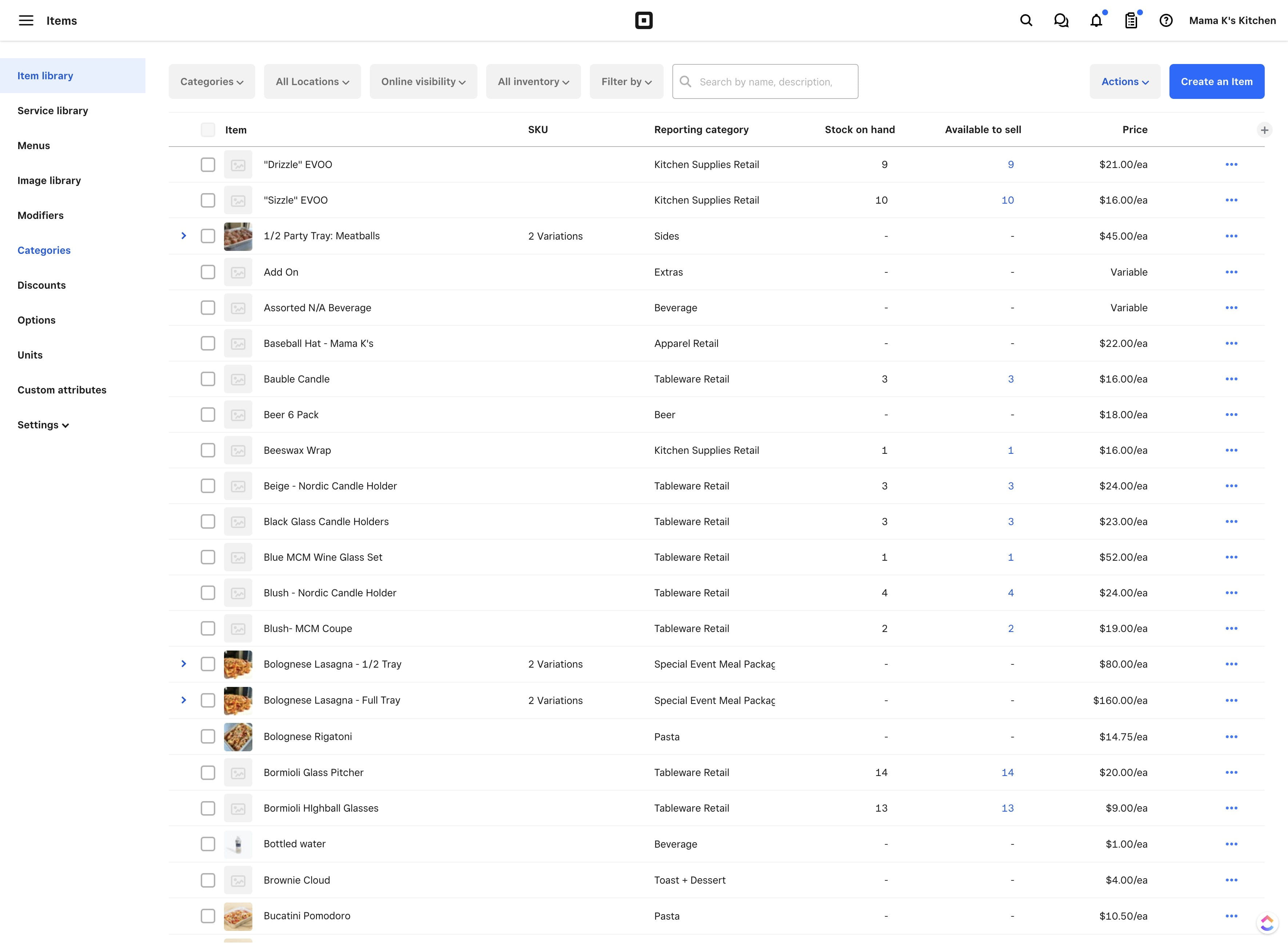
Click on "Categories"

Click on "Categories"
5

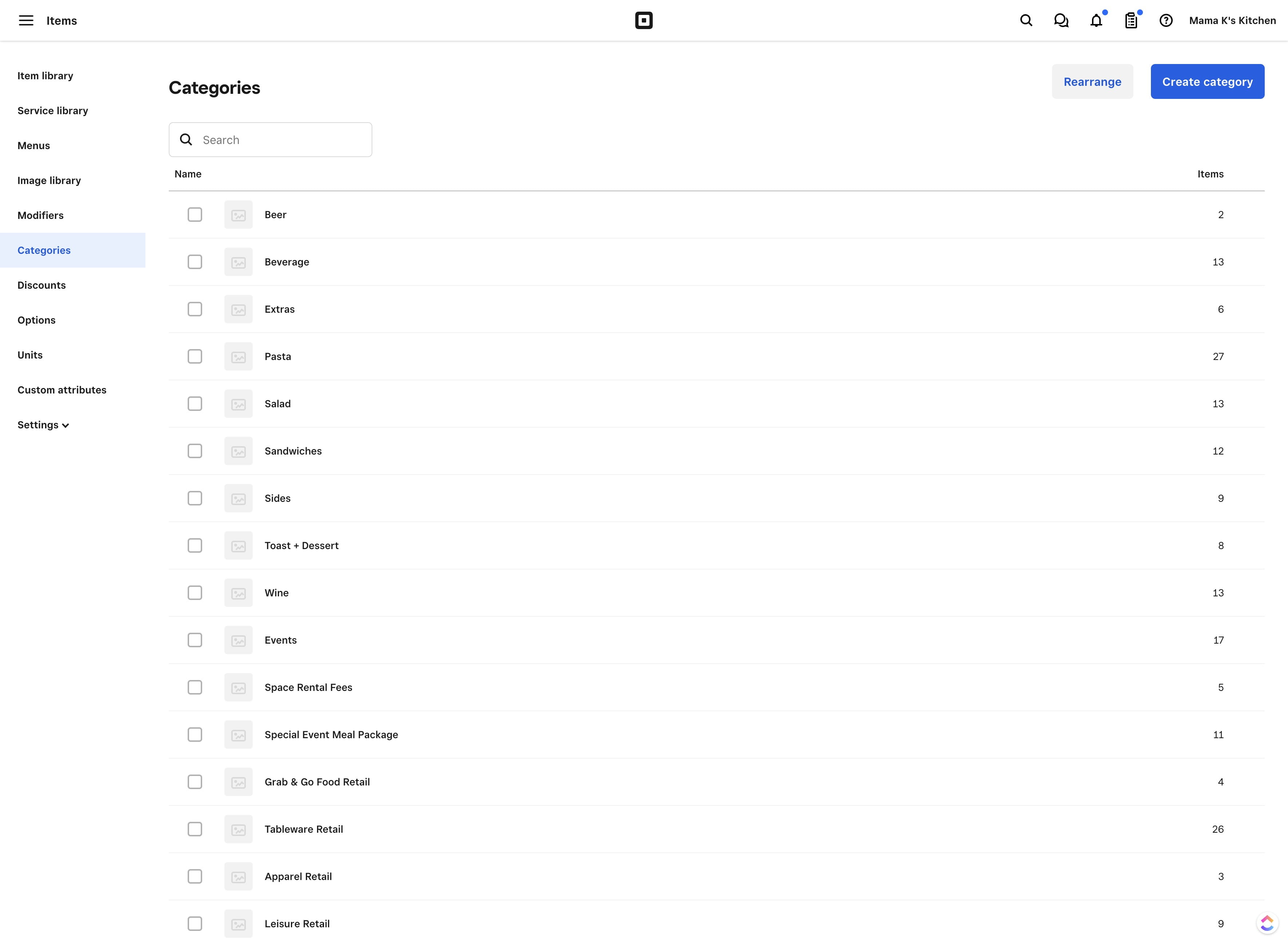
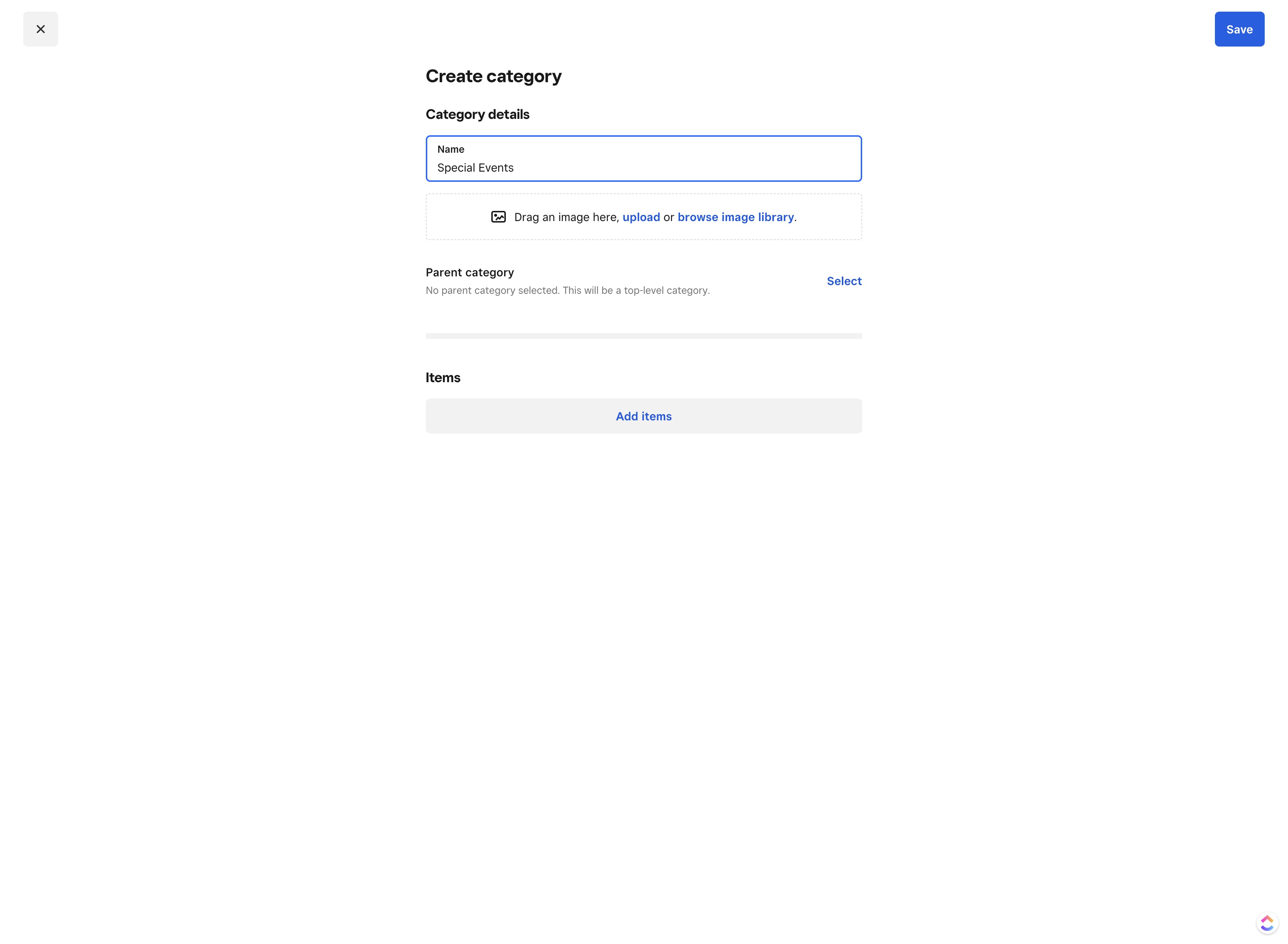
Click on "Create category"

Click on "Create category"
6

Click on "Name" & enter category name
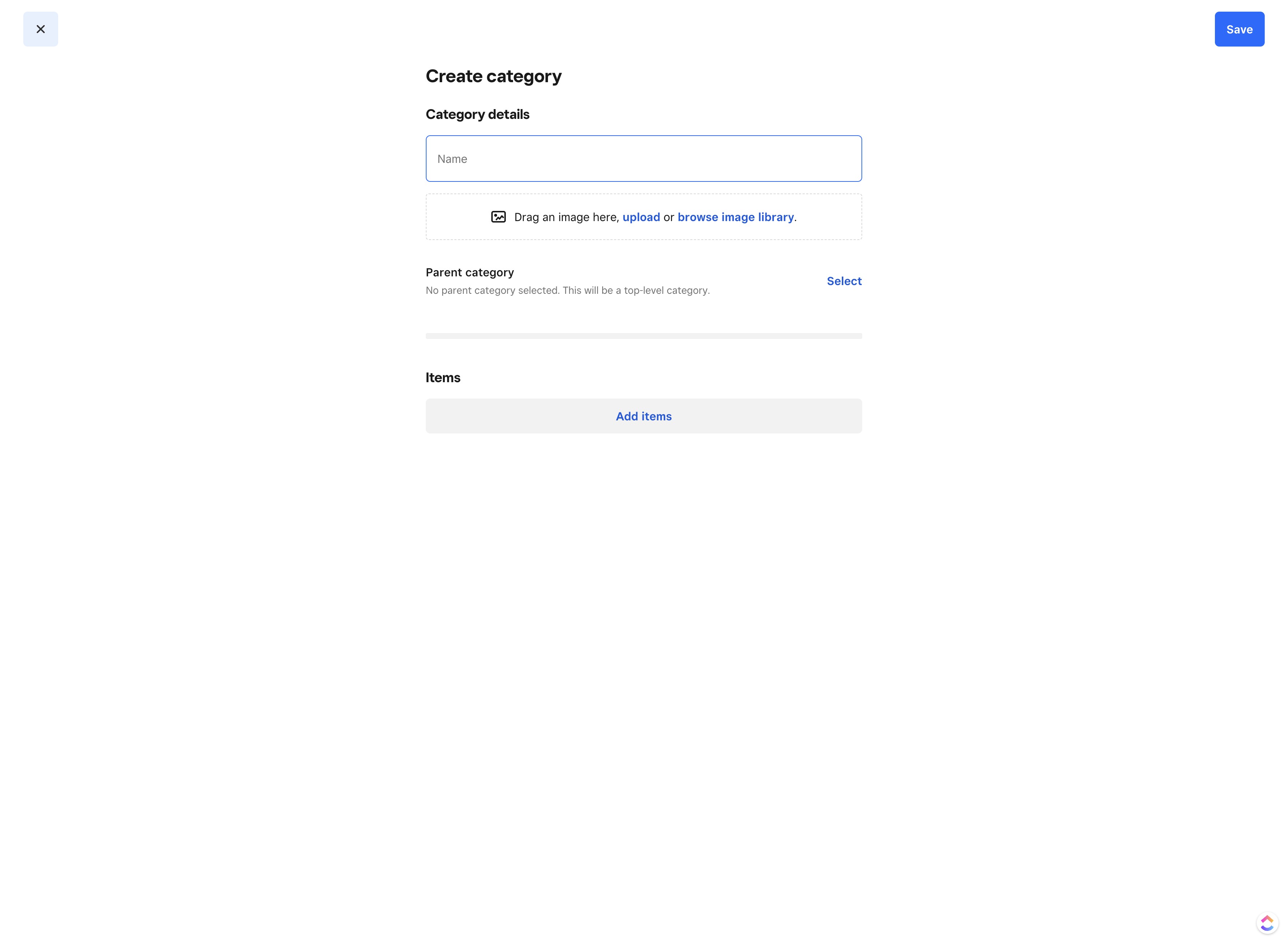
Click on "Name" & enter category name
7

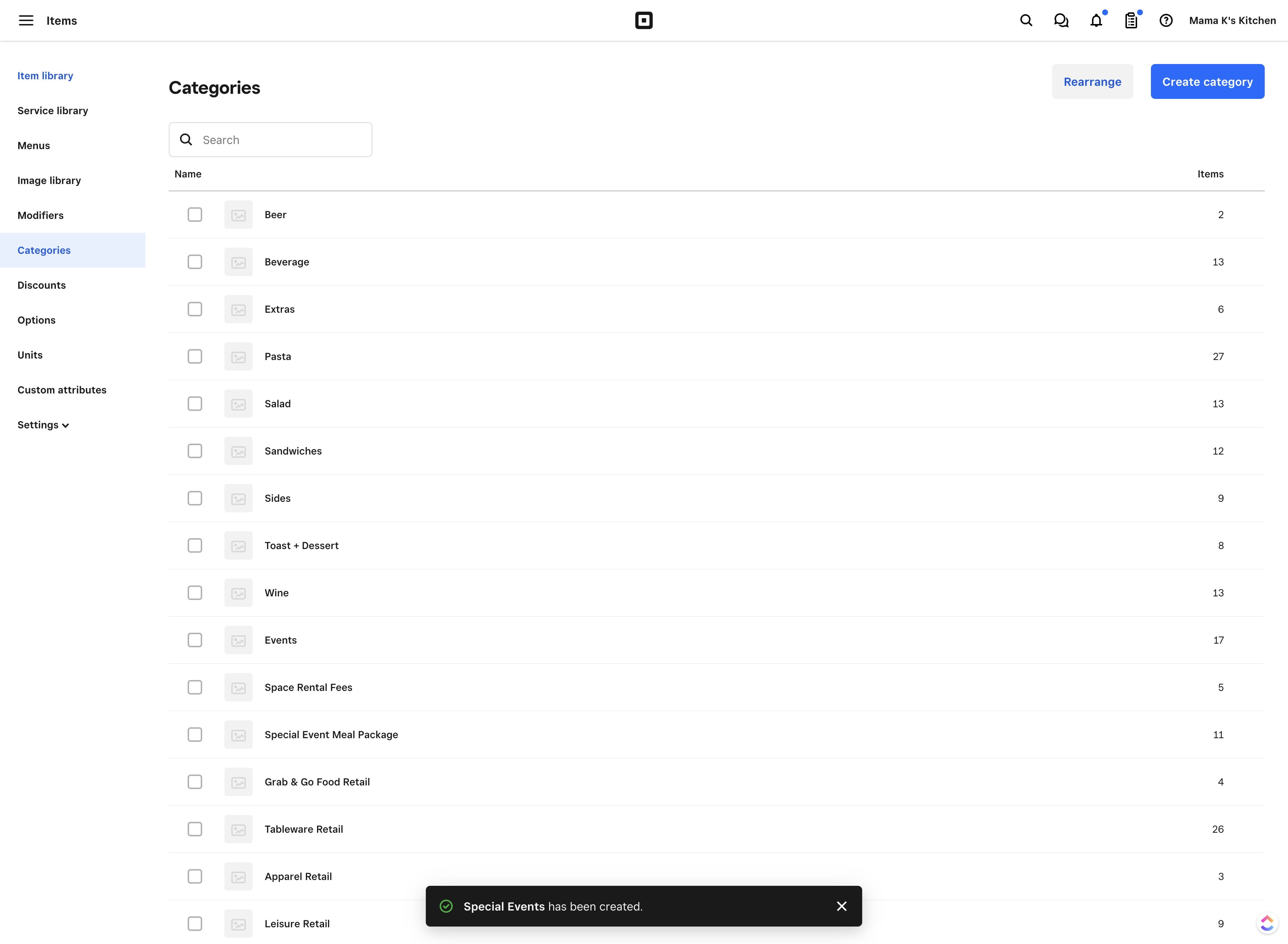
Click on "Save"

Click on "Save"
8

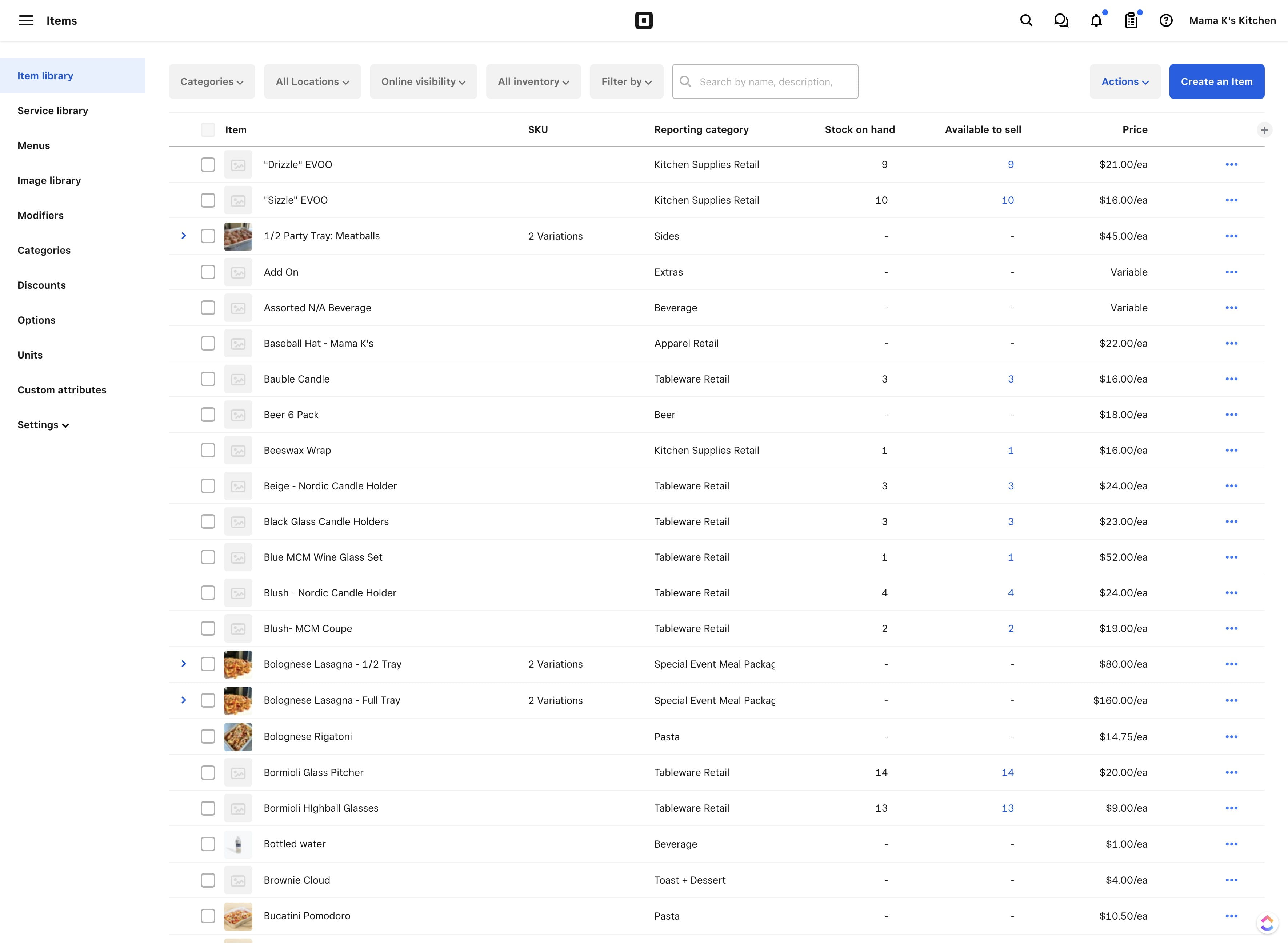
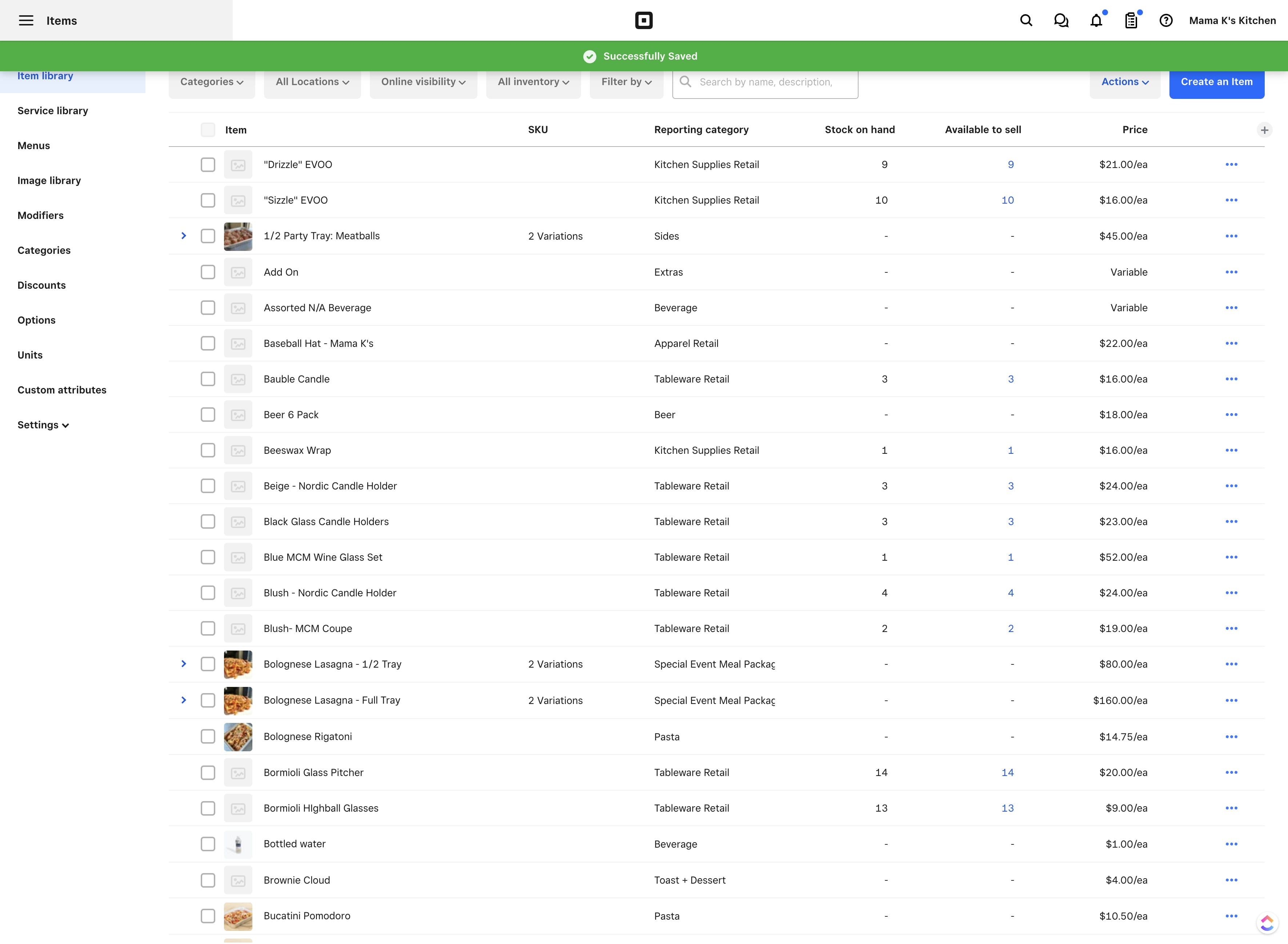
Click on "Item library"

Click on "Item library"
9

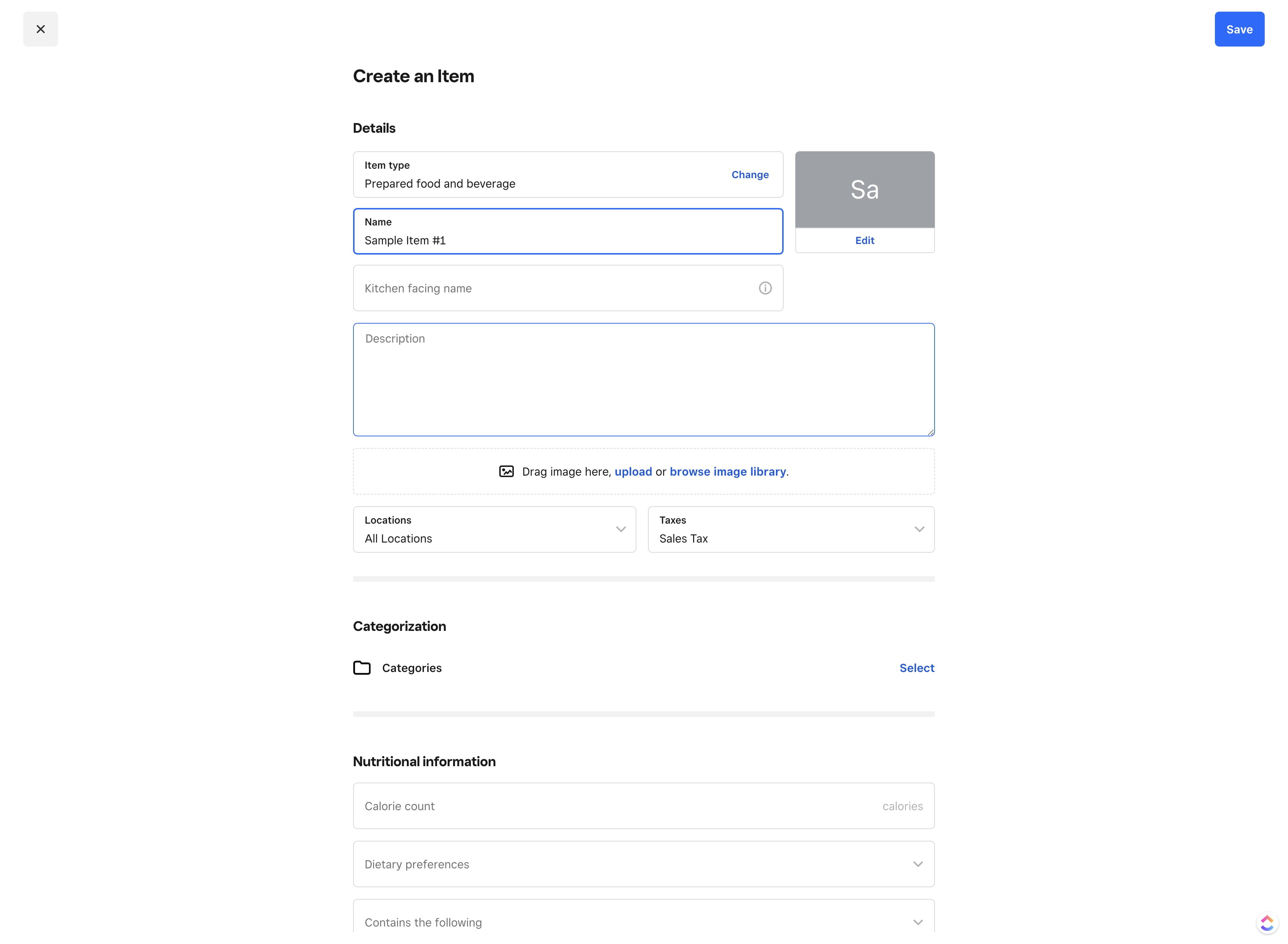
Click on "Create an Item"

Click on "Create an Item"
10

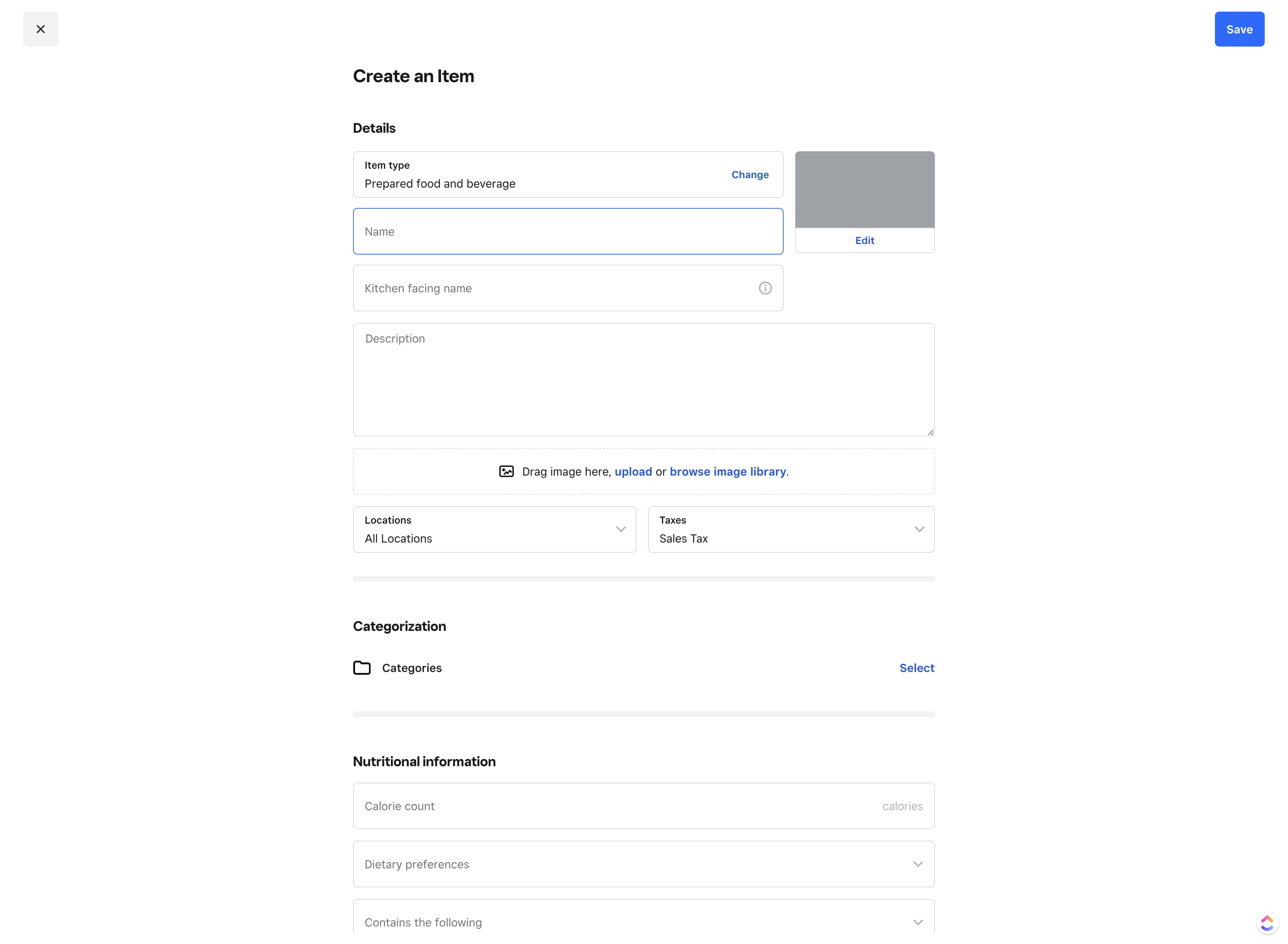
Click on "Name" and enter item name

Click on "Name" and enter item name
11

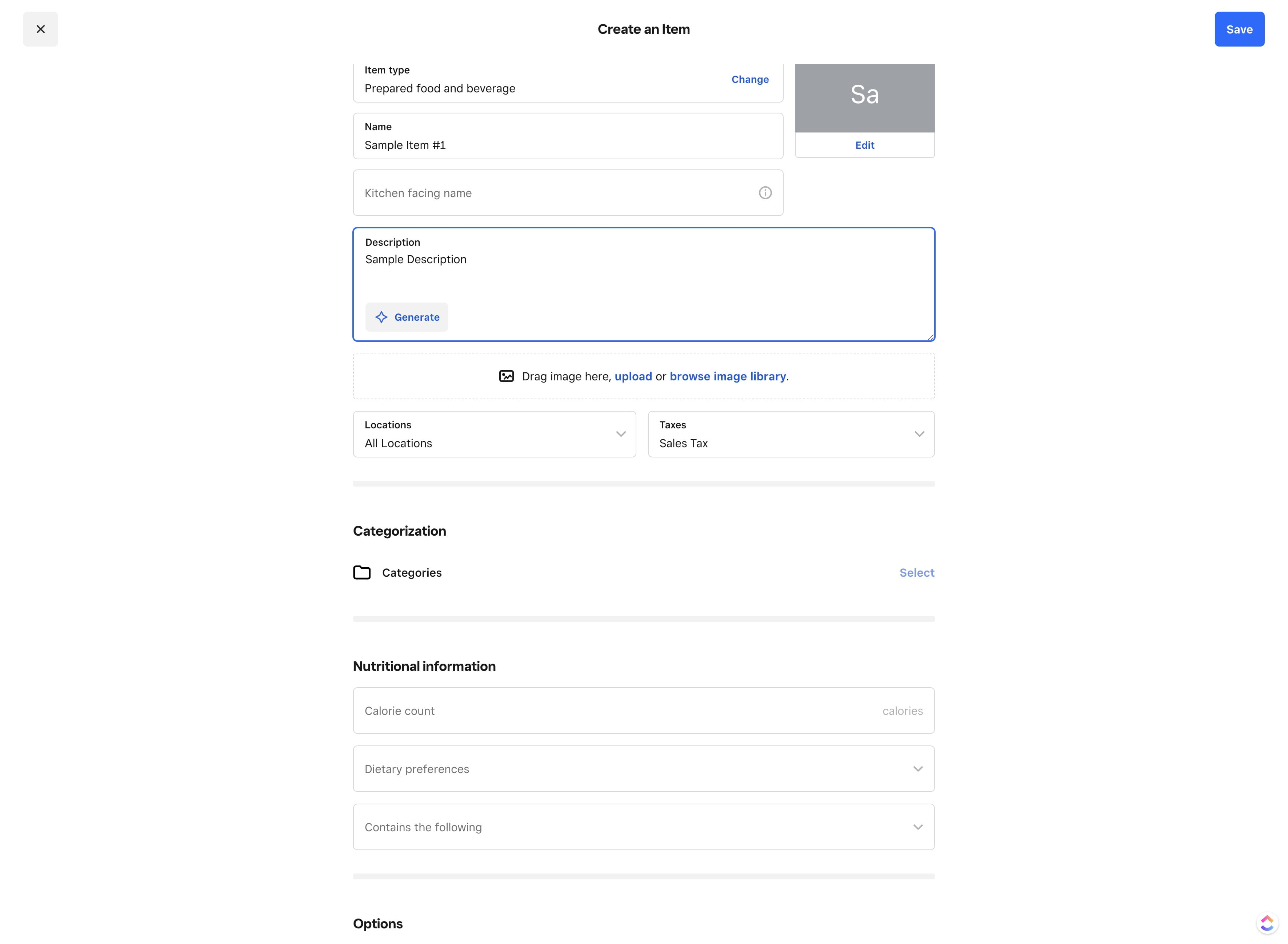
Add a description

Add a description
12

Click on "Select"

Click on "Select"
13

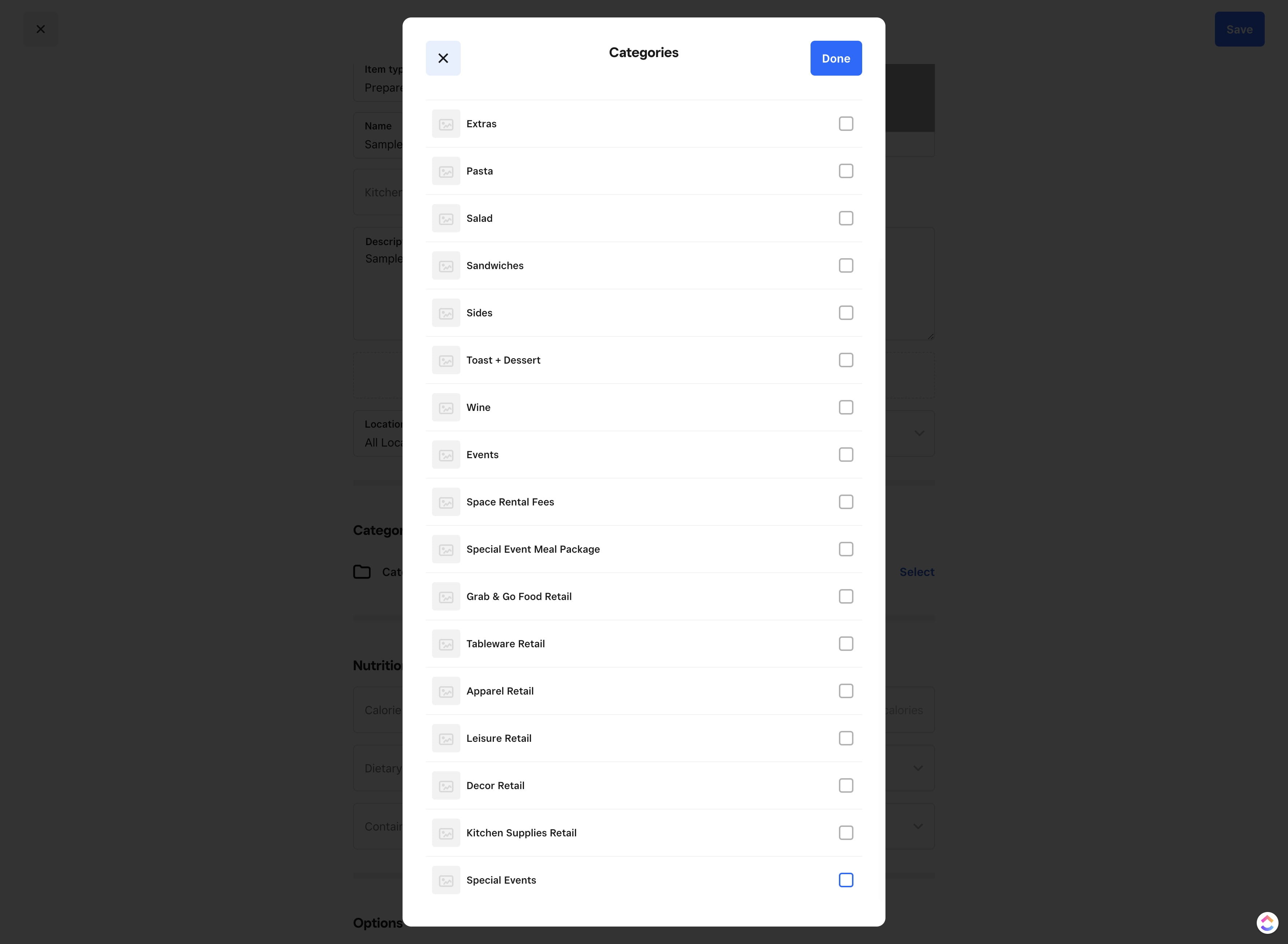
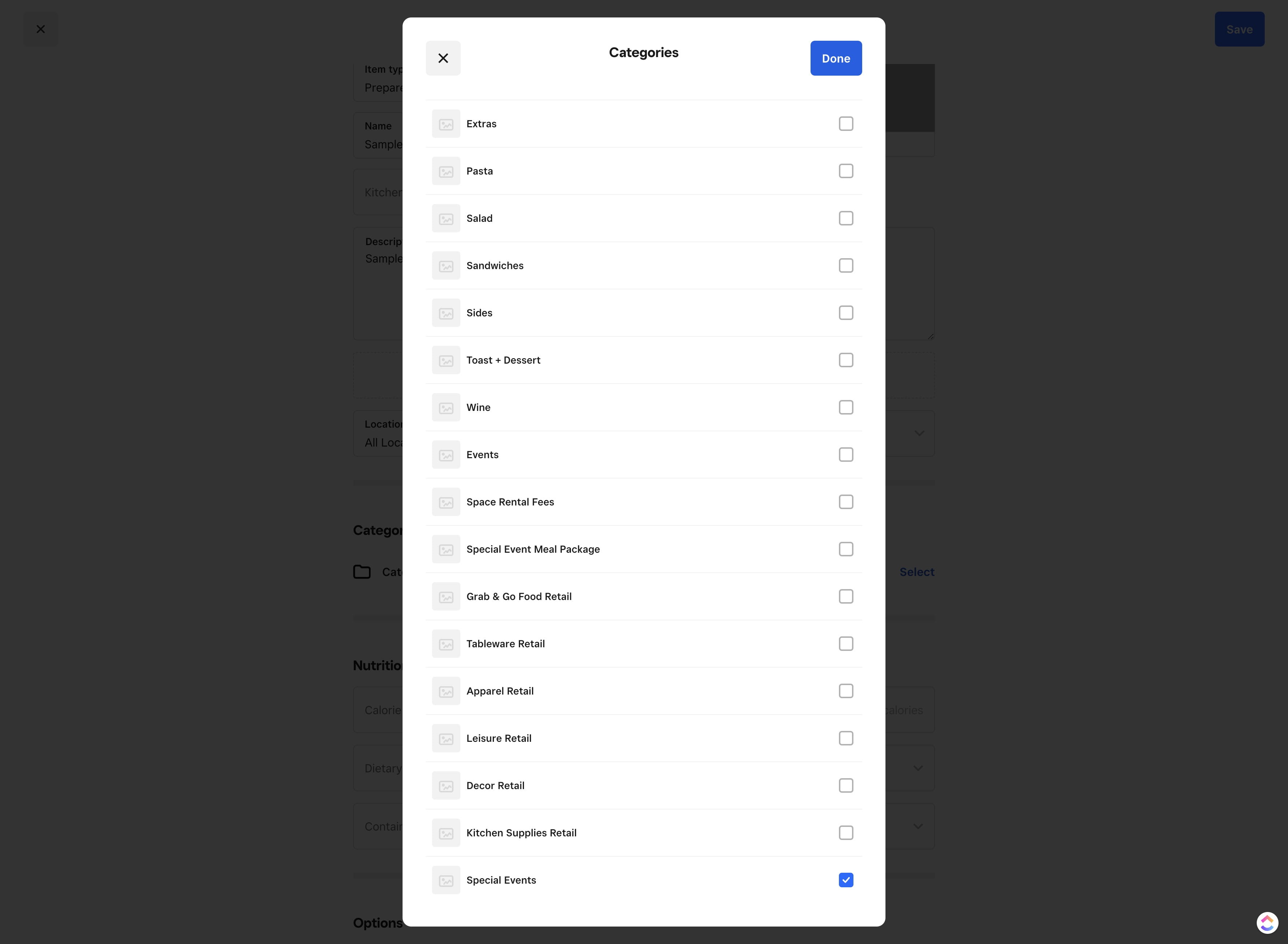
Click on "Special Events"

Click on "Special Events"
14

Click on "Done"

Click on "Done"
15

Click on "Price" and enter item price
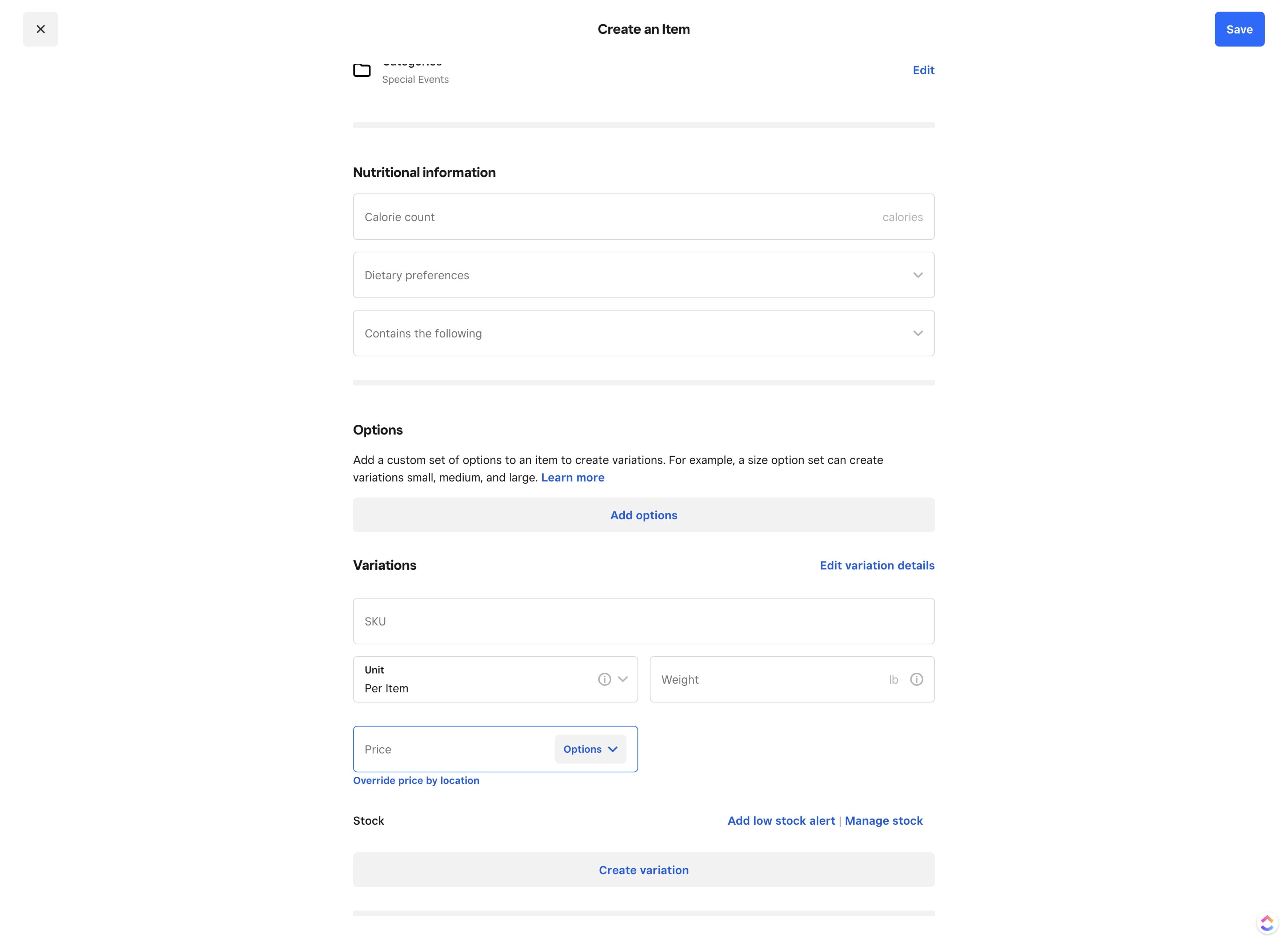
Click on "Price" and enter item price
16

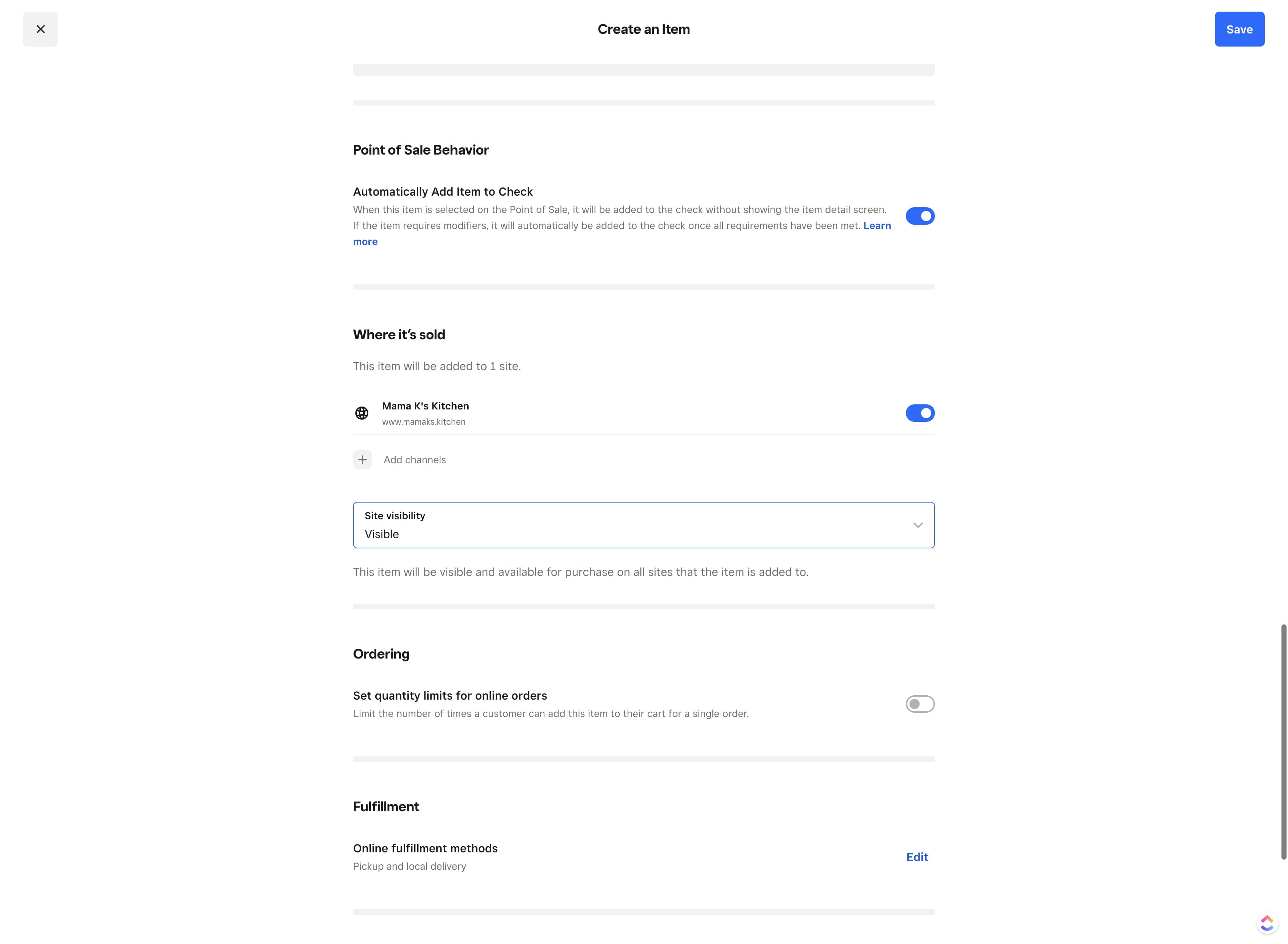
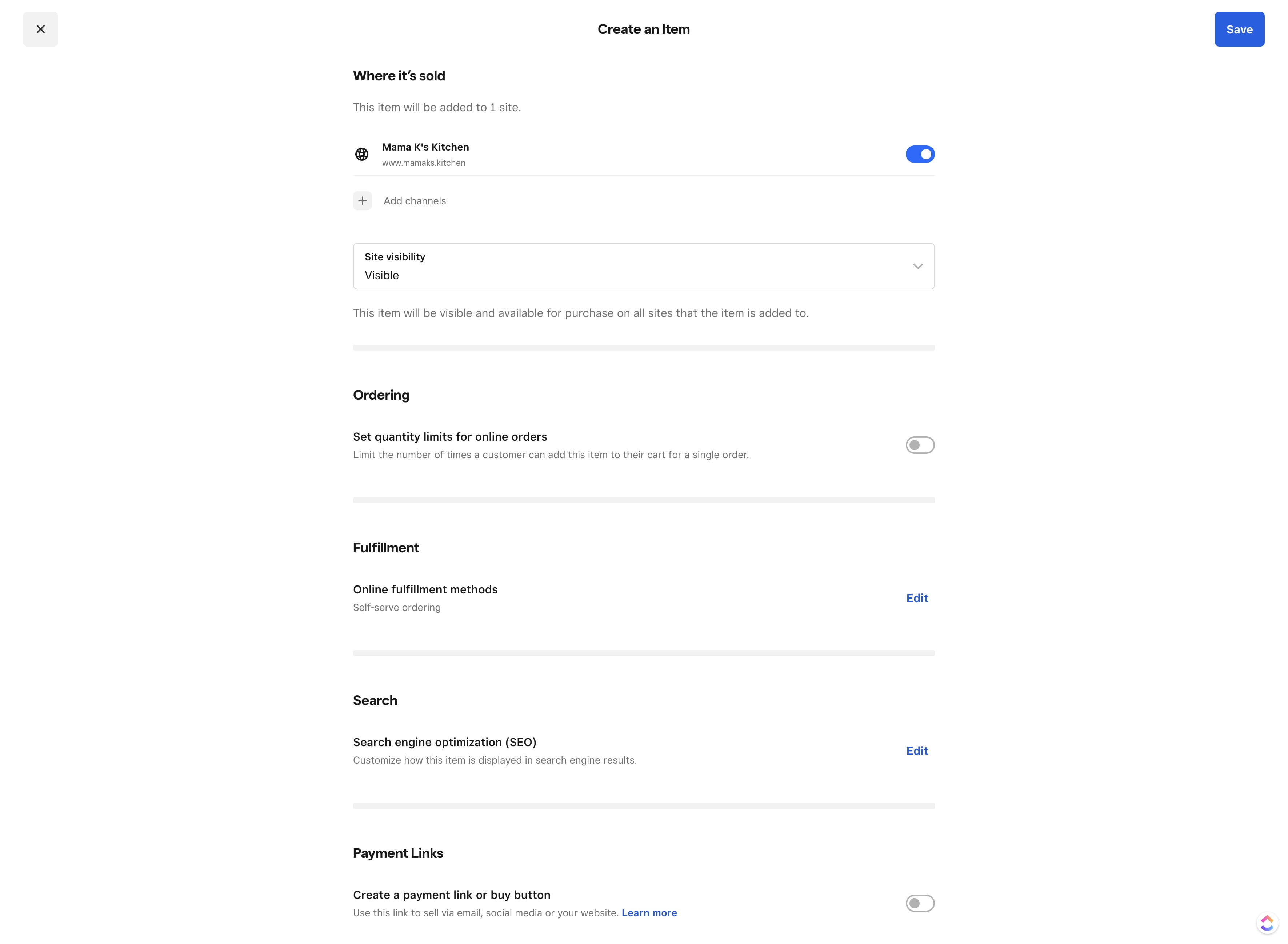
Click on "Site visibility"

Click on "Site visibility"
17

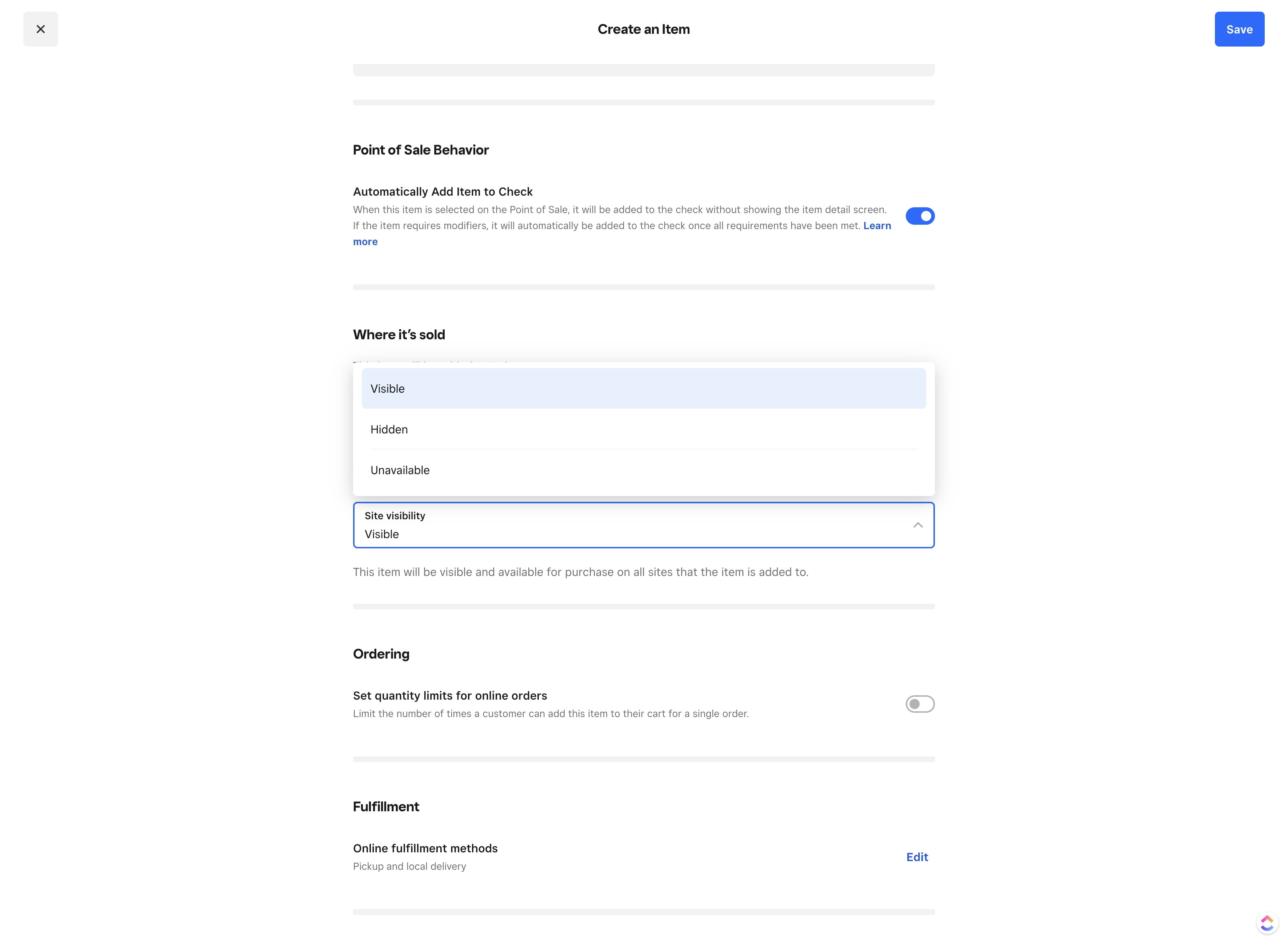
Click on "Visible"

Click on "Visible"
18

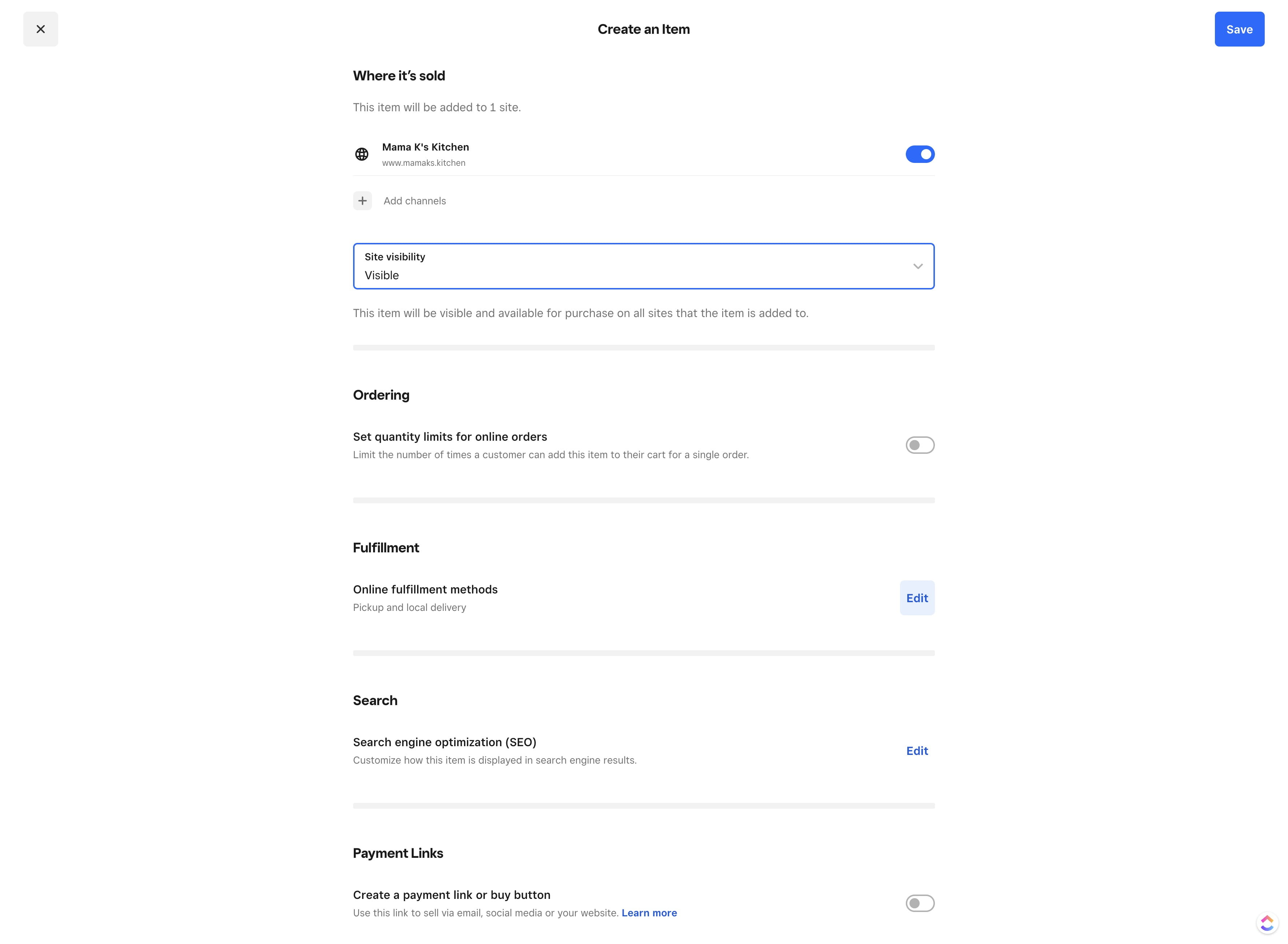
Click on "Edit"

Click on "Edit"
19

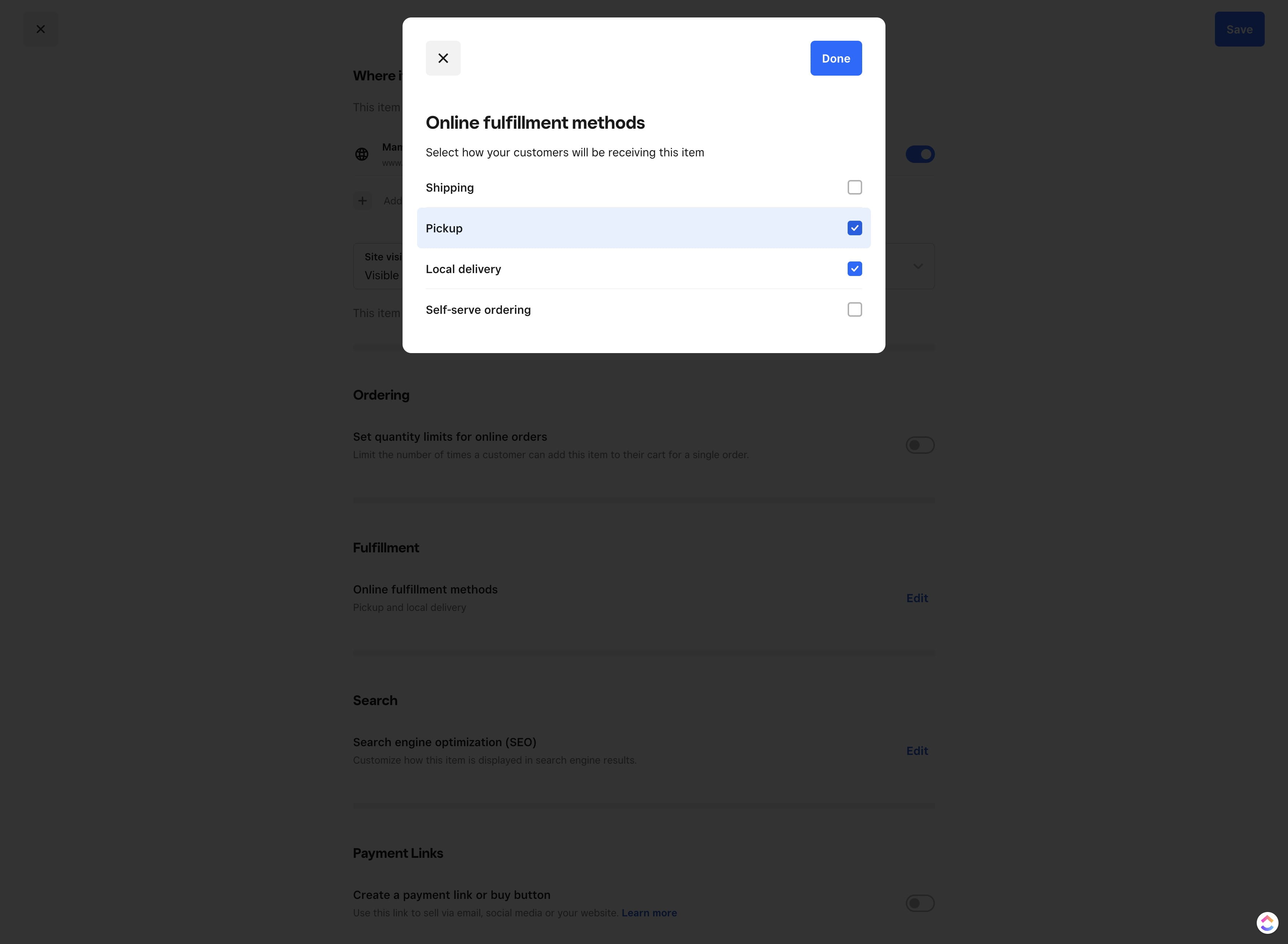
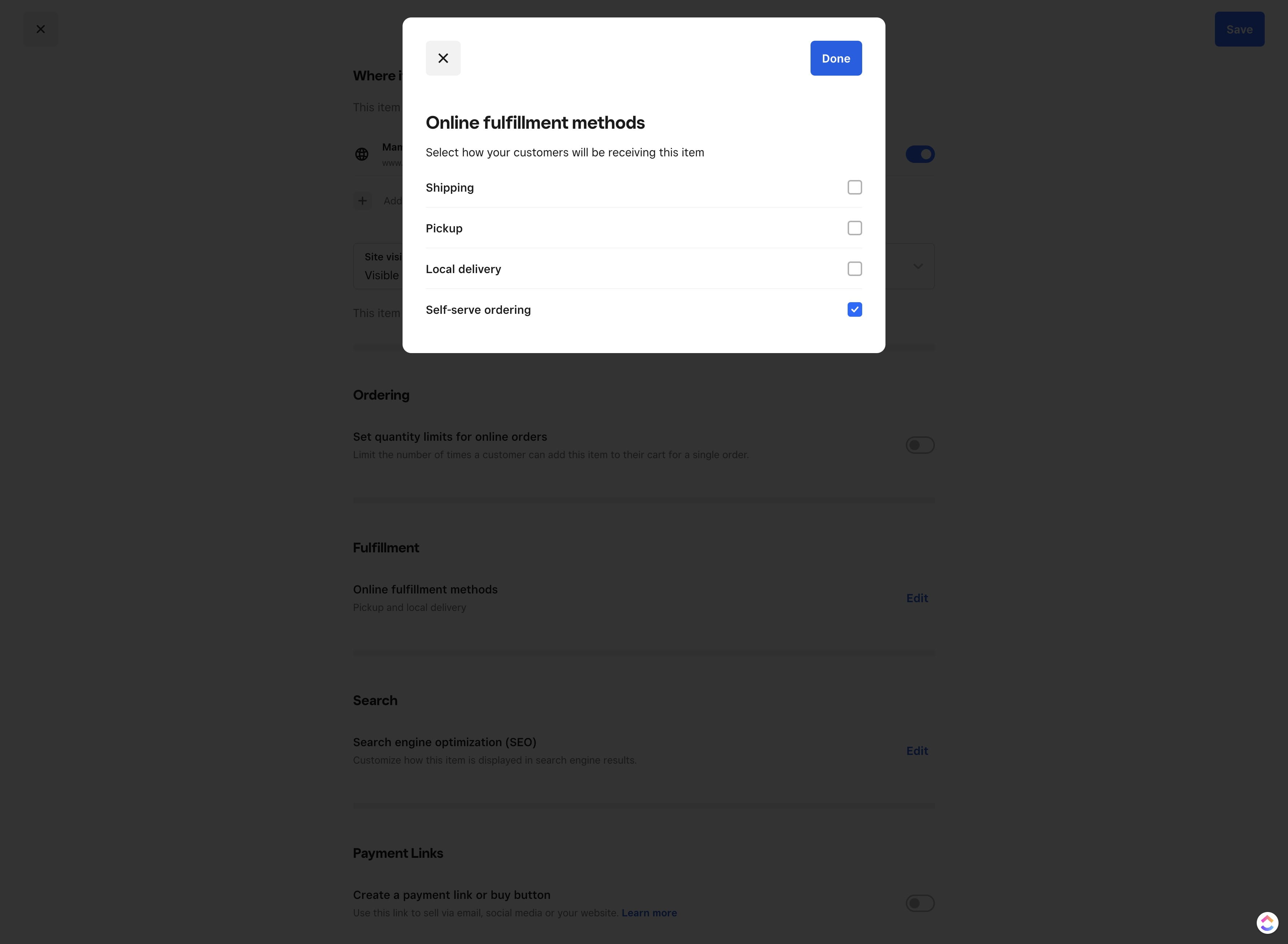
Click on "Pickup" and turn OFF

Click on "Pickup" and turn OFF
20

Click on "Local delivery" and turn OFF
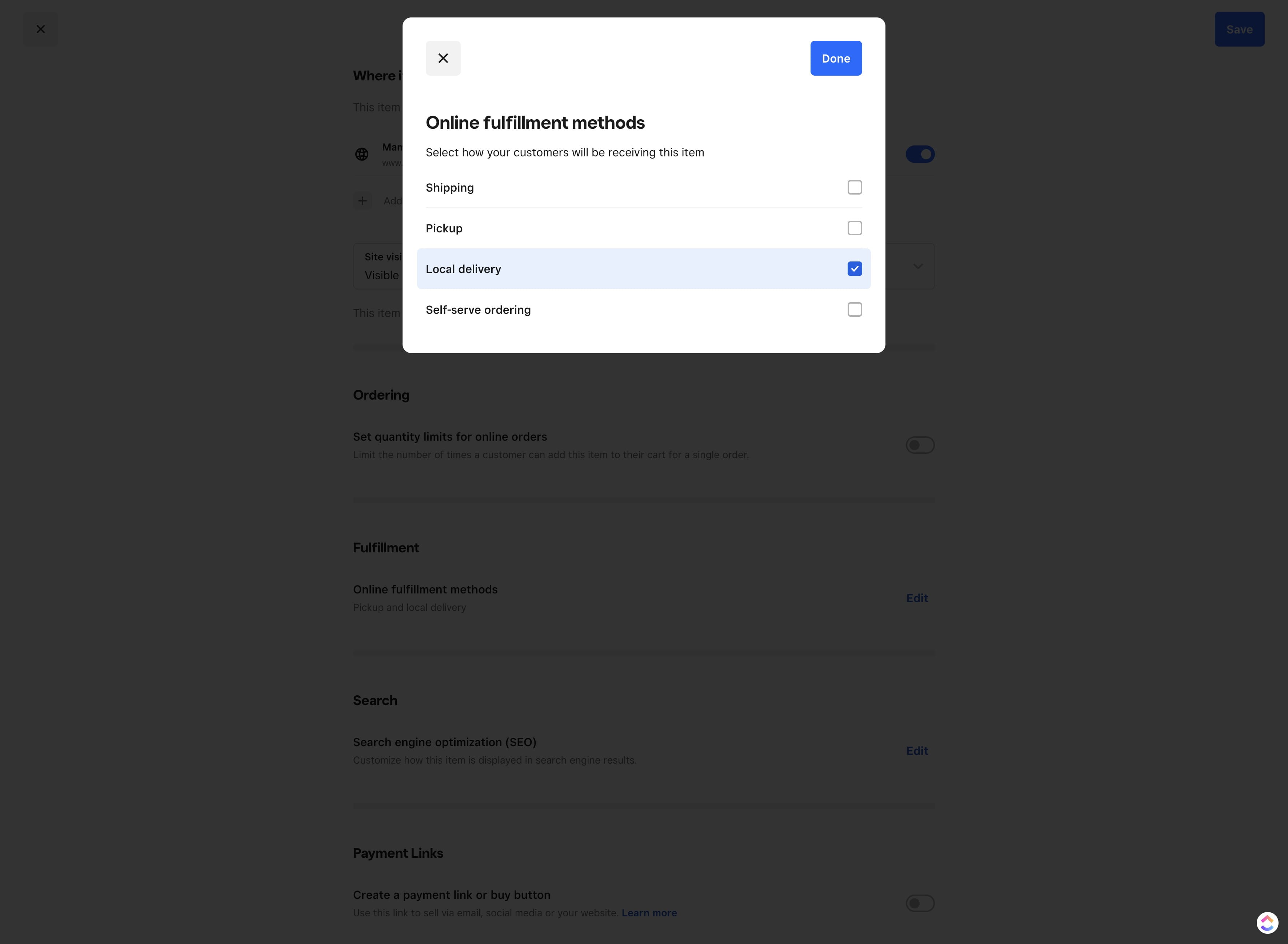
Click on "Local delivery"  and turn OFF
21

Click on "Self-serve ordering" and turn ON
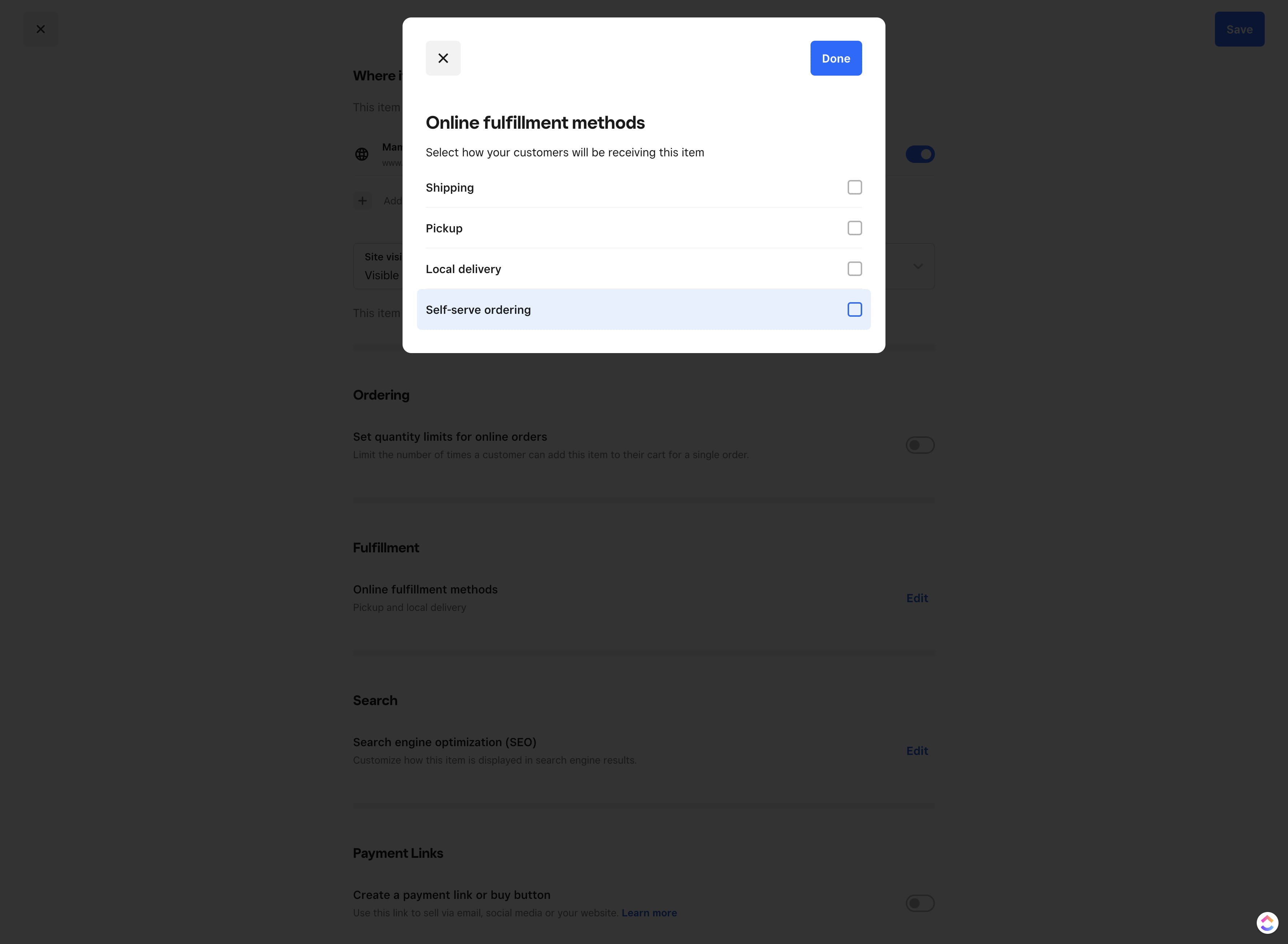
Click on "Self-serve ordering"  and turn ON
22

Click on "Done"

Click on "Done"
23

Click on "Save"

Click on "Save"
24

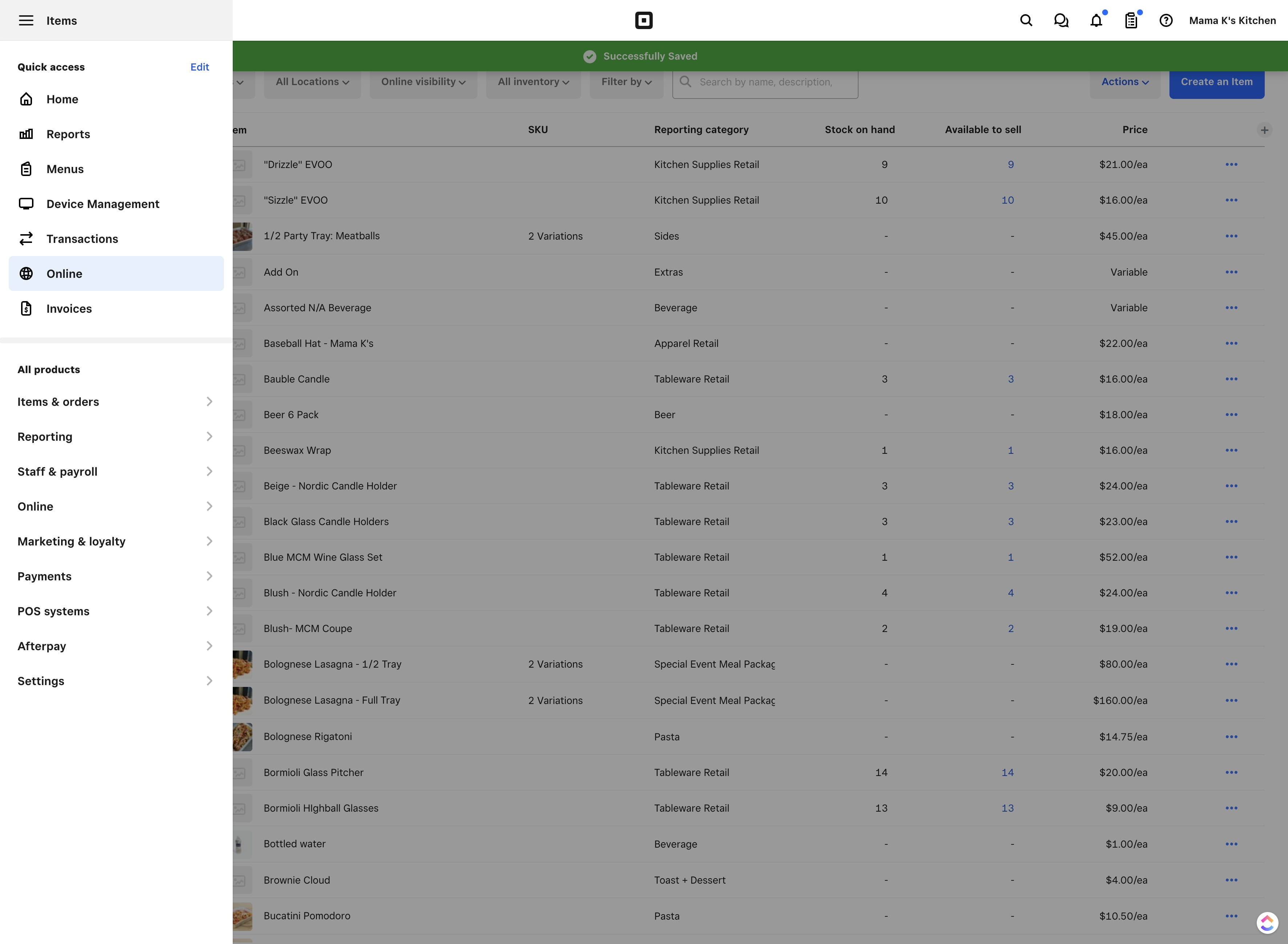
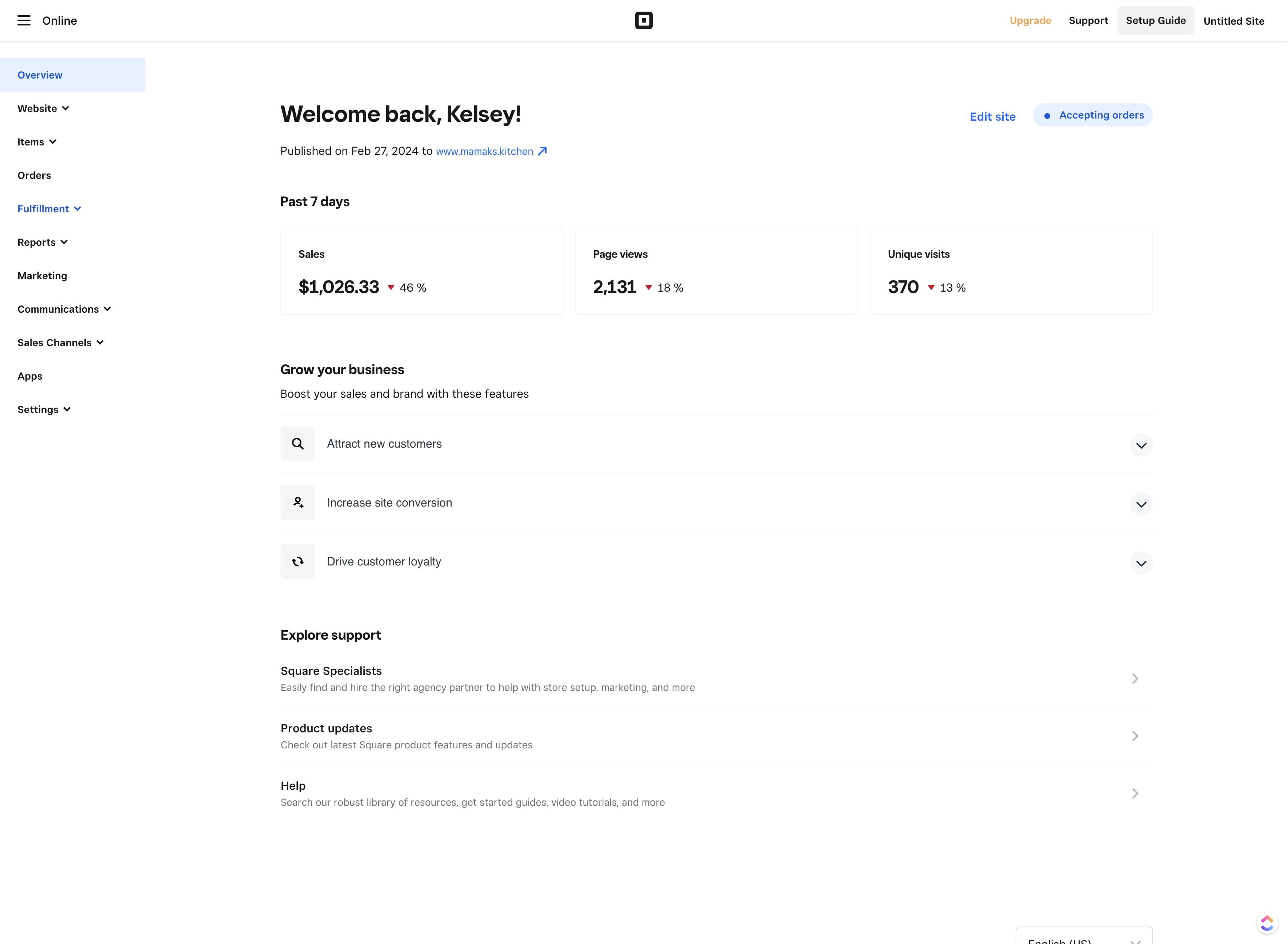
Click on the hamburger menu.

Click on the hamburger menu.
25

Click on "Online"

Click on "Online"
26

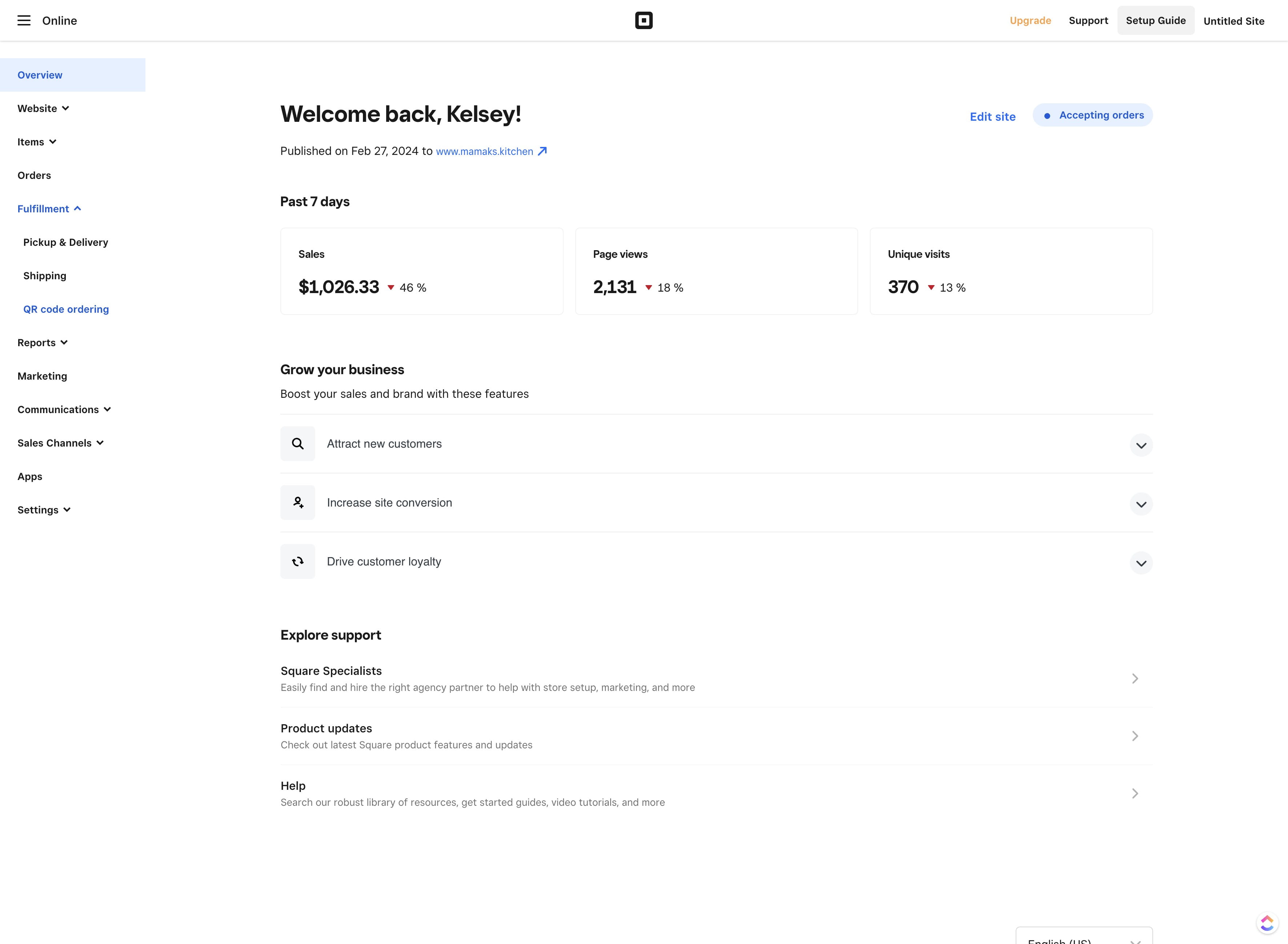
Click on "Fulfillment"

Click on "Fulfillment"
27

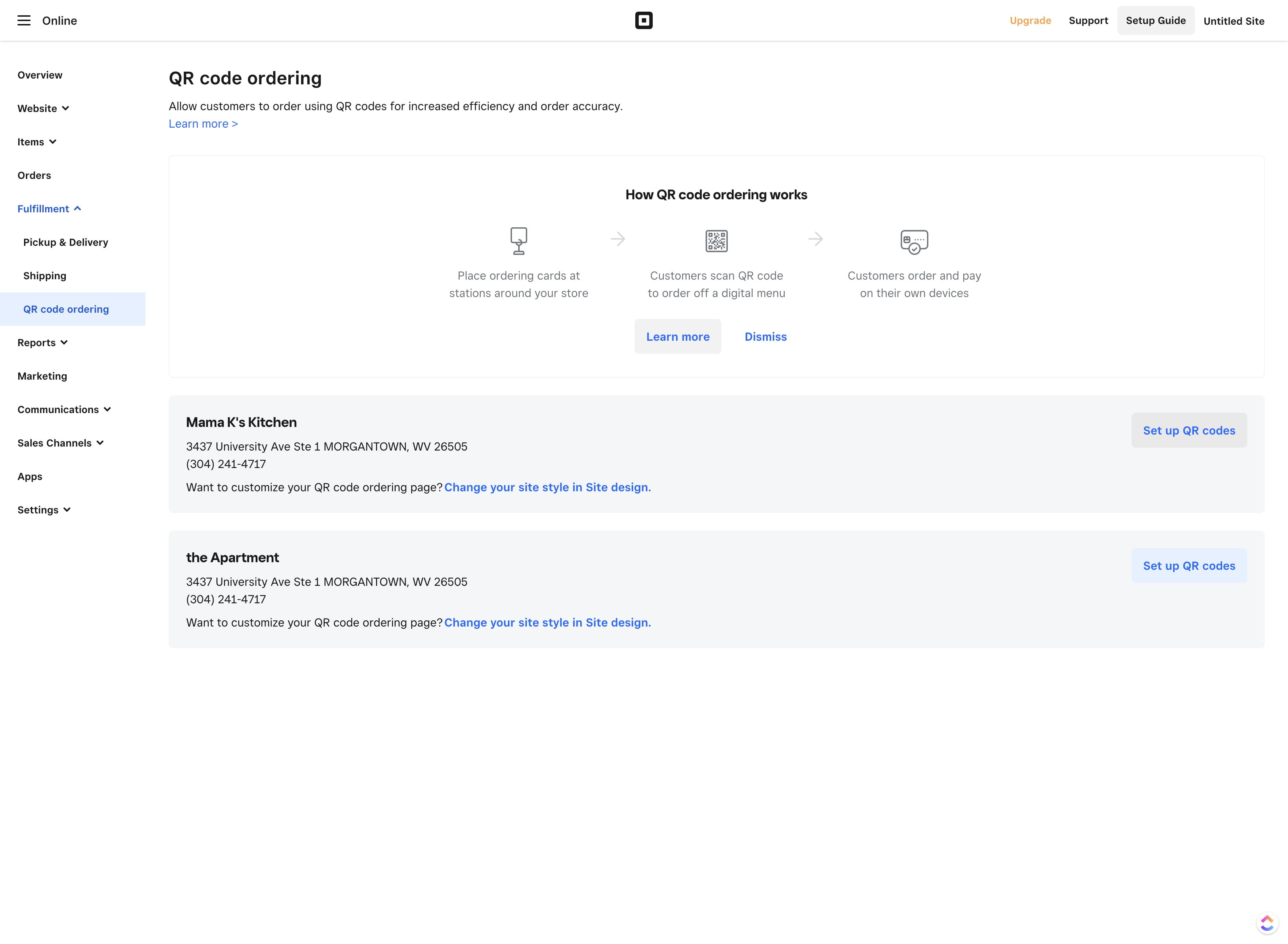
Click on "QR code ordering"

Click on "QR code ordering"
28

Click on "Set up QR codes"

Click on "Set up QR codes"
29

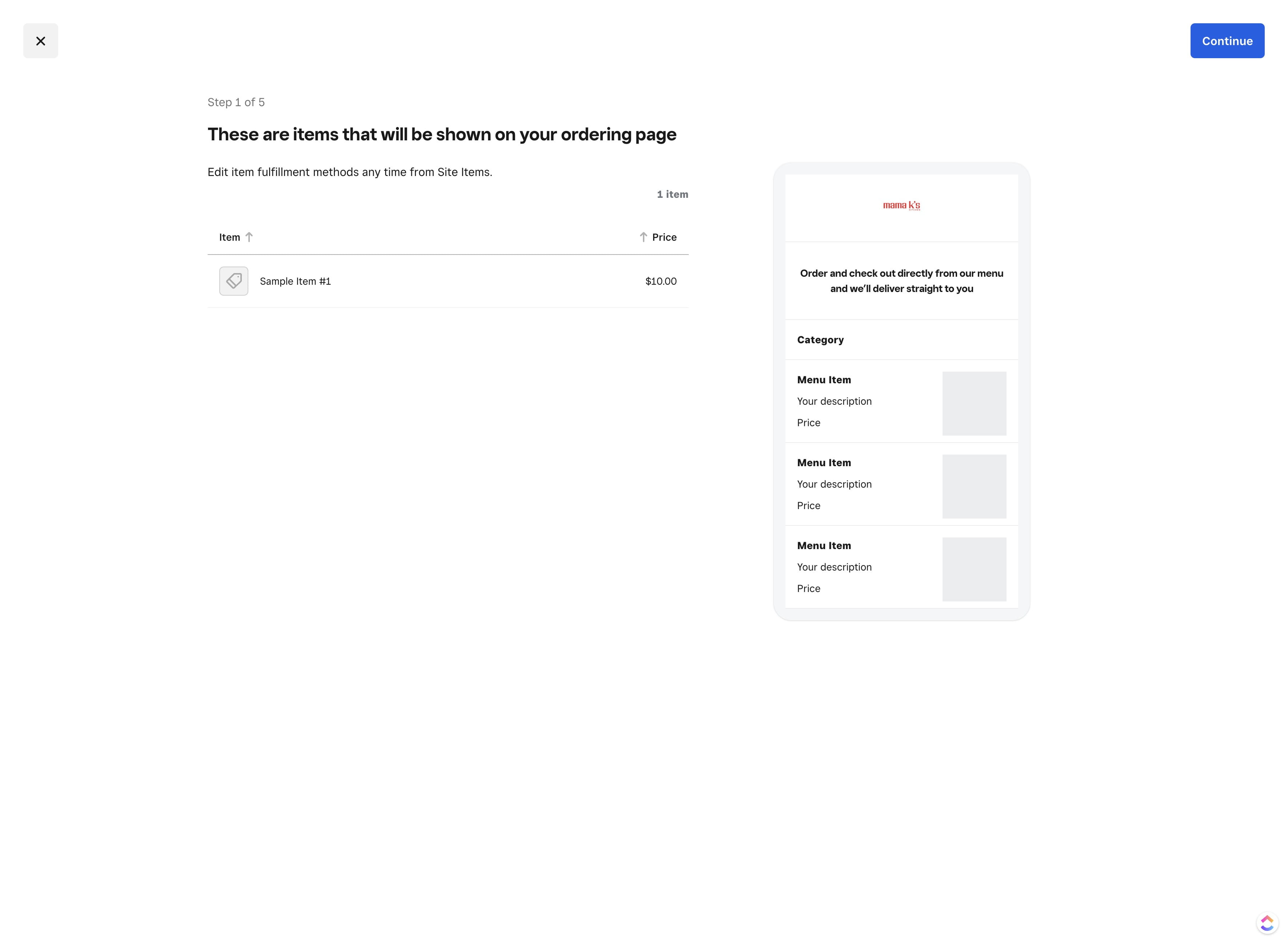
Click on "Continue"

Click on "Continue"
30

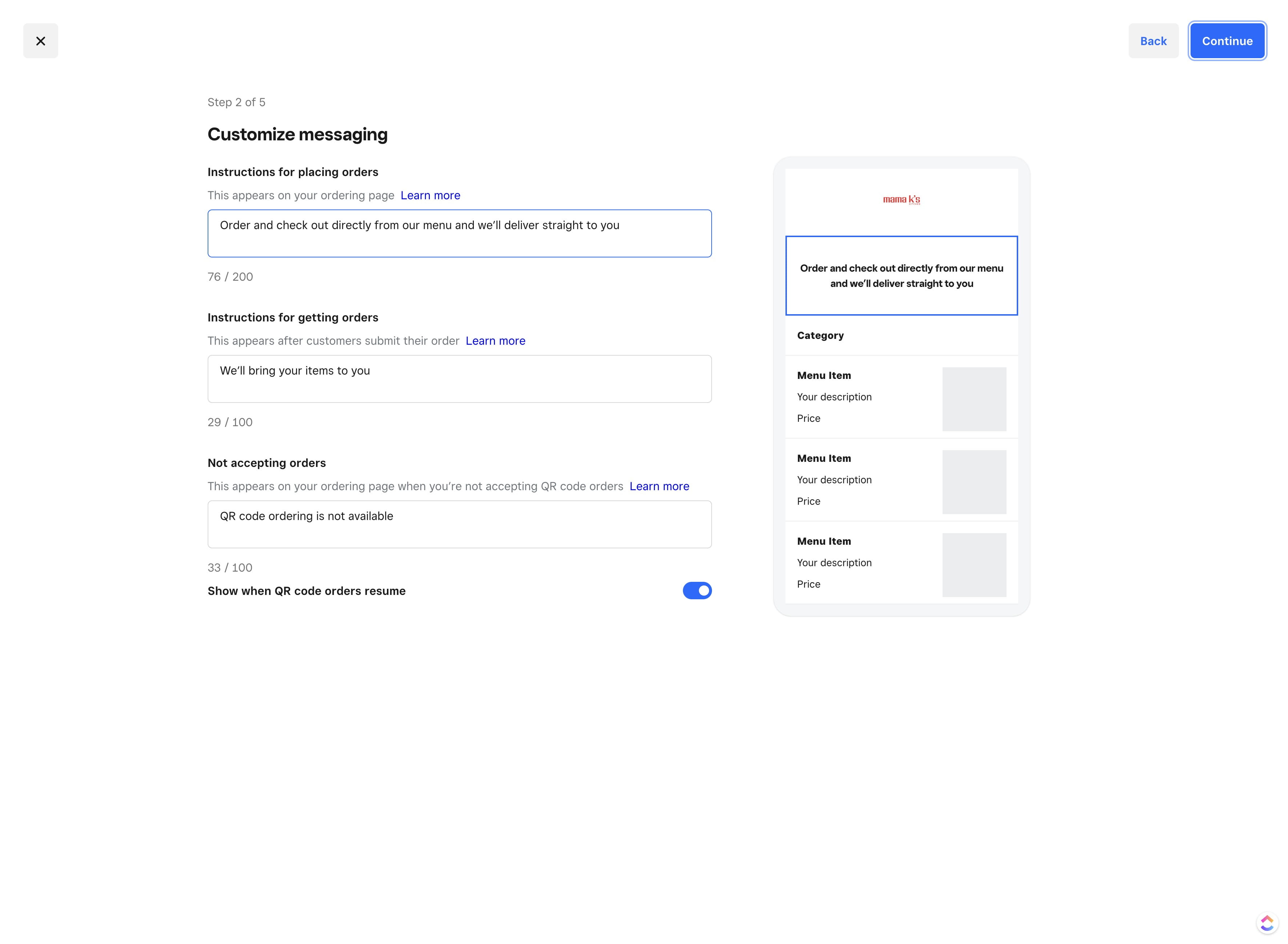
Click here and set instructions

Click here and set instructions
31

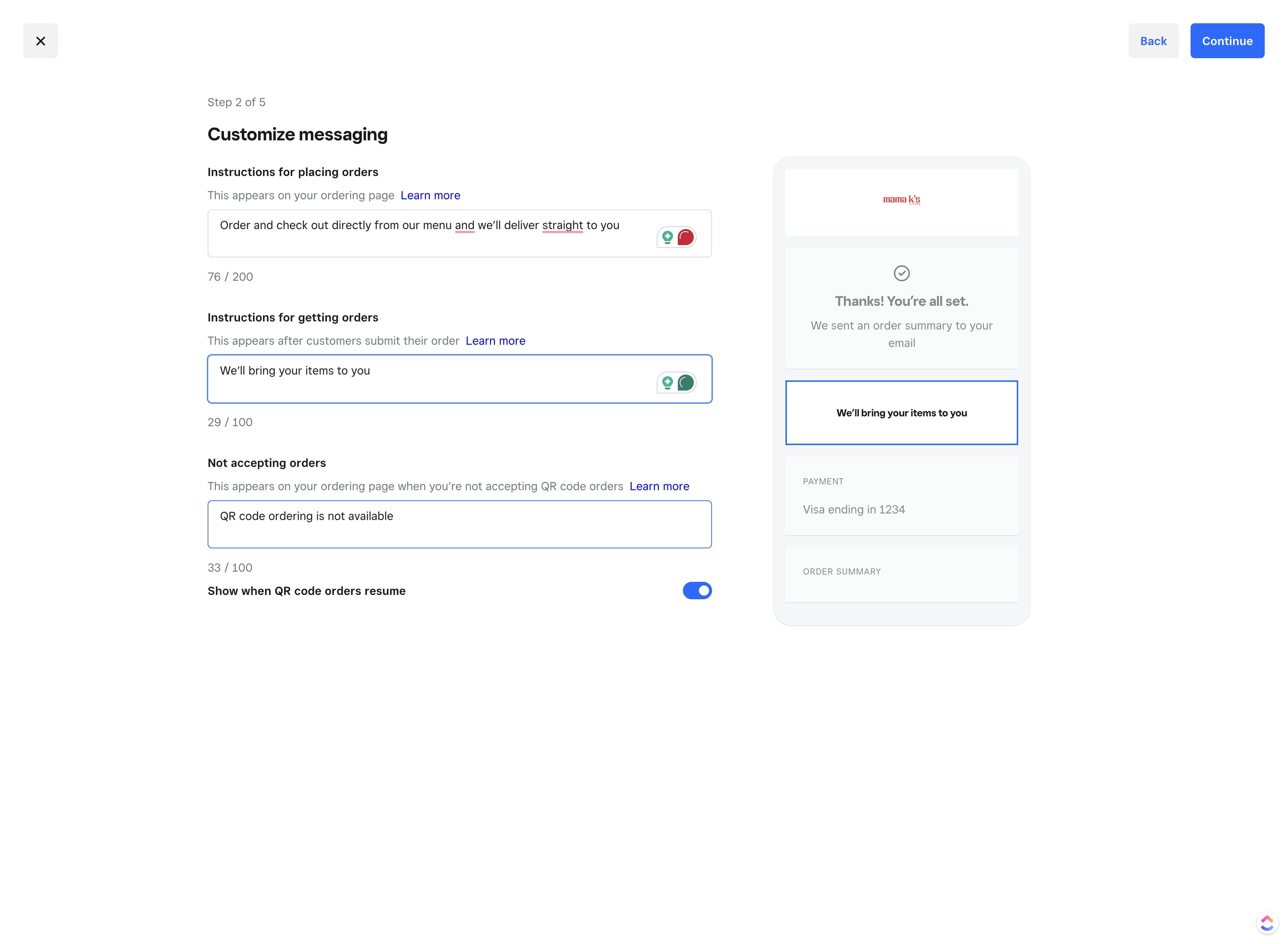
Click here and set message for getting orders
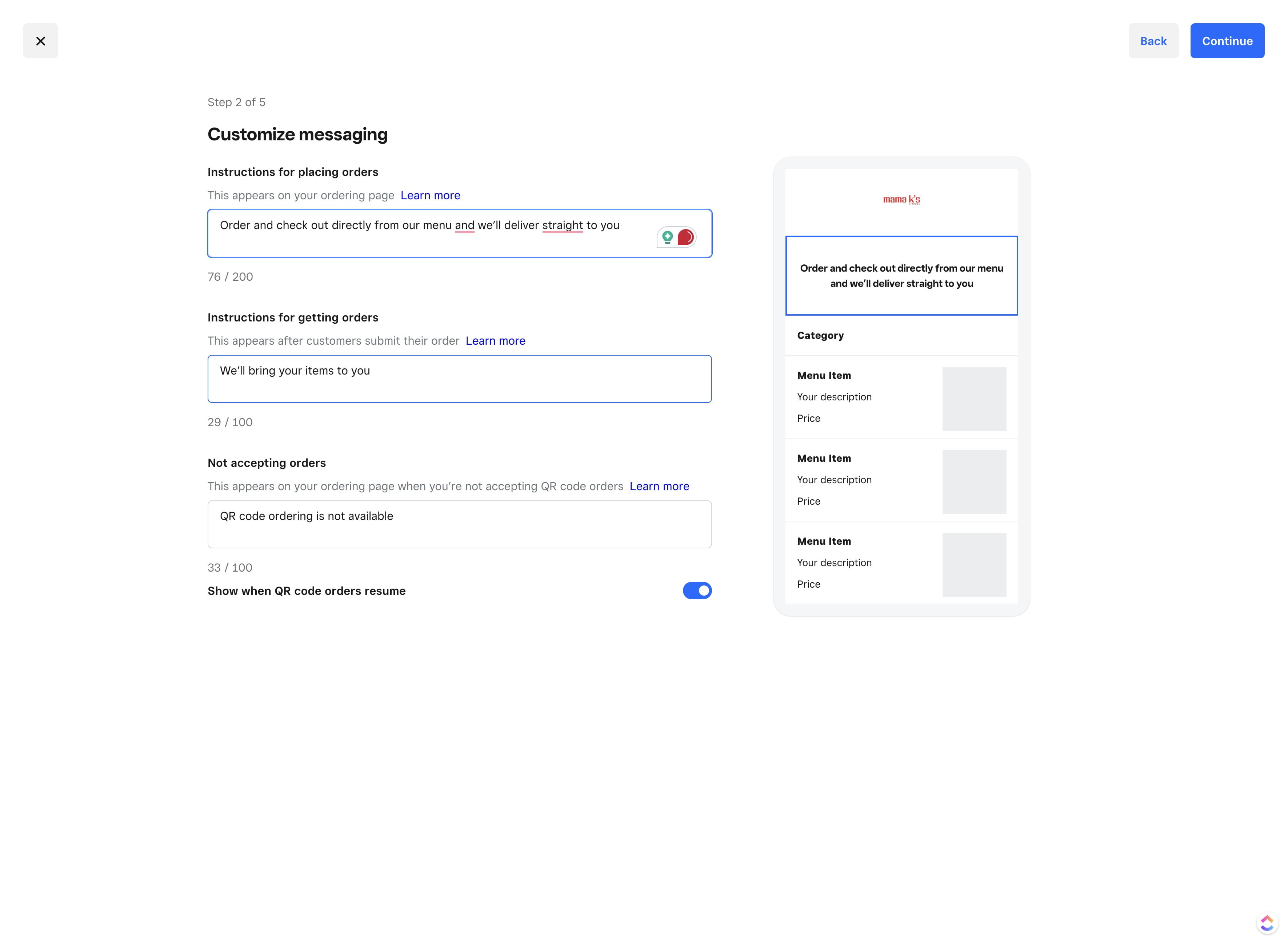
Click here and set message for getting orders
32

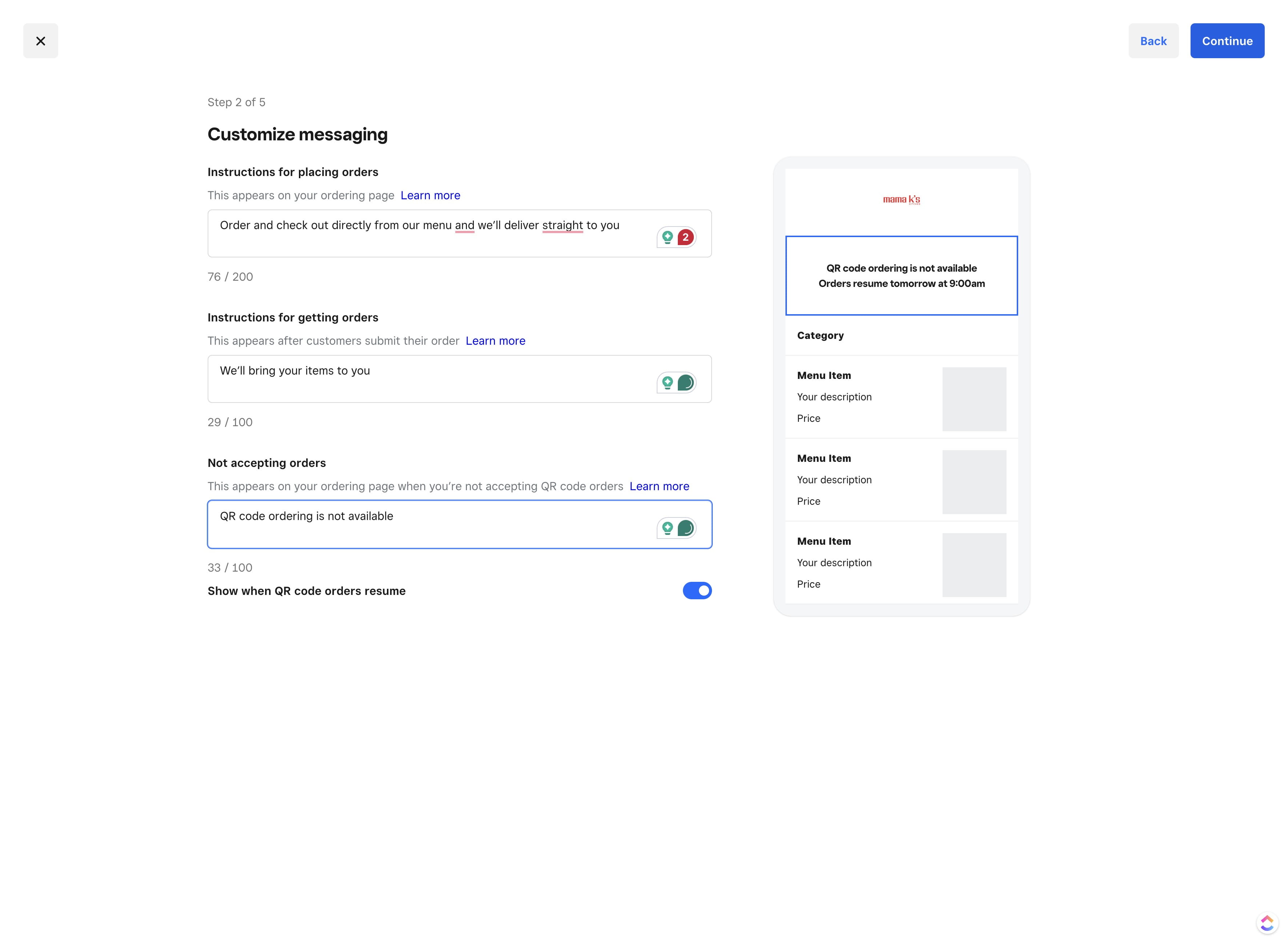
Click here set offline message

Click here set offline message
33

Click on "Continue"

Click on "Continue"
34

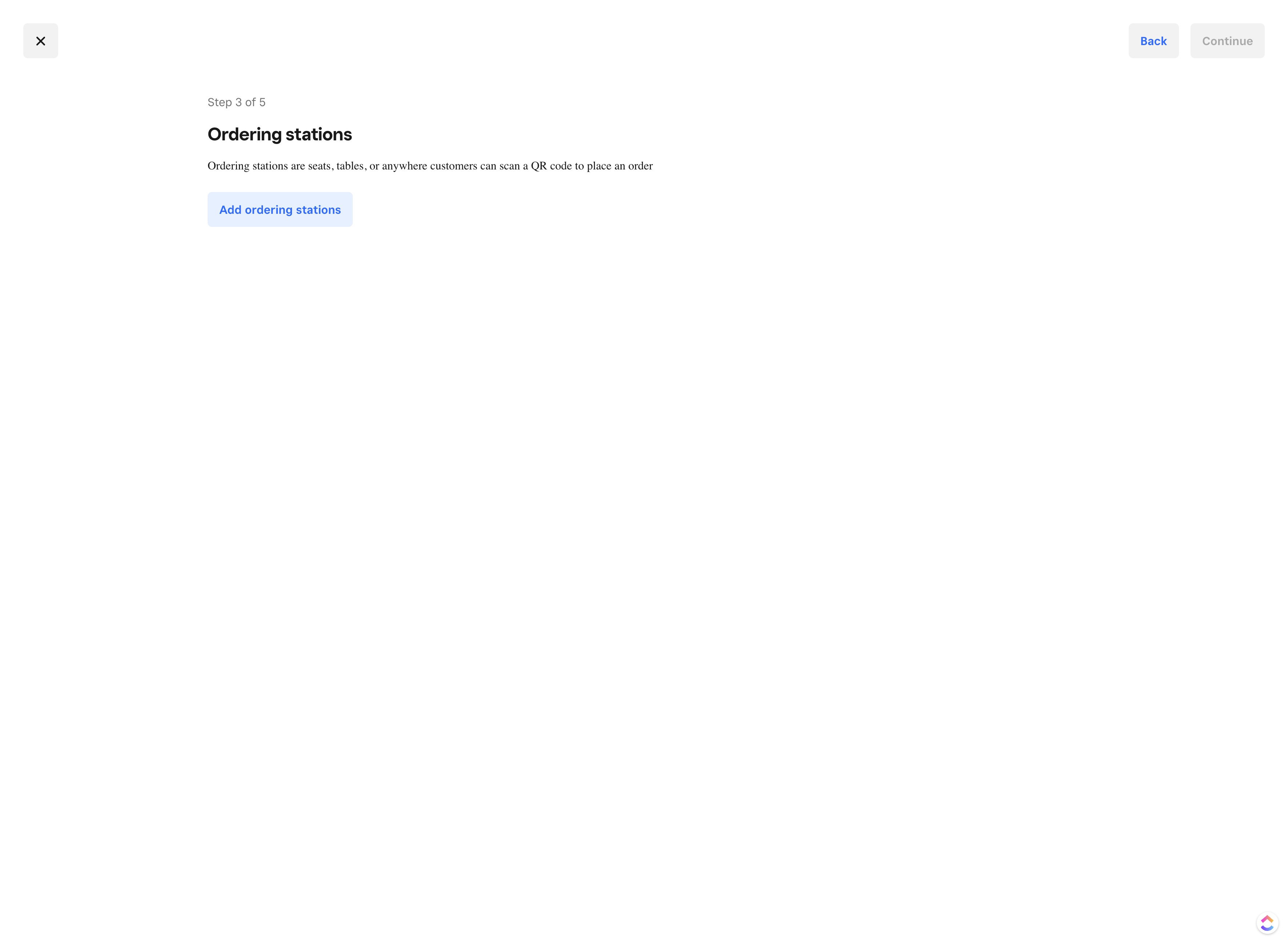
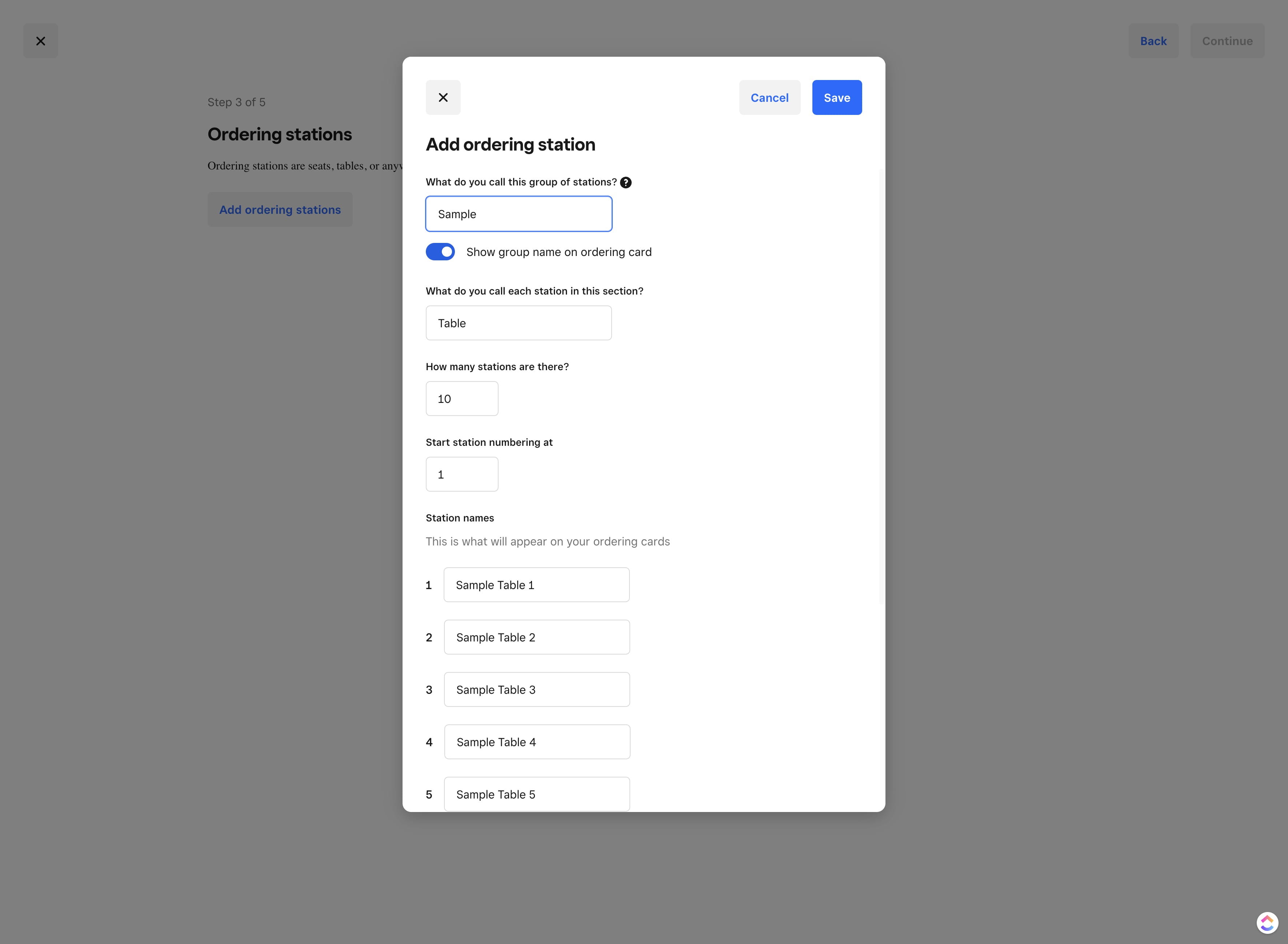
Click on "Add ordering stations"

Click on "Add ordering stations"
35

Click here and enter the section name
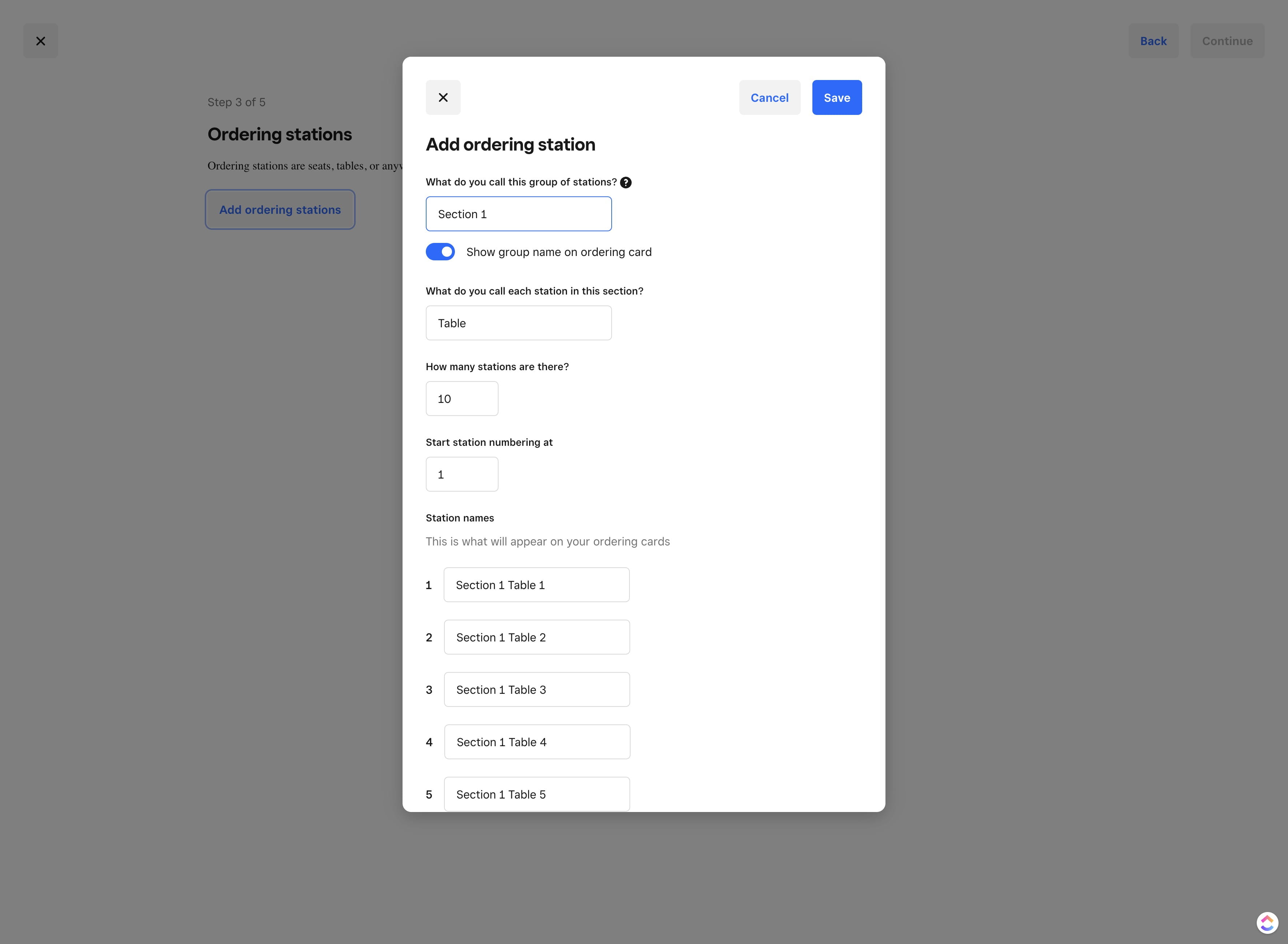
Click here and enter the section name
36

Click here and turn this option off

Click here and turn this option off
37

Click here and set table or area names
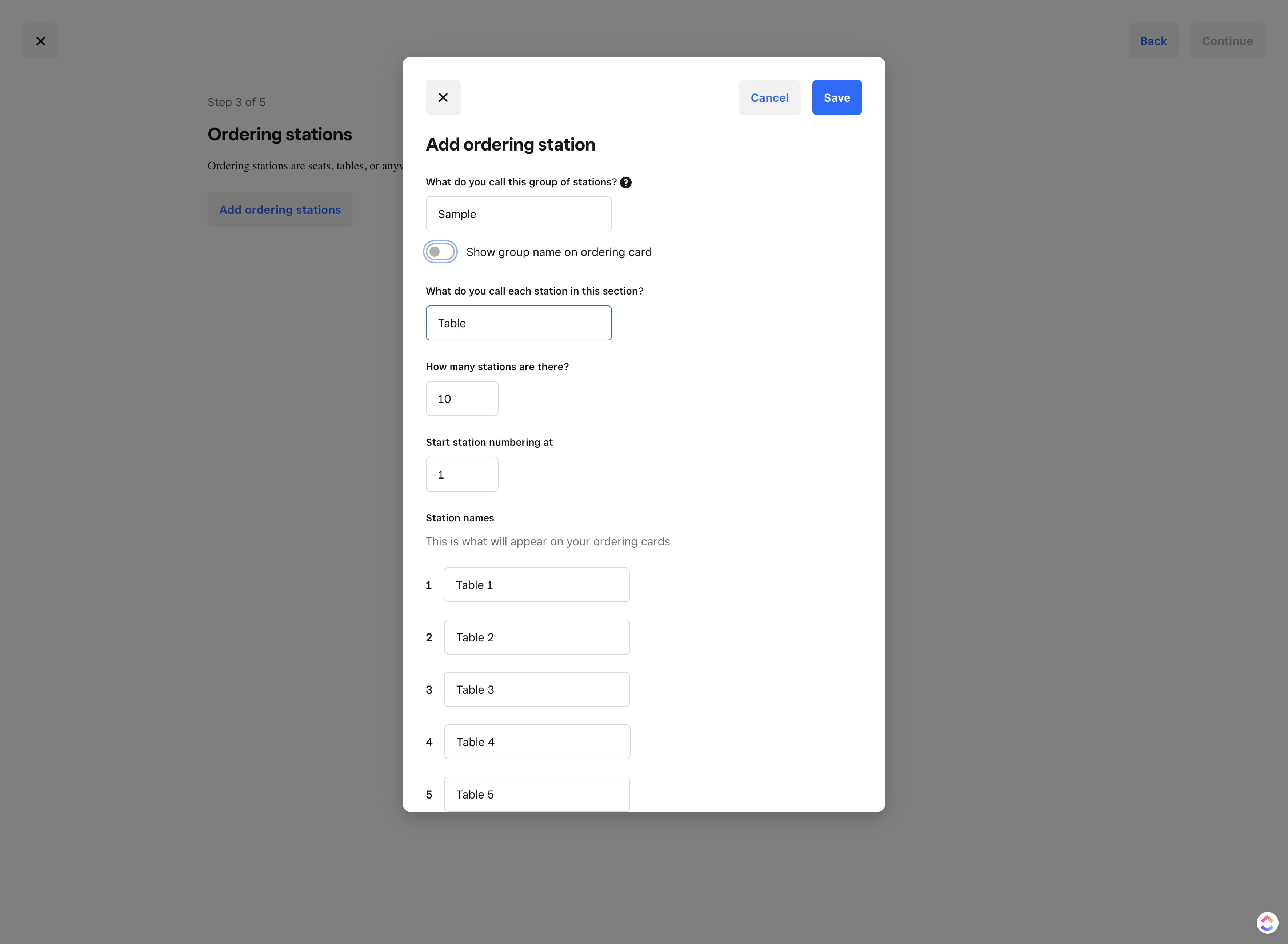
Click here and set table or area names
38

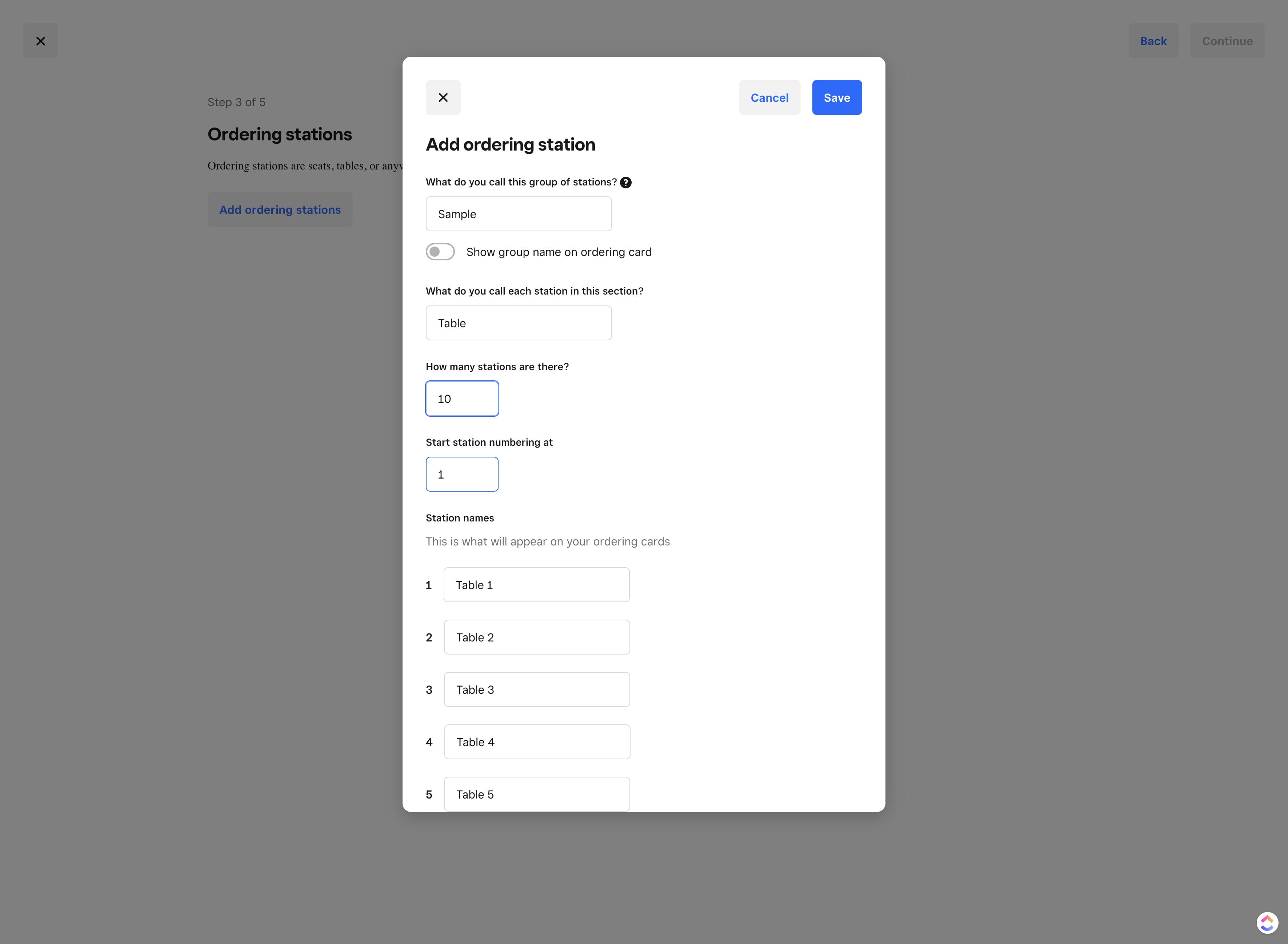
Click here to set how many QR codes will be needed
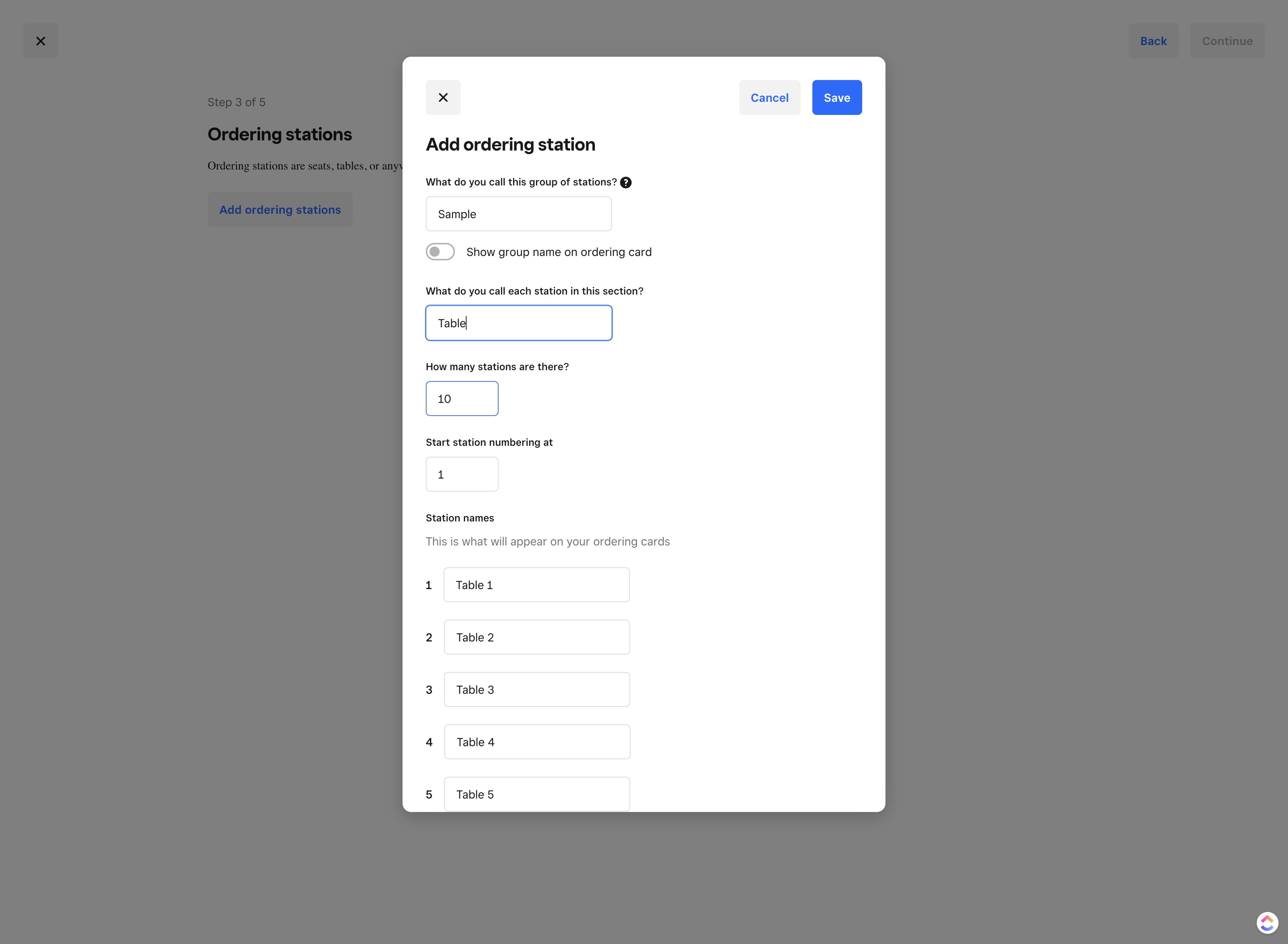
Click here to set how many QR codes will be needed
39

Click here to configure numbering

Click here to configure numbering
40

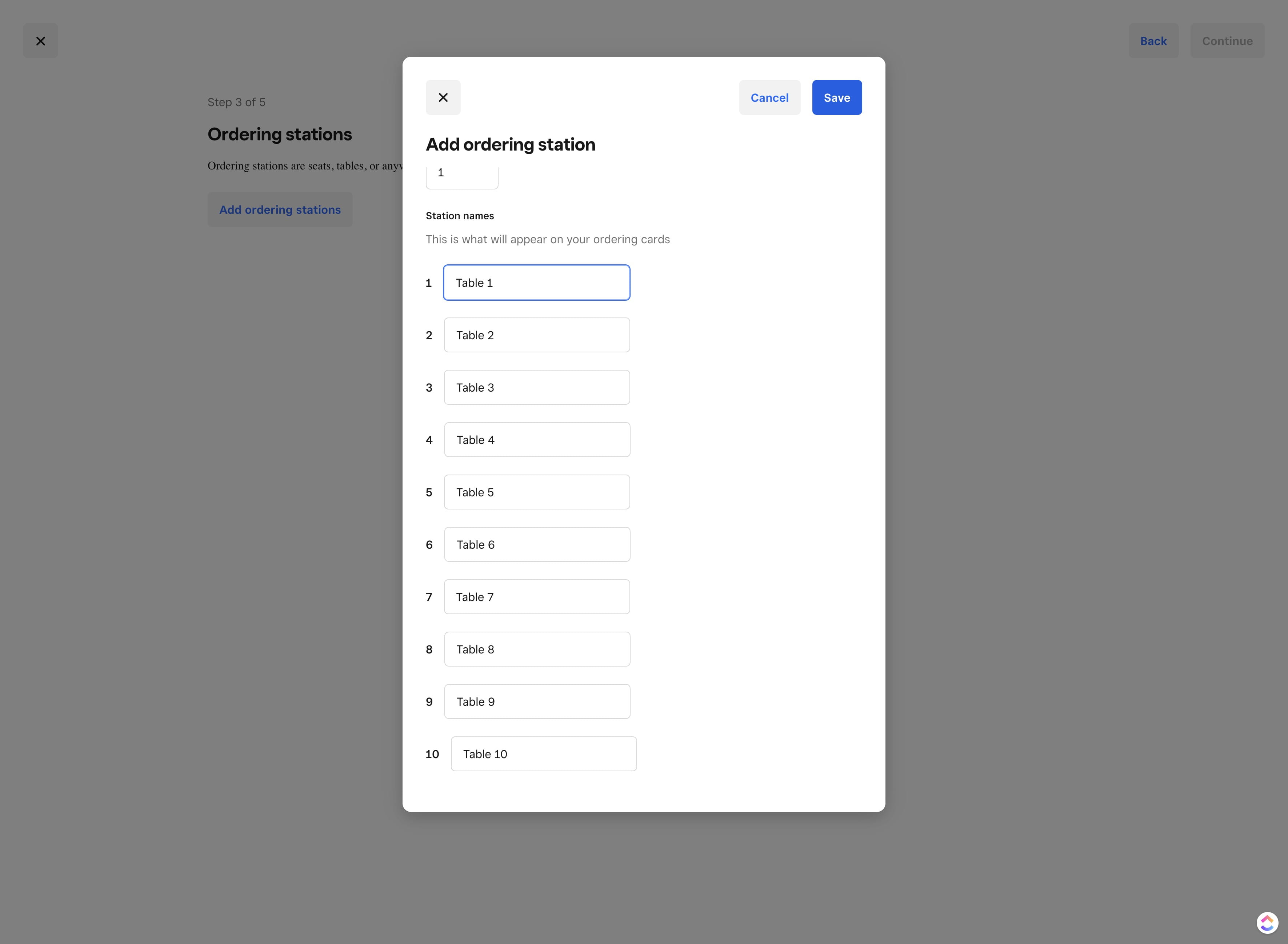
Click here to set the individual name
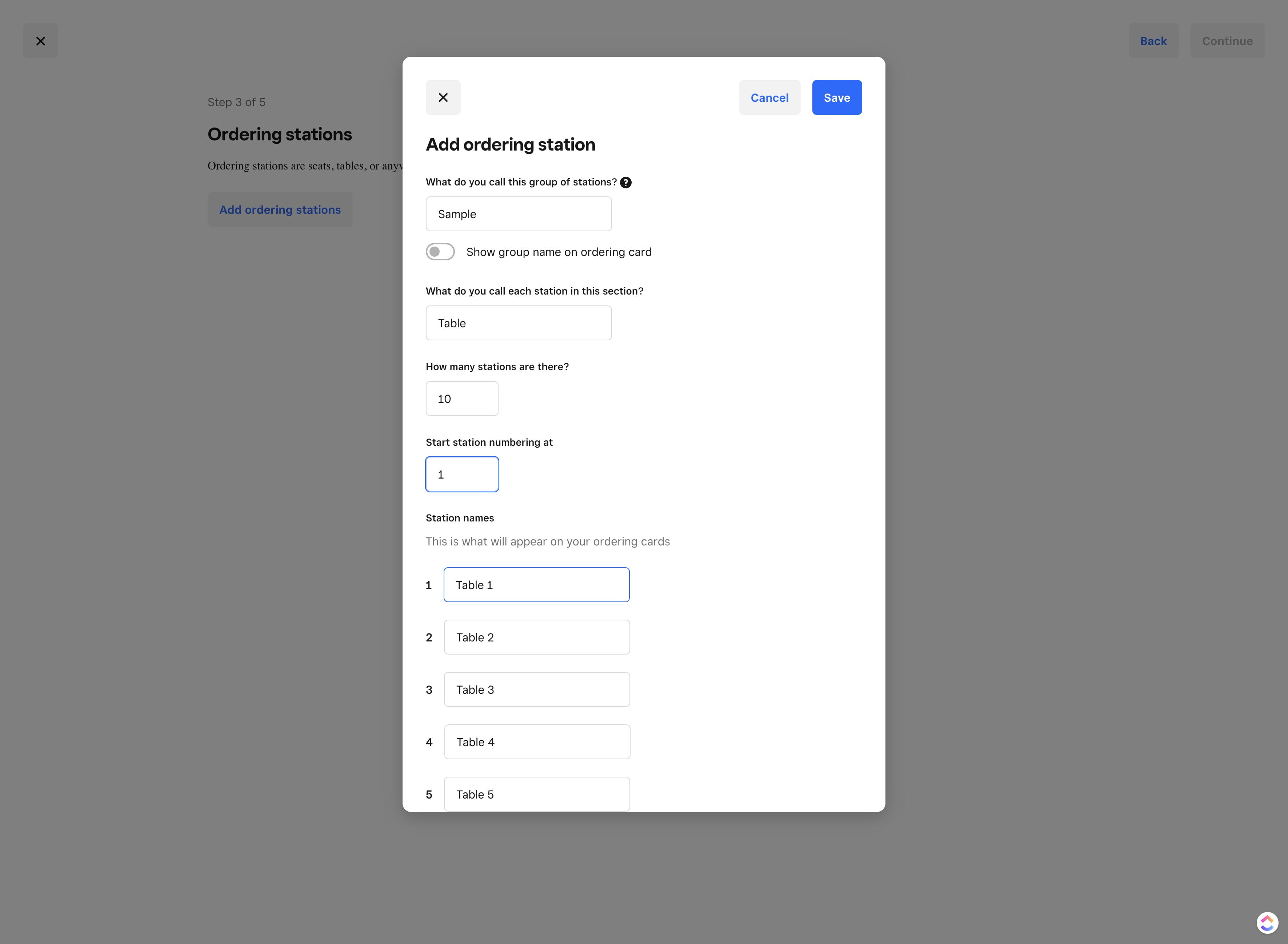
Click here to set the individual name
41

Click on "Save"

Click on "Save"
42

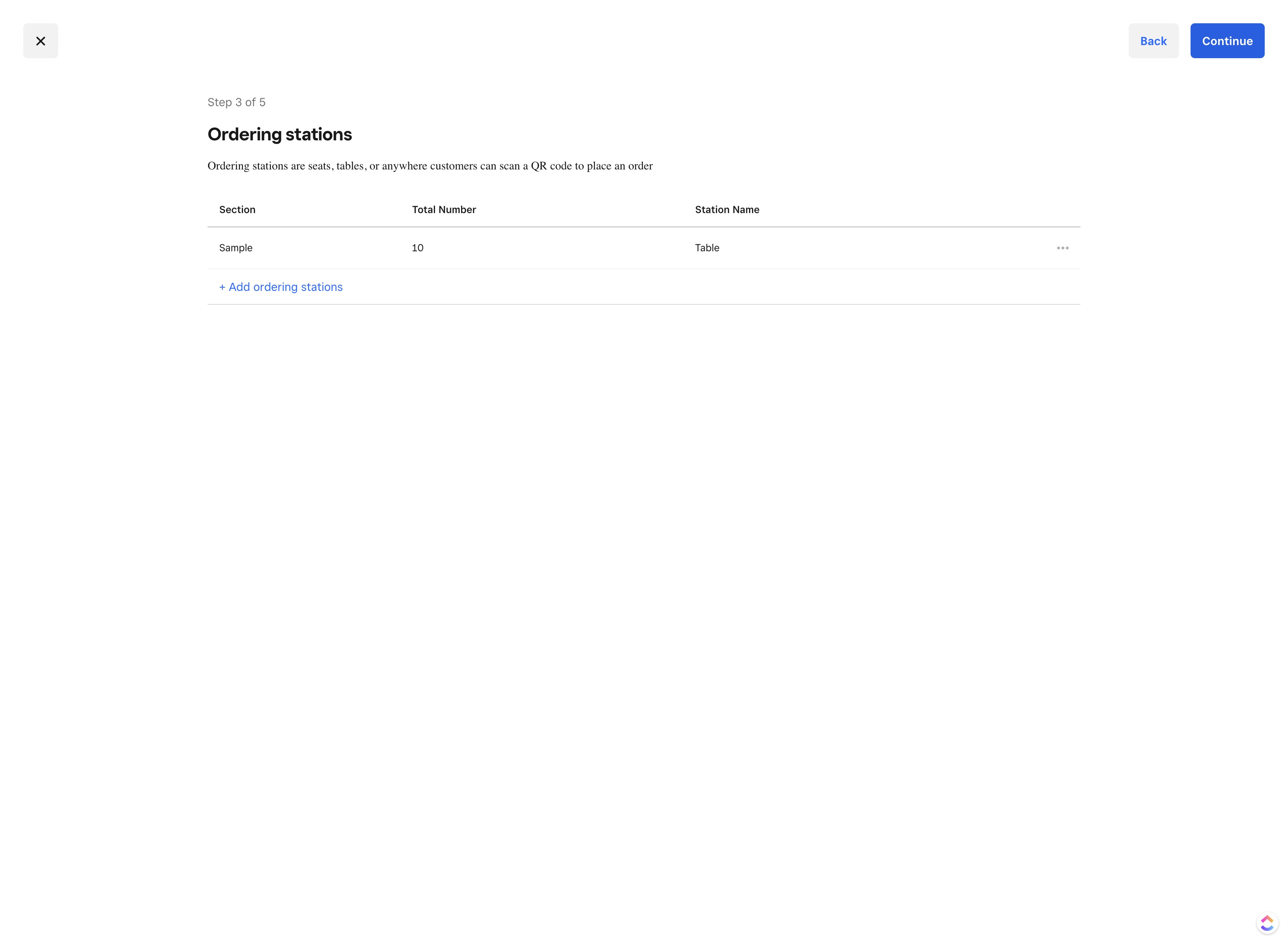
Click on "Continue"

Click on "Continue"
43

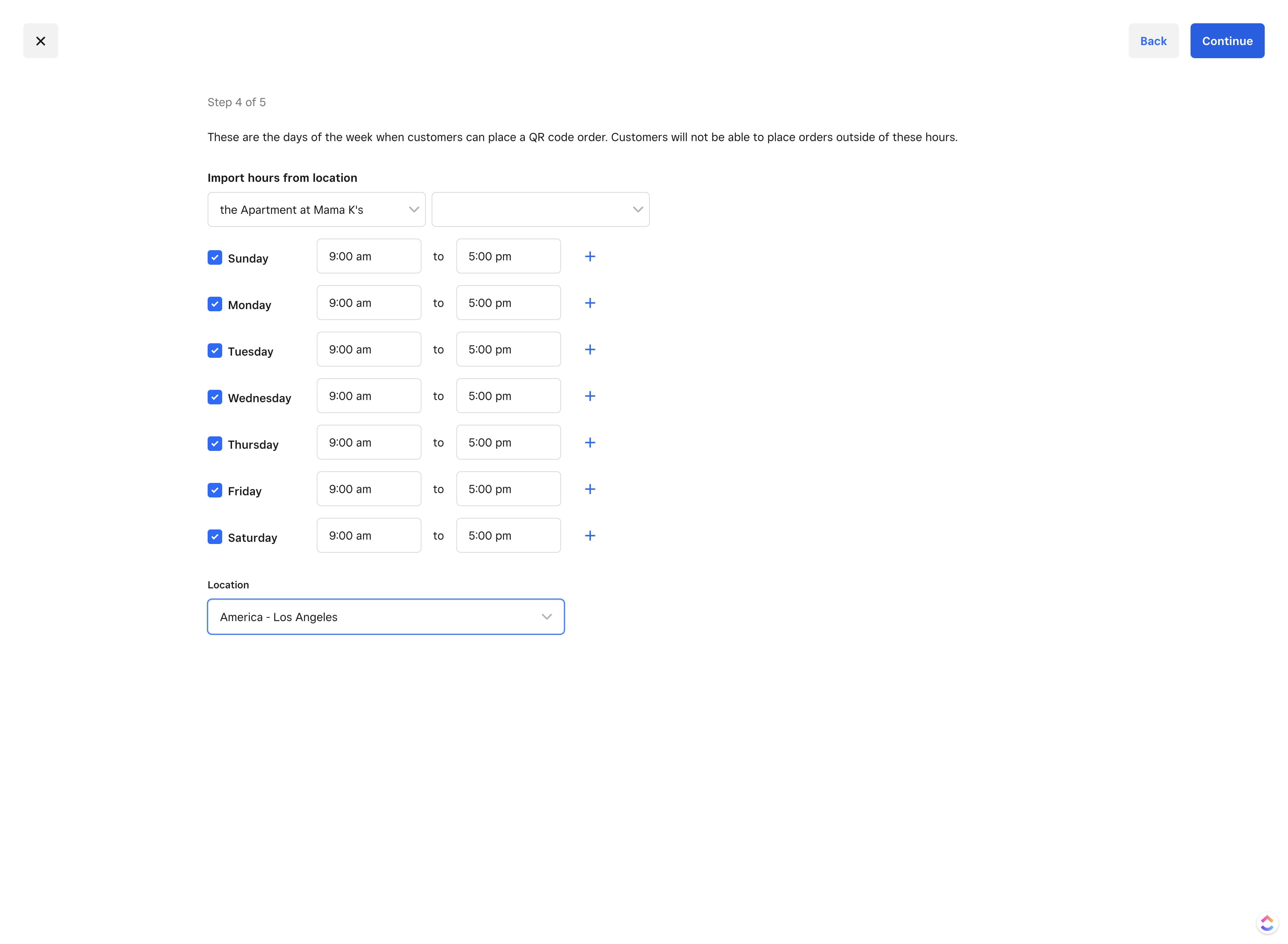
Click here to copy over hours or set new ones.
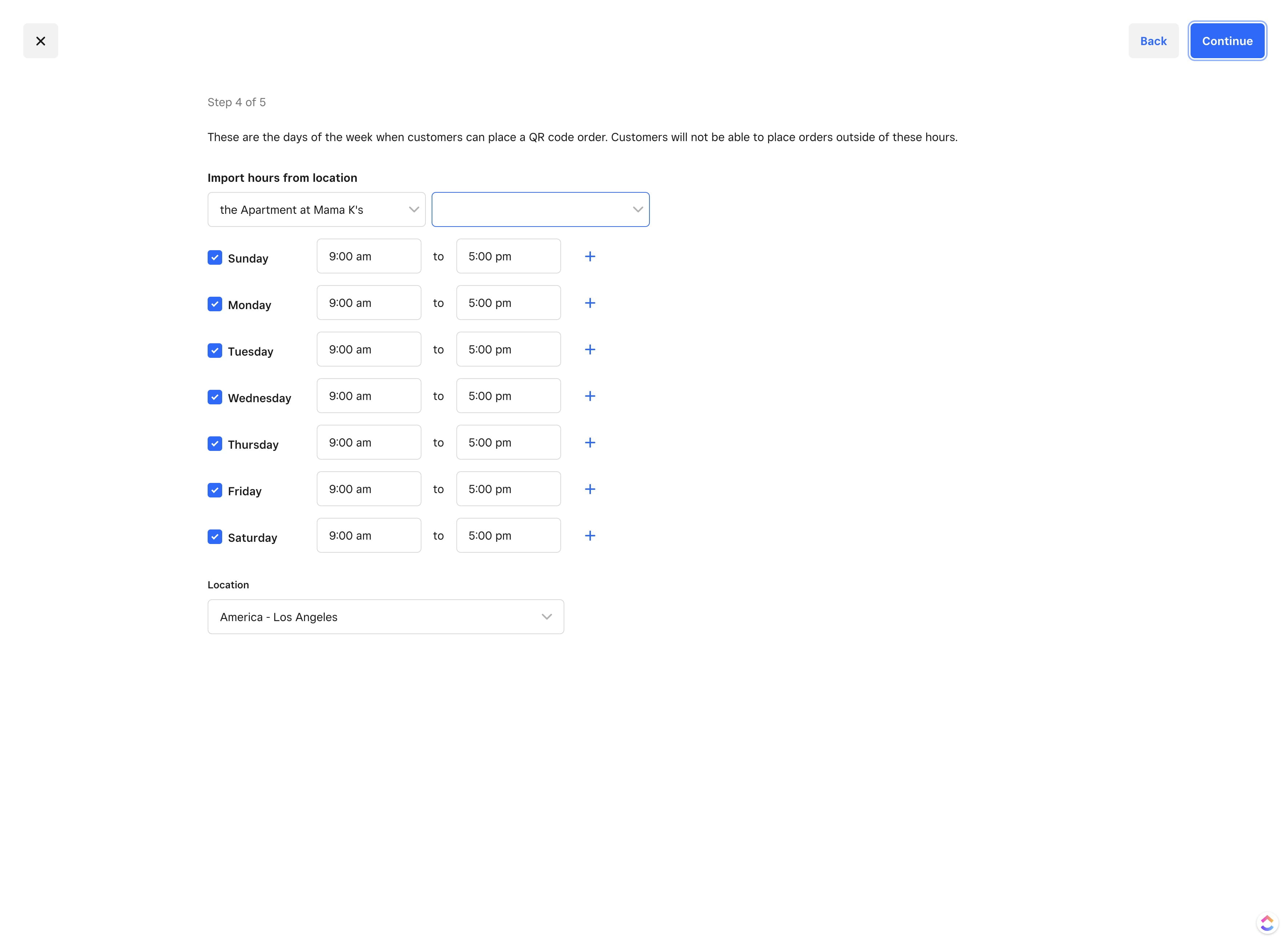
Click here to copy over hours or set new ones.
44

Click on "Continue"

Click on "Continue"
45

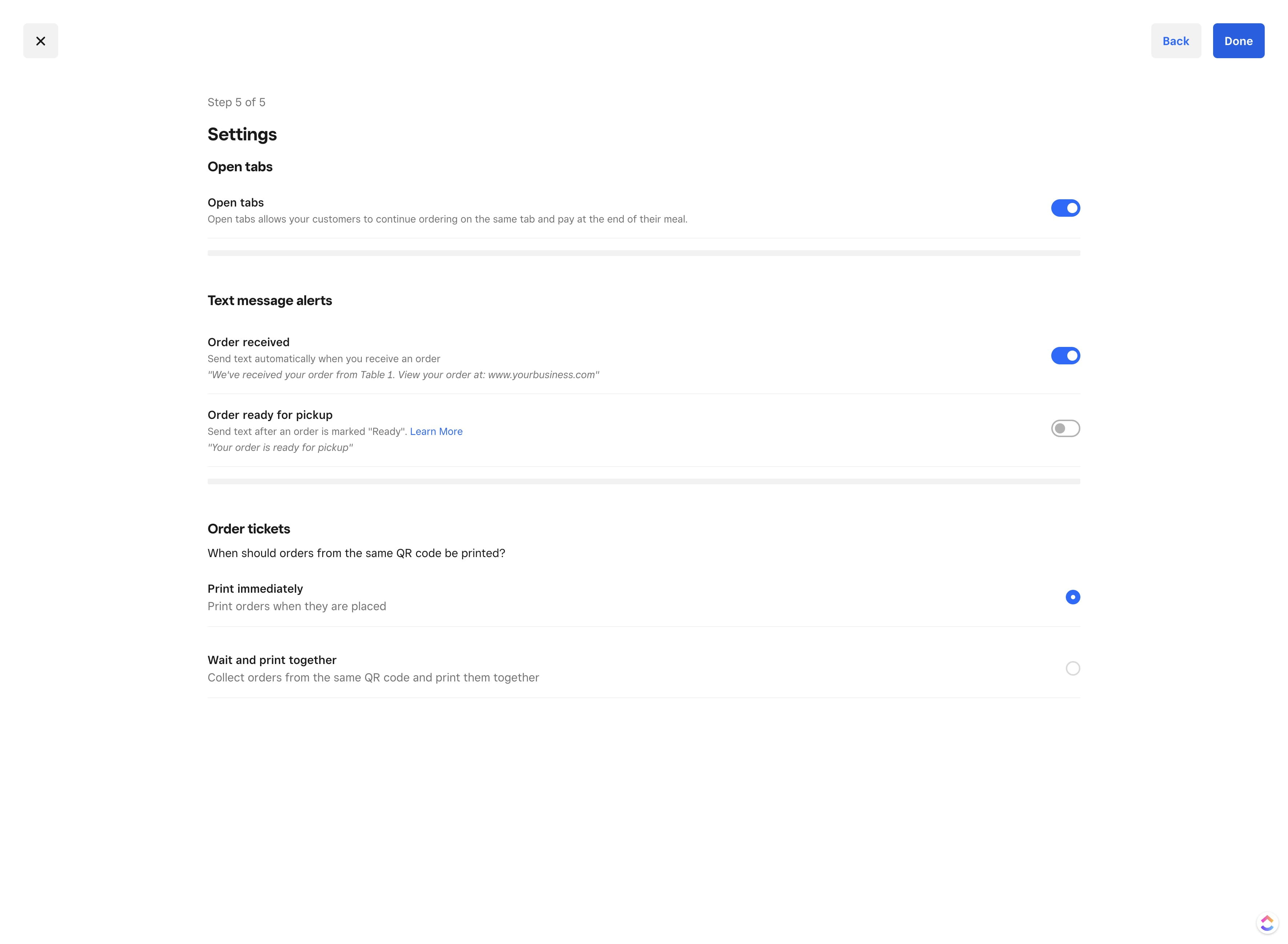
Click here if you'd like to turn on open tabs
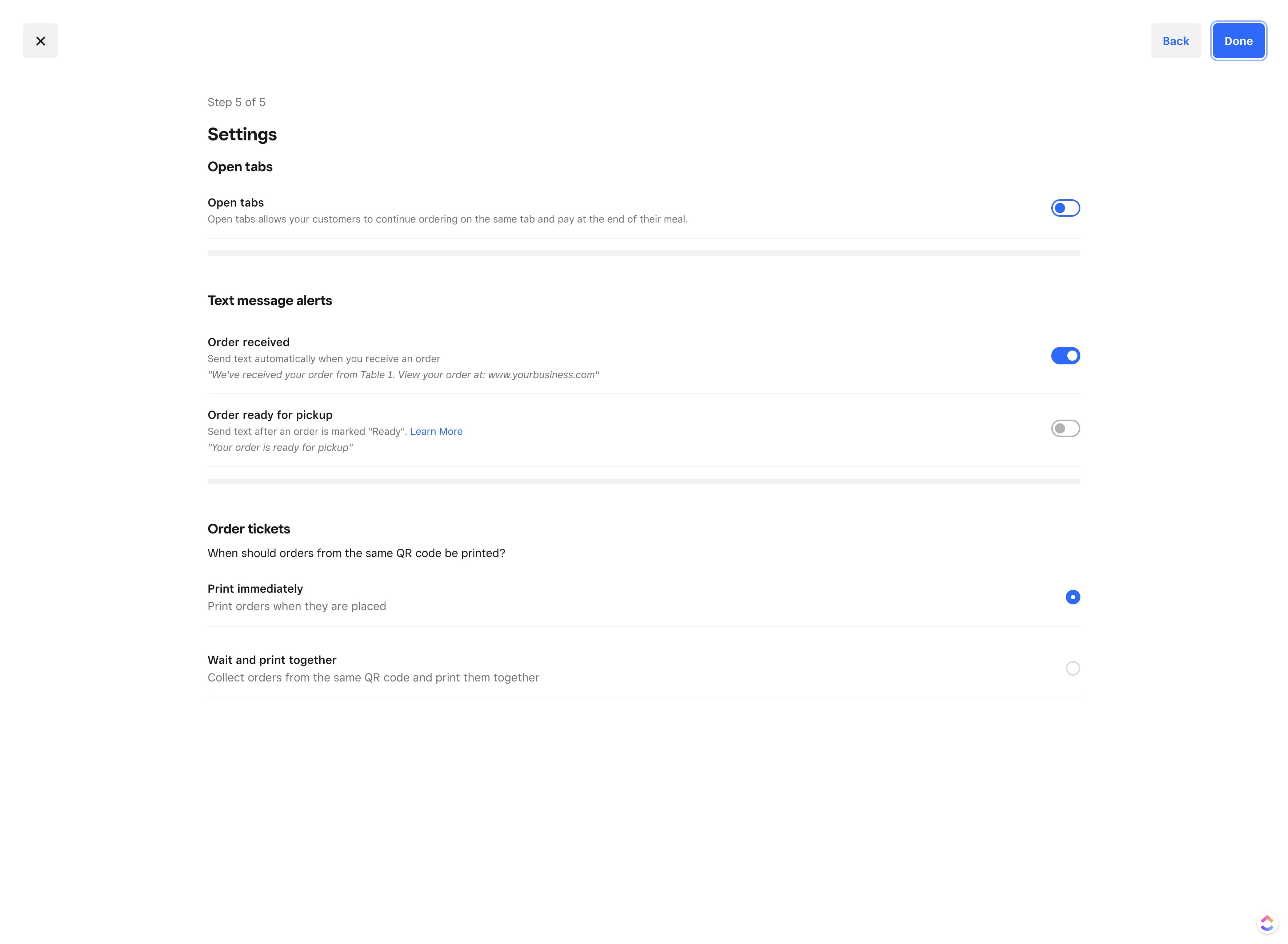
Click here if you'd like to turn on open tabs
46

Click here to ensure that they are printed immediately.
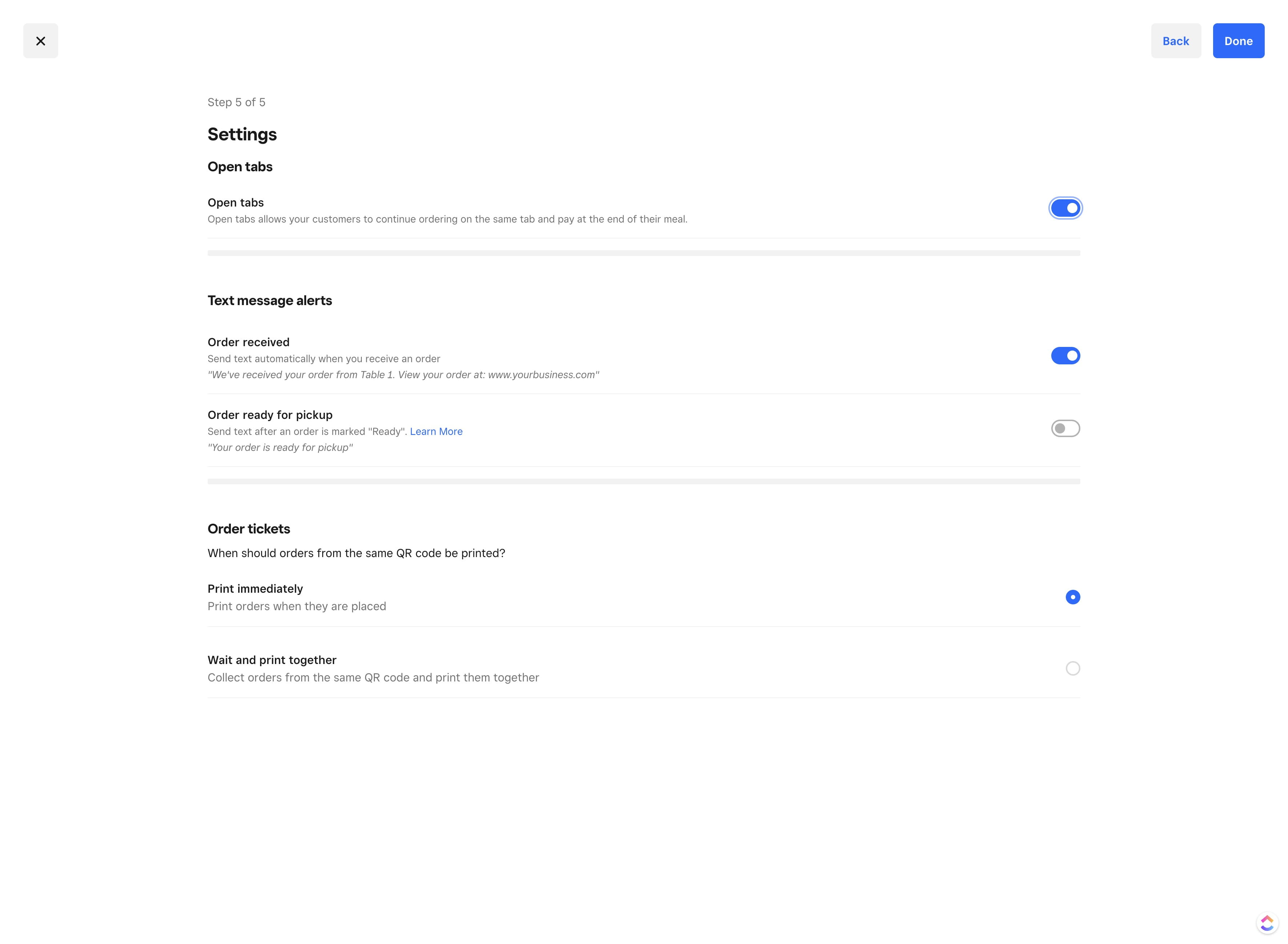
Click here to ensure that they are printed immediately.
47

Click on "Done"

Click on "Done"
48

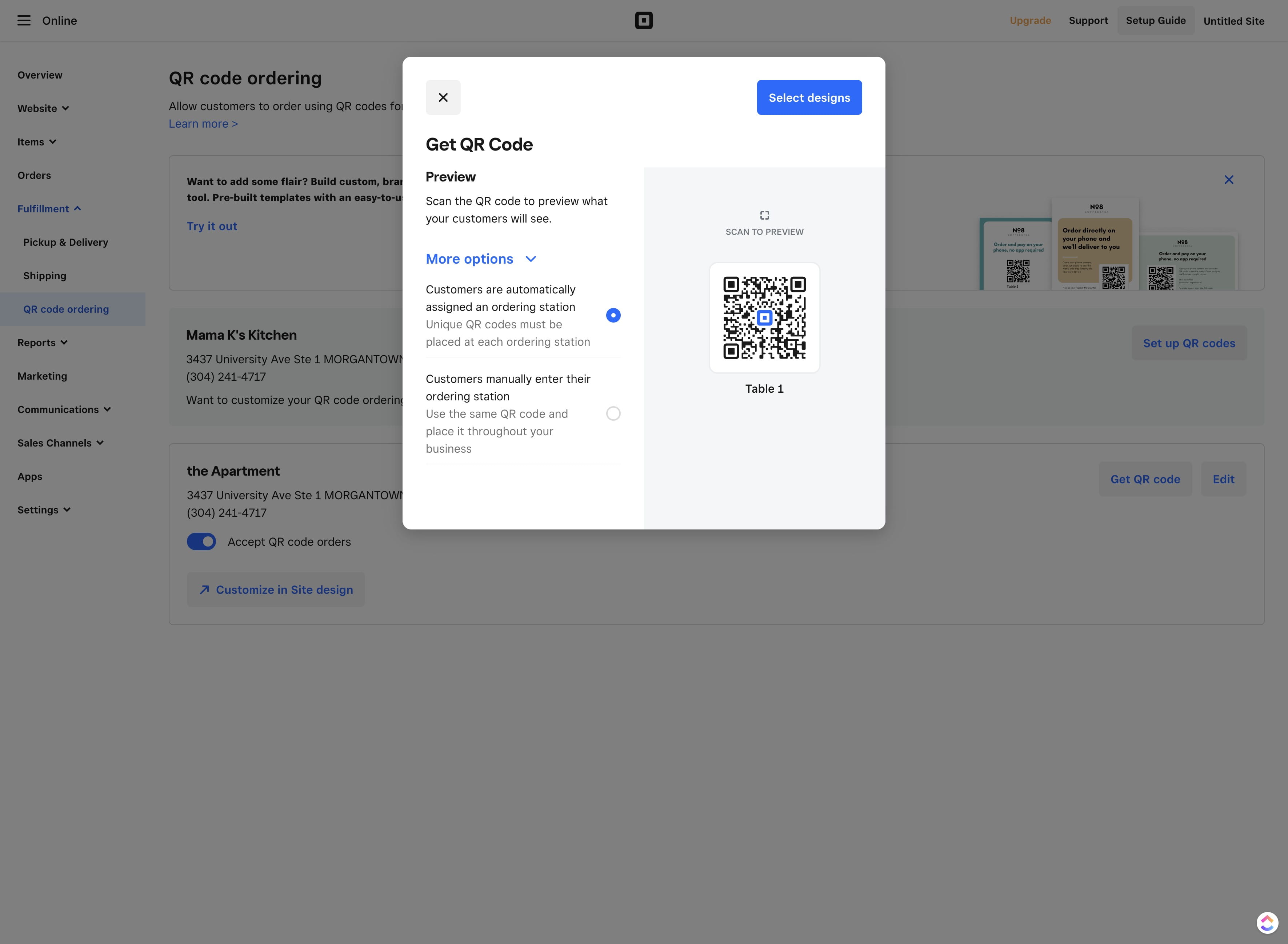
Click here for automatic assignment

Click here for automatic assignment
49

Click on "Select designs"

Click on "Select designs"
50

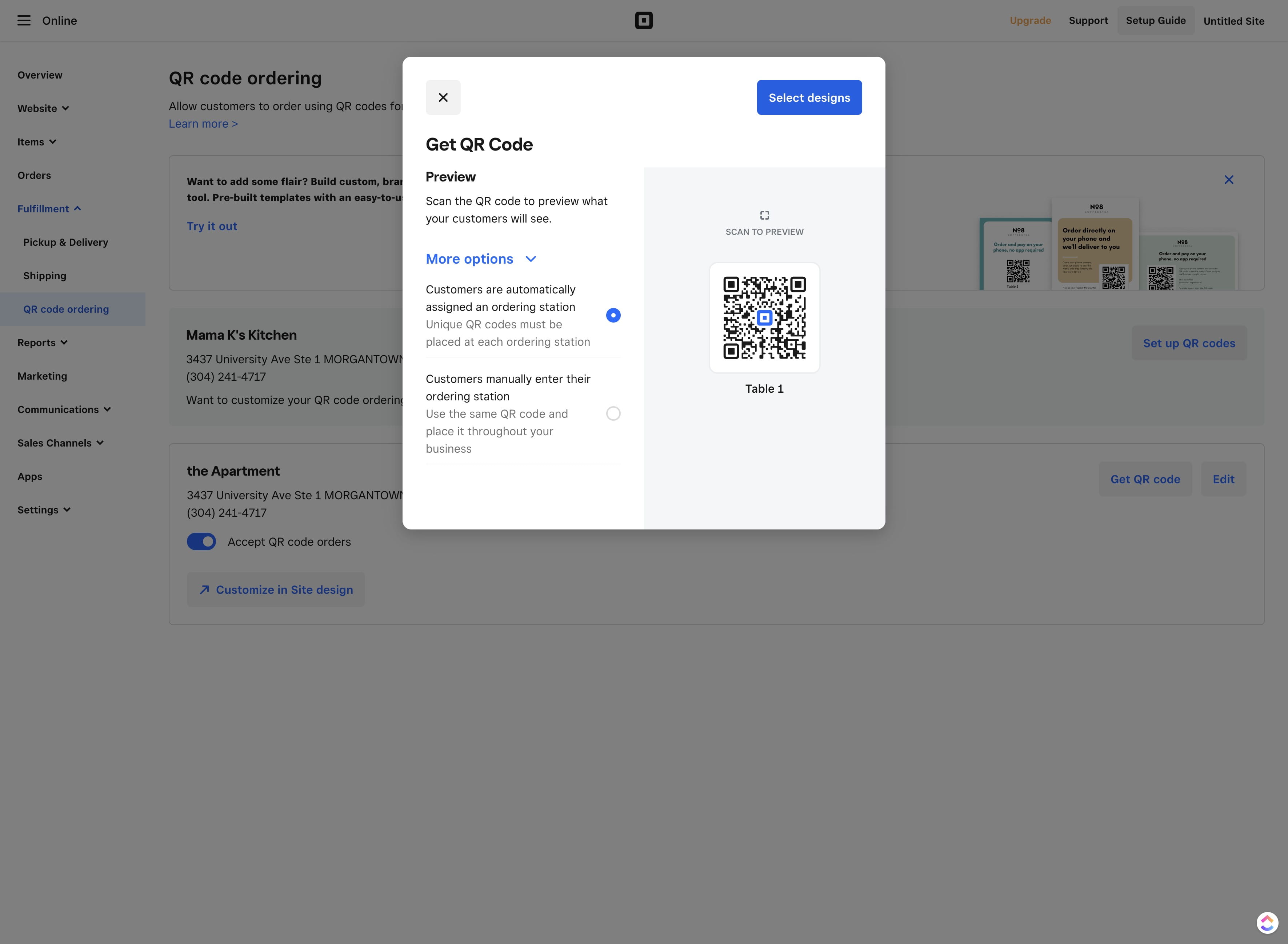
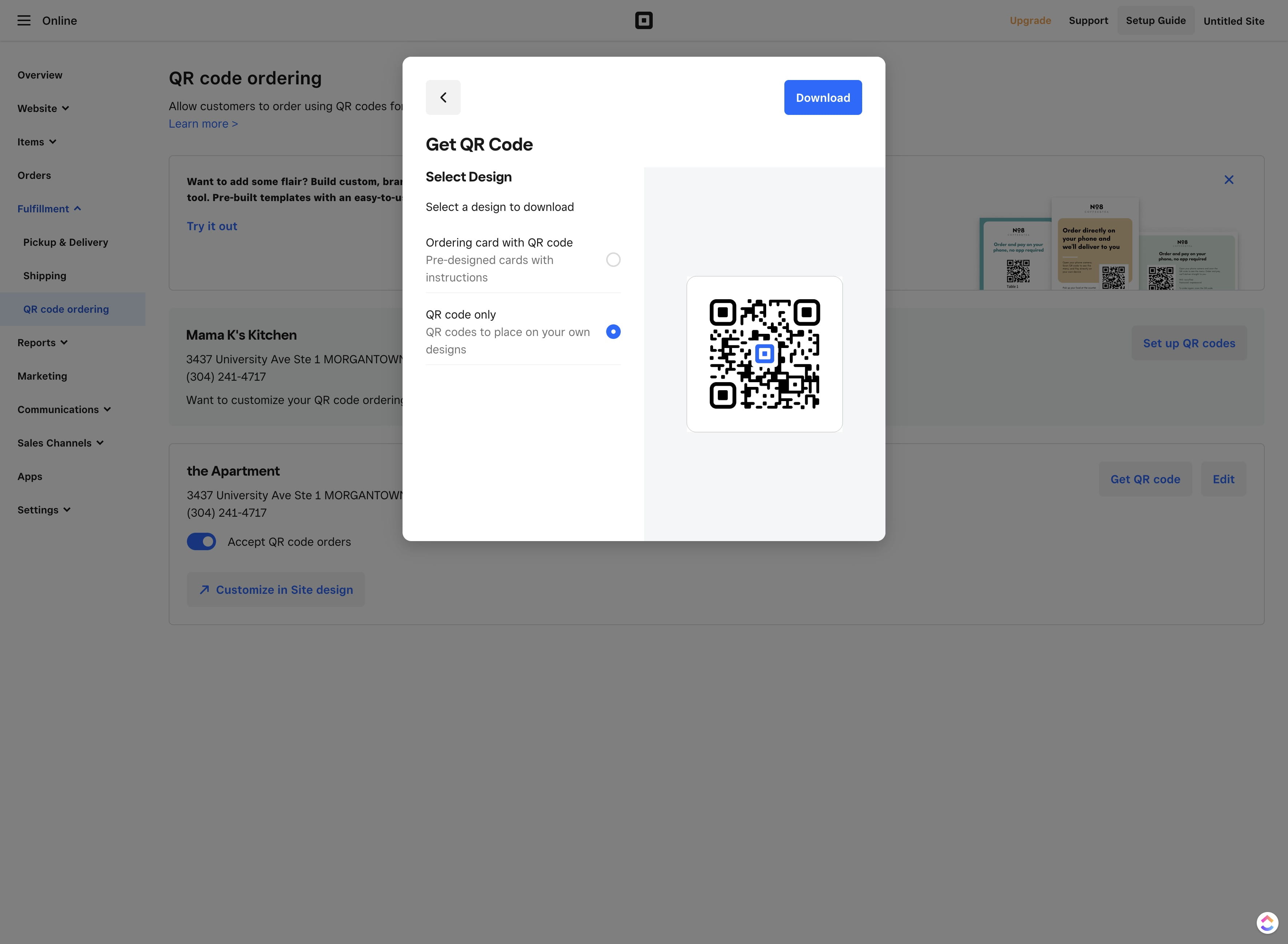
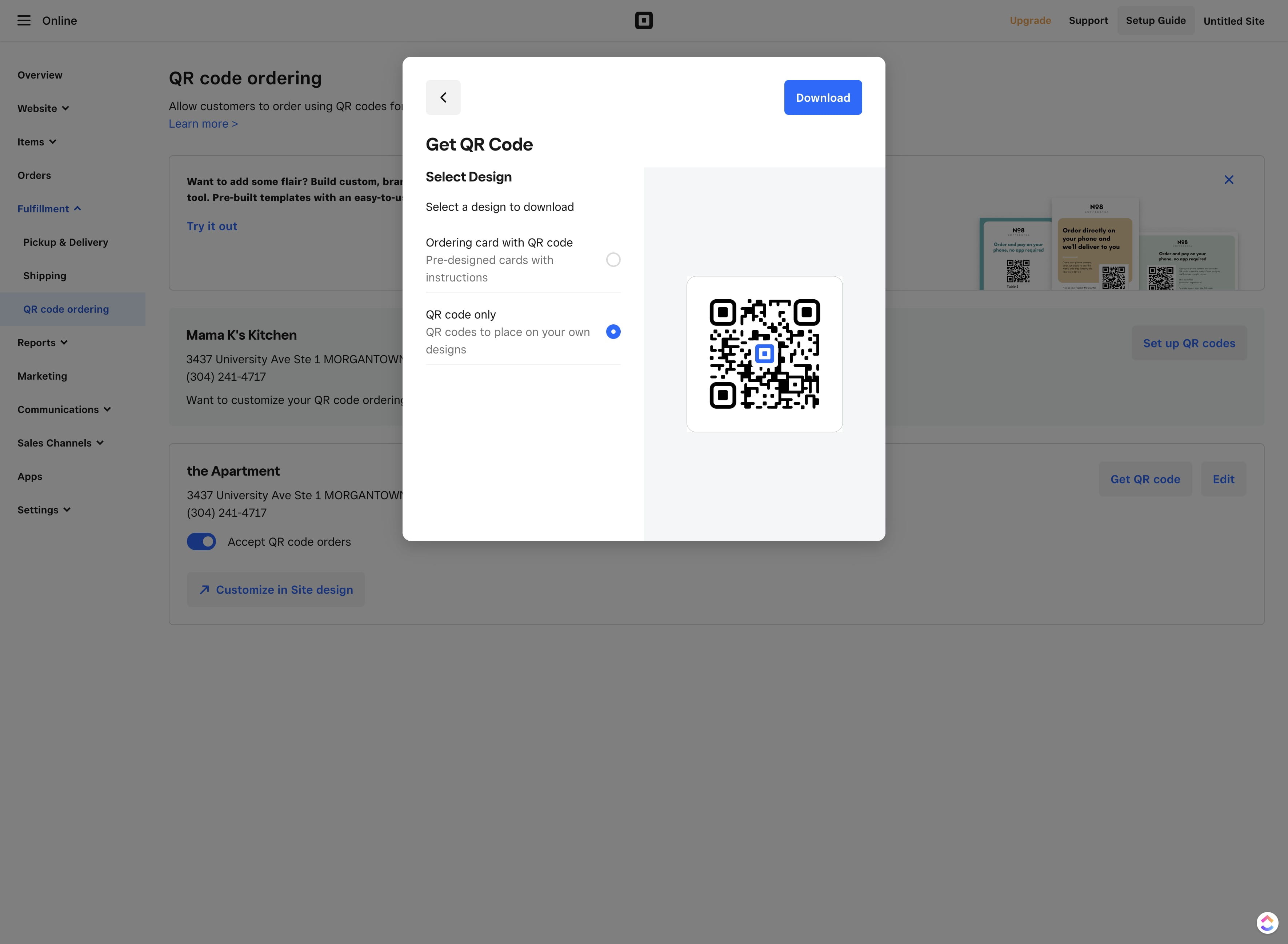
Click here for QR code only. These can be added to your own design in Canva.
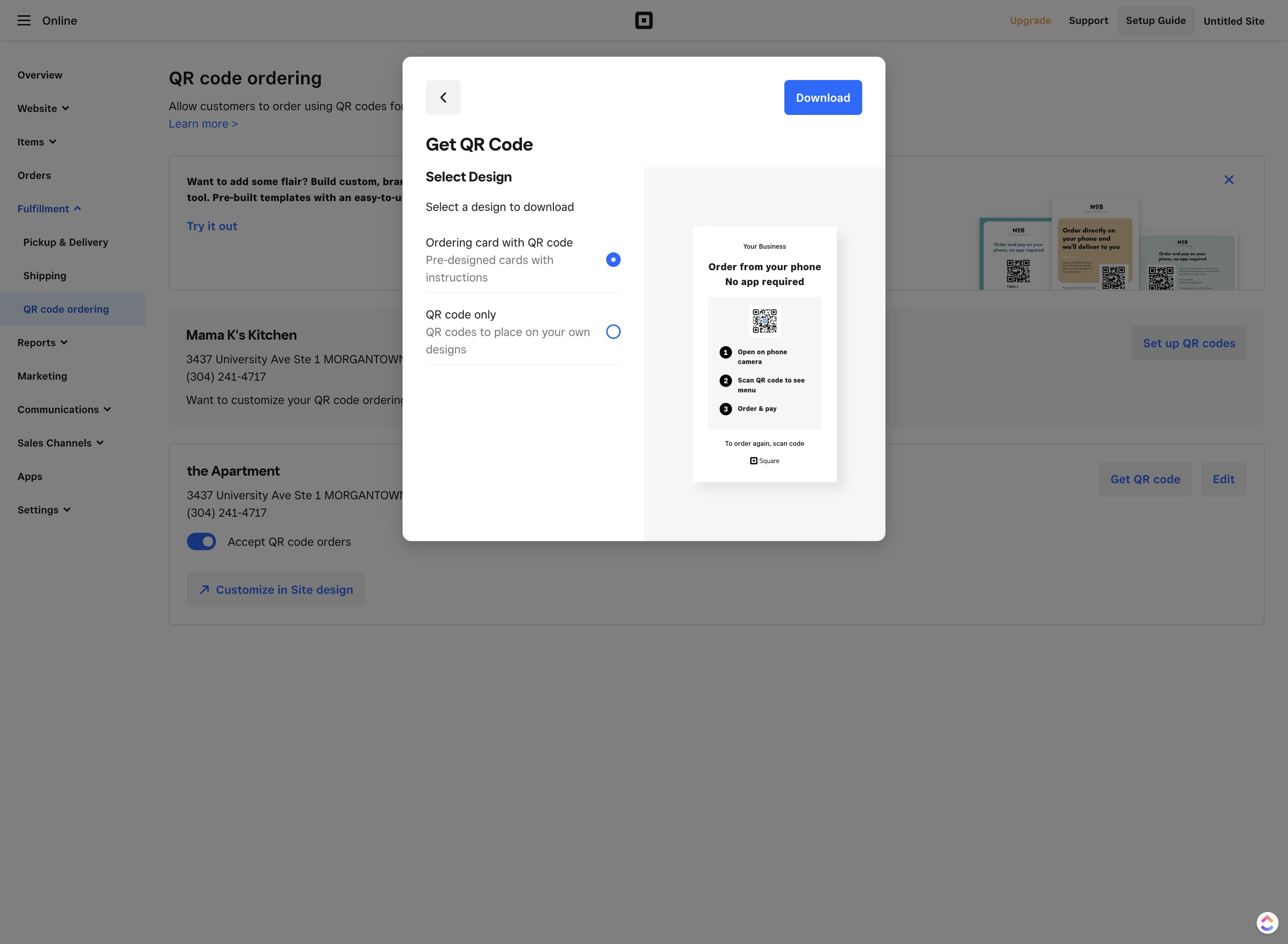
Click here for QR code only. These can be added to your own design in Canva.
51

Click "Download"

Click "Download"
52

Done 🚀

Done 🚀