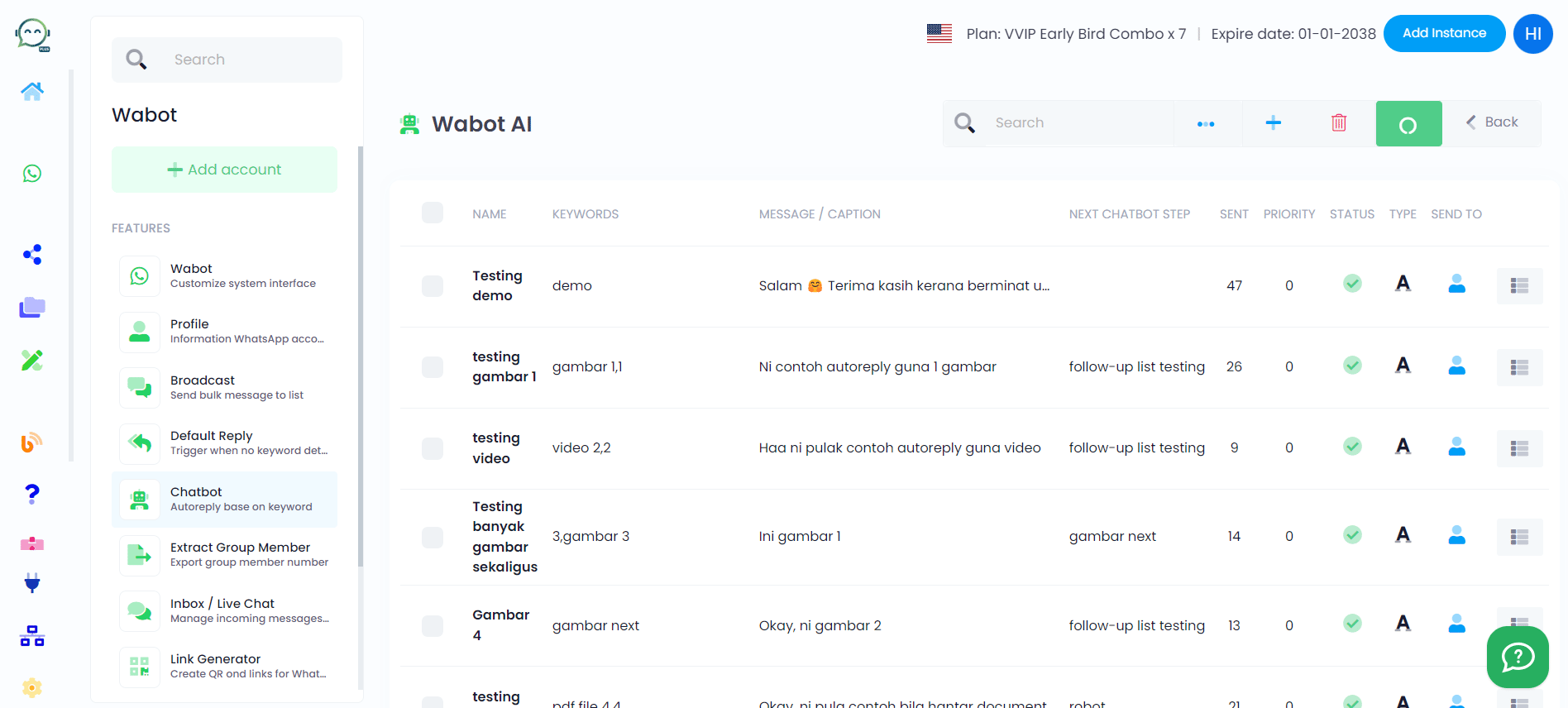
How To Send Multiple Image In Chatbot / Auto reply
Ever wonder how can you share multiple images using auto-replies when the default allows only one image per message? No worries, just follow these steps to share all the images you want!
How To Set Chatbot For 1st Image
Begin by giving your chatbot a name. It doesn't have to be anything fancy, just something easy for you to remember its purpose
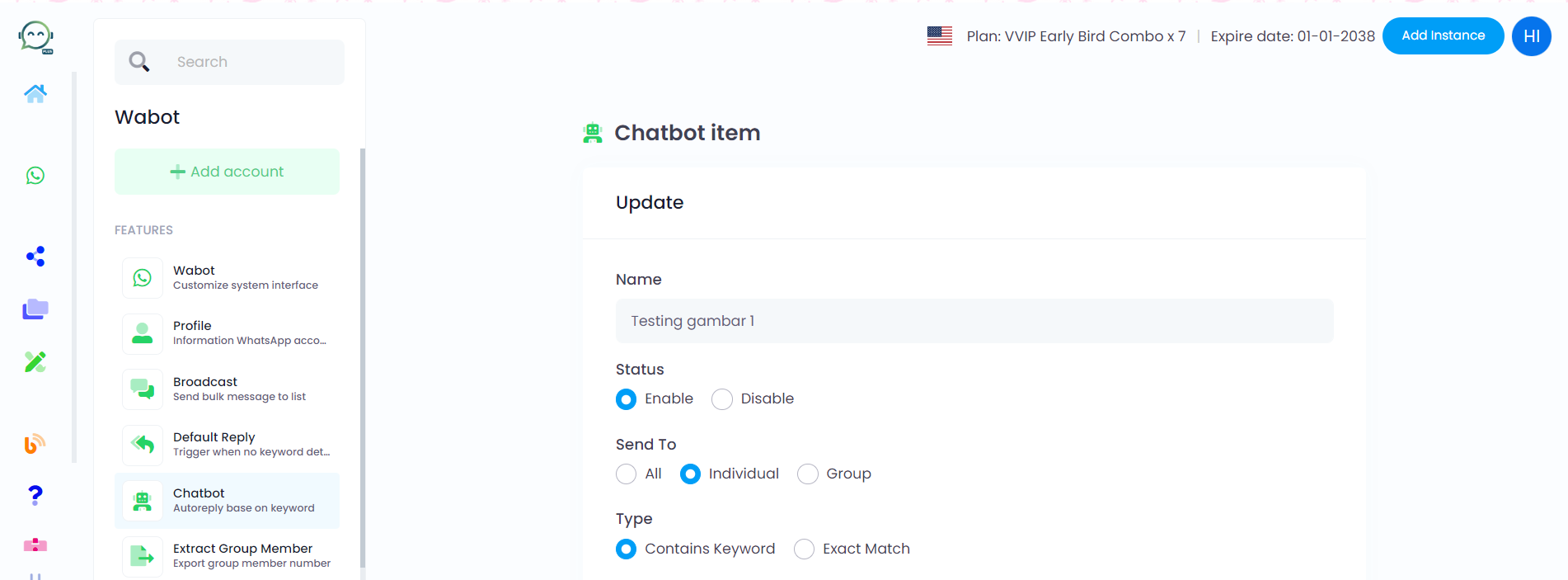

Enable the chatbot, choose your audience (everyone, individual, or group), and for keywords, go with "Contains Keyword"
Enter a user-friendly keyword. Choose something common and relevant, like phrases your customers might naturally use in their replies
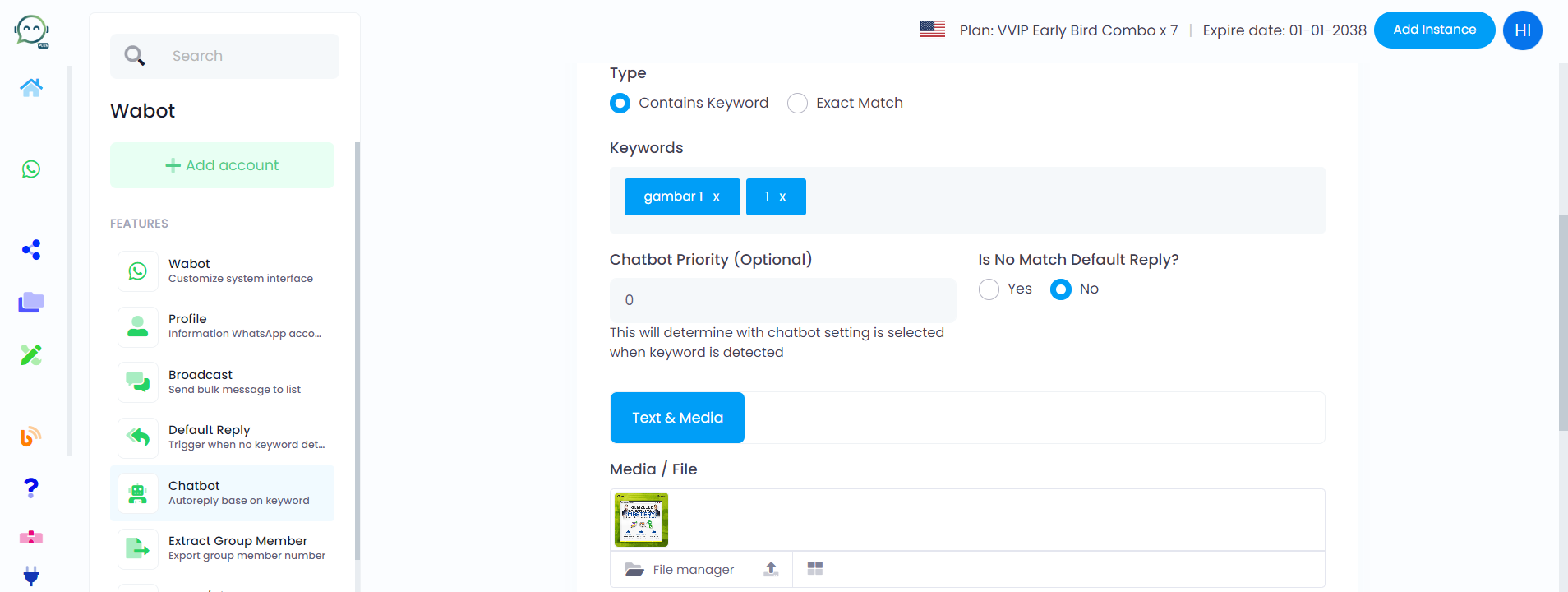
Upload the picture you want and, if necessary, include text with it
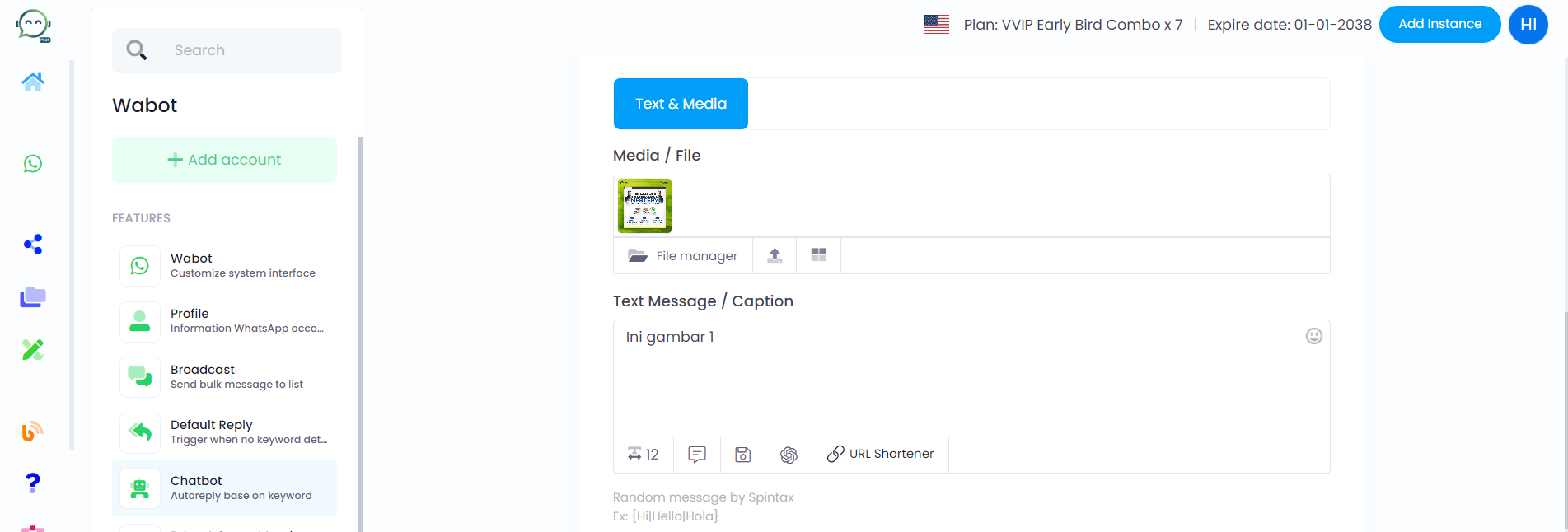
Select "Normal Mode" as this involves a photo, and AI isn't capable of sending images
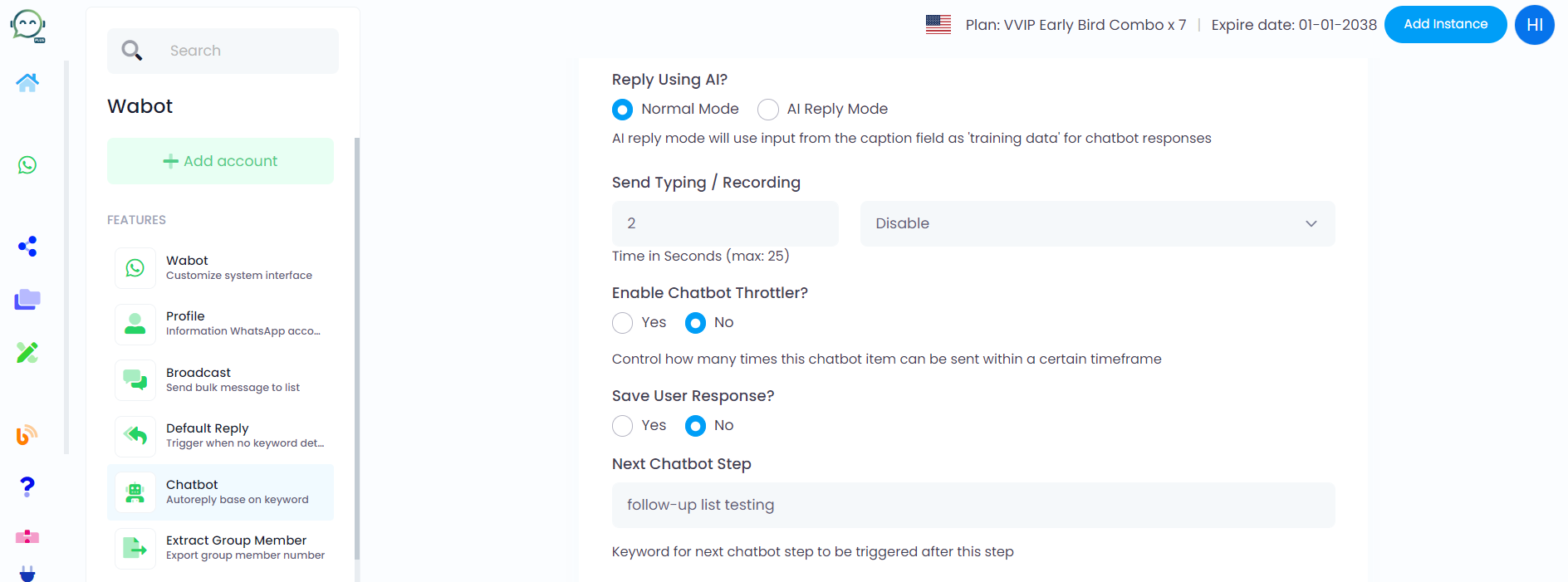
For a delay before image sending, simply put your preferred time, up to 25 seconds
You have the option to enable the chatbot throttler to control the frequency of picture sending within a specific time frame. If you're fine with multiple sends, simply choose "No"
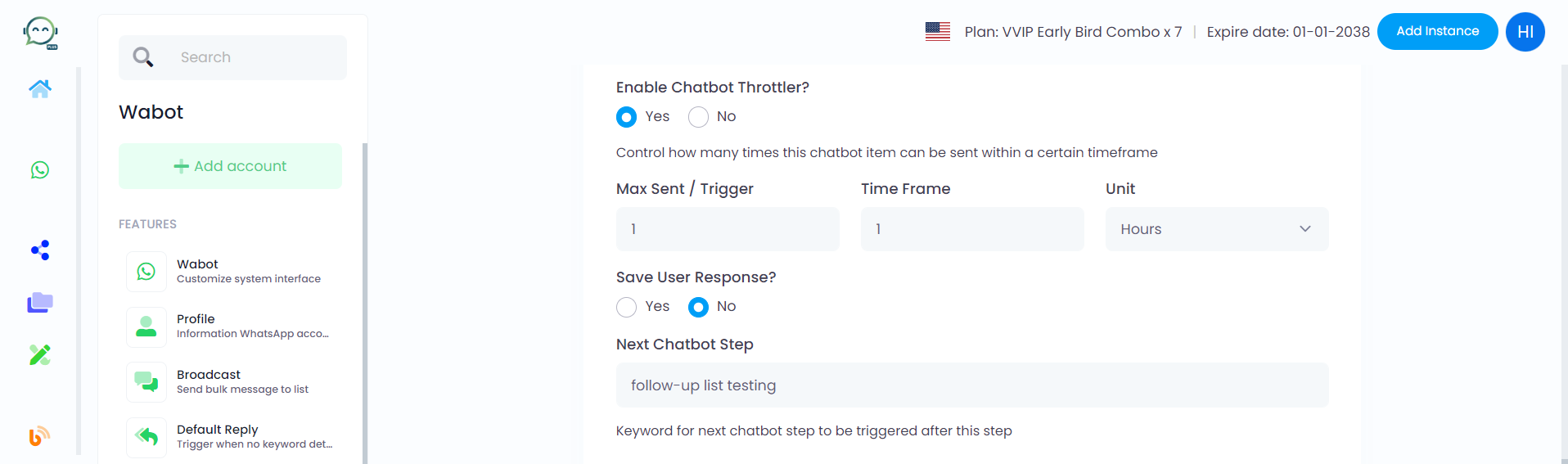
This step is key. "Next Chatbot Step" decides the next action. Use a unique, secret keyword to avoid common triggers. As we're sending multiple images, the keyword initiates the next image
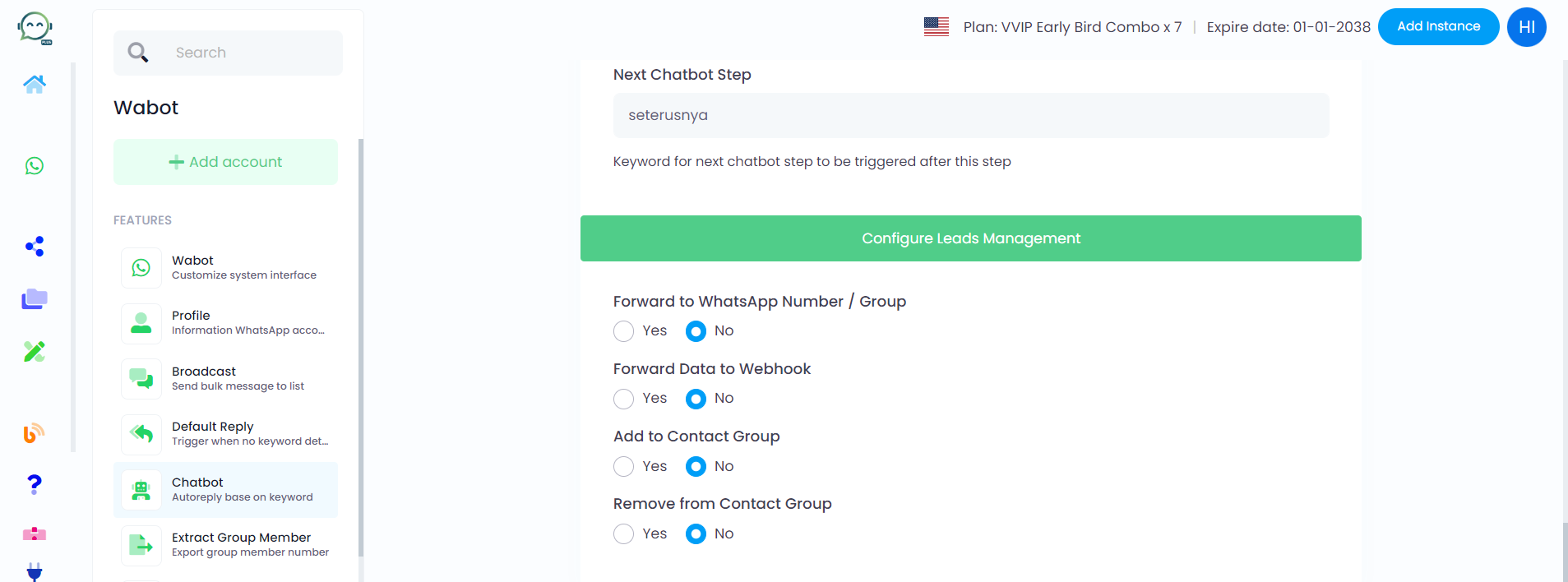
When a customer messages your number on WhatsApp, you can handle their messages by rotating leads among your sales team, saving data for automation, and managing contact groups. If you prefer not to do any of these, simply click "No"
Time To Set Chatbot For 2nd Image
Following the same setup as before, simply name your chatbot as you prefer. Proceed with the remaining settings exactly as demonstrated
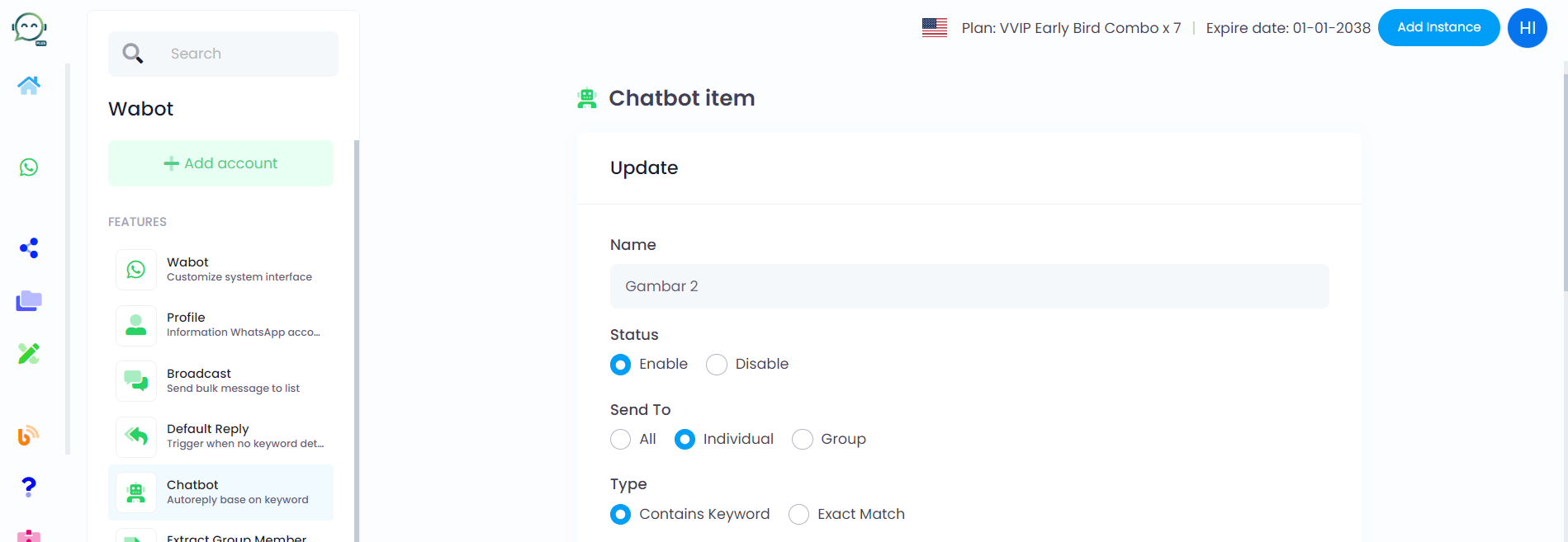
For the "Keywords" section, put the same keyword you used in the "Next Chatbot Step" of the first chatbot
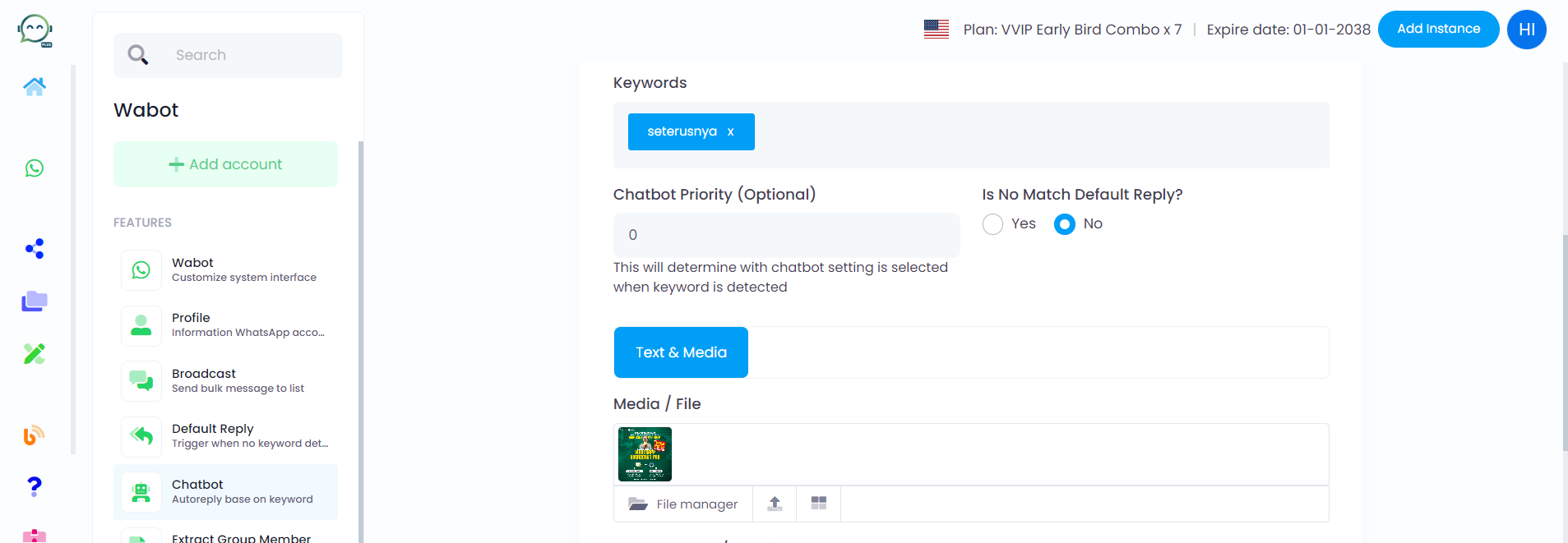
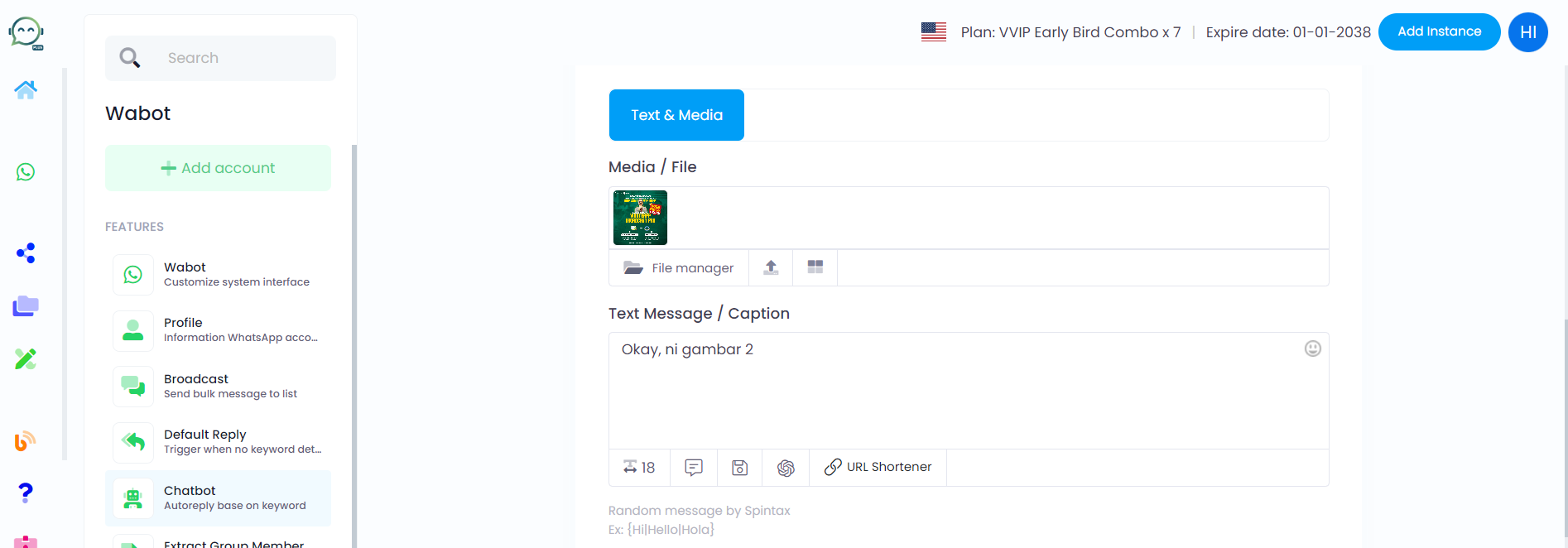
Attach the image you want to send and add text if necessary
Choose "Normal Mode" and adjust the delay as you wish. 0 means no delay from the first picture, so it will be sent out instantly
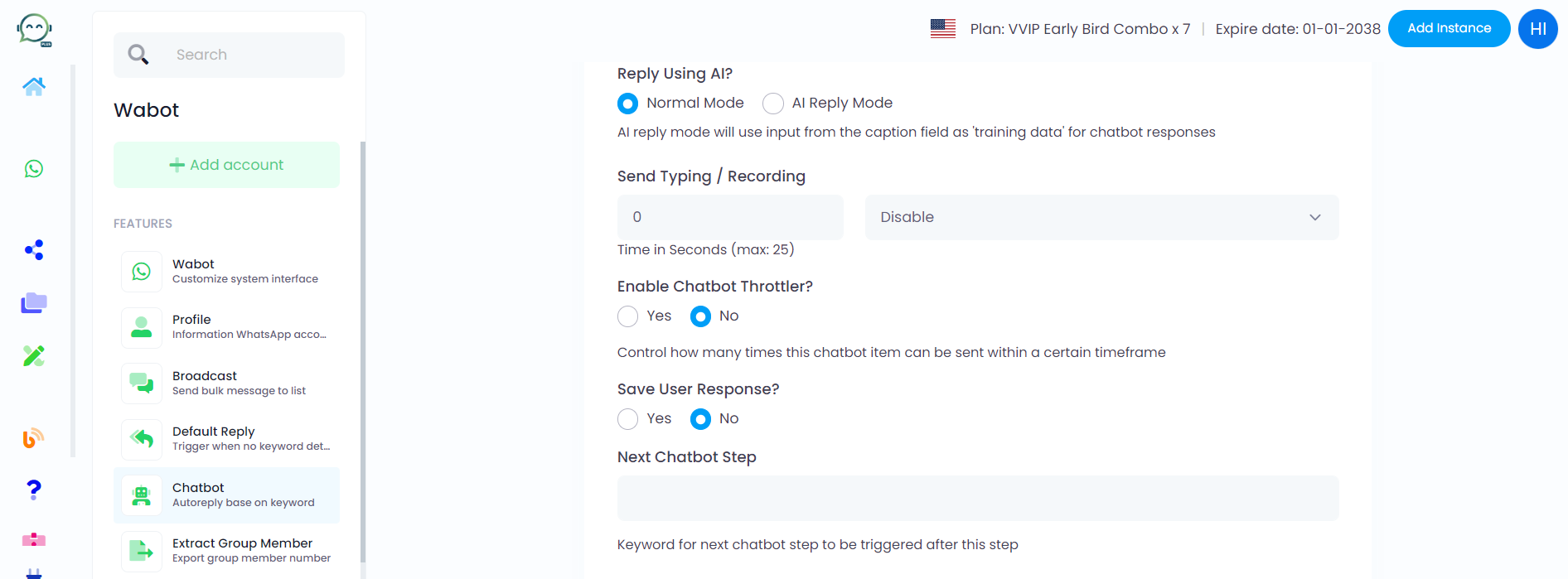
For the "Next Chatbot Step," use a different keyword to proceed to the next image. If there are no more images, simply leave it empty
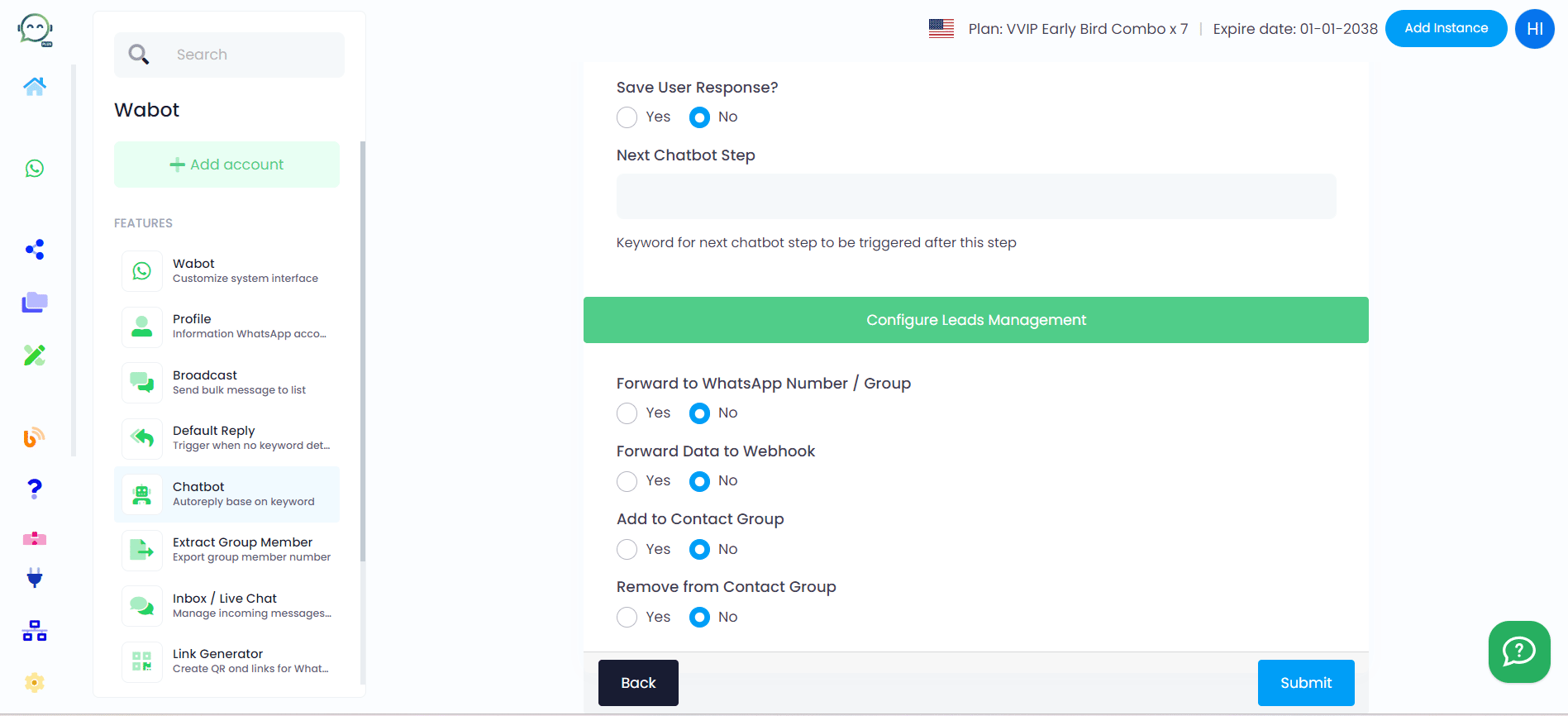
Continue these steps for the 3rd, 4th, and any additional images. Simply replicate the process you've followed earlier
Finally, don't forget to hit play button to activate your chatbot; otherwise, it won't start working
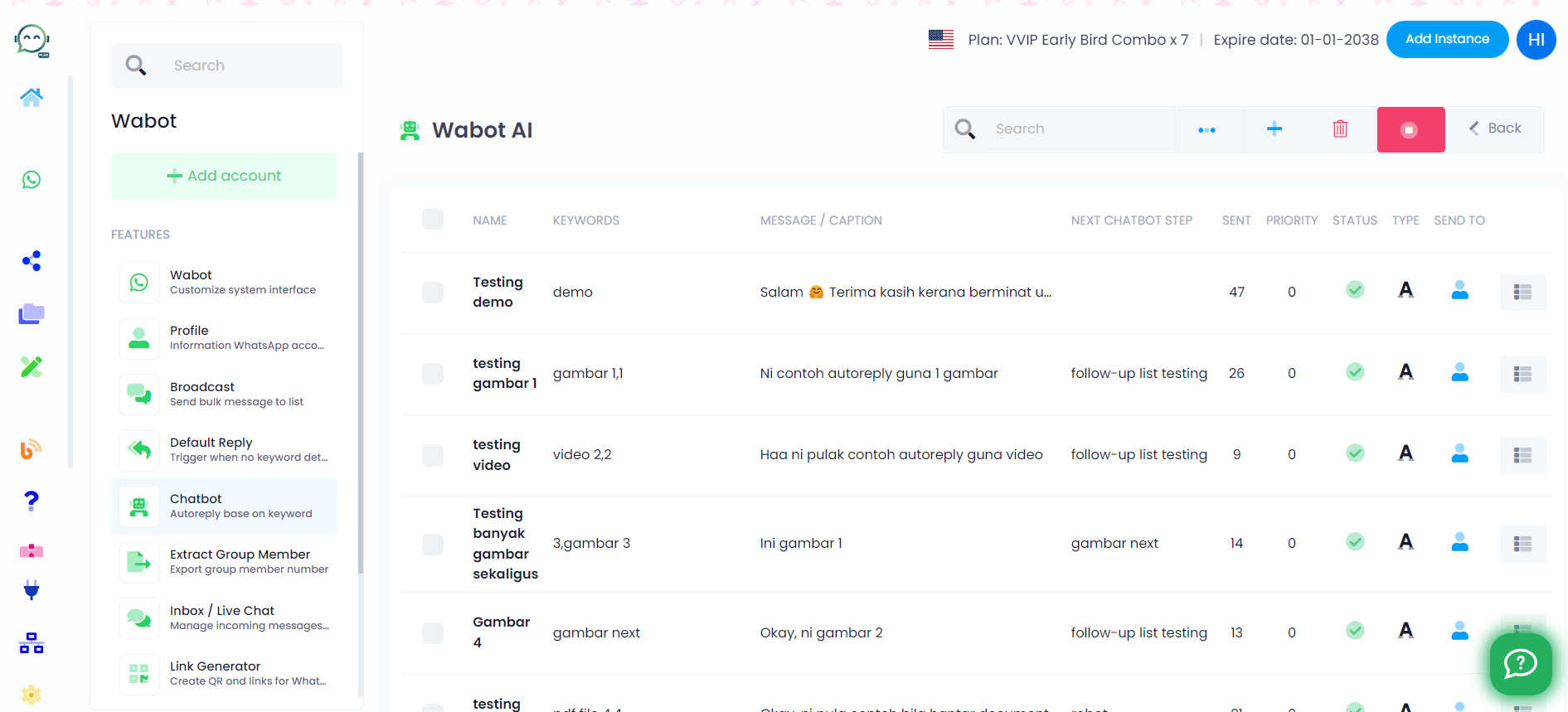
Once it turns green and starts moving, your chatbot is good to go!