Turn a raw screenshot into a visualthat needs no explanation
Point to the exact button, number the steps, hide what is private, and download a full-resolution image.
The toolkit
Eight tools. Nothing you won't use.
- 01
Rectangle
Outline or fill. Box the thing that matters.
- 02
Circle
Ring a button, a toggle, a typo.
- 03
Arrow
Point from here to there. Adjustable head and weight.
- 04
Step numbers
Auto-incrementing badges. Drop 1, 2, 3 in order.
- 05
Text
Labels and callouts with bold, italic and color.
- 06
Blur
Hide emails, keys and names before you share.
- 07
Crop
Trim to the part of the screen that counts.
- 08
Layers
Reorder, hide, duplicate or delete any element.
How it works
Thirty seconds, start to finish.
Drop in a screenshot
Upload a PNG or JPG, or paste straight from your clipboard. Nothing is sent anywhere.
Mark it up
Pick a tool, click the canvas, drag to place. Copy and paste elements between edits with the usual shortcuts.
Download the PNG
Export at full resolution and drop it into your doc, ticket, email or slide.
Why this one
Built for people who explain software.
Private by construction
The whole editor is a canvas in your browser. There is no upload step to skip, because there is no upload. Screenshots of dashboards, invoices and customer records stay on your machine.
Your browser
no upload
Any server
Zero friction
No account, no email, no trial clock. The page loads, you paste, you work. Come back tomorrow and it is exactly the same.
Made for step-by-step
Step numbers increment on their own and text defaults to a readable size. It was built to make how-to guides, so the defaults are the ones you would have picked anyway.
Doing this a lot?
Guidejar can capture and annotate every step for you.
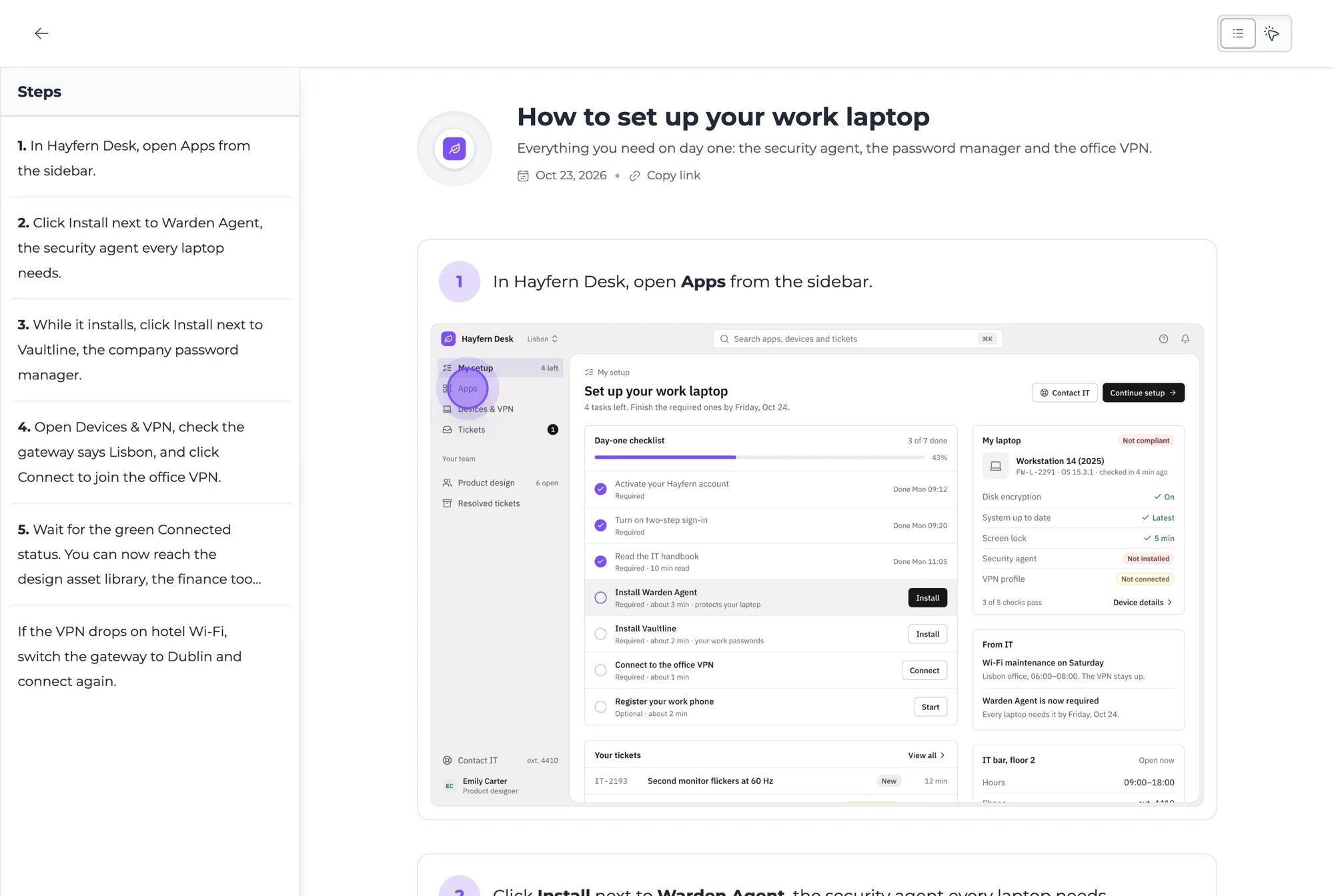
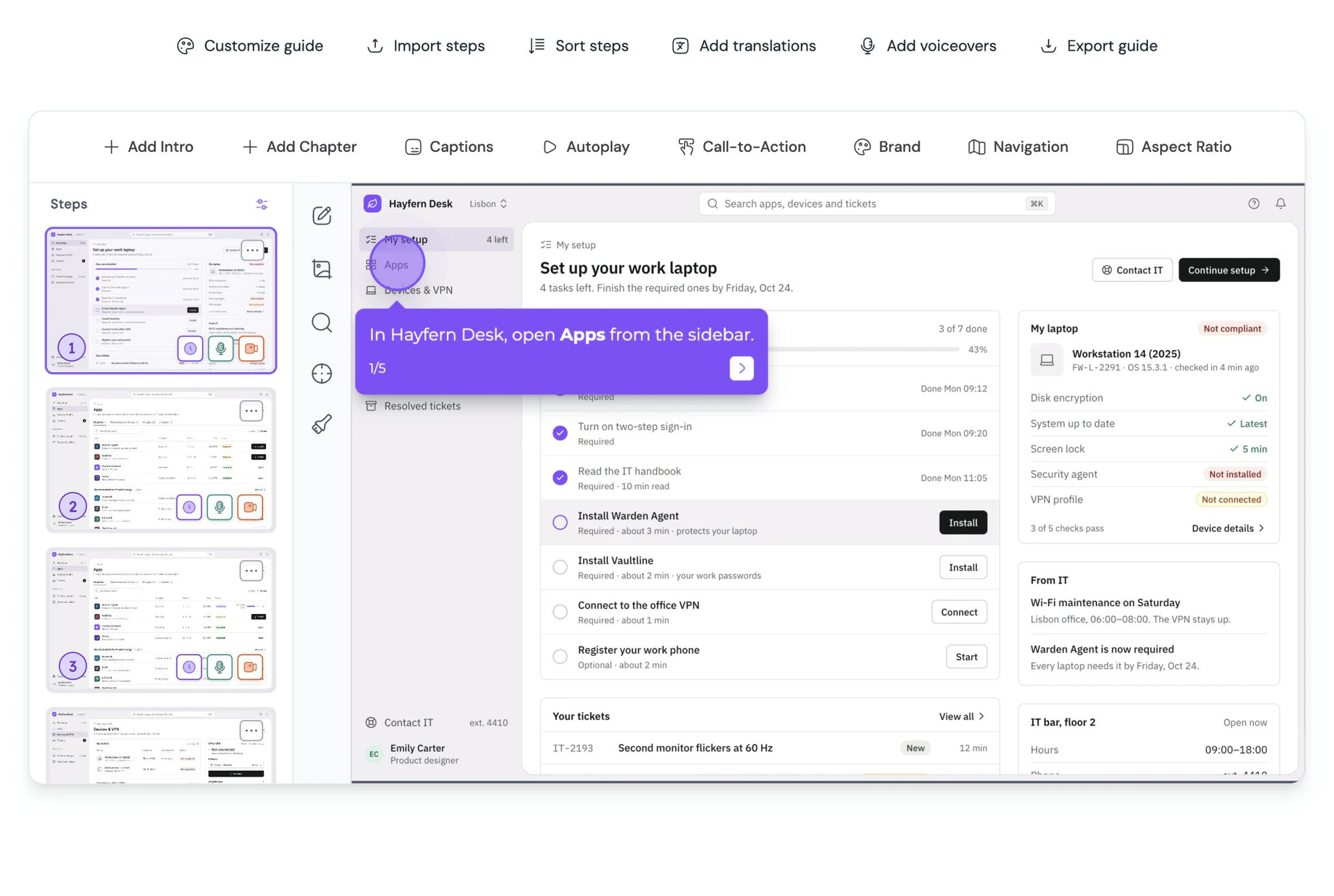
Record a workflow once with the browser extension. Every click becomes a screenshot with the cursor highlighted, cropped and ready. Edit any of them in this editor.
FAQ
Questions, answered.
Yes. There is no account, no watermark and no export limit. It is one of the free tools we publish alongside Guidejar.
No. The editor runs entirely in your browser using a local canvas. Your image never leaves your device, which is why it is safe for screenshots of admin panels, invoices or customer data.
You can open PNG, JPG and WebP images. Edits are exported as a PNG at the original resolution of your screenshot.
Yes. The blur tool masks any rectangular region, and you can adjust how strong the blur is. It is applied to the exported pixels, so it cannot be undone by the recipient.
It does. On phones the editor opens full-screen with a touch-friendly toolbar. For detailed work a laptop or tablet is more comfortable.
That is what Guidejar is for. Its browser extension can record your workflow and automatically produce a step-by-step guide with every screenshot already captured, cropped and annotated.